
Installation
- Install the plugin with the HikaShop or Joomla installer, then publish it in the plugin manager (Hikashop - Fees).
- If a fee depends on data that is not in HikaShop yet (a choice made by the customer, a value on the product), create the custom fields first, in HikaShop under Display, Custom fields.
- Open the settings of the plugin and write your fees, one per row, then save. The fees are added to the cart at the checkout.
Configuration
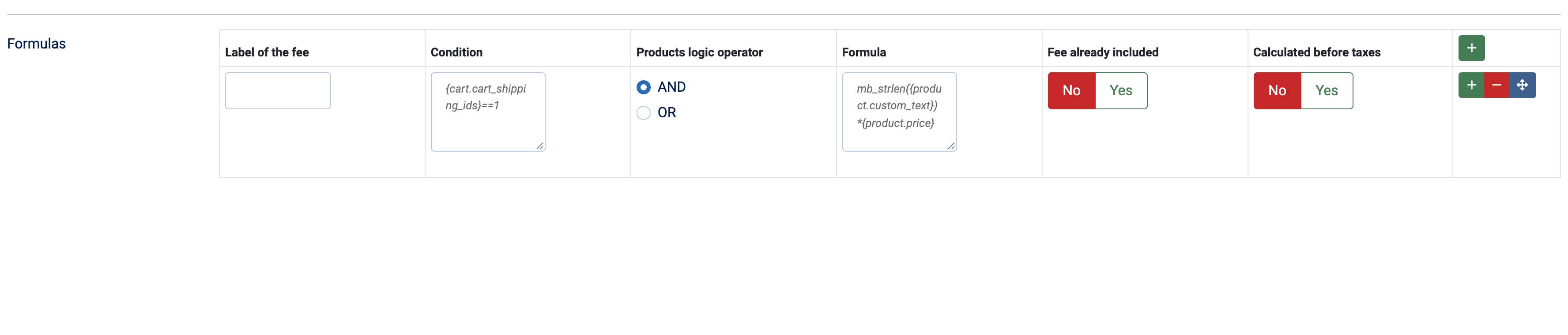
The plugin has one setting, the list of formulas. Use the buttons at the right of a row to add a row, remove it or move it. Each row is one fee, with these fields:
- Label of the fee: the name shown in the cart. A translation key can be used.
- Condition: optional. A test that must be true for the fee to apply, for instance {cart.cart_shipping_ids}==1. Left empty, the fee always applies.
- Products logic operator: only used when the condition contains product or item tags. AND (default) applies the fee when the condition is true for every product in the cart, OR when it is true for at least one.
- Formula: the calculation that gives the amount of the fee, for instance mb_strlen({product.custom_text})*{product.price}. A row without a formula is ignored, and a fee of 0 is not added.
- Fee already included: No (default) adds the fee to the total of the cart. Yes only shows the amount as information, without adding it to the total.
- Calculated before taxes: No (default) works on the prices with taxes. Yes works on the prices without taxes and the fee gets the tax rates of the products, so that a discount made with a negative fee also lowers the taxes of the cart.
In conditions and formulas, write a tag between braces: {product.xxx} or {item.xxx} for a field of the product (the formula is then calculated for each product of the cart and added up), {order.xxx} for a field of the order, {user.xxx} for a field of the customer (for instance {user.user_points}), and {cart.xxx} for data of the cart (for instance {cart.weight}). {order.price} is the total of the cart, {product.price} and {product.unit_price} the price of a product. Add :tax or :notax to a price tag to read it with or without taxes, as in {product.price:notax}. You can use the signs + - * / and functions such as strlen, mb_strlen, abs and decimal. A condition must give true or false, a formula a number.
Troubleshooting
- "The tag ... is invalid in the formula ... Please review the HikaShop Fees plugin settings.": the tag does not match a field of the product, item, order or user, or the field holds several values. Check the name of the custom field.
- The fee does not appear: the formula is empty or gives 0, the condition is false, or a field used by the condition or the formula is empty.
- A calculation error message: the condition or the formula is not a valid calculation. Check the brackets and the signs.