
Installation
- Install the plugin with the HikaShop or Joomla installer, then publish it in the plugin manager (Hikashop - B2BRouter PEPPOL).
- In your B2BRouter account, get an API key, your account ID (numeric, under Accounts) and, if you want one on your invoices, the ID of a bank account (under the Bank Accounts of your account).
- Open the settings of the plugin, fill "API Key", "Account ID" and "Bank Account ID" and save. Keep "Environment" on Staging (test) until everything works, then switch it to Production (live).
- In HikaShop, open System, Order statuses and, in the "B2BRouter" column, tick the statuses for which the invoice must be sent (for instance confirmed and shipped).
The plugin needs the PHP cURL extension and a B2BRouter account with API access. It builds the invoice from the order (products, taxes, shipping and payment fees, discount), looks the buyer up in the PEPPOL directory of B2BRouter and sends the invoice. An order already sent is never sent again; the invoice number, the sending date, the status and a link to the invoice are shown in the details of the order in the back end.
Configuration
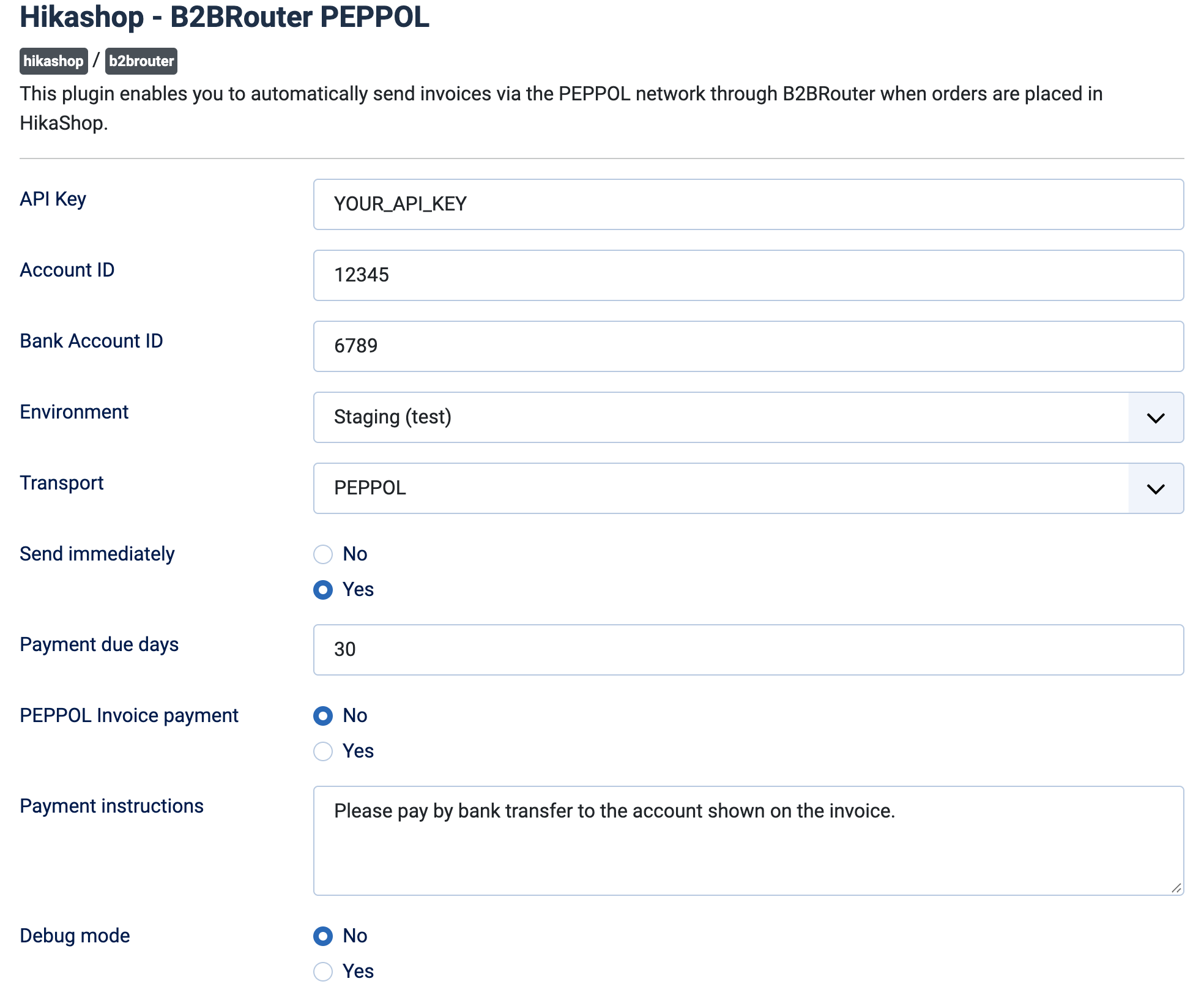
- API Key: your B2BRouter API key. Without it, and without the account ID, nothing is sent.
- Account ID: the numeric ID of your B2BRouter account.
- Bank Account ID: the bank account of B2BRouter used on the invoices. Leave empty if you have none.
- Environment: Staging (test), the default, for trials; Production (live) for real invoices.
- Transport: PEPPOL (default) sends the invoice through the PEPPOL network, which needs the buyer to be registered on it. Email sends the invoice as a PDF by email.
- Send immediately: Yes (default): the invoice is sent as soon as it is created. No: it is only created as a draft in B2BRouter, for you to check and send there.
- Payment due days: the number of days after the invoice date for the payment due date. 30 by default.
- PEPPOL Invoice payment: No by default. Yes adds a "PEPPOL Invoice" payment method at checkout, shown to customers who have a VAT number. The order stays unpaid, the invoice is sent at once by PEPPOL when the order is placed, and you confirm the payment yourself in HikaShop when you receive it.
- Payment instructions: the text written on the invoices sent with that payment method, for instance your bank transfer details. Empty, the bank account information of B2BRouter is used.
- Debug mode: No by default. Yes writes every request sent to B2BRouter and its answer to the HikaShop log.
Troubleshooting
- "The company with VAT number ... is not registered on the PEPPOL network. The e-invoice cannot be delivered electronically.": shown when a customer's address is entered. The buyer must be registered on PEPPOL to receive the invoice that way; ask them, or use the Email transport.
- "No suitable document type" reported by B2BRouter: the invoice was created but the buyer cannot receive it through PEPPOL, for the same reason.
- "Missing api_key or account_id" (log): fill both fields of the plugin.
- "Failed to build invoice data" or "No billing address on order" (log): the order has no usable billing address, so nothing is sent for it.
- "Failed to create invoice" or "B2BRouter API error" followed by a code (log, and in the back end): the end of the message is the answer of B2BRouter and usually points to the cause (key, account, bank account or buyer). A "B2BRouter API cURL error" means the server could not reach B2BRouter.
- To send an order again after a failure: change its status to one that is not ticked in the "B2BRouter" column, then back to a ticked one. An order already submitted is skipped, so no second invoice is made.
- See what is sent: turn on Debug mode and read the HikaShop log.