
Installation
- Install the plugin with the HikaShop or Joomla installer, then publish it in the plugin manager (HikaShop Address Auto fill plugin).
- Get a Google Maps API key for your project. Select the Google Maps Places (new) API for it in your Google Maps account and set up billing for the project.
- Open the settings of the plugin, paste the key in "Google map API key" and save.
An "Address" field then appears at the top of the address forms of the registration, the checkout and the customer's address pages. The customer types the beginning of the address, picks a suggestion, and the other address fields are filled in.
Configuration
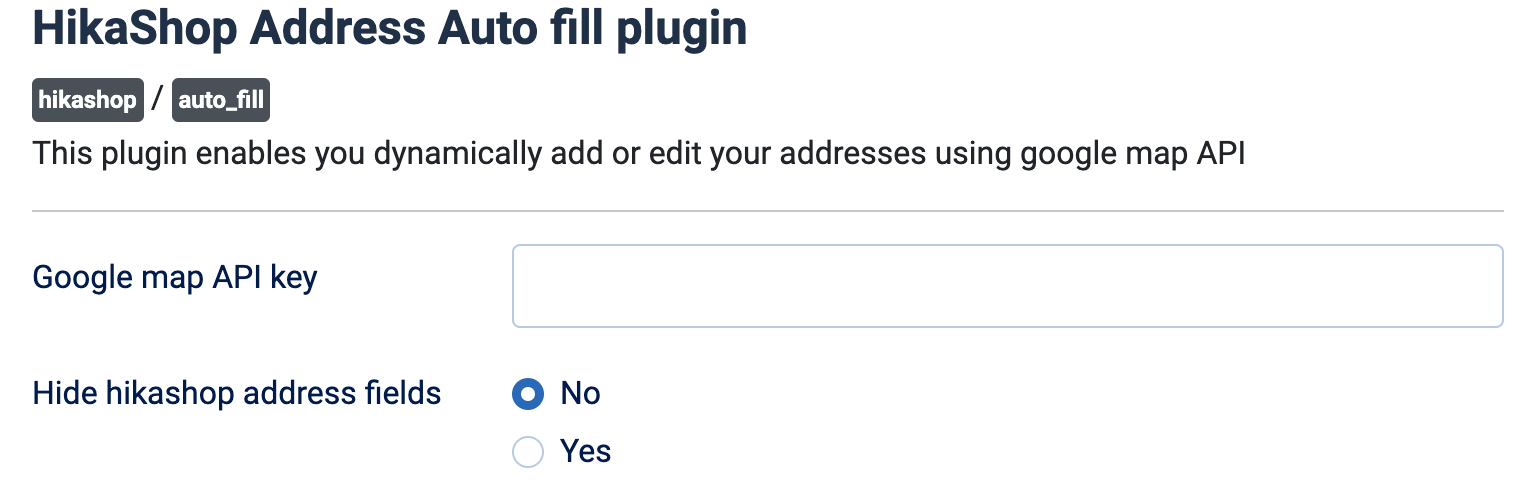
- Google map API key: your Google Maps API key. Empty, the field is not displayed on the site and an error message is shown instead.
- Hide hikashop address fields: No by default, the street, city, post code, state and country fields stay visible and are filled in by the suggestion. Yes hides them, so the customer only uses the auto fill field.
Troubleshooting
- GMAP_KEY_NOT_DEFINED shown on the site: the key is empty in the settings of the plugin. Paste it and save.
- "Request to Google Maps API was denied ..." in red under the field: Google refused the request. Check that the key is correct, that the Maps Places (new) API is allowed for it, that billing is enabled on the Google project, and that the key is allowed for your domain. The console of the browser gives more details.
- The field does not appear: it is only displayed on the front of the site, in the address, registration and checkout forms, and only once the plugin is published.