
Installation
- Install the plugin with the HikaShop or Joomla installer, then publish it in the plugin manager (HikaShop Printify plugin).
- In your Printify account, open Account, Connections and generate a Personal Access Token.
- Open the settings of the plugin, paste the token in "API Token" and save. The "Shop" field then lists your Printify shops: choose the one holding your products and save again.
- Choose the order statuses that send an order to Printify, and the statuses your orders take when Printify starts the production, ships and delivers.
- Edit a HikaShop product and link it to a Printify product with the "Select Printify Product" field (on a variable product, each variation has its own field).
When an order reaches a chosen status it is sent to Printify, and the plugin registers on its own the notifications that Printify then sends back to your shop to update the order status. The tracking number and carrier are added to the history of the order.
Configuration
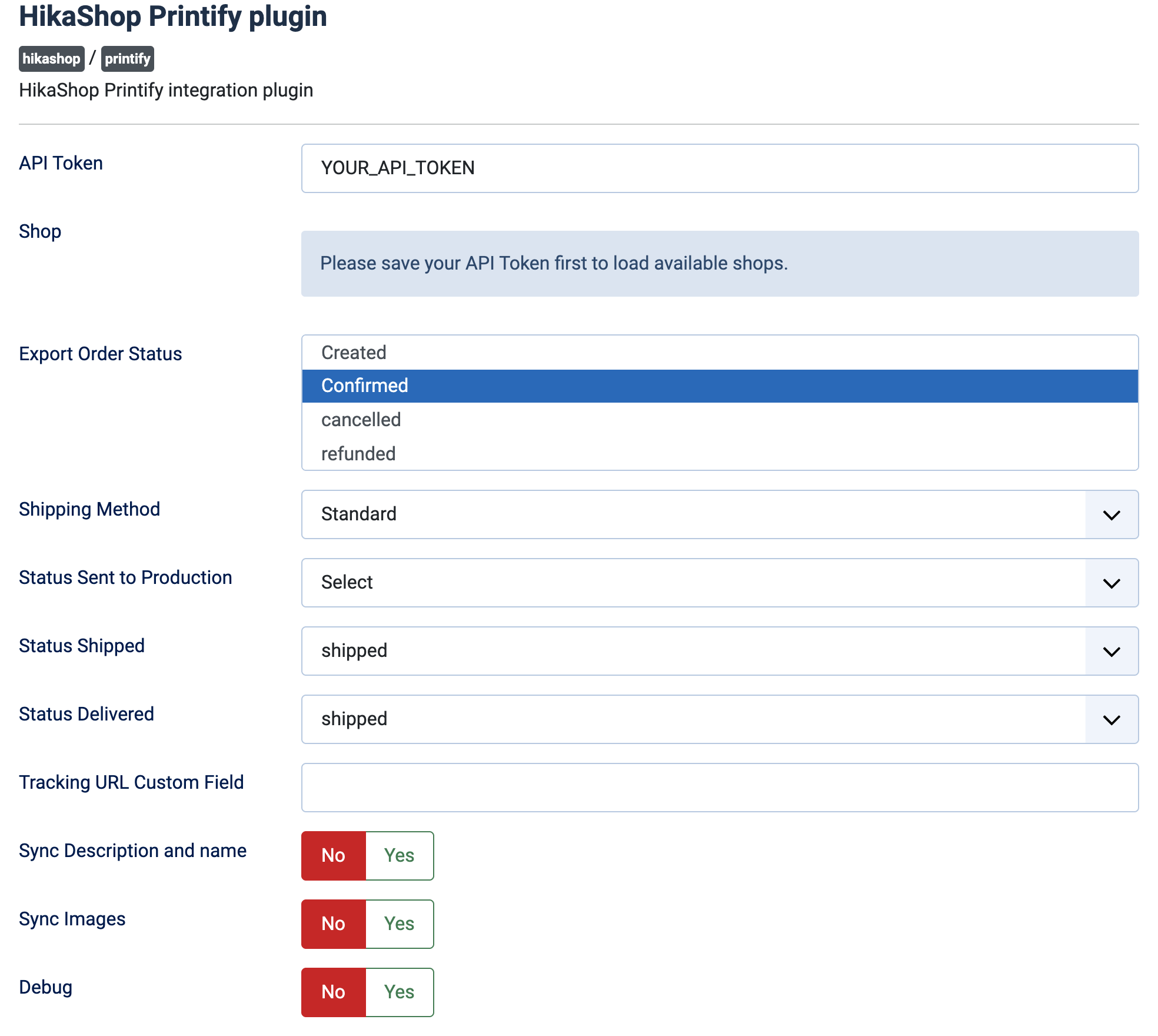
- API Token: your Printify personal access token. Without it nothing is sent.
- Shop: the Printify shop the products are read from and the orders sent to. It shows "Please save your API Token first to load available shops." until a token is saved. With no shop chosen, the first shop of the account is used.
- Export Order Status: the statuses that send an order to Printify (Confirmed by default). An order is sent when it reaches one of them from a status that is not one of them.
- Shipping Method: the shipping speed requested from Printify: Standard (default), Priority, Express or Economy.
- Status Sent to Production: the status given to the order when Printify sends it to production. Empty, the status does not change.
- Status Shipped: the status given when the shipment is created at Printify (shipped by default).
- Status Delivered: the status given when the shipment is delivered (shipped by default).
- Tracking URL Custom Field: optional, the column name of an order custom field where the tracking address is stored. Empty, it is not stored.
- Sync Description and name: No by default. Yes imports the name and the description from Printify when the product is saved with an empty name or description.
- Sync Images: No by default. Yes imports the Printify images of the product when it is linked or when the link is changed. Images you remove afterwards stay removed.
- Debug: No by default. Yes writes the requests to Printify and its answers to the HikaShop log.
Troubleshooting
- "No Printify shop could be retrieved. Check that the API token is valid and has access to your shops." (log): check the token.
- "No shop selected in the plugin configuration. Auto-selecting the first ... shops" (log): choose your shop in the settings if your products are not in the first one.
- "API Error" followed by a code (log): the end of the line is the answer of Printify, for instance an invalid token.
- "Order export failed" (log): the order was not accepted by Printify; the answer follows in the log. Check that the products of the order are linked to a Printify product.
- "Invalid Webhook Signature" (log): a notification that did not come from Printify, or that was signed for another token, was ignored. After changing the token, the notifications are registered again at the next export.
- The order status does not follow Printify: check that the statuses of production, shipped and delivered are chosen.