
Installation
- Install the plugin with the HikaShop or Joomla installer, then publish it in the plugin manager (Hikashop - Abby Invoicing).
- In your Abby account, open Settings, Integrations and copy your API key (it starts with suk_).
- Open the settings of the plugin, paste the key in "Abby API Key" and save.
- In HikaShop, open System, Order statuses and, in the "Abby" column, tick the statuses for which an invoice must be created in Abby (for instance confirmed and shipped).
The plugin needs the PHP cURL extension and an Abby account with API access. An invoice is created when an order reaches one of the chosen statuses, with the customer's billing details, the products, the shipping and payment fees and the discount of the order. An order already sent to Abby is never sent again.
Configuration
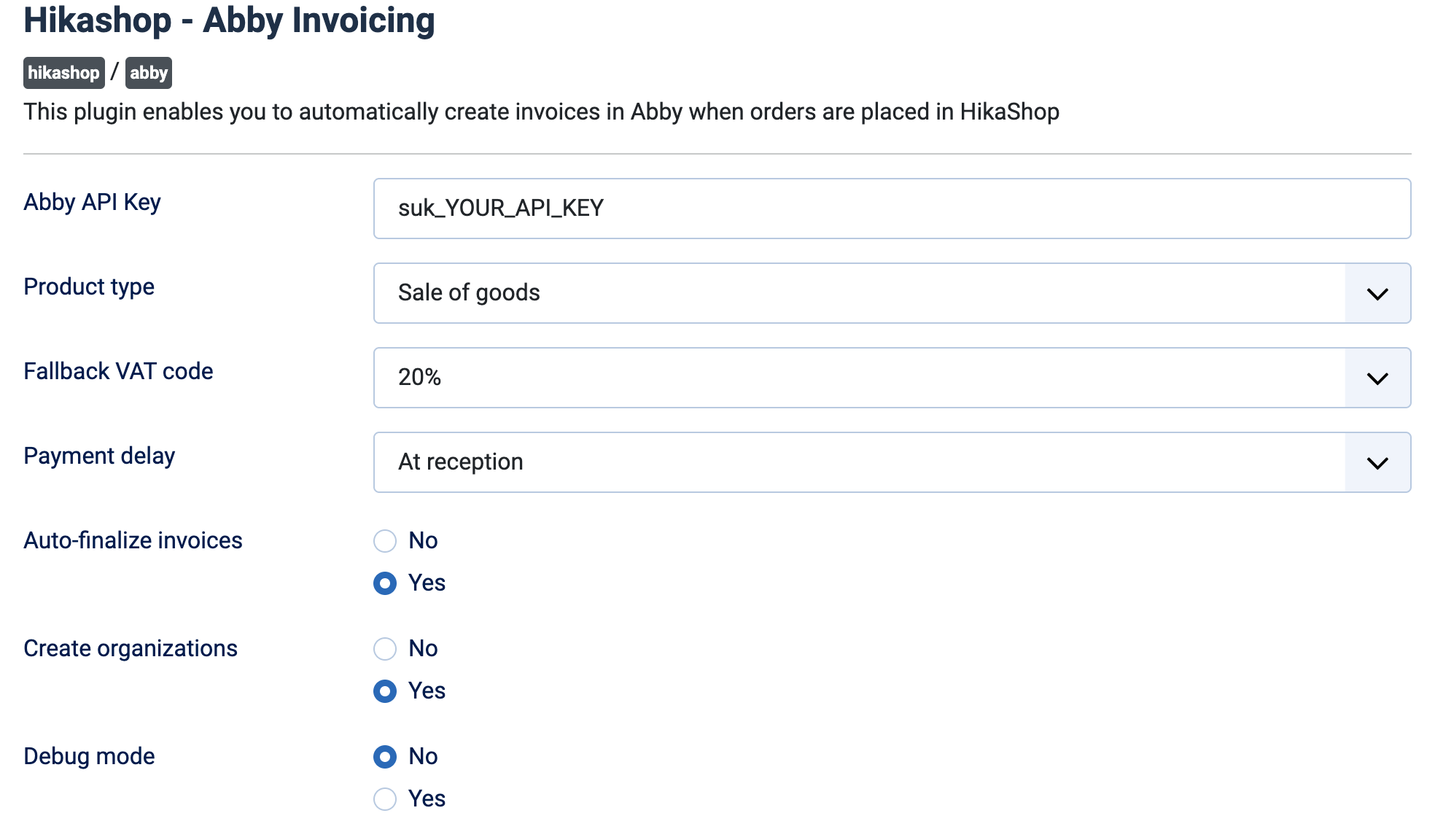
- Abby API Key: your Abby API key. Without it nothing is sent to Abby.
- Product type: Sale of goods (default) or Service delivery. Applied to the product lines of the invoice; the shipping and payment fee lines are always Service delivery.
- Fallback VAT code: the Abby VAT code used when the tax rate of the order is not one of the standard French rates (20%, 10%, 8.5%, 5.5%, 2.1%, 0%), which are recognised on their own. 20% by default.
- Payment delay: the payment term written on the invoice: at reception (default), 7, 15, 30, 45 or 60 days, 30 days end of month or end of month.
- Auto-finalize invoices: Yes (default): the invoice is finalized as soon as it is created. No: it stays a draft in Abby, for you to check and finalize there.
- Create organizations: Yes (default): when the customer gave a company name, an organization is created in Abby and the invoice is linked to it instead of to the person. No: the invoice is always linked to the person.
- Debug mode: No by default. Yes writes every request sent to Abby and its answer to the HikaShop log.
Troubleshooting
- No invoice is created: check that the order status is ticked in the "Abby" column of System, Order statuses, and that an API key is entered. The plugin only acts when an order arrives at a ticked status from one that was not ticked.
- "Abby API error" followed by a code (shown in the back end, and written with the request and the answer in the HikaShop log): the end of the message is Abby's own answer; it usually points to the cause, such as an invalid key.
- Abby API cURL error (log): your server could not reach Abby; check the PHP cURL extension and the connection of the server.
- Failed to find/create customer or Failed to create invoice (log): the order is not exported; read the Abby API error just above it in the log.
- To send an order again after a failure: change its status to one that is not ticked, then back to a ticked one. An order whose invoice was already created is skipped, so this never makes a second invoice.
- See what is sent: turn on Debug mode and read the HikaShop log. The Abby invoice number is shown in the details of the order in the back end.