
Installation
- Install the plugin with the HikaShop or Joomla installer, then publish it in the plugin manager (Hikashop - Price Calculations).
- If the price depends on what the customer types or selects, create the custom fields first, in HikaShop under Display, Custom fields: fields of the product table for your own product data, or fields of the item table for what the customer enters on the product page.
- Open the settings of the plugin and write your formulas, one per row, then save.
Configuration
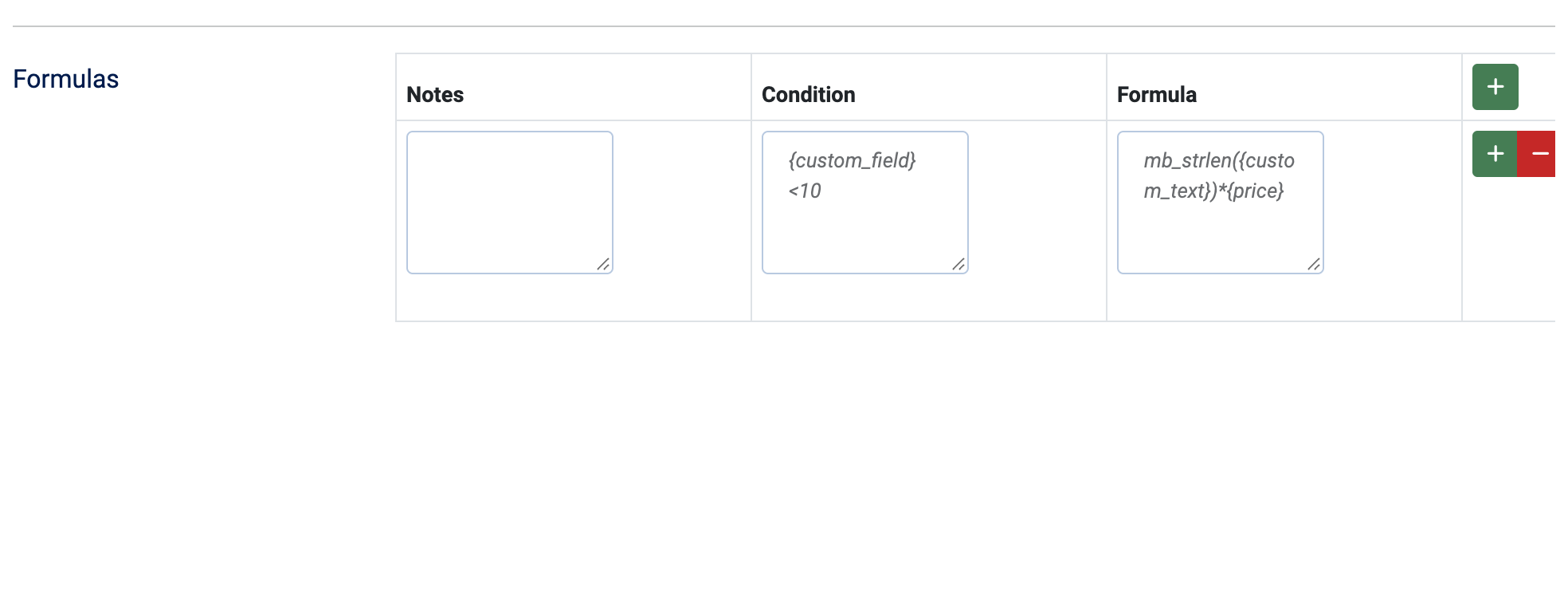
The plugin has one setting, the list of formulas. Use the buttons at the right of a row to add a row, remove it or move it. Each row has three fields:
- Notes: a reminder for yourself. It is not used.
- Condition: optional. A test that must be true for the row to be used, for instance {custom_field}<10. Left empty, the row has no condition and its formula is always used.
- Formula: the calculation that gives the price, for instance mb_strlen({custom_text})*{price}. A row without a formula is ignored.
For each product, the rows are tried from the first to the last and only the first row whose condition is true is applied. If no row matches, the price stays as it is.
In conditions and formulas, write a custom field between braces, with its column name, for instance {product_width} or the name of a custom field of the item table. These tags are also available:
- {price}: the unit price of the product, with the selected variant and options.
- {cart_product_quantity}: the quantity added to the cart.
- {currency_id} and {currency_rate}: the currency the price is shown in and its exchange rate to the main currency.
After a tag, you can add modifiers: :notax keeps the value from being taxed (for a division or a fixed fee), :withtax forces it to be taxed, and :optional:VALUE gives a default value when the field is empty, for example {extra:optional:0}. They combine, as in {extra:optional:0:notax}. You can use the signs + - * / and the functions round, ceil, floor, abs, strlen, mb_strlen, substr, trim, str_word_count and decimal.
Troubleshooting
- "The tag ... is invalid in the formula ... Please review the HikaShop Price Calculations plugin settings.": the formula uses a tag that is not a field of the product or item tables, or a field that holds several values. Check the column name of the custom field.
- The price does not change: the formula is empty, its condition is false, or one of its fields is empty for that product. Add :optional:0 after the tag of a field that can be empty so that the formula still works.
- A calculation error message in the backend: the formula is not a valid calculation. Check the brackets and the signs.