
Installation
- Install the plugin with the HikaShop or Joomla installer, then publish it in the plugin manager (Hikashop - Address geocoding).
- Get a Google API key for your Google account. The Geocoding API must be allowed for this key, and the Distance Matrix API too if a plugin of yours uses distances.
- Open the settings of the plugin, paste the key in "Google API Key" and save.
The plugin needs the PHP cURL extension. Once it is enabled, each address a customer or an administrator creates or modifies is sent to Google, and the coordinates found are saved with the address. This is meant for the plugins that need the position of an address, such as a shipping plugin working with distances.
Configuration
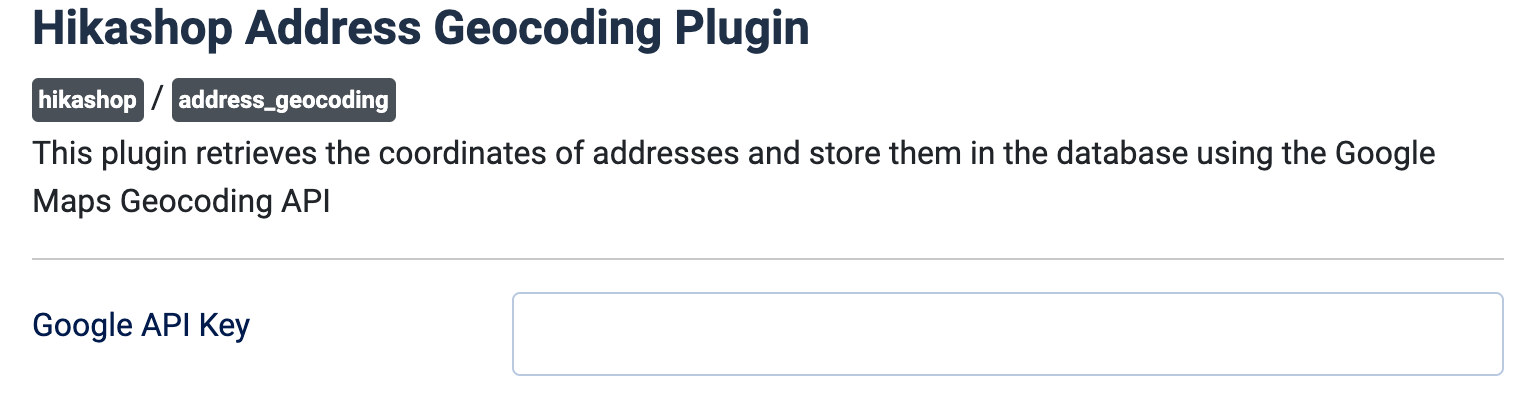
- Google API Key: your Google API key. Empty, nothing is geocoded and an error asking for the key is shown.
An address is only sent when it has at least a street and a city, and only again when one of its address fields changes.
Troubleshooting
- "Please enter your Google API Key in the settings of the Address Geocoding plugin via the Joomla plugins manager.": paste the key in the settings of the plugin and save.
- "Could not connect with curl" (HikaShop log): your server could not reach Google. Check that the PHP cURL extension is enabled and that outgoing connections are allowed.
- A status other than OK, followed by Google's message (HikaShop log): Google refused the request. The message usually says why, for instance that the key is wrong, that the Geocoding API is not allowed for it, or that billing is not set up on your Google project.