
- Details
- Written by: Jerome
- Category: HikaSerial
- Hits: 16035
The group association consumer is the first consuming plugin in HikaSerial.
His goal is to add the user to a new group while consuming a serial.
Parameters of the plugin
The configuration of the plugin is really simple and have two options
Pack - You have to select the pack which will contains the serial that the configuration will accept.
When a serial from this pack will be consume, this configuration will be triggered and the logged user will receive a new group
Group - You have to select the new group for the logged user. In Joomla 1.5 you can't have several groups in the same time but since Joomla 2.5, you can.
- Details
- Written by: Jerome
- Category: HikaSerial
- Hits: 20192
Presentation
The PDFSecure plugin allow you to protect PDF files by requesting a password to access its content
The plugin uses the same features that Secure-ebook platform was providing.
PDF password protection will be based on the serial code, which will become the key for the file.
The plugin do not need any configuration, just a special filepath to let the plugin override the download.
Initiate the plugin
For an HikaShop product linked to an HikaSerial pack, upload a PDF file.
Edit the HikaShop product file and change its Filename by adding the special code as prefix:
#hikaserial:pdfsecure:If your PDF file is my_pdf_file.pdf it will become #hikaserial:pdfsecure:my_pdf_file.pdf.
The PDFSecure plugin will detect that special prefix, open the PDF file and apply the password protection thanks to the serial related to the product in the customer order.
Legacy plugin (Secure-ebook)
The Secure-ebook plugin do not work anymore since the platform has ceased its activities on March 6th, 2017.
- Details
- Written by: Jerome
- Category: HikaSerial
- Hits: 25024
The attach serial plugin is an integration plugin.
It allow you to create dynamic images and print your serial data into. It is quite useful for vouchers, raffles, gift cards, seat tickets...
Parameters of the plugin
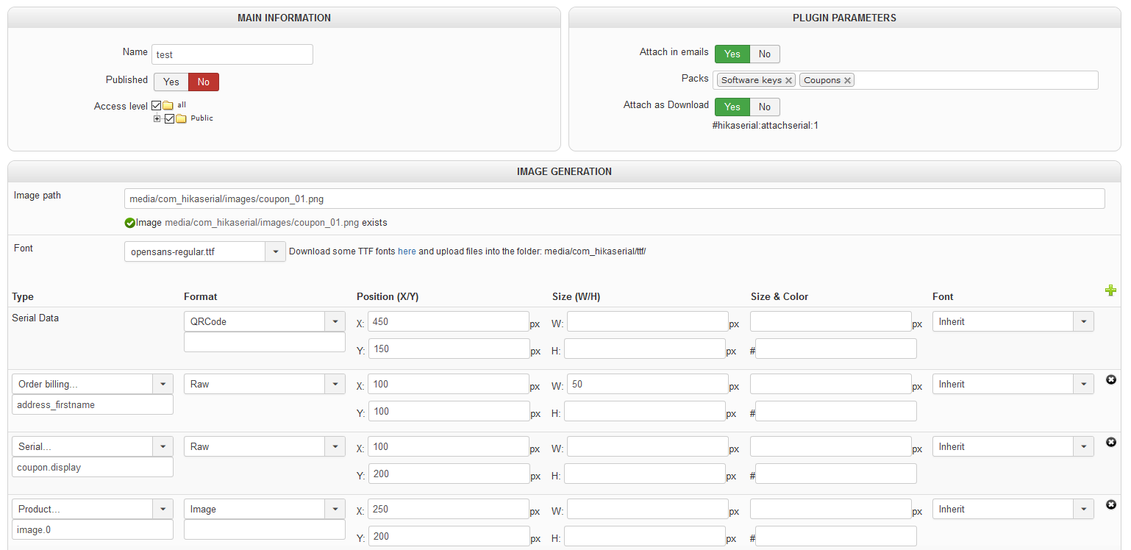
Name - The name for the plugin configuration. This name is only display in the backend and users won't see it.
Published - Does the configuration could be use, or not.
Attach in emails - Activate or not the attachments in emails for the designated packs.
Packs - The list of pack id, separated with coma. This option requires the "attach in email" activated to work.
Attach as Download - Indicate if the configuration could be use with dynamic download.
Image path - The image used as template. The image could be a relative path (from your joomla root directory), a relative path from the HikaShop upload directory or a full path.
Font - The font that you want to use. You can add font by upload your TTF files into the media/com_hikaserial/ttf/ folder.
Image content
Type - The type of data
Format - The output format (raw text, a formatted date, a qrcode or a barcode)
Position (XY) - (numbers) The position (X and Y) in pixels where the content would be printed.
Size (W/H) - (numbers) The limitation size in pixels (Width and Height) for the text. If empty, the text won't have size limitation.
Size - (number) For text the font size to use, in pixels. If not specified, "12" would be used. For QRcode it is the square size.
Color - The color with the color format #RRGGBB that is used in HTML/CSS If you are using a GIF image or a PNG image with indexed colors, the plugin could have some problems to create the designated color. JPG and PNG with true color are recommended.
Font - The font override for the text. Use "Inherit" to use the default font.
Types
- Serial Data - Display the serial data
- Serial... - Display an element from the table "serial". You have the specify the column name
- Order... - Display an element from the table "order". You have the specify the column name
- Order Product... - Display an element from the table "order product". You have the specify the column name
- Product... - Display an element from the table "product". You have the specify the column name
- Order Customer... - Display an element from the table "user". You have the specify the column name
- Order Shipping... - Display an element from the table "address". You have the specify the column name
- Order Billing... - Display an element from the table "address". You have the specify the column name
- Entry... - Display an element from the table "entry". You have the specify the column name
- Raw Text... - Display a raw text, the exact same text you will specify.
- Dynamic Text... - Display a dynamic text, the elements between brackets will be replace. Like "{order_product.product_id}" to display the product id from the table order_product.
- Translation... - Works like the dynamic text but it uses a translation key. (See example below)
- Product Price (inc vat) - Display the product price with taxes, well formated (with currency).
- Product Price (ex vat) - Display the product price without taxes, well formated (with currency)
Types
- QRCode - you can choose the level for error correction
- L - low (7%)
- M - medium (15%)
- Q - quartile (25%)
- H - high (30%)
- Barcode - they are a lot of available format for the bar codes.
The most common format is ean13 but you can also use the formats :
ean8, int25, code39, code128, upca, upce, postnet
But you have to be sure that the content (the serial data) is compatible with the barcode selected format ; otherwise you will have a blank image.
Attach as Download
The setting "attach as download" gives you a special content with the form (where XXXX is a number):
#hikaserial:attachserial:XXXX
For the products related, you can add a file in the HikaShop backend and use that content as a special URL.
Example :
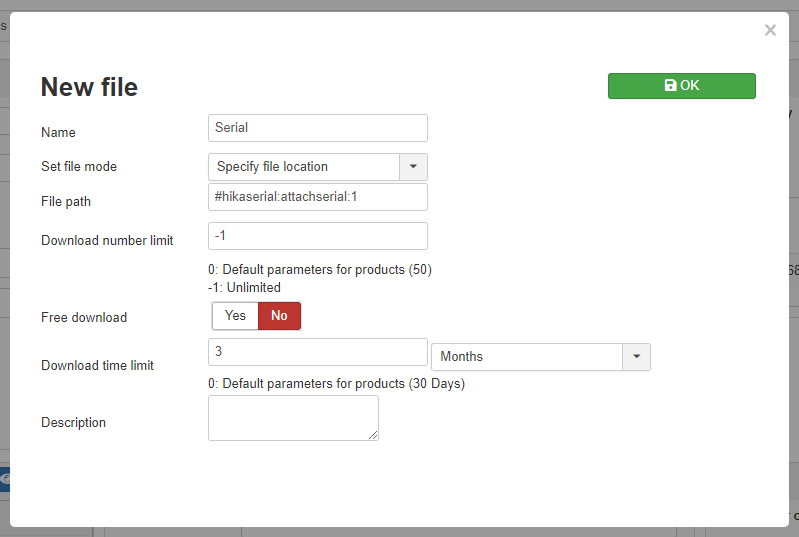
Once the product got that file, your customers will be able to download the attach serial dynamic image via their order detail.
You will also have a download link in the order details from the HikaShop backend.
Downloadable images are quite useful to perform tests, you can modify your attach serial configuration and re-download the image from the backend as long as you want.
Configuration example
If you want to create your first ticket, you can use this example which would provide you a little configuration.
First, you can download our Template ticket and upload it into your "images" directory.
Use it as your "Image path" : images\ticket.png
| Type | Format | Position (X/Y) | Size (H/W) | Size & Color | Font |
|---|---|---|---|---|---|
| Serial data | Raw | X: 25 Y: 170 |
W: 300 H: |
25 #5e5e5e |
Inherit |
| Dynamic text http://www.hikashop.com/product/{order_product.product_id}-{order_product.order_product_code} |
QRCode | X: 355 Y: 110 |
W: H: |
4 #223355 |
Inherit |
| Dynamic text> http://www.hikashop.com/product/{order_product.product_id} |
Raw | X: 30 Y: 120 |
W: H: |
10 #5e5e5e |
Inherit |
| Translation HI_CUSTOMER_SERIAL |
Raw | X: 25 Y: 20 |
W: H: |
14 #5e5e5e |
Inherit |
| Translation COUPON_INSTRUCTION_1 |
Raw | X: 20 Y: 45 |
W: H: |
12 #5e5e5e |
Inherit |
| Translation COUPON_INSTRUCTION_2 |
Raw | X: 20 Y: 60 |
W: H: |
12 #5e5e5e |
Inherit |
Edit your language file and add these overrides
HI_CUSTOMER_SERIAL="Hi {billing.address_firstname} {billing.address_lastname} !"
COUPON_INSTRUCTION_1="You can use the coupon to have a great discount !"
COUPON_INSTRUCTION_2="Follow the link or the tag to see the product"
And you would have a result like this: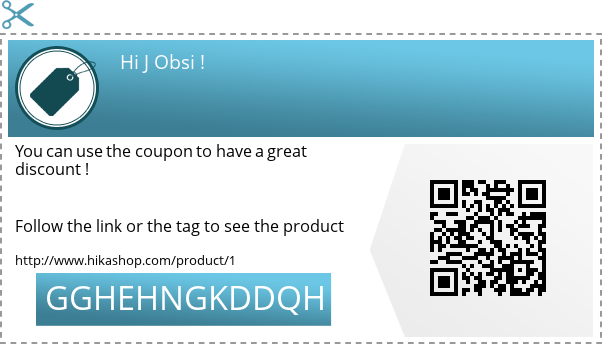
- Details
- Written by: Jerome
- Category: HikaSerial
- Hits: 17087
The series generator plugin is a basic serial generator.
The plugin will generate consecutive serials, starting from the minimum value you set, to the maximum one.
There is no random in that plugin, it will use a counter (related to the pack) and increment it each time a serial is generated.
If you have several series generators for different packs, each one will be stand alone and have his own counter.
Parameters of the plugin
Min value - The minimum value for this configuration. If empty, the plugin would start to 1.
Max value - The maximum value for this configuration. If empty, there won't have any limitation.
Serial format - You can specify a format (using the sprint format) of your serial. Like "SEAT-%05d" to have serials like "SEAT-00001"
- Details
- Written by: Jerome
- Category: HikaSerial
- Hits: 8886
 |
Thank you for using HikaSerial! The HikaShop Component has been successfully installed on your website.
|
 |
Manage HikaSerial like a pro with our integrated documentation
On every page you will see a button «help». Do not hesitate to click on it.
|
 |
The entire Obsidev team put a lot of energy in this component and carefully tested it.
Nevertheless, if you have any bug with HikaSerial, we would really appreciate if you could make sure we are aware of this issue by submitting a new post on our forum
|

