
| {img} |
Description
This screen enables you to edit the payment method options. Payment methods will be filtered on checkout based on the zone you set for them, if any. Then, they will be displayed to the user for him to choose which payment method he prefers for his order.
Note that the payment method can probably support only a limited number of currencies.
Toolbar

- Save & Close : Save the payment method options and return to the payment methods Management screen.
- Save : Apply the modifications to the payment method and stay on the same screen.
- Cancel : Return to the previous screen without saving the modifications.
- Help : This button enables you to turn ON/OFF the help section, this screen will appear or disappear.
Main Information
If you use one of our commercial versions, you will be able to enter the name and description in different languages. This feature requires to have joomfish installed and can be activated in the configuration page, in the display tab. The languages available will be the ones in joomfish. If you don't enter something for a translation, it will just use the default information in the Main information tab instead. After you click on save or apply an additional publish icon will appear next to the fields where you entered something in the languages tabs so that you can easily enable or disable them.
Generic information
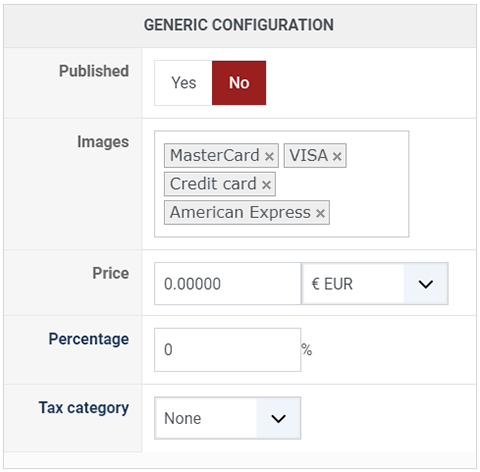
- Published : This option allows you to publish or not the payment method.
- Images : Select here the desired images to be displayed for this payment method. If you want to add additional images, you can upload them via FTP into the folder media/com_hikashop/images/payment/ of your website and you will then be able to select them in that option.
- Price : You can set the payment fee in this field, and select the currency of the fee.
- Percentage : The percentage allows you to define a payment fee depending on the total amount of the products in the cart.
-
Tax category : Select among your tax category, the category you want apply on your payment method cost.
Additional Information
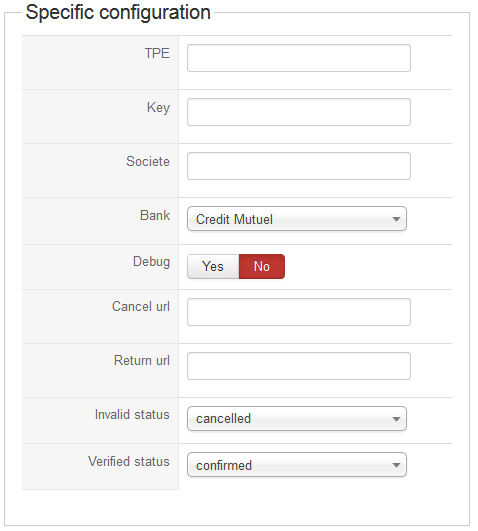
- TPE : L'identifiant TPE associé à votre boutique.
- Key : La clé secrète permettant de signer les communications avec leur plateforme.
- Societe : le code société.
- Locale : la langue à utiliser pour l'interface de paiement.
- Challenge 3DSecure : avec cette option, vous pouvez forcer ou désactiver le 3DSecure ou laisser Monetico décider de l'opportunité d'utiliser le 3DSecure pour garantir la transaction.
- Debug : Si vous activez cette option, des données de débug seront rajoutées dans le log de paiement accessible dans la configuration HikaShop.
- Sandbox : Si vous activez cette option, les transactions seront virtuelles, sur le système de test de Monetico. Lorsque cette option est désactivée les transactions réalisées seront réelles.
- URL d'annulation : à laisser vide sauf si vous voudriez rediriger l'utilisateur sur une page spécifique lors de l'annulation du paiement par l'utilisateur. Cela vous permet de créer un article joomla pour une faq par exemple. Avec le champs vide, HikaShop utilisera son comportement par défaut.
- URL de retour : à laisser vide sauf si vous voudriez rediriger l'utilisateur sur une page spécifique lors du retour depuis le site de paiement. Cela vous permet de créer un article joomla pour remercier l'utilisateur
- Statut vérifié : Le statut à attribuer à la commande lors de la réception du paiement.
- Statut invalide : Le statut à attribuer à la commande lors d'un soucis avec le paiement.
L'activation du mode "sandbox" permet d'utiliser leur plateforme de test (donc très important).
Ainsi, pour passer en production, une fois que votre compte à été correctement modifié par le Crédit Mutuel (ou CIC), vous n'avez qu'à enlever le mode "sandbox" pour passer en production (appelé aussi "mode réel" par les banques).
Le passage en production peut être un peu complexe administrativement parlant. Nous avons eu des soucis lors de nos tests pour bien faire comprendre que nous voulions passer en production pour faire de vrai paiements donc veillez à bien insister.
Au niveau de la configuration côté Monetico, vous devez leur fournir "l'url de retour".
Il s'agit d'une page web qui sera appelée par leur plateforme de paiement pour valider les transactions de manière sécurisé, de serveur à serveur.
L'url à leur fournir est de la forme :