
- What EU Directive 2023/2673 requires
- How HikaShop covers the directive
- Step-by-step configuration
- Handling a request
- Automating the "delivered" status
- FAQ: why the withdrawal button does not appear
What EU Directive 2023/2673 requires
Directive (EU) 2023/2673 of the European Parliament and of the Council of 22 November 2023 amends Directive 2011/83/EU on consumer rights. Although its main scope is distance financial services contracts, the new provision on the "withdrawal function" applies to all distance contracts concluded through an online interface that are subject to the right of withdrawal under the Consumer Rights Directive, which covers the vast majority of B2C e-commerce in the European Union.
Member States must transpose the Directive by 19 December 2025 and the rules apply from 19 June 2026.
In practice, the Directive requires that when a distance contract is concluded through an online interface, the trader must provide a withdrawal function which is:
- easily legible and prominently displayed,
- easily accessible,
- labelled "withdraw from contract here" (or similarly unambiguous wording),
- continuously available throughout the legal withdrawal period.
The legislator's stated intention is that consumers should be able to withdraw from an online contract just as easily as they were able to conclude it. After the withdrawal is submitted, the trader must send an acknowledgement of receipt on a durable medium (typically an email).
Official sources and further reading:
- Official text of Directive (EU) 2023/2673 on EUR-Lex
- Full PDF of the Directive on EUR-Lex
- Publications Office of the EU - Directive page
How HikaShop covers the directive
Since HikaShop 6.2.0, HikaShop provides a full withdrawal workflow with several permanent access points on the storefront user interface, independent of the order confirmation email. The email link to the withdrawal form is only a convenience on top of the following access points:
- On the customer's "My orders" listing page, each eligible order has a Withdraw from contract entry in its Actions dropdown.
- On the customer's single order details page, the same Withdraw from contract button is shown in the order's toolbar.
- For guest orders (no customer account), a dedicated Joomla menu item type called Withdraw from contract form page displays a standalone withdrawal form on the website. On that page, the customer enters their order number and the email they used when ordering, and HikaShop matches those against the order to authenticate them. No login and no email link are required - the whole flow happens on the website interface.
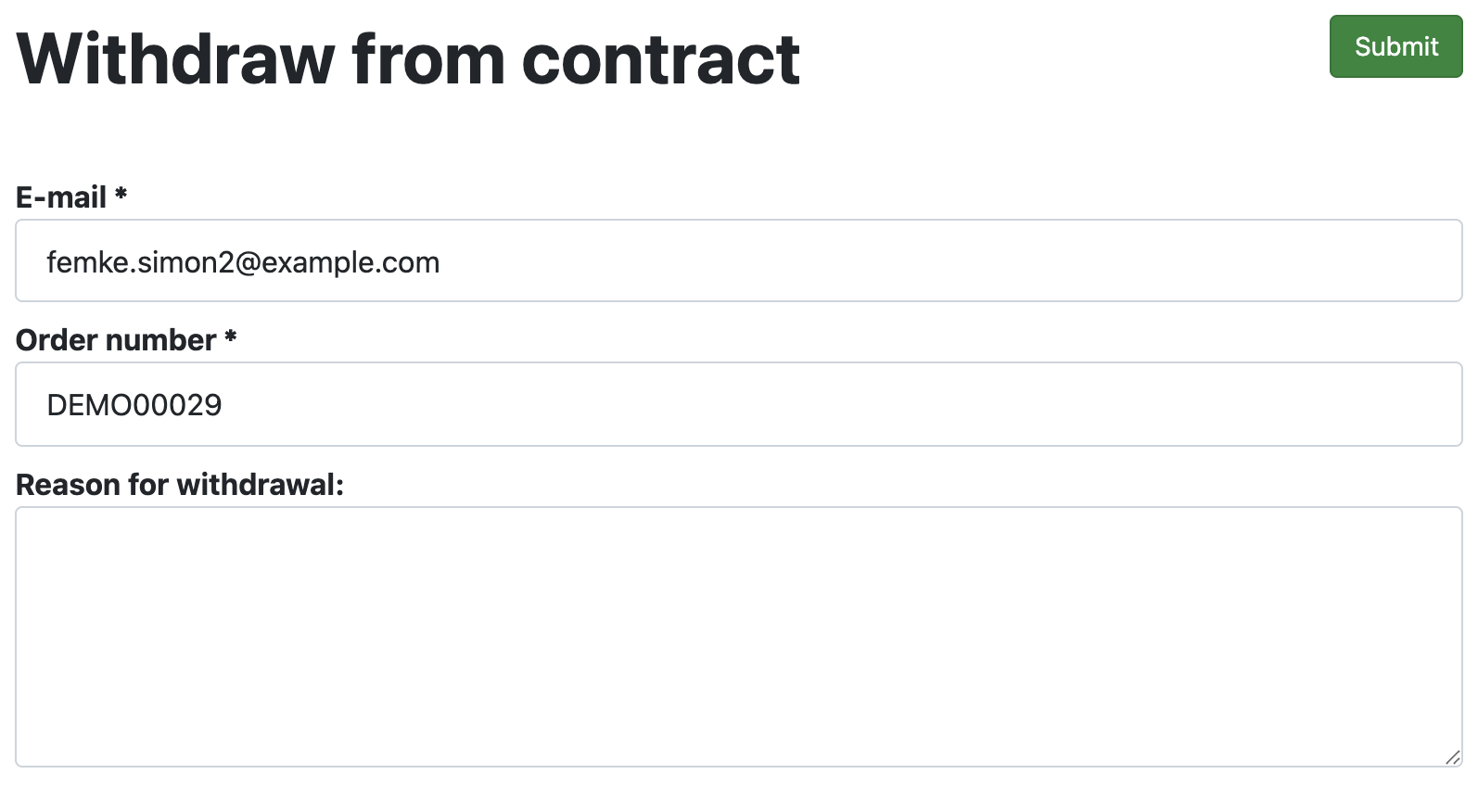
Once the withdrawal is submitted, HikaShop automatically sends two email notifications on a durable medium: one to the store administrator and one to the customer confirming the receipt of the withdrawal request. This matches the "acknowledgement of receipt" obligation introduced by the Directive.
Handling a request
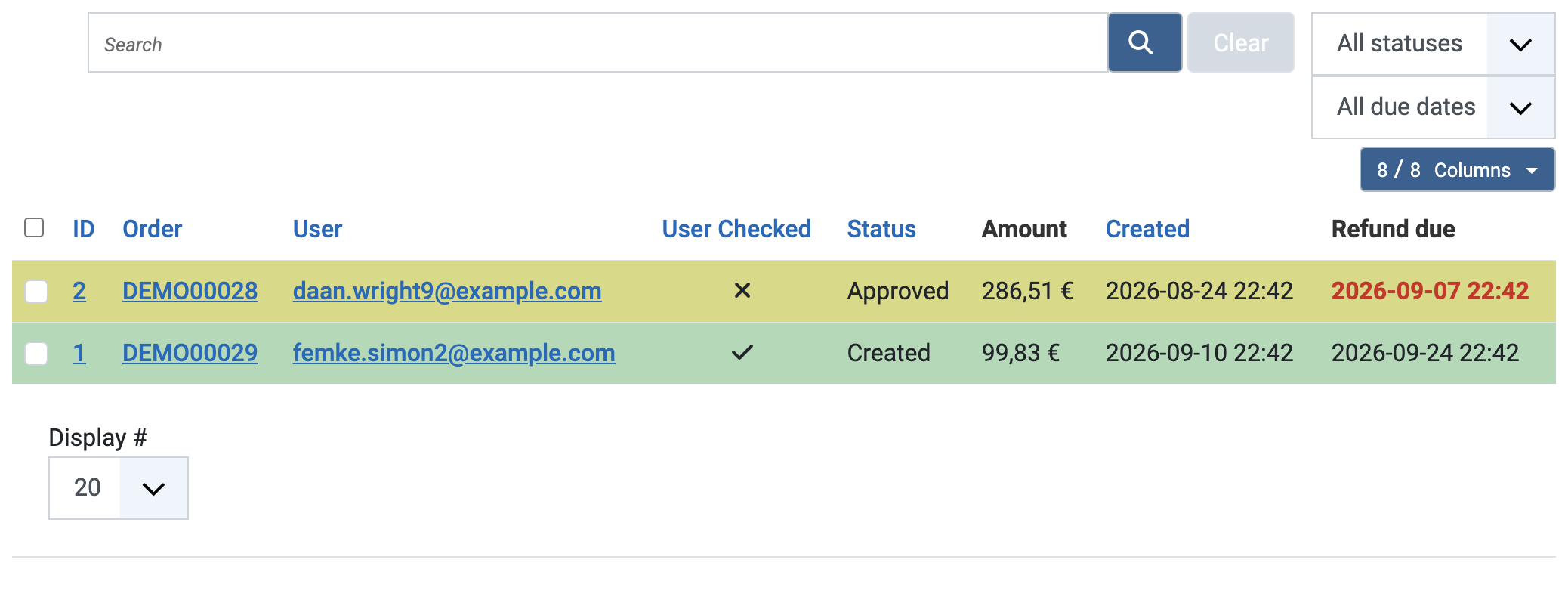
Requests arrive in the backend menu Orders > Withdrawals. The listing gives you, for each request, the order, the customer, how the person asking proved who they were, the status of the request, the amount the products asked back are worth, the day the request reached you and the day the refund is due. The due date turns red once it has passed, and the dropdown above the listing narrows the page to the late ones.
Opening a request shows the products and quantities the customer wants to return, the reason they gave, and three things for you to fill in:
- Status: Created when it arrives, then Approved, Rejected, or Processed once you have refunded. Saving a new status emails the customer, unless you untick Notify the customer on the same screen. Putting a request back to Created sends nothing, since the customer was already told their request arrived.
- Reason for the customer: this text goes into that email, under a "Why" heading when you refuse a request and as a message from the shop otherwise. Fill it in when you refuse, so the customer is told why.
- Your notes: for you only. It is never shown to the customer and never sent.
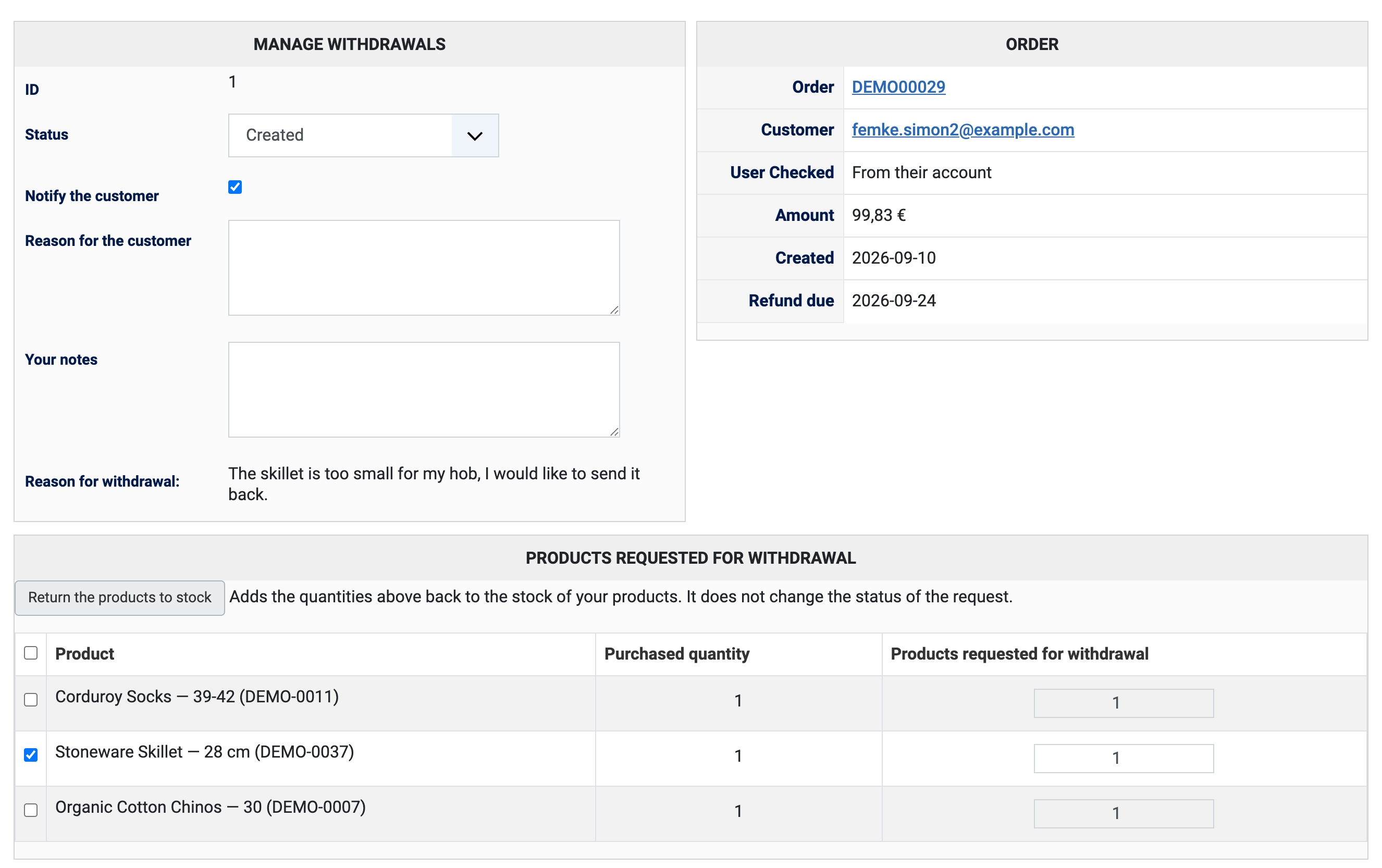
The button Return the products to stock adds the quantities of the request back to the stock of your products. It works once, and it does not change the status of the request: the parcel coming back and the file being closed are two different moments, and you decide when each happens.
The refund itself is made where the money is, on your payment gateway or your bank, since HikaShop cannot take money back out of an account it does not hold. The amount shown on the request is what to refund. The order itself is not modified: it keeps its total and its invoice, and the request records what was returned.
Everything that happens to a request is written in the history of the order, and an order which has a request says so at the top of its page, with a link to it.
Step-by-step configuration
The withdrawal feature works out of the box with sensible defaults (withdrawal allowed on delivered orders, 14-day window). The only step that is strictly required to be fully compliant with the Directive is step 1 below: adding the permanent menu item to the website so that the withdrawal function is always accessible on the user interface. Steps 2 and 3 are optional adjustments of the default configuration.
1. Create the withdrawal form page (required)
On Joomla: go to Menus and open the menu where you want the link (typically the footer menu, where legal pages such as terms and privacy are usually placed). Click New, then for the menu item type, pick HikaShop > Withdraw from contract form page. Set a title like "Order withdrawal" or "Withdrawal form" and save.
On WordPress: go to the WordPress admin menu HikaShop > Pages > Add New HikaShop page. Enter a title like "Order withdrawal" or "Withdrawal form" and pick Withdrawal from contract in the "Page type" dropdown, then save. The page is now available at its WordPress permalink. To make the link visible on the site, go to Appearance > Menus (or use the block editor for a block theme) and add that page to the menu of your choice (the footer menu is usually the most convenient place).
In both cases, the resulting page displays the standalone withdrawal form on a permanent URL that customers can reach at any time, with or without a customer account, by providing their order number and the email they used when ordering.
2. Adjust the withdrawable order statuses (optional)
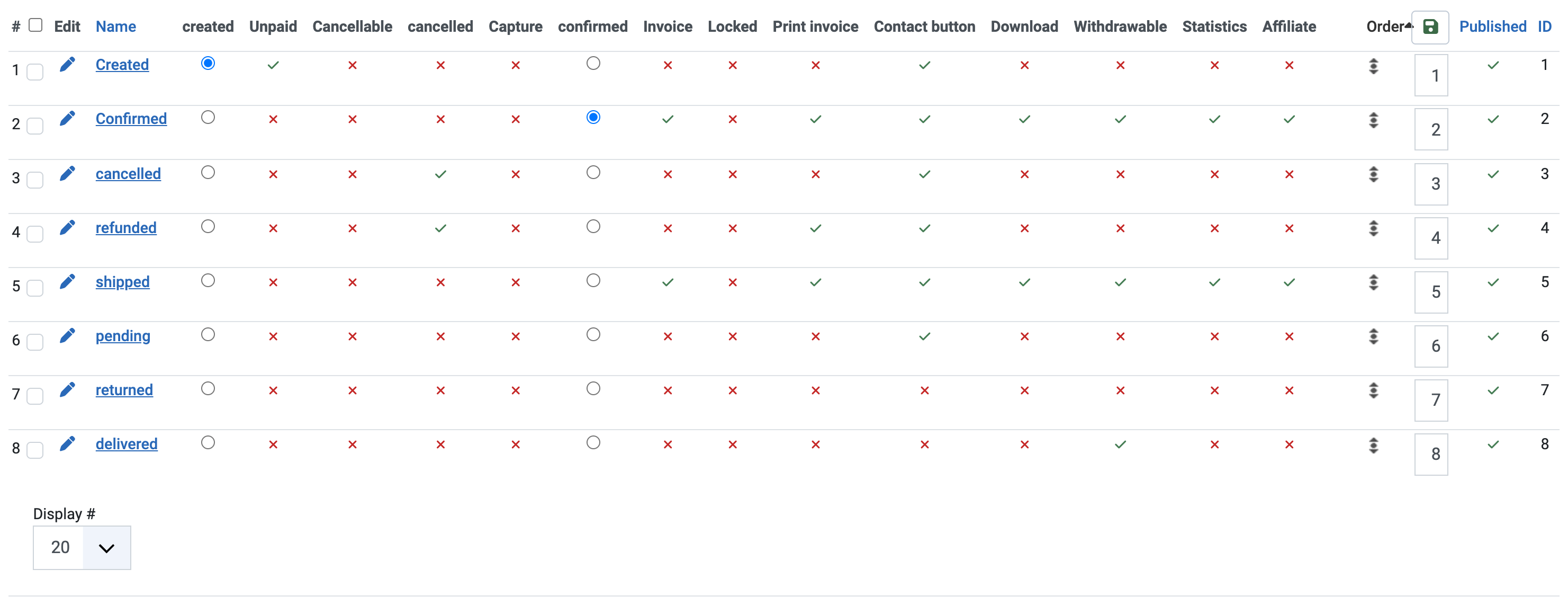
By default, only the delivered status allows a withdrawal. If your workflow needs other statuses to be withdrawable as well (for example if you do not use the delivered status and want to allow withdrawal directly from shipped, or even earlier from confirmed), go to the backend top menu System > Order statuses. You will see the list of order statuses with several toggle columns, including one labelled Withdrawable. Click the toggle in that column for each additional order status for which a customer should be able to initiate a withdrawal.
3. Adjust the withdrawal window (optional)
The default withdrawal window is 14 days, which matches the EU Consumer Rights Directive's minimum. If the regulations that apply to you require a longer period, or if you want to take into account some delay between the confirmation /shipping of the order and the actual delivery when the countdown is supposed to start, open the HikaShop configuration (on Joomla: backend top menu System > Configuration; on WordPress: HikaShop admin sidebar under HikaShop > Configuration), and on the Main tab find the setting labelled Number of days after delivery for withdrawal window and adjust the value.
Automating the "delivered" status
The default configuration allows withdrawal only when an order is in the delivered status. It is important to note that HikaShop does not automatically move orders to shipped or delivered: these are statuses that reflect real-world events, and HikaShop has no way of knowing on its own when an order was physically shipped or physically delivered to the customer.
Some shipping plugins (for example shipping plugins connected to a carrier API that can return a tracking status) can update the order status automatically. In most cases, however, the change from confirmed to shipped, and from shipped to delivered, has to be done by the merchant.
If you don't want to change the status manually, you can automate the transition using a HikaShop mass action. A common setup is to move orders from shipped to delivered after a delay that matches your typical shipping time. For example, to automatically move shipped orders to delivered three days after they were marked as shipped:
- Go to the backend menu System > Mass actions and create a new mass action.
- Set a trigger like Hourly so that the mass action runs once per hour via your HikaShop CRON.
- Add a filter on the order status equal to shipped.
- Add a filter on the order_shipped column with operator < and value {time}-259200 (259200 seconds = 3 days).
- Add an action to change the order status to delivered.
This way the legal withdrawal window starts counting from a realistic "delivered" date without you having to touch each order manually. See the HikaShop CRON task documentation for the URL that needs to be called regularly for time-based mass actions to run.
Alternatively, if your workflow does not distinguish between shipping and delivery, you can also add the confirmed and/or shipped statuses to the Withdrawable column on the Order statuses page, so that the withdrawal button becomes available earlier.
FAQ: why the withdrawal button does not appear
If a customer reports that the Withdraw from contract button is not displayed on their order, it is normally due to one of the following points:
- The withdrawal window has expired. HikaShop will not display the button once the number of days configured in Number of days after delivery for withdrawal window has passed since the reference date of the order. Check the configuration setting and the date on which the order reached the relevant status.
- The order's status is not marked as withdrawable. On the System > Order statuses page, only statuses whose Withdrawable toggle is enabled allow withdrawal. By default, only delivered is enabled. If your orders stay in confirmed or shipped and never reach delivered, the button will never appear. Either enable the button on those statuses, or make sure your workflow moves orders to delivered in time.
- The order never reached the "delivered" (or "shipped") status. HikaShop does not change these statuses automatically by default. Some shipping plugins connected to a carrier API can do it. In most cases, it is up to the merchant to change the status manually, or to set up a mass action that does it automatically based on a delay (see the previous section).
- The customer is looking at the order page from the email without being logged in, and is landing on a different page. In that case, the dedicated Withdraw from contract form page menu item is the right entry point (see step 1 of the configuration above).
- The storefront view has been overridden by the Joomla template and not kept in sync with recent HikaShop updates. Check the Display > Views page in HikaShop's configuration for outdated overrides on the order listing or order view.