
|
|

Description
Thanks to this tutorial, you will learn how to manage shipping manual price plugin, and how create several AND specific shipping method per product.
Then, we will create a concrete examples to have a specific shipping method price for just ONE product and after this several specific shipping price for this
same product.
Shipping prices per product configuration
First of all, reach your shipping manual price plugin and so, go to
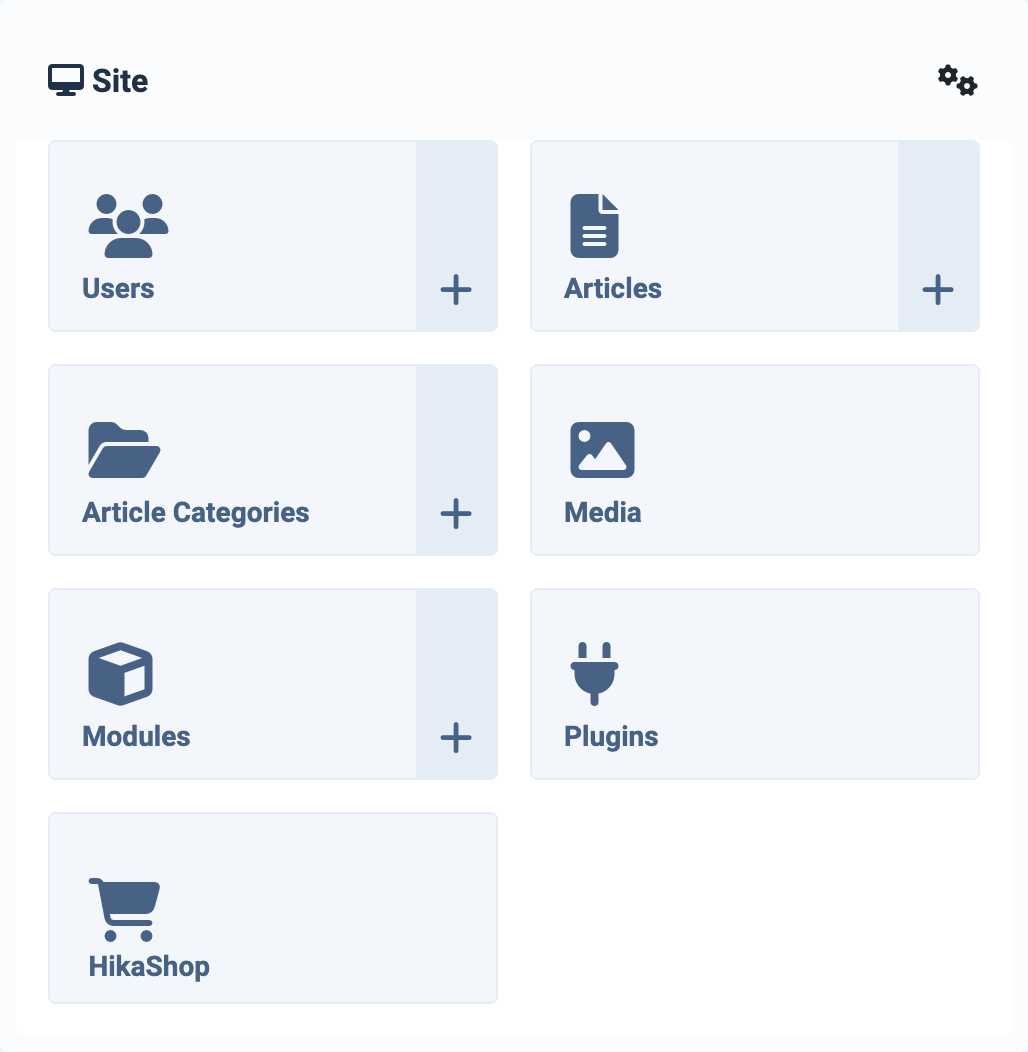
System => Manage => Plugins, or click the Plugins tile of the administrator dashboard.
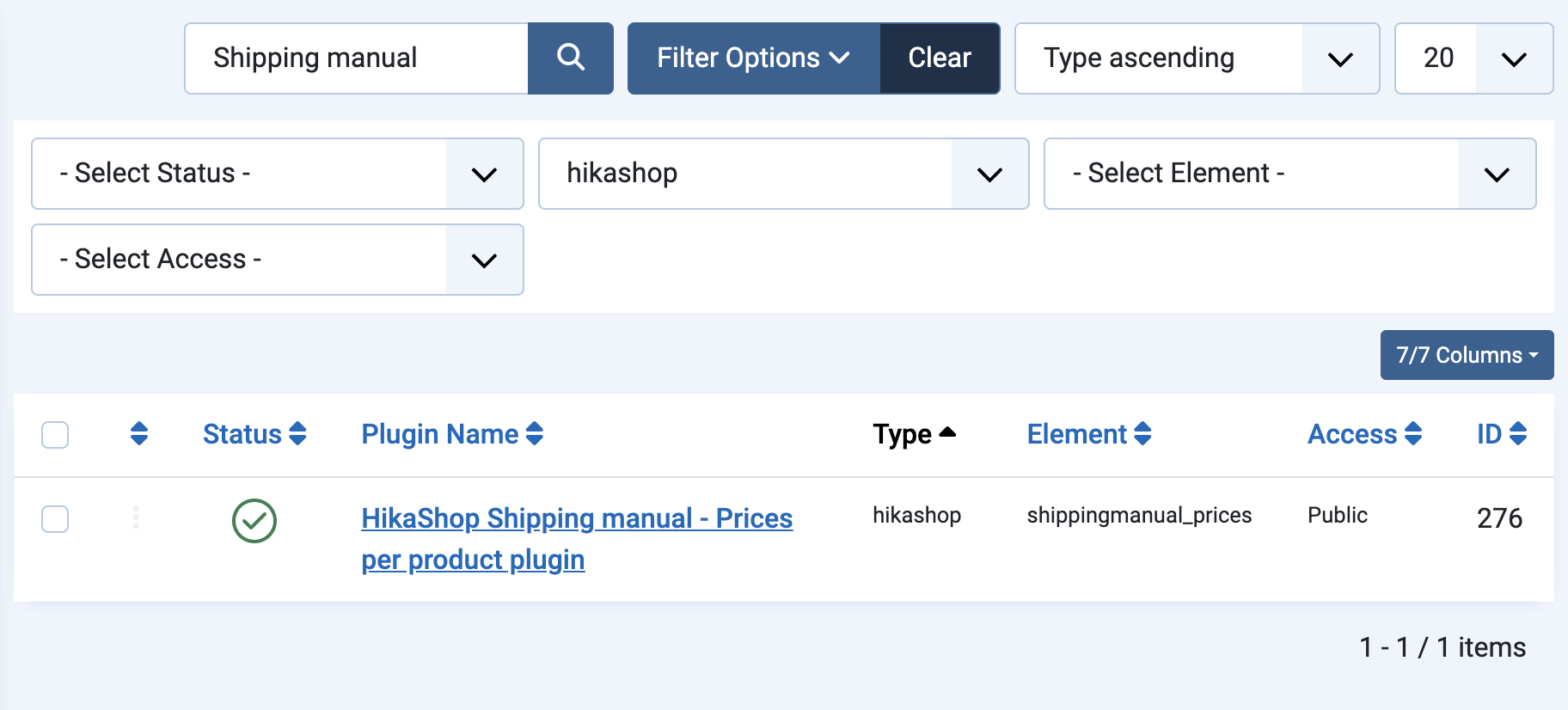
There, look for on "Shipping" in the filter input.
Now, you have a view on all your plugins listing relative to "Shipping", and so click on his name "HikaShop Shipping manual - Prices per product plugin".
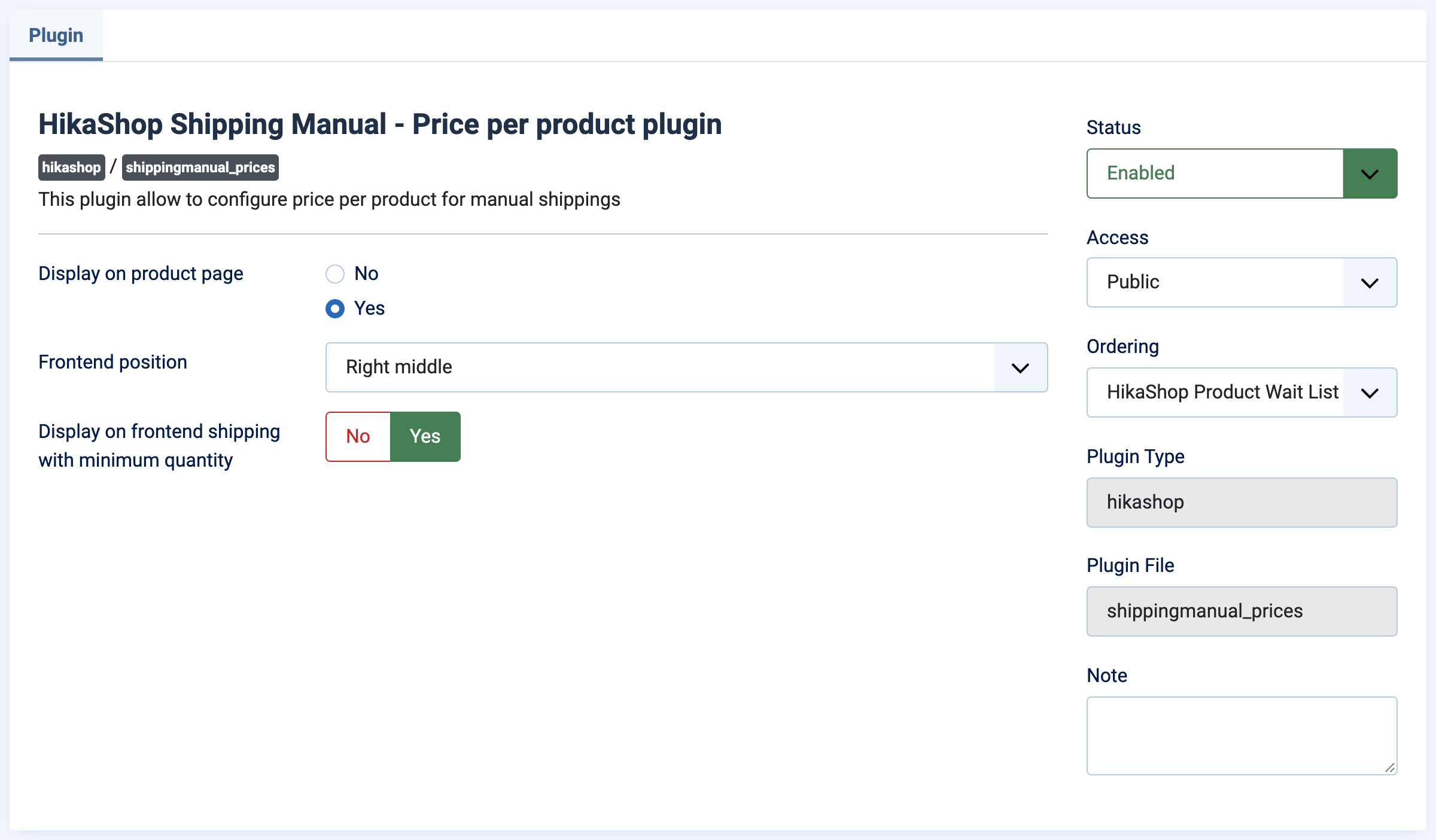
Let's discover its options :
- Display on product page : Choose "Yes" to show the shipping prices of the product on its page.
- Frontend position : Here, you can define the position where the product specific shipping prices will display on the product page.
- Display on frontend shipping with minimum quantity : Define if you want to display on the product page the shipping prices with a minimum quantity restriction.
Concrete examples
First of all, to define a shipping price per product, we will go to the shipping method configuration and allow the shipping per product prices :
Go to Components => HikaShop => Configuration.
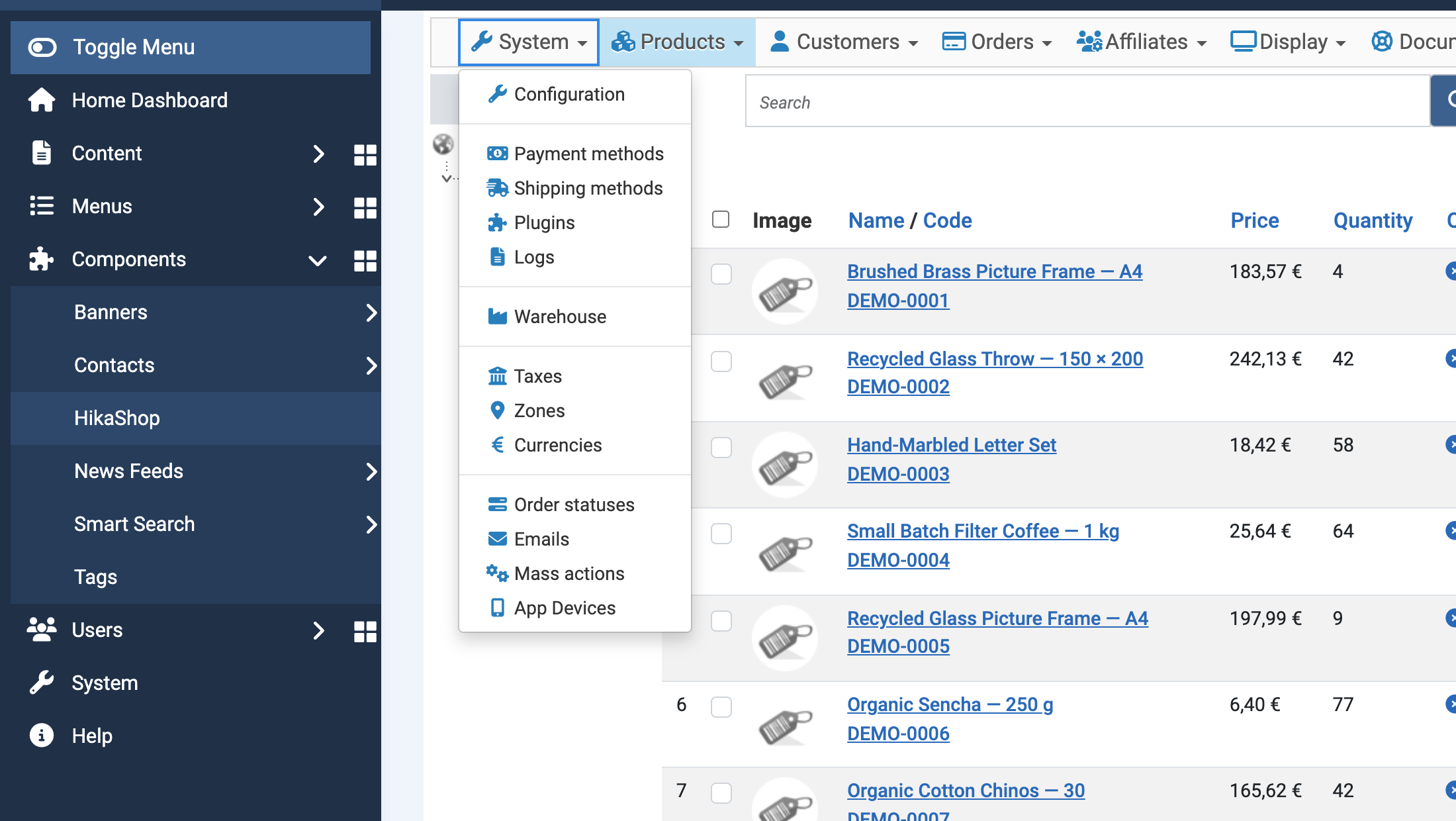
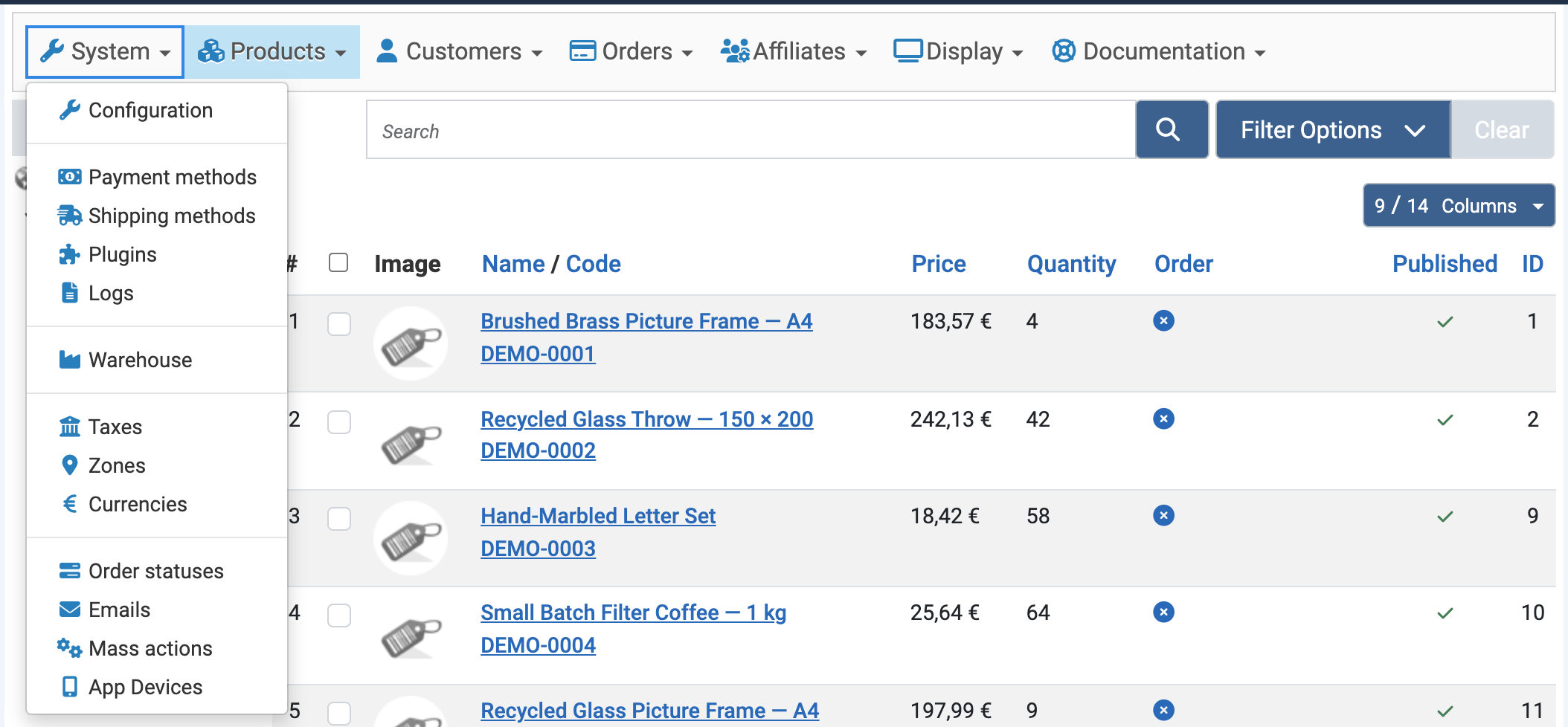
Continue to System => Shipping methods.
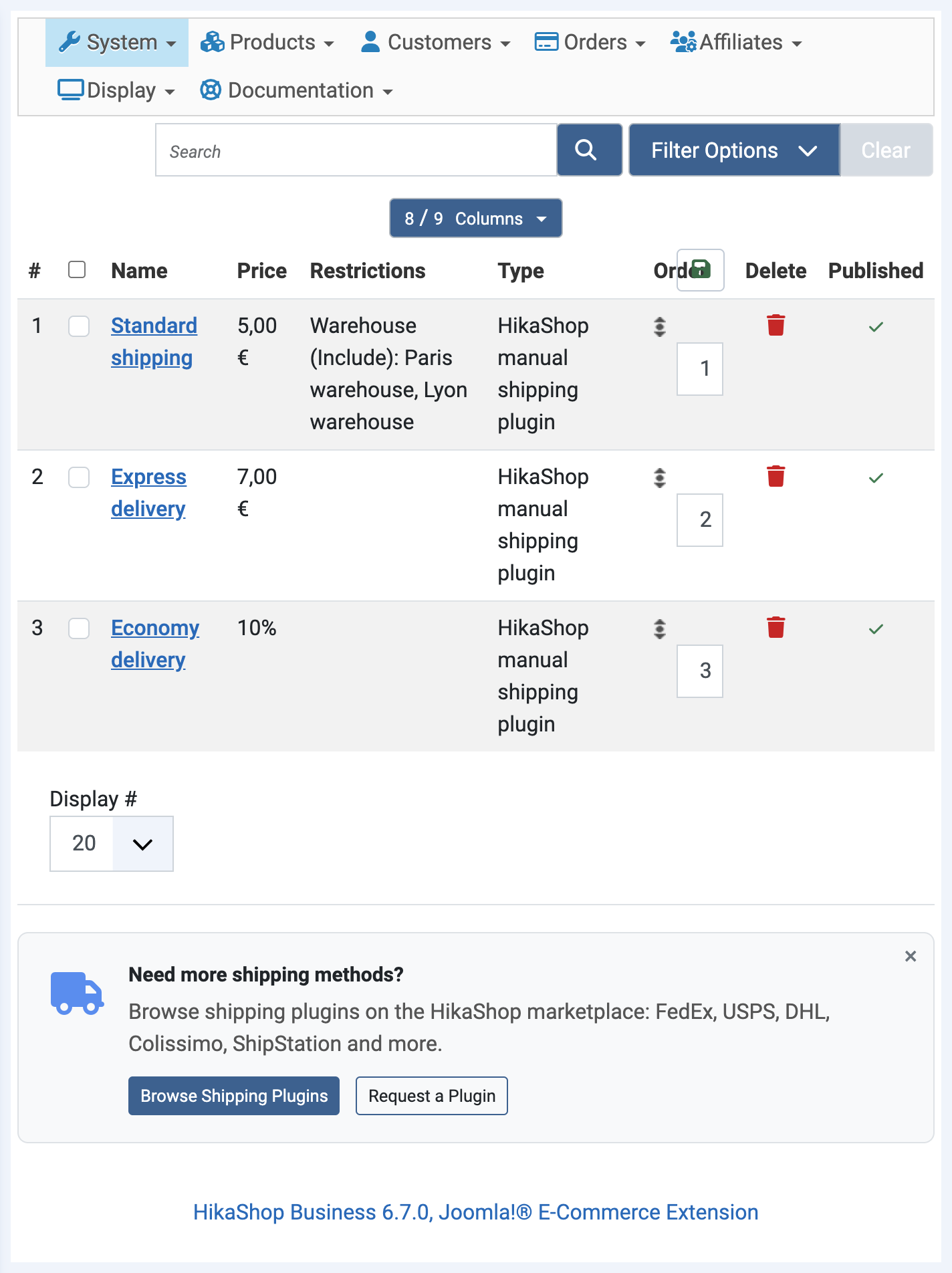
Here, select the Shipping method for which you want shipping prices per product.
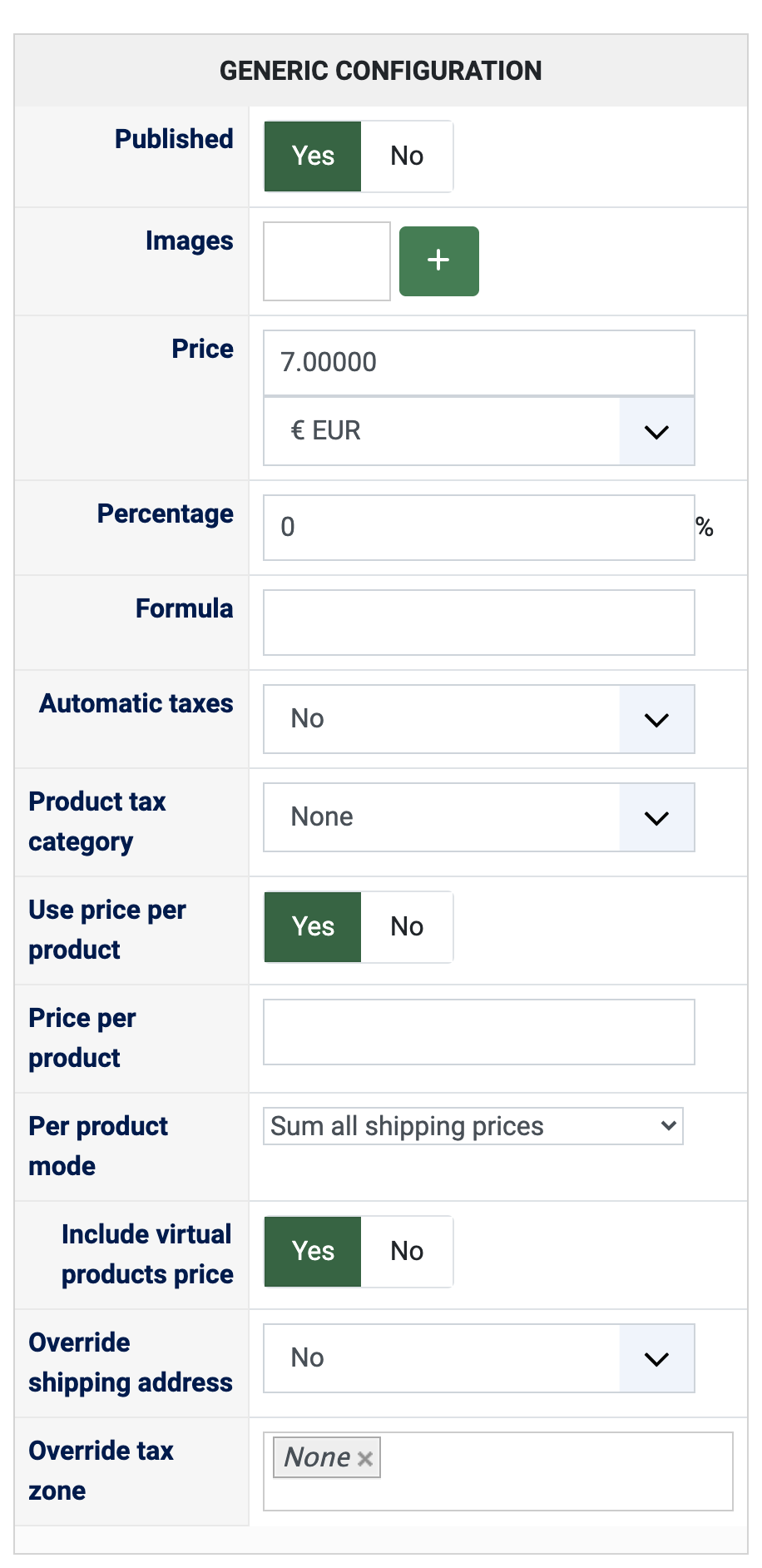
In your shipping configuration page, looks for the "Use price per product" setting and set it to "Yes".
-
Note : This option is required for your HikaShop Shipping manual - Price per product plugin processing, but has its own aim. As a quick explanation, this option enables you to add a shipping cost for each products and for all products in your cart, thanks to the "Price per product" input value.
Example : In your cart, you have two products and you set 1 in your "Price per product" input value.
As a result, your shipping cost : 2 x 1$ , plus if you configured it, the shipping price of the shipping method itself (here, Price : 7$) = 9$.
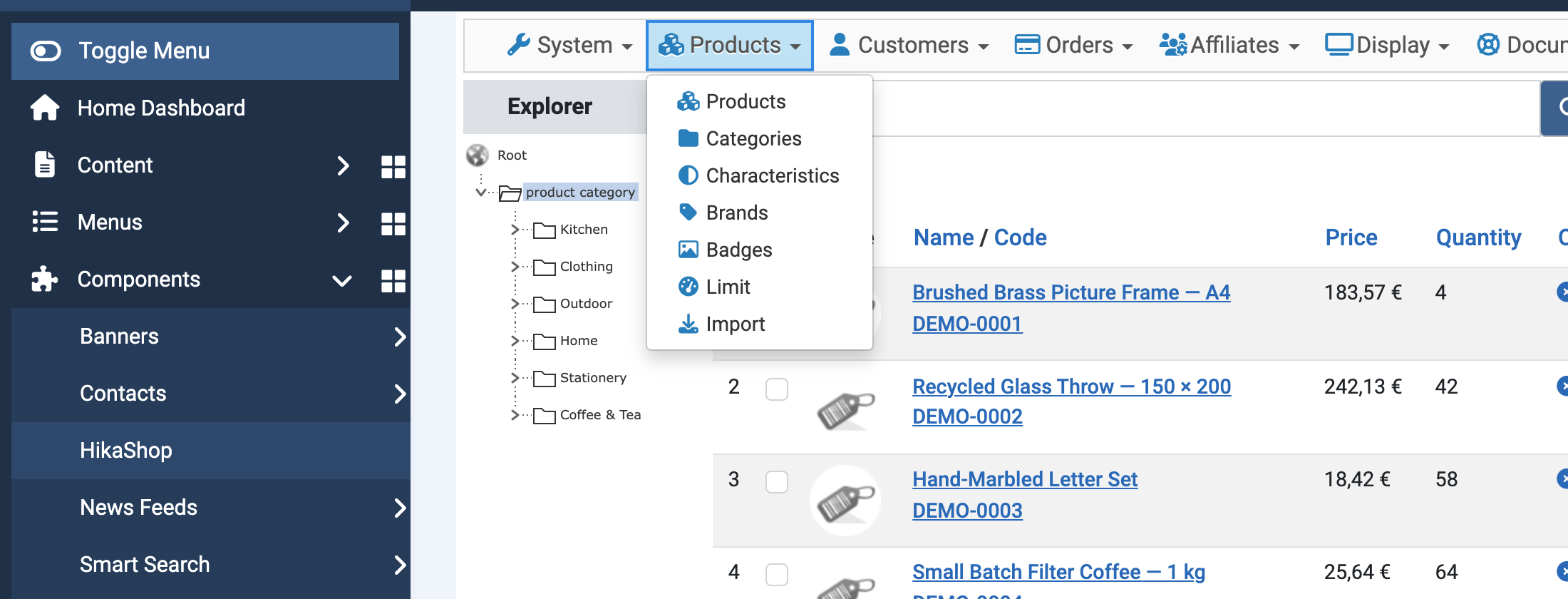
Now, we will go to your products listing page :
"Components" => "HikaShop" => "Products".
Here, edit the product for which you want to define a specific shipping price and click on its name.
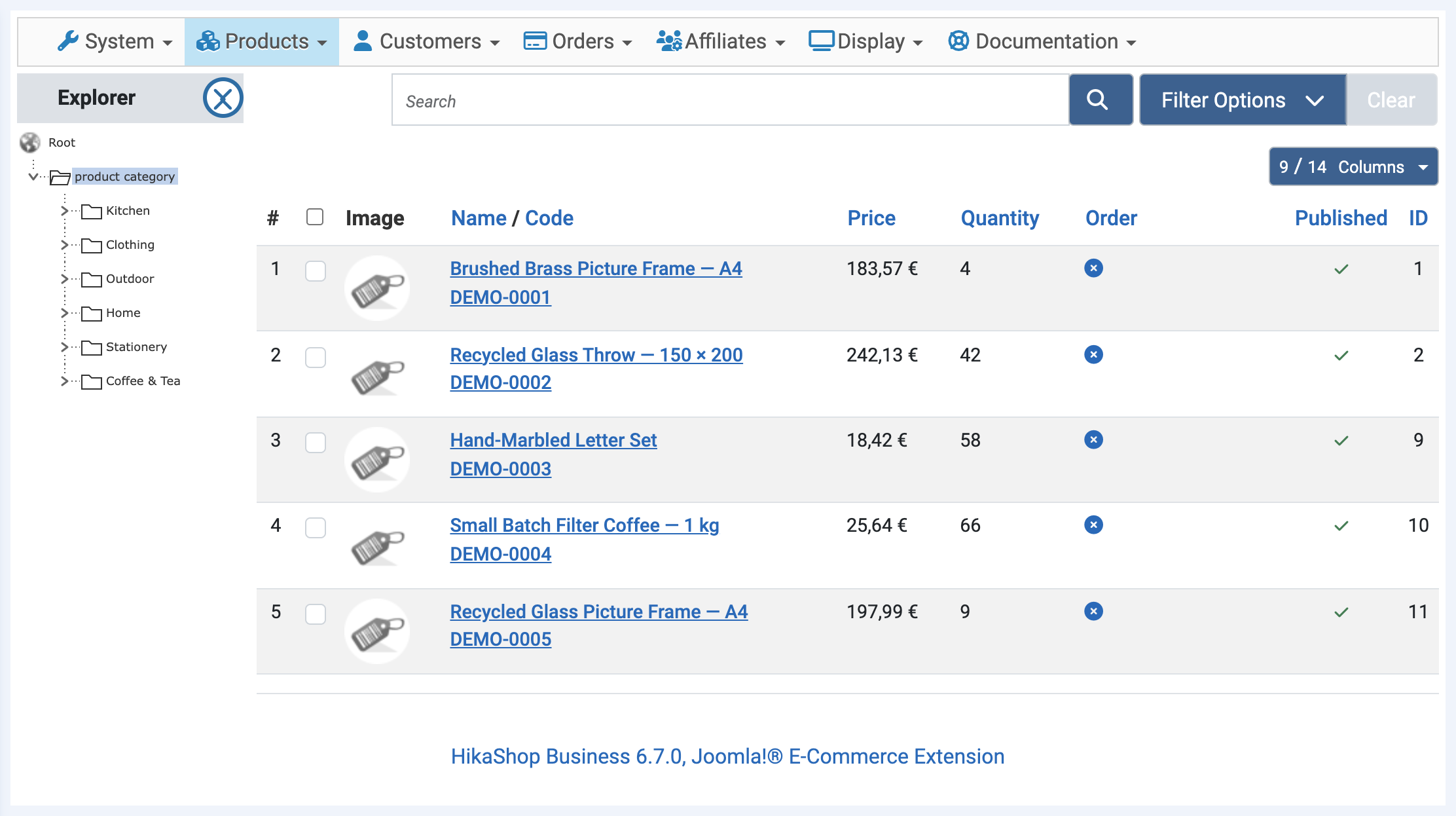
In your product configuration page, look for the "Shipping prices" area.
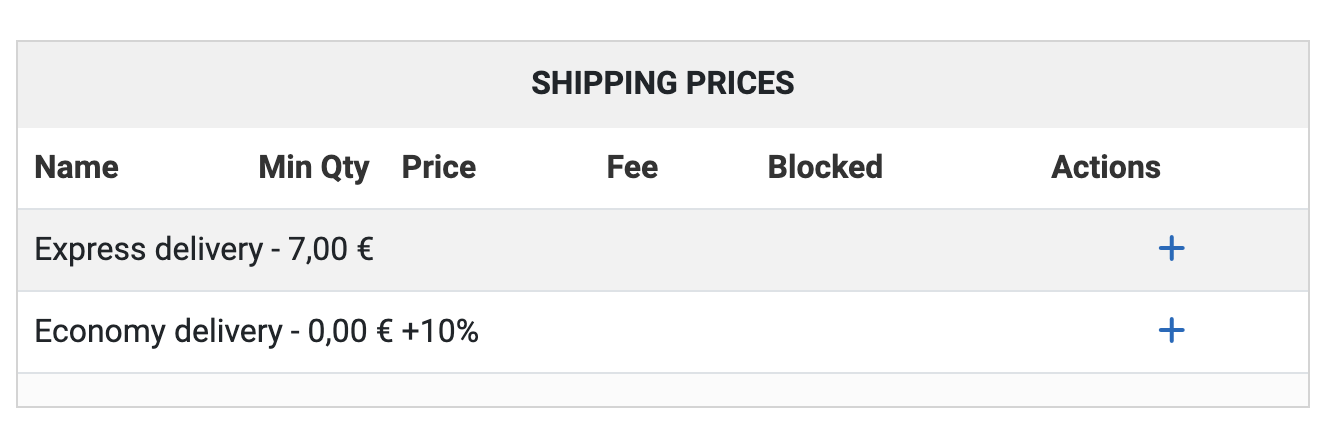
Here, you can create several specific shipping prices for your product, you can see displayed here your shipping method with its price.
Here will be displayed only published shipping methods where you have set the "Use price per product" setting to "Yes" .
-
Note : If you your "Shipping prices" area isn't displayed while you have enabled the required plugin and set the price per product setting to "Yes" in your shipping method, check if you have set a warehouse for your product that doesn't match with the shipping method's warehouse setting.
Let's go and create your first product shipping price by clicking on the "+" icon.
As a result, a new line will be displayed in order to set different elements of your product shipping price.
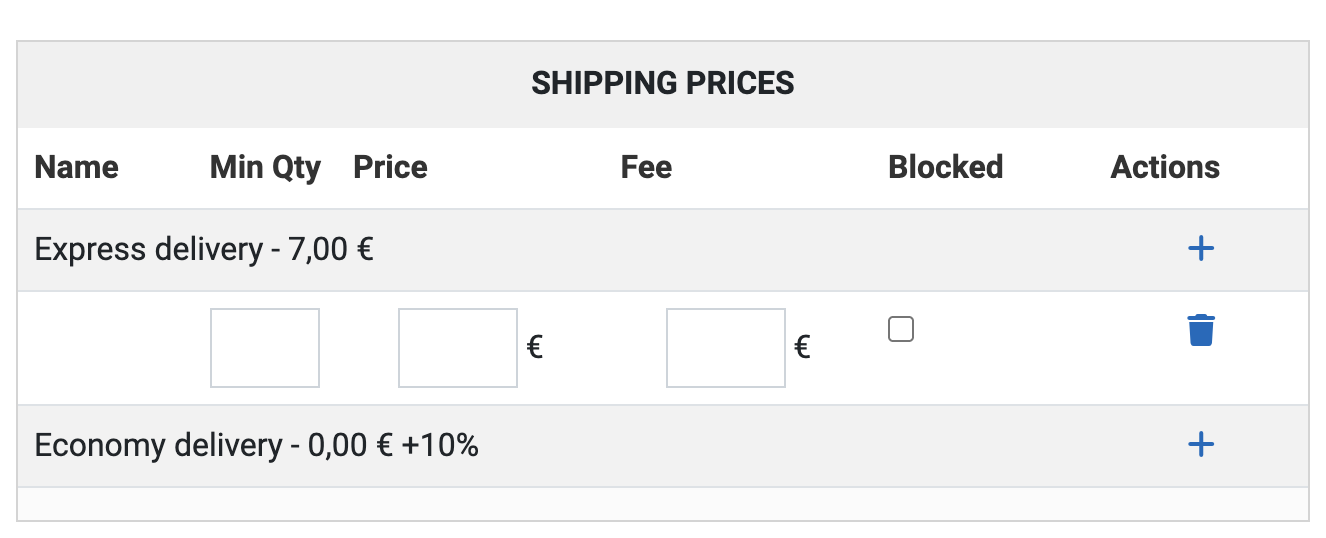
Let's explain these different inputs :
-
Min Qty : The aim of this option is to only use the product shipping price when the quantity of the product in the cart is above that value
Example : You want to add 2$ to the shipping price ONLY for customers buying 2 or more of the this product, and thus, you fill the input with a "2".
You can also let this field empty, if you don't want to use this condition.
-
Price : Define here your specific shipping product price.
Note : This price will be applied for each product added in the cart.
Example : If your customer adds in his cart 2 of this product, then the price here will be multiplied by 2.
-
Fee : Same idea than above, but for your shipping fee cost.
Note : Unlike the Price calculation, the shipping Fee won't be multiplied by the quantity product.
-
Blocked: This a way to blocked the use of a shipping method if a product is in the cart.
It is often used to block the sale of some products of the store to some places of the world.
One example that comes to mind is a website selling military supply and based in the USA. The shop can sell any product outside of the USA, except for firearms. So in that case, the owner will configure two sets of shipping methods, all of them with the "shipping price per product" activated. One set with a zone restriction for the USA country zone, one other set with a zone restriction for a shipping zone with all the other countries as sub zones. Then, in the firearm products, the owner will check the blocked checkbox for the international shipping methods.
That way, when firearms will be in the cart and the customer address will be outside of the USA, no shipping method will be available and an error message explaining the situation will be provided to the customer on the checkout.
- Actions : Here, you can use the "+" icon to add a line or the
"
 " icon to delete it.
Let's define a Min Qty, a Price and a Fee.
And save these parameters
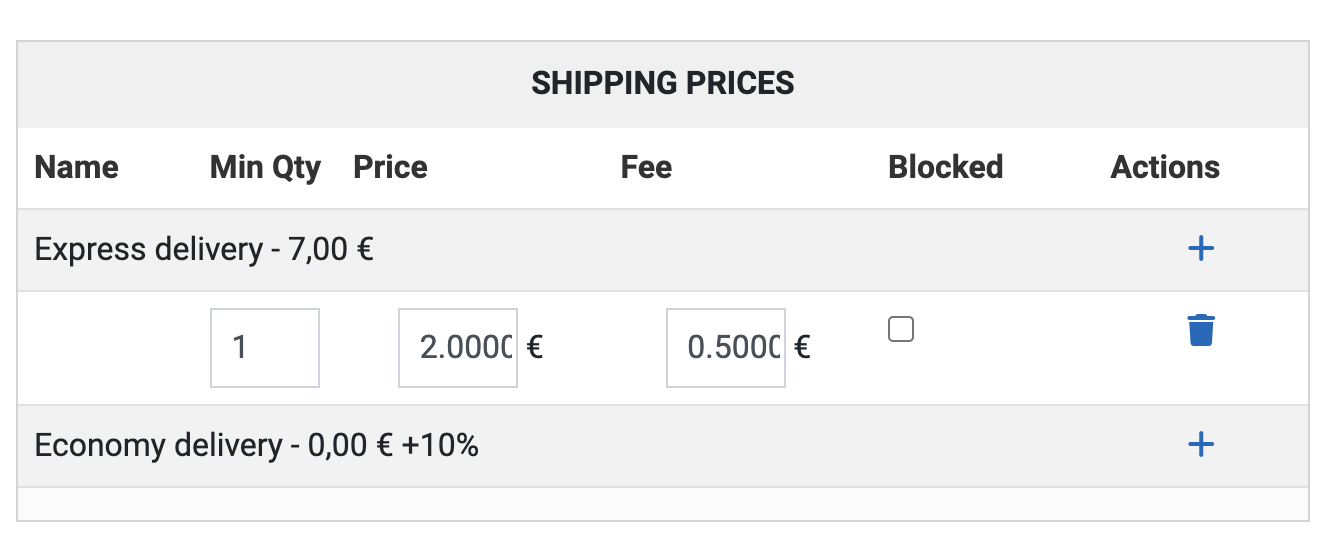
On the product page and in the checkout process you can see that, as expected, your specific shipping price is displayed.

Let's check this price 9,5 Euro :
You can see that from the start the Shipping method used as base has already a price of 7,00 Euros
Then, add to it your specific price : 2,00 Euro
And finally, the specific fee : 0,50 Euro
Note : If the customer add in the cart the product a second time,the shipping price will be :
Shipping method : 7 Euro + Specific shipping price : 4 Euro (2 quantity products x 2 Euro) + Fee : 0.50 Euro = 11.50 Euro
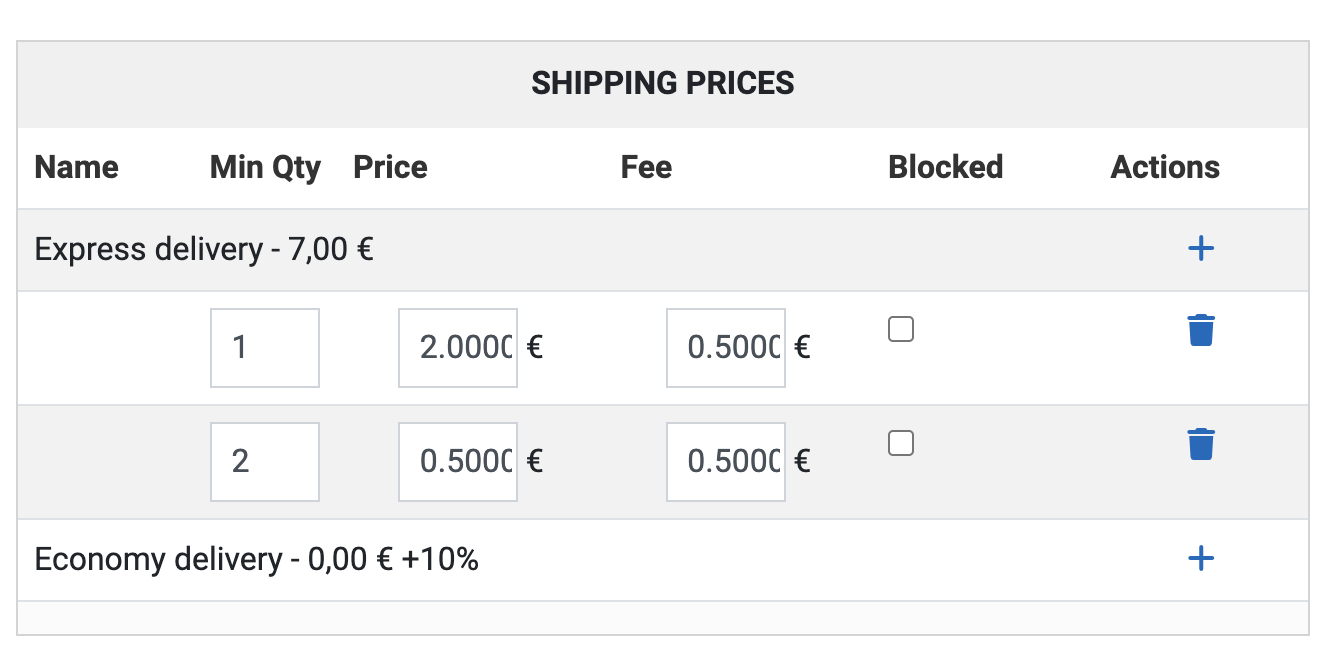
Repeat the previous configuration to create another line, and so a second specific shipping price to your product, like you can see on screen below.
And of course, save your configuration.
Let's explain the settings for this second specific shipping price :
-
Min Qty : With this setting of 2, your specific shipping price will only be displayed if the customer order at least 2 items of this product.
- Price : Here your specific shipping product price is 0.50 Euro.
- Fee : And the fee is 0.50 Euro.
Let's see the result in several checkout cases.
With that configuration, 2 different shipping prices will be displayed and the shipping price will change based on how much of that product the customer put in the cart :
-
the customer adds in the cart only one product : the shipping price in checkout process will be :
Shipping method : 7 Euro + Specific shipping price : 2 Euro + Fee : 0.50 Euro = 9.50 Euro
-
The customer adds in the cart 2 products : the shipping price in checkout process will be :
Shipping method : 7 Euros + Specific shipping price : 1 Euro (2 quantity products x 0.50 Euros) + Fee : 0.50 Euros = 8.50 Euros
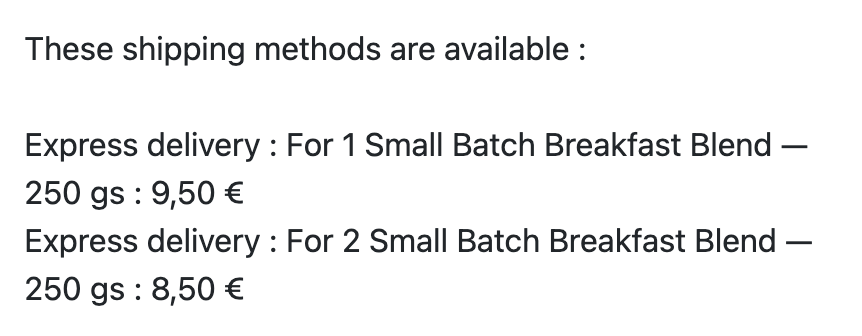
Like before, the shipping price that fit the customer quantity's choice is automatically displayed and used for the global shipping fee.
For this part of the tutorial, you must have configured at least 2 shipping methods. In this example, we have already one we configured earlier and we configured a second with a percentage instead of a price.
Note : You can have several shipping methods created from one shipping plugin!
A shipping methods is a way to configure your shipping plugin, and so you can configure shipping plugin with different restrictions, through several shipping methods.
Here, for example the 2 shipping methods are created from the Manual shipping methods plugin.
Caution : Don't forget to published your shipping methods and activate the "Use price per product" setting or you won't be able to configure shipping prices in your product configuration page.
Back to your product configuration page, you will discover in your "shipping prices" area a second possible shipping price, from your second shipping method.
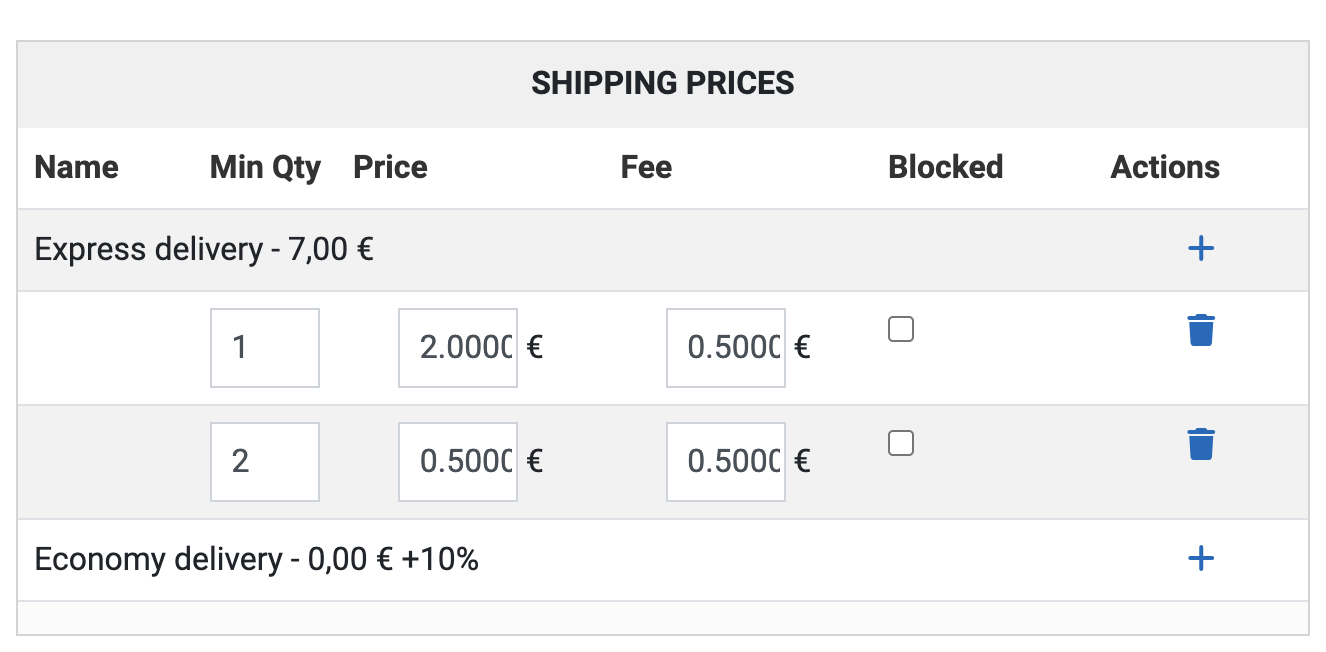
Let's add parameters for this new shipping price. Click on + icon to display a new line.
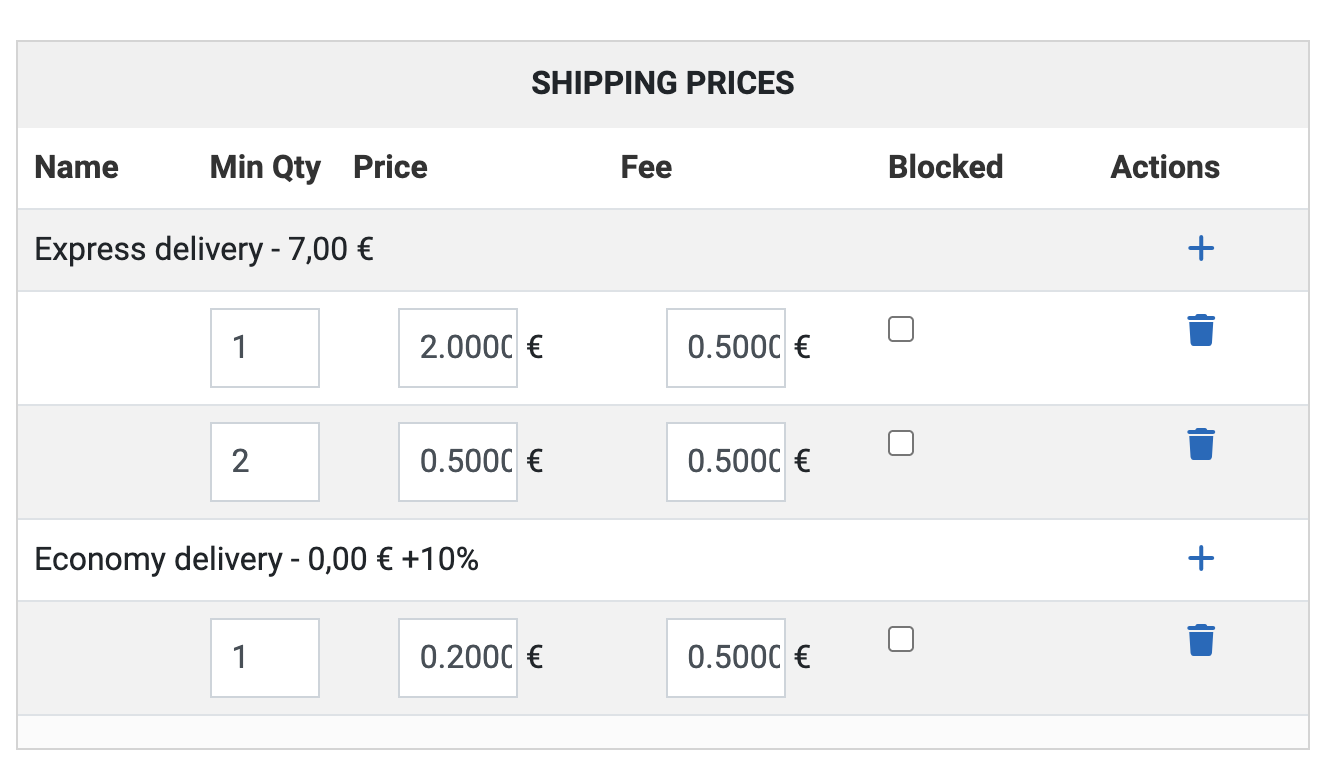
And don't forget to Save.
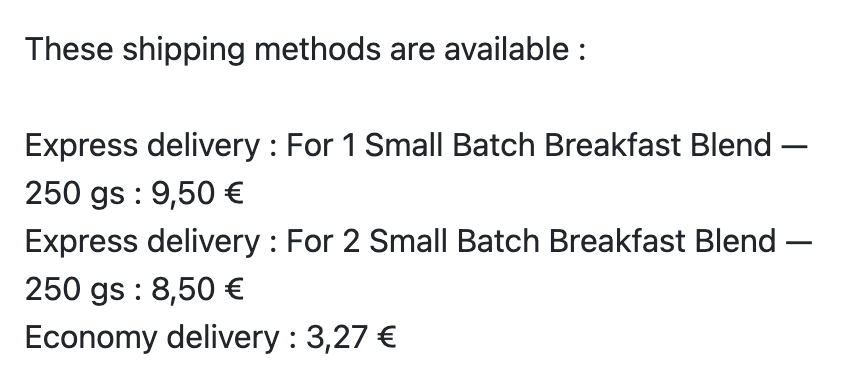
Let's see the results on the frontend :
Shipping method : 2.57 Euros (10% of the 25.69 Euros price of the product) + Specific shipping price : 0.20 Euros (1 product x 0.20 Euros) + Fee : 0.50 Euros = 3.27 Euros
An other case :
Shipping method : 5.14 Euros (10% of 2 x 25.69 = 51.38 Euros) + Specific shipping price : 0.40 Euros (2 products x 0.20 Euros) + Fee : 0.50 Euros = 6.04 Euros
So, you can see that the shipping price displayed on product page is the shipping price for 1 product since HikaShop doesn't know how many products will be added in the cart.
This concludes our tutorial on the matter of shipping prices per product.