
An auction house often asks its bidders to register for a sale before they bid: the house checks who they are, and sometimes a bank reference for the expensive lots. HikaAuction does it with bidder approval: a customer sends a request from the product page, you approve or decline it from the backend, and only approved customers can bid on the auctions of that sale.
Turn it on
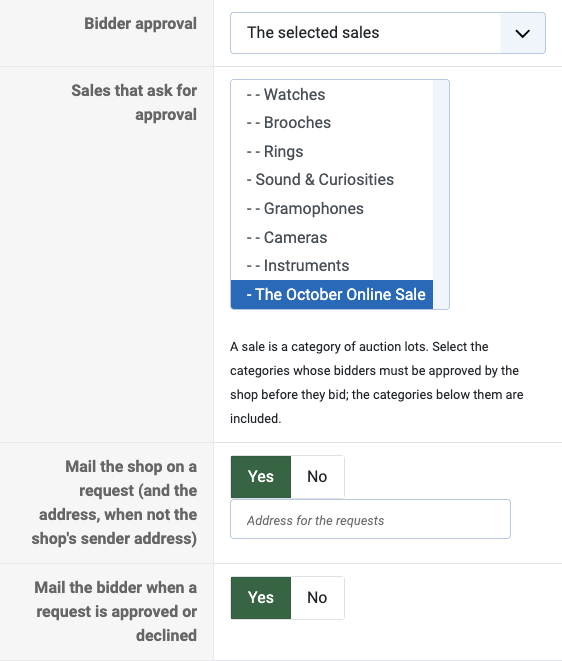
In Components > HikaAuction > Configuration, in the behaviour options:
- Bidder approval: Every auction asks for an approval before any bid, The selected sales only for the auctions of the categories you select below it.
- Sales that ask for approval: a sale is a category of auction lots, for example "The October Online Sale". An approval for a category also covers the categories below it.
- Mail the shop on a request and Mail the bidder when a request is approved or declined: the emails of the process, both on by default. The requests go to the address typed next to the first option, or to the shop's sender address.
The request of the bidder
A logged in customer who is not approved yet sees, on the product page of an auction of that sale, a request form instead of the bid buttons. A customer who is not logged in sees the usual invitation to log in or create an account first.
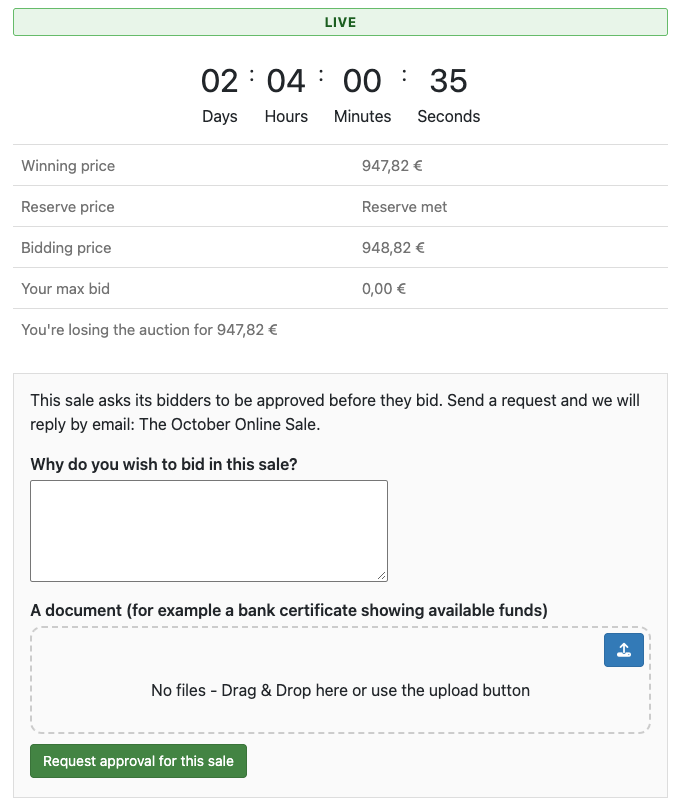
The form is made of HikaShop custom fields, of the table Auction approval request (Components > HikaShop > Display > Custom fields). HikaAuction creates two of them: a text area "Why do you wish to bid in this sale?" and a file field for a document, a bank certificate showing available funds for example. Change their labels, make them required, remove them or add your own like any other custom field.
Once the request is sent, the product page says that it is waiting for an answer, and the customer can follow it in the My registrations page of his customer account.
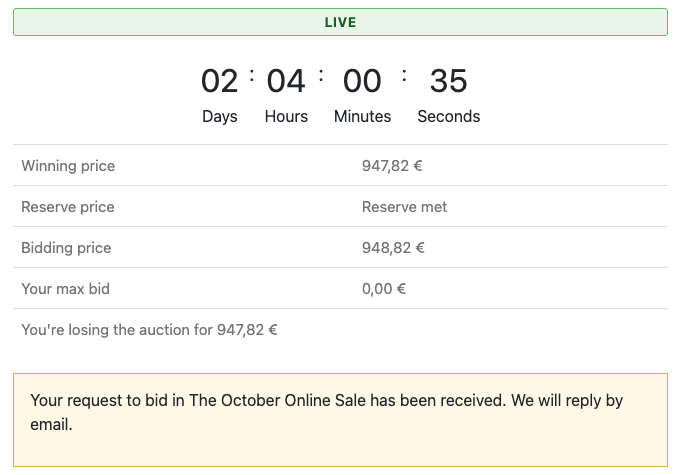
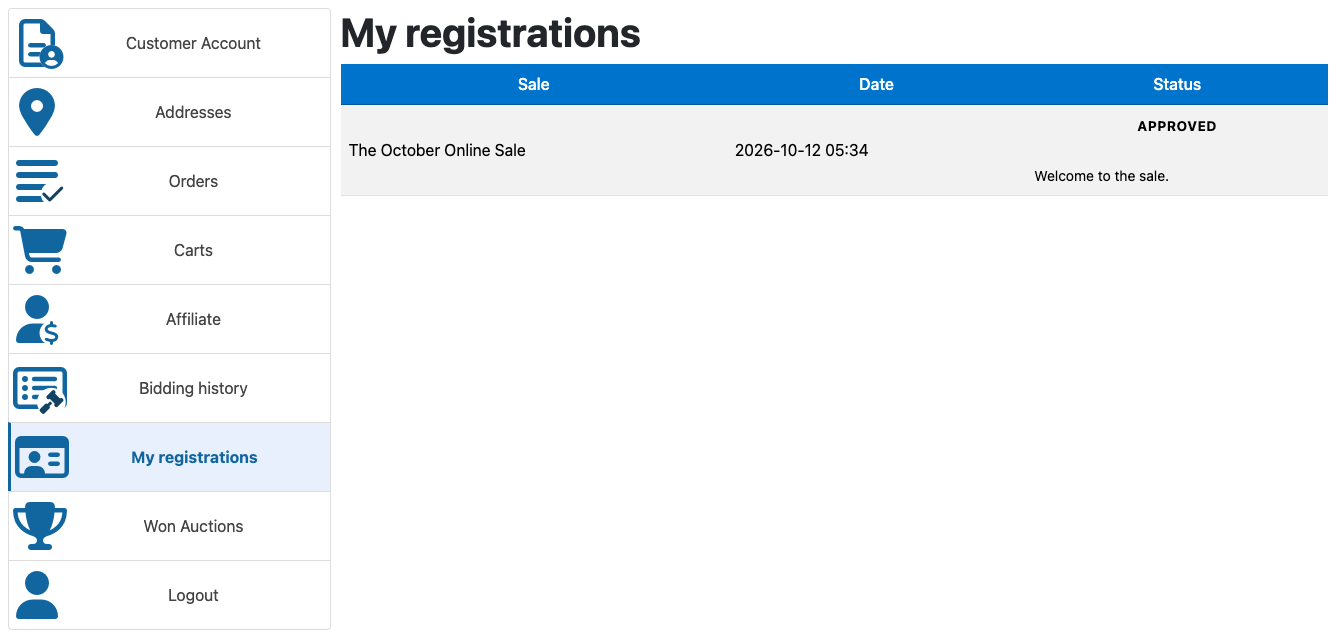
The category page of a sale also shows a box with the state of the customer for that sale.
Approve or decline
The requests are listed in Components > HikaAuction > Approvals, the newest first, with the bidder, the sale, what he wrote in the form and the state of the request. Search a bidder, or filter the list by state.
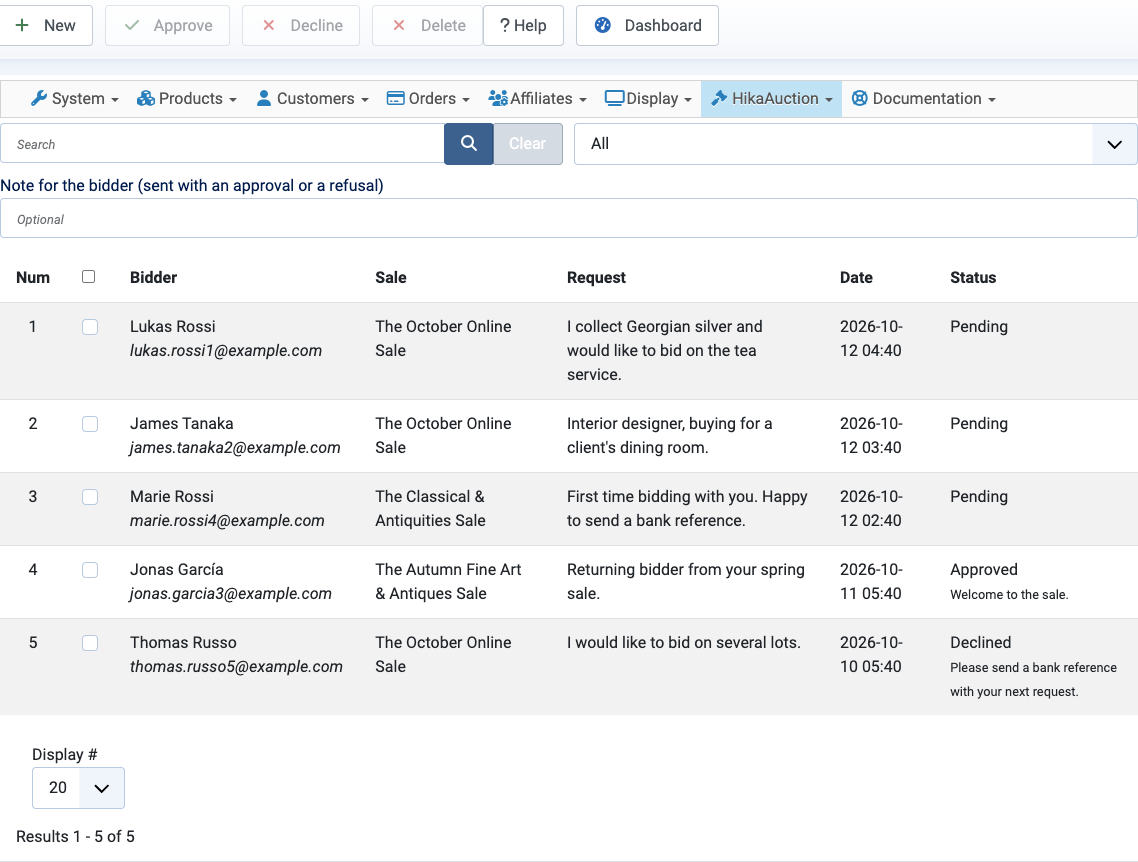
Tick one or several requests, type a note for the bidder if you want one, and click Approve or Decline. The bidder gets an email with your decision and the note. An approved bidder can bid at once, on every auction of the sale. Delete removes a request: the customer can then send a new one.
To approve a customer who did not send a request, a client you already know for example, click New, select the customer and the sale (or Every auction), add a note if you want, and choose whether he gets an email.
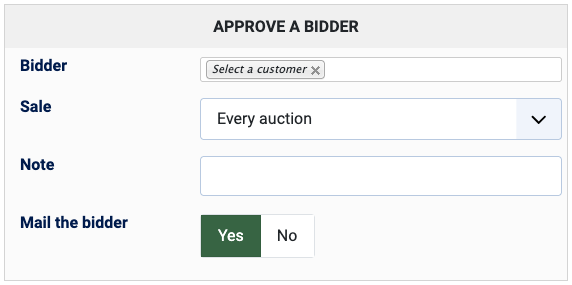
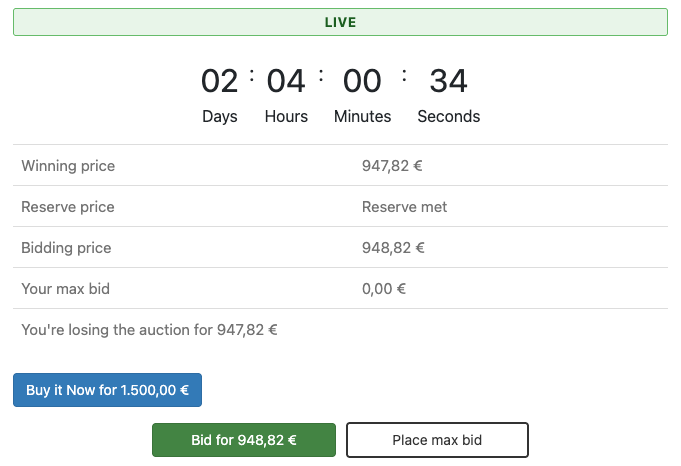
Once approved, the customer sees the bid buttons on the auctions of that sale.
The emails
- To the shop, on each request: who asks, for which sale, with a button to the list of requests.
- To the bidder, when you approve or decline his request: your decision and your note.
They use the mail layout of your site, so they look like the other emails of your shop. Their texts are language keys of HikaAuction (HKA_APPROVAL_MAIL_...), which you can change with Joomla's language overrides.