
|
|
Description
This screen enables you to edit the FedEx shipping method options. Shipping methods will be filtered on checkout based on the zone you set for them, if any. Then, they will be displayed to the user for him to choose which shipping method he prefers for his order.
Toolbar

- Save & Close : Save the shipping method options and return to the shipping methods Management screen.
- Save : Apply the modifications to the shipping method and stay on the same screen.
- Cancel : Return to the previous screen without saving the modifications.
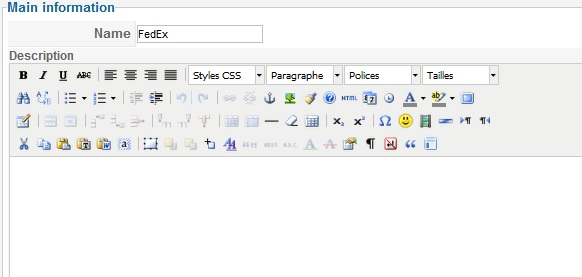
Main Information
If you use one of our commercial versions, you will be able to enter the name and description in different languages. This feature requires to have JoomFish installed and can be activated in the configuration page, in the display tab. The languages available will be the ones in JoomFish. If you don't enter something for a translation, it will just use the default information in the Main information tab instead. After you click on save or apply an additional publish icon will appear next to the fields where you entered something in the languages tabs so that you can easily enable or disable them.
Additional Information
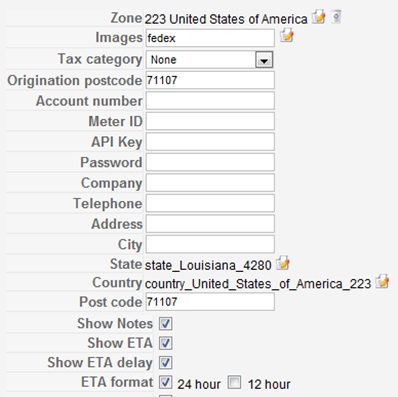
- Zone : You can restrict the shipping method to a zone. By clicking on the edit icon, a popup will open enabling you to select a zone. You can also remove this limitation by clicking on the delete icon.
- Images : You can click on the edit icon to select one or several images to display next to the name of the shipping method during the checkout process. Those images are stored in the folder media/com_hikashop/images/shipping so you can easily add more of them by uploading your images to this folder via FTP.
- Tax category :You can apply taxes on the shipping price. Taxes are already included in the price returned by the system. However, you can use this as a means to increase the price of the shipping to allow you some room in case the packages are a bit heavier. So you would create a special tax category for shipping apply to it a tax percentage with a tax rule and the shipping price will be increased.
- Origination postcode : The post code where you are sending your packets.
- Account number : Your FedEx Account number. You can get this number through your FedEx account configuration.
- Meter ID: Your FedEx Meter ID. You can get this ID through your FedEx account configuration.
- API key : Your FedEx API key. You can get this key through your FedEx account configuration.
- Password : Your FedEx password.
- Company : Sender company name.
- Telephone : Sender telephone number.
- Address : Sender Address
- City : Sender city
- State : Sender state
- Country : Sender country
- Post code : Sender post code
- Show Notes : Show descriptions of each FedEx shipping method during the checkout.
- Show ETA : Show the estimated time of arrival
- Show ETA delay : Show the delay between the estimated time of arrival and now
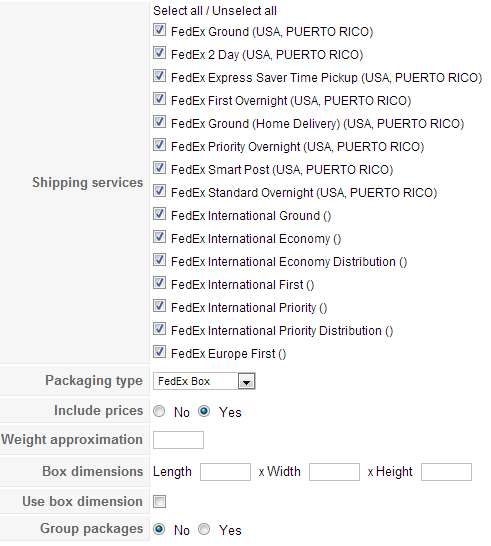
- Shipping Services : Select here the FedEx services you want to use. Note that not all the FedEx services are available to you. It depends on where your warehouses (the place from where you ship your goods) are located.
- Packaging type : Select here the Packaging type of the order that will be sent.
- Include prices: If this option is activated the price of goods is given to FedEx so that it can add the shipping insurance in the prices (more expensive).
- Weight approximation : You can add here a percentage to the weight of your products.
- Dimension approximation : You can add here a percentage to the dimensions of your products.
- Use dimension : Enables you to only use that shipping method if you have products with dimensions on your order.
- Group packages : If this option is activated, products will be grouped together. Otherwise, every product will have its own package (more expensive).
Restrictions
You can set restrictions on shipping methods. Based on the products in the cart of the user, the system will calculate which shipping methods the customer can choose from.
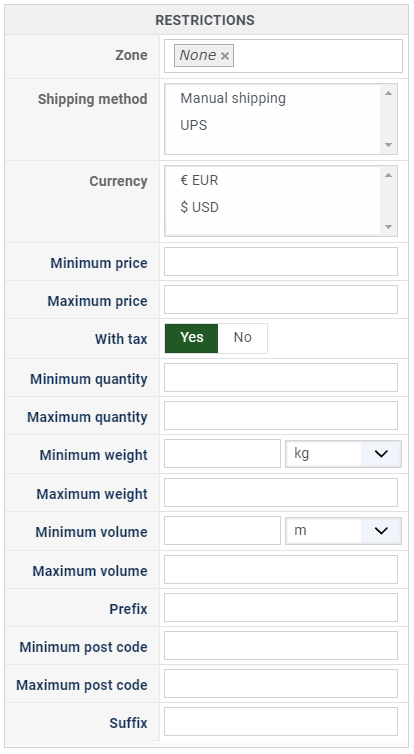
- Zone: You can restrict a shipping method to a zone. By clicking on the edit icon, a popup will open enabling you to select a zone. Only customers with a shipping address in the selected zone (or its sub-zones) will see this shipping method. You can remove this limitation by clicking on the delete icon.
- Warehouse: You can restrict the shipping method to one or more warehouses. You can also choose whether the filter is inclusive ("Only these warehouses") or exclusive ("All except these warehouses") using the radio buttons next to the selector.
- Minimum price: The shipping method will only be available for orders with a product total above this minimum price.
- Maximum price: The shipping method will only be available for orders with a product total below this maximum price.
- Include virtual products price: If you activate this option, the price of virtual goods (products without weight) is taken into account for the maximum and minimum price restrictions above as well as the percentage price calculation. Otherwise, only physical goods (with a weight) are taken into account.
- With tax: When enabled, the minimum and maximum price restrictions use the product prices including taxes. When disabled, they use the prices excluding taxes. Enabled by default.
- Minimum quantity: The minimum number of items in the cart for this shipping method to be available. The quantity is calculated as the sum of the quantity of each product in the cart.
- Maximum quantity: The maximum number of items in the cart for this shipping method to be available.
- Minimum weight: The minimum total weight of the cart for this shipping method to be available. The weight is calculated as the sum of each product's weight multiplied by its quantity. You can select the weight unit next to this field.
- Maximum weight: The maximum total weight of the cart for this shipping method to be available.
- Minimum volume: The minimum total volume of the cart for this shipping method to be available. The volume is calculated from the width, height and length of each product multiplied by its quantity. You can select the volume unit next to this field.
- Maximum volume: The maximum total volume of the cart for this shipping method to be available.
- Post code RegEx: A regular expression to match against the customer's postal code. Only customers whose postal code matches the expression will see this shipping method. For example, ^(75|92|93|94) to match postal codes starting with 75, 92, 93, or 94.
- Prefix: You can restrict the shipping method to only postal codes starting with this prefix.
- Min. postal code: You can restrict the shipping method to only postal codes within a numeric range, whereby this is the minimum value.
- Max. postal code: The maximum value of the postal code numeric range.
- Suffix: You can restrict the shipping method to only postal codes ending with this suffix.
Access Level
You can restrict which Joomla user groups can see and use this shipping method. By default, the shipping method is available to all user groups. Select specific groups to limit access. This is useful if you want to offer specific shipping options only to certain customer groups (e.g. wholesale customers, VIP members).