
HikaShop
- Details
- Written by: jobsigen
- Category: HikaShop
- Hits: 2447
|
|

Description
This screen enables you to edit the FedEx shipping method options. Shipping methods will be filtered on checkout based on the zone you set for them, if any. Then, they will be displayed to the user for him to choose which shipping method he prefers for his order.
Toolbar

- Save & Close : Save the shipping method options and return to the shipping methods Management screen.
- Save : Apply the modifications to the shipping method and stay on the same screen.
- Cancel : Return to the previous screen without saving the modifications.
- Help : Open the Help documentation to configure your FedEx plugin.
Main Information
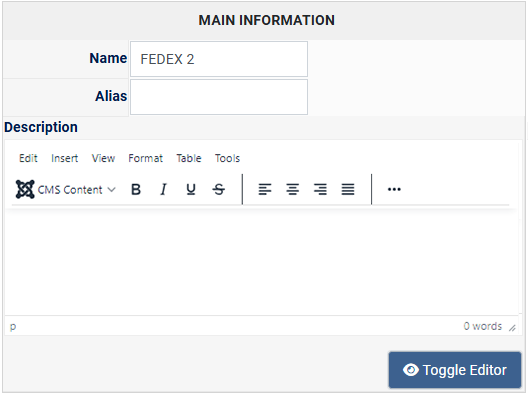
If you use one of our commercial versions, you will be able to enter the name and description in different languages. This feature can be activated in the configuration page, in the display tab. If you don't enter something for a translation, it will just use the default information in the Main information tab instead.
Additional Information
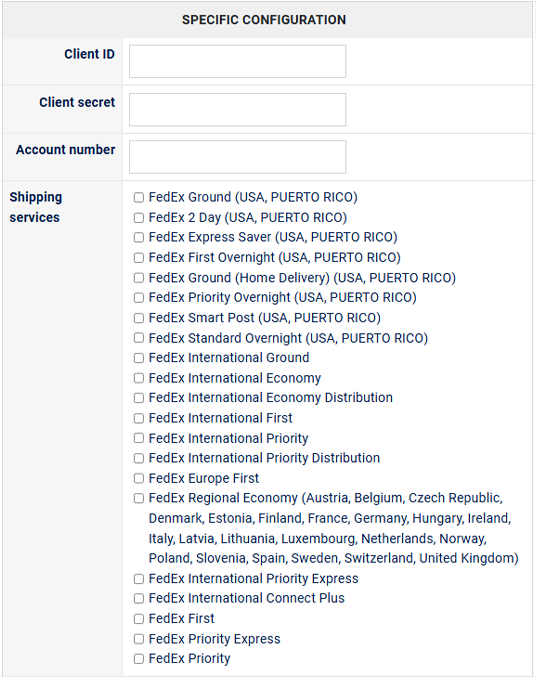
- Client ID : The Client ID of the app you created in your FedEx account (learn more here).
- Client secret : The Client secret of the app you created in your FedEx account (learn more here).
- Account number : Unique UPS shipper account number provided by FedEx once you create a shipper account with them (learn more here).
- Shipping service :
Select here the FedEx services you want to allow. Note that not all the FedEx services are available to you.
It depends on where your warehouse (the place from where you ship your goods) is located, and where your package should be delivered.
- FedEx International Ground :
- FedEx 2 Day
- FedEx Express Saver
- FedEx First Overnight
- FedEx Ground (Home Delivery)
- FedEx Priority Overnight
- FedEx Smart Post
- FedEx Standard Overnight
- FedEx international Economy
- FedEx international Economy Distribution
- FedEx international First
- FedEx international Priority
- FedEx international Priority Distribution
- FedEx Europe First
- FedEx Regional Economy
- FedEx international Priority Express
- FedEx international Connect Plus
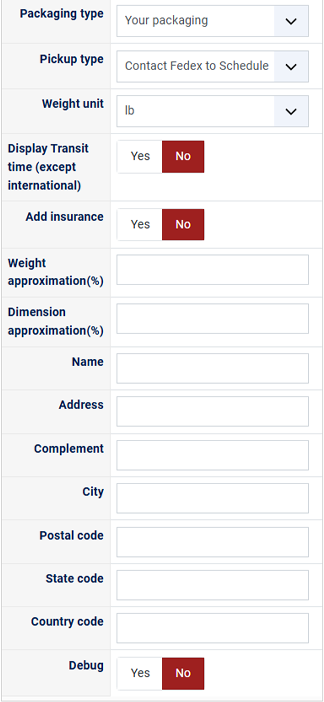
- Packaging type
: Choose from all package types authorized by FedEx.
Available options : Your packaging, FedEx pak, FedEx tube, FedEx box, FedEx small box, FedEx medium box, FedEx large box, FedEx extra large box, FedEx 10KG box, FedEx 25 box, FedEx envelope - Pickup type
: Force the package weight unit.
Available options : Contact Fedex to Schedule, Drop off at Fedex Location, Use scheduled pickup, Regular pickup FedEx schedule - Weight unit
: Define the weight unit for all your packages. In the USA, you normally have to select lb, and in Europe Kg.
Available options : lb, G, Kg, Mg, Oz - Display Transit time (except international) : Define if you want to display to your customer the delivery date (if provided by FedEx).
- Add insurance : Select if you want to provide the package value, and therefore have delivery assured by FedEx.
- Weight approximation(%) : You can add here a percentage to the weight of your products.
- Dimension approximation(%) : You can add here a percentage to the dimensions of your products.
-
Departure address for your products (warehouse or store, etc.) :
- Name :
- Address : With street number and street name.
- Address : (Optional)
- City :
- Postal code :
- State code : 2 letter code only, Required only for USA, Canada and Puerto Rico!
- Country code : 2 letter code only!
This will help in finding where the trouble is with the setup of the plugin if something doesn't work with it.
Restrictions
You can set restrictions on shipping methods. Based on the products in the cart of the user, the system will calculate which shipping methods the customer can choose from.
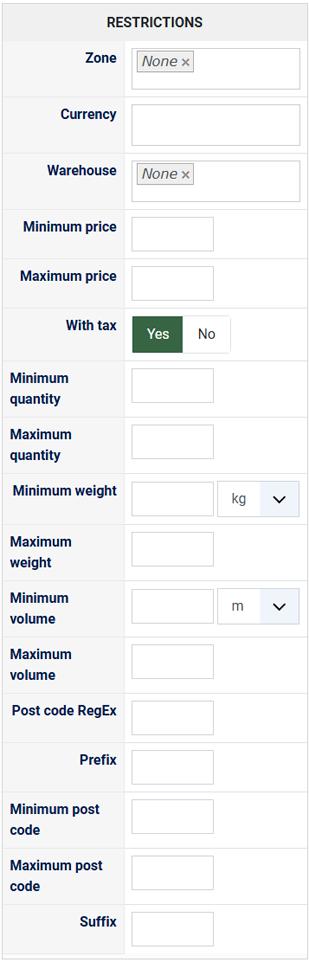
- Zone : You can restrict a shipping method to a zone. By clicking on the edit icon, a popup will open enabling you to select a zone. You can also remove this limitation by clicking on the delete icon.
- Warehouse : You can restrict the shipping method on a warehouse, the warehouse management will come in a future release of HikaShop. Note that Shipping methods which have a selected warehouse can only be used by products which have the same warehouse.
- Minimum price : The shipping method can be available for only orders above a minimum price. This price uses the shipping method price currency even if the price is 0.
- Maximum price : The shipping method can be available for only orders below a maximum price. This price uses the shipping method price currency even if the price is 0.
- Include virtual products price : If you activate this option, the price of virtual goods (no weight) is taken into account for the maximum and minimum price restrictions above as well as the percentage price calculation. Otherwise, only the real goods (with a weight) are taken into account.
- With tax : The price restriction can be set on the taxed price or the price without tax depending on this option
- Minimum quantity: You can set a minimum quantity so that orders below it won't be able to be shipped with the current shipping method. The quantity of the order will be calculated based on the quantity of each products in it.
- Maximum quantity: You can set a maximum quantity so that orders over it won't be able to be shipped with the current shipping method. The quantity of the order will be calculated based on the quantity of each products in it.
- Minimum weight : You can set a minimum weight so that orders below it won't be able to be shipped with the current shipping method. The weight of the order will be calculated based on the weight of each products in it.
- Maximum weight : You can set a maximum weight so that orders over it won't be able to be shipped with the current shipping method. The weight of the order will be calculated based on the weight of each products in it.
- Minimum volume : You can set a minimum volume so that orders below it won't be able to be shipped with the current shipping method. The volume of the order will be calculated based on the volume of each products in it. The volume is calculated with the width, height and length of the products.
- Maximum volume : You can set a maximum volume so that orders over it won't be able to be shipped with the current shipping method. The volume of the order will be calculated based on the volume of each products in it. The volume is calculated with the width, height and length of the products.
- Prefix : You can restrict your shipping methods to only post codes including such prefix with this option.
- Minimum post code : You can restrict your shipping methods to only post codes within a certain range whereby this is the minimum possible value
- Maximum post code : You can restrict your shipping methods to only post codes within a certain range whereby this is the maximum possible value
- Suffix : You can restrict your shipping methods to only post codes including such suffix with this option.
- Details
- Written by: jobsigen
- Category: HikaShop
- Hits: 8783


Find the New PayPal plugin
First, go to Components => HikaShop.
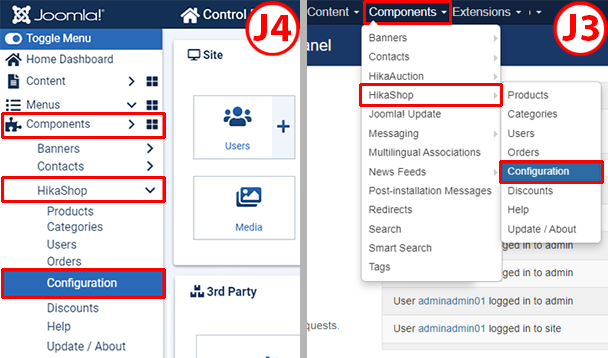
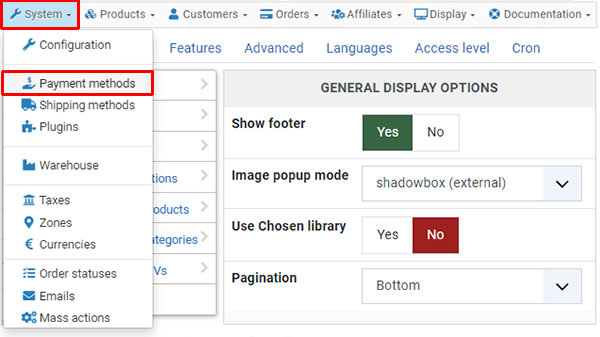
In the System menu dropdown click on the Payment methods sub menu.
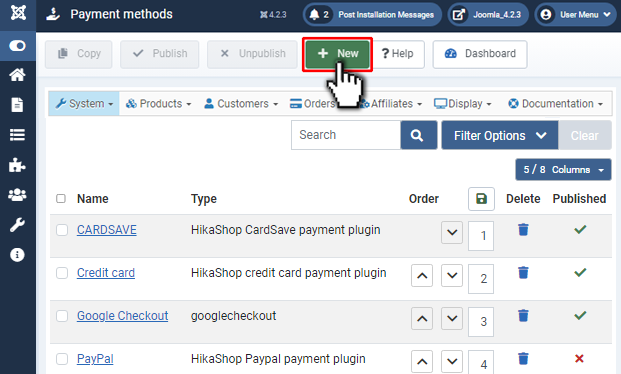
Now, you can see the Payment Methods listing. In the toolbar of this page, click on the "New" button in order to create your new PayPal Checkout payment method.
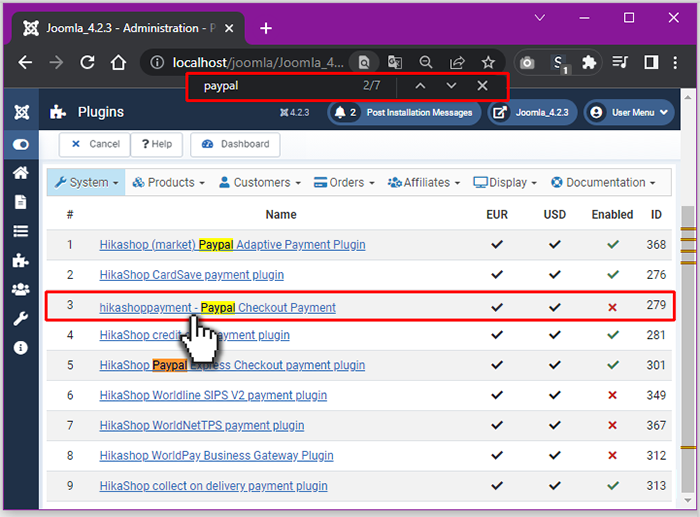
There, among the installed payment plugins, you can find the PayPal Checkout Payment plugin. Click on its name to start creating the payment method.
Tips : To easily find the plugin, you can use "Ctrl + F" on your keyboard and then type in the text field the name i.e. PayPal Checkout.
PayPal Checkout Settings
Simple setup.
Your PayPal Checkout plugin has a mechanism to automatically communicate with the PayPal servers in order to retrieve your credentials, necessary to make your plugin work.
Step by step :
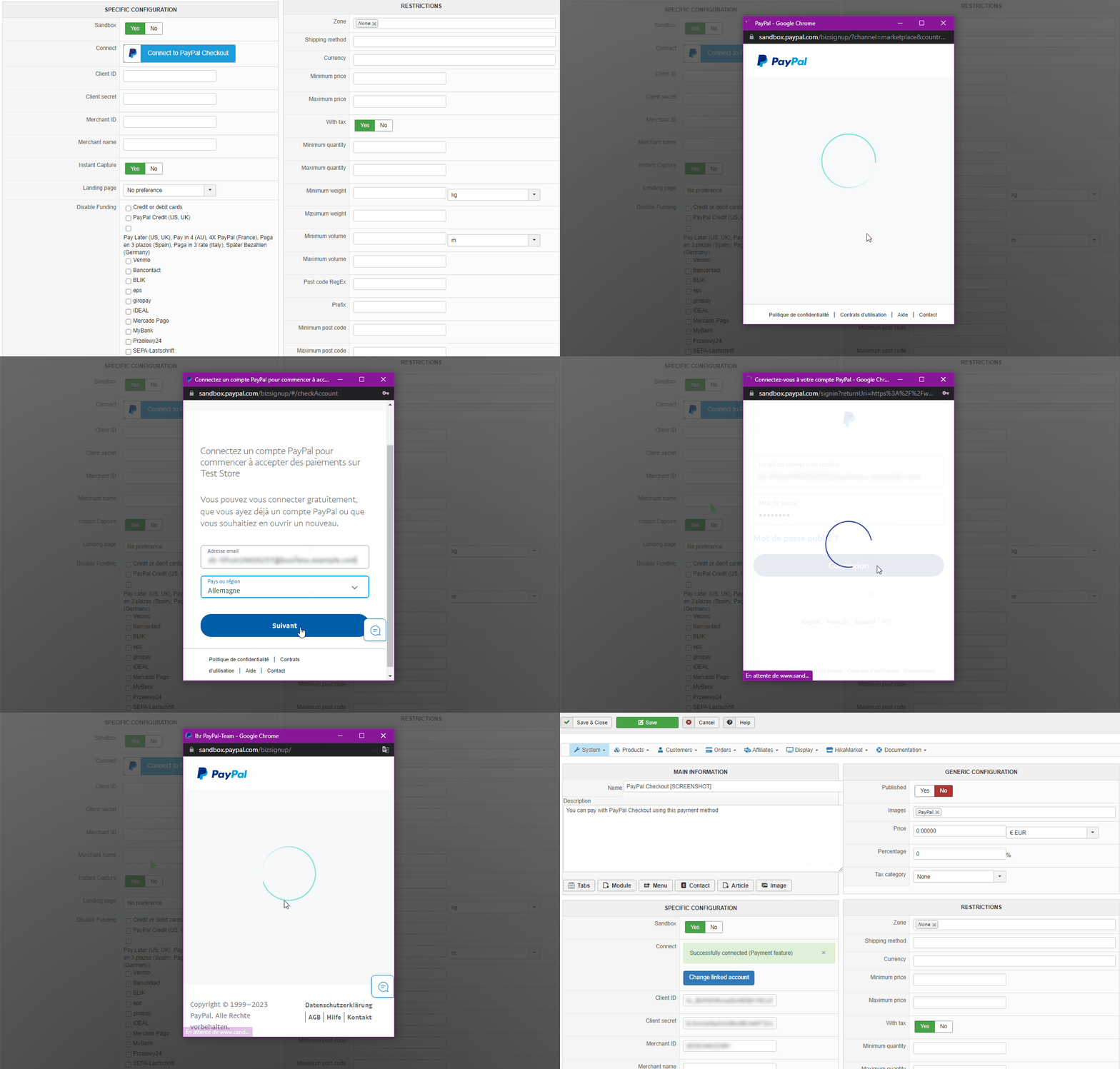
- 1. Click on the "Connect to PayPal Checkout" button
- 2. Enter your PayPal account email address & select your region and validate.
- 3. Enter your merchant password and validate.
- 4. Click on the "Connect" button in the popup. You are now connected! And you can close the login popup. You'll see the status of your merchant account instead of the "Connect to PayPal Checkout" button.
Note that if you don't already have a PayPal account, you can use your normal email address and go through the registration steps there. Also, if you want to test with virtual payments, you can activate the "sandbox" setting and use a PayPal sandbox account to connect.
See complete setting documentation.
- Details
- Written by: jobsigen
- Category: HikaShop
- Hits: 7153
-

-
Configure your PayPal Checkout : Activate PayPal Checkout
Payments built on trust.
Thanks to the partnership between HikaShop and PayPal, you can take full advantage of the features offered by PayPal Checkout. Learn more about what this entails on this page.
49% of PayPal users abandoned a purchase when PayPal wasn't available.1 Help maximize conversion with PayPal, Venmo and PayPal Pay Later.
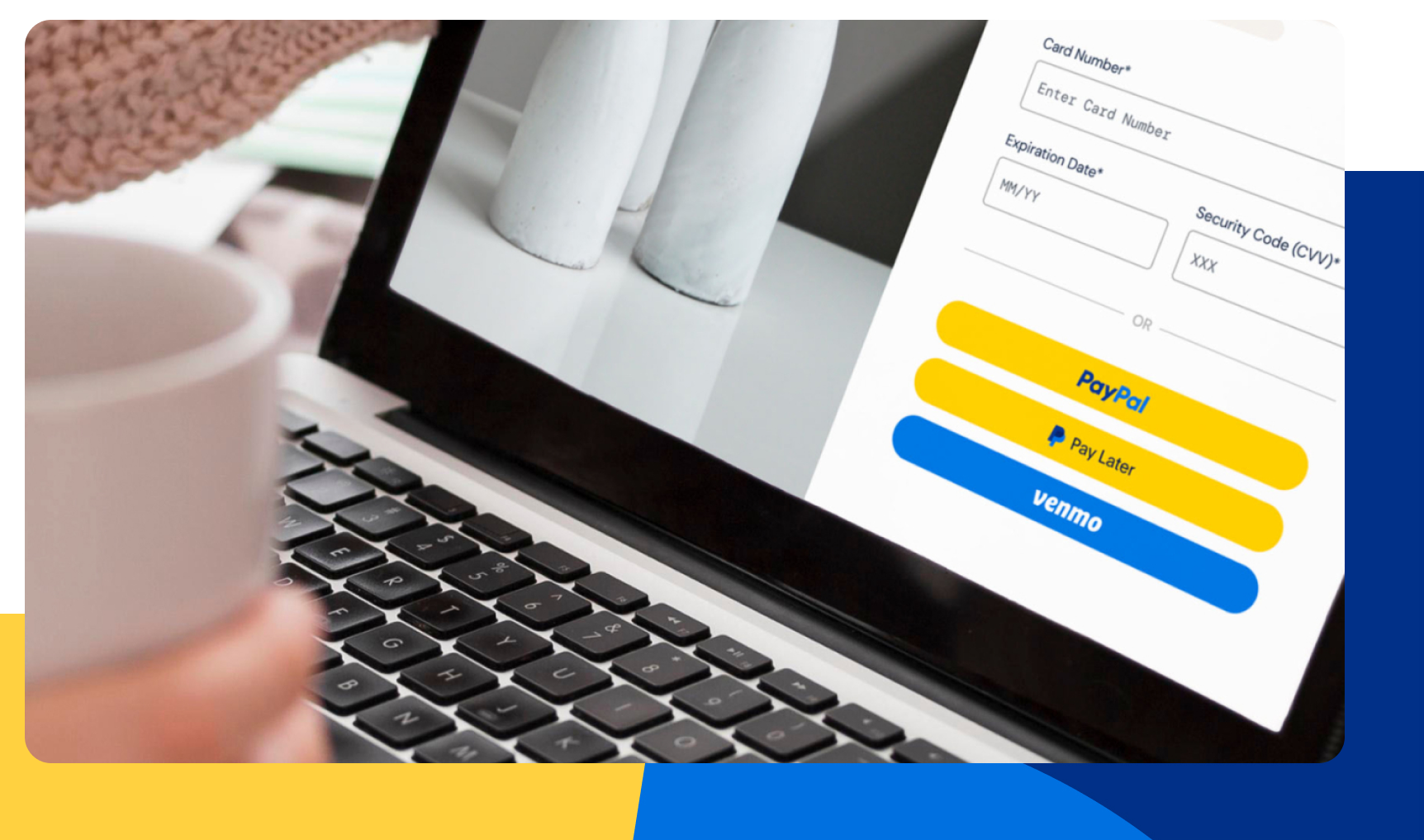

Drive conversion with PayPal.
PayPal's brand recognition helps give customers the confidence to buy. PayPal Checkout complements what you already have, comes with PayPal, Venmo, PayPal Pay Later, and more, it's easy to add to your HikaShop checkout solutions.
30% higher checkout conversion.2
Boost sales with Pay Later.
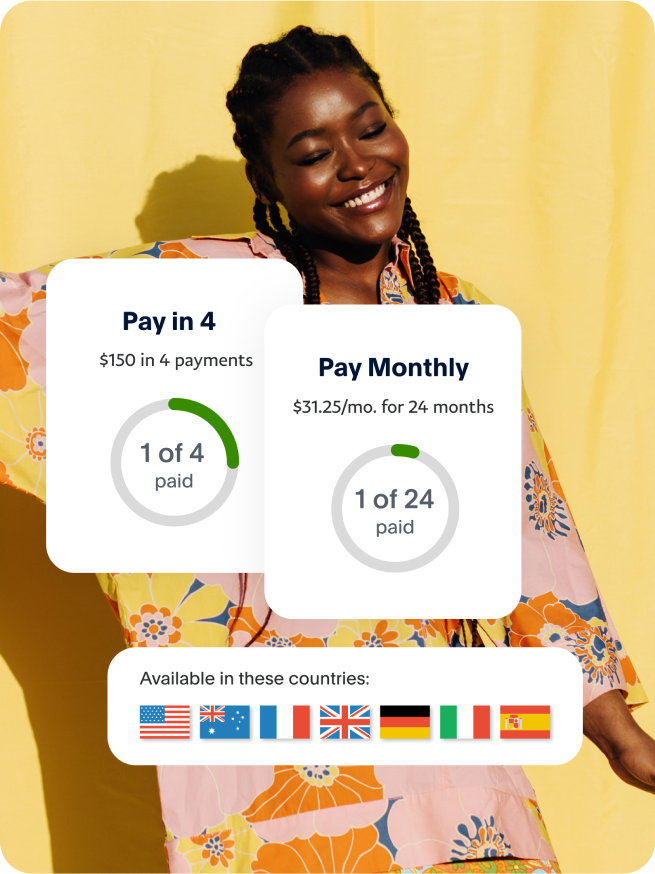
Let customers pay in installments with Pay in 4 and Pay Monthly,3 while you get paid up front at no extra cost to you. Promoting buy now, pay later messaging on your site at key points of the shopping journey can help boost average order value (AOV)4 and encourage customers to buy more,5 and more often.6
39% increase in cart sizes when Pay Later options are promoted.4
Tap into NextGen spending power with Venmo.
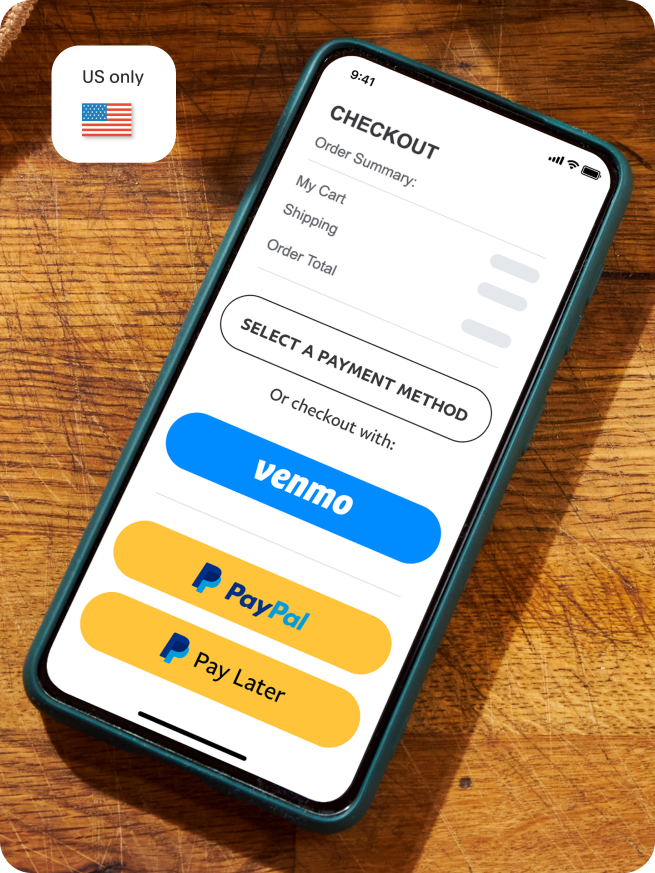
Venmo is already part of PayPal Checkout, at no additional cost. Gain appeal to Venmo customers who are active spenders7 with more spending power.8 And help bring more visibility to your business with a payment method customers can easily share.
2x Venmo users spend 2x more.9
- 69% of PayPal customers feel more secure shopping at a merchant that accepts PayPal.10
- 3x purchase completion when PayPal is available at checkout.11
- 30% more repeat buyers.12
Designed with your business in mind.
PayPal Checkout: PayPal, Venmo, Pay Later, and more13
Funds credit immediately into your PayPal business account while payments process
It's easy to add and complements new and existing checkout solutions
Payment methods
Save customer billing and shipping info for fast, convenient checkout
Mobile-friendly so customers can easily shop on any device
Drive authorization rates, reduce declines, and help capture every sale
Track all your transactions from one dashboard
Flexible features
PayPal helps you handle the risk of fraudulent purchases
AI-powered technology monitors all transactions
PayPal Seller Protection on eligible transactions safeguards PayPal Checkout16
PayPal solutions help you meet global compliance standards
Peace of mind
 PayPal is preferred, trusted, and familiar to customers15
- 20+ years of experience
- 200+ markets around the globe
- 100+ different currencies
Simple setup.
1An online study commissioned by PayPal and conducted by Netfluential in November 2020, involving 1,000 US online shoppers ages 18-39 (among PayPal users, n=682).
2Nielsen Attitudinal Survey of 2,801 consumers who had made a recent (past 2 weeks) purchase across any of 8 verticals (e.g. health & beauty, fashion, groceries) in June 2020.
3About Pay in 4: Loans to CA residents are made or arranged pursuant to a CA Financing Law License. PayPal, Inc. is a GA Installment Lender Licensee, NMLS #910457. RI Small Loan Lender Licensee.
Pay Monthly is subject to consumer credit approval. 9.99 - 29.99% APR based on the customer's creditworthiness. The lender for Pay Monthly is WebBank. PayPal, Inc. (NMLS #910457): CT Small Loan Licensee. RI Loan Broker Licensee. VT Loan Solicitation Licensee.
4PayPal's Buy Now, Pay Later is boosting merchant's conversion rates and increasing cart sizes by 39%. PayPal Q2 Earnings-2021.
580% of BNPL users agree that seeing a BNPL message while browsing gives them the ability to spend more. An online study commissioned by PayPal and conducted by Netfluential in November 2020, involving 1,000 US online shoppers ages 18-39. (Among BNPL Users, n= 357)
674% of BNPL users are more likely to shop at a merchant again if they offer a buy now, pay later option. TRC online survey commissioned by PayPal in April 2021 involving 1000 US consumers ages 18+ (among BNPL users, n=282).
7Focus Vision, Commissioned by PayPal. October 2020. The Venmo Behavior Study explores valuable insights for merchants to consider to reach a broader audience including 2,217 Venmo customers' financial habits, purchasing behaviors and perceptions of Venmo as a payments tool.
850% of Venmo users are more likely to have a high household income than online payment users overall. (Page 8). Source: Statista Global Consumer Survey as on July 2020. The target population are internet users in U.S. between 18 and 64 years of age.
9Edison Trends, commissioned by PayPal, April 2020 to March 2021. Edison Trends conducted a behavioural panel of email receipts from 306,939 US consumers and 3.4+ M purchases at a vertical level between Pay with Venmo and Non-Venmo users during a 12-month period.
10An online study commissioned by PayPal and conducted by Netfluential in November 2020, involving 1,000 US online shoppers ages 18-39. (Among PayPal users, n=682)
11Nielsen, Commissioned by PayPal, July 2020 to September 2020 of 15,144 US consumers to understand and measure the impact that PayPal has for US-based LE merchants across different verticals.
12Nielson, Commissioned by PayPal, Nielsen Media Behavioural Panel of USA with SMB desktop purchases from 7,317 consumers who are PayPal users from April 2020 to March 2021.
13Venmo is available only in the US.
14Available for eligible transactions. Limits apply.
15Morning Consult - The 15 Most Trusted Brands Globally. March 2021. Morning Consult surveyed over 330,000 consumers across 10 international markets to provide a global view on the current state of consumer trust across brands.
- Details
- Written by: jobsigen
- Category: HikaShop
- Hits: 7471
The purpose of this page is to guide you on how to download your paid plugins on the HikaShop website via your user account.

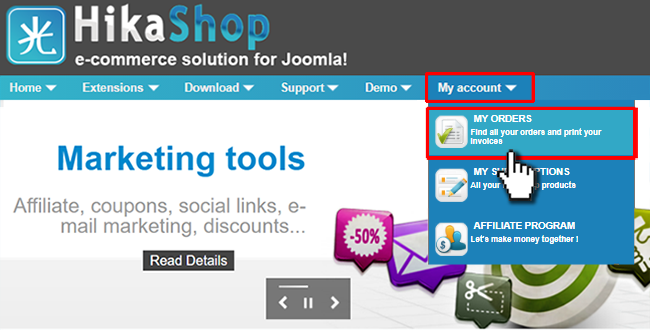
In order to find your download, you first have to access your orders listing. You can do so via the My account => My orders menu, after logging in.
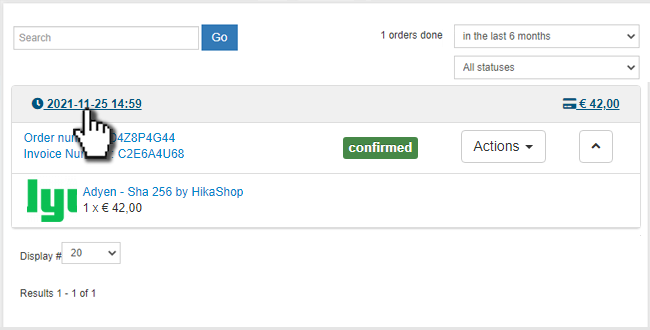
On your orders listing, select the order by clicking on the order date, the total value or the order number.
You might also want to change the top-right filter on the date if you're searching for old orders.
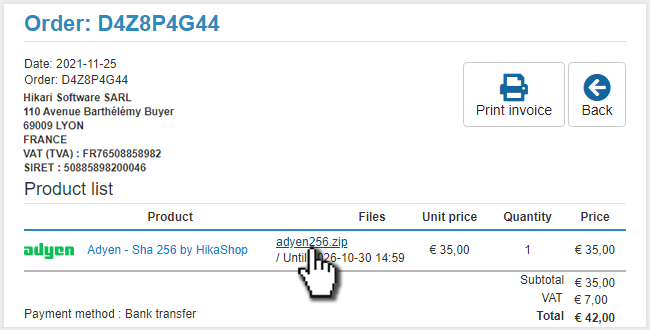
On your order details page, look at the products list. There, you'll find the download link for the install package of the latest version of your plugin, next to the product name:
- Details
- Written by: jobsigen
- Category: HikaShop
- Hits: 2087
|
|

Description
This screen enables you to create or edit an order status.
In HikaShop, orders are categorized through different statuses, or to put it another way, different state depending on the current step of the order.
Toolbar

- Save : Save the current order status and stay on the current configuration page.
- Save & Close: Save the current order status as previous but return to the order statuses Management screen..
- Save & New : Save the current order status and go to an another order statuses Management screen, in order to create a new one.
- Cancel : Return to the previous screen without saving the modifications.
- Help : This button enables you to turn ON/OFF the help section, this screen will appear or disappear.
Main Options
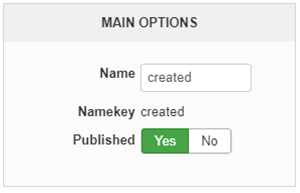
- Name : Define here the name of your order status, note that this name will be used directly in your order listing (backend and frontend).
- Namekey : The Namekey is used by your database and will be associated to the order in its own database.
- Published : Switch it to No, if you want deactivate the Order Status.
Description
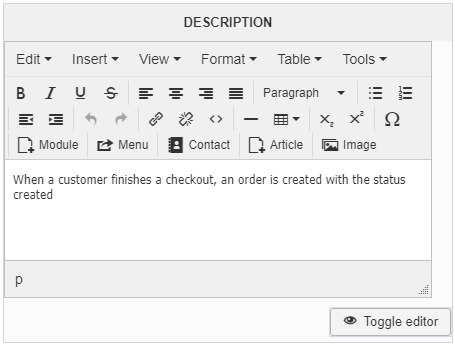
The description won't be displayed anywhere in your website, and so use it like a memo or a user manual to define for yourself the purpose of this order status for example.