
|
|

Description
This screen enables you to create or edit a zone and its sub-zones. Zones are used throughout HikaShop to restrict or alter the user experience based on the address provided. For example, you can limit bank transfer payments to your own country to avoid extra fees, while requiring international customers to pay via credit card.
Toolbar
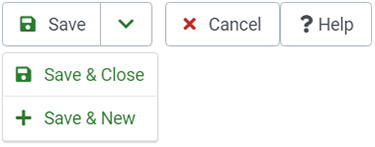
- Save: Save the current zone and return to the Zones Management screen.
- Apply: Apply the modifications to the current zone and remain on this screen.
- Cancel: Return to the previous screen without saving modifications.
- Help: Toggle the display of the help section.
Zone Information
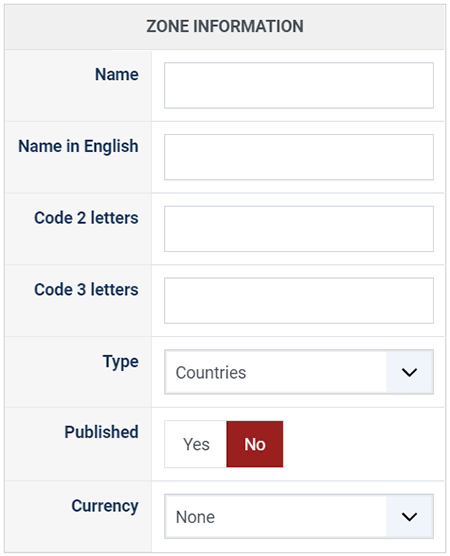
- Name: The name of the zone.
- Name in English: The name of the zone in English. By default, only countries have standard English names defined.
- Code (2 letters): The 2-letter ISO code for the zone (e.g. "US"). External systems (payment gateways, shipping services) often require this code to identify the zone.
- Code (3 letters): The 3-letter ISO code for the zone (e.g. "USA"). Required by certain visualization tools (like Google Charts) or specific integrations.
- Type: The type of the zone. Common types include: country, state, tax, shipping, payment, or discount.
- Published: If a zone is published, it is available for use in customer addresses and configuration settings.
- Currency: Select a specific currency to associate with this zone (optional).
Sub-zones
Defining a proper zone hierarchy is crucial for your store. By default, HikaShop includes all countries and their states. This hierarchy allows the system to automatically load the correct states when a customer selects a country. It also enables you to define custom tax, payment, or shipping rules.
For example, you can create a specific shipping zone named "Europe", add all European countries as sub-zones, and then offer a "Free Shipping" method available only to customers within that "Europe" zone.
Note: If you are creating a new zone, this section will be hidden until you save the zone for the first time.
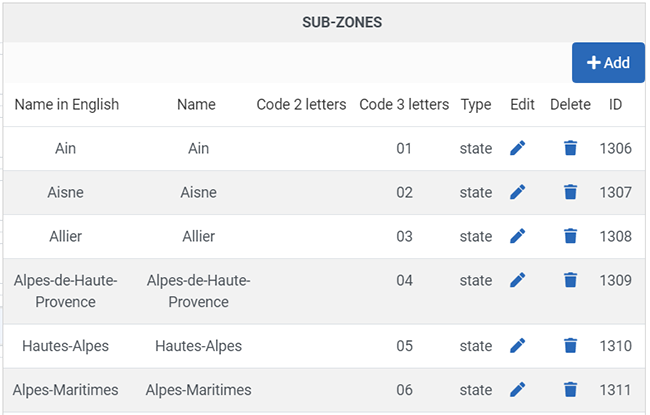
- Delete: Click the trash icon to remove a sub-zone from the list. This sends a request to remove the link, but strictly speaking, it does not delete the zone record itself from the database. You must click Save or Apply to confirm the removal.
- Add: Click the "Add" button to open a popup where you can select existing zones to add as sub-zones.
- Import CSV: Click the "Import CSV" button to open a popup for bulk importing sub-zones via CSV.
The import process has 2 steps:- Upload/Paste: Select your CSV file or paste the content directly (format: zone_name, zone_code_2, etc).
- Map Columns: Match the columns from your CSV with HikaShop zone fields. Use "Ignore" for columns you don't need.
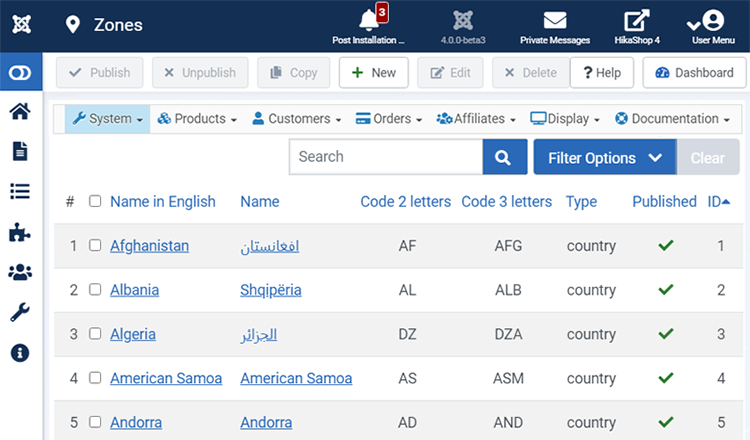
- Checkbox: Select the zones you want to add to the sub-zones listing. Click OK to confirm. Remember to save the parent zone afterwards.
- Filters: Use the "All zones" filter or the search bar to quickly find the zones you are looking for.
- New: Create a new zone on the fly, which will be automatically added to the current zone's sub-zones.