
|
|
Description
This screen enables you to manage the users of your shop. During the checkout process, the customers will be added to the list of HikaShop users whether he already registered via Joomla (or any other component) or he created a new account using the checkout registration form. Additionally, users will also be added to HikaShop as partners if they subscribe to the affiliate program available in the business version of HikaShop.
Toolbar

- Edit : Select a user and then click on this button in order to edit its information.
- Delete : Select one or several users and click on this button in order to completely delete them from HikaShop. They will still be in Joomla. If you want to delete both records at once, you can delete the user from Joomla.
- Help : This button enables you to turn ON/OFF the help section, this screen will appear or disappear.
- Dashboard : You can go back to the control panel using this button.
Column Headers
-
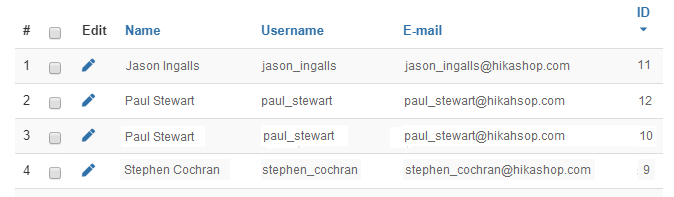
# : An indexing number automatically assigned for ease of reference.
- Checkbox : Check this box to select one or more items. To select all items, check the box in the column heading. After one or more boxes are checked, click on the delete button in order to delete the selected users.
- Edit : You can edit the user's information by clicking on this icon.
- Name : The name of the user as recorded in the Joomla information of the user.
- Username : The username of the user as recorded in the Joomla information of the user.
- Email : The email of the user.
- ID : This field indicates the ID of the user.
-
Total spent : What the customer has spent with you. It counts the orders in the statuses ticked in the Statistics column of the System > Order Statuses page, which is the same list your dashboard counts, and it follows your orders on their own: an order confirmed adds to it, an order refunded or cancelled takes itself back off. Amounts are given in the currency of your shop, converted with the rate of the day each order was placed, so a rate moving later does not change what a customer spent last year.
The column is hidden until you ask for it with the columns button at the top of the listing, and you can sort your customers by it. Total spent without tax is the same figure with the taxes taken out.
Two things to know about it. A customer who ordered as a guest before creating an account has two customer records here, so what they spent is split between the two. And on a shop which already had orders before this was added, the figures are worked out the first time you run Configuration > Check database.
Filters

- The filter caption enables you to easily search in your users.
- Using the dropdown, you will be able to display only users which are partners or customers.