
Pther extensions
- Details
- Written by: Administrator
- Category: Pther extensions
- Hits: 3
Installation
- Install the plugin with the Joomla installer (System > Install > Extensions).
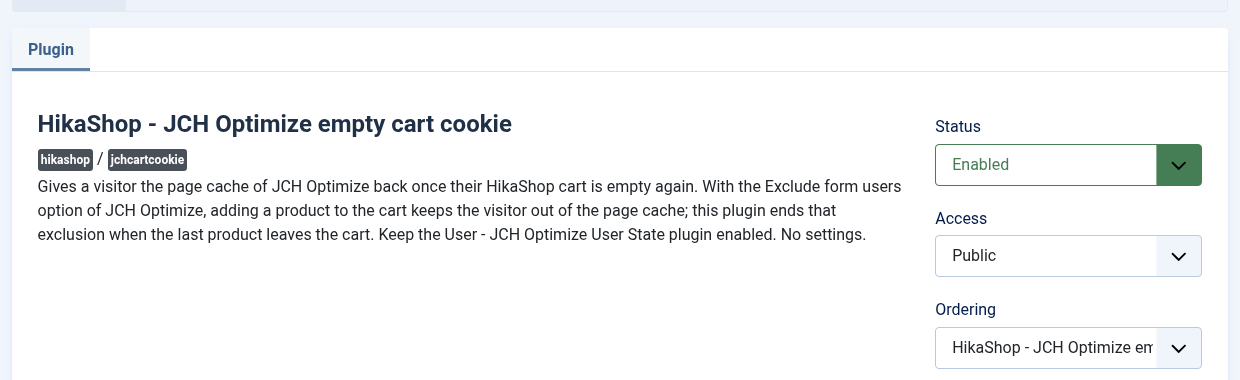
- In System > Manage > Plugins, search for "JCH Optimize empty cart cookie" and enable it.
- In the same list, check that the "User - JCH Optimize User State" plugin of JCH Optimize is enabled.
- In JCH Optimize, keep the page cache's Exclude form users option on, and keep the HikaShop pages that are personal out of the page cache: cart, checkout, customer account, orders, addresses, and the cart module's address (ctrl=product&task=cart).
Configuration
The plugin has no settings: once enabled, it works on every cart of the shop.
Troubleshooting
- The visitor still gets no cached page after emptying the cart: open the developer tools of the browser, Storage tab, and look at the jch_optimize_no_cache_user_activity cookie after removing the last product. If it is still there, check that this plugin and "User - JCH Optimize User State" are both enabled. If it comes back, look in the Network tab for the request whose answer sets it again (its Set-Cookie header) and send it to our support.
- The cookie disappears after another form: the Exclude form users option sets the same cookie for any form (contact, login...). When such a visitor empties their cart, the plugin ends the exclusion too. This is harmless for a visitor who is not logged in, since the cached pages are the same for every such visitor, as long as the personal pages above stay out of the cache.
- Details
- Written by: Administrator
- Category: Pther extensions
- Hits: 3
Installation
- 1) Install the PDF Invoice plugin, version 5.2.1 or later, turn Factur-X on in its settings, and fill your company's details in it: company name, SIREN, VAT number, address and the three legal mentions French law requires on every invoice. If some of your business customers have no VAT number, add a SIREN field to the addresses and choose it in its "SIREN field of the customer" setting.
- 2) In Pennylane, open Settings, Connectivity, Developers, and generate an API token with read and write access to Customer invoices and Customers. Pennylane offers it from its Essentiel plan, to the company's administrator or director: if the Developers page is missing, your plan has no API (the Collaboratif plan an accountant offers has none).
- 3) Install this plugin, enable it in Extensions > Plugins, and paste the token in its settings.
- 4) In HikaShop, go to System > Order statuses and tick, in the "Pennylane" column, the statuses that send the invoice.
- 5) Set up the HikaShop cron, so that what could not be sent is tried again.
Configuration
- Pennylane API token: the token of step 2. To try the plugin first, make the token in your Pennylane sandbox (your profile, Test environment): it then sends to the sandbox.
- Send to the e-invoicing network: have Pennylane send the invoices of your French business customers over the network. Leave it on: the reform requires it.
- Mark the invoices as paid: marks the invoice as paid in Pennylane when the order is paid and Pennylane cannot match the payment itself (PayPal, cheque...). The payment methods listed in the PDF Invoice plugin's "Payment methods paid after the invoice" setting are left unpaid. Stripe and bank transfer orders are never marked: Pennylane matches them with the money it receives.
- Revenue account of the products: the number of the ledger account your product sales go to, for instance 707. Empty, Pennylane chooses.
- Send the orders invoiced since: also sends the orders invoiced since this date that are not in Pennylane yet, twenty at each run of the cron.
- Debug mode: writes every call to Pennylane to the HikaShop log file.
Troubleshooting
- The last error of an order is shown on its page in the backend, and written to the HikaShop log file. Your API token is never written to the log.
- "The PDF Invoice plugin did not give the Factur-X file": install or update the PDF Invoice plugin (5.2.1 or later) and turn Factur-X on in its settings.
- An invoice to a foreign company, or to a private customer, is "not for the network": it is in Pennylane, and in its e-reporting, as the reform wants.
- Imported invoices wait in Pennylane's inbox for your accountant to check them, as any invoice imported into Pennylane does.
- Details
- Written by: Administrator
- Category: Pther extensions
- Hits: 3
Installation
- Install the plugin with the HikaShop or Joomla installer and publish it.
- Open its settings and choose where the products come from. For the related products, fill in the Related products tab of your products.
- Optionally, create a coupon in HikaShop and type its code in the plugin.
Configuration
- Block title: the title shown above the products. Leave it empty for the default one ("You may also like"); to change that default text for good, use a language override.
- Products to offer: where the products come from: "Related products of what was bought" (the Related products tab of your products), "Bought together by other customers", or "A list of products" (the ones typed in the next setting). When there are not enough products from the source you chose, the list completes them.
- Product ids: the ids of the products to offer, separated by commas (for instance 12,34,56), in the order they are shown.
- Number of products: how many products to show, from 1 to 8 (3 by default).
- Days after the order: the thank-you page can be opened again from the order email; the offer is hidden after this many days (7 by default). 0 shows it for ever.
- Coupon code: the code of a coupon created in HikaShop. It is shown under the products as a code to use on the next order. Leave it empty to show none.
- Details
- Written by: Administrator
- Category: Pther extensions
- Hits: 3
Installation
- 1) Download the plugin from our website via the download link provided to you after the purchase.
- 2) Install it on your Joomla website (extension manager).
- 3) Publish it from the Joomla plugin manager (type "hikashop", name "Price per category").
- 4) Open the plugin settings and define your categories (key and label).
- 5) Edit a product, and on its prices add one price per category, choosing the category on each price row.
Configuration
Open the plugin in the Joomla plugin manager (System > Plugins, search "hikashop", "Price per category") and fill the Categories list. Each row has two values:
- Key: a short internal identifier, in lowercase and without spaces (for example adult, child, infant). It is what gets stored on each price, so once you have orders you should not change it. It is never shown to your customers.
- Label: the text shown to your customers on the product page, the cart and the order (for example Adult, Child, Infant). You can rename a label at any time without affecting existing prices.
Use the buttons on the right of each row to add, remove or reorder categories. The order of the rows here is the order of the rows in the product page table. The default is Adult / Child / Infant, but you can define any categories you need (Member / Non-member, Standard / VIP, Small / Medium / Large, and so on).
- Details
- Written by: Administrator
- Category: Pther extensions
- Hits: 5
Installation
- 1) Download the plugin from our website and install it with the Joomla Extension Manager.
- 2) In Extensions > Plugins, enable "Hikashop - Review".
- 3) Make sure the reviews are turned on in the HikaShop configuration (Display > Product page, the votes and comments settings), and decide there who may write a review. To let guests who bought the product review it from the email, choose the option that restricts reviews to the customers who bought the product.
- 4) Set up the HikaShop cron (System > Configuration > Cron), as the emails are sent by it.
- 5) Open System > Emails in HikaShop, find "Order review notification" and adapt its text and subject to your shop.
Configuration
- Frequency: how often, in seconds, the plugin looks for orders to write about when the cron runs. 900 by default (15 minutes). Empty, once a day.
- Last update: the moment of the last check, filled by the plugin. Leave it as it is.
- Waiting period for orders: how long after the order, in seconds, the customer waits before getting the email. 86400 by default (one day). Raise it so the customer has received the goods; 0 sends it at once.
- Max waiting period for orders: orders older than this number of seconds are skipped. 2592000 by default (30 days). It stops the plugin from writing about old orders when you first install it. 0 means no limit.
- Order status: the order statuses, separated by commas, for which the email is sent. "confirmed, shipped" by default. Use the names of your statuses as they are in HikaShop.
- Check existing vote: "No check" sends the email in any case. "Skip if any product has a vote" does not send it when the customer has already voted on at least one product of the order. "Skip if all products have a vote" does not send it when the customer has voted on all of them. The check applies to customers with an account.
Troubleshooting
- No email is sent: check that the plugin is enabled, that the HikaShop cron runs, and that the order has one of the statuses of the "Order status" setting and is not older than the max waiting period.
- The email is sent only for a few orders at a time: the plugin handles five orders at each run, and the next ones follow at the next runs.
- The cron report says "No order left for review notification": nothing is waiting, which is normal.
- To receive the email again for an order, a developer can set the "order_reviewed" column of the order to 0 in the database.
- A customer who ordered as a guest cannot review from the button: in the HikaShop configuration, check that the reviews are turned on and, if you restrict them to buyers, that the order status is one allowed to review.