
Tutorials
- Details
- Written by: Administrator
- Category: Tutorials
- Hits: 3
EC-CUBE is a widely used Japanese open source shopping cart. HikaShop imports its catalog, customers and orders so a shop can move from EC-CUBE to Joomla or WordPress.
It is one of the shops HikaShop can import: see all the import options.
Before you start
Supported versions: EC-CUBE 4 (tested on 4.3).
The EC-CUBE database must be on the same MySQL server as the site which receives HikaShop.
Make a backup of your database and your files. The import adds to what is already in HikaShop and never deletes anything, but a backup costs nothing.
What is imported
- Tax rules
- Categories
- Products, with their classes (as variants), prices and images
- Customers and their addresses
- Orders and their lines
Not imported:
- The payment and the shipping methods
- The shipping fee lines of the orders
Steps
- In the HikaShop back office, open Products > Import and choose Import from another shop.
- Pick EC-CUBE in the list of shops.
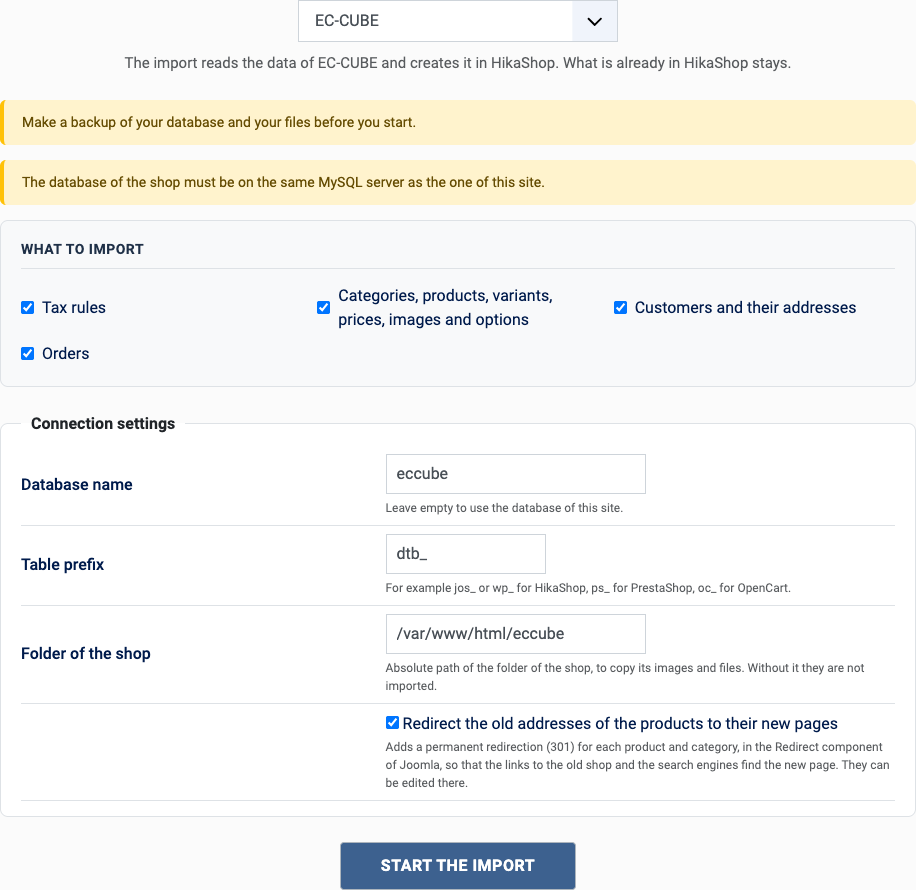
- Choose what to import with the boxes of "What to import": orders also need the customers and the catalog, they are imported with them.
- Fill in the settings (see below) and click Start the import.
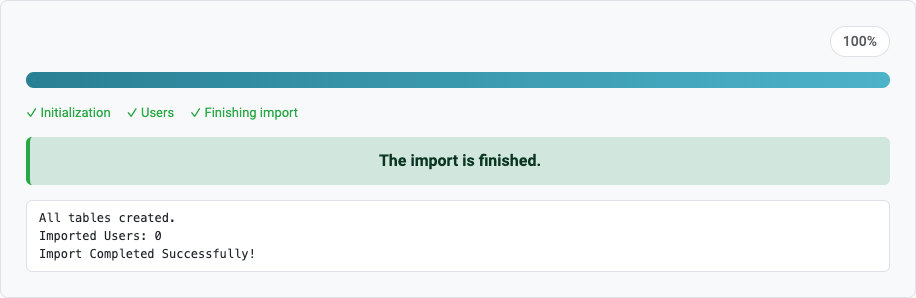
- Keep the page open until the message "The import is finished" appears. A step which fails stops the import and can be tried again or skipped.
The settings
- Database name: the database of EC-CUBE.
- EC-CUBE table prefix: dtb_ by default. The master tables always use mtb_.
- EC-CUBE installation path: the absolute path of EC-CUBE, to copy the images of the products.
- Redirect the old addresses (Joomla only): tick it to send the visitors of the old addresses to the new pages, see the questions below.
After the import
- Customers keep their password when the folder of EC-CUBE was given: they log in with the same one, which is then stored as a regular Joomla password.
- Set up your payment and shipping methods.
- Check the prices and the taxes of a few products.
Questions
Which version of EC-CUBE?
EC-CUBE 4. The tables of EC-CUBE 2 and 3 are different.
The images are missing
Enter the installation path of EC-CUBE: the images are copied from it.
Can I import only the catalog?
Yes, untick the customers and the orders in "What to import".
Can I run the import again?
Yes. What was already imported is left alone and only what is new is added: the products, customers and orders created on the old shop since the last import. You can import once to test and again when you go live. A change made on the old shop to something already imported is not copied.
The old addresses of the products
With "Redirect the old addresses" ticked (Joomla only), each product and category gets a redirection from its address in EC-CUBE (products/detail/ and products/list?category_id=) to its new page. It only works when the new site answers on the same domain as the old shop. The redirections are in Components > Redirects of Joomla, where they can be edited or removed; the import turns on the plugin "System - Redirect" which uses them.
Back to the import page, which also covers the CSV import and the import of orders. Something else went wrong? See solving problems.
- Details
- Written by: Administrator
- Category: Tutorials
- Hits: 3
Moving a HikaShop shop to another site, from Joomla to WordPress, from WordPress to Joomla, or from one server to another, does not need an export: HikaShop imports another HikaShop through its database, with the shop configuration, the methods and the orders.
It is one of the shops HikaShop can import: see all the import options.
Before you start
Supported versions: HikaShop 6.4 and later, Joomla or WordPress, in any direction.
The database of the source shop must be on the same MySQL server as the site which receives the import. Install the same edition of HikaShop on the new site first.
Make a backup of your database and your files. The import adds to what is already in HikaShop and never deletes anything, but a backup costs nothing.
What is imported
- The configuration (when ticked)
- Custom fields
- Zones, tax rates and tax categories
- Shipping and payment methods, with their configuration
- Categories, products, variants, prices, images and files
- Users and their addresses (user accounts keep their password between Joomla and WordPress)
- Coupons, discounts and limits
- Orders, their addresses, lines and statuses, warehouses
Not imported:
- The plugins and their files, which are installed separately
- The templates and the display settings of the source site that are not in the HikaShop configuration
Steps
- In the HikaShop back office, open Products > Import and choose Import from another shop.
- Pick another HikaShop in the list of shops.
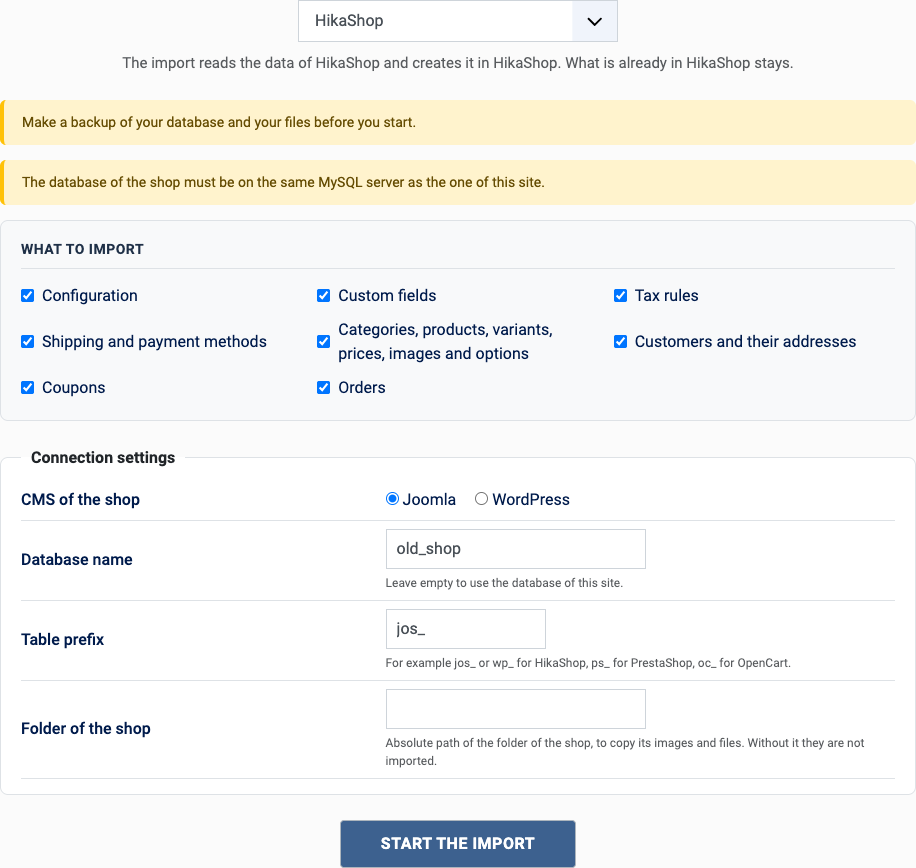
- Choose what to import with the boxes of "What to import": orders also need the customers and the catalog, they are imported with them.
- Fill in the settings (see below) and click Start the import.
- Keep the page open until the message "The import is finished" appears. A step which fails stops the import and can be tried again or skipped.
The settings
- CMS of the shop: Joomla or WordPress.
- Database name: the database of the source site.
- Table prefix: the prefix of the tables of the Joomla or WordPress of the source, for example jos_ or wp_.
- Source site path: the absolute path of the source site, to copy the images and the files.
After the import
- Check the shipping and payment methods: the plugins they use must be installed on the new site.
- Check the configuration, which the import replaced when "Configuration" was ticked.
- Untick "Configuration" to bring only the catalog into a shop which is already set up.
Questions
Can I bring only the products?
Yes: in "What to import", keep the catalog and untick the other parts. Orders always come with their customers and the catalog.
Do the customers keep their password?
Yes, between Joomla and WordPress in both directions: the hash is moved and HikaShop checks both formats.
Do the payment methods work after the import?
Their settings are imported. The plugins they use must be installed and enabled on the new site.
Back to the import page, which also covers the CSV import and the import of orders. Something else went wrong? See solving problems.
- Details
- Written by: Administrator
- Category: Tutorials
- Hits: 3
J2Store and its successor J2Commerce are shopping carts built on Joomla articles. HikaShop reads their tables and moves the catalog, customers and orders, including the options and the custom fields. This page explains how, and what happens to the options with a price and the uploads.
It is one of the shops HikaShop can import: see all the import options.
Before you start
Supported versions: J2Store 4 (tested on 4.0.5) and J2Commerce 6 (tested on 6.6), which keeps its data in its own j2commerce tables.
The tables of J2Store or J2Commerce must be in the database of the Joomla site. The import page fills in the prefix it finds: #__j2commerce_ when the tables of J2Commerce 6 exist, #__j2store_ otherwise.
Make a backup of your database and your files. The import adds to what is already in HikaShop and never deletes anything, but a backup costs nothing.
What is imported
- Tax rates and the tax profile of each product
- Brands (manufacturers)
- Categories, from the Joomla categories of the articles
- Products, with their prices, stock and images
- Variants: the variants of a product with options become HikaShop variants with their characteristics, price and stock
- Options which are not variants: a text, a date or a choice becomes a custom field of the products which had it, and the orders keep what the customer typed or chose
- Options with a price: each choice becomes a product option of HikaShop (Essential and Business editions), and the orders keep it as an option line
- File upload options, as "Ajax file" or "Ajax image" fields (Business edition), with the files the customers sent
- Custom fields of the addresses, with their values in the customers and in the orders
- Customers and their addresses
- Coupons
- Orders, with their lines, shipping and discount amounts
- Downloadable files
Not imported:
- The payment and the shipping methods
- The weight and the SKU of an option value
Steps
- In the HikaShop back office, open Products > Import and choose Import from another shop.
- Pick J2Store and J2Commerce in the list of shops.
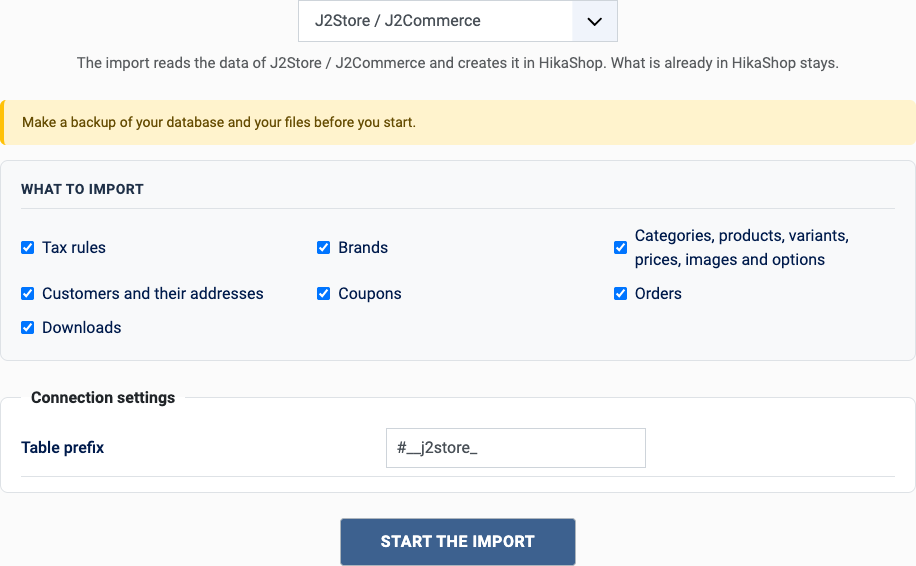
- Choose what to import with the boxes of "What to import": orders also need the customers and the catalog, they are imported with them.
- Fill in the settings (see below) and click Start the import.
- Keep the page open until the message "The import is finished" appears. A step which fails stops the import and can be tried again or skipped.
The settings
- J2Store table prefix: #__j2store_ for J2Store, #__j2commerce_ for J2Commerce 6. A prefix of your own can be typed: the import finds out which of the two it reads.
After the import
- Set up your payment and shipping methods.
- Open a product which had a priced option: its choices are now options of the product, each with its price.
- If you moved to J2Commerce 6, your old tables are kept: the import reads the new ones.
Questions
J2Store 4 or J2Commerce 6?
Both are read. If both sets of tables exist, the J2Commerce ones are used.
The options with a price are plain fields
Product options need the Essential or the Business edition of HikaShop; on Starter they are imported without their price.
The file options are missing
They are custom fields of the type "Ajax file" or "Ajax image", which need the Business edition.
Can I run the import again?
Yes. What was already imported is left alone and only what is new is added: the products, customers and orders created on the old shop since the last import. You can import once to test and again when you go live. A change made on the old shop to something already imported is not copied.
Back to the import page, which also covers the CSV import and the import of orders. Something else went wrong? See solving problems.
- Details
- Written by: Administrator
- Category: Tutorials
- Hits: 3
Magento (Magento Open Source, Adobe Commerce and the Mage-OS distribution) is a heavy platform to host and to keep up to date. HikaShop reads its database and moves the catalog, the customers and the orders to Joomla or WordPress, so you can leave Magento without exporting anything.
It is one of the shops HikaShop can import: see all the import options.
Before you start
Supported versions: Magento 2.4 and its forks (tested on Mage-OS, which uses the tables of Magento 2.4).
The Magento database must be on the same MySQL server as the site which receives HikaShop.
Make a backup of your database and your files. The import adds to what is already in HikaShop and never deletes anything, but a backup costs nothing.
What is imported
- Tax classes and tax rates, by country
- Categories, with their hierarchy
- Products: simple, virtual and downloadable ones, with their price (the special price when it is running), stock, weight, texts and tax class
- Configurable products, as products with variants whose options are the configurable attributes, each variant with its price and stock
- Images of the gallery
- Customers and their addresses
- Cart price rules with a coupon code, with their dates and limits
- Orders, with their lines, addresses, payment method, shipping and discount amounts
Not imported:
- Bundle and grouped products, custom options, the catalog price rules, and the payment and shipping methods
Steps
- In the HikaShop back office, open Products > Import and choose Import from another shop.
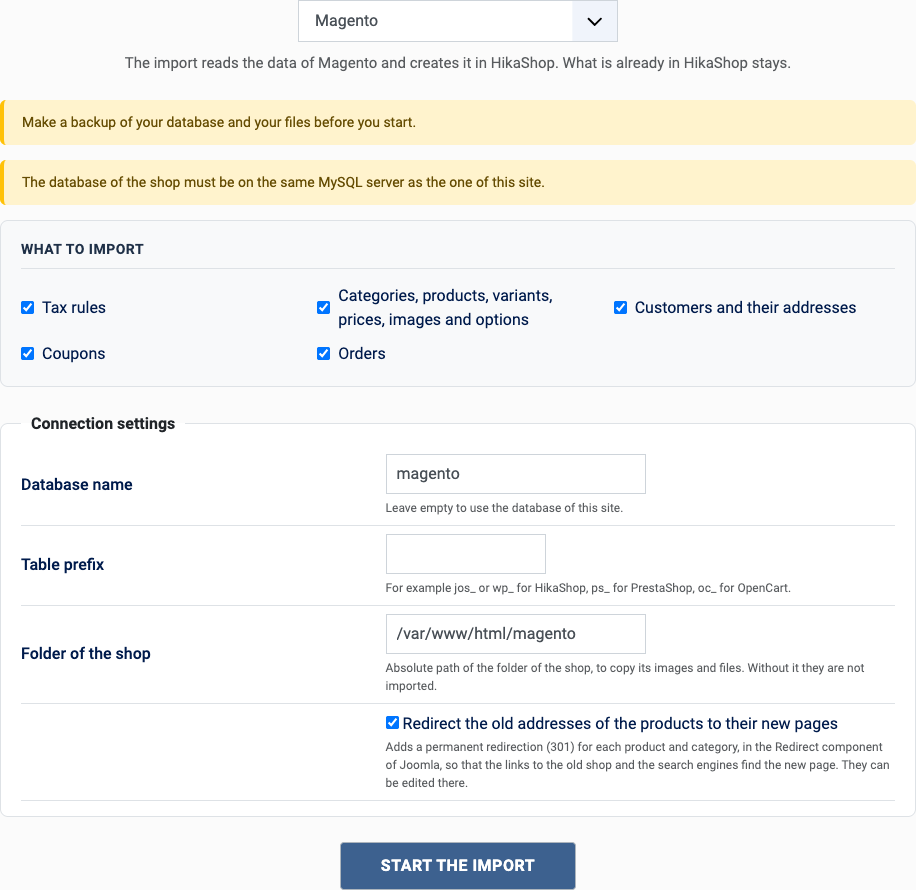
- Pick Magento in the list of shops.
- Choose what to import with the boxes of "What to import": orders also need the customers and the catalog, they are imported with them.
- Fill in the settings (see below) and click Start the import.
- Keep the page open until the message "The import is finished" appears. A step which fails stops the import and can be tried again or skipped.
The settings
- Database name: the database of Magento (empty if it is the one of this site).
- Table prefix: empty most of the time, see db > table_prefix in app/etc/env.php.
- Folder of the shop: the absolute path of Magento, to copy the images from pub/media/catalog/product.
- Redirect the old addresses (Joomla only): tick it to send the visitors of the old addresses to the new pages, see the questions below.
After the import
- Set up your payment and shipping methods.
- Check a configurable product: its simple products are the variants.
Questions
Do the customers keep their password?
Yes. Magento keeps a salt with the hash of each password, and HikaShop moves both: the customer logs in with the same password, which is then stored as a regular Joomla password. This is done by the "Authentication - Imported shop passwords" plugin, which the import turns on. It reads the hashes of Magento 2 (argon2id, sha256 and md5).
Where is the table prefix?
In app/etc/env.php of Magento, under db, table_prefix. It is empty on most installations.
Which store view is read?
The default values (all store views). The texts of a store view translation are not imported.
Are the grouped and bundle products imported?
Yes, as products: the products of a grouped or bundle product become its related products, and it takes the price of the cheapest of them. HikaShop has no product made of other products with a quantity for each, so the choice of the quantities is not kept.
Can I run the import again?
Yes. What was already imported is left alone and only what is new is added: the products, customers and orders created on the old shop since the last import. You can import once to test and again when you go live. A change made on the old shop to something already imported is not copied.
The old addresses of the products
With "Redirect the old addresses" ticked (Joomla only), each product and category gets a redirection from every address in the URL rewrites of Magento, the old ones included, to its new page. It only works when the new site answers on the same domain as the old shop. The redirections are in Components > Redirects of Joomla, where they can be edited or removed; the import turns on the plugin "System - Redirect" which uses them.
Back to the import page, which also covers the CSV import and the import of orders. Something else went wrong? See solving problems.
- Details
- Written by: Administrator
- Category: Tutorials
- Hits: 3
OpenCart is a popular open source shopping cart, and HikaShop can move its catalog, customers and orders onto Joomla or WordPress. This page explains how, step by step.
It is one of the shops HikaShop can import: see all the import options.
Before you start
Supported versions: OpenCart 1.5 to 4 (tested on 3.0.5 and 4.1).
The OpenCart database must be on the same MySQL server as the site which receives HikaShop. OpenCart is not a Joomla extension, so the import connects to its database and copies the images from its folder.
Make a backup of your database and your files. The import adds to what is already in HikaShop and never deletes anything, but a backup costs nothing.
What is imported
- Tax rates and tax classes
- Manufacturers (as brands)
- Categories, with their images
- Products, with their prices, images and options
- Customers (as Joomla users) and their addresses
- Coupons and vouchers
- Orders, with their lines and addresses, including the orders of guests
- Downloadable files
- The exchange rates of its currencies, when you tick the option
Not imported:
- The payment and the shipping methods: set them up again in HikaShop
Steps
- In the HikaShop back office, open Products > Import and choose Import from another shop.
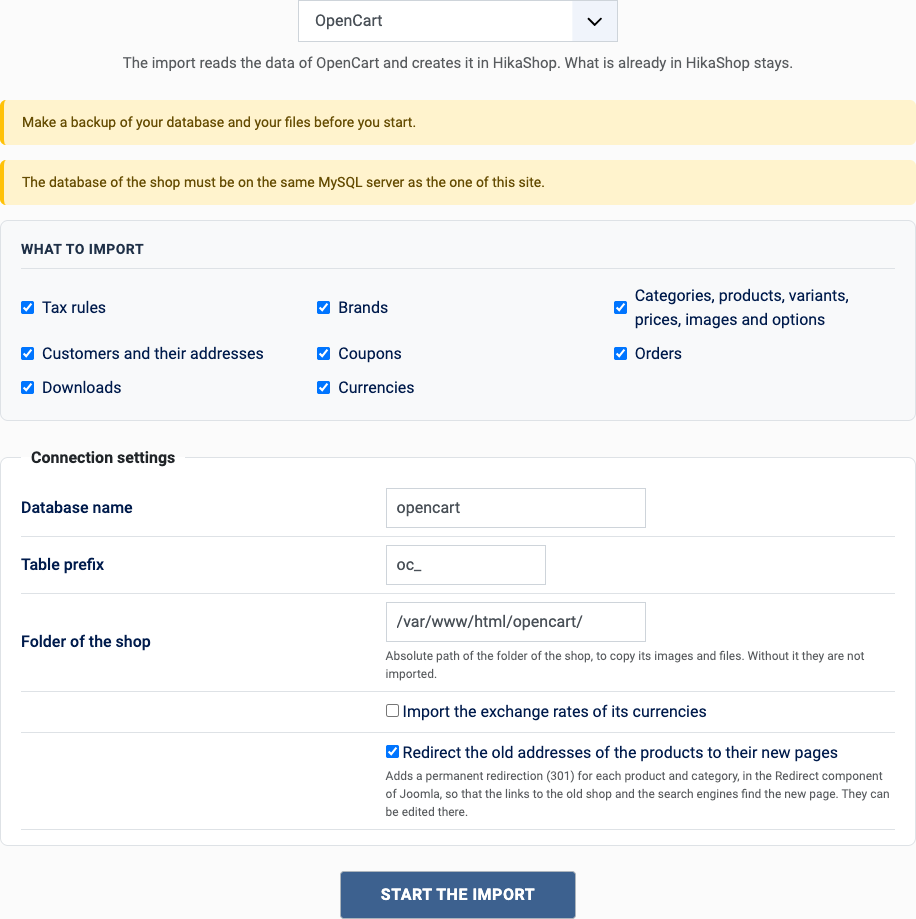
- Pick OpenCart in the list of shops.
- Choose what to import with the boxes of "What to import": orders also need the customers and the catalog, they are imported with them.
- Fill in the settings (see below) and click Start the import.
- Keep the page open until the message "The import is finished" appears. A step which fails stops the import and can be tried again or skipped.
The settings
- Database name: the database of OpenCart.
- Table prefix: oc_ by default.
- Website root path: the absolute path of the folder of OpenCart, to copy its images. Without it the images are not imported.
- Exchange rates: tick it to bring the rates of the currencies of OpenCart.
- Redirect the old addresses (Joomla only): tick it to send the visitors of the old addresses to the new pages, see the questions below.
After the import
- Set up your payment and shipping methods.
- OpenCart is not a Joomla extension, so there is no redirect plugin: add the redirects of the old addresses yourself (a .htaccess file or a Joomla redirect extension).
- Check an order of a guest: it is imported without a customer account, with its addresses.
Questions
The images are missing
Enter the root path of OpenCart: the images are copied from its image folder.
Is OpenCart 4 supported?
Yes, since HikaShop 6.8.0 (tested on 4.1).
Orders have no customer
The orders of guests have none, they are kept with the e-mail address and the addresses of the order.
Can I run the import again?
Yes. What was already imported is left alone and only what is new is added: the products, customers and orders created on the old shop since the last import. You can import once to test and again when you go live. A change made on the old shop to something already imported is not copied.
The old addresses of the products
With "Redirect the old addresses" ticked (Joomla only), each product and category gets a redirection from its SEO address (the keywords of OpenCart) to its new page. The addresses without SEO keywords, like index.php?route=product/product&product_id=40, cannot be redirected. It only works when the new site answers on the same domain as the old shop. The redirections are in Components > Redirects of Joomla, where they can be edited or removed; the import turns on the plugin "System - Redirect" which uses them.
Back to the import page, which also covers the CSV import and the import of orders. Something else went wrong? See solving problems.