
Shipping plugins
- Details
- Written by: Administrator
- Category: Shipping plugins
- Hits: 77
Installation
- 1) Get a MyPudo API key (the MyPudo service of DPD / GeoPost). Contact DPD for it: the key decides which relay points are available, for instance whether parcel lockers are included.
- 2) Install this plugin on your Joomla website with the extension manager. It needs the PHP SOAP extension.
- 3) In HikaShop, go to System > Shipping methods, click "New" and choose the MyPudo plugin (the method is named DPD Relais by default).
- 4) Type your API Key, set the zone restrictions and the other shipping settings you need, set "Published" to Yes and save.
- 5) Go to Display > Custom fields and make the post code field of the address required: the plugin searches the relay points with the post code of the shipping address.
At checkout the customer then chooses a DPD relay point near the shipping address, from a list or by clicking it on a map, and can see its opening hours.
Configuration
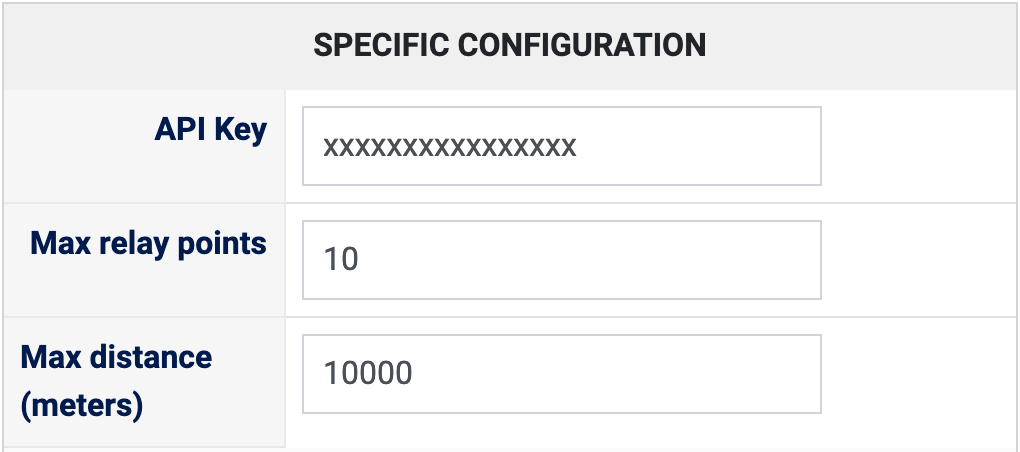
- API Key: your MyPudo API key. Left empty, the method is not offered at checkout.
- Max relay points: the most relay points shown to the customer. 10 by default; empty counts as 10.
- Max distance (meters): the search radius around the address of the customer. 10000 (10 km) by default; empty counts as 10000.
- The other settings of the page (name, description, price, zone, restrictions) are the same as for every HikaShop shipping method.
Troubleshooting
- "Please enter your MyPudo API key in the settings of the DPD relay point shipping method.": type the MyPudo key in the shipping method.
- "The DPD relay point shipping method needs the post code of the address.": in Display > Custom fields, make the post code field of the address required.
- "We couldn't find any relay point for your address" (or for the post code and city typed): no relay point within the Max distance. The customer can search another post code and city under the list; you can also raise the Max distance.
- "The DPD relay points cannot be loaded at the moment.": the shop could not reach MyPudo, or MyPudo refused the key. The reason is written in the HikaShop log (System > Logs): check the key with DPD.
- "The DPD relay point shipping method needs the SOAP extension of PHP": ask your host to enable the PHP SOAP extension.
- "Select your relay point" when finishing the order: no relay point was chosen, or the list was too old; the customer chooses a relay point again.
- Details
- Written by: Administrator
- Category: Shipping plugins
- Hits: 82
The Speedy plugin delivers your orders in Bulgaria with Speedy: to a Speedy office or locker that the customer picks on a map at the checkout, or to the address of the customer. The shipments are created, labelled, tracked and cancelled from the order page of the backend.
Installation
- 1) Ask Speedy for access to its API on your Speedy contract, through the Speedy website or your account manager. You get an API user name and password.
- 2) Install the plugin on your Joomla or WordPress website.
- 3) In HikaShop, go to System > Shipping methods, click on "New" and choose the Speedy plugin. Create one shipping method per delivery mode you want to offer: Speedy office, Speedy locker, address.
- 4) Type your API user name and password, fill in the sender information, set the price and the zone of the method, and publish it.
Configuration
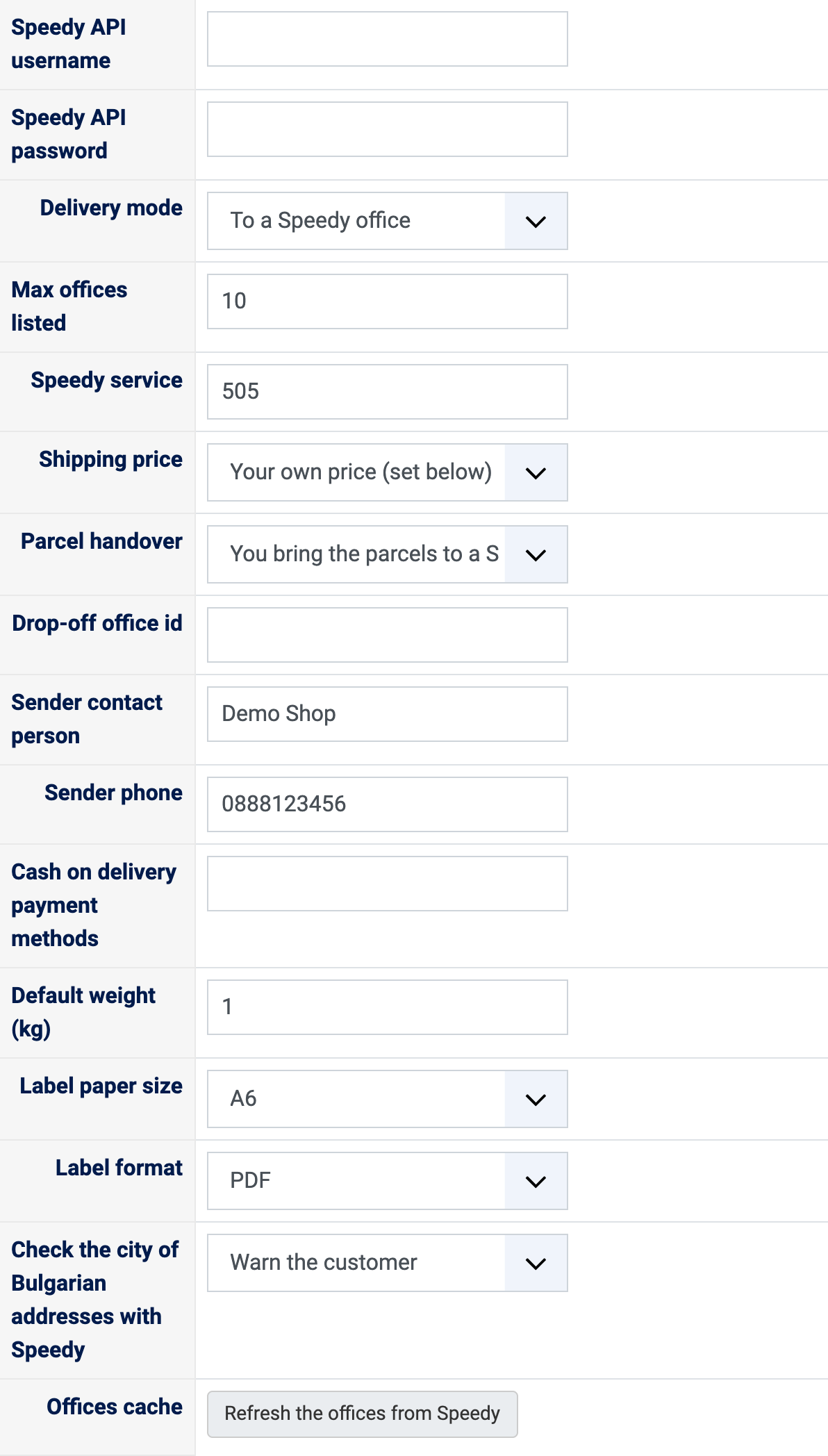
- Speedy API username and Speedy API password: the API account Speedy gave you.
- Delivery mode: to a Speedy office, to a Speedy locker, or to the address of the customer.
- Max offices listed: how many offices or lockers are proposed at the checkout, the nearest first.
- Speedy service: the id of the Speedy service of this method, 505 for STANDARD 24 HOURS.
- Shipping price: your own price, set further down like for any shipping method, or the price of your Speedy contract for the parcel, calculated by Speedy.
- Parcel handover: Speedy collects the parcels at your address, or you bring them to a Speedy office (then type its id in Drop-off office id).
- Sender contact person and Sender phone: printed on the labels.
- Cash on delivery payment methods: the payment methods for which the courier collects the money; the amount is added to the shipment and the fee to the price.
- Default weight: the weight of the products which have none.
- Label paper size and Label format: A6, A4 or four labels per A4 page, as a PDF or as ZPL for a thermal printer.
- Check the city of Bulgarian addresses with Speedy: warns the customer who saves an address whose city Speedy does not know.
- Offices cache: the offices are kept for a week; the button loads them again from Speedy.
The shipments
On the order page of the backend, the Speedy block creates the shipment, downloads its label, refreshes its tracking and cancels it while it has not been collected. Each action is written in the history of the order, and the office or locker chosen by the customer is shown in place of the delivery address, on the order pages and in the emails.
Troubleshooting
- No Speedy method at the checkout: check the API user name and password, and the zone of the method (Bulgaria).
- No office listed: click "Refresh the offices from Speedy" in the method, then try again.
- "Speedy has no tracking event for this shipment yet.": Speedy has not handled the parcel yet; refresh the tracking after it has been collected.
- The errors Speedy returns when a shipment is created are shown on the order page, in readable form.
- Details
- Written by: Administrator
- Category: Shipping plugins
- Hits: 127
Installation
- 1) This plugin works with the Address Geocoding plugin (Hikashop - Address Geocoding), which finds the coordinates of the addresses of your customers with Google. Install and publish both plugins.
- 2) You need a Google API key for Google Maps services (Geocoding and Places, and Distance Matrix if you use route distances). In Joomla, open Extensions, Plugins, Hikashop - Address Geocoding, paste the key in "Google API Key" and save.
- 3) In HikaShop, go to System > Shipping methods, click "New" and choose Geocoding.
- 4) Choose the place your deliveries start from in "Location", set the allowed distances and the unit, set "Published" to Yes and save.
The shipping method is offered at checkout when the shipping address is within the allowed distance of the location. You can make several methods with different locations or distances.
Configuration
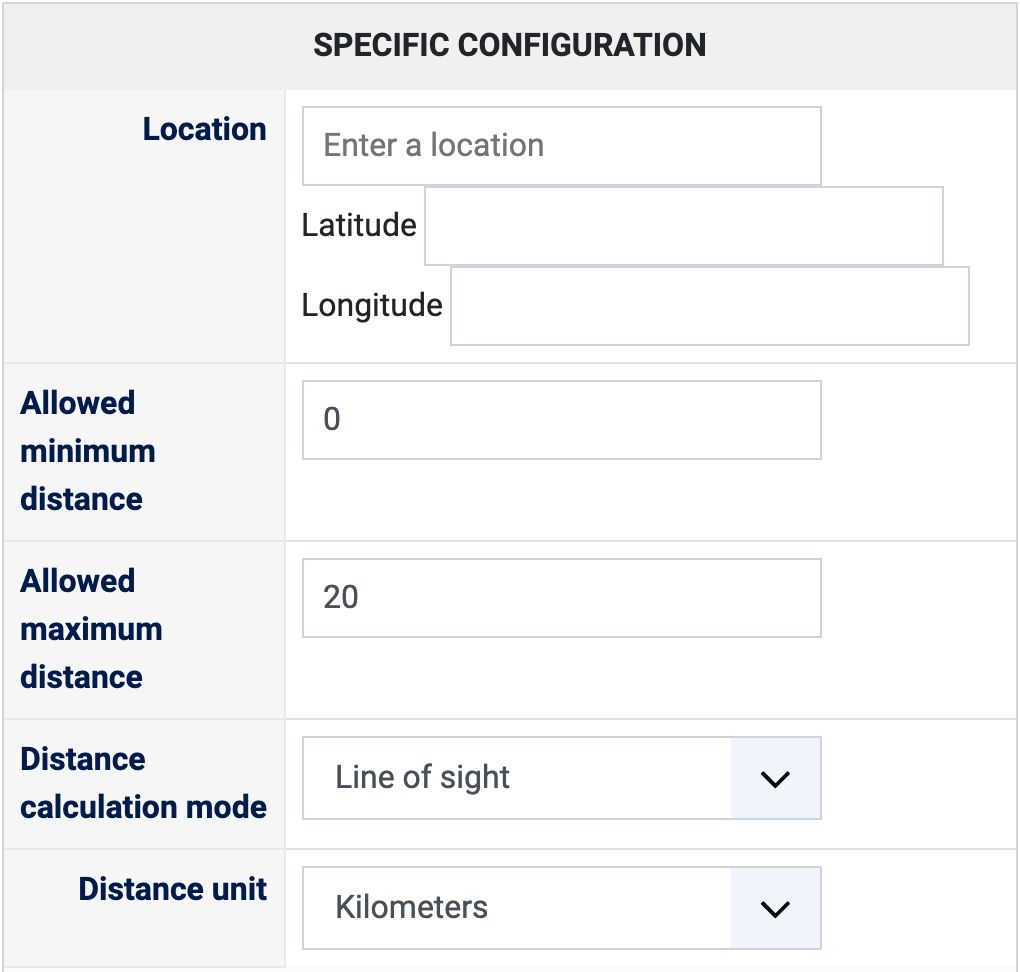
- Location: the point the distance is counted from, for instance your shop or your depot. Type an address and choose it in the suggestions: the Latitude and Longitude below are then filled in. This field is only shown once the Google API Key is set in the Address Geocoding plugin. The method needs both coordinates.
- Allowed minimum distance: the method is not offered to addresses closer than this. Empty or 0: no minimum.
- Allowed maximum distance: the method is not offered to addresses farther than this. Fill it in: left empty, the method is not offered to any address.
- Distance calculation mode: Line of sight (default) counts the straight line between the location and the address. Smallest route (Driving) or Smallest route (Bicycling) asks the Google Maps Distance Matrix service for the length of the shortest route, which Google may bill you for.
- Distance unit: Kilometers or Miles, for the two distances above.
- The other settings of the page (name, description, price, zone, restrictions) are the same as for every HikaShop shipping method. The distance can also be used as {distance} in the formula of a shipping price.
Troubleshooting
- "You must first install and configure the Address Geocoding plugin" or "Please enter your Google API Key in the settings of the Address Geocoding plugin via the Joomla plugins manager": shown in the shipping method instead of the Location field. Install and publish the Address Geocoding plugin and fill in its Google API Key.
- "The geocoding shipping method with the id ... is not configured properly": the method has no Location (latitude and longitude), or no distance, or no unit. Fill them in.
- "The geocoding plugin could not retreive the coordinates of the shipping address": Google did not find the address of the customer, or refused the request; Google's own message is shown when there is one. Check the Google API Key and that the Geocoding service is enabled for it.
- "We cannot ship to your address as it is too far" (or too close): the address is outside the allowed distances. Change the distances if you want to serve it.
- "We cannot ship to your address as we didn't found any routes": with a route mode, Google found no road between the location and the address. Use Line of sight, or serve another area.
- Details
- Written by: Administrator
- Category: Shipping plugins
- Hits: 113
Installation
- 1) Have a MyParcel account (myparcel.nl) and its API key.
- 2) Install this plugin on your Joomla website with the extension manager.
- 3) In HikaShop, go to System > Shipping methods, click "New" and choose MyParcel Pickup.
- 4) Type your API Key, choose the country and the carrier, set "Published" to Yes and save.
- 5) Go to Display > Custom fields and make the post code field of the address required: the plugin searches the pickup locations with the post code of the shipping address.
The customer then chooses, at checkout, a pickup location near the shipping address, in a list that shows its opening hours. The plugin works with the MyParcel label and track plugin.
Configuration
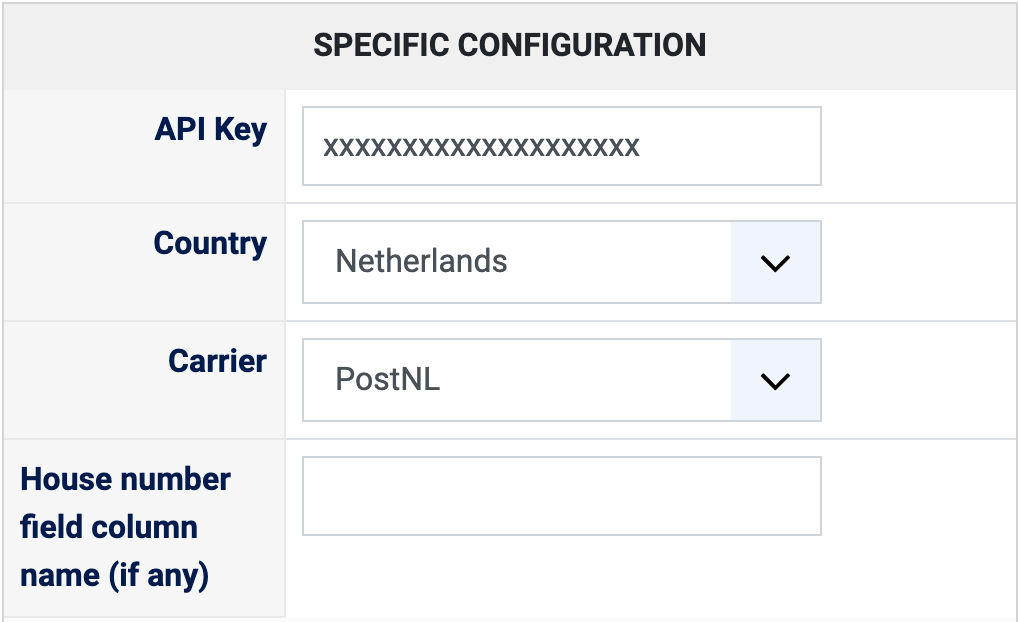
- API Key: your MyParcel API key. Left empty, the method is not offered at checkout.
- Country: Netherlands (default) or Belgium, the country in which the pickup locations are searched.
- Carrier: the carrier whose pickup locations are offered: PostNL (default), Bpost, DPD, UPS, DHL For You, DHL Parcel Connect or DHL Europlus.
- House number field column name (if any): if your shop asks for the house number in its own custom address field instead of in the street field, type the column name of that field here, so that the house number is used in the search. Empty: the street field is used as it is.
- The other settings of the page (name, description, price, zone, restrictions) are the same as for every HikaShop shipping method.
Troubleshooting
- "Please make sure you enter your MyParcel API Key in the settings of the MyParcel Pickup shipping method": type the API Key in the shipping method.
- "The MyParcel pickup shipping plugin requires the user to enter a postal code": in Display, Custom fields, make the post code field of the address required.
- "We couldn't find any pickup location for your address" (or for the post code typed): MyParcel has no location of this carrier near that address. The customer can type another street and post code under the list, or you can offer another carrier.
- "MyParcel Pickup: Invalid data": the pickup location sent with the order is not valid; the customer has to choose a location again.
- An error message from MyParcel in the checkout instead of the list: it is MyParcel's own answer to the search of pickup locations; check the Country and the Carrier of the method.
- Details
- Written by: Administrator
- Category: Shipping plugins
- Hits: 114
Installation
- 1) Have a SendCloud account with API access (sendcloud.com). Your API public key and secret key are in your SendCloud account under Settings, Integrations, API. The carriers offered at checkout are the ones configured in your SendCloud account.
- 2) Install this plugin on your Joomla website with the extension manager, and enable it in Extensions, Plugins (Hikashop Shipping, SendCloud).
- 3) In HikaShop, go to System > Shipping methods, click "New" and choose SendCloud.
- 4) Type your API public key and API secret key, set the sender country, postal code and default weight, set "Published" to Yes and save.
- 5) Optionally enable the pickup points, the validation of addresses and the automatic creation of shipments (see below).
- 6) Try the method with "Test mode" on: the shipments are then created as unstamped letters, which cost nothing. Turn it off to ship for real.
The plugin needs the PHP cURL extension.
Configuration
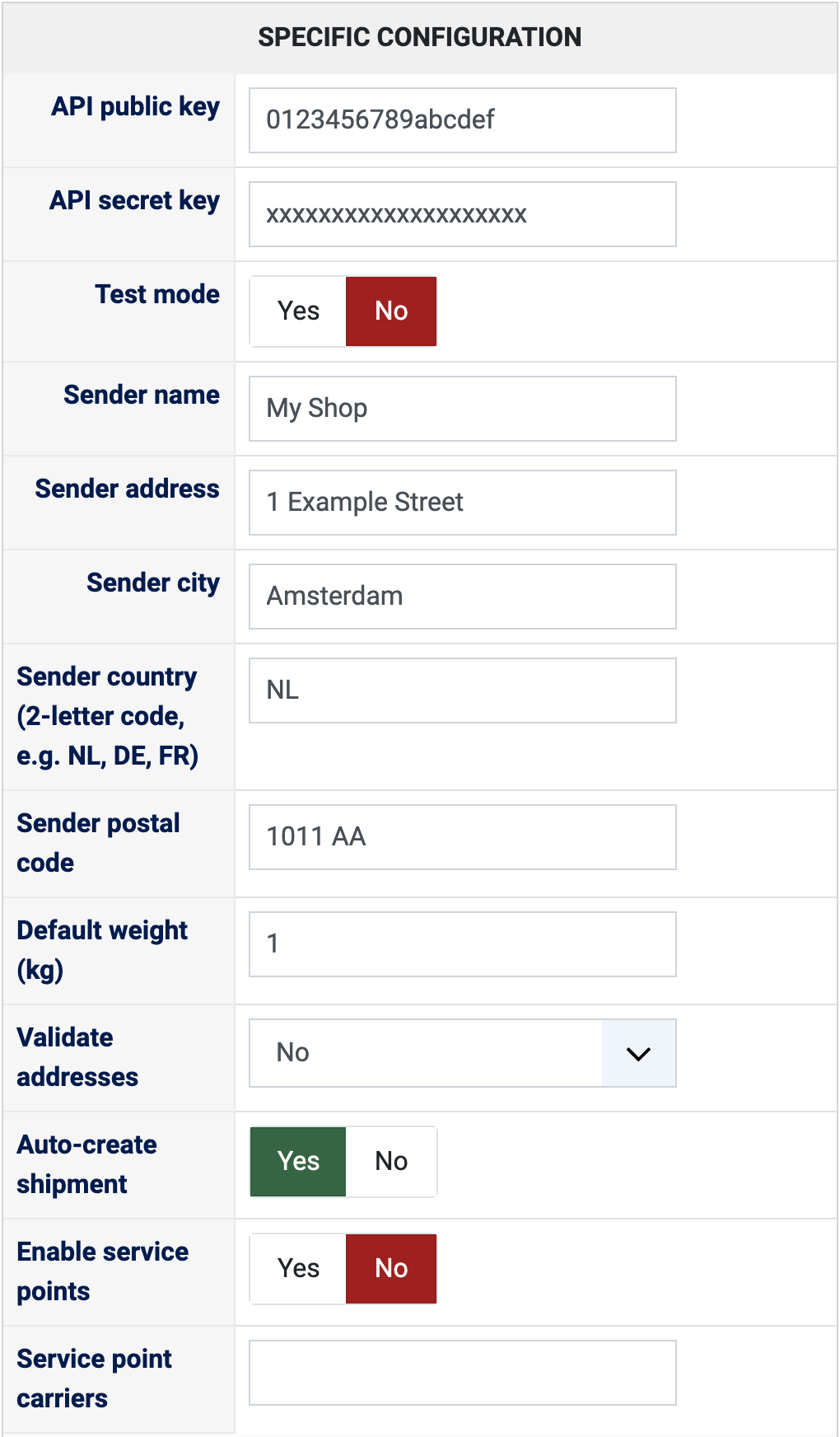
- API public key and API secret key: your SendCloud API credentials. Left empty, no rate is shown at checkout.
- Test mode: No by default. Yes creates every shipment as a free unstamped letter, to try the plugin. Return labels cannot be created in test mode. Turn it off for production.
- Sender name, Sender address, Sender city, Sender country (2-letter code, e.g. NL, DE, FR) and Sender postal code: the place your parcels leave from, used to calculate the rates and to create the shipments. SendCloud needs the city to create a shipment. When the name or the address is empty, your HikaShop store name and address are used. The country is NL by default.
- Default weight (kg): the parcel weight used when the products of the cart have no weight. 1 by default.
- Validate addresses: No (default) does nothing. Warn only checks the address of the customer with SendCloud when it is created or changed and shows a warning, but the address is saved. Block invalid addresses refuses to save an address SendCloud cannot validate.
- Auto-create shipment: Yes (default) creates the shipment at SendCloud when an order reaches the confirmed status. No leaves it to you: create it from the orders listing or from the order page.
- Enable service points: No by default. Yes lets the customer choose a pickup point or a locker at checkout, on a map. The pickup point and locker options are only shown when this is on.
- Service point carriers: the carrier codes, separated by commas (for instance postnl,dpd), whose pickup point and locker options are offered. Empty, those of all your carriers are offered. Each option lists the points of its own carrier.
- The other settings of the page (name, description, price, zone, restrictions) are the same as for every HikaShop shipping method.
Troubleshooting
- "SendCloud shipping is not configured. Please enter your API keys in the plugin settings": type the API public key and the API secret key in the shipping method.
- "No shipping address available for rate calculation": the customer has to give a shipping address before the rates can be shown.
- "No SendCloud shipping options available for this destination": SendCloud gave no option for this address. Check that the carriers of your SendCloud account serve this destination, and the sender country.
- "SendCloud shipping options were found but no price quotes are available": check the carrier configuration of your SendCloud account.
- "Please select a pickup point": the customer chose a pickup point option without choosing the point.
- "The address could not be validated by the shipping provider": the address is not known to SendCloud; the customer has to correct it (or, with Warn only, can keep it).
- "SendCloud shipment creation failed", followed by SendCloud's reason: the shipment was not created. The reason usually points to a missing sender detail (city, country) or to an address SendCloud refuses. Correct it and create the shipment again from the order.
- "Failed to download label from SendCloud": the label is not available; try again, or check the parcel in your SendCloud account.
- "Could not retrieve tracking information": try "Refresh tracking" again later.
- "Failed to cancel shipment. It may have already been handed over to the carrier": a parcel taken over by the carrier can no longer be cancelled from the shop.
- "Return labels cannot be created in test mode": turn Test mode off in the shipping method to create a return label with a real carrier.