
Installation
- 1) This plugin works with the Address Geocoding plugin (Hikashop - Address Geocoding), which finds the coordinates of the addresses of your customers with Google. Install and publish both plugins.
- 2) You need a Google API key for Google Maps services (Geocoding and Places, and Distance Matrix if you use route distances). In Joomla, open Extensions, Plugins, Hikashop - Address Geocoding, paste the key in "Google API Key" and save.
- 3) In HikaShop, go to System > Shipping methods, click "New" and choose Geocoding.
- 4) Choose the place your deliveries start from in "Location", set the allowed distances and the unit, set "Published" to Yes and save.
The shipping method is offered at checkout when the shipping address is within the allowed distance of the location. You can make several methods with different locations or distances.
Configuration
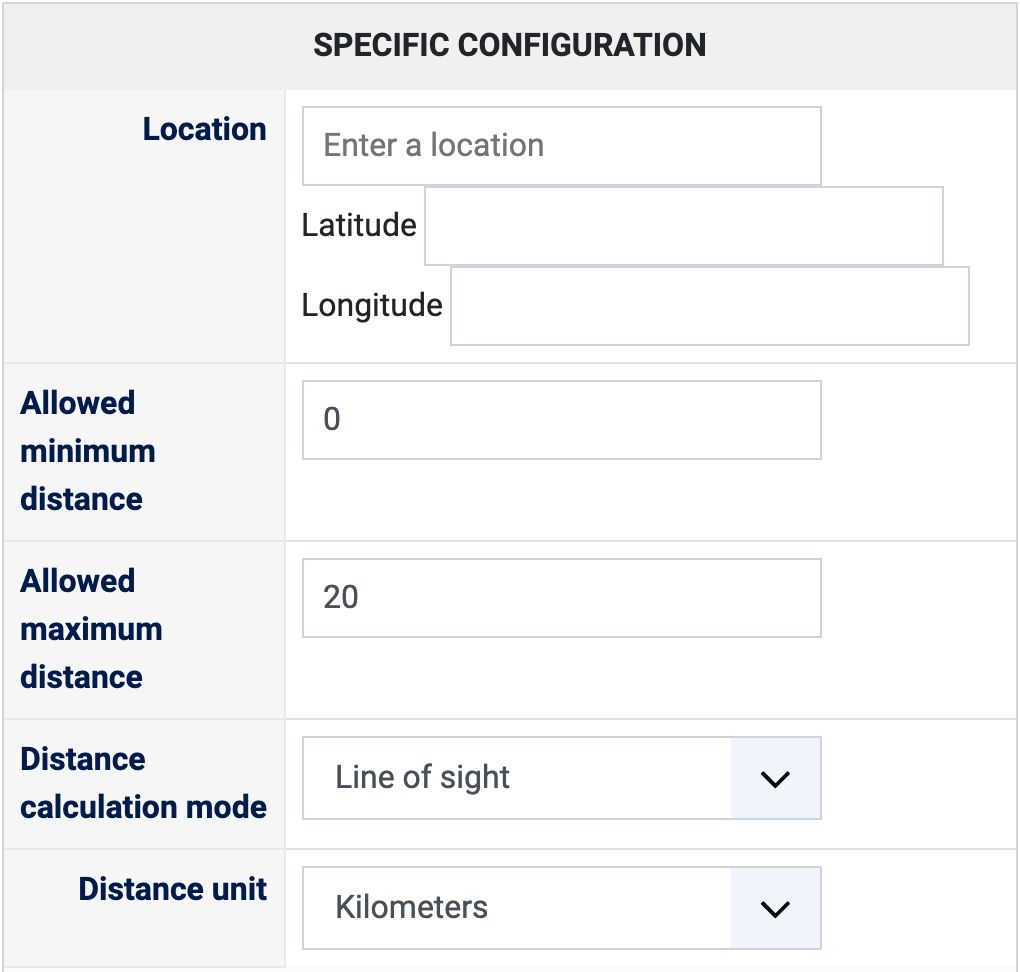
- Location: the point the distance is counted from, for instance your shop or your depot. Type an address and choose it in the suggestions: the Latitude and Longitude below are then filled in. This field is only shown once the Google API Key is set in the Address Geocoding plugin. The method needs both coordinates.
- Allowed minimum distance: the method is not offered to addresses closer than this. Empty or 0: no minimum.
- Allowed maximum distance: the method is not offered to addresses farther than this. Fill it in: left empty, the method is not offered to any address.
- Distance calculation mode: Line of sight (default) counts the straight line between the location and the address. Smallest route (Driving) or Smallest route (Bicycling) asks the Google Maps Distance Matrix service for the length of the shortest route, which Google may bill you for.
- Distance unit: Kilometers or Miles, for the two distances above.
- The other settings of the page (name, description, price, zone, restrictions) are the same as for every HikaShop shipping method. The distance can also be used as {distance} in the formula of a shipping price.
Troubleshooting
- "You must first install and configure the Address Geocoding plugin" or "Please enter your Google API Key in the settings of the Address Geocoding plugin via the Joomla plugins manager": shown in the shipping method instead of the Location field. Install and publish the Address Geocoding plugin and fill in its Google API Key.
- "The geocoding shipping method with the id ... is not configured properly": the method has no Location (latitude and longitude), or no distance, or no unit. Fill them in.
- "The geocoding plugin could not retreive the coordinates of the shipping address": Google did not find the address of the customer, or refused the request; Google's own message is shown when there is one. Check the Google API Key and that the Geocoding service is enabled for it.
- "We cannot ship to your address as it is too far" (or too close): the address is outside the allowed distances. Change the distances if you want to serve it.
- "We cannot ship to your address as we didn't found any routes": with a route mode, Google found no road between the location and the address. Use Line of sight, or serve another area.