1) Open a free Packlink PRO account at packlink.com, and get its API key in Packlink PRO: Settings, Integrations, API key.
2) In Packlink PRO, add the address your parcels leave from (Settings, Sender addresses).
3) Install this plugin, then create a shipping method with it in HikaShop: System > Shipping methods > New, Packlink PRO.
4) Paste the API key in its settings and save: the connection line turns green and the services of your account fill the list. Choose the service, set the price and publish the method.
5) Set up the HikaShop cron (System > Configuration > Cron): it brings the tracking of your shipments back every hour.
6) For the parcels that leave the customs union, add product custom fields for the HS code and the country of origin, and name them in the method's customs settings.
Configuration
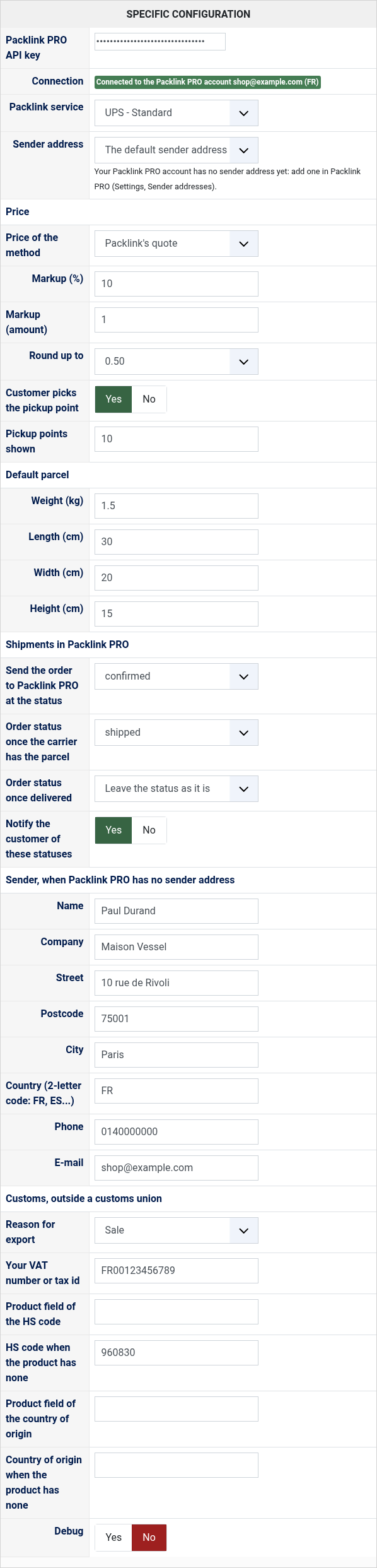
Packlink PRO API key: the key of your Packlink PRO account (step 1).
Connection: after saving, says whether Packlink accepts the key, with the account's e-mail address and country, and whether Packlink sends the shop the updates of its shipments. Saving the method registers the shop with Packlink for these updates, once per API key.
Packlink service: the carrier and service of this method, among those Packlink offers from your sender country, at home or to a pickup point, national or international. Create one method per service you want to offer.
Sender address: the address your parcels leave from, among the sender addresses of your Packlink PRO account. Left on the default, Packlink PRO's default sender address is used.
Price of the method: "Packlink's quote" asks Packlink the price for each cart (without VAT: set the method's tax category for HikaShop to add it), "HikaShop's prices" uses the price settings of the method instead.
Markup (%) and Markup (amount): shown with Packlink's quote, added to it, the percentage first. A negative amount gives a discount. Empty: Packlink's price as it is.
Round up to: shown with Packlink's quote, rounds the price up to the next 0.10, 0.50 or 1.00.
Customer picks the pickup point: for a service to a pickup point, shows the points near the customer's address at checkout. No: you choose the point in Packlink PRO when you complete the shipment.
Pickup points shown: how many points the list and the map show, 10 by default.
Default parcel: Weight (kg), Length, Width, Height (cm): the parcel used when the products of the cart have no weight or no dimensions. Empty: the default parcel of Packlink PRO (Settings, Parcels), else 1 kg in 30 x 20 x 15 cm. Give your products their weight and dimensions for the best quotes.
Send the order to Packlink PRO at the status: the status at which an order of this method goes to Packlink PRO, "confirmed" by default. "Never" leaves it to the "Send to Packlink PRO" button of the order page.
Order status once the carrier has the parcel: given to the order when Packlink reports it in transit, "shipped" by default. "Leave the status as it is" to keep moving your orders yourself.
Order status once delivered: given when Packlink reports the parcel delivered; left as it is by default.
Notify the customer of these statuses: sends HikaShop's status e-mail, with the tracking number, when the plugin moves the order.
Sender, when Packlink PRO has no sender address: used for the shipments only when your Packlink PRO account has no sender address (better: add your address in Packlink PRO).
Name: the name of the sender.
Company: the company of the sender. Empty: your shop's name.
Street: the street of the sender.
Postcode: the postcode of the sender.
City: the city of the sender.
Country (2-letter code: FR, ES...): the country of the sender.
Phone: the phone number of the sender.
E-mail: the e-mail address of the sender.
Reason for export: what the customs invoice says the parcel is, a sale by default.
Your VAT number or tax id: printed on the customs invoice.
Product field of the HS code and Product field of the country of origin: the column names of the product custom fields that hold them (a variant takes its main product's). HS code when the product has none and Country of origin when the product has none: the values for the products whose field is empty; without an origin, your sender country.
Debug: writes the plugin's calls to Packlink to the HikaShop log file.
Troubleshooting
"Packlink refused the connection": check the API key, copied whole from Packlink PRO.
"The order could not be sent to Packlink PRO": the reason follows, and stays on the order page with a button to send it again. "No sender address": add one in Packlink PRO or fill the sender of the method. "Packlink has no service of this method for...": the service does not deliver to that address any more; pick the shipment's service in Packlink PRO.
"Packlink did not register the shop for its updates": Packlink's reason follows. The HikaShop cron and the order's button still bring the shipments back. Packlink's updates need a site it can reach from the internet.
In Packlink PRO, the shop appears among your integrations as a WooCommerce shop: Packlink only registers the shops of the platforms it lists, HikaShop not yet among them.
The tracking does not come back: check that the HikaShop cron runs, or use the "Read again from Packlink PRO" button of the order. A shipment deleted in Packlink PRO shows as such.
"No pickup point was found near your address for this method": Packlink knows no point of that carrier there, and the method is not offered for that address.
"Packlink refused the customs invoice": Packlink's reason follows; check the HS codes, the origin and your VAT number.
"Packlink gave no service for your sender address": the services come for your account's country; check the key and your sender address in Packlink PRO.
The method does not show at checkout: check that it is published and its restrictions (zone, weight, price). With Packlink's quote, it only shows once the customer has a shipping address, and only when its service delivers there. Turn Debug on to see Packlink's answers in the HikaShop log.