
Installation
- 1) Have a SendCloud account with API access (sendcloud.com). Your API public key and secret key are in your SendCloud account under Settings, Integrations, API. The carriers offered at checkout are the ones configured in your SendCloud account.
- 2) Install this plugin on your Joomla website with the extension manager, and enable it in Extensions, Plugins (Hikashop Shipping, SendCloud).
- 3) In HikaShop, go to System > Shipping methods, click "New" and choose SendCloud.
- 4) Type your API public key and API secret key, set the sender country, postal code and default weight, set "Published" to Yes and save.
- 5) Optionally enable the pickup points, the validation of addresses and the automatic creation of shipments (see below).
- 6) Try the method with "Test mode" on: the shipments are then created as unstamped letters, which cost nothing. Turn it off to ship for real.
The plugin needs the PHP cURL extension.
Configuration
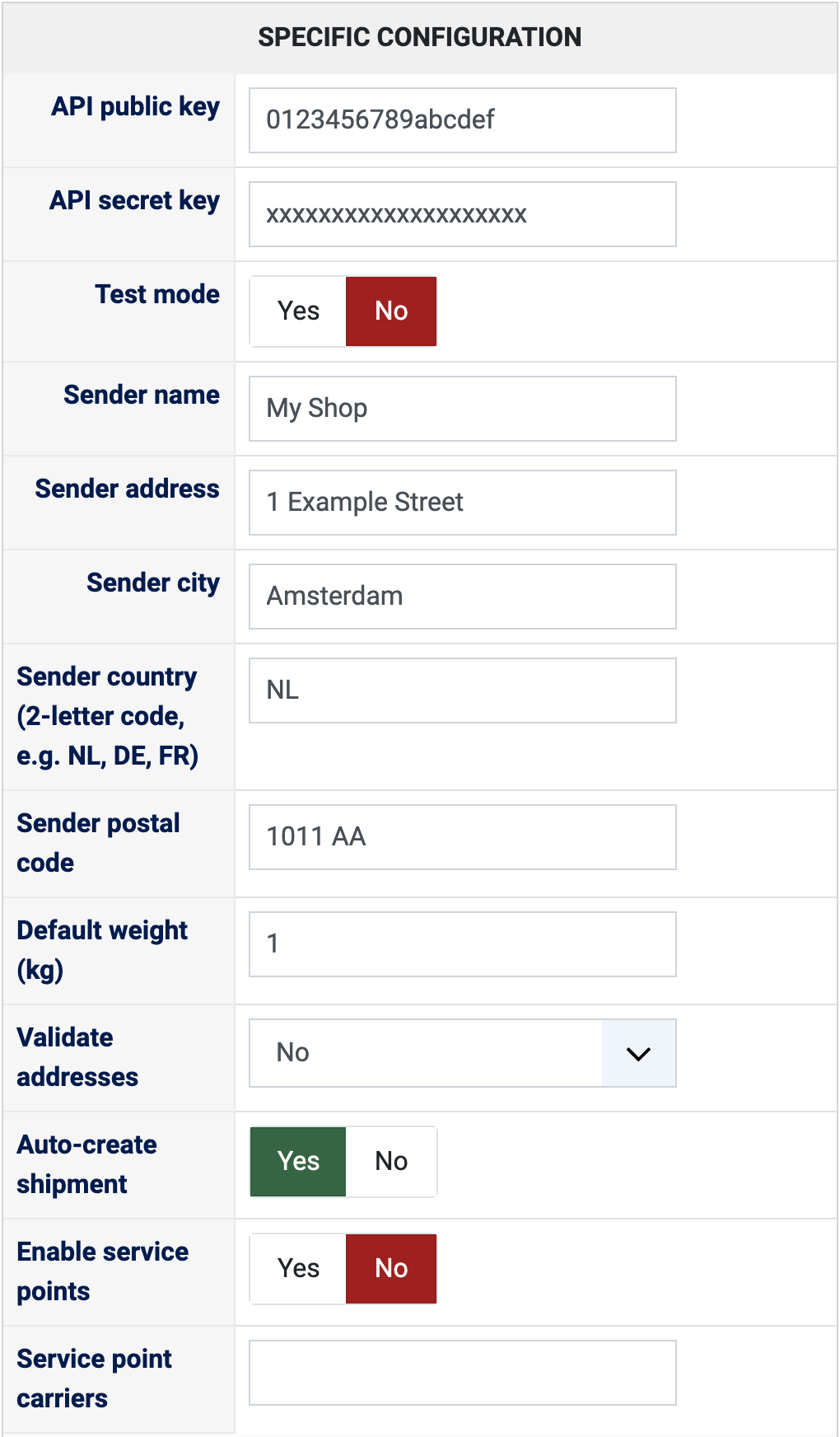
- API public key and API secret key: your SendCloud API credentials. Left empty, no rate is shown at checkout.
- Test mode: No by default. Yes creates every shipment as a free unstamped letter, to try the plugin. Return labels cannot be created in test mode. Turn it off for production.
- Sender name, Sender address, Sender city, Sender country (2-letter code, e.g. NL, DE, FR) and Sender postal code: the place your parcels leave from, used to calculate the rates and to create the shipments. SendCloud needs the city to create a shipment. When the name or the address is empty, your HikaShop store name and address are used. The country is NL by default.
- Default weight (kg): the parcel weight used when the products of the cart have no weight. 1 by default.
- Validate addresses: No (default) does nothing. Warn only checks the address of the customer with SendCloud when it is created or changed and shows a warning, but the address is saved. Block invalid addresses refuses to save an address SendCloud cannot validate.
- Auto-create shipment: Yes (default) creates the shipment at SendCloud when an order reaches the confirmed status. No leaves it to you: create it from the orders listing or from the order page.
- Enable service points: No by default. Yes lets the customer choose a pickup point or a locker at checkout, on a map. The pickup point and locker options are only shown when this is on.
- Service point carriers: the carrier codes, separated by commas (for instance postnl,dpd), whose pickup point and locker options are offered. Empty, those of all your carriers are offered. Each option lists the points of its own carrier.
- The other settings of the page (name, description, price, zone, restrictions) are the same as for every HikaShop shipping method.
Troubleshooting
- "SendCloud shipping is not configured. Please enter your API keys in the plugin settings": type the API public key and the API secret key in the shipping method.
- "No shipping address available for rate calculation": the customer has to give a shipping address before the rates can be shown.
- "No SendCloud shipping options available for this destination": SendCloud gave no option for this address. Check that the carriers of your SendCloud account serve this destination, and the sender country.
- "SendCloud shipping options were found but no price quotes are available": check the carrier configuration of your SendCloud account.
- "Please select a pickup point": the customer chose a pickup point option without choosing the point.
- "The address could not be validated by the shipping provider": the address is not known to SendCloud; the customer has to correct it (or, with Warn only, can keep it).
- "SendCloud shipment creation failed", followed by SendCloud's reason: the shipment was not created. The reason usually points to a missing sender detail (city, country) or to an address SendCloud refuses. Correct it and create the shipment again from the order.
- "Failed to download label from SendCloud": the label is not available; try again, or check the parcel in your SendCloud account.
- "Could not retrieve tracking information": try "Refresh tracking" again later.
- "Failed to cancel shipment. It may have already been handed over to the carrier": a parcel taken over by the carrier can no longer be cancelled from the shop.
- "Return labels cannot be created in test mode": turn Test mode off in the shipping method to create a return label with a real carrier.