
Tutorials
- Details
- Written by: Administrator
- Category: Tutorials
- Hits: 78
OpenCart is a popular open source shopping cart, and HikaShop can move its catalog, customers and orders onto Joomla or WordPress. This page explains how, step by step.
It is one of the shops HikaShop can import: see all the import options.
Before you start
Supported versions: OpenCart 1.5 to 4 (tested on 3.0.5 and 4.1).
The OpenCart database must be on the same MySQL server as the site which receives HikaShop. OpenCart is not a Joomla extension, so the import connects to its database and copies the images from its folder.
Make a backup of your database and your files. The import adds to what is already in HikaShop and never deletes anything, but a backup costs nothing.
What is imported
- Tax rates and tax classes
- Manufacturers (as brands)
- Categories, with their images
- Products, with their prices, images and options
- Customers (as Joomla users) and their addresses
- Coupons and vouchers
- Orders, with their lines and addresses, including the orders of guests
- Downloadable files
- The exchange rates of its currencies, when you tick the option
Not imported:
- The payment and the shipping methods: set them up again in HikaShop
Steps
- In the HikaShop back office, open Products > Import and choose Import from another shop.
- Pick OpenCart in the list of shops.
- Choose what to import with the boxes of "What to import": orders also need the customers and the catalog, they are imported with them.
- Fill in the settings (see below) and click Start the import.
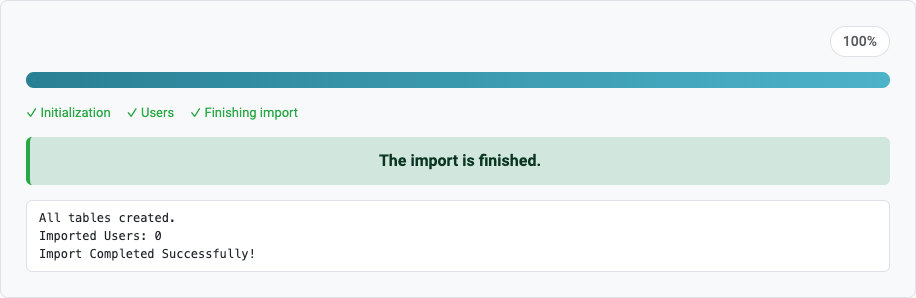
- Keep the page open until the message "The import is finished" appears. A step which fails stops the import and can be tried again or skipped.
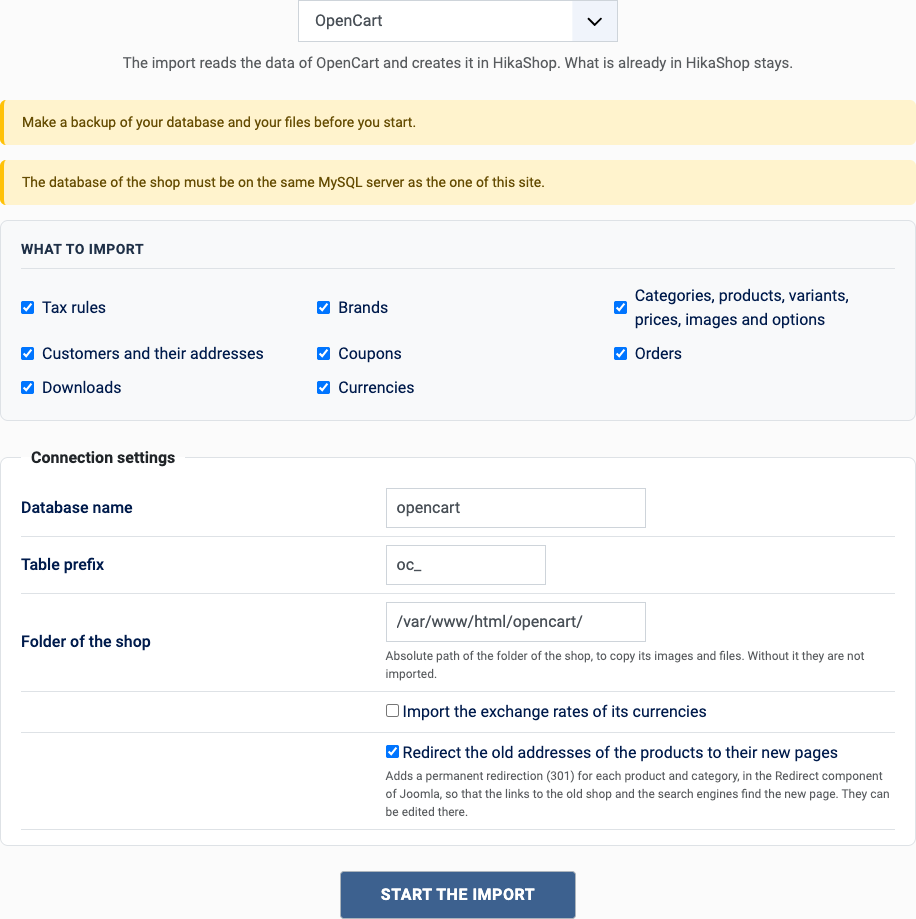
The settings
- Database name: the database of OpenCart.
- Table prefix: oc_ by default.
- Website root path: the absolute path of the folder of OpenCart, to copy its images. Without it the images are not imported.
- Exchange rates: tick it to bring the rates of the currencies of OpenCart.
- Redirect the old addresses (Joomla only): tick it to send the visitors of the old addresses to the new pages, see the questions below.
After the import
- Set up your payment and shipping methods.
- OpenCart is not a Joomla extension, so there is no redirect plugin: add the redirects of the old addresses yourself (a .htaccess file or a Joomla redirect extension).
- Check an order of a guest: it is imported without a customer account, with its addresses.
Questions
The images are missing
Enter the root path of OpenCart: the images are copied from its image folder.
Is OpenCart 4 supported?
Yes, since HikaShop 6.8.0 (tested on 4.1).
Orders have no customer
The orders of guests have none, they are kept with the e-mail address and the addresses of the order.
Can I run the import again?
Yes. What was already imported is left alone and only what is new is added: the products, customers and orders created on the old shop since the last import. You can import once to test and again when you go live. A change made on the old shop to something already imported is not copied.
The old addresses of the products
With "Redirect the old addresses" ticked (Joomla only), each product and category gets a redirection from its SEO address (the keywords of OpenCart) to its new page. The addresses without SEO keywords, like index.php?route=product/product&product_id=40, cannot be redirected. It only works when the new site answers on the same domain as the old shop. The redirections are in Components > Redirects of Joomla, where they can be edited or removed; the import turns on the plugin "System - Redirect" which uses them.
Back to the import page, which also covers the CSV import and the import of orders. Something else went wrong? See solving problems.
- Details
- Written by: Administrator
- Category: Tutorials
- Hits: 100
PrestaShop is one of the most used shopping carts in Europe. HikaShop reads its database and moves the catalog, the customers and the orders of a PrestaShop shop to Joomla or WordPress. This page explains the steps and what to check.
It is one of the shops HikaShop can import: see all the import options.
Before you start
Supported versions: PrestaShop 1.7, 8 and 9 (tested on 9.2).
The PrestaShop database must be on the same MySQL server as the site which receives HikaShop.
Make a backup of your database and your files. The import adds to what is already in HikaShop and never deletes anything, but a backup costs nothing.
What is imported
- Taxes and tax rules groups, by country
- Brands (manufacturers)
- Categories, with their hierarchy
- Products, with their prices, tax, stock, dimensions and texts
- Combinations, as variants with their characteristics, price and stock
- Images
- Customers and their addresses, guests included
- Coupons (cart rules with a code)
- Orders, with their lines, addresses, shipping and discount amounts
- Downloadable products
Not imported:
- The specific prices, the packs, the customizations and the payment and shipping modules
Steps
- In the HikaShop back office, open Products > Import and choose Import from another shop.
- Pick PrestaShop in the list of shops.
- Choose what to import with the boxes of "What to import": orders also need the customers and the catalog, they are imported with them.
- Fill in the settings (see below) and click Start the import.
- Keep the page open until the message "The import is finished" appears. A step which fails stops the import and can be tried again or skipped.
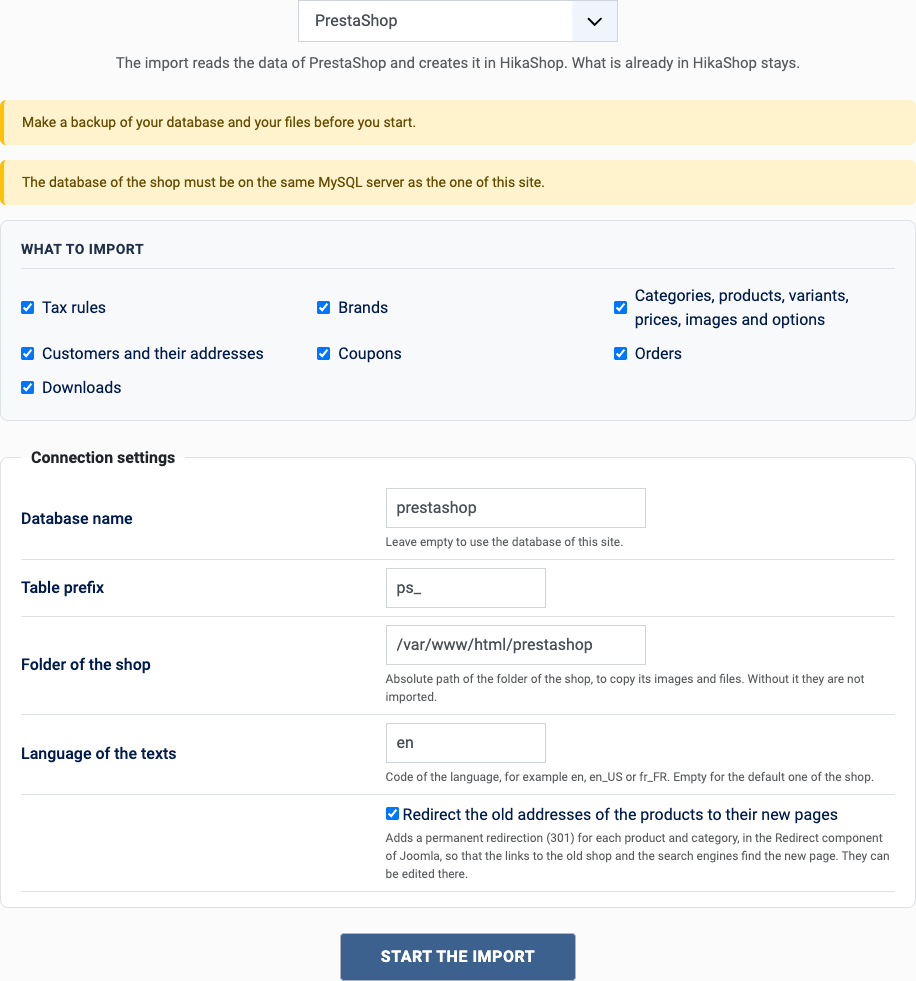
The settings
- Database name: the database of PrestaShop (empty if it is the one of this site).
- Table prefix: ps_ by default, see the prefix in app/config/parameters.php.
- Folder of the shop: the absolute path of PrestaShop, to copy the images (img/p) and the downloadable files.
- Language of the texts: the code of the language to read, for example en or fr. Empty for the default language of the shop.
- Redirect the old addresses (Joomla only): tick it to send the visitors of the old addresses to the new pages, see the questions below.
After the import
- Tell your customers to use "Forgot your password" on the new shop.
- Set up your payment and shipping methods.
- Check a product with combinations: each combination is a variant of the product.
Questions
Do the customers keep their password?
Yes. The recent PrestaShop passwords (bcrypt) are moved as they are. The older ones are an md5 of the password with the cookie key of the shop: HikaShop reads that key in the folder of the shop (app/config/parameters.php, or config/settings.inc.php on PrestaShop 1.6), so fill in "Folder of the shop". The "Authentication - Imported shop passwords" plugin, which the import turns on, checks the password at the first login and stores it as a regular Joomla password. Without the folder, the customers with an older password ask for a new one with the password reset form.
The texts are in the wrong language
Set the language of the texts to the code of the language you want (en, fr...).
Where is the table prefix?
In the file app/config/parameters.php of PrestaShop, under database_prefix.
Can I run the import again?
Yes. What was already imported is left alone and only what is new is added: the products, customers and orders created on the old shop since the last import. You can import once to test and again when you go live. A change made on the old shop to something already imported is not copied.
The old addresses of the products
With "Redirect the old addresses" ticked (Joomla only), each product and category gets a redirection from its friendly address (with the category of the product or without it, with the language when the shop has several) and from its address with index.php?controller= to its new page. It only works when the new site answers on the same domain as the old shop. The redirections are in Components > Redirects of Joomla, where they can be edited or removed; the import turns on the plugin "System - Redirect" which uses them.
Back to the import page, which also covers the CSV import and the import of orders. Something else went wrong? See solving problems.
- Details
- Written by: Administrator
- Category: Tutorials
- Hits: 106
Shopify is a hosted shopping cart: you cannot read its database, but its admin exports your products, customers and orders as CSV files. HikaShop imports these files, so you can leave Shopify for your own Joomla or WordPress site without retyping anything.
It is one of the shops HikaShop can import: see all the import options.
Before you start
Supported versions: The CSV exports of the Shopify admin (the 2024 and later formats, with or without the "Default Address" columns of the customers).
Nothing to install on the Shopify side. You export three files and send them from the import screen; they are removed from the server when the import ends.
Make a backup of your database and your files. The import adds to what is already in HikaShop and never deletes anything, but a backup costs nothing.
What is imported
- Products, with their description, vendor (as brand), type (as category), tags, SEO texts and status
- Variants, with up to 3 options (as characteristics), their SKU, price, weight and stock
- Images, downloaded from the address given in the export
- Customers with their address
- Orders, with their lines, billing and shipping addresses, shipping method, discount code and status
Not imported:
- The passwords: Shopify does not give them, so the customers get an account and ask for a new password
- The gift cards, the discount codes (the export of the orders only holds the code used), the collections and the pages
Steps
- In the HikaShop back office, open Products > Import and choose Import from another shop.
- Pick Shopify in the list of shops.
- Choose what to import with the boxes of "What to import": orders also need the customers and the catalog, they are imported with them.
- Fill in the settings (see below) and click Start the import.
- Keep the page open until the message "The import is finished" appears. A step which fails stops the import and can be tried again or skipped.
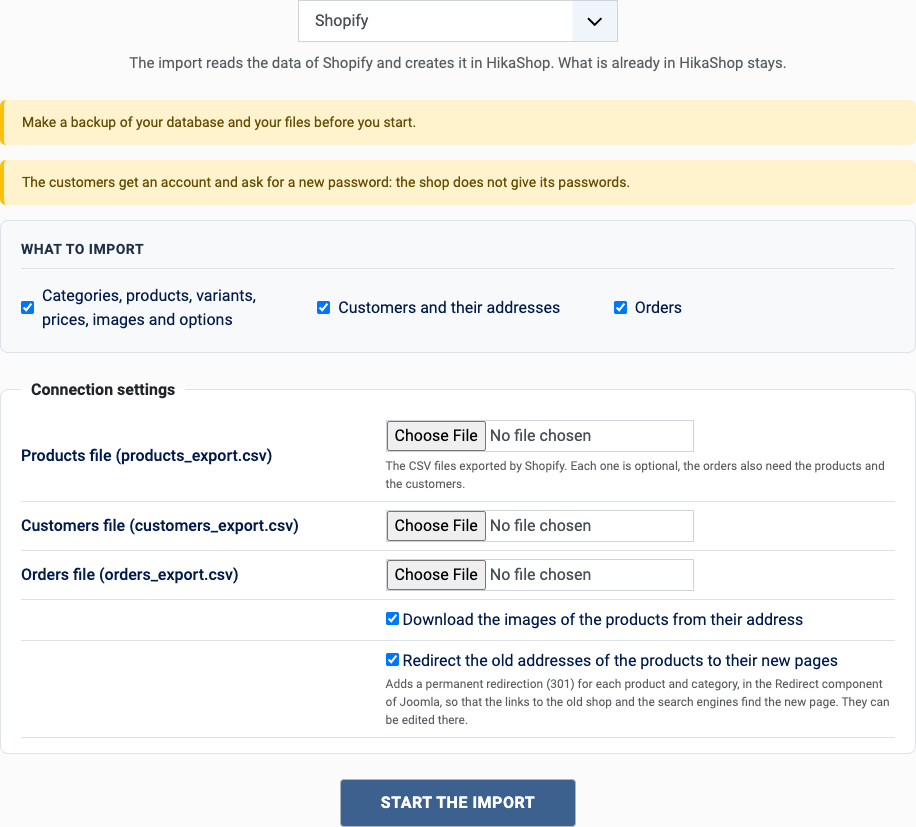
The settings
- Products file: products_export.csv, from Products > Export in the Shopify admin.
- Customers file: customers_export.csv, from Customers > Export.
- Orders file: orders_export.csv, from Orders > Export.
- Download the images: tick it to download the images of the products from the addresses of the export.
- Redirect the old addresses (Joomla only): tick it to send the visitors of the old addresses to the new pages, see the questions below.
After the import
- Tell your customers to use "Forgot your password" on the new shop.
- Set up your payment and shipping methods, and your taxes.
- Check a product with options: each combination is a variant.
Questions
How do I export from Shopify?
In the Shopify admin, open Products, Customers or Orders, click Export, choose "All" and "CSV for Excel, Numbers, or other spreadsheet programs".
Are the three files needed?
No, each one is optional. The orders are linked to the products by SKU and to the customers by e-mail address, so import all three for a complete history.
The images were not downloaded
The server needs to reach cdn.shopify.com; tick "Download the images" and check that your host allows outgoing connections.
Can I run the import again?
Yes. What was already imported is left alone and only what is new is added: the products, customers and orders created on the old shop since the last import. You can import once to test and again when you go live. A change made on the old shop to something already imported is not copied.
The old addresses of the products
With "Redirect the old addresses" ticked (Joomla only), each product gets a redirection from its address on Shopify (/products/ followed by its handle) to its new page. It only works when the new site answers on the same domain as the old shop. The redirections are in Components > Redirects of Joomla, where they can be edited or removed; the import turns on the plugin "System - Redirect" which uses them.
Back to the import page, which also covers the CSV import and the import of orders. Something else went wrong? See solving problems.
- Details
- Written by: Administrator
- Category: Tutorials
- Hits: 87
Shopware 6 is a widely used German shopping cart. HikaShop reads its database and moves the catalog, the customers and the orders of a Shopware shop to Joomla or WordPress, so you can switch without exporting anything. This page explains how.
It is one of the shops HikaShop can import: see all the import options.
Before you start
Supported versions: Shopware 6 (tested on 6.7).
The Shopware database must be on the same MySQL server as the site which receives HikaShop.
Make a backup of your database and your files. The import adds to what is already in HikaShop and never deletes anything, but a backup costs nothing.
What is imported
- Tax rates
- Brands (manufacturers)
- Categories, with their hierarchy
- Products with their net price, stock, dimensions, texts and tax
- Variants, with their options as characteristics, their own price and stock
- Images of the products
- Customers with their addresses and their password
- Promotions with a code or a list of individual codes
- Orders, with their lines, addresses, payment and shipping methods, status, shipping and discount amounts
Not imported:
- The tiered prices and the prices of the customer groups, the product streams, the properties which are not variant options, and the payment and shipping methods themselves
- The translations into other languages: the texts of one language are imported
Steps
- In the HikaShop back office, open Products > Import and choose Import from another shop.
- Pick Shopware in the list of shops.
- Choose what to import with the boxes of "What to import": orders also need the customers and the catalog, they are imported with them.
- Fill in the settings (see below) and click Start the import.
- Keep the page open until the message "The import is finished" appears. A step which fails stops the import and can be tried again or skipped.
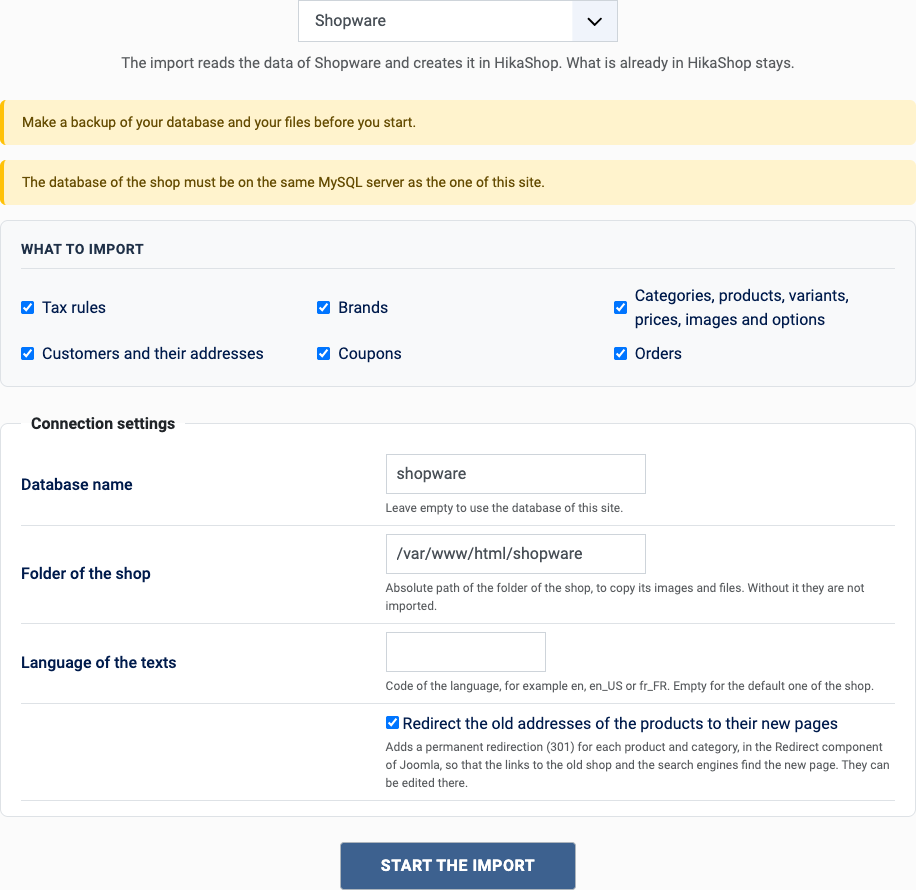
The settings
- Database name: the database of Shopware.
- Folder of the shop: the absolute path of Shopware, to copy the images from public/media.
- Language of the texts: the code of the language to read, for example en-GB or de-DE. Empty for the default language of the shop.
- Redirect the old addresses (Joomla only): tick it to send the visitors of the old addresses to the new pages, see the questions below.
After the import
- Customers keep their password: Shopware 6 uses bcrypt, which Joomla verifies.
- Set up your payment and shipping methods.
- Check a product with variants: each variant has its own options and price.
Questions
Which prices are imported?
The net prices of the default currency. HikaShop adds the tax of the product at display time.
Do customers keep their password?
Yes, the bcrypt hash is moved as it is.
The texts are in the wrong language
Set the language of the texts to the code of the language you want, for example en-GB.
Can I run the import again?
Yes. What was already imported is left alone and only what is new is added: the products, customers and orders created on the old shop since the last import. You can import once to test and again when you go live. A change made on the old shop to something already imported is not copied.
The old addresses of the products
With "Redirect the old addresses" ticked (Joomla only), each product and category gets a redirection from its SEO URL in Shopware to its new page. It only works when the new site answers on the same domain as the old shop. The redirections are in Components > Redirects of Joomla, where they can be edited or removed; the import turns on the plugin "System - Redirect" which uses them.
Back to the import page, which also covers the CSV import and the import of orders. Something else went wrong? See solving problems.
- Details
- Written by: Administrator
- Category: Tutorials
- Hits: 102
Squarespace is a hosted website builder with a store: you cannot read its database, but the Products panel exports your products as a CSV file. HikaShop imports this file, so you can leave Squarespace for your own Joomla or WordPress site without retyping your catalog.
It is one of the shops HikaShop can import: see all the import options.
Before you start
Supported versions: The product file exported by Squarespace (products.csv), with the columns Squarespace documents: Product URL, Title, Description, SKU, the option names and values, Price, Sale Price, On Sale, Stock, Categories, Tags, Weight, Visible and Hosted Image URLs.
Nothing to install on the Squarespace side. You export the product file and send it from the import screen; it is removed from the server when the import ends.
Make a backup of your database and your files. The import adds to what is already in HikaShop and never deletes anything, but a backup costs nothing.
What is imported
- Products, with their description, tags, categories and visibility
- Variants, with up to 3 options (as characteristics), their SKU, price, weight and stock
- The sale price, when the product is on sale: it is the price imported
- Images, downloaded from the addresses of the export
- The redirections from the old addresses of the products (see below)
Not imported:
- The customers and the orders: Squarespace does not export them in a file this import can read
- The gift cards, the pages and the blog
Steps
- In the HikaShop back office, open Products > Import and choose Import from another shop.
- Pick Squarespace in the list of shops.
- Send the product file and fill in the settings (see below), then click Start the import.
- Keep the page open until the message "The import is finished" appears. A step which fails stops the import and can be tried again or skipped.
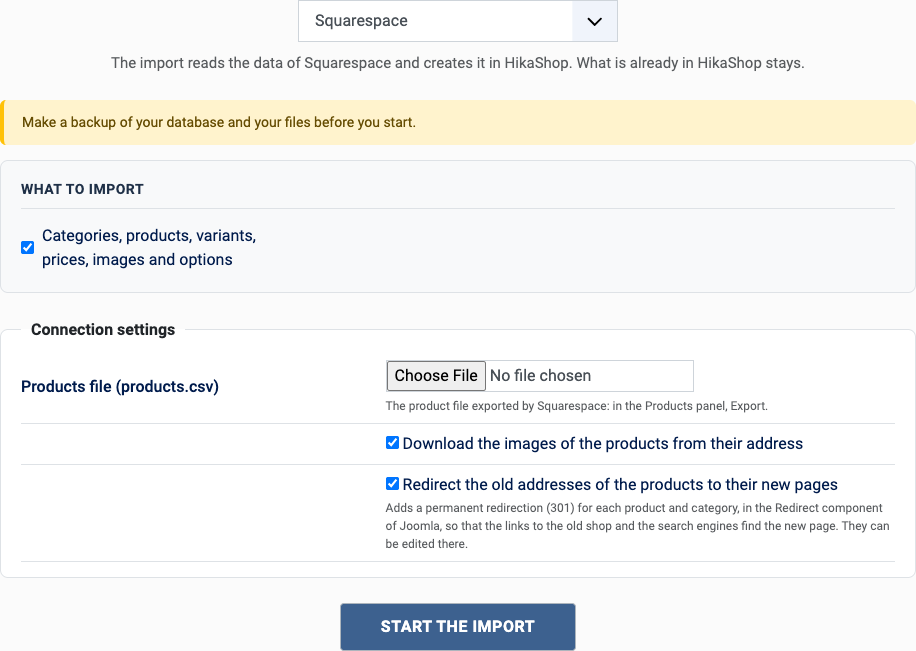
The settings
- Products file: the CSV file exported by Squarespace.
- Download the images: tick it to download the images of the products from the addresses of the export.
- Redirect the old addresses: tick it to send the visitors of the old product pages to the new ones (Joomla only, see below).
After the import
- Check the products with options: each combination is a variant.
- Add your customers to the new shop (they register again, or you import them with a CSV file).
- Set up your payment and shipping methods, and your taxes.
Questions
How do I export from Squarespace?
In the Squarespace menu, open Commerce, then Inventory, and click Export (or Export all). The file is a CSV.
The old addresses of the products
With "Redirect the old addresses" ticked, each product gets a permanent redirection from its Squarespace address (the page of the store and the address of the product) to its new page, in the Redirect component of Joomla. It only works when the new site answers on the same domain as the old one. The redirections can be edited in Components > Redirects.
Can I run the import again?
Yes: products which were already imported are left alone, only the new ones are added.
Back to the import page, which also covers the CSV import and the import of orders. Something else went wrong? See solving problems.