
Templates
- Details
- Category: Templates
- Hits: 32
This guide takes a WordPress website from nothing to a complete shop with HikaShop and the Vessel template, here in its WordPress edition, a block theme: installing both, choosing a style in the Site Editor, creating the menu, building the home page with Vessel's blocks, and adjusting the HikaShop settings that matter for the look of the shop. Every screenshot was taken on a real site while following these steps. You can see Vessel on the Vessel demo.
- Before you start
- 1. Install HikaShop
- 2. Install and activate Vessel
- 3. Your shop's name and logo
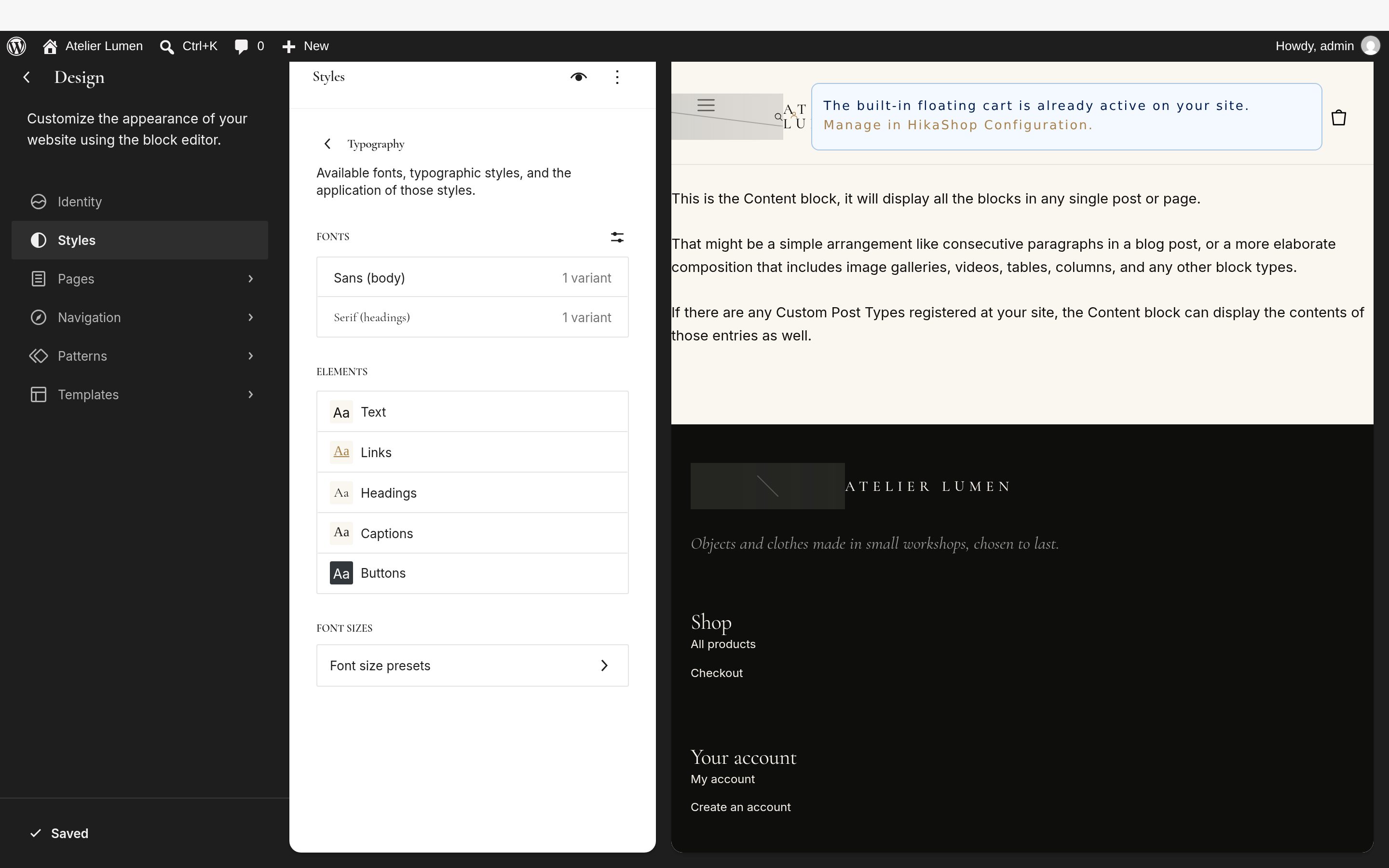
- 4. Choose a style: colours and fonts
- 5. Create the menu
- 6. Build the home page
- 7. The Shop page and its filters
- 8. The header and the footer
- 9. HikaShop settings for the look of the shop
- 10. Before you sell
- 11. Your own CSS
- Questions
Before you start
- WordPress 6.7 or later and PHP 8.1 or later. Vessel for WordPress is a block theme: you set it up in Appearance > Editor (the Site Editor), not in the Customizer.
- HikaShop for WordPress, in its latest version. Vessel works with the Starter, Essential and Business editions; the product filters of the Shop page (step 7) only exist in HikaShop Business.
- The two packages, from your downloads on our website: the HikaShop zip and vessel.zip (the WordPress theme of Vessel; tpl_vessel.zip is the Joomla template).
- If you are changing the theme of a site that is already online, make a backup first, and do the work on a copy of the site if you can.
In this guide the shop is called Atelier Lumen. The screenshots show the products of our demo shop: yours will show your own categories and products.
1. Install HikaShop
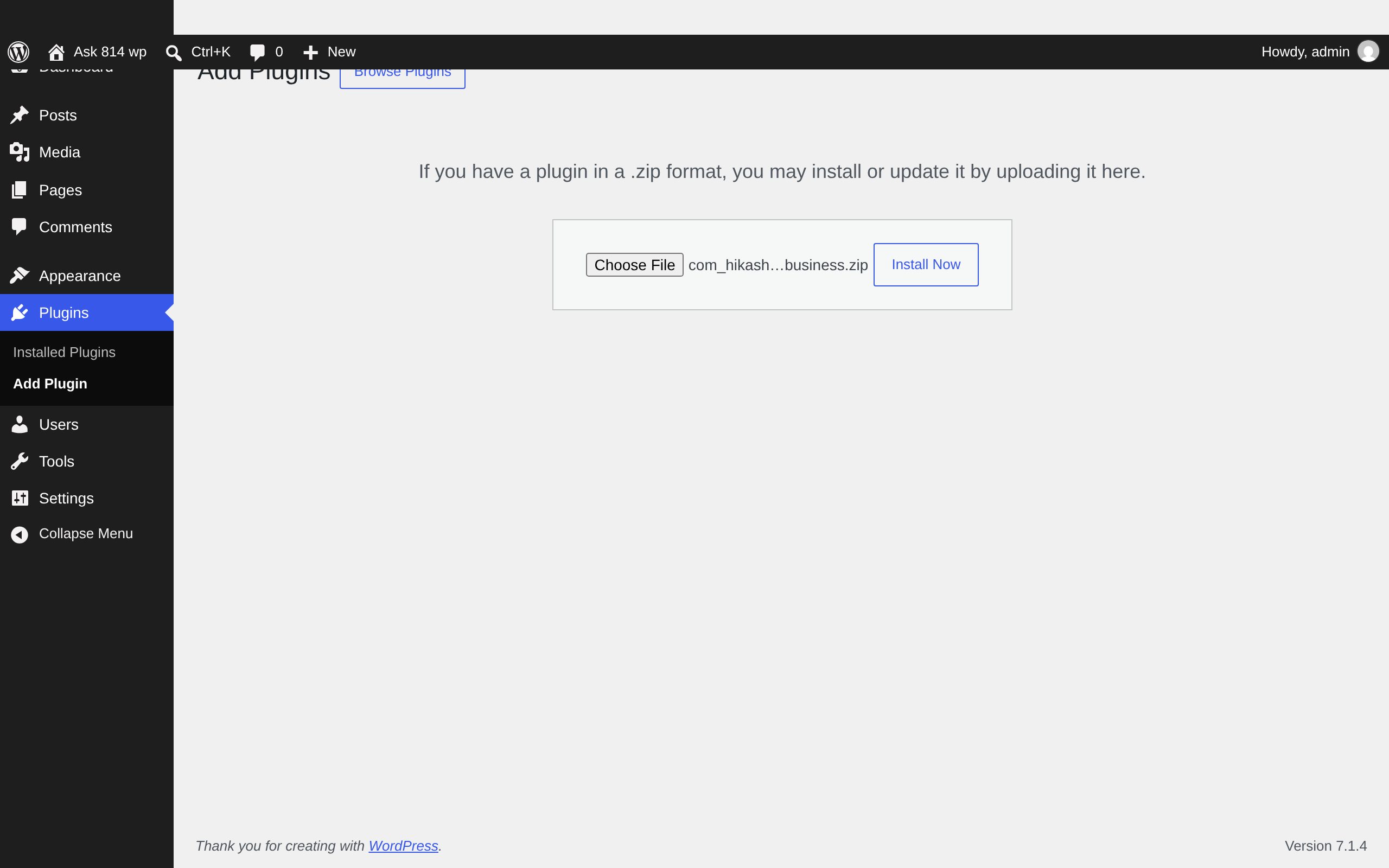
- In the WordPress administration, open Plugins > Add Plugin, click Upload Plugin, choose the HikaShop zip and click Install Now.
- Click Activate Plugin. A HikaShop menu appears in the administration.
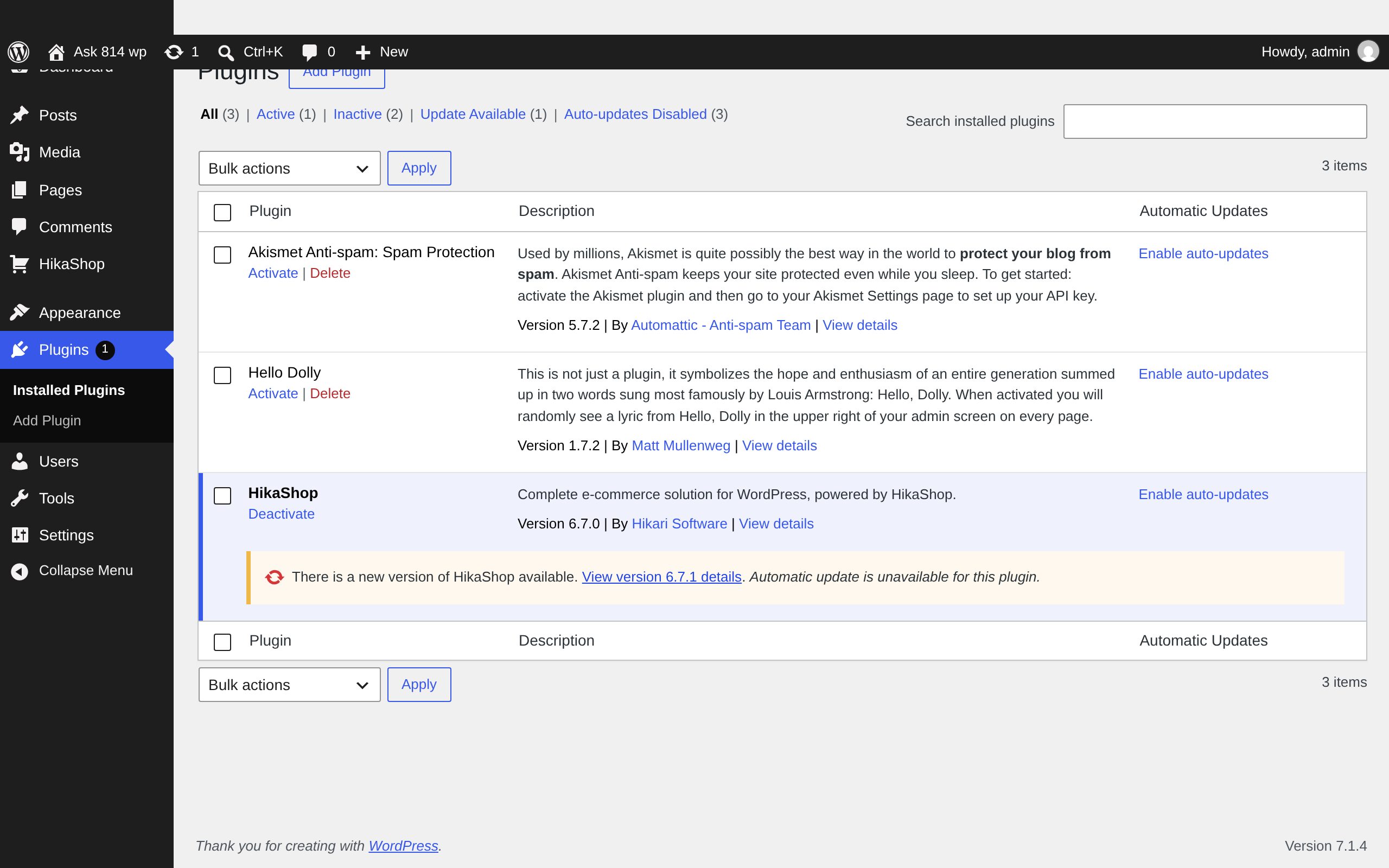
On activation HikaShop creates the pages of the shop: Shop (your categories and products, at /shop/), Checkout, My Account and Register, and a Cart page left as a draft. You will use them in the menu and the footer. Add your categories and products in HikaShop > Products and HikaShop > Categories (see Create your first product), with a picture each: the home page and the listings of Vessel are built around pictures.
2. Install and activate Vessel
- Open Appearance > Themes, click Add New Theme, then Upload Theme, choose vessel.zip and click Install Now.
- Click Activate (or, in Appearance > Themes, hover the Vessel card and click Activate).
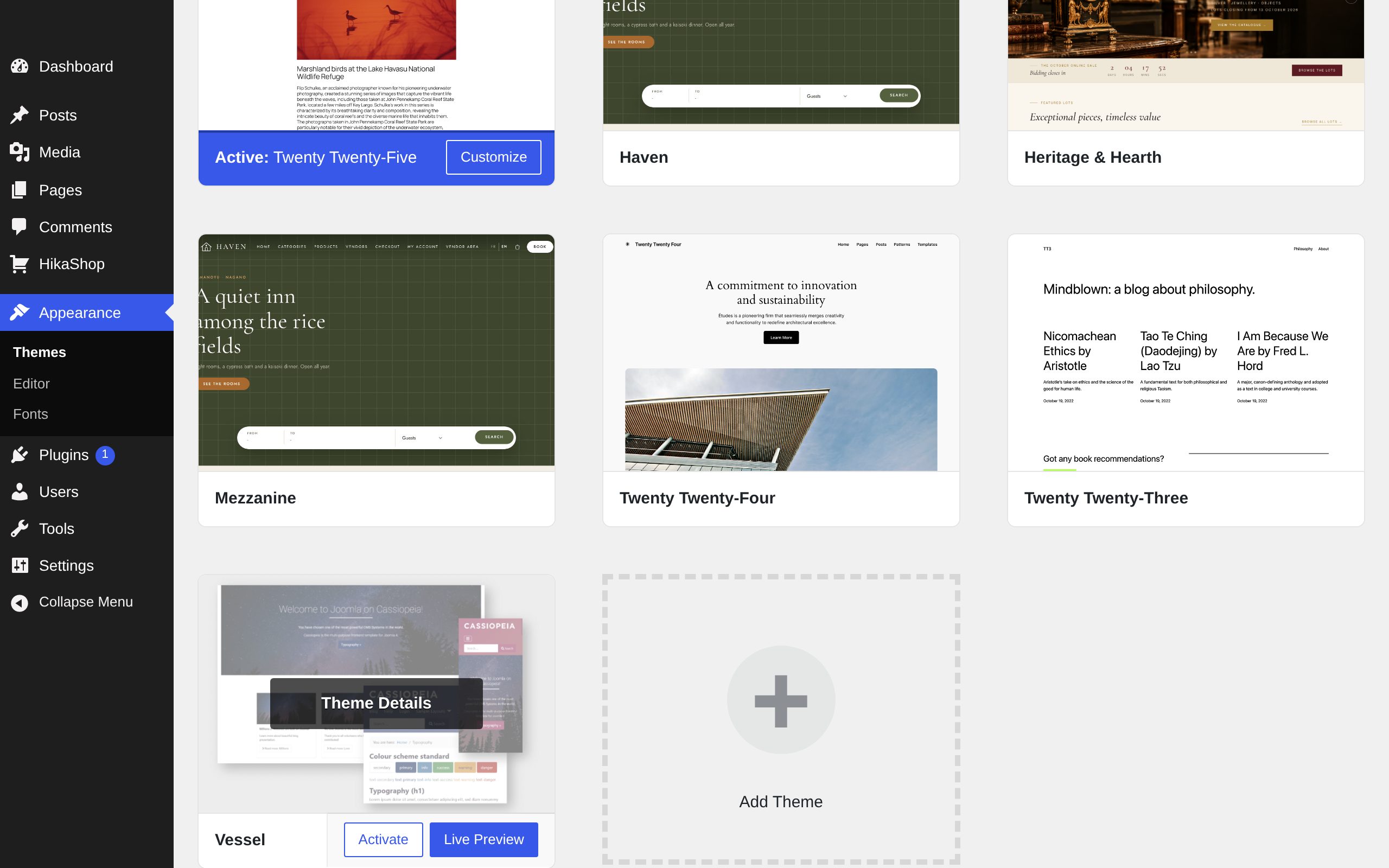
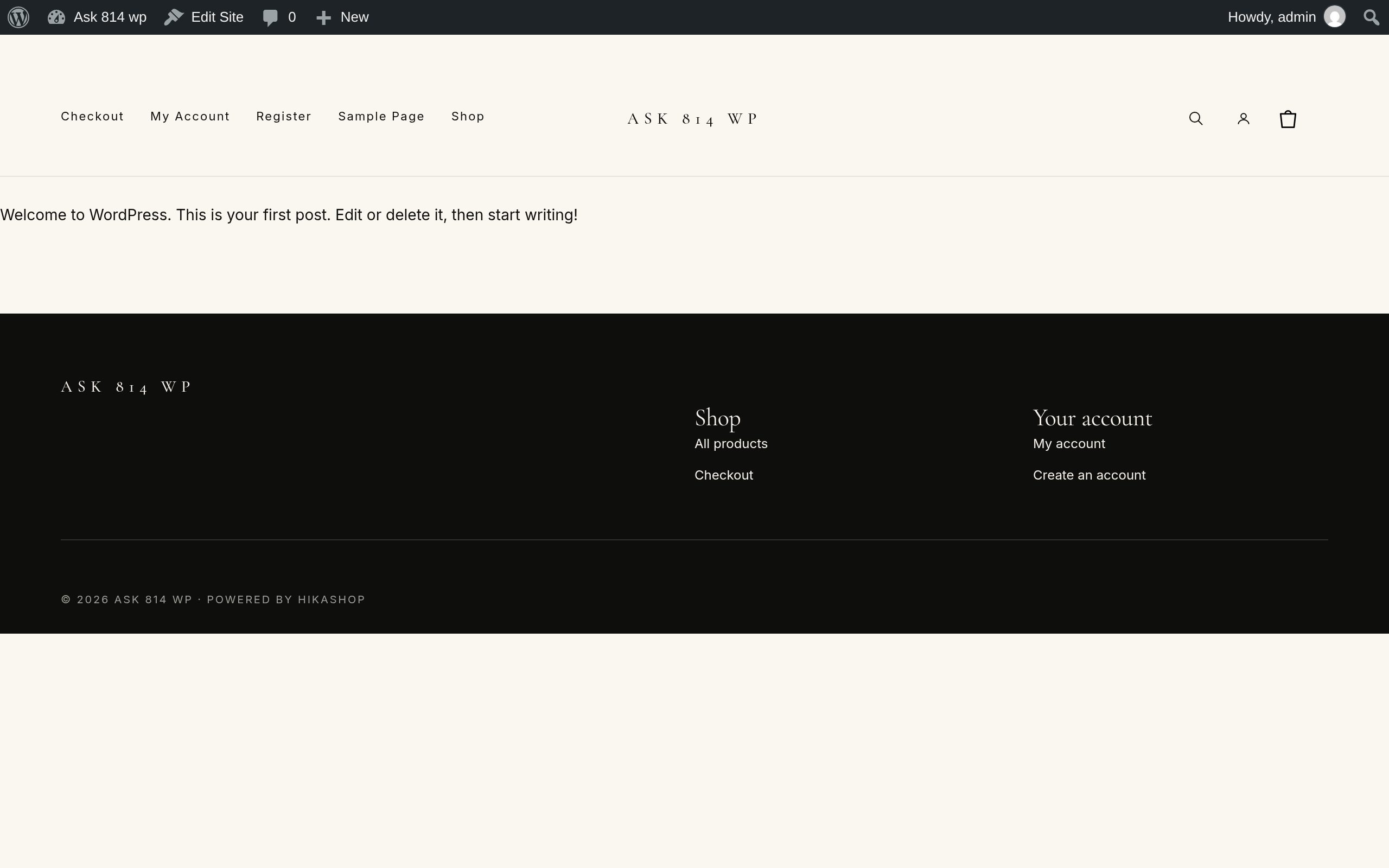
Your site now has Vessel's header (menu on the left, your shop's name in the middle, search, account and cart icons on the right) and its dark footer. Until you do steps 5 and 6 it looks like this: the menu lists every page of the site in alphabetical order, the "Sample Page" of WordPress included, and the home page shows your latest posts. Both are normal on a new site.
3. Your shop's name and logo
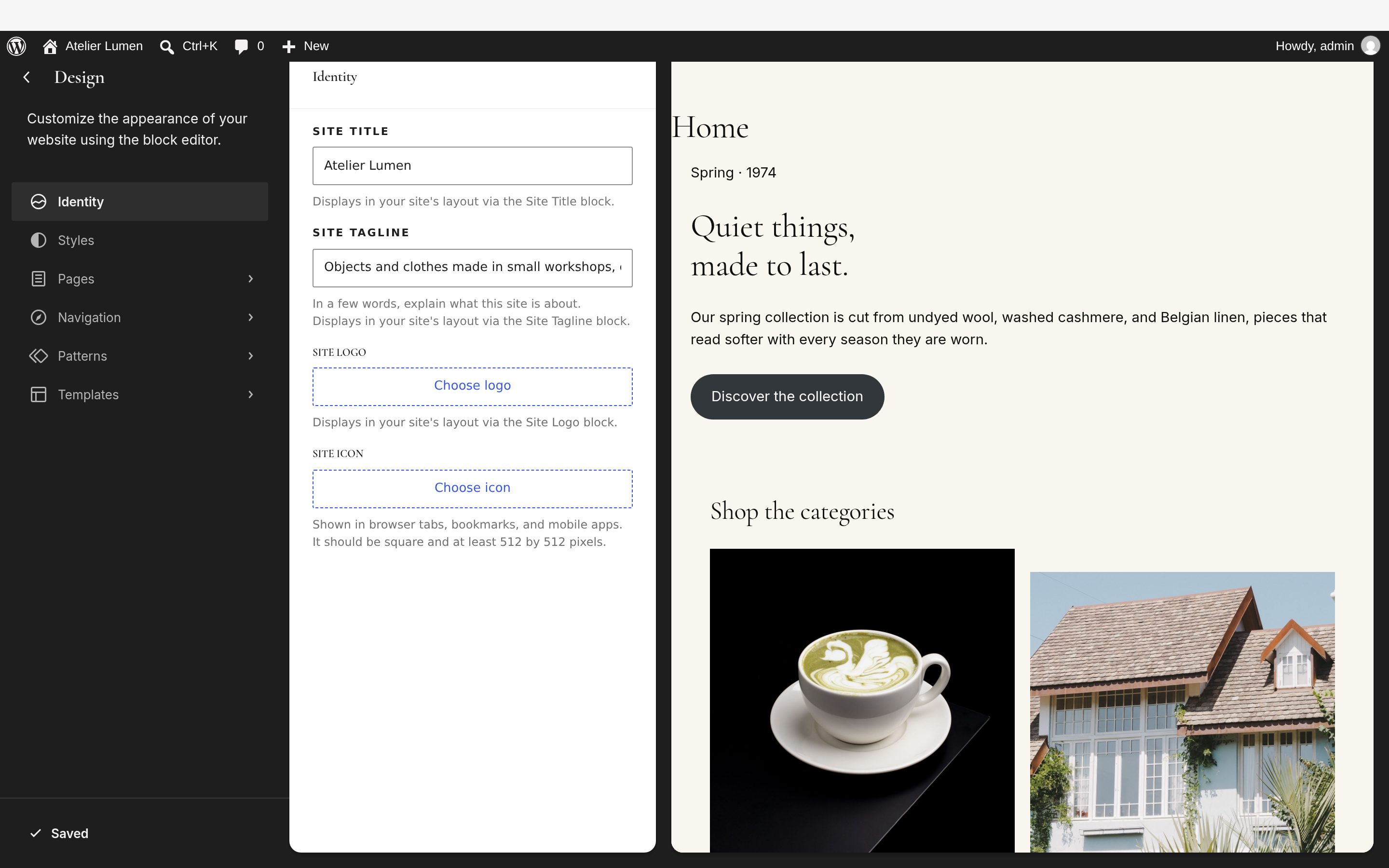
Open Appearance > Editor and click Identity:
- Site title: your shop's name. Vessel writes it in the header and the footer, in the headline font, when there is no logo. The copyright line at the bottom of the footer also uses it, with the current year.
- Site tagline: shown under the name in the footer.
- Site logo: your logo picture. Once you choose one, Vessel shows it instead of the site title, in the header and the footer.
- Site icon: the icon of the browser tab, square, at least 512 x 512 pixels.
The same settings are in Settings > General (title and tagline).
4. Choose a style: colours and fonts
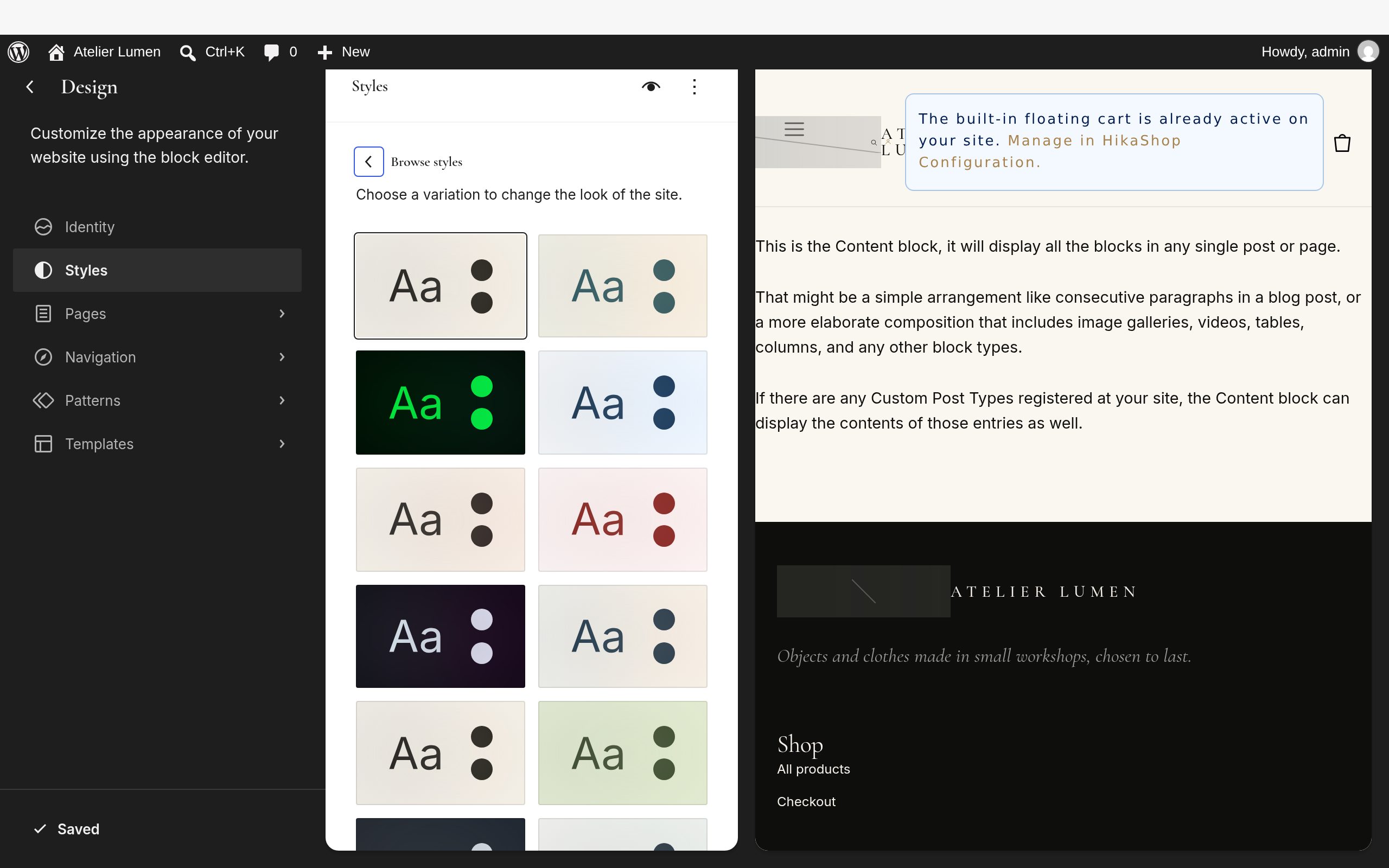
In Appearance > Editor, click Styles, then Browse styles. Vessel has 15 styles, the same presets as the Joomla template (Luxury, Editorial, Wellness, Nature, Coastal, Vintage, Real estate, Horizon, Corporate, Foody, Streetwear, Roadwork, Futuristic, Nordic, Computer): each one sets the colours and the two fonts together. Click one to see your site with it on the right, then click Save at the top. You can compare them on the Vessel demo with its "Use your own style" button.
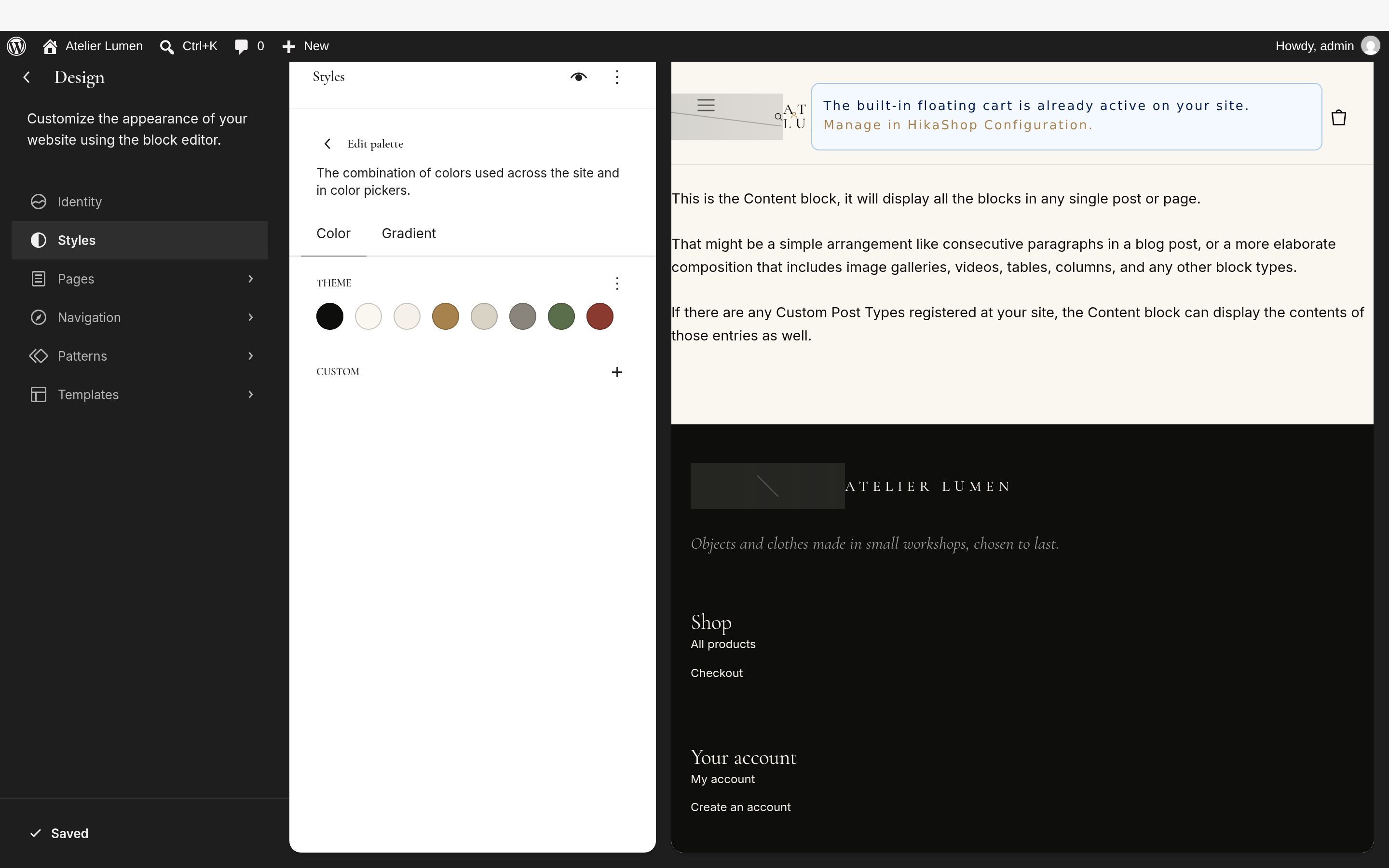
- Your own colours: in Styles > Colors > Edit palette, the Theme colours are the ones Vessel draws with: Ink for the text, the footer and the buttons, Paper for the page, Bone for the alternate sections, Gold for the stars, prices and highlights, Line for the dividers, Mute for the secondary text, Ok and Danger for the messages. Click a colour to change it. Start from the style closest to what you want, then adjust. A dark Paper works too: the HikaShop boxes (cart, checkout, account) follow it.
- The fonts: Vessel uses two, Serif (headings) for the titles and Sans (body) for the text, listed in Styles > Typography. They change with the style you pick: to get other fonts, pick the style that has them.
- Vessel downloads the two fonts once to your site (in wp-content/uploads/vessel-fonts/), so your visitors' browsers never contact Google Fonts.
The settings of the Joomla template's Layout and Home page effects tabs have no equivalent here: in WordPress, Vessel always has the sticky header, the small pictures of a product's gallery under its main picture, and the short animation of each home page section as the visitor scrolls to it.
5. Create the menu
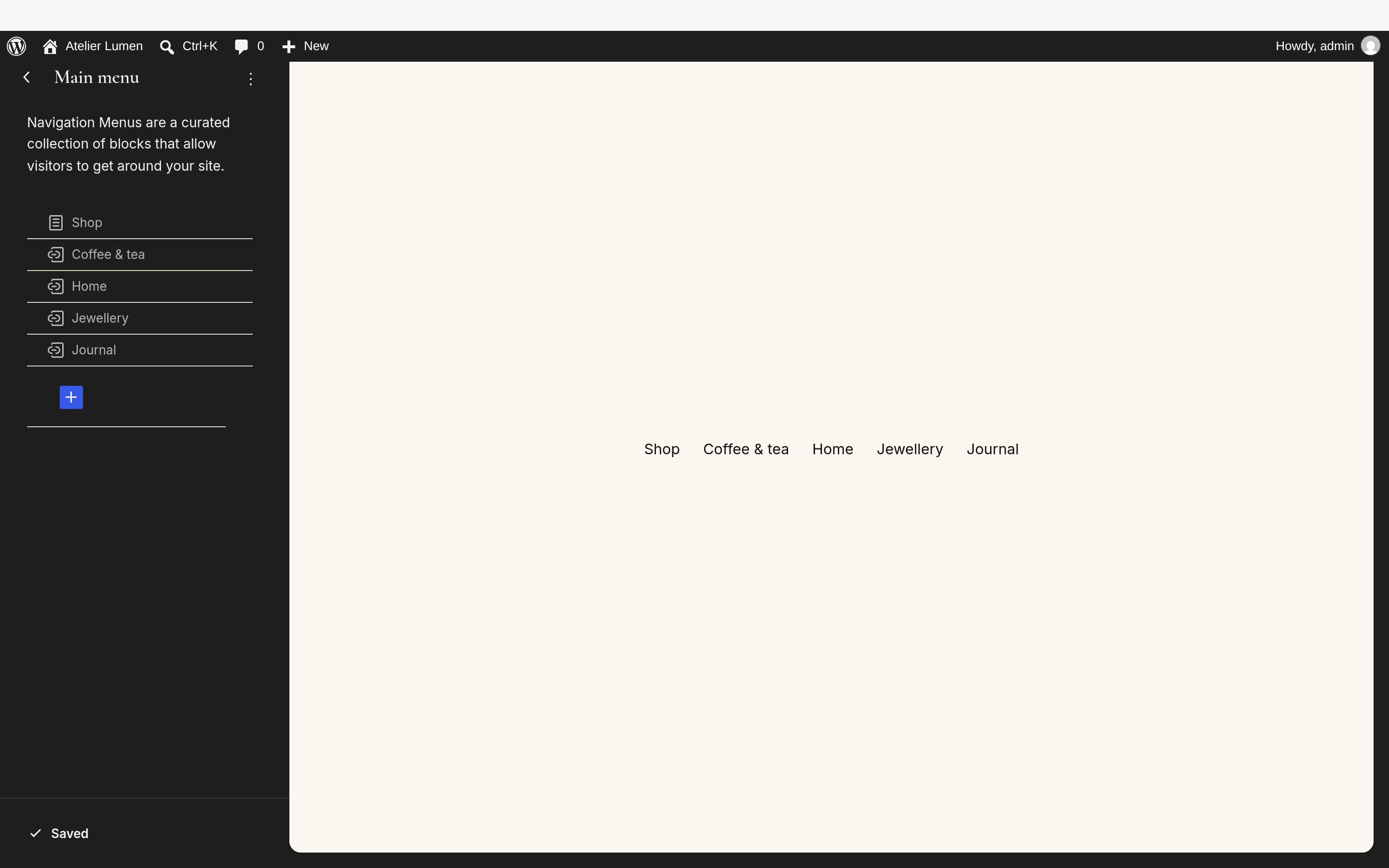
The header menu is a WordPress navigation menu. Open Appearance > Editor > Navigation. On a new site there is a menu listing all your pages: click it, then Edit (or the three dots, then Edit), and in the editor:
- remove the pages a visitor does not need in the header (Sample Page, Register, My Account: the account has its icon on the right of the header);
- with the + button, add the Shop page and links to your main categories: open a category on your site and paste its address (for example /shop/category/12-coffee-tea/) in the link;
- drag the items in the order you want, then Save.
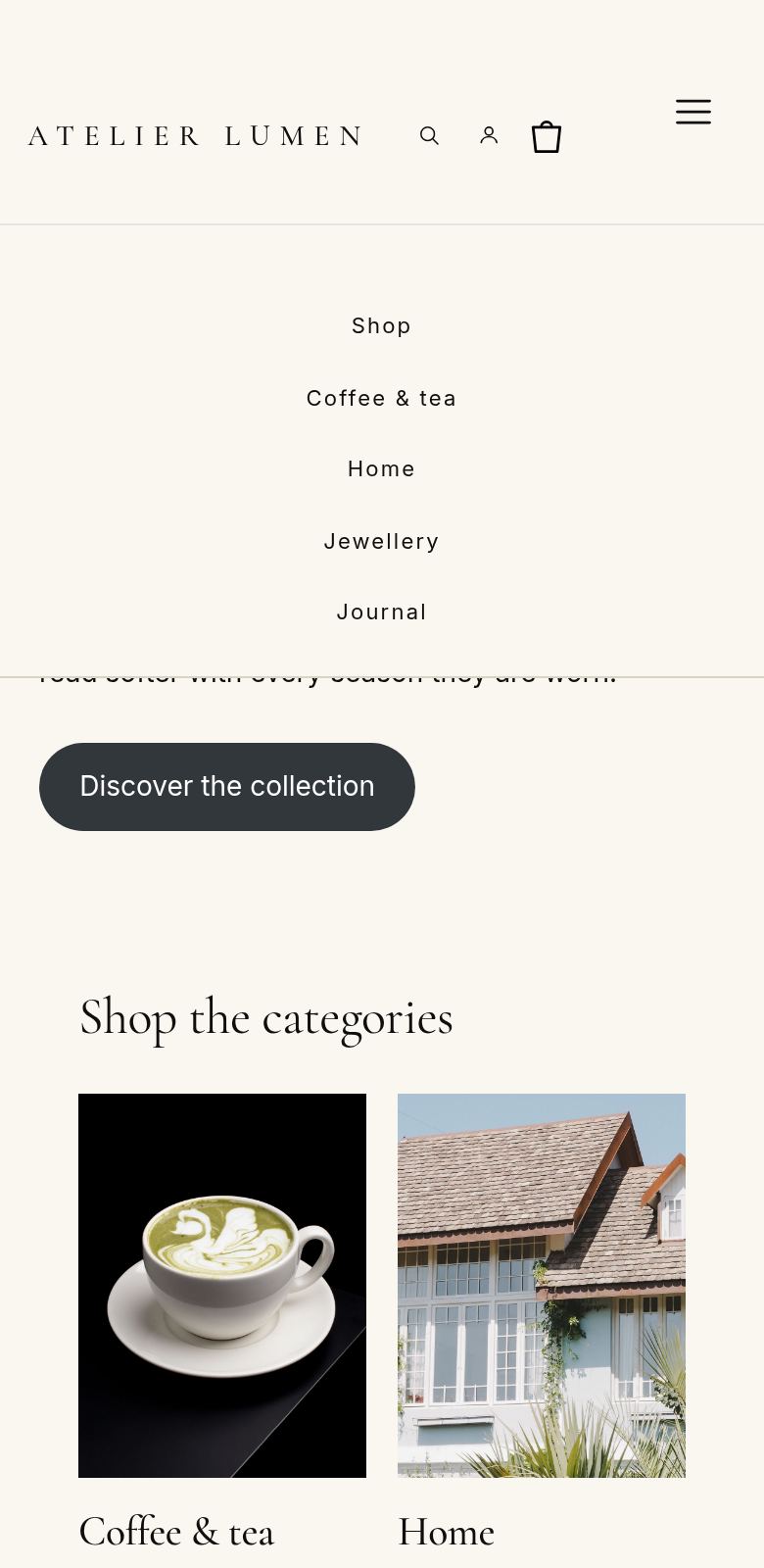
On phones Vessel folds the menu behind a menu button, at the top right:
6. Build the home page
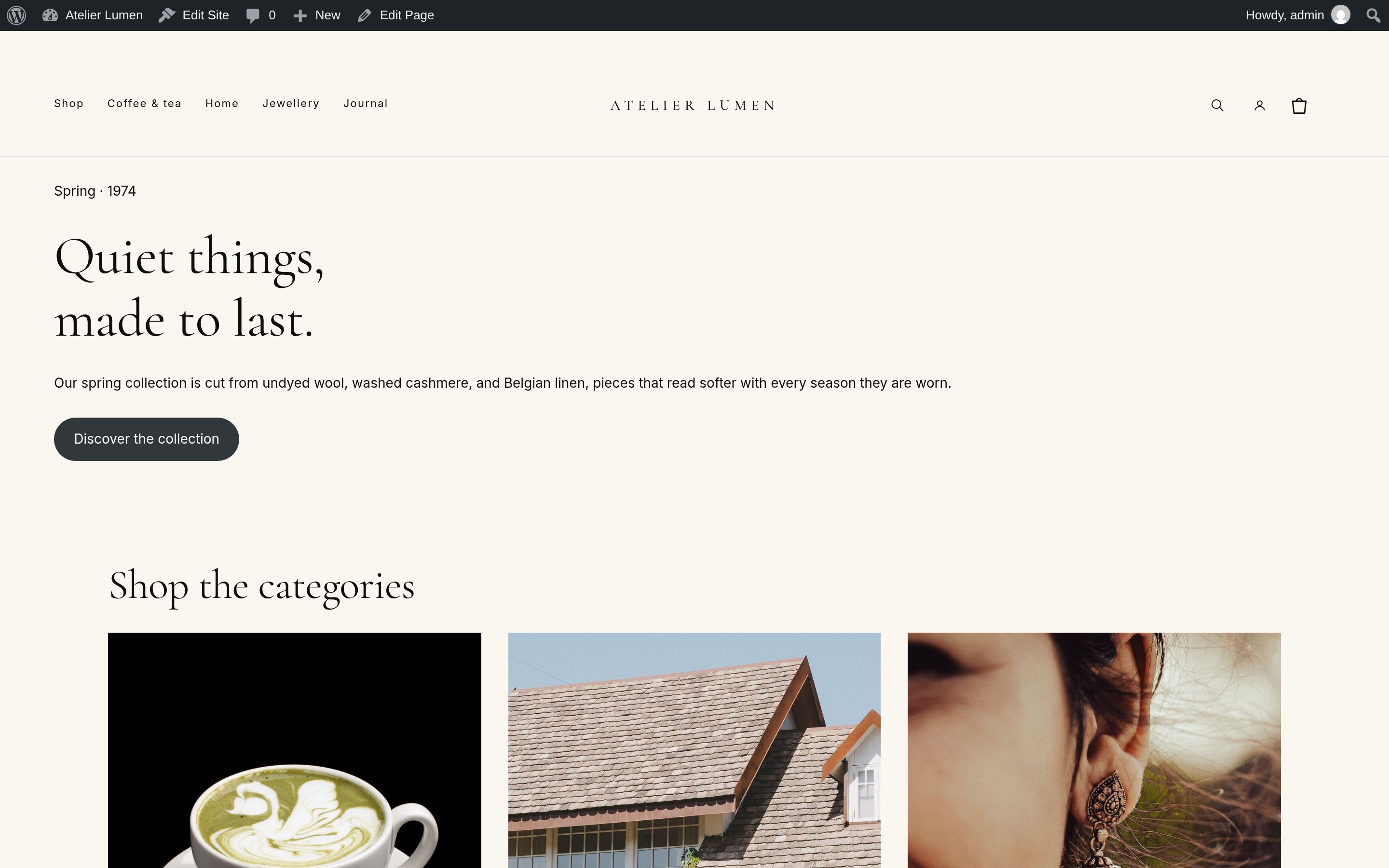
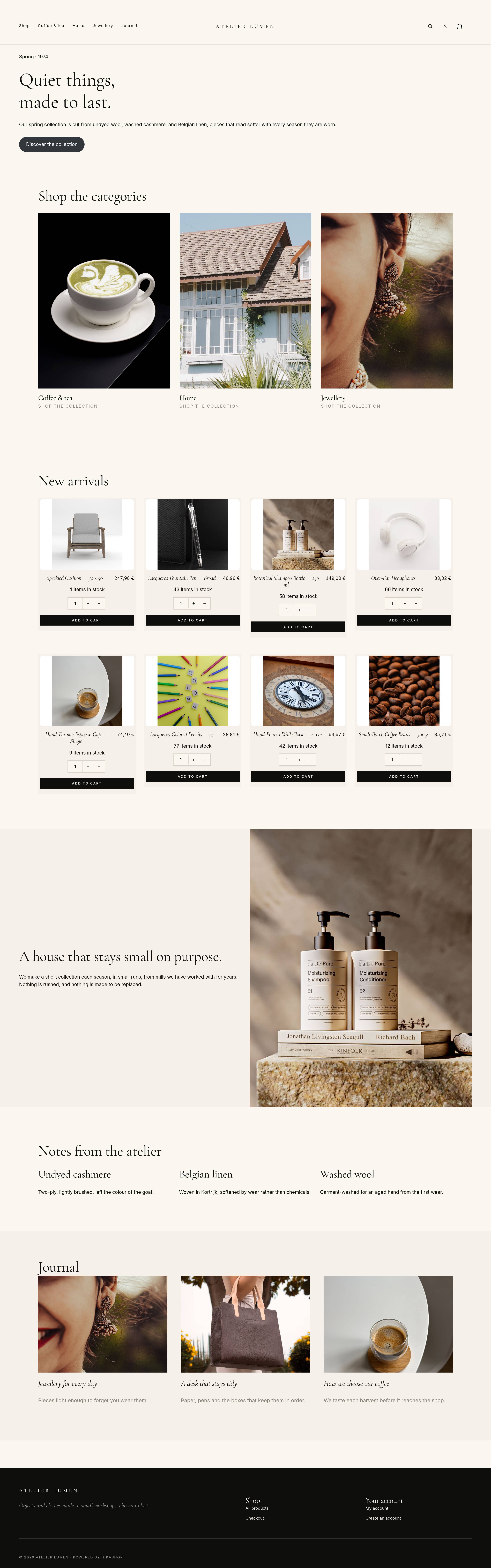
The home page of Vessel is a page made of blocks, which Vessel gives you ready as a block pattern called Home: a hero banner, category tiles, a product grid, an editorial split, a materials row and a journal row.
- Open Pages > Add Page and give it the title Home (the title is not shown on the home page).
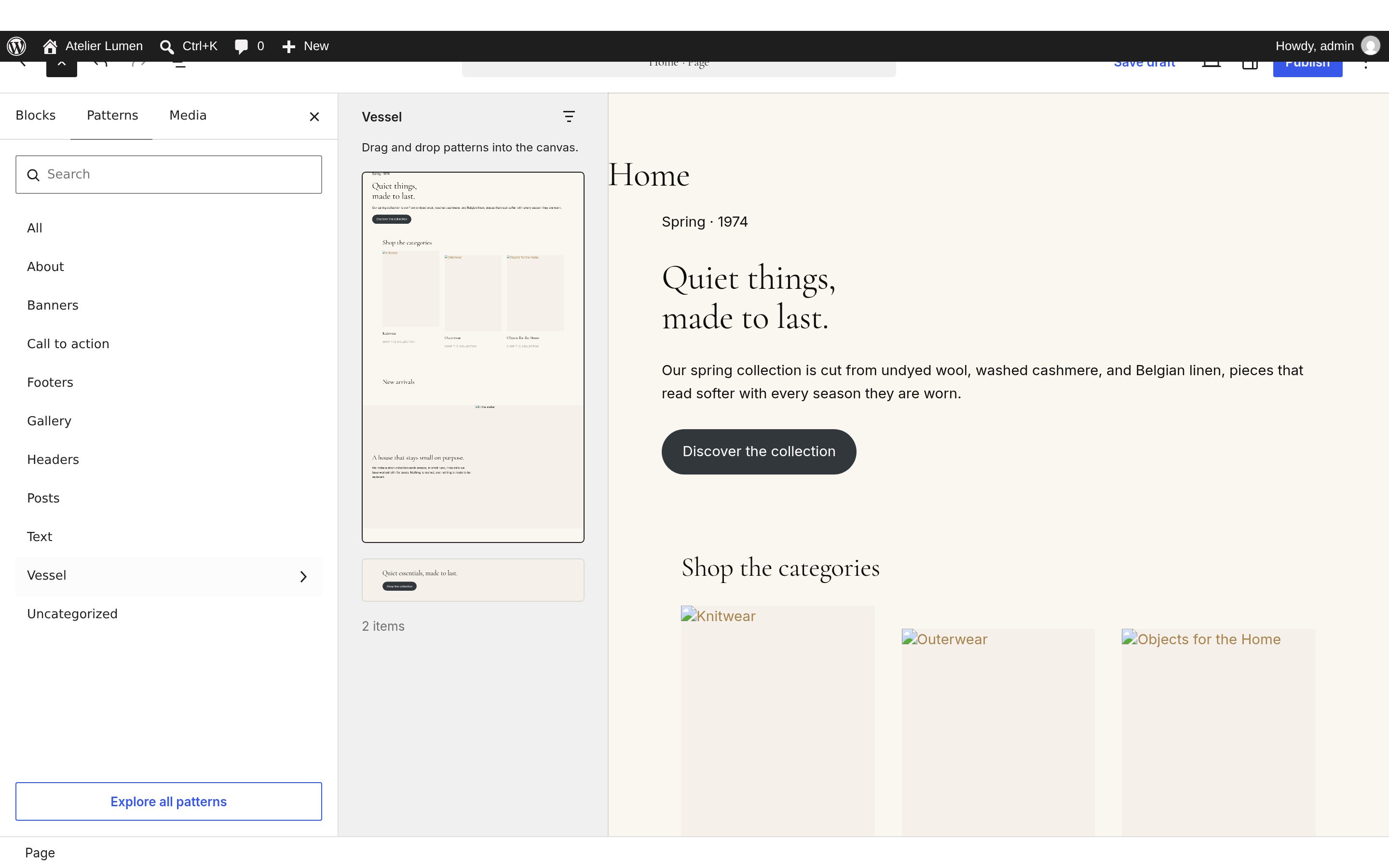
- Click the + at the top left (Block Inserter), the Patterns tab, then Vessel, and click the Home pattern. Its blocks are added to the page.
- Click Publish.
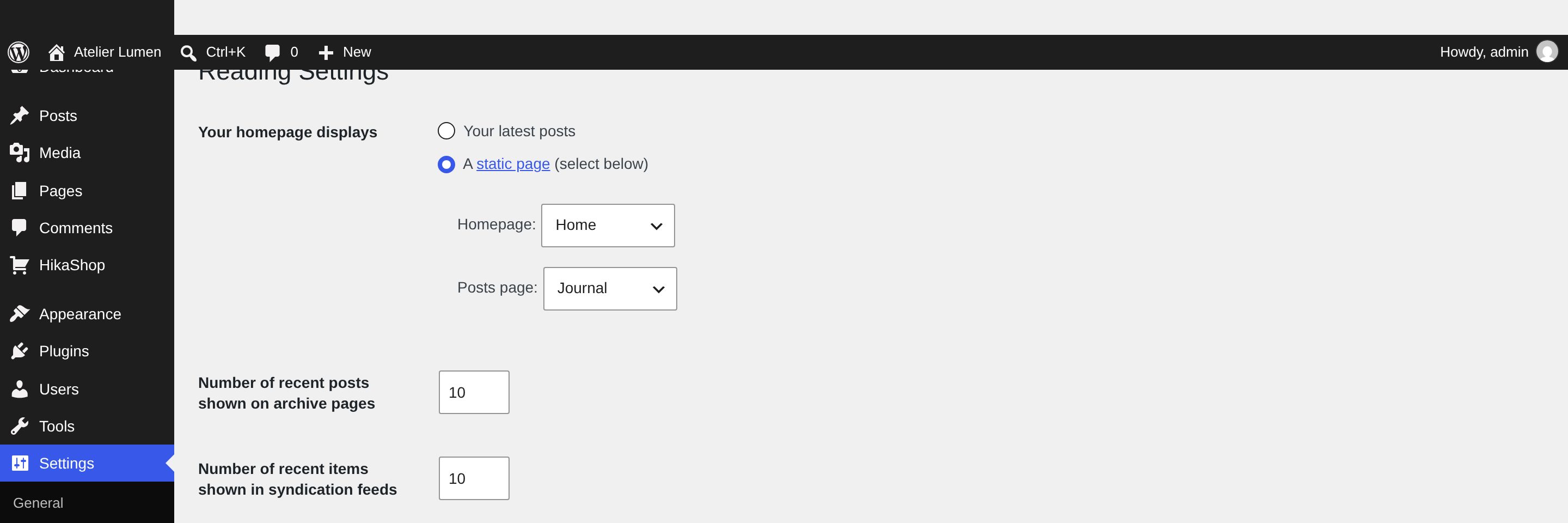
- Open Settings > Reading, choose Your homepage displays: A static page, Homepage: Home, and if you write posts, a Posts page (for example a page called Journal). Click Save Changes.
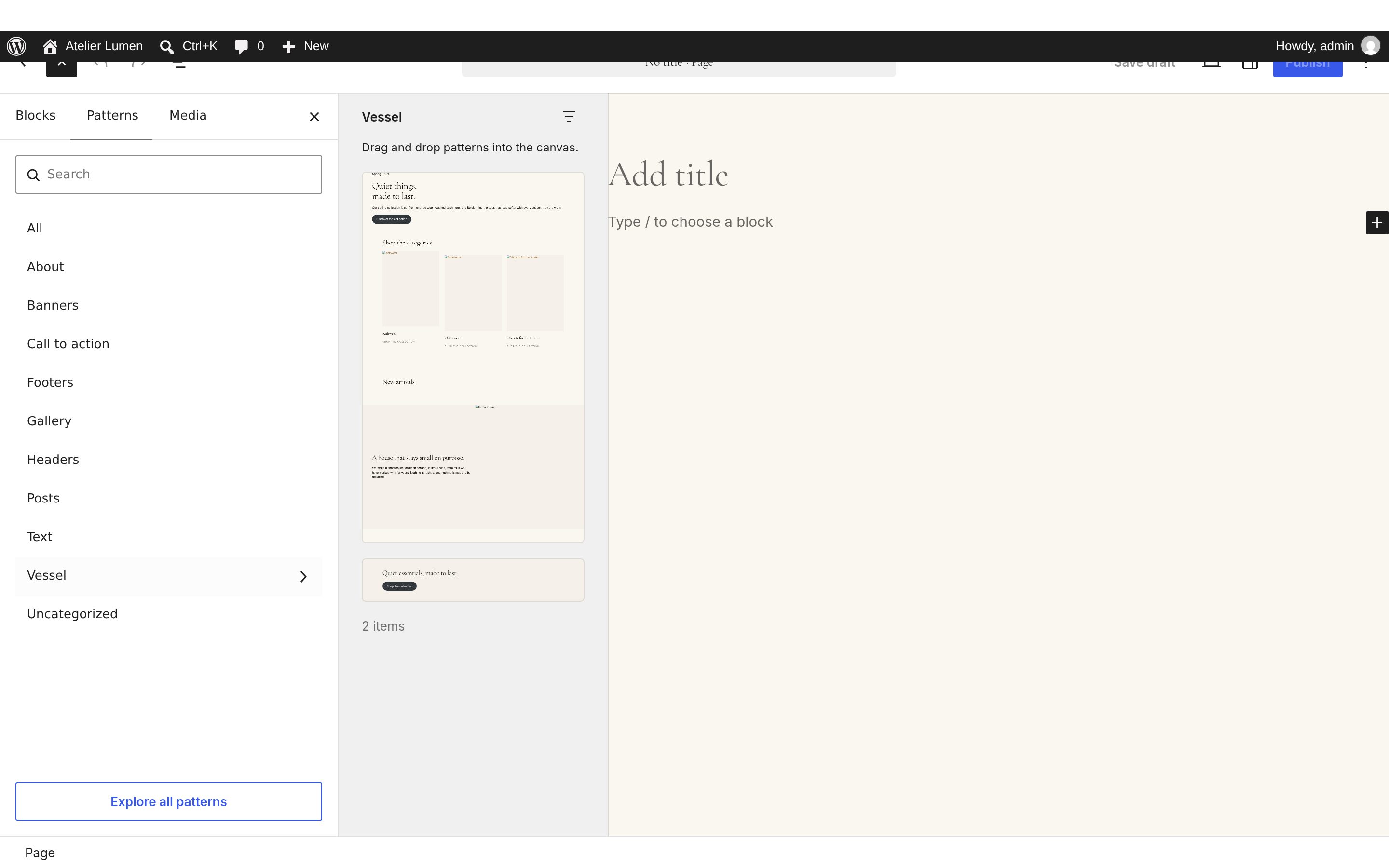
The pattern shows the pictures and the categories of Vessel's own demo, which your site does not have: the pictures appear broken and the category links lead nowhere until you replace them. Go through each section as below. Every block can be changed by clicking it; a section you do not want is removed by selecting it (the Group around it, with the breadcrumb at the bottom of the editor) and pressing the Delete key.
The code of each section is given below, with addresses of our demo for the pictures and the links. To paste one: in the editor, open the three dots at the top right, Code editor, paste the code where you want it, then Exit code editor, and replace the pictures and the links as said for that section. Upload your pictures in Media > Add Media File.
The hero banner
A small line above the title, a large title, a sentence and a button. Click each text to write yours. Click the button, then the link icon of its toolbar, to point it to your Shop page.
<!-- wp:group {"tagName":"section","className":"vessel-banner full-width vessel-reveal vessel-reveal--up"} -->
<section class="wp-block-group vessel-banner full-width vessel-reveal vessel-reveal--up">
  <!-- wp:group {"className":"container"} -->
  <div class="wp-block-group container">
    <!-- wp:paragraph {"className":"vessel-eyebrow"} --><p class="vessel-eyebrow">Spring · 1974</p><!-- /wp:paragraph -->
    <!-- wp:heading {"level":1,"className":"vessel-display"} --><h1 class="vessel-display">Quiet things,<br>made to last.</h1><!-- /wp:heading -->
    <!-- wp:paragraph --><p>Our spring collection is cut from undyed wool, washed cashmere, and Belgian linen, pieces that read softer with every season they are worn.</p><!-- /wp:paragraph -->
    <!-- wp:buttons --><div class="wp-block-buttons"><!-- wp:button {"className":"is-style-fill"} --><div class="wp-block-button is-style-fill"><a class="wp-block-button__link wp-element-button" href="/shop/">Discover the collection</a></div><!-- /wp:button --></div><!-- /wp:buttons -->
  </div>
  <!-- /wp:group -->
</section>
<!-- /wp:group -->
The category tiles
Three tiles, each a picture, a name and a small line, with a link to a category. For each tile:
- click the picture, then Replace in its toolbar, and choose your picture in the Media Library (a tall picture, 3 by 4, fits best; the tile crops it);
- click the link icon of the picture's toolbar and paste the address of your category (open the category on your site and copy its address);
- click the name, write yours, select it and give it the same link with the link icon.
To get a fourth tile, select a tile (its Group) and duplicate it with Ctrl+Shift+D (Cmd+Shift+D on a Mac): the row shows three tiles per line.
<!-- wp:group {"tagName":"section","className":"vessel-section vessel-section-categories vessel-reveal vessel-reveal--up"} -->
<section class="wp-block-group vessel-section vessel-section-categories vessel-reveal vessel-reveal--up">
<!-- wp:group {"className":"container"} -->
<div class="wp-block-group container">
<!-- wp:heading {"level":2,"className":"vessel-section-title"} --><h2 class="wp-block-heading vessel-section-title">Shop the categories</h2><!-- /wp:heading -->
<!-- wp:group {"className":"vessel-home-tiles","layout":{"type":"default"}} -->
<div class="wp-block-group vessel-home-tiles">
<!-- wp:group {"className":"vessel-home-tile","layout":{"type":"default"}} -->
<div class="wp-block-group vessel-home-tile">
<!-- wp:image {"className":"vessel-home-tile-media","linkDestination":"custom","sizeSlug":"large"} -->
<figure class="wp-block-image size-large vessel-home-tile-media"><a href="/shop/category/12-coffee-tea/"><img src="/wp-content/uploads/2026/11/coffee-tea.jpg" alt="Coffee and tea"/></a></figure>
<!-- /wp:image -->
<!-- wp:heading {"level":3,"className":"vessel-home-tile-name"} --><h3 class="wp-block-heading vessel-home-tile-name"><a href="/shop/category/12-coffee-tea/">Coffee & tea</a></h3><!-- /wp:heading -->
<!-- wp:paragraph {"className":"vessel-home-tile-meta"} --><p class="vessel-home-tile-meta">Shop the collection</p><!-- /wp:paragraph -->
</div>
<!-- /wp:group -->
<!-- wp:group {"className":"vessel-home-tile","layout":{"type":"default"}} -->
<div class="wp-block-group vessel-home-tile">
<!-- wp:image {"className":"vessel-home-tile-media","linkDestination":"custom","sizeSlug":"large"} -->
<figure class="wp-block-image size-large vessel-home-tile-media"><a href="/shop/category/14-home/"><img src="/wp-content/uploads/2026/11/home.jpg" alt="Home"/></a></figure>
<!-- /wp:image -->
<!-- wp:heading {"level":3,"className":"vessel-home-tile-name"} --><h3 class="wp-block-heading vessel-home-tile-name"><a href="/shop/category/14-home/">Home</a></h3><!-- /wp:heading -->
<!-- wp:paragraph {"className":"vessel-home-tile-meta"} --><p class="vessel-home-tile-meta">Shop the collection</p><!-- /wp:paragraph -->
</div>
<!-- /wp:group -->
<!-- wp:group {"className":"vessel-home-tile","layout":{"type":"default"}} -->
<div class="wp-block-group vessel-home-tile">
<!-- wp:image {"className":"vessel-home-tile-media","linkDestination":"custom","sizeSlug":"large"} -->
<figure class="wp-block-image size-large vessel-home-tile-media"><a href="/shop/category/16-jewellery/"><img src="/wp-content/uploads/2026/11/jewellery.jpg" alt="Jewellery"/></a></figure>
<!-- /wp:image -->
<!-- wp:heading {"level":3,"className":"vessel-home-tile-name"} --><h3 class="wp-block-heading vessel-home-tile-name"><a href="/shop/category/16-jewellery/">Jewellery</a></h3><!-- /wp:heading -->
<!-- wp:paragraph {"className":"vessel-home-tile-meta"} --><p class="vessel-home-tile-meta">Shop the collection</p><!-- /wp:paragraph -->
</div>
<!-- /wp:group -->
</div>
<!-- /wp:group -->
</div>
<!-- /wp:group -->
</section>
<!-- /wp:group -->
The product grid
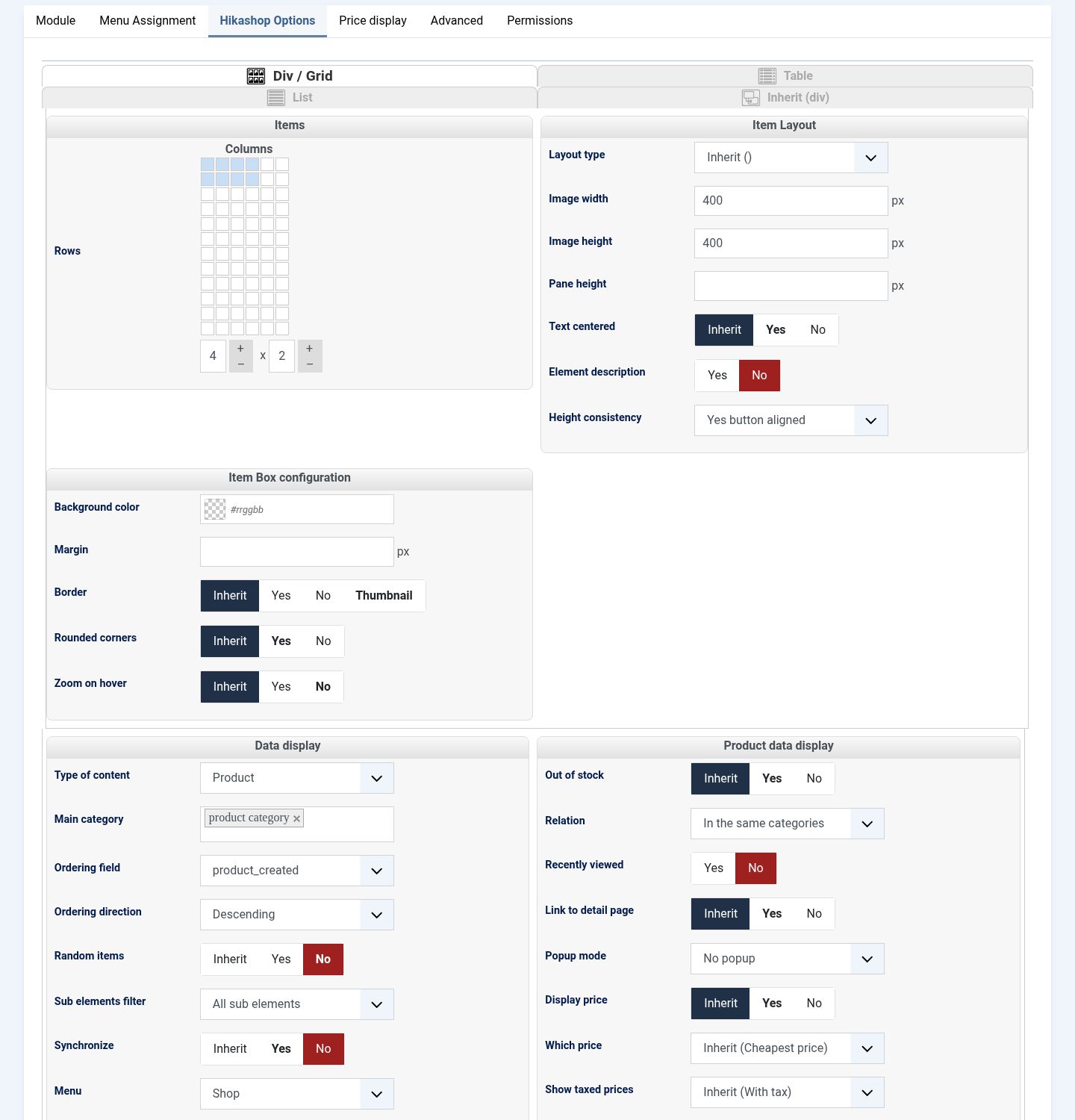
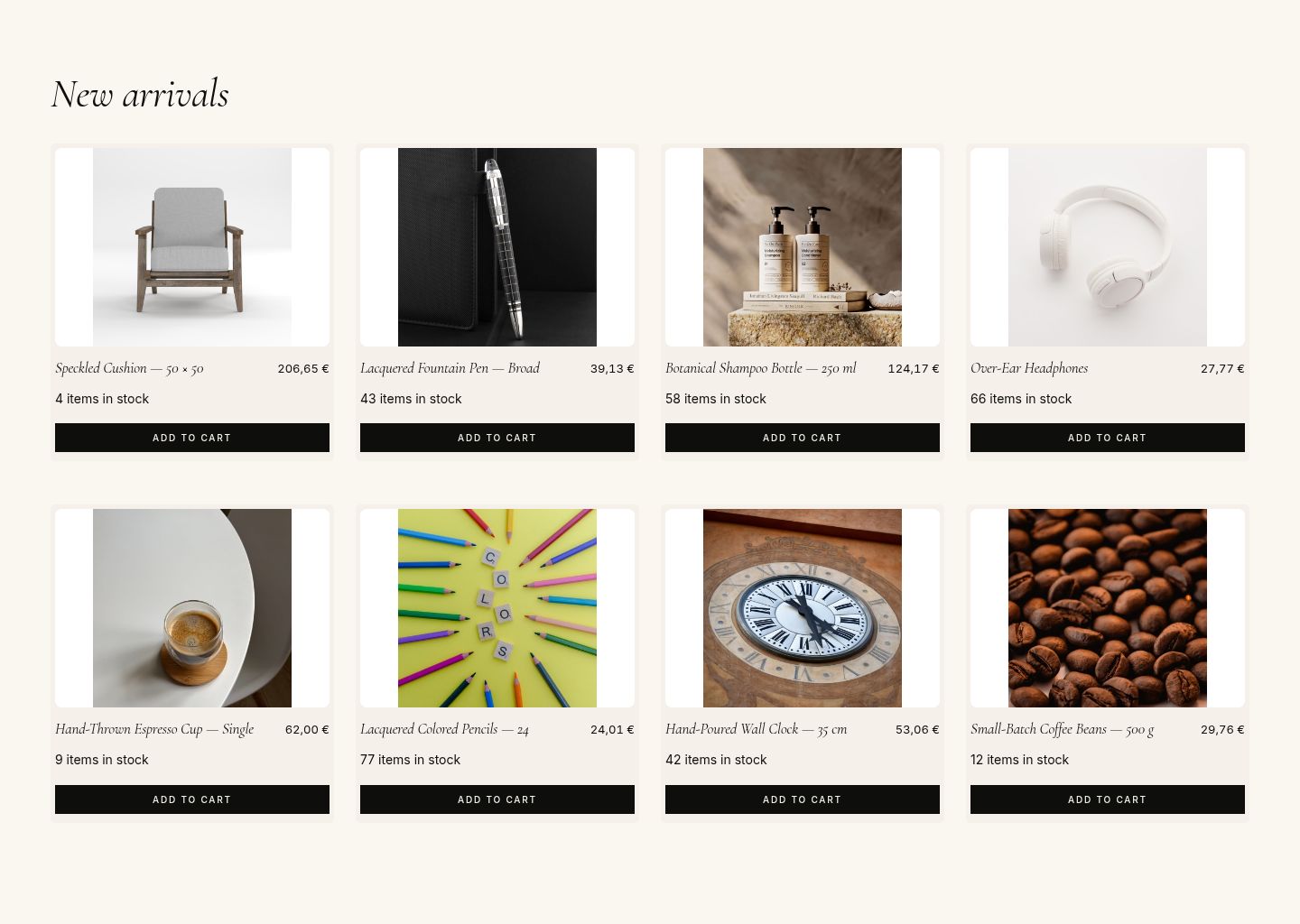
A title and a HikaShop Products / Categories block, which shows your products and updates by itself. Vessel sets it up when it is activated: your eight latest products, from every category, four per row. To change what it shows:
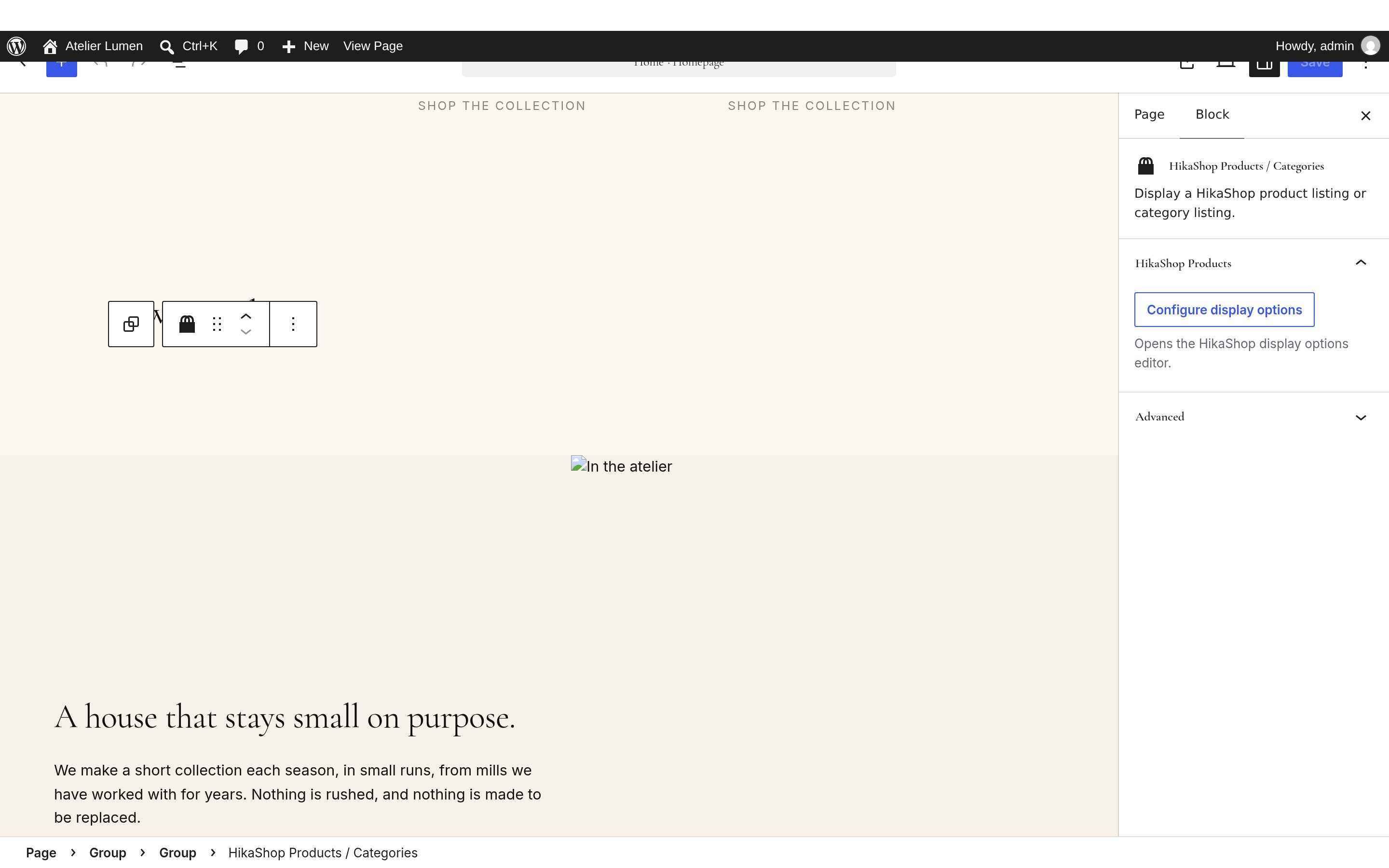
- Click the block, open the settings sidebar (the square icon at the top right) and click Configure display options in its HikaShop Products panel.
- In the window that opens: Div / Grid, 4 columns and 2 rows; Image width and Image height 400; Margin 0, Border No, Rounded corners No.
- In Data display: Type of content Product; Ordering field product_created and Ordering direction Descending for your latest products (or product_sales for your best sellers, or Random items); Sub elements filter: All sub elements, so that the products of every category under the main category show.
- Click Save Options, then save the page.
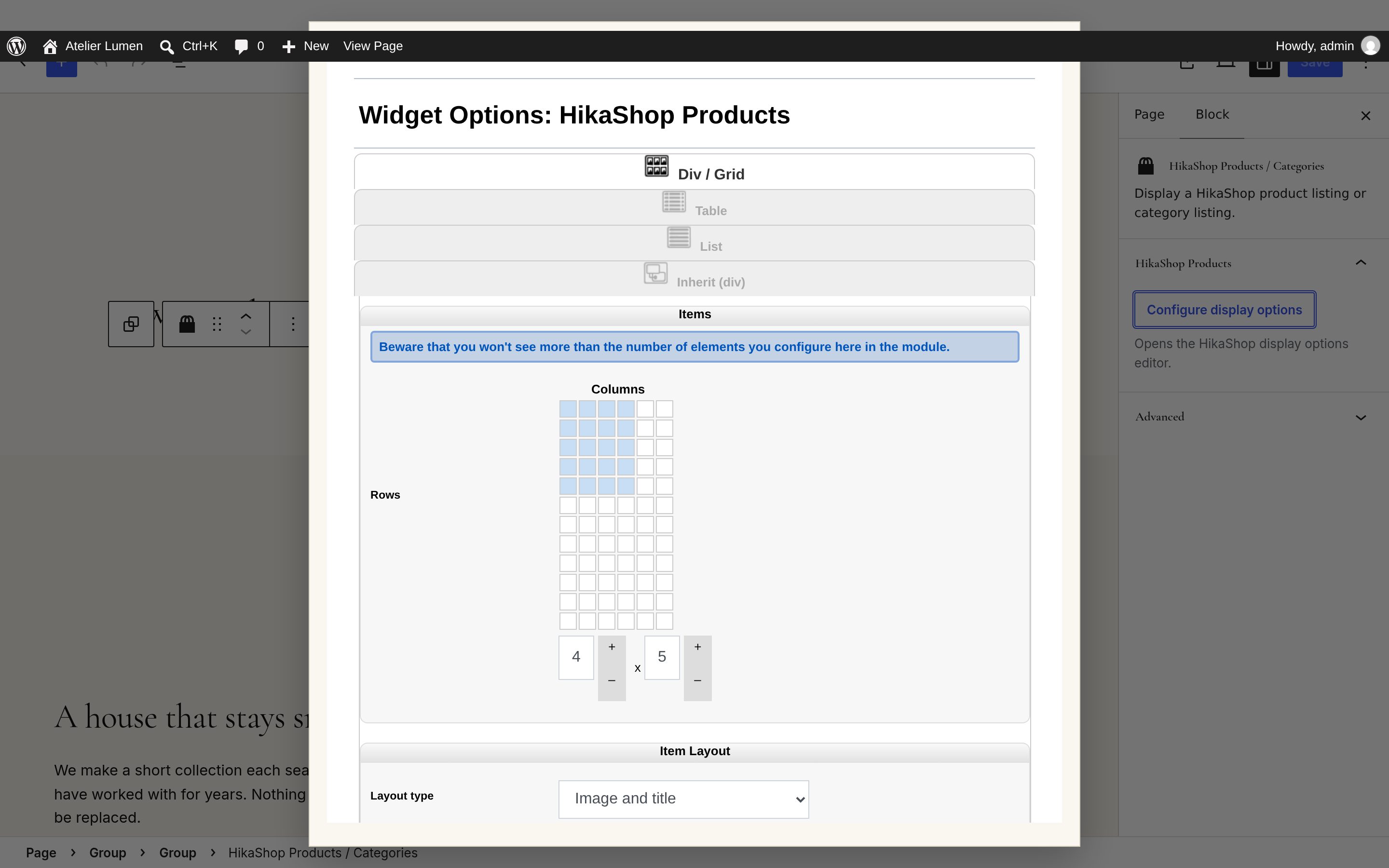
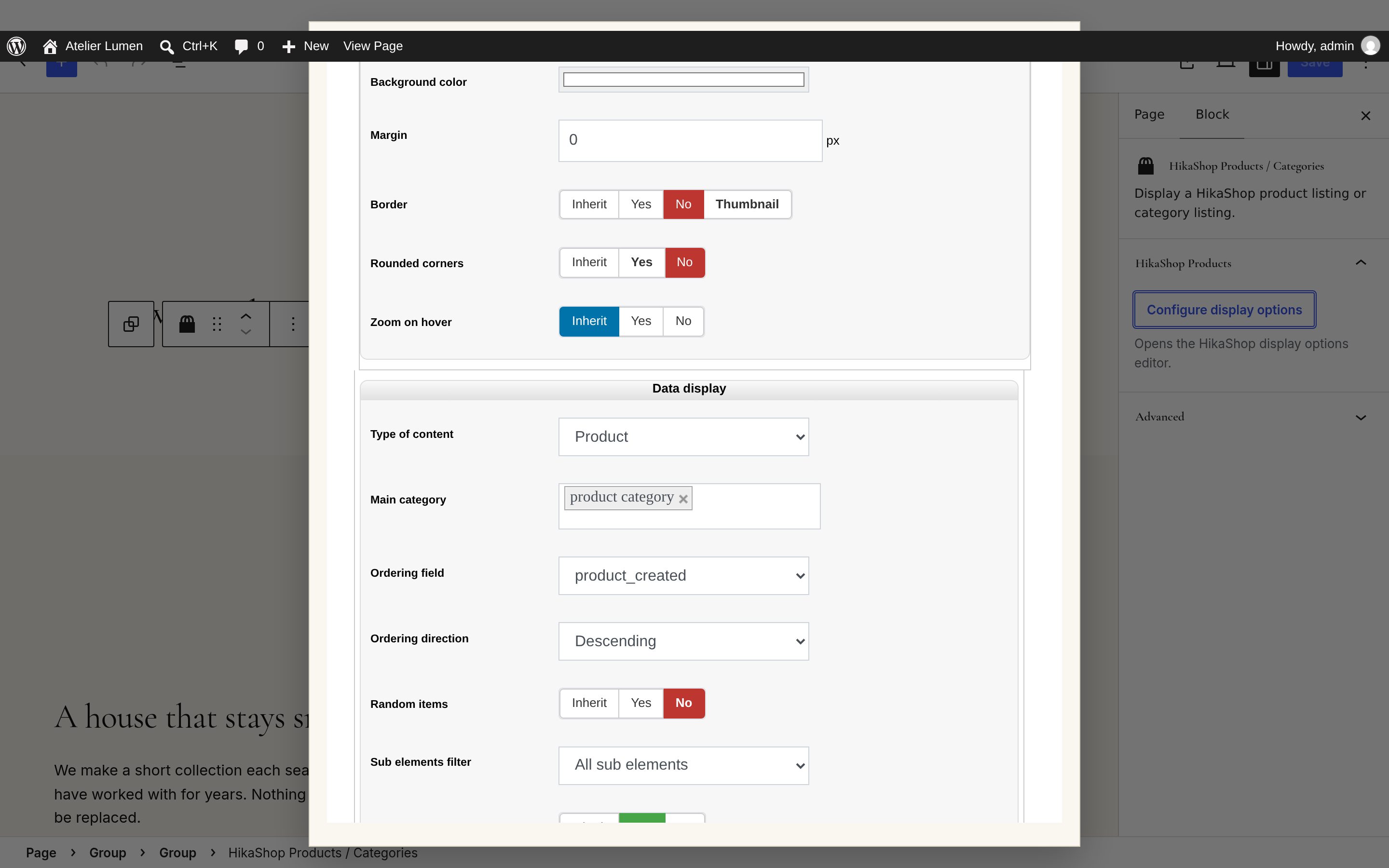
The same window has what each product box shows (price, add to cart button, quantity field, wishlist...): set them to No for a quieter grid. With a version of Vessel older than 1.0.18, the block may show nothing until you set its Sub elements filter to All sub elements: it then shows only the products placed directly in your root category. Pasting the code below adds a new HikaShop Products block, with settings of its own: set it up the same way.
<!-- wp:group {"tagName":"section","className":"vessel-section vessel-section-featured vessel-reveal vessel-reveal--up"} -->
<section class="wp-block-group vessel-section vessel-section-featured vessel-reveal vessel-reveal--up">
  <!-- wp:group {"className":"container"} -->
  <div class="wp-block-group container">
    <!-- wp:heading {"level":2,"className":"vessel-section-title"} --><h2 class="wp-block-heading vessel-section-title">New arrivals</h2><!-- /wp:heading -->
    <!-- wp:hikashop/products {"align":"wide"} /-->
  </div>
  <!-- /wp:group -->
</section>
<!-- /wp:group -->
The editorial split
A title and a text beside a picture, to tell the story of your shop, on the Bone colour. Write your text, and replace the picture (click it, Replace); it is cropped 4 by 5.
<!-- wp:group {"tagName":"section","className":"vessel-section vessel-section-editorial vessel-section-bone vessel-reveal vessel-reveal--up"} -->
<section class="wp-block-group vessel-section vessel-section-editorial vessel-section-bone vessel-reveal vessel-reveal--up">
  <!-- wp:group {"className":"container"} -->
  <div class="wp-block-group container">
    <!-- wp:columns {"verticalAlignment":"center"} -->
    <div class="wp-block-columns are-vertically-aligned-center">
      <!-- wp:column {"verticalAlignment":"center"} -->
      <div class="wp-block-column is-vertically-aligned-center">
        <!-- wp:heading {"level":2,"className":"vessel-display"} --><h2 class="wp-block-heading vessel-display">A house that stays small on purpose.</h2><!-- /wp:heading -->
        <!-- wp:paragraph --><p>We make a short collection each season, in small runs, from mills we have worked with for years. Nothing is rushed, and nothing is made to be replaced.</p><!-- /wp:paragraph -->
      </div>
      <!-- /wp:column -->
      <!-- wp:column {"verticalAlignment":"center"} -->
      <div class="wp-block-column is-vertically-aligned-center">
        <!-- wp:image {"aspectRatio":"4/5","scale":"cover","sizeSlug":"large","className":"vessel-editorial-image"} -->
        <figure class="wp-block-image size-large vessel-editorial-image"><img src="/wp-content/uploads/2026/11/workshop.jpg" alt="In the atelier"/></figure>
        <!-- /wp:image -->
      </div>
      <!-- /wp:column -->
    </div>
    <!-- /wp:columns -->
  </div>
  <!-- /wp:group -->
</section>
<!-- /wp:group -->
The materials row
A title and three columns, each a small title and a sentence: your materials, your values, your services. Click the texts to write yours.
<!-- wp:group {"tagName":"section","className":"vessel-section vessel-section-materials vessel-reveal vessel-reveal--up"} -->
<section class="wp-block-group vessel-section vessel-section-materials vessel-reveal vessel-reveal--up">
  <!-- wp:group {"className":"container"} -->
  <div class="wp-block-group container">
    <!-- wp:heading {"level":2,"className":"vessel-section-title"} --><h2 class="wp-block-heading vessel-section-title">Notes from the atelier</h2><!-- /wp:heading -->
    <!-- wp:columns -->
    <div class="wp-block-columns">
      <!-- wp:column --><div class="wp-block-column"><!-- wp:heading {"level":3} --><h3 class="wp-block-heading">Undyed cashmere</h3><!-- /wp:heading --><!-- wp:paragraph --><p>Two-ply, lightly brushed, left the colour of the goat.</p><!-- /wp:paragraph --></div><!-- /wp:column -->
      <!-- wp:column --><div class="wp-block-column"><!-- wp:heading {"level":3} --><h3 class="wp-block-heading">Belgian linen</h3><!-- /wp:heading --><!-- wp:paragraph --><p>Woven in Kortrijk, softened by wear rather than chemicals.</p><!-- /wp:paragraph --></div><!-- /wp:column -->
      <!-- wp:column --><div class="wp-block-column"><!-- wp:heading {"level":3} --><h3 class="wp-block-heading">Washed wool</h3><!-- /wp:heading --><!-- wp:paragraph --><p>Garment-washed for an aged hand from the first wear.</p><!-- /wp:paragraph --></div><!-- /wp:column -->
    </div>
    <!-- /wp:columns -->
  </div>
  <!-- /wp:group -->
</section>
<!-- /wp:group -->
The journal row
Your three latest posts, with their featured image, their title and their excerpt. It fills itself from Posts: give each post a Featured image (in the post's settings sidebar) and an excerpt. Without any post, the section shows only its title: write a post or remove the section.
<!-- wp:group {"tagName":"section","className":"vessel-section vessel-section-journal vessel-section-bone vessel-reveal vessel-reveal--up"} -->
<section class="wp-block-group vessel-section vessel-section-journal vessel-section-bone vessel-reveal vessel-reveal--up">
  <!-- wp:group {"className":"container"} -->
  <div class="wp-block-group container">
    <!-- wp:heading {"level":2,"className":"vessel-section-title"} --><h2 class="wp-block-heading vessel-section-title">Journal</h2><!-- /wp:heading -->
    <!-- wp:query {"queryId":1,"query":{"perPage":3,"postType":"post","inherit":false,"orderBy":"date","order":"desc"},"className":"vessel-journal-grid"} -->
    <div class="wp-block-query vessel-journal-grid">
      <!-- wp:post-template {"layout":{"type":"grid","columnCount":3}} -->
      <!-- wp:post-featured-image {"isLink":true} /-->
      <!-- wp:post-title {"isLink":true,"level":3} /-->
      <!-- wp:post-excerpt /-->
      <!-- /wp:post-template -->
    </div>
    <!-- /wp:query -->
  </div>
  <!-- /wp:group -->
</section>
<!-- /wp:group -->
The whole home page:
7. The Shop page and its filters
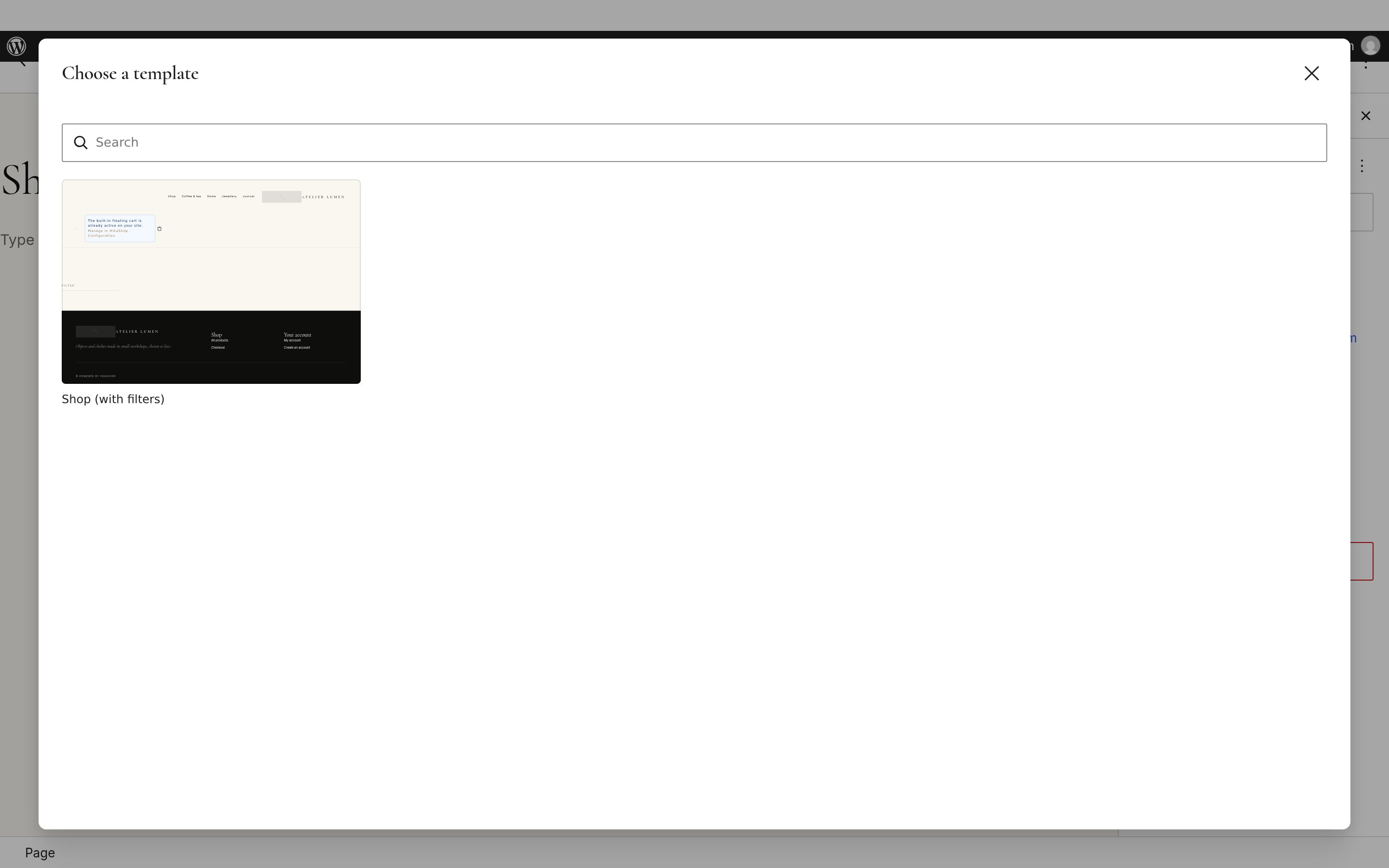
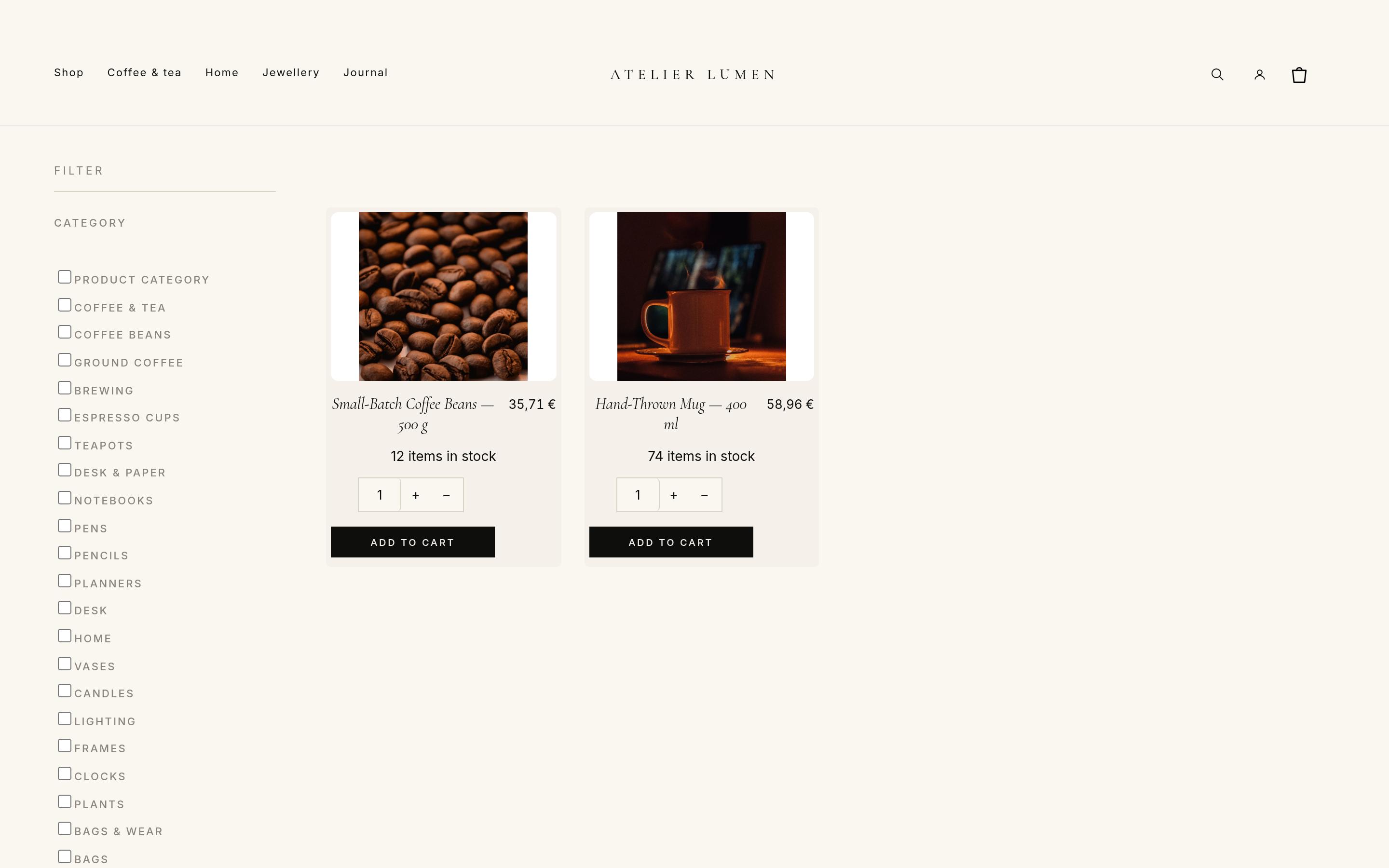
The Shop page shows your categories, then the products of the category the visitor opens; the product pages open under it (/shop/product/...). Vessel has a template for it with a filter column on the left: open Pages, edit Shop, and in the Page tab of the settings sidebar click Template, Change template, then Shop (with filters), and Save. The template also hides the page title "Shop" above your listings and products.
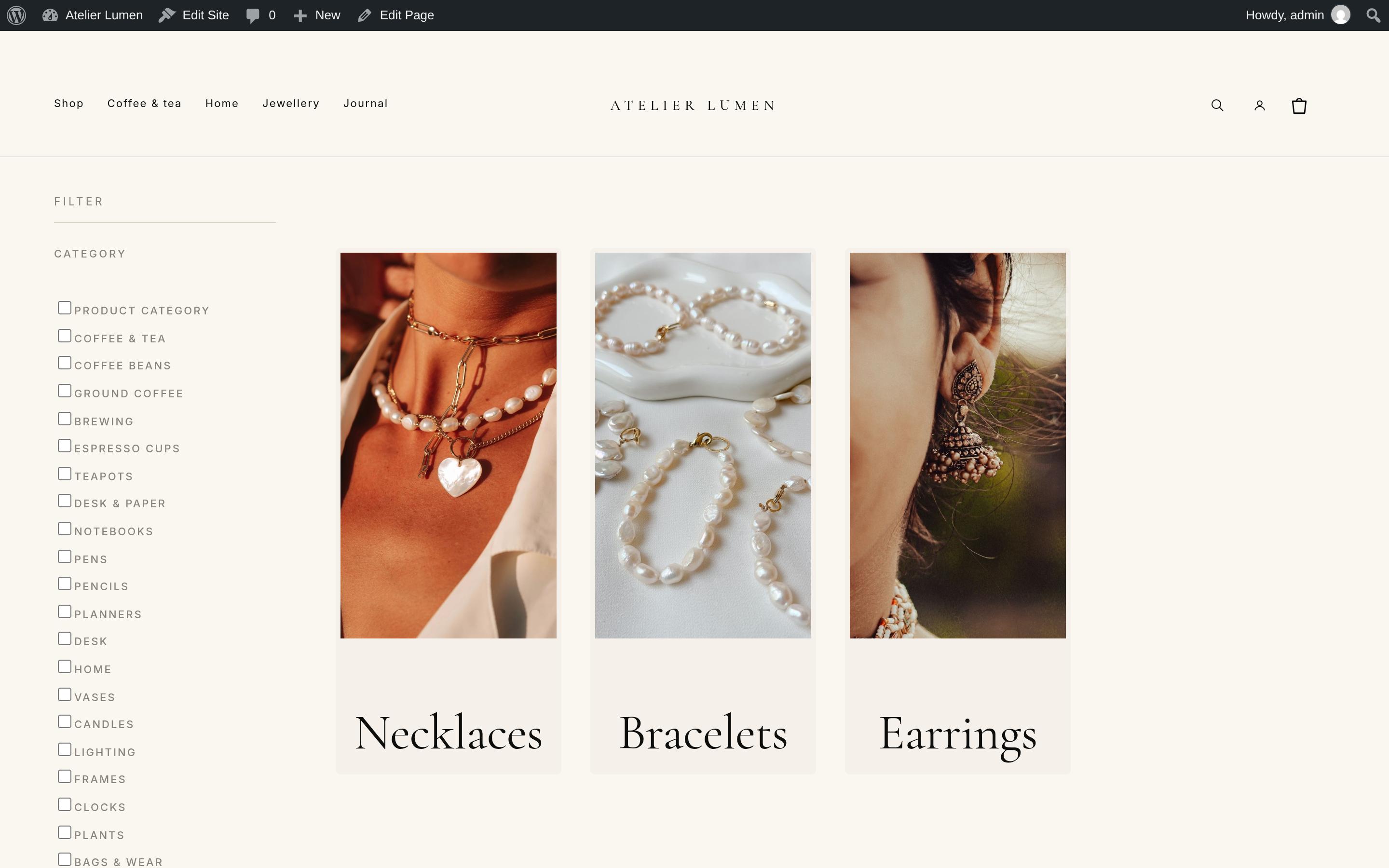
The column shows the filters of HikaShop Business, made in HikaShop > Display > Filters (a price range, the categories, a brand, a characteristic...): see Filters and sorting of products on listings. Without any filter, it only shows the word "Filter": with the Starter and Essential editions, keep the page's default template.
HikaShop also shows the filters above the products of every listing. With this template they would appear twice: in HikaShop > Configuration > Features, section Filter, set Display filters on product listing to No.
8. The header and the footer
The header and the footer are template parts: open Appearance > Editor > Patterns, and under Template parts click Header or Footer, then Edit.
- The header holds the menu (step 5), your logo or name (step 3), the search icon, the account icon (to /account/) and the HikaShop cart.
- The footer has your logo or name with the tagline, then two columns of links, Shop (All products, Checkout) and Your account (My account, Create an account), then the copyright line, written by Vessel with the year and your site title. Click a column's title or links to change them, add a link to your delivery, returns and terms pages, or duplicate a column for a third one.
If the pages of HikaShop are not at /shop/, /checkout/, /account/ and /register/ on your site (you renamed them), update the links of the footer and of the account icon to their addresses.
9. HikaShop settings for the look of the shop
Open HikaShop > Configuration.
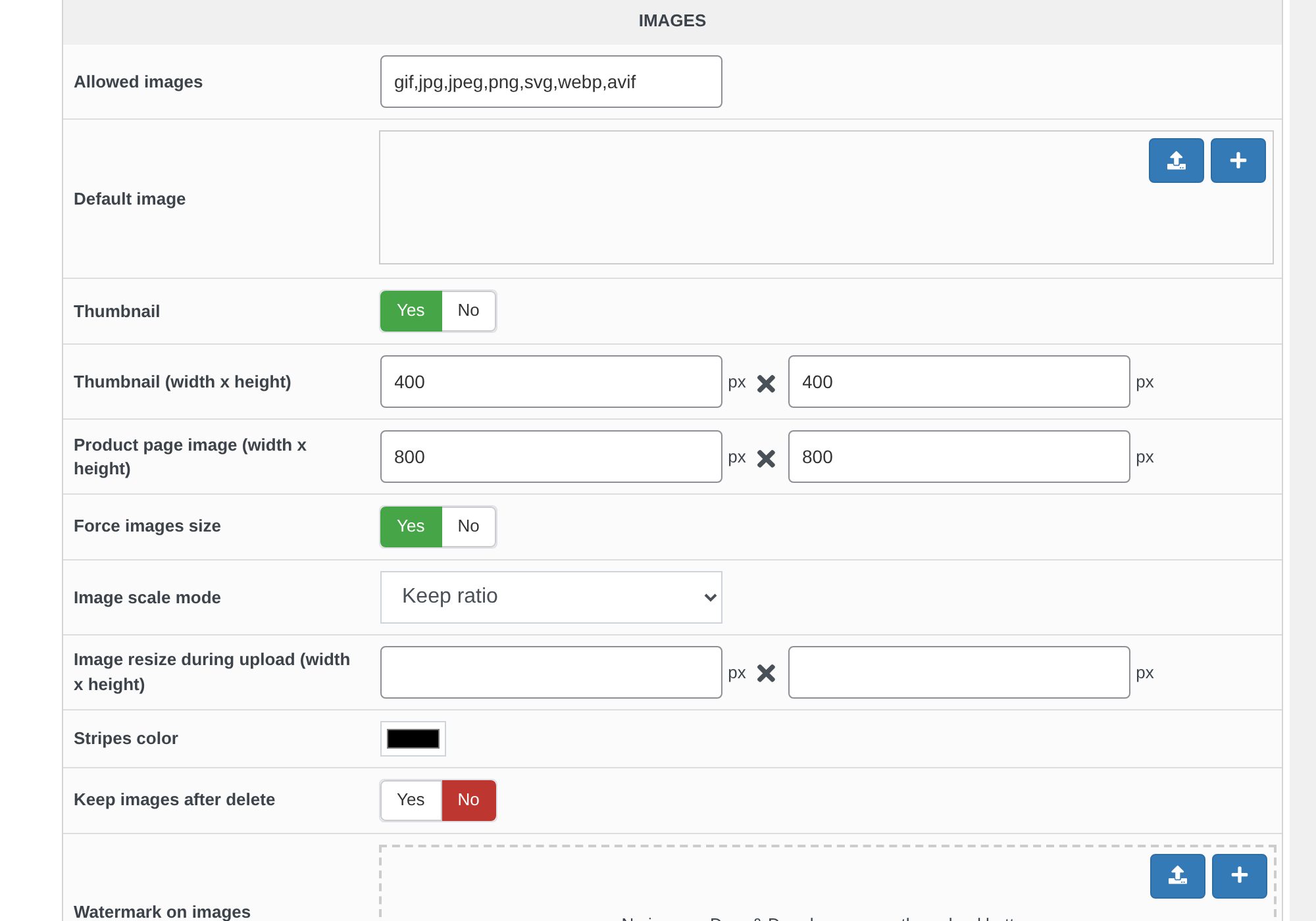
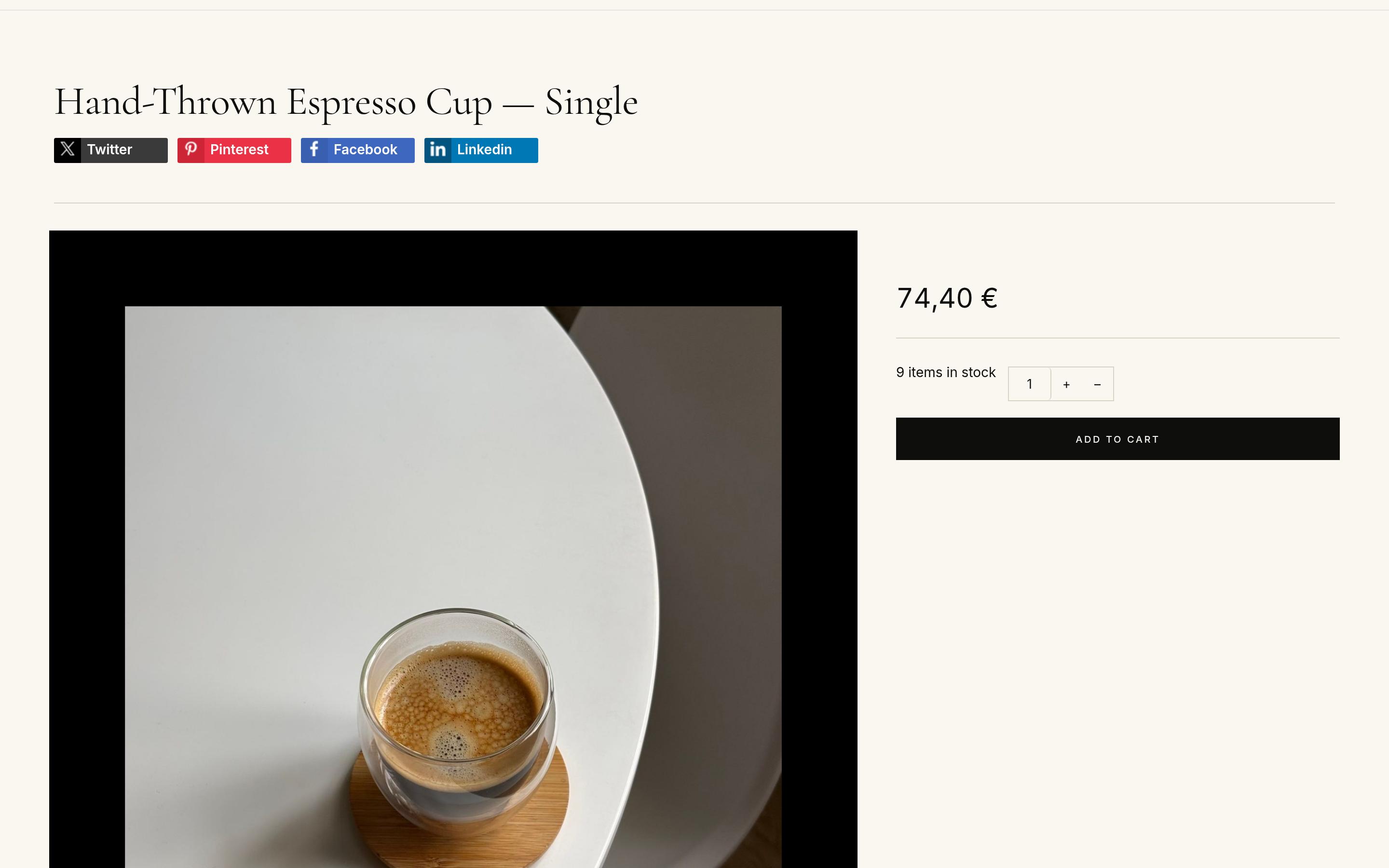
- Main > Images: Thumbnail (width x height) is the size of the pictures of the listings and blocks, 100 x 100 pixels by default. Vessel shows larger tiles, so set it to 400 x 400, or the pictures look blurred. Product page image, 300 x 300 by default: set 800 x 800 for a sharp picture on the product page. HikaShop makes the new sizes from your original pictures by itself. See Configuration: Images.
- Display > Product options > Layout on product page: Vessel styles the layouts of HikaShop's product page: try them on one of your products and keep the one you like. See Configuration: Product options.
- Display > Default parameters for products and for categories: what the listings show by default (add to cart button, quantity field, wishlist, price display...). See Configuration: Default parameters.
10. Before you sell
- Your payment methods, in HikaShop > Payment: for example Bank transfer, PayPal, Stripe.
- Your shipping methods, in HikaShop > Shipping.
- Your taxes: Taxation rules, and Europe VAT rules if you sell in the European Union.
- The steps of your checkout: Configure your Checkout Workflow.
- Then place an order yourself: Your first test sale.
11. Your own CSS
Most of the look is set by the style and its colours. For more, add your CSS rules in Appearance > Editor > Styles, the three dots at the top of the Styles panel, Additional CSS: they are kept when Vessel is updated. Do not edit the files of the theme: an update replaces them. For larger changes, use a child theme.
Questions
My menu lists every page, "Sample Page" included.
The menu still is the one WordPress makes from your pages. Edit it in Appearance > Editor > Navigation (step 5).
My home page shows my posts, or "Welcome to WordPress".
Set the Home page as your homepage in Settings > Reading (step 6).
The pictures of the home page are broken and the category tiles lead to a missing page.
They are those of Vessel's demo: replace each picture and each link with yours (step 6).
The "New arrivals" grid is empty.
Set the Sub elements filter of the HikaShop Products block to All sub elements in its display options (step 6). Vessel 1.0.18 and later set it for you.
The filters show twice on the listings.
Set Display filters on product listing to No in the HikaShop configuration (step 7).
The Shop page shows "Filter" and nothing under it.
Create your filters in HikaShop > Display > Filters (HikaShop Business), or give the Shop page its default template (step 7).
The pictures of my products and categories are blurred.
Raise the thumbnail size of HikaShop to 400 x 400 (step 9), or set the image size in the HikaShop Products block.
My colours changed when I picked another style.
A style sets all the colours and fonts. Pick the style first, then adjust its colours in Edit palette.
Is there a copy of the demo to install?
No, there is no package of the demo to download. The Home pattern and this guide build the same home page on your site, with your own products.
And on Joomla?
Vessel is also a Joomla template, tpl_vessel.zip, with its own set-up guide, linked from the Vessel page of our marketplace.
- Details
- Written by: Administrator
- Category: Templates
- Hits: 42
This guide takes a Joomla website from nothing to a complete shop with HikaShop and the Vessel template: installing both, setting up the template, building the home page with modules, creating the menu and adjusting the HikaShop settings that matter for the look of the shop. Every screenshot was taken on a real site while following these steps. You can see the result on the Vessel demo.
- Before you start
- 1. Install HikaShop
- 2. Install Vessel and make it the default template
- 3. Set up the template
- 4. Create the menu
- 5. Understand the module positions
- 6. Header and footer modules
- 7. Build the home page
- 8. HikaShop settings for the look of the shop
- 9. Before you sell
- 10. Your own CSS
- Questions
Before you start
- Joomla 6 and PHP 8.1 or later. Vessel is a Joomla 6 template.
- HikaShop 6.4.0 or later. Vessel works with the Starter, Essential and Business editions: it styles what HikaShop displays and adds nothing that needs a given edition. A few modules mentioned below (the filters) only exist in HikaShop Business; this is said where they come.
- The two packages, from your downloads on our website: com_hikashop_*.zip (HikaShop) and tpl_vessel.zip (the Joomla package of Vessel; vessel.zip is the WordPress theme).
- If you are changing the template of a site that is already online, make a backup first, and do the work on a copy of the site if you can.
In this guide the shop is called Atelier Lumen. The screenshots of the home page sections show the products of our demo shop: yours will show your own categories and products.
1. Install HikaShop
- In the Joomla administrator, open System > Install > Extensions, and drop the HikaShop zip in the Upload Package File tab.
- When it is installed, HikaShop opens its installation assistant. Choose:
- Shop access: keep Menu item for products and Menu item for categories (they add the Shop menu items you will use in step 4). Leave List of categories in a module unselected: with Vessel you place your modules yourself.
- Products layout: Grid, the layout Vessel styles for listings.
- Location: your country and the address of your shop.
- Main parameters: your currency, and Install European taxes if you sell in the European Union.
- Sample data: Yes if you want a few categories and products to look at while you set up the template (they have no pictures; you can delete them later), No if you add your own products straight away.
- Click Save & go create your first product.
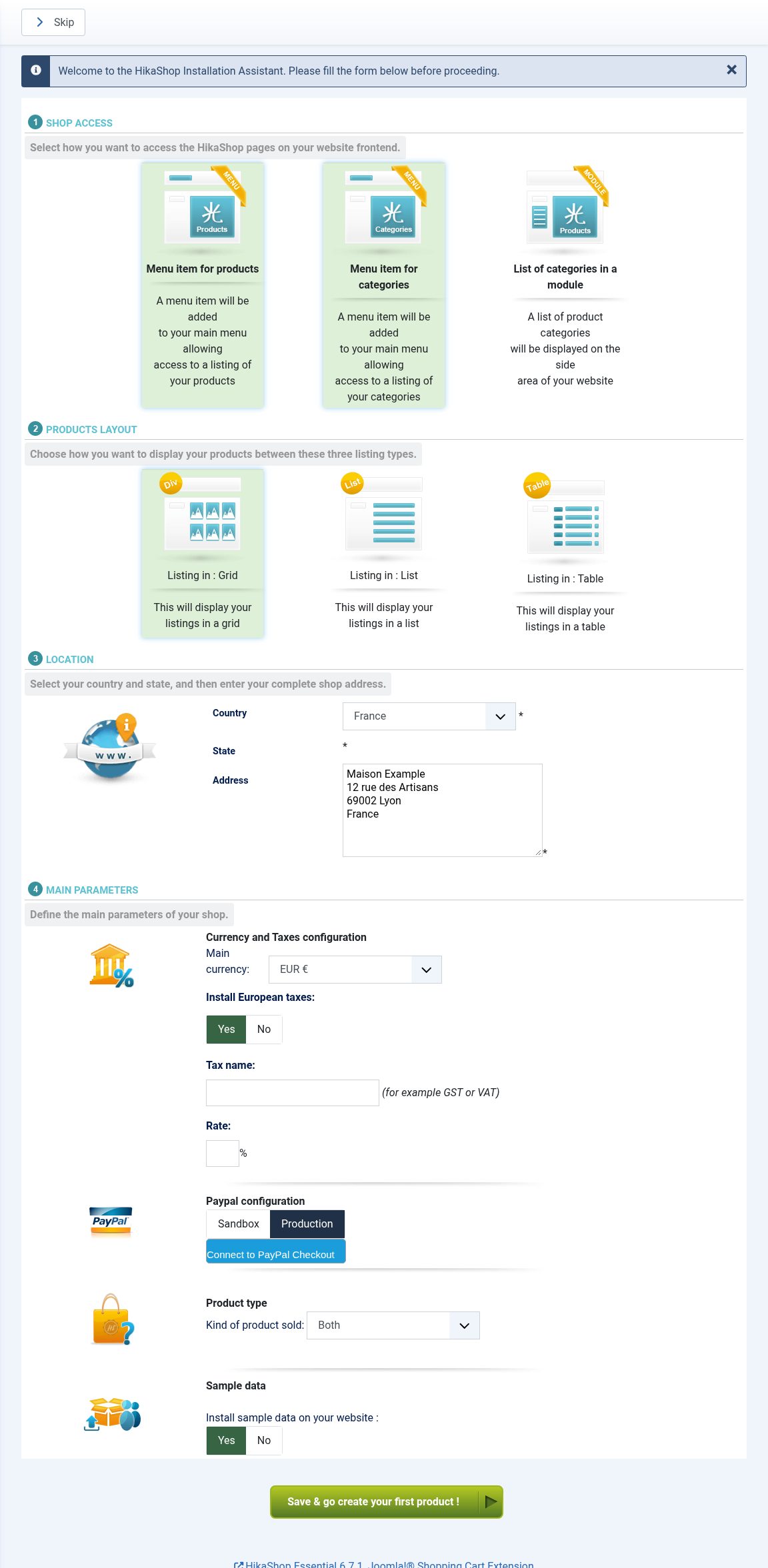
More about the installation: Install / Update HikaShop. To add your products: Create your first product. Give your products and your categories a picture: the home page and the listings of Vessel are built around pictures.
2. Install Vessel and make it the default template
- In System > Install > Extensions, drop tpl_vessel.zip in the Upload Package File tab. The message "Installation of the template was successful" appears.
- Open System > Site Template Styles and click the star in the Default column of the line whose Template column says Vessel. You can rename this style when you edit it.
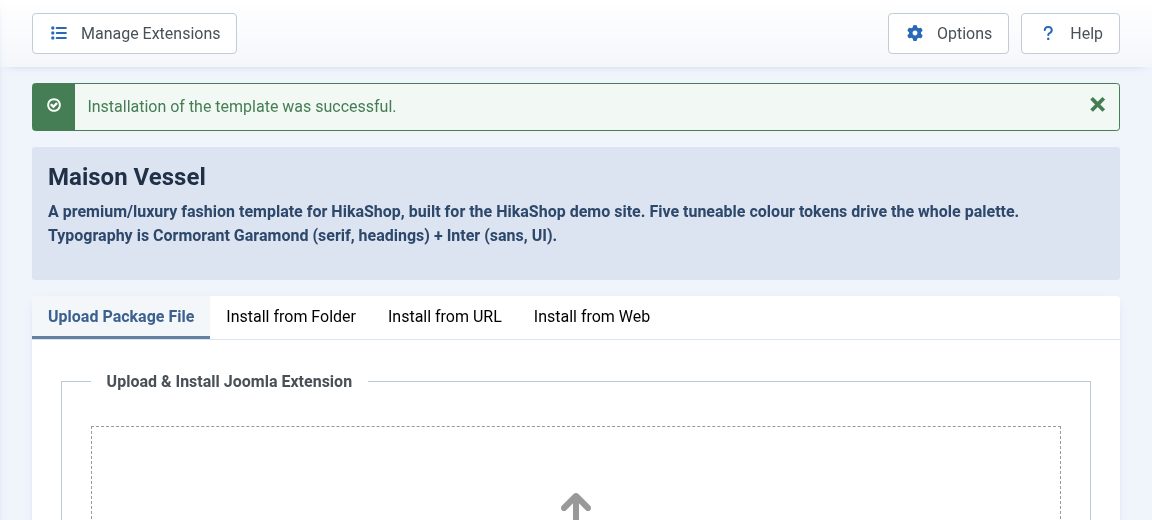
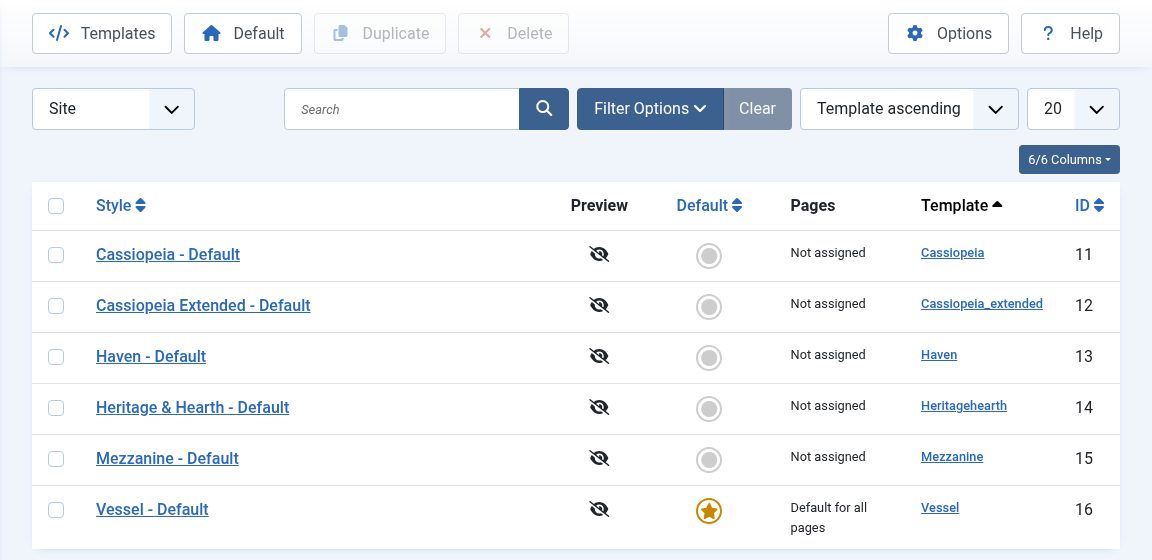
If your site now looks empty: it is expected. Each template has its own module positions, and the modules of your site (the main menu, the login form...) are still in the positions of your previous template, which Vessel does not have. Steps 4 to 7 put them in Vessel's positions.
3. Set up the template
Click the Vessel style in System > Site Template Styles. Its settings are in three tabs: Style, Layout and Home page effects.
Style: colours and fonts
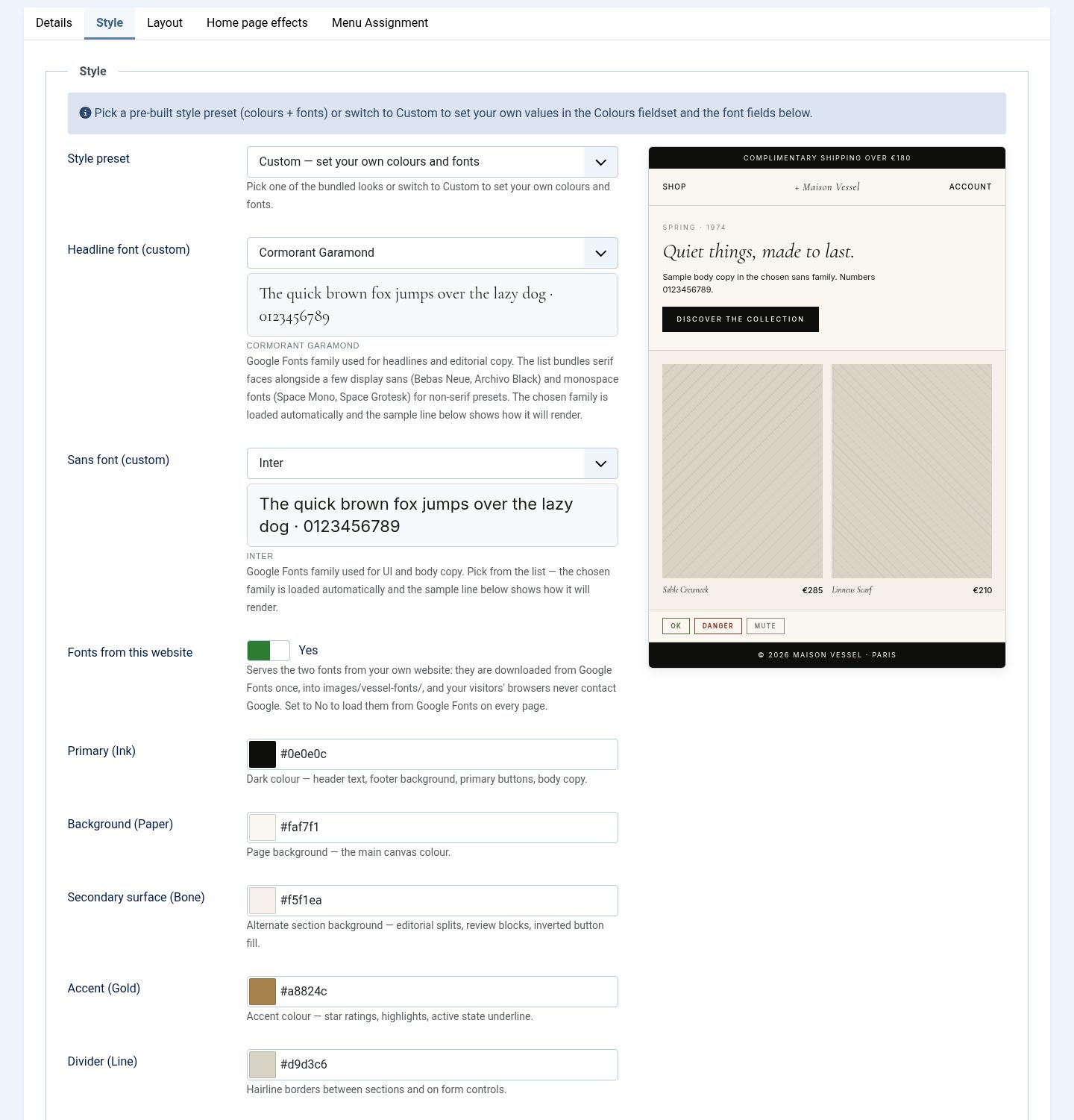
- Style preset: 15 ready-made looks (colours and fonts together). The preview on the right shows the one you pick. You can try them all on the Vessel demo with its "Use your own style" button.
- Custom, the last choice of the list, shows the fonts and colours fields so that you set your own: a Headline font and a Sans font (Google Fonts), and the five colours, Primary (Ink) for the text, the footer and the buttons, Background (Paper), Secondary surface (Bone) for the alternate sections, Accent (Gold) for the stars and highlights, and Divider (Line). A dark background works too: the HikaShop and Joomla boxes follow it.
- Fonts from this website: Yes downloads the two fonts once to your site (images/vessel-fonts/), so your visitors' browsers never contact Google. Keep it on Yes.
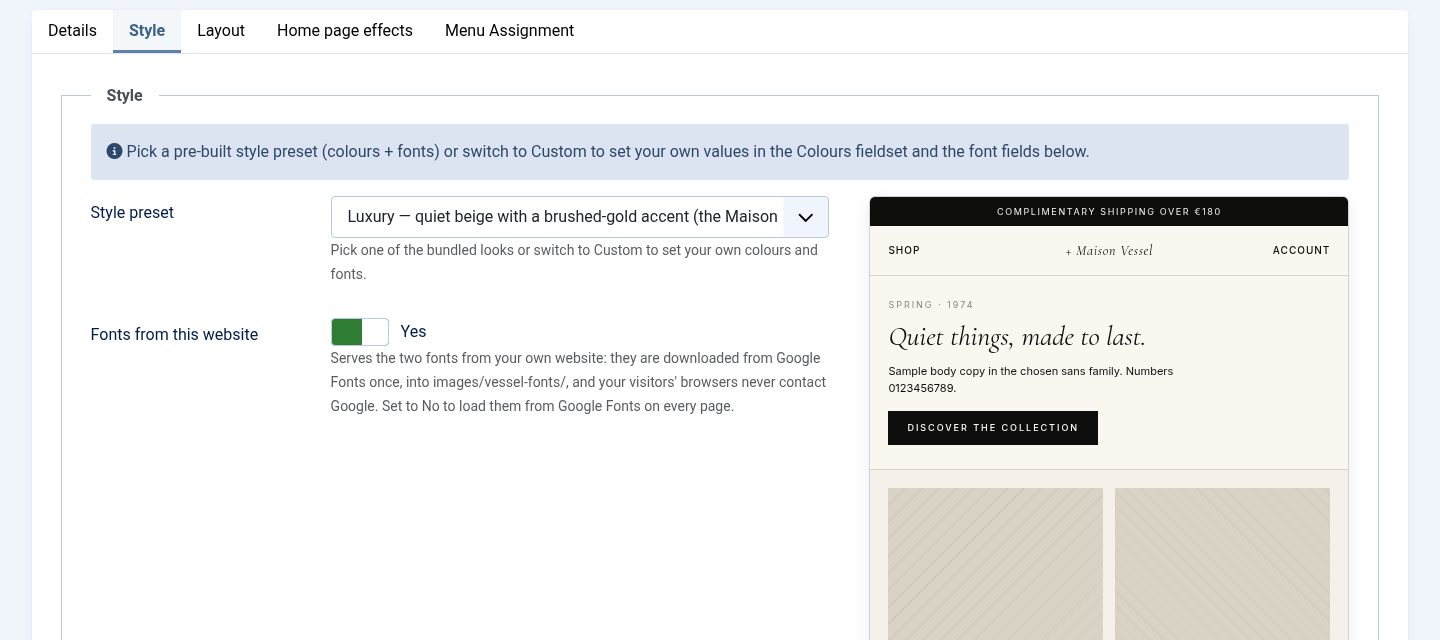
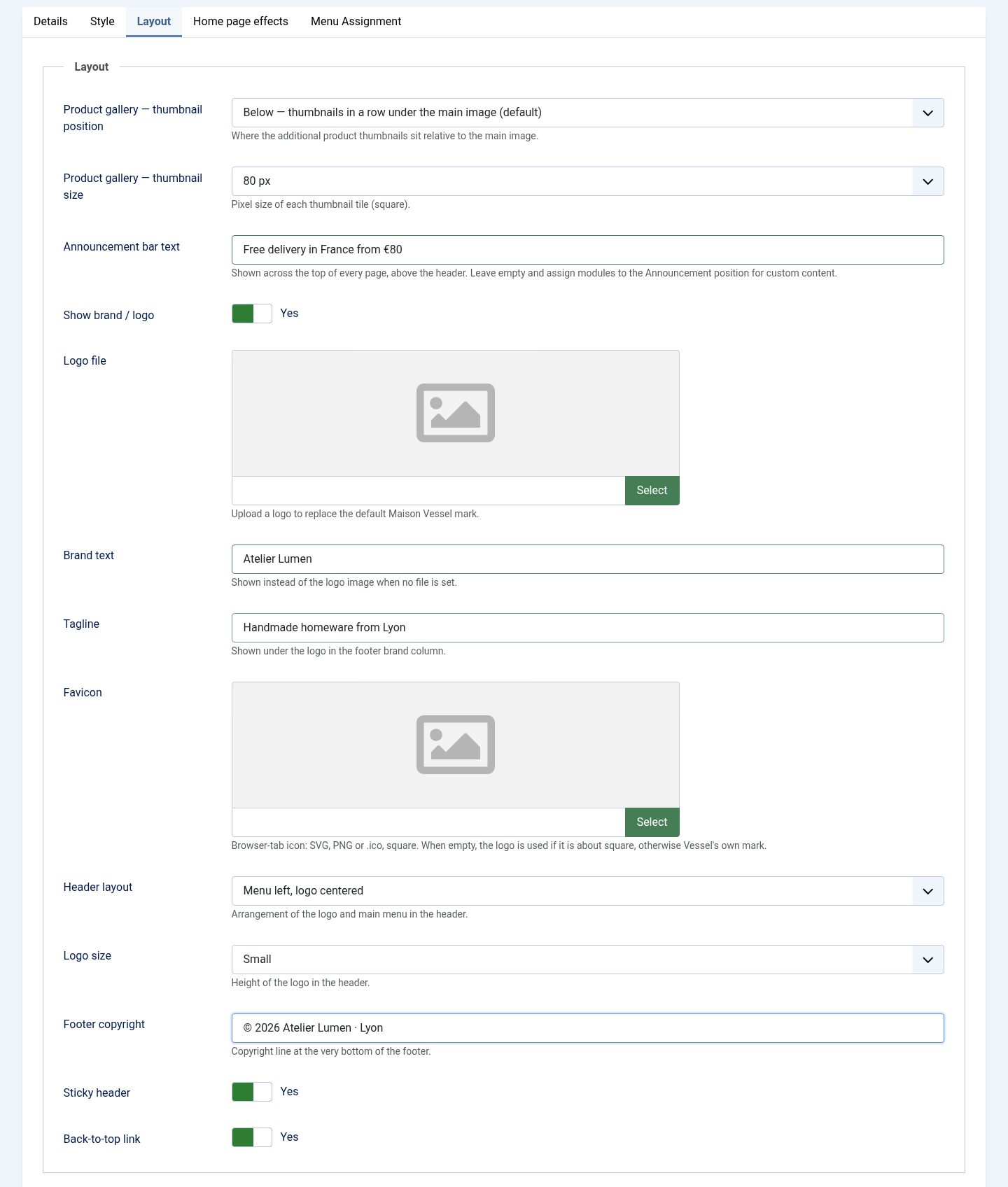
Layout: logo, header and footer
- Product gallery: thumbnail position and thumbnail size: where the small pictures of a product sit around its main picture on the product page (below, above, left, right, stacked or in a grid).
- Announcement bar text: a line shown above the header on every page, for example your delivery conditions. For links or richer content, leave it empty and publish a module in the announcement position instead.
- Show brand / logo, Logo file, Brand text: your logo picture, or your shop's name written in the headline font when there is no logo file. Without either, the template shows its own "Maison Vessel" mark: set one of them.
- Tagline: shown under the logo in the footer.
- Favicon: the icon of the browser tab (SVG, PNG or ICO, square).
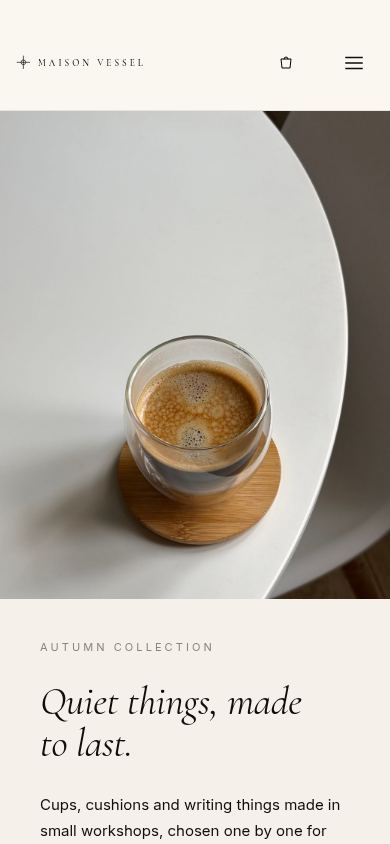
- Header layout: the menu on the left and the logo in the middle, or the logo on the left and the menu in the middle. Logo size: its height in the header.
- Footer copyright: the line at the very bottom of every page.
- Sticky header: the header stays at the top of the screen when the visitor scrolls. Back-to-top link: a button to go back up on long pages.

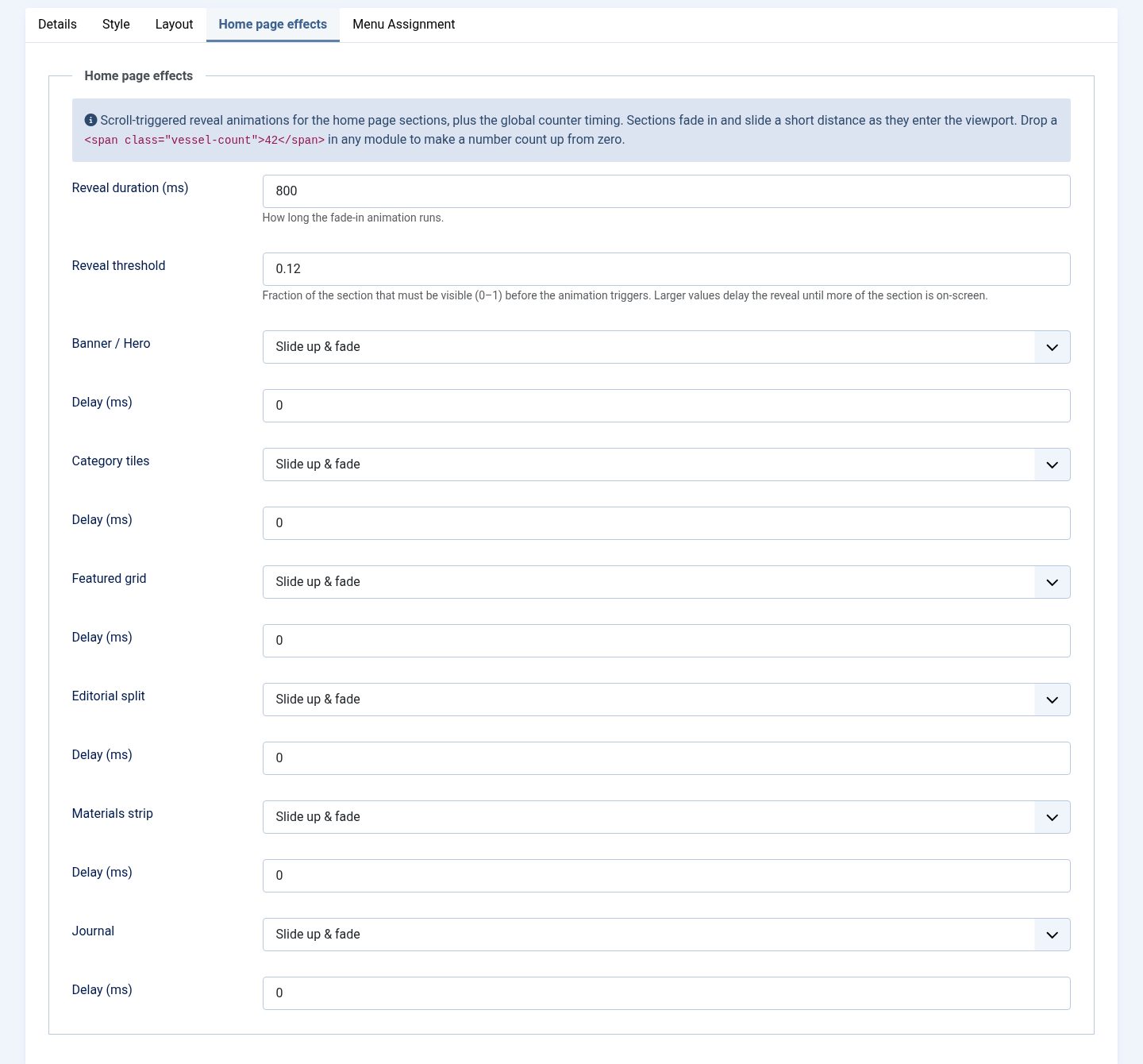
Home page effects
Each section of the home page can appear with a short animation when the visitor scrolls to it: choose the effect (or No animation) and a delay for each section. Reveal duration is how long the animation lasts, Reveal threshold how much of a section must be visible before it starts. A number written as <span class="vessel-count">42</span> in a module counts up from zero when it comes into view.
Click Save & Close.
4. Create the menu
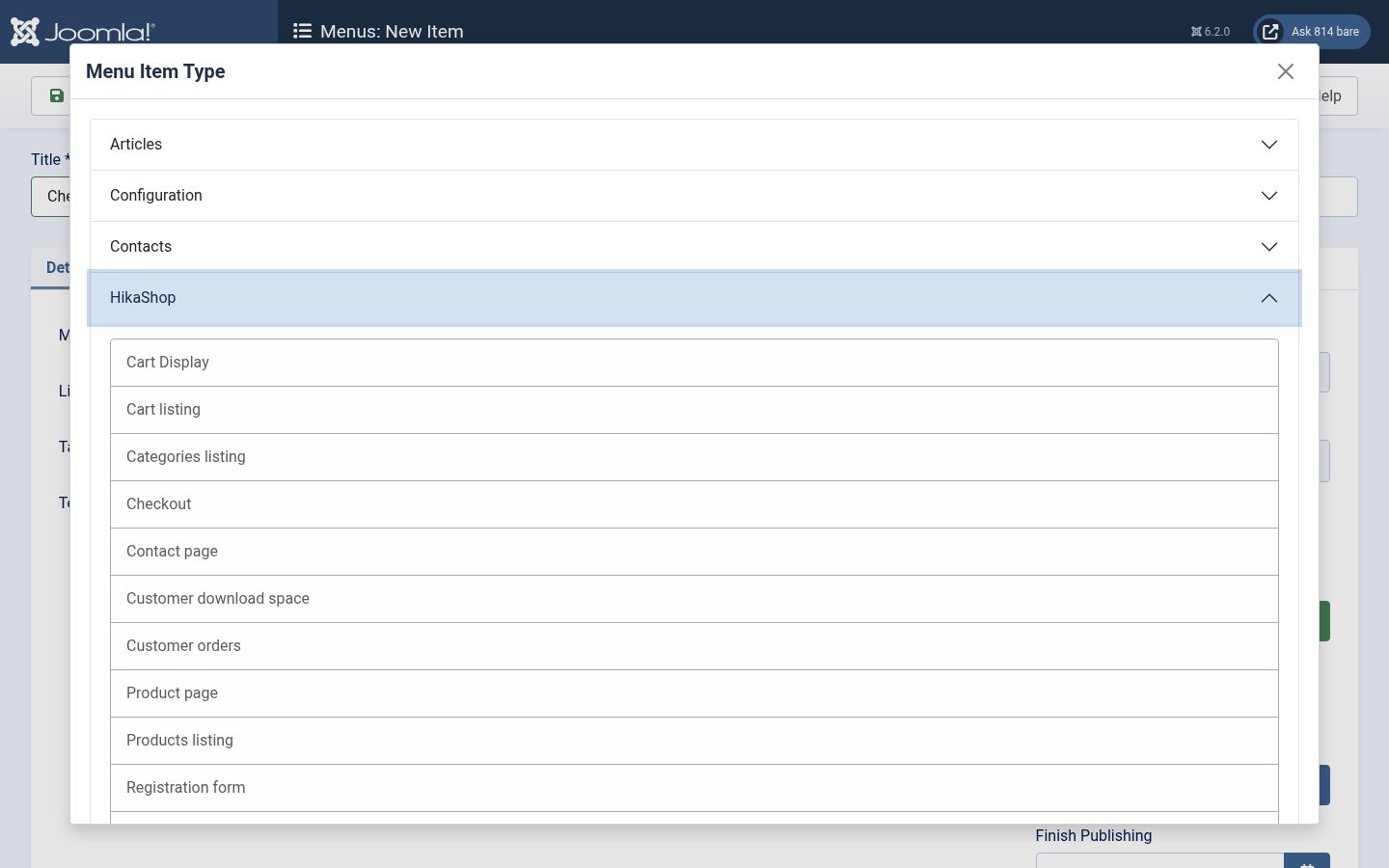
The menu items decide the pages of your shop and their addresses. Open Menus > Main Menu. The HikaShop assistant already added a categories listing and a products listing there. Add the pages a shop needs with New, Menu Item Type: Select, then HikaShop:
- Categories listing: your shop's entrance, the tiles of your categories. Title it "Shop" and give it the alias "shop" (the alias is its address).
- Products listing: all your products, or the products of one category (set in its Products Options tab). Title it "All products", alias "products".
- Checkout: the cart and the checkout.
- User control panel: the customer's account (orders, addresses, downloads). Title it "My account".
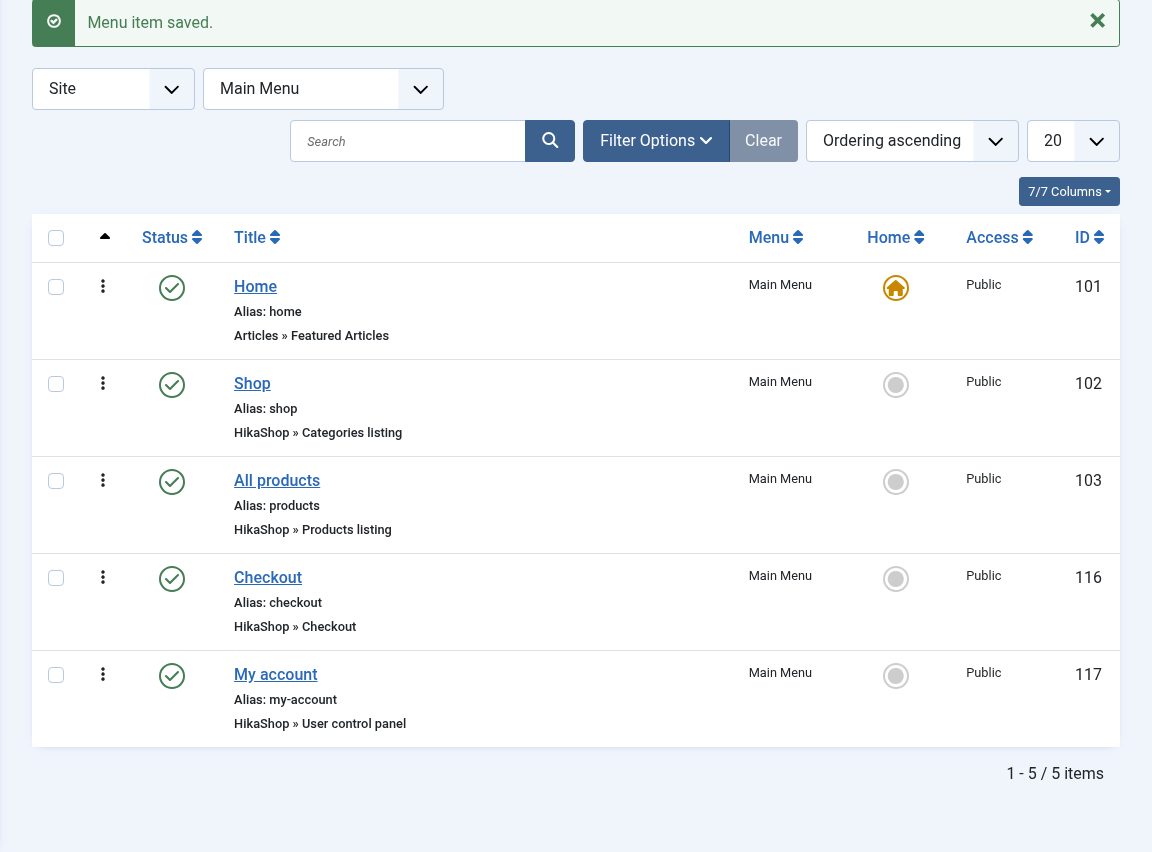
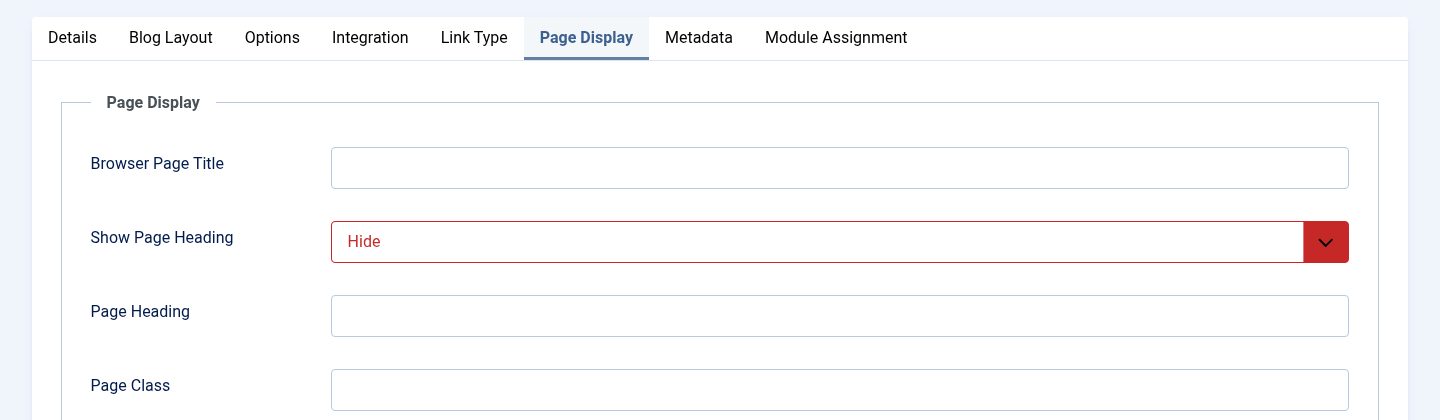
The Home item stays the one with the house in the Home column: Vessel shows the home page sections (step 7) on that page only. Open it, and in its Page Display tab set Show Page Heading to Hide: otherwise a big "Home" title appears under your home page sections. Keep its type, Featured Articles: with no featured article it shows nothing, and your modules make the page.
The listing menu items have many display options (columns, number of products, ordering, what each product box shows): see Content menu Edit.
5. Understand the module positions
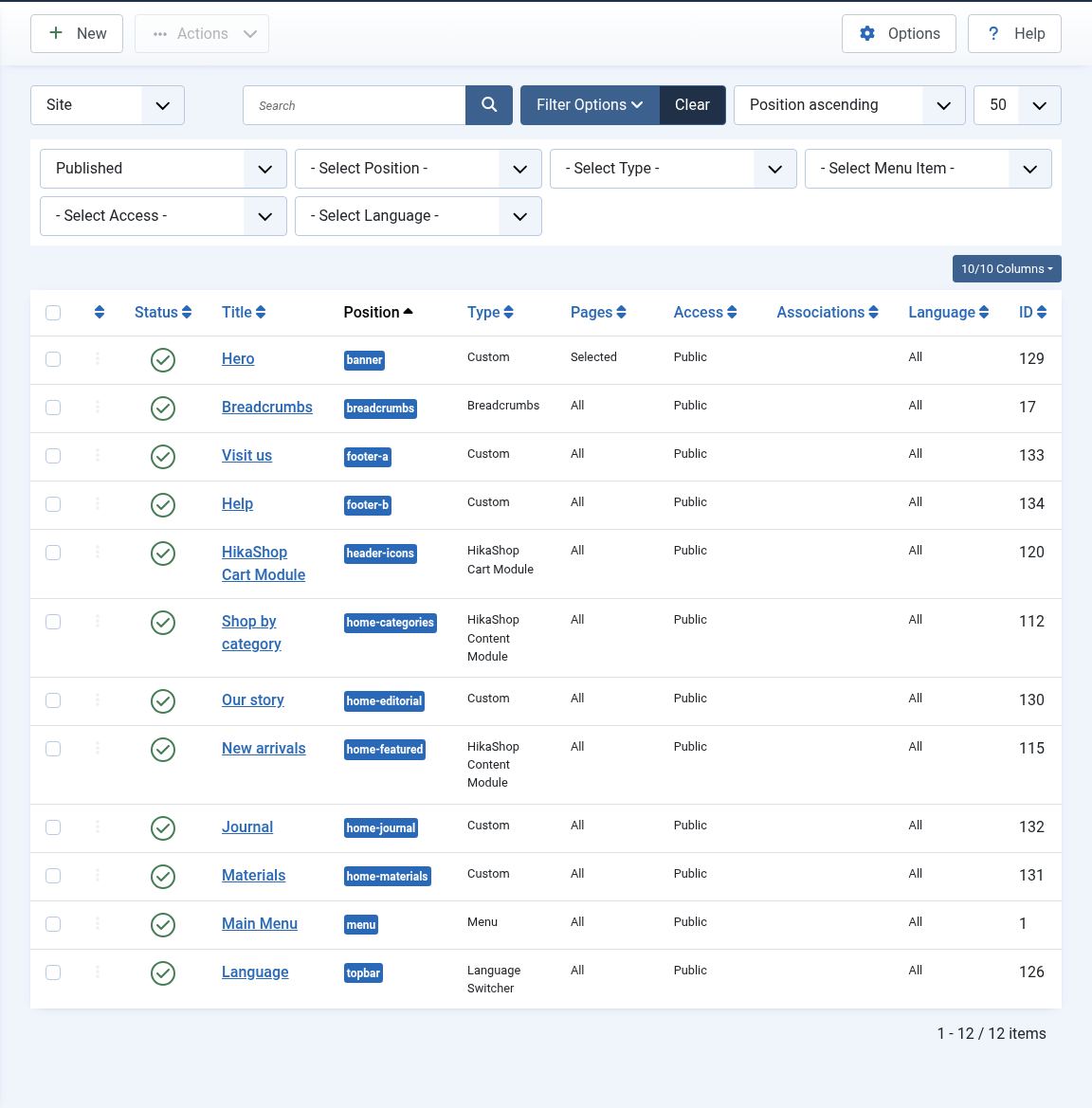
A module appears where its Position says. Vessel has these positions:
| Position | Where | What to put there |
|---|---|---|
| announcement | The bar above the header | A Custom module, if the Announcement bar text setting is not enough |
| topbar | A thin bar above the header | The language switcher, the HikaShop currency switcher |
| menu | The header | The Main Menu module |
| logo | The header, instead of the logo | Rarely needed: the Layout tab sets the logo |
| header-icons | The right of the header | The HikaShop cart module |
| search | The right of the header | The Smart Search module |
| banner | Under the header, full width, on every page it is assigned to | The hero banner of the home page |
| home-categories, home-featured, home-editorial, home-materials, home-journal | The sections of the home page, in this order, on the home page only | See step 7 |
| breadcrumbs | Above the content, on the other pages | The Breadcrumbs module |
| sidebar-left, sidebar-right | Columns beside the content, on the other pages | For example the HikaShop filters (Business) on the listings |
| main-top, main-bottom | Above and under the content | Anything specific to a page |
| bottom-a, bottom-b | Full width bands above the footer | A newsletter form, reassurance blocks |
| footer-brand | The first column of the footer | Empty by default: it shows your logo and tagline |
| footer-a, footer-b, footer-c, footer-d | The four other columns of the footer | Menus, contact details |
| footer-bottom | The last line of the footer | Empty by default: it shows the Footer copyright setting |
Two things to know about Vessel's positions:
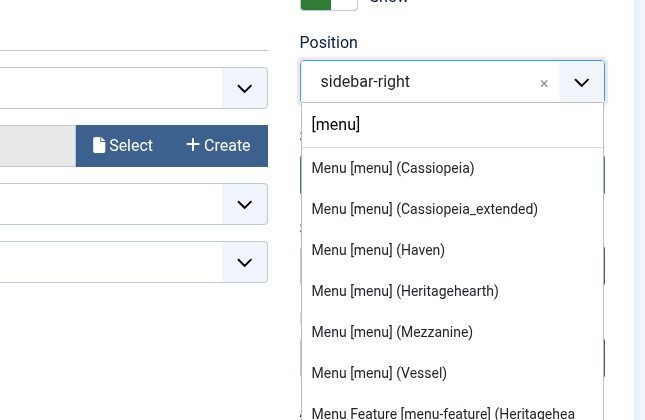
- In the Position list of a module, type the name of the position between brackets, for example [menu], and pick the line that ends with (Vessel). Other templates installed on your site show their own positions in the same list.
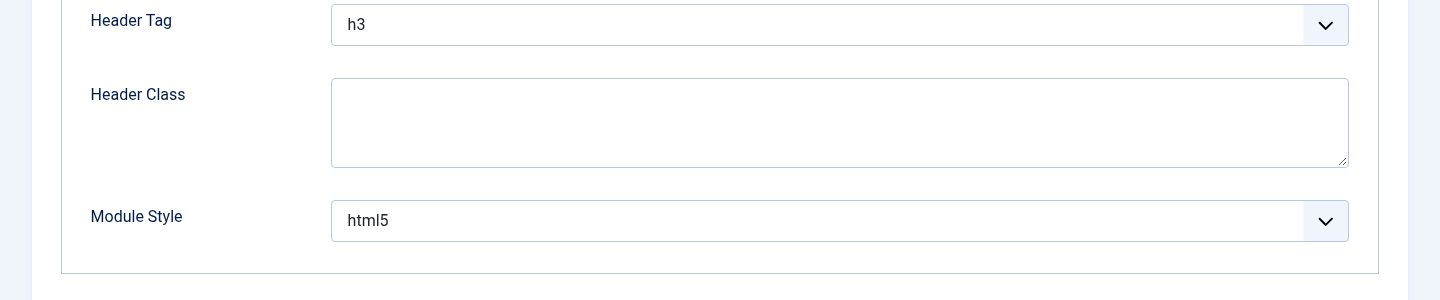
- Vessel displays the modules without the frame Joomla usually puts around them, so their title is not shown. When you want the title of a module displayed (the "New arrivals" title of a product grid, the "Help" title of a footer column), open its Advanced tab and set Module Style to html5. Vessel styles these titles.
6. Header and footer modules
Open Content > Site Modules.
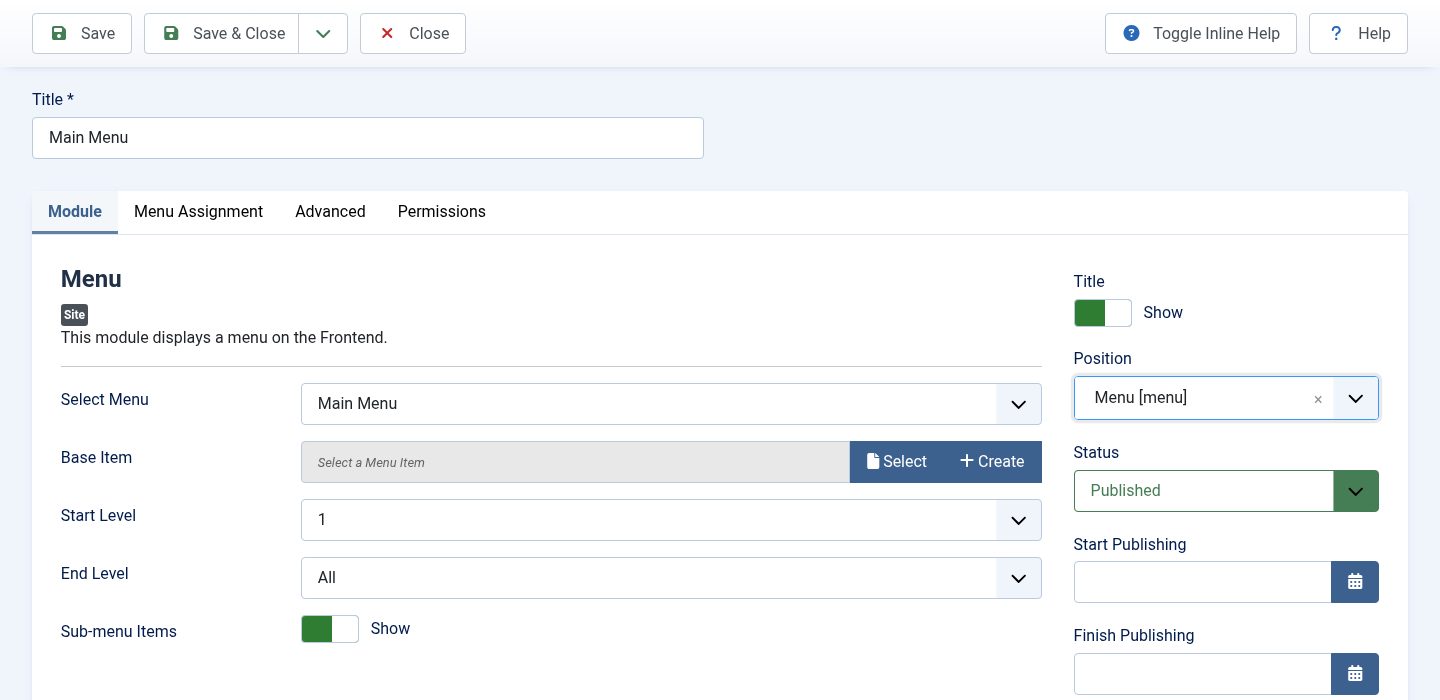
- Main Menu: set its position to menu. Vessel turns it into the header menu, and into a menu button on phones.
- HikaShop Cart Module: set its position to header-icons and publish it. It shows the cart icon in the header.
- Breadcrumbs: position breadcrumbs (the position has the same name as in Joomla's default template, so it may already be right).
- The modules you do not want any more (the Login Form of Joomla's sample content, the HikaShop modules installed but not used), unpublish them or leave them in no position: in sidebar-left or sidebar-right they show beside the content of every page.
- For the footer columns, add Menu modules (a menu with your information pages: delivery, returns, terms and conditions, contact) or Custom modules (your address, your opening hours) in the footer-a to footer-d positions, with the Module Style html5 so their title shows.
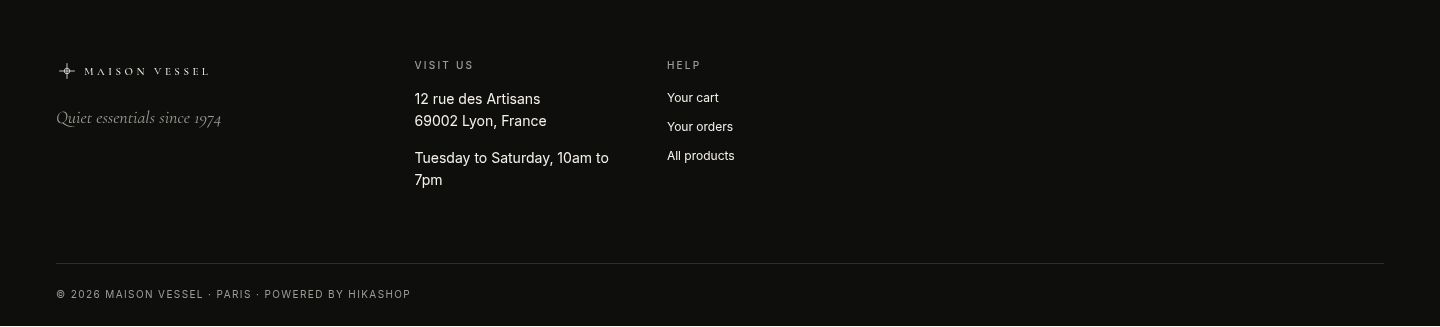
Here are the two footer modules of the screenshot. Paste each in a Custom module, with the editor in code mode (see the hero banner):
<p>12 rue des Artisans<br>69002 Lyon, France</p>
<p>Tuesday to Saturday, 10am to 7pm</p>
<ul>
  <li><a href="index.php/checkout">Your cart</a></li>
  <li><a href="index.php/my-account">Your orders</a></li>
  <li><a href="index.php/products">All products</a></li>
</ul>
7. Build the home page
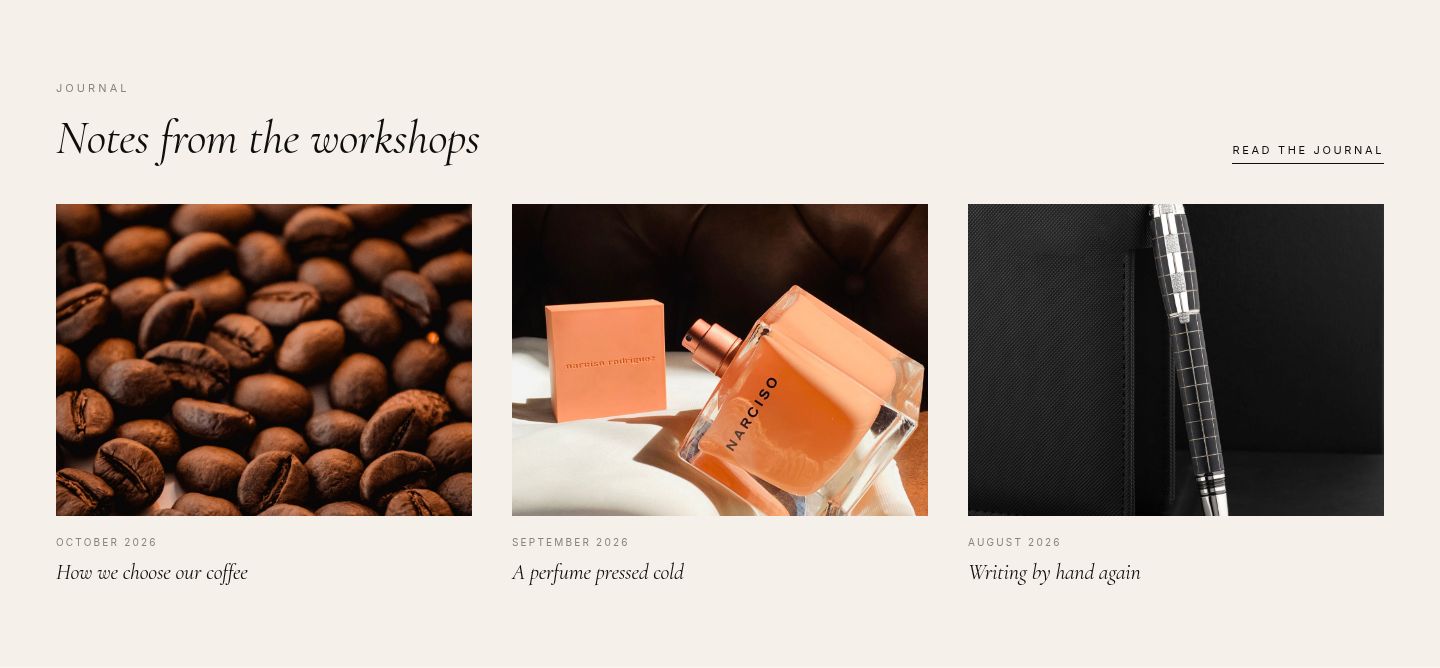
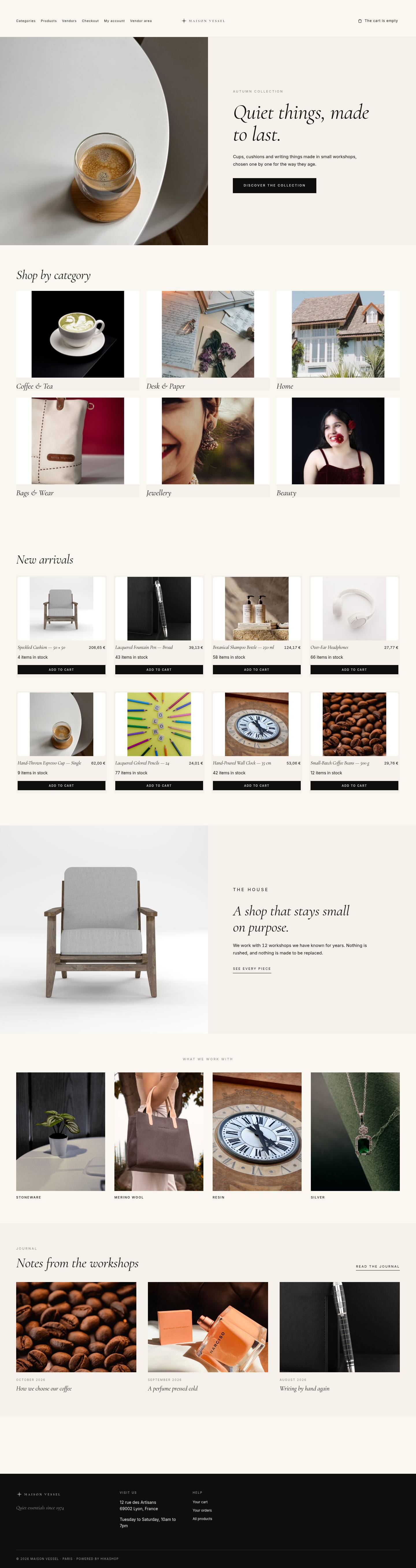
The home page of Vessel is a stack of sections, each one a module position: banner, home-categories, home-featured, home-editorial, home-materials and home-journal. A section without a module is not shown, so you can use only some of them. Two are HikaShop modules that show your categories and products and update by themselves; the four others are Custom modules with your own text and pictures, written in HTML with Vessel's classes. Their code is given below: replace the texts, the pictures and the links with yours.
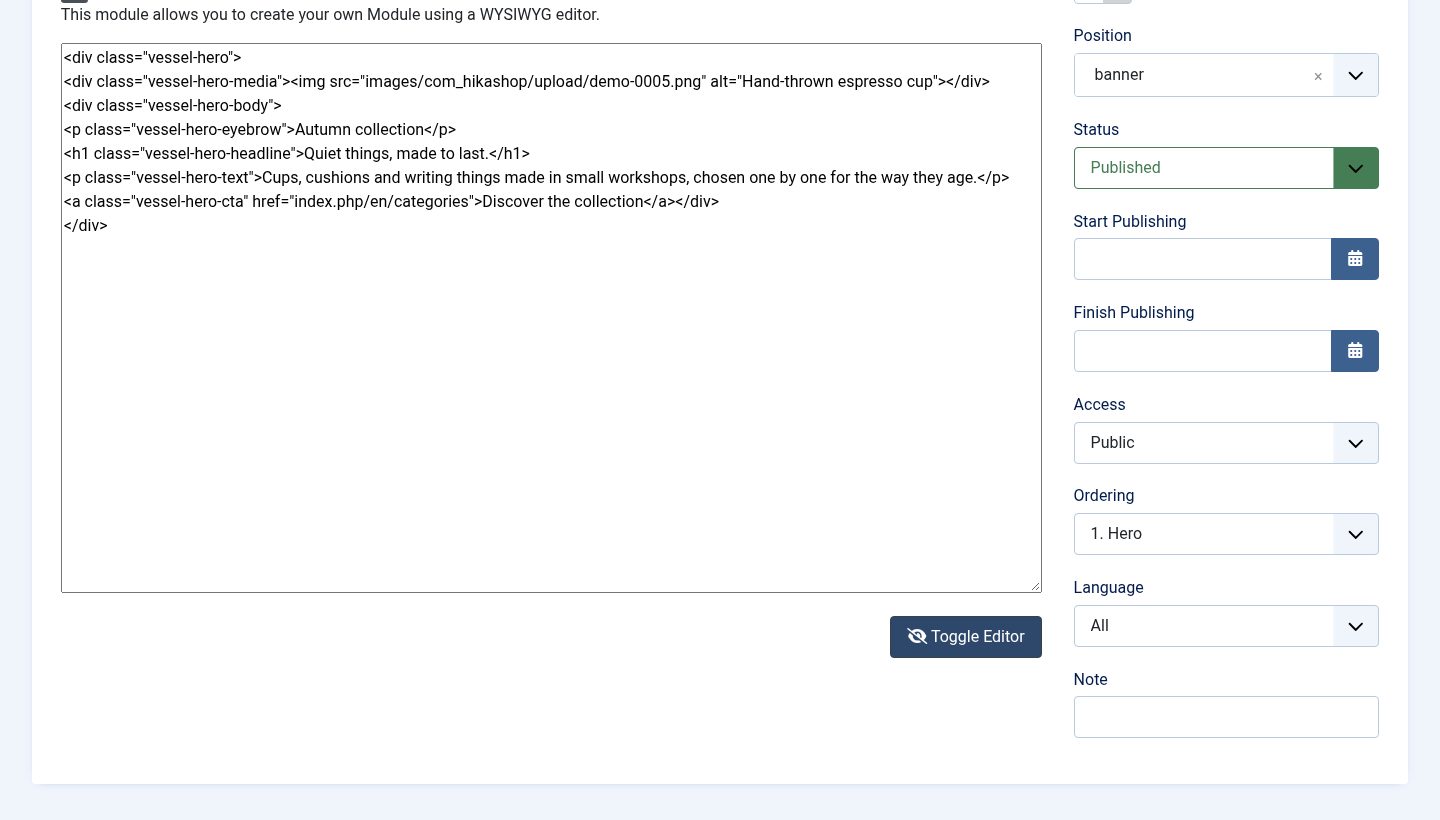
How to paste HTML in a Custom module: Content > Site Modules > New > Custom. Under the editor, click Toggle Editor to see the code, paste the code, then set the position. Upload your pictures with Content > Media (for example in a folder images/shop) and use their path in the src of the pictures. For the links, open the page on your site and copy its address. The editor keeps the classes when you are a Super User; if a class disappears, check the filtering options of your user group in System > Global Configuration > Text Filters.
The hero banner (position banner)
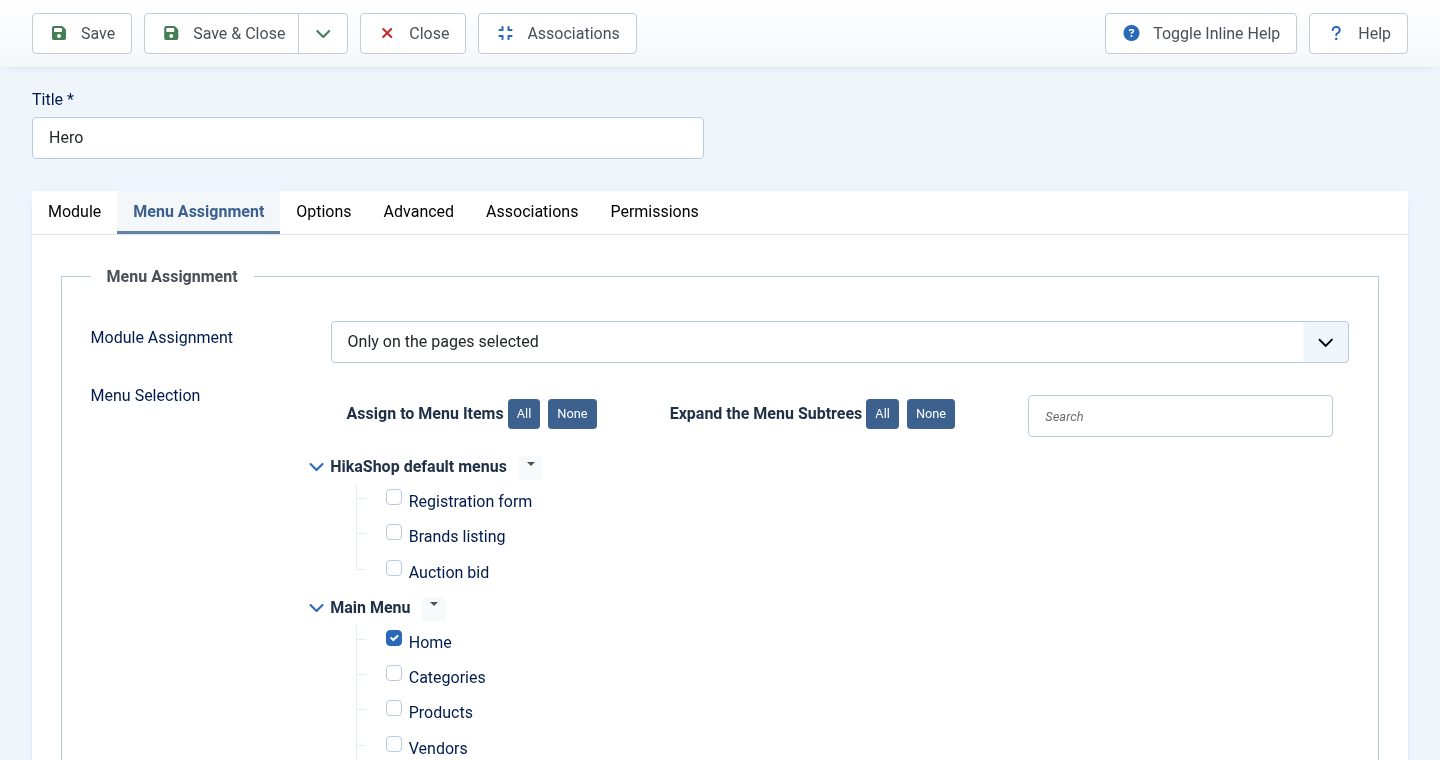
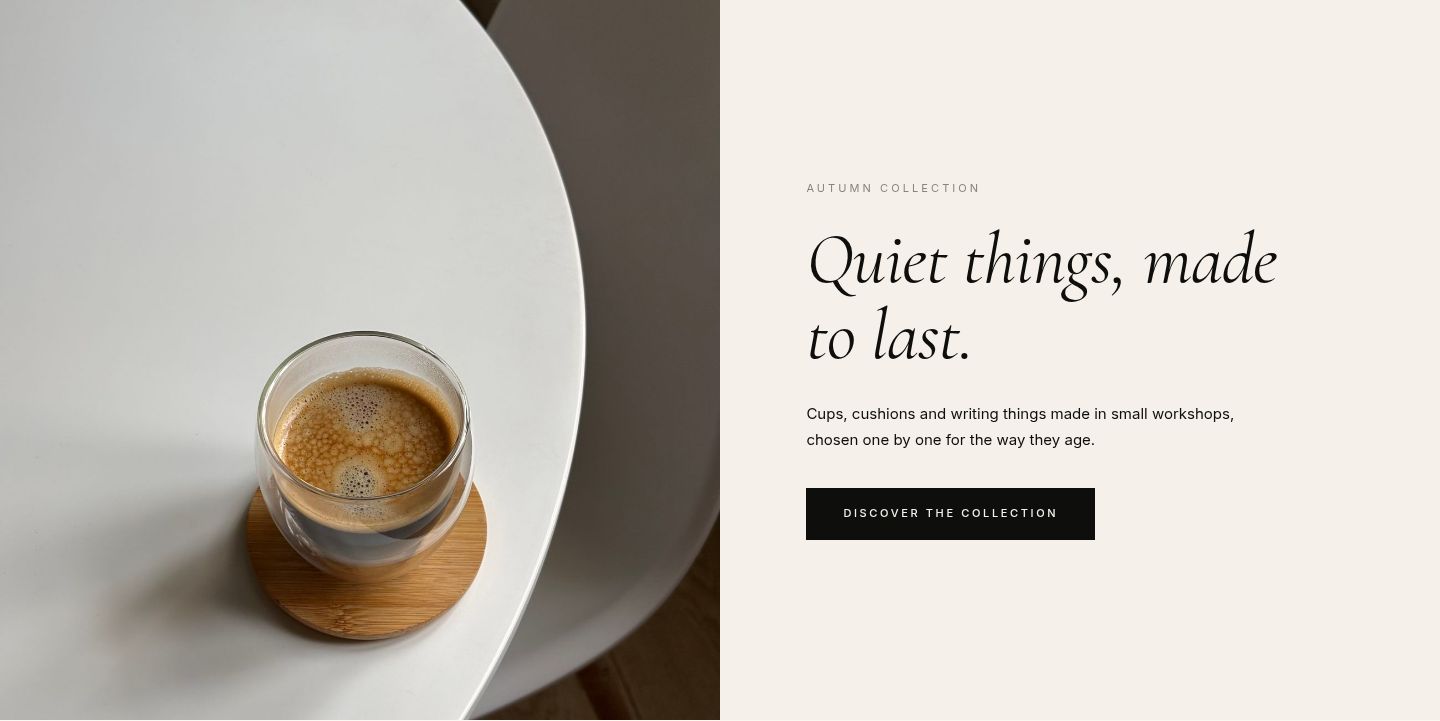
A large picture beside a title, a sentence and a button. Create a Custom module with the code below, position banner. In its Menu Assignment tab, choose Only on the pages selected and tick Home only: unlike the other home page positions, the banner position is shown on every page the module is assigned to.
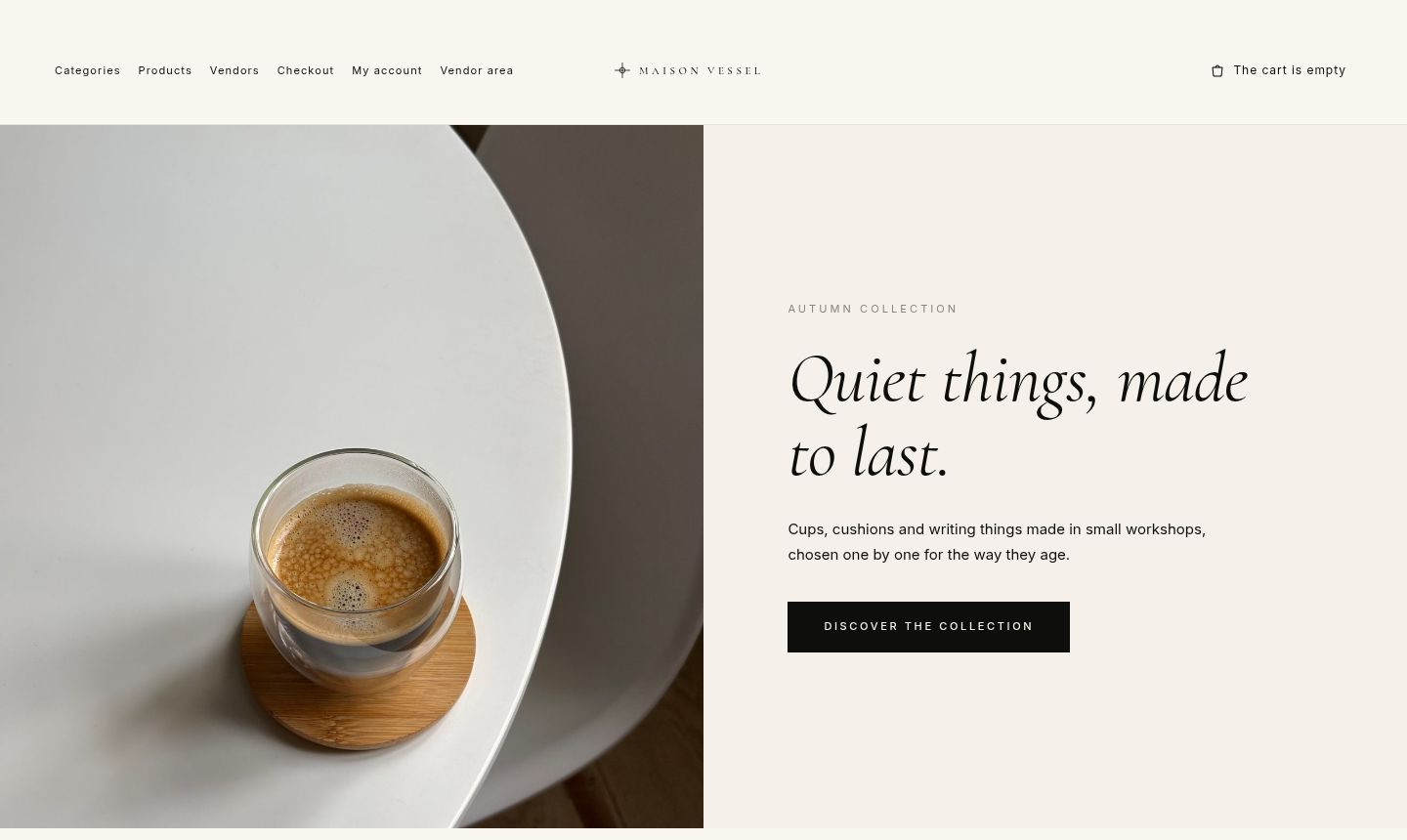
<div class="vessel-hero">
  <div class="vessel-hero-media">
    <img src="images/shop/hero.jpg" alt="Hand-thrown espresso cup">
  </div>
  <div class="vessel-hero-body">
    <p class="vessel-hero-eyebrow">Autumn collection</p>
    <h1 class="vessel-hero-headline">Quiet things, made to last.</h1>
    <p class="vessel-hero-text">Cups, cushions and writing things made in small workshops, chosen one by one for the way they age.</p>
    <a class="vessel-hero-cta" href="index.php/shop">Discover the collection</a>
  </div>
</div>
The category tiles (position home-categories)
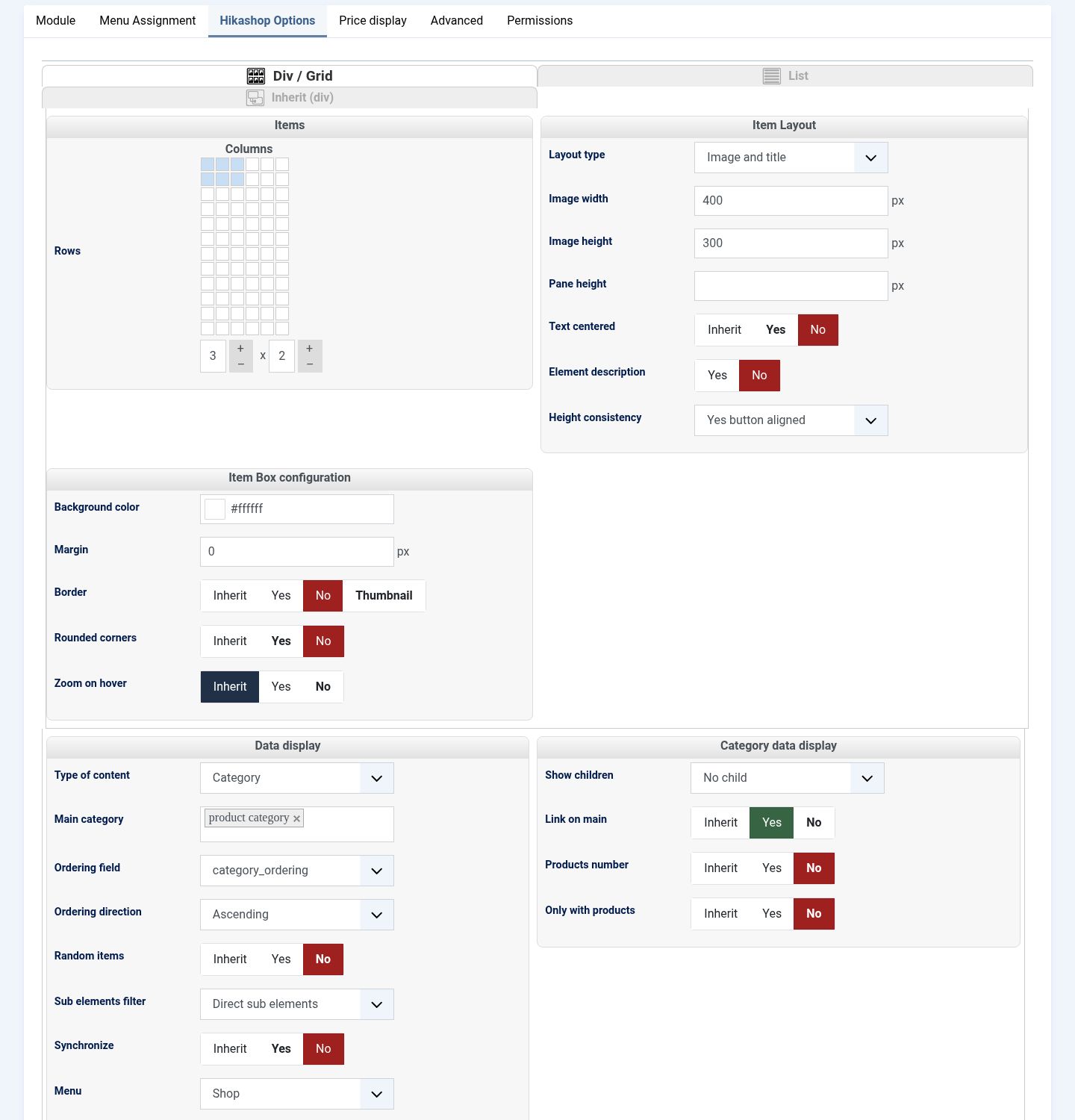
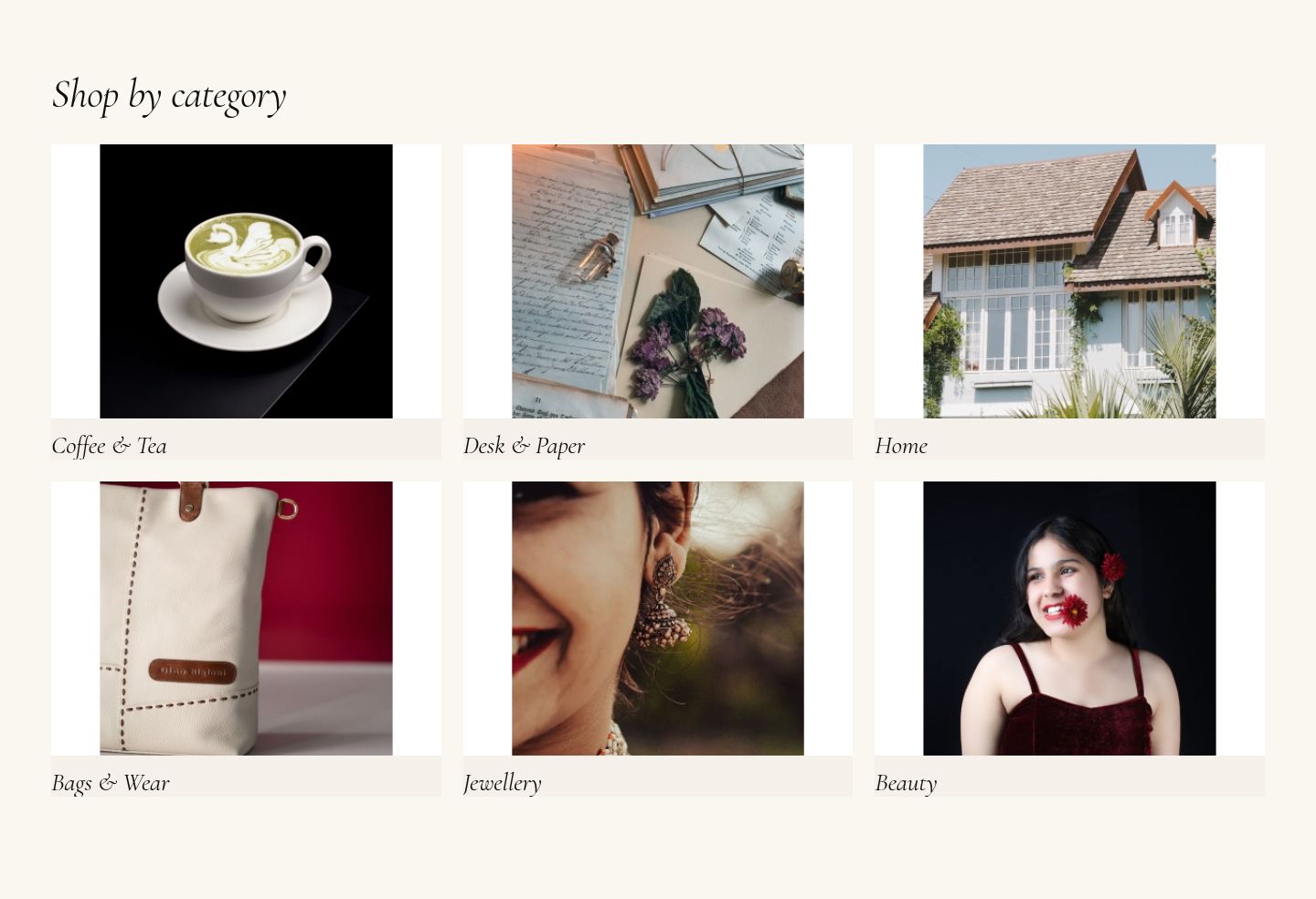
A HikaShop Content Module: Content > Site Modules > New > HikaShop Content Module (HikaShop may already have created one called "Categories on 1 level", unpublished: you can use it). Position home-categories, title "Shop by category" with the Module Style html5 to show it. In its Hikashop Options tab:
- Div / Grid at the top, 3 columns and 2 rows (6 categories).
- Layout type: Image and title. Image width 400 and Image height 300.
- Margin 0, Border No, Rounded corners No: Vessel draws the tiles.
- Type of content: Category. Main category: the category whose sub-categories you show (the root, "product category", for your main categories). Show children: No child.
- Menu: the Shop menu item, so that the pages of the categories open with its settings.
The product grid (position home-featured)
Another HikaShop Content Module, position home-featured, title "New arrivals" (Module Style html5). In Hikashop Options:
- Div / Grid, 4 columns and 2 rows.
- Image width and Image height: 400. Left empty, the module uses the thumbnail size of the HikaShop configuration, 100 x 100 pixels by default, and the pictures are small (see step 8).
- Type of content: Product. Ordering field product_created and Ordering direction Descending for the latest products; another ordering field for best sellers (product_sales), or Random items, or a Main category "Featured" in which you put the products you want to show.
- Sub elements filter: All sub elements, to take the products of every category under the main category.
The editorial split (position home-editorial)
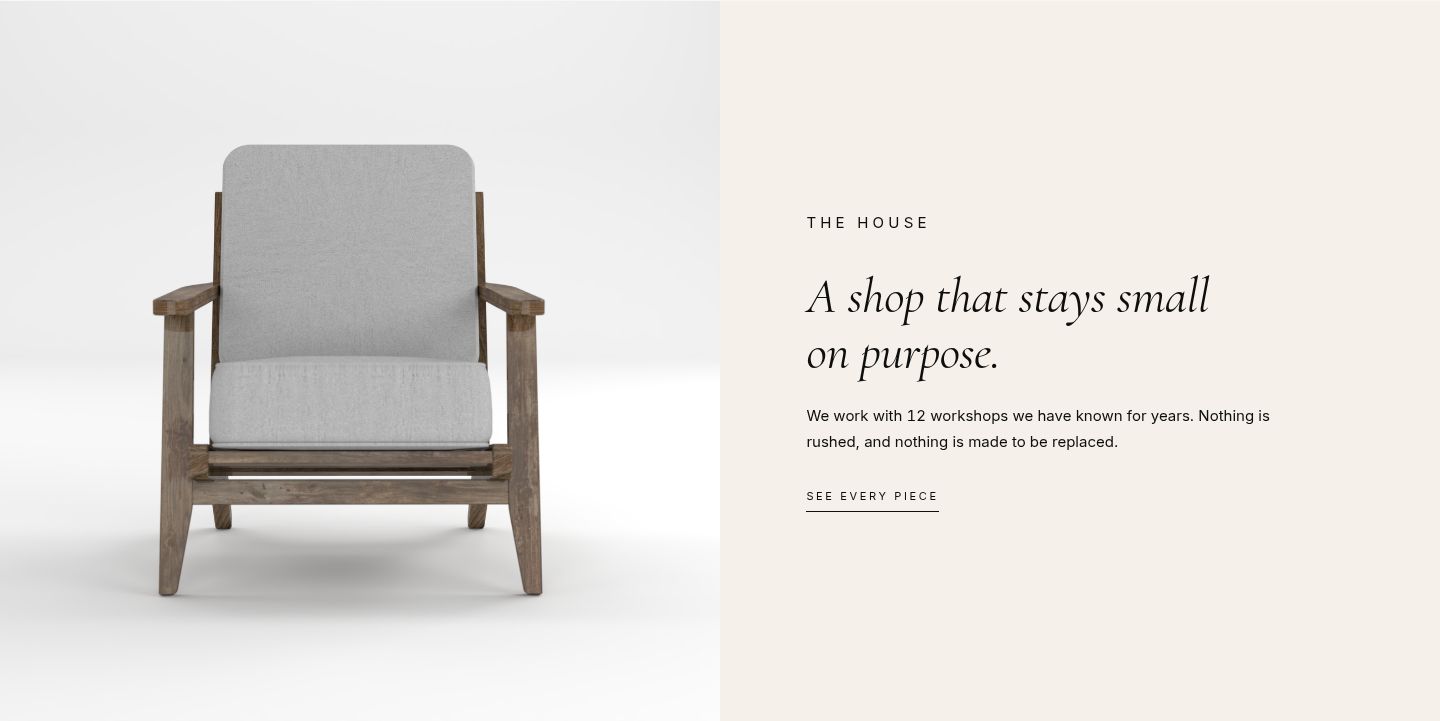
A picture and a text side by side, to tell the story of your shop. A Custom module, position home-editorial. The number in vessel-count counts up when the section appears.
<div class="vessel-editorial">
  <div class="vessel-editorial-media">
    <img src="images/shop/workshop.jpg" alt="In the workshop">
  </div>
  <div class="vessel-editorial-body">
    <p class="vessel-editorial-eyebrow">The house</p>
    <h2 class="vessel-editorial-headline">A shop that stays small on purpose.</h2>
    <p>We work with <span class="vessel-count">12</span> workshops we have known for years. Nothing is rushed, and nothing is made to be replaced.</p>
    <a class="vessel-editorial-cta" href="index.php/products">See every piece</a>
  </div>
</div>
The materials strip (position home-materials)
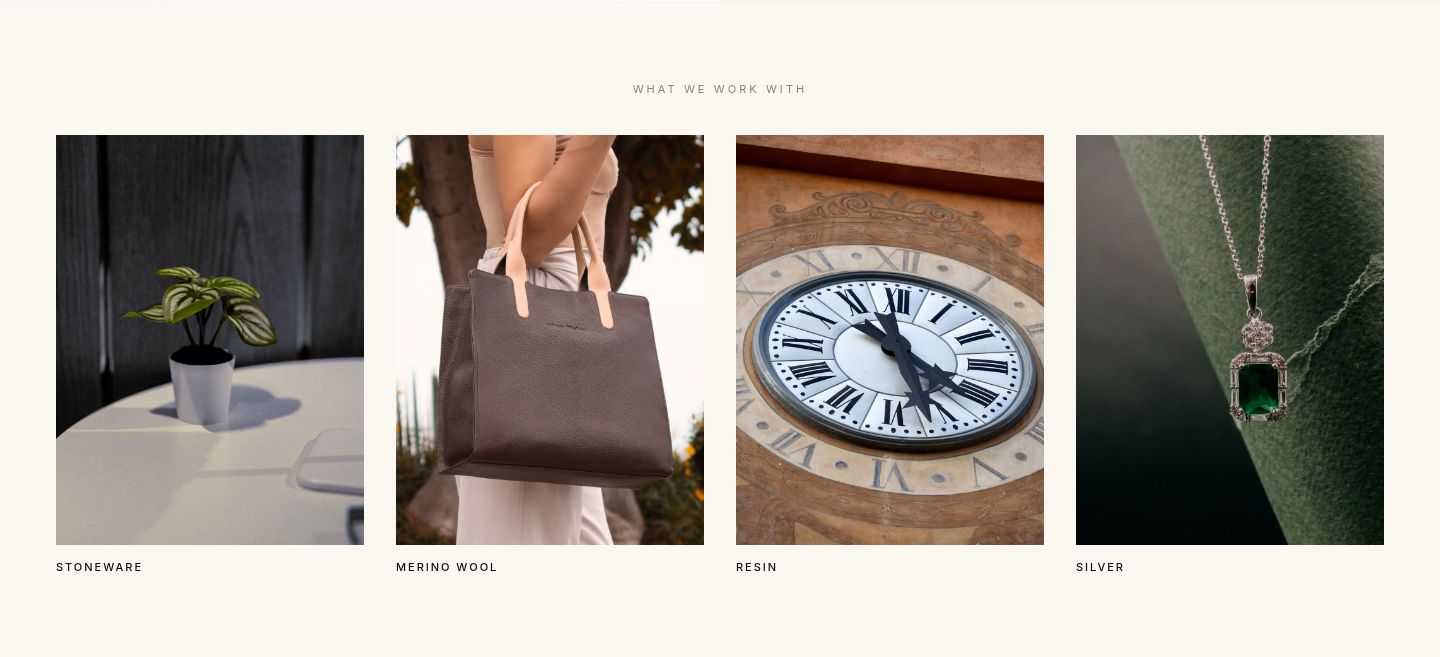
Four pictures with a caption: your materials, your values, your services. A Custom module, position home-materials. On phones the strip shows two pictures per row.
<p class="vessel-materials-eyebrow">What we work with</p>
<div class="vessel-materials-grid">
  <figure><img src="images/shop/stoneware.jpg" alt="Glazed stoneware"><figcaption>Stoneware</figcaption></figure>
  <figure><img src="images/shop/wool.jpg" alt="Merino wool"><figcaption>Merino wool</figcaption></figure>
  <figure><img src="images/shop/resin.jpg" alt="Poured resin"><figcaption>Resin</figcaption></figure>
  <figure><img src="images/shop/silver.jpg" alt="Sterling silver"><figcaption>Silver</figcaption></figure>
</div>
The journal row (position home-journal)
Three teasers of your articles (Joomla articles), with a link to all of them. A Custom module, position home-journal: link each teaser to its article.
<div class="vessel-journal-head">
  <div>
    <p class="vessel-journal-eyebrow">Journal</p>
    <h2 class="vessel-journal-headline">Notes from the workshops</h2>
  </div>
  <a class="vessel-journal-link" href="index.php/journal">Read the journal</a>
</div>
<div class="vessel-journal-grid">
  <article>
    <a href="index.php/journal/your-article">
      <div class="vessel-journal-image"><img src="images/shop/journal-1.jpg" alt="Coffee beans"></div>
      <p class="vessel-journal-meta">October 2026</p>
      <h3>How we choose our coffee</h3>
    </a>
  </article>
  <article>
    <a href="index.php/journal/your-article">
      <div class="vessel-journal-image"><img src="images/shop/journal-2.jpg" alt="Perfume bottle"></div>
      <p class="vessel-journal-meta">September 2026</p>
      <h3>A perfume pressed cold</h3>
    </a>
  </article>
  <article>
    <a href="index.php/journal/your-article">
      <div class="vessel-journal-image"><img src="images/shop/journal-3.jpg" alt="Fountain pen"></div>
      <p class="vessel-journal-meta">August 2026</p>
      <h3>Writing by hand again</h3>
    </a>
  </article>
</div>
The whole home page, and its top on a phone:
8. HikaShop settings for the look of the shop
Open Components > HikaShop > Configuration.
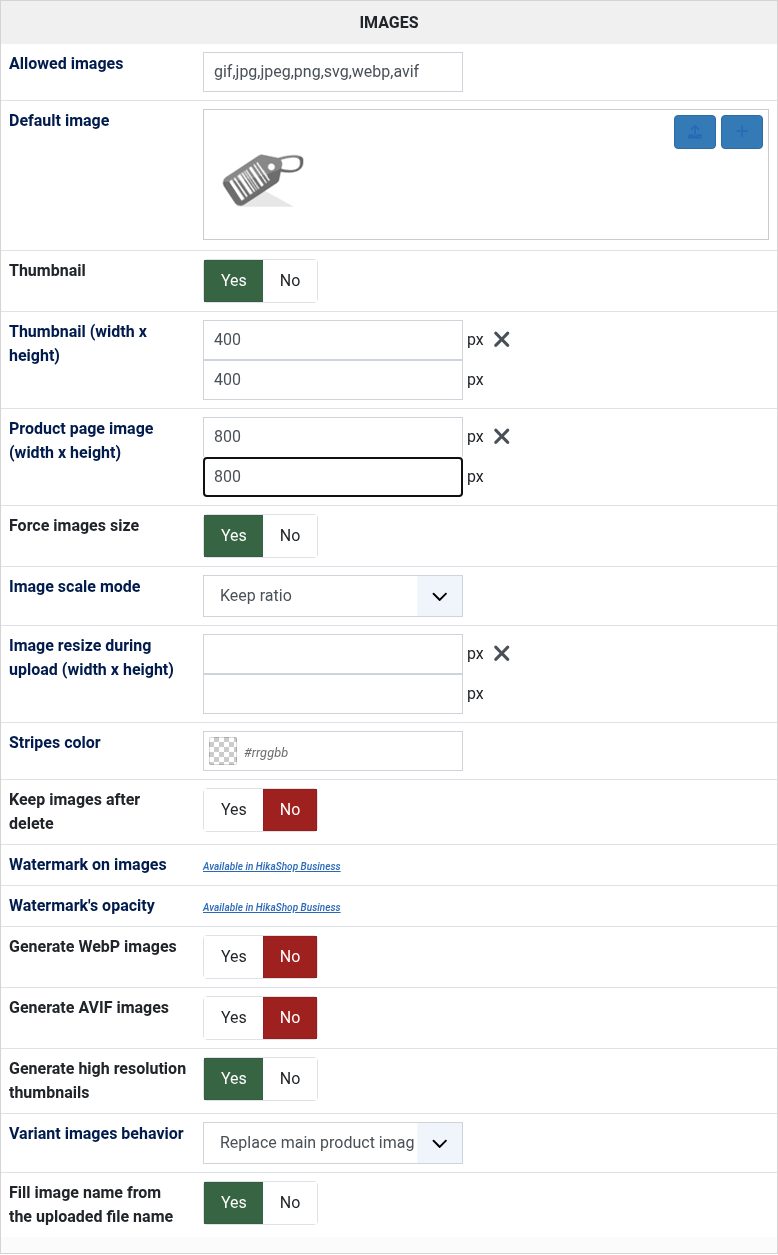
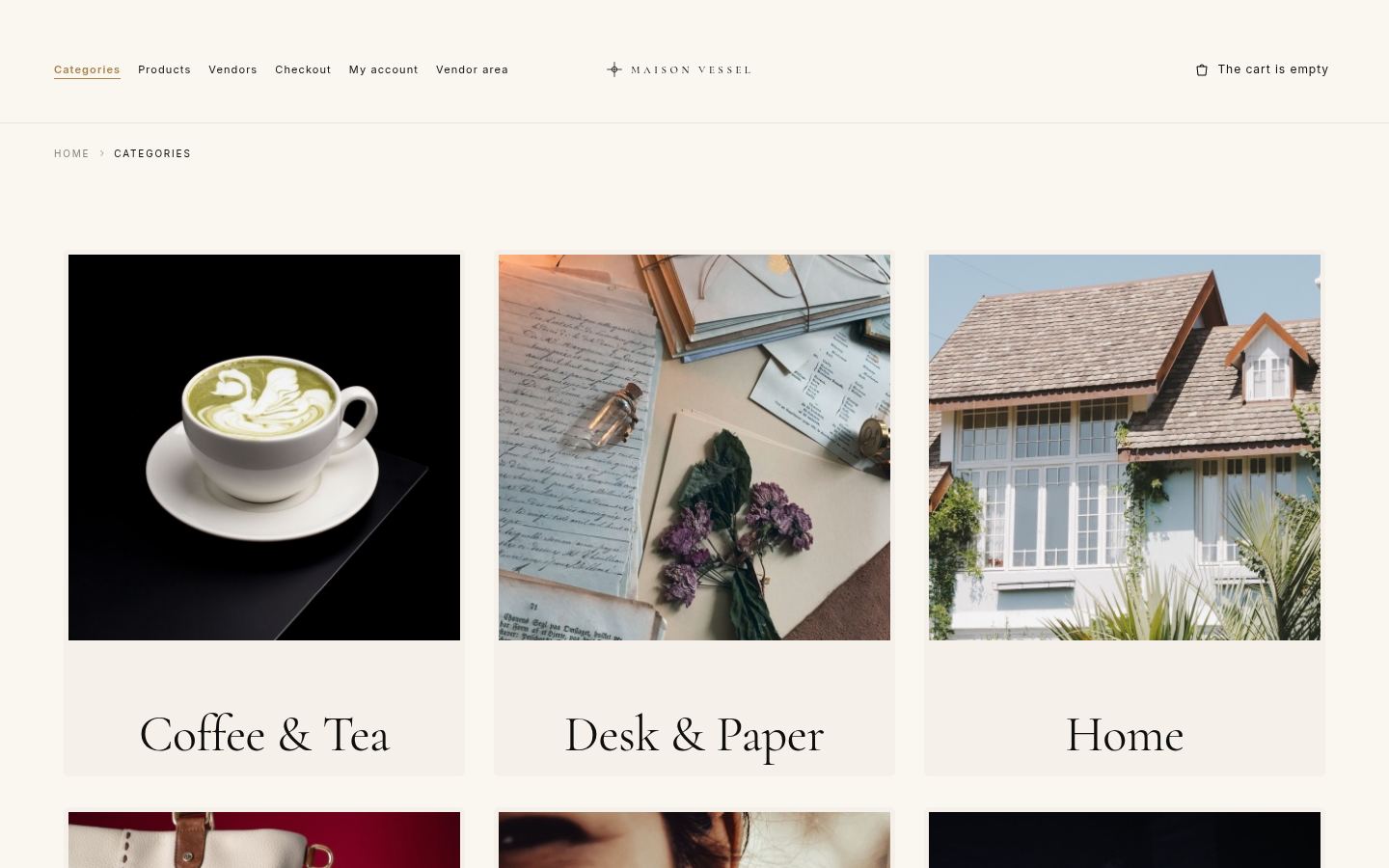
- Main > Images: Thumbnail (width x height) is the size of the pictures of the listings and modules, 100 x 100 pixels by default. Vessel shows larger tiles, so set it to 400 x 400, or the pictures look blurred. Product page image, 300 x 300 by default: set 800 x 800 for a sharp picture on the product page. HikaShop makes the new sizes from your original pictures by itself. See Configuration: Images.
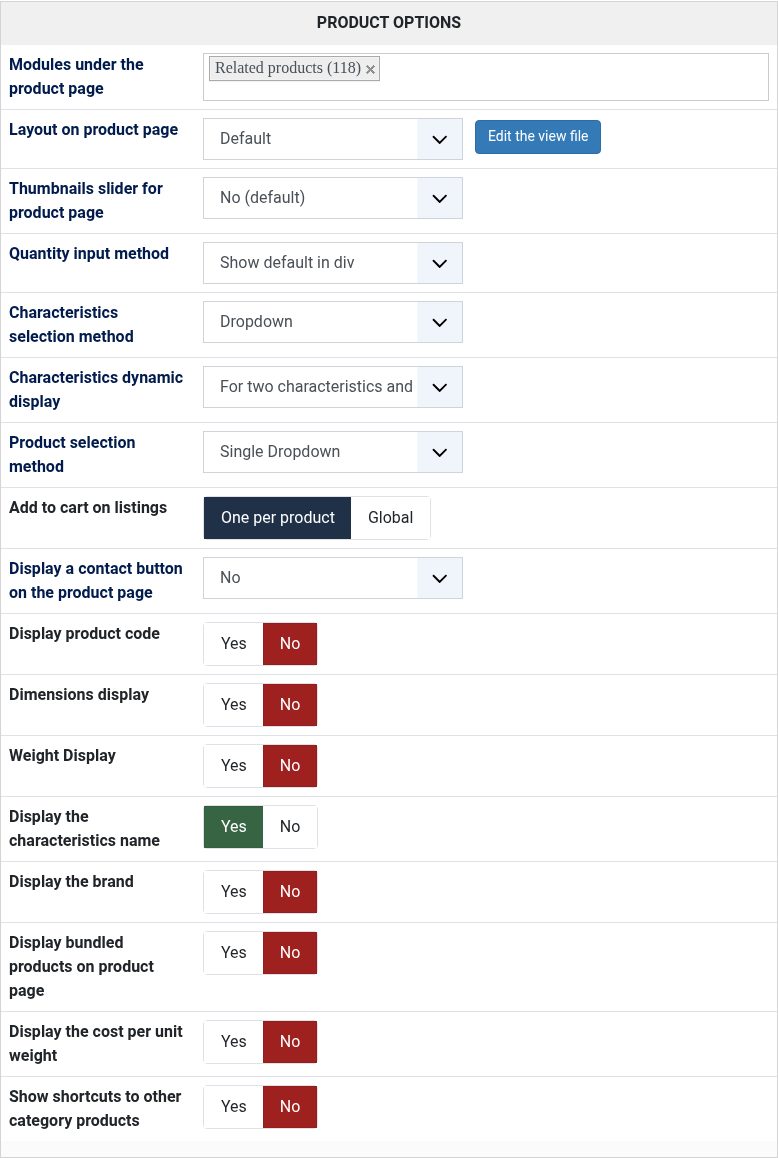
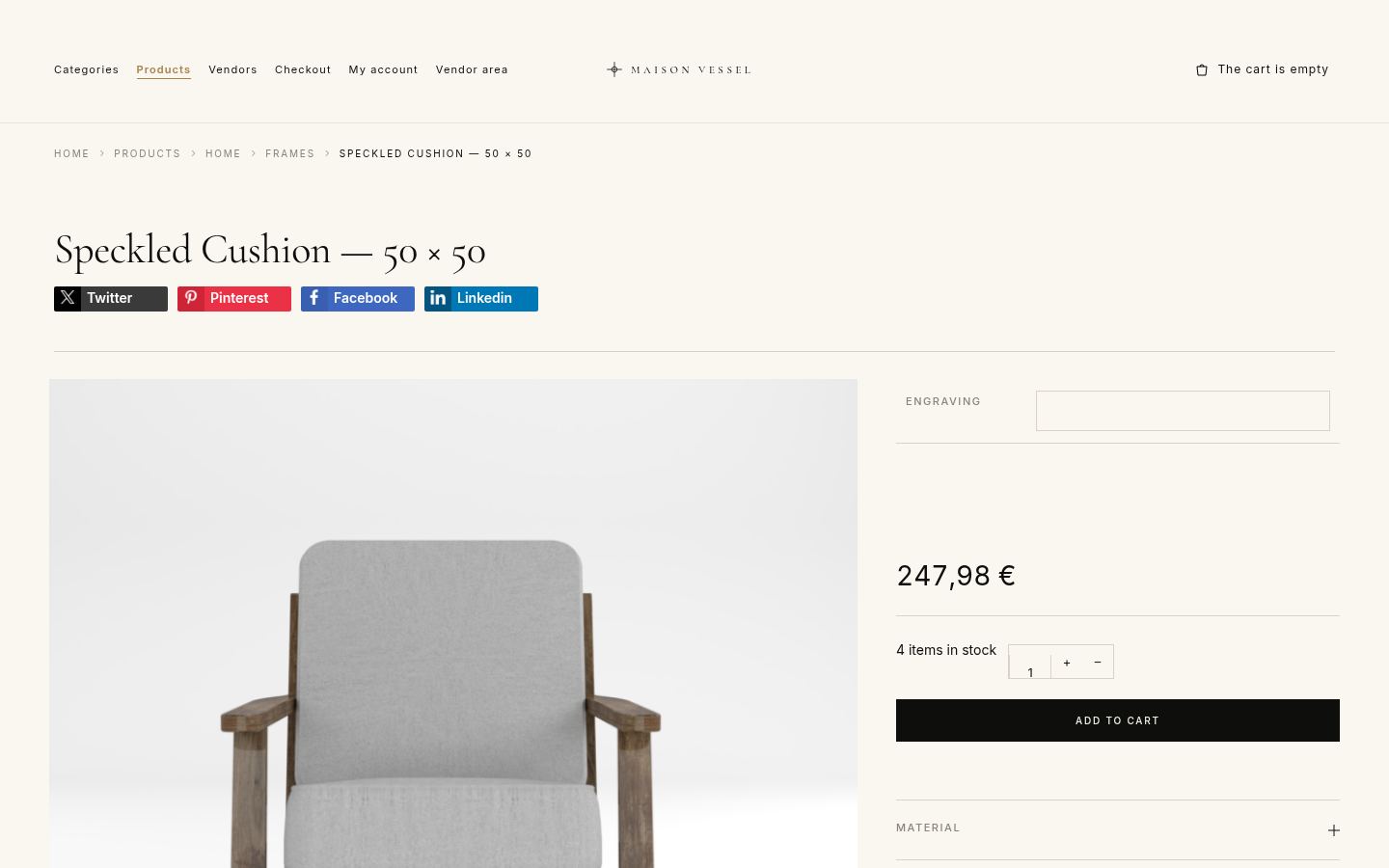
- Display > Product options > Layout on product page: Vessel styles all the layouts of HikaShop (Default, Sticky, Modern, Showcase, Gallery, Full width, Reversed, Tabular): try them on one of your products and keep the one you like. A product can also have its own layout, in its edit page. See Configuration: Product options.
- Display > Default parameters for products and for categories: what the listings show by default (add to cart button, quantity field, wishlist, price display...), used by every menu item and module left on "Inherit". See Configuration: Default parameters.
9. Before you sell
- Your payment methods, in System > Payment methods of HikaShop: for example Bank transfer, PayPal, Stripe. Every payment plugin of HikaShop is already installed.
- Your shipping methods, in System > Shipping methods.
- Your taxes: Taxation rules, and Europe VAT rules if you sell in the European Union.
- The steps of your checkout: Configure your Checkout Workflow.
- Then place an order yourself: Your first test sale.
10. Your own CSS
Most of the look is set by the template settings. For more, add your CSS rules to media/templates/site/vessel/css/user.css (also editable in System > Site Templates > Vessel Details and Files). This file is loaded after the template's own CSS, so your rules win, and an update of Vessel keeps it. Do not edit template.css: an update replaces it.
Questions
My menu disappeared when I switched to Vessel.
The Main Menu module is still in the position of your previous template. Set its position to menu (step 6).
The title of my module does not show.
Set the Module Style of the module to html5, in its Advanced tab.
The hero banner shows on every page.
Assign it to the Home menu item only, in its Menu Assignment tab.
My home page sections do not show.
The home-* positions only show on the menu item set as Home (the house in Menus > Main Menu). Check also that the module is published, assigned to that page, and in the position with (Vessel).
A big "Home" title shows at the bottom of my home page.
Hide the page heading of the Home menu item (step 4).
The pictures of my products and categories are blurred.
Raise the thumbnail size of HikaShop to 400 x 400 (step 8), or set the image size in the module.
Is there a copy of the demo to install?
No, there is no package of the demo to download. This guide builds the same home page on your site, with your own products, and the code of each section is above.
And on WordPress?
Vessel also exists as a WordPress block theme, vessel.zip. Install it in Appearance > Themes > Add New Theme > Upload Theme and activate it. The presets are in Appearance > Editor > Styles. For the home page, create a page, insert the Home block pattern of Vessel (it has every section described in step 7, made of blocks), and set the page as your homepage in Settings > Reading. The header and the footer are template parts, edited in the Site Editor. For your own CSS, use Appearance > Editor > Styles > Additional CSS or a child theme.