
|
|

Description
This screen enables you to manage the emails HikaShop sends. You will be able to modify the email senders information, attachments, subject and the code generating the text and HTML content. If you only need to tweak text in the emails, you can edit the translation files via the configuration page of HikaShop and edit them there. That will allow HikaShop to send emails in the language of the customer.
Remember that emails are subject to a lot of limitations (no javascript, avoid divs, etc) because of the email clients (Outlook, windows live, gmail, thunderbird, etc).
This feature is only available in Business version of HikaShop.
Toolbar

- Help : This button enables you to turn ON/OFF the help section, this screen will appear or disappear.
- Dashboard : You can go back to the control panel using this button.
Column Headers
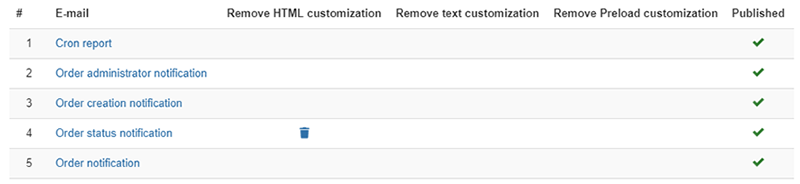
-
# : An indexing number automatically assigned for ease of reference.
- E-mail : The name of the e-mail. You can edit the email by clicking on this link.
- Remove HTML customization : When you save an email, the system will save the HTML version in a custom file. That will allow you to fall back to the default version by just clicking on this icon.
- Remove text customization : When you save an email, the system will save the text version in a custom file. That will allow you to fall back to the default version by just clicking on this icon.
- Remove preload customization : When you save an email, the system will save the preload code in a custom file. That will allow you to fall back to the default version by just clicking on this icon.
- Published : You can publish/unpublish an email by clicking on the icon. An unpublished email won't be sent anymore.
Emails description
- Cron report: It's the email sent by HikaShop each time a cron process is triggered and that something happened. You normally shouldn't have to change it.
- Order administrator notification : This email is sent to the shop owner (the email address can be configured in the "order administrator notification email address" option of the Emails section of the HikaShop configuration) after the order is created (potentially before it is paid).
- Order creation notification : This email is sent to the customer after the order is created (potentially before it is paid).
- Order notification : This email is sent to the customer when you use the "email" button of an order details page on the backend.
- Order status notification : This email is sent to the customer after the order is confirmed (when a payment notification is received from a payment gateway) or when you change the status of an order in the backend and activate the notification to the customer.
- User account : This email is sent to the user when he registers through the HikaShop checkout or the HikaShop registration pages. It can contain the activation link on which the user needs to click in order to validate his account.
- User account administrator notification : This email is sent to the shop owner when a user registers through the HikaShop checkout or the HikaShop registration pages. It sends it to the email address configured in the "From" setting of the Emails section of the HikaShop configuration.
- Out of stock notification : This email is sent to the shop owner when one or several products are out of stock (see the HikaShop "out of stock" plugin via the Joomla plugins manager in order to configure it). It sends it to the email address configured in the "From" setting of the Emails section of the HikaShop configuration.
- Order cancel : This email is sent to the shop owner when a customer requests a cancellation of his order (only possible if the "Cancellable orders statuses" option of the HikaShop configuration is configured). It sends it to the email address configured in the "From" setting of the Emails section of the HikaShop configuration.
- Wait list notification : This email is sent to the users who entered their email address to request a notification when a product is back in stock (see the Waitlist section of the HikaShop configuration in order to configure it).
- New comment : This email is sent to the shop owner when a customer write a new comment for a product if the "send email for new comment" is activated in the HikaShop configuration. It sends it to the email address configured in the "From" setting of the Emails section of the HikaShop configuration.
- Contact request : This email is sent to the shop owner when a customer writes a contact request for a product (see the "Display a contact button on the product page" option of the HikaShop configuration in order to configure it).
- Mass action notification : This email is sent to the shop owner when a mass action configured with an email notification action is triggered. It sends it to the email address configured in the action of the mass action.
- Wishlist sharing notification : If you activate the wishlist feature of HikaShop, in its configuration page, your users will be able to add products to a wishlist (similar to the cart mechanism which is activated by default). If wishlist sharing is activated, on their wishlist page, they will have a share button. This button will open a popup where they can enter email addresses so that HikaShop can send an email to these email addresses using this "Wishlist sharing notification". It will allow the recipients to acccess the shared wishlist so that they can potentially purchase the products listed there. This is useful for baby showers, wedding gift lists, etc.
- Withdrawal admin notification : In the menu System>Order statuses, you can enable a status under the "Withdrawable" column. After you do, orders changed to that status will have a "withdraw" button the customer can use to cancel his order as per EU-wide law. When they use this button, a withdrawal request will be logged in the Orders>Withdrawals menu of your HikaShop backend and this "Withdrawal admin notification" will be sent to you if enabled.
- Withdrawal user notification : In the menu System>Order statuses, you can enable a status under the "Withdrawable" column. After you do, orders changed to that status will have a "withdraw" button the customer can use to cancel his order as per EU-wide law. When they use this button, a withdrawal request will be logged in the Orders>Withdrawals menu of your HikaShop backend and this "Withdrawal user notification" will be sent to the user if enabled.