




|
Description
This screen enables you to create or edit a currency and its locale information. The locale information enables you to configure the system to display prices the way you want for each currency.
Toolbar
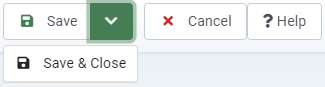
- Save: Save the current currency and return to the currencies Management screen.
- Save & Close: Like previous button but just after going back to currency listing.
- Cancel: Return to the previous screen without saving the modifications.
- Help: This button enables you to turn ON/OFF the help section; this screen will appear or disappear.
Currency Information
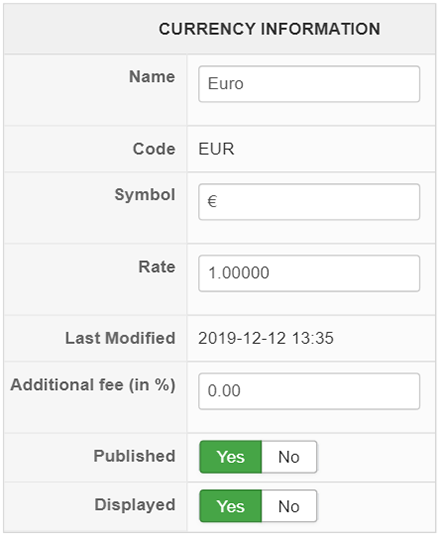
- Name: Name of the currency.
- Code: The international ISO code of the currency. Please do not change that for existing currencies as the currency restrictions of payment/shipping methods rely on that field to know whether they can or cannot be used with a particular currency.
- Symbol: The symbol used to represent the currency in the regions where it's used.
- Rate: The rate of the currency based on the main currency set in the configuration page. The main currency will always have a rate of 1. As you can see on this screenshot, the main currency is Euro.
- Last modified date: The last time the currency was modified (either manually or automatically by the auto rates updater plugin).
- Additional fee (in %): An additional fee that you can add on the conversion rate when your customers pay using this currency for a product with a price in a different currency. This can be useful, for example, when your bank charges you currency conversion fees on payments received in a currency other than the currency of your bank account.
- Published: If a currency is published, it means that it can be used by your customers to display your goods' prices in this currency but also pay their orders in this currency. The main currency is always considered published. Also, please note that each payment gateway (like PayPal or Authorize.Net) has a limited number of currencies they accept. So based on the payment plugins you use, before publishing a currency, please make sure that this currency is handled by them. Otherwise, you can still let your users see the prices in their currency while browsing your store but then pay in your main currency by turning the Displayed option to "yes" without publishing the currency.
- Displayed: If a currency is published or is the main currency, this setting will be disregarded and the currency will always be usable by your customers on the front end. Otherwise, based on this setting, you will be able to select the additional currencies in which your users will be able to display prices of your goods. Those currencies won't be used in the cart display, nor during the checkout as long as they are not published. This is useful when you want your customers to always pay you in one of several currencies but you also want them to be able to see an equivalent of the price in their own currency.
Locale Information
With HikaShop 6.3.0, the currency locale customization has been completely revamped to be more intuitive and visual. Prices can be displayed differently based on the currency used, and this section allows you to fine-tune exactly how the price appears. A Live Preview is available to instantly see the result of your settings as you change them.
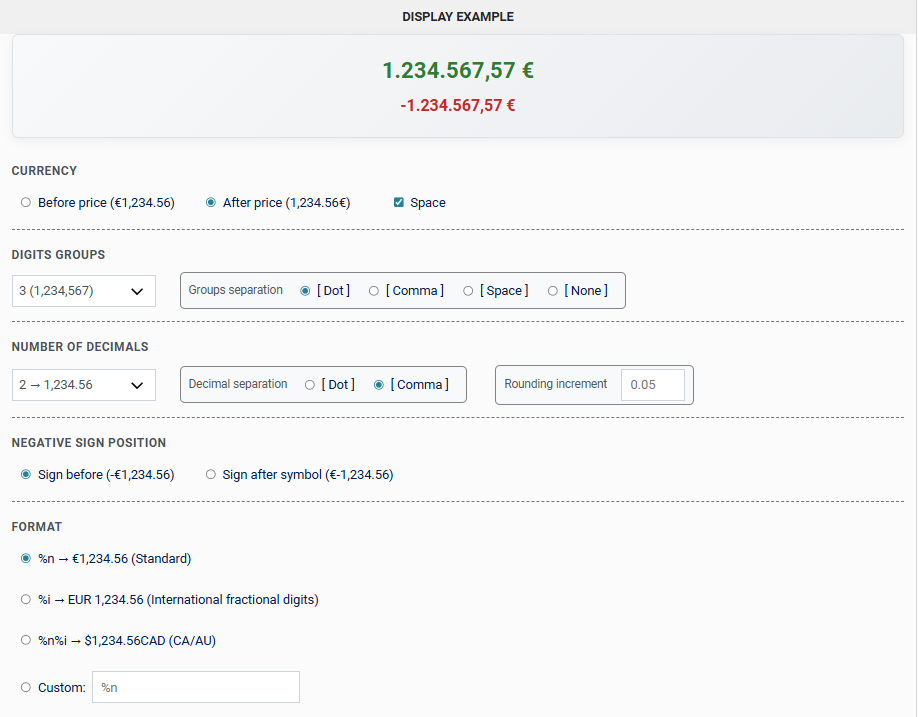
- Currency Symbol Setting:
- Position: Choose whether the currency symbol (e.g. € or $) appears Before or After the price amount.
- Add space: Check this box to insert a space between the symbol and the amount (e.g.
$ 100vs$100).
- Grouping (Thousands Separator):
- Group Size: Define how numbers are grouped.
- 3: Standard grouping (e.g. 1,000,000).
- 0: No grouping (e.g. 1000000).
- 2: Grouping by 2, used in some Asian locales like Lakhs (e.g. 1,00,000).
- 4: Grouping by 4, used in East Asian locales (e.g. 100,0000).
- Separator: Choose the character used to separate groups: Dot [.], Comma [,], Space [ ], or None.
- Group Size: Define how numbers are grouped.
- Decimals:
- Number of Decimals: Select the number of digits to display after the decimal point (from 0 to 4).
- Decimal Point: Choose the character used as the decimal separator: Dot [.] or Comma [,]. (Only visible if decimals are enabled).
- Rounding Increment: (Optional) Enter a value to which prices should be rounded (e.g.
0.05to round to the nearest 5 cents).
- Negative Sign Position:
- Sign before: The minus sign appears before the entire amount (e.g.
-€1,234.56). - Sign after symbol: The minus sign appears between the symbol and the amount (e.g.
€-1,234.56).
- Sign before: The minus sign appears before the entire amount (e.g.
- Currency Format:
- %n (Standard): Displays the price using the Currency Symbol (e.g. €1,234.56).
- %i (International): Displays the price using the International Currency Code (e.g. EUR 1,234.56).
- %n%i (Combined): Displays both symbol and code (e.g. $1,234.56CAD).
- Custom: Allows you to define a custom format string using
%n(for the standard amount with symbol) and%i(for the international code part).

