Universal Commerce Protocol


What is UCP?

The Universal Commerce Protocol (UCP) is an open standard co-developed by Google, Shopify, Etsy, Wayfair, Target, Walmart and endorsed by over 40 companies including Stripe, PayPal, Visa, Mastercard, Best Buy, Macy's and many more.

UCP establishes a common language for AI agents, platforms and businesses to interact. It allows AI assistants (such as Google Gemini, ChatGPT, Claude and others) to discover products on your store, create carts, process checkout and handle payments on behalf of their users : all through a standardized API.

In practice, this means a customer can say to their AI assistant "find me a blue jacket under $100" and the AI can search your store, show matching products, and guide the customer through checkout without them ever needing to visit your website directly.

HikaShop implements UCP through a system plugin that exposes the necessary API endpoints. Once enabled and configured, your store becomes discoverable and purchasable by any UCP-compatible AI agent.


How it works

UCP works through a set of REST API endpoints that your store exposes. AI agents interact with these endpoints to perform commerce operations. Here is an overview of the different components and how they communicate:

┌──────────────┐     ┌──────────────┐     ┌──────────────────────┐     ┌──────────────────┐
│              │     │              │     │                      │     │                  │
│   Customer   │     │   AI Agent   │     │   Your HikaShop      │     │ Payment Gateway  │
│              │     │  (Gemini,    │     │   Store + UCP Plugin  │     │ (Stripe,         │
│              │     │   Claude,    │     │                      │     │  Worldline)       │
│              │     │   etc.)      │     │                      │     │                  │
└──────┬───────┘     └──────┬───────┘     └──────────┬───────────┘     └────────┬─────────┘
       │                    │                        │                          │
       │  "Find me a       │                        │                          │
       │   blue jacket"    │                        │                          │
       │───────────────────>│                        │                          │
       │                    │                        │                          │
       │                    │  GET /.well-known/ucp  │                          │
       │                    │───────────────────────>│                          │
       │                    │  Discovery response    │                          │
       │                    │<───────────────────────│                          │
       │                    │                        │                          │
       │                    │  POST /ucp/v1/search   │                          │
       │                    │  { "query": "blue      │                          │
       │                    │    jacket" }            │                          │
       │                    │───────────────────────>│                          │
       │                    │  Product results       │                          │
       │                    │<───────────────────────│                          │
       │                    │                        │                          │
       │  "Here are 3      │                        │                          │
       │   options..."     │                        │                          │
       │<───────────────────│                        │                          │
       │                    │                        │                          │
       │  "I'll take the   │                        │                          │
       │   second one"     │                        │                          │
       │───────────────────>│                        │                          │
       │                    │                        │                          │
       │                    │  POST /checkout-sessions│                          │
       │                    │  { items, buyer,       │                          │
       │                    │    shipping address }  │                          │
       │                    │───────────────────────>│                          │
       │                    │  Session with totals   │                          │
       │                    │<───────────────────────│                          │
       │                    │                        │                          │
       │  "Total is $79.    │                        │                          │
       │   Confirm?"       │                        │                          │
       │<───────────────────│                        │                          │
       │                    │                        │                          │
       │  "Yes, pay with   │                        │                          │
       │   Google Pay"     │                        │                          │
       │───────────────────>│                        │                          │
       │                    │                        │                          │
       │                    │  POST /complete        │                          │
       │                    │  { payment credential }│                          │
       │                    │───────────────────────>│                          │
       │                    │                        │  Process payment         │
       │                    │                        │─────────────────────────>│
       │                    │                        │  Payment confirmed       │
       │                    │                        │<─────────────────────────│
       │                    │  Order confirmed       │                          │
       │                    │<───────────────────────│                          │
       │                    │                        │                          │
       │  "Done! Order     │                        │                          │
       │   #1234 placed."  │                        │                          │
       │<───────────────────│                        │                          │
       │                    │                        │                          │


The purchase flow

Here is a closer look at what happens during each step of the UCP purchase flow between the AI agent and your HikaShop store:

  AI Agent                                           HikaShop UCP Plugin
     │                                                       │
     │  ┌─────────────────────────────────────────────────┐  │
     │  │ STEP 1: DISCOVERY                                │  │
     │  │ The AI agent discovers your store's capabilities │  │
     │  └─────────────────────────────────────────────────┘  │
     │                                                       │
     │  GET /.well-known/ucp                                 │
     │──────────────────────────────────────────────────────>│
     │                                                       │  Reads plugin config,
     │                                                       │  detects Google Pay gateway,
     │  {                                                    │  builds capability list
     │    "ucp": {                                           │
     │      "version": "2026-01-11",                         │
     │      "capabilities": [                                │
     │        "dev.ucp.shopping.catalog",                    │
     │        "dev.ucp.shopping.checkout",                   │
     │        "dev.ucp.shopping.payment"                     │
     │      ]                                                │
     │    },                                                 │
     │    "payment": { "handlers": ["com.google.pay"] }      │
     │  }                                                    │
     │<──────────────────────────────────────────────────────│
     │                                                       │
     │  ┌─────────────────────────────────────────────────┐  │
     │  │ STEP 2: PRODUCT SEARCH                           │  │
     │  │ The AI searches for products matching the        │  │
     │  │ customer's request                               │  │
     │  └─────────────────────────────────────────────────┘  │
     │                                                       │
     │  POST /ucp/v1/search                                  │
     │  { "query": "blue jacket", "limit": 10 }             │
     │──────────────────────────────────────────────────────>│
     │                                                       │  Searches products,
     │  {                                                    │  applies stock/access
     │    "products": [                                      │  filters, formats
     │      { "id": "gid://site/Product/42",                 │  prices in cents
     │        "name": "Classic Blue Jacket",                 │
     │        "price": { "amount": 7900, "currency":"USD" }, │
     │        "availability": "in_stock",                    │
     │        "images": [...] }                              │
     │    ],                                                 │
     │    "total": 3                                         │
     │  }                                                    │
     │<──────────────────────────────────────────────────────│
     │                                                       │
     │  ┌─────────────────────────────────────────────────┐  │
     │  │ STEP 3: CREATE CHECKOUT SESSION                  │  │
     │  │ A cart is created with the selected products,    │  │
     │  │ buyer info, and shipping address                 │  │
     │  └─────────────────────────────────────────────────┘  │
     │                                                       │
     │  POST /ucp/v1/checkout-sessions                       │
     │  {                                                    │
     │    "line_items": [                                    │
     │      { "item": { "id": "gid://.../42" },              │
     │        "quantity": 1 }                                │
     │    ],                                                 │
     │    "buyer": {                                         │
     │      "email": "john@example.com",                     │
     │      "first_name": "John" },                          │
     │    "fulfillment": {                                   │
     │      "methods": [{                                    │
     │        "type": "shipping",                            │
     │        "destinations": [{                             │
     │          "country": "US",                             │
     │          "postal_code": "10001",                      │
     │          "street_address": "123 Main St" }]           │
     │      }]                                               │
     │    }                                                  │
     │  }                                                    │
     │──────────────────────────────────────────────────────>│
     │                                                       │  Creates UCP cart,
     │  {                                                    │  assigns user,
     │    "id": "gid://site/Checkout/99",                    │  calculates taxes
     │    "status": "incomplete",                            │  and shipping options
     │    "totals": [                                        │
     │      { "type": "subtotal", "amount": 7900 },          │
     │      { "type": "tax", "amount": 632 },                │
     │      { "type": "fulfillment", "amount": 500 },        │
     │      { "type": "total", "amount": 9032 }              │
     │    ],                                                 │
     │    "fulfillment": {                                   │
     │      "options": [                                     │
     │        { "id": "5", "name": "Standard", ... },         │
     │        { "id": "8", "name": "Express", ... }           │
     │      ]                                                │
     │    }                                                  │
     │  }                                                    │
     │<──────────────────────────────────────────────────────│
     │                                                       │
     │  ┌─────────────────────────────────────────────────┐  │
     │  │ STEP 4: COMPLETE CHECKOUT                        │  │
     │  │ The order is created and payment is processed    │  │
     │  └─────────────────────────────────────────────────┘  │
     │                                                       │
     │  POST /ucp/v1/checkout-sessions/99/complete           │
     │  { "payment_method_id": "gid://.../7",                │
     │    "payment_data": {                                  │
     │      "handler_id": "com.google.pay",                  │
     │      "credential": { "token": "..." }                 │
     │    }                                                  │
     │  }                                                    │
     │──────────────────────────────────────────────────────>│
     │                                                       │  Creates order from cart,
     │  {                                                    │  sends payment token to
     │    "status": "completed",                             │  gateway, confirms order
     │    "order": {                                         │
     │      "id": "gid://site/Order/1234",                   │
     │      "permalink_url": "https://..." }                 │
     │  }                                                    │
     │<──────────────────────────────────────────────────────│
     │                                                       │


Payment flows

UCP supports two different payment flows depending on how the payment gateway works:

Direct token flow (Google Pay)

The AI agent's platform (e.g., Google) obtains a payment token from the customer's wallet and sends it directly in the checkout completion request. The payment plugin processes the token server-side without any customer redirect. This is the fastest and most seamless flow.

  AI Agent              HikaShop              Payment Gateway
     │                     │                        │
     │  POST /complete     │                        │
     │  { token: "..." }   │                        │
     │────────────────────>│                        │
     │                     │  Charge token           │
     │                     │───────────────────────>│
     │                     │  Payment confirmed      │
     │                     │<───────────────────────│
     │  Order confirmed    │                        │
     │<────────────────────│                        │
     │                     │                        │

Hosted checkout flow

When no payment token is available, the AI agent receives a hosted checkout URL from the payment gateway. The customer is redirected to the gateway's secure page to complete payment. After payment, the gateway notifies HikaShop via webhook.

  AI Agent              HikaShop              Payment Gateway        Customer
     │                     │                        │                   │
     │  POST /complete     │                        │                   │
     │  { method_id only } │                        │                   │
     │────────────────────>│                        │                   │
     │                     │  Create hosted session  │                   │
     │                     │───────────────────────>│                   │
     │                     │  Hosted checkout URL    │                   │
     │                     │<───────────────────────│                   │
     │  continue_url       │                        │                   │
     │<────────────────────│                        │                   │
     │                     │                        │                   │
     │  Redirect customer  │                        │                   │
     │─────────────────────────────────────────────────────────────────>│
     │                     │                        │   Customer pays   │
     │                     │                        │<──────────────────│
     │                     │  Webhook notification   │                   │
     │                     │<───────────────────────│                   │
     │                     │  Order confirmed        │                   │
     │                     │                        │                   │


Setting up UCP on your website

Setting up UCP on your HikaShop store involves enabling the plugin, configuring a few settings, and making sure you have a compatible payment method. Here are the steps:

1. Install and enable the plugin

The UCP plugin is included with HikaShop. Go to Extensions > Plugins in your Joomla backend and search for "HikaShop UCP". Enable the plugin by clicking on the status icon.

On WordPress, go to Plugins and make sure the HikaShop UCP plugin is activated.

2. Configure the plugin

Open the plugin settings and configure the following:

  • API Keys: Add one API key per client (AI platform or agent) that will access your store. Each entry has a client name (for your reference) and a secret key value that the client sends via the X-API-KEY header. If no keys are configured, the API is accessible without authentication (not recommended for production as it can lead to spam orders on your shop).
  • Base Path: The URL path for the REST API endpoints. Default is /ucp/v1. You generally don't need to change this.
  • Privacy Policy URL and Terms of Service URL: Links to your store's legal pages. These are included in the UCP discovery response so that AI agents can present them to customers. These should be provided.

Google Pay settings

If you want to enable Google Pay as a payment handler (recommended), configure these additional settings:

  • Enable Google Pay: Set to Yes.
  • Environment: Use TEST for development, switch to PRODUCTION for your live store.
  • Merchant ID: Your Google Pay merchant ID from the Google Pay Business Console.
  • Merchant Name: Your business name as it should appear in Google Pay.
  • Card Networks: The card types you accept (Visa, Mastercard, Amex, Discover, JCB).
  • Auth Methods: PAN_ONLY (cards saved in Google Account) and/or CRYPTOGRAM_3DS (device tokens from Android phones).

3. Set up a compatible payment plugin

You need at least one UCP-compatible payment plugin installed and configured. Currently, two payment plugins support UCP:

See the Compatible payment plugins section below for details on each.

4. Verify your setup

Once the plugin is enabled and configured, you can verify your setup by accessing the discovery endpoint in your browser:

https://www.yoursite.com/.well-known/ucp

You should see a JSON response listing your store's UCP capabilities, the supported services, and the available payment handlers. If Google Pay is properly configured, you should see it listed under the payment.handlers section.


Connecting to AI platforms

Once UCP is set up on your store, AI platforms need to know about it. The process differs depending on the platform.

Google (Gemini, Search AI Mode)

Google is one of the first platforms to support UCP natively for shopping. To connect your HikaShop store to Google's AI surfaces (Gemini, Search AI Mode), you need to:

  1. Set up Google Merchant Center: You need a Google Merchant Center account in good standing with approved products listed for free listings. Configure your shipping settings, return policies, and customer support information.
  2. Configure the HikaShop Google Products plugin: This plugin generates the product feed that Google Merchant Center uses to index your products. Make sure it is installed, enabled, and properly configured. See the Google Products plugin documentation for setup instructions. When the UCP plugin is enabled, the Google Products plugin automatically adds the native_commerce attribute to all products in the feed, which signals to Google that they are eligible for UCP checkout.
  3. Set up Google Pay: Create a business account in the Google Pay & Wallet Console. Note your Google Pay Merchant ID : you will need it for the UCP plugin's Google Pay settings.
  4. Join the Google UCP program: Google requires merchants to go through an approval process before their UCP integration can go live. Visit the Google UCP developer guide to fill out the interest form and get in contact with Google's team.
  5. Google discovers your store automatically: Once approved, Google crawls your /.well-known/ucp endpoint to discover your store's capabilities, available services, payment handlers, and product catalog. You do not need to paste any token or URL into Google Merchant Center : the discovery is automatic based on your domain.

Note: Authentication between Google and your store uses cryptographic signing keys (JWK format) published in your /.well-known/ucp manifest, not the API key from the plugin settings. Google verifies webhooks and messages using these public keys. The UCP plugin handles this automatically.

Other AI agents

For other AI platforms and agents that support UCP (or any custom integration), the process is simpler:

  1. Create an API key: In the UCP plugin settings, add an API key entry for the platform (give it a recognizable client name). Share the key value with the platform so their agent can authenticate against your store's REST API via the X-API-KEY header.
  2. Provide your discovery URL: Give them your store's discovery endpoint: https://www.yoursite.com/.well-known/ucp. The AI agent will call this to discover your store's capabilities and API endpoints.
  3. MCP-compatible agents: If the AI agent supports MCP (Model Context Protocol) : like Claude : you can enable the MCP endpoint in the plugin settings and provide the MCP URL instead (see MCP support).

Since UCP is an open standard, any AI platform that implements the specification can interact with your store. As more platforms adopt UCP, your store will be accessible to a growing number of AI agents without any additional configuration.

ChatGPT Shopping (product feed)

ChatGPT Shopping uses a different approach than UCP. Instead of a real-time API, OpenAI crawls a static product feed file (JSON) hosted on your website. This feed allows your products to appear in ChatGPT search results.

The Google Products plugin can generate this JSON feed alongside the existing Google Shopping XML feed. See the OpenAI / ChatGPT Shopping section of the Google Products plugin documentation for setup instructions.


Plugin settings reference

Setting Description Default
API Keys Repeatable table of API keys for authenticating requests. Each row has a Client name (label for your reference, e.g. "Google", "Claude") and an API Key value sent by the client via the X-API-KEY header. Configure one key per AI platform or agent. Leave empty to disable authentication (not recommended for production). empty
Base Path URL path prefix for all REST endpoints (e.g., /ucp/v1). /ucp/v1
Enable MCP Enables the Model Context Protocol (MCP) JSON-RPC endpoint for AI-native integration. See MCP support. No
MCP Slug URL slug for the MCP endpoint (e.g., /ucp-mcp). ucp-mcp
Privacy Policy URL Link to your privacy policy. Included in the discovery response. empty
Terms of Service URL Link to your terms of service. Included in the discovery response. empty
Enable Google Pay Advertise Google Pay as a payment handler in UCP discovery. No
Google Pay Environment TEST for sandbox testing, PRODUCTION for live payments. TEST
Google Pay Merchant ID Your merchant ID from the Google Pay Business Console. empty
Google Pay Merchant Name Business name displayed in Google Pay. empty
Card Networks Accepted card types for Google Pay. VISA, MASTERCARD
Auth Methods PAN_ONLY (cards in Google Account) and/or CRYPTOGRAM_3DS (device tokens). PAN_ONLY, CRYPTOGRAM_3DS


Compatible payment plugins

For UCP to process payments, you need a payment plugin that supports at least one of the UCP payment flows: the direct token flow (for Google Pay) and/or the hosted checkout flow (for redirect-based payments). Currently, two plugins support UCP:

Stripe Checkout

Available on the HikaShop marketplace

The Stripe Checkout plugin supports both UCP payment flows:

  • Direct token flow: Processes Google Pay tokens via the Stripe PaymentIntents API. Supports 3D Secure challenges when required by the card issuer.
  • Hosted checkout flow: Generates a Stripe Checkout Session URL where the customer can pay using any method supported by Stripe (cards, Apple Pay, Google Pay, bank transfers, etc.).

Setup for UCP: Make sure your Stripe plugin is configured with a valid Publishable Key and Secret Key. The publishable key is automatically used as the Google Pay gateway merchant ID. No additional UCP-specific configuration is needed in the Stripe plugin itself : UCP support is built-in.

Note: The Stripe Checkout plugin uses the gateway identifier stripe for Google Pay tokenization. Stripe handles all PCI compliance and token decryption on their servers.

Worldline Direct

Available on the HikaShop marketplace

The Worldline Direct plugin (formerly Ingenico Direct) also supports both UCP payment flows:

  • Direct token flow: Processes Google Pay encrypted tokens via the Worldline CreatePayment API. Automatically handles 3D Secure authentication for PAN_ONLY tokens. Supports redirect-based 3DS challenges when required.
  • Hosted checkout flow: Generates a Worldline hosted checkout page URL where the customer can pay using cards and other methods supported by Worldline.

Setup for UCP: Make sure your Worldline Direct plugin is configured with a valid PSPID, API Key, API Secret, and Webhook Secret. The PSPID is automatically used as the Google Pay gateway merchant ID. No additional UCP-specific configuration is needed in the Worldline plugin itself.

Note: The Worldline Direct plugin uses the gateway identifier worldline for Google Pay tokenization. Worldline uses product code 320 for Google Pay payments.

Making other payment plugins UCP-compatible

Payment plugin developers can add UCP support to their plugins by implementing up to three methods in their payment plugin class:

  • getPaymentURL(&$order, &$method) : Return a hosted checkout URL for the order.
  • onUcpPaymentProcess(&$order, &$paymentContext, &$paymentResult) : Process a payment token directly.
  • getUcpGooglePayConfig() : Return the Google Pay gateway configuration (gateway name and merchant ID).

All three methods are optional. A plugin can support just the hosted checkout flow, just the direct token flow, or both. You can base yourself on the example payment plugin.


MCP support

In addition to the REST API, HikaShop's UCP plugin can optionally expose an MCP (Model Context Protocol) endpoint. MCP is a JSON-RPC based protocol designed for AI models to interact with external tools natively. It is the protocol used by AI assistants like Claude to call external tools.

When MCP is enabled, AI agents can interact with your store using MCP tools instead of REST calls. The following tools are available:

  • create_checkout : Create a checkout session
  • get_checkout : Retrieve a checkout session
  • update_checkout : Update a checkout session
  • complete_checkout : Complete checkout and create an order
  • cancel_checkout : Cancel a checkout session
  • list_payment_methods : List available payment methods

To enable MCP, set Enable MCP to Yes in the plugin settings and configure the MCP Slug (default: ucp-mcp). The MCP endpoint will be available at https://www.yoursite.com/ucp-mcp.


Security

The UCP plugin includes several security mechanisms:

  • API key authentication: All REST and MCP endpoints (except the discovery endpoint at /.well-known/ucp) require a valid API key sent via the X-API-KEY header. You can configure multiple API keys (one per client) so that each AI platform or agent has its own credentials. We strongly recommend setting API keys for production stores.
  • Opaque session IDs: Checkout session IDs use random opaque tokens (e.g., gid://site/Checkout/ucp_1773956959_c5c89f9d586ac6da) instead of sequential database IDs. This makes session URLs unguessable and prevents enumeration of other sessions.
  • Idempotency: The plugin supports an Idempotency-Key header on checkout session creation. Sending the same key within 24 hours returns the existing session instead of creating a duplicate, preventing double orders from network retries.
  • Payment security: Payment tokens (such as Google Pay tokens) are encrypted by the payment gateway and can only be decrypted by the gateway's servers. HikaShop never sees or stores raw card details.


FAQ

Do customers need an account on my store?

No. The UCP plugin automatically creates a HikaShop user from the buyer's email address provided by the AI agent. If a user with that email already exists, the existing account is used.

Which AI assistants support UCP?

UCP is an open standard supported by a growing number of AI platforms. Google Gemini and Google Search AI Mode are among the first to support UCP natively for shopping. Any AI agent that implements the UCP specification can interact with your store.

Can I use UCP without Google Pay?

Yes. Google Pay is optional. Without it, the hosted checkout flow is still available: the AI agent receives a payment URL and redirects the customer to the payment gateway's page to complete payment.

Does UCP work with product variants?

Yes. Product variants are returned in search results with their own IDs, prices, and availability. AI agents can add specific variants to the cart.

Are discount codes / coupons supported?

Yes. AI agents can apply a discount code when creating or updating a checkout session. The discount is validated and applied just like it would be during a normal checkout.

What is the difference between UCP and the ChatGPT Shopping feed?

UCP is a real-time API that allows AI agents to search products, create carts, and process payments directly. The ChatGPT Shopping feed is a static JSON file that OpenAI crawls to index your products in ChatGPT search results. UCP enables a full purchase flow within the AI conversation, while the ChatGPT feed links customers back to your website to complete their purchase. Both can be used simultaneously. See the Google Products plugin documentation for the ChatGPT Shopping feed setup.

Where can I learn more about the UCP specification?

Visit ucp.dev for the full specification, or browse the GitHub repository for technical details and code samples.


Description

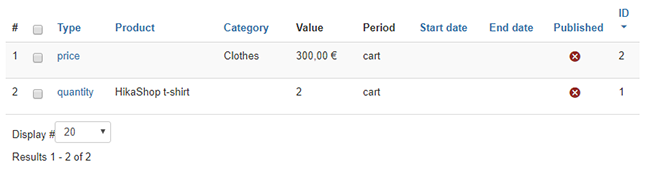
The limit system able you to define a filter in order to set a limit through different parameters, so you can choose your period (like Cart, Daily, Weekly etc...) and the limit type (like Quantity, Price, Weight) for each limit, plus you can limit different order status type. When the limit is reached, a message will be display in the checkout to inform the customer.

This screen can be accessed via the menu Products->Limit on your backend.

Toolbar


New: Enables you to create a new Limit.
Edit: Select a badge and then click on this button in order to edit it.
Delete: Select one or several badges and click on this button in order to completely delete them.
Help: This button enables you to turn ON/OFF the help section. This screen will appear or disappear.
Dashboard: You can go back to the control panel using this button.


Column Headers

Categories Columns

  • # : An indexing number automatically assigned for ease of reference.

  • Checkbox : Check this box to select one or more items. To select all items, check the box in the column heading. After one or more boxes are checked, click on the delete button in order to delete the selected categories.

  • Type : By clicking on the edit icon, you will be able to edit the category.
  • Product : Your limit will be applied on this product(s).
  • Category : Your limit will be applied on this category(ies).
  • Value : Here, you will see the limit value in different unit, currency, weight or quantity.
  • Period : Here, define the period among Cart, Daily, Weekly, Monthly, Quarterly, Yearly and Forever.

    Example :

    You have a define as Period "Quantity" and the Value as 2, as result, you will get only 2 possible sales products per month.

    .
  • Start date : The date where your limit process have to start.
  • End date : Same idea as previous, but the date where your limit process have to end.
  • Published : If a category is published it means that it can be seen by your customers in your shop.
  • ID : This field indicates the ID of the category.

Filters

Category Filters

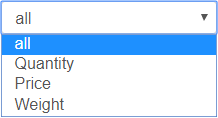
Dropdown filter: Here, you can select to restrict listing display among "all", "Quantity", "Price" & "Weight".


Description

This screen enables you to create or edit mass actions. These mass actions will allow you to process almost everything in Hikashop, directly from this screen or based on a specific trigger. Thanks to this system, you can edit multiple products in one click as well as categories, orders, addresses or Hikashop users, avoiding long hours of repetitive work doing it element by element. Mass actions will for example help you move thousands of products from one category to another or change the order status for every orders of a specific customer in a few clicks. In addition to these one time processes, you will also be able to create tasks executed periodically or on a specific triggers like at the order creation or when a product is deleted, etc.

Beware that these actions may have irreversible consequences so be careful when you configure them as you could easily wipe out all your orders or products or users in a few clicks ! If unsure, please make sure that you do a backup of the website before or try first on a copy of your website.

Mass Actions are available for all HikaShop versions and available via the menu System>Mass actions.

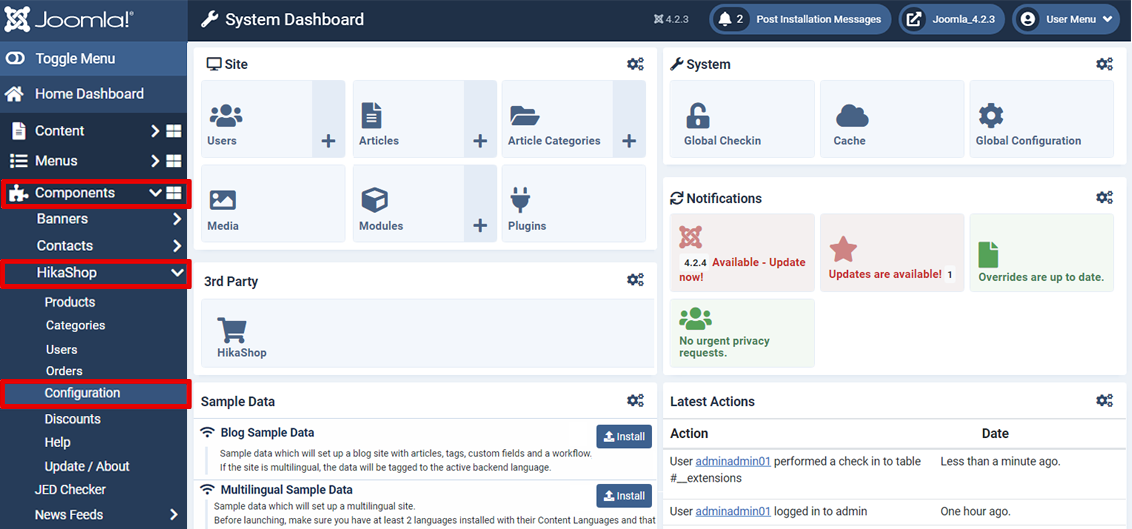
Reach Mass Actions

Go to "Components -> HikaShop -> Configuration".


Then, click on "System", and "Mass actions".


You can now, see "Mass action" screen, here for example, as no Mass actions have been configured, the listing is empty.


And so, here you can see configuration screen.


Toolbar


  • Process : This button will execute the actions you defined in this view after filtering the elements as your configured.
  • Save & Close : Save the mass action and return to the Management screen.
  • Save & New : Save the current mass action and create a new one, redirecting you to an empty form.
  • Save : Apply the modifications to the mass action and stay on the same screen.
  • Cancel : Return to the previous screen without saving the modifications.
  • Help : This button enables you to turn ON/OFF the help section, this screen will appear or disappear.


Set the main informations

  • Name : Here you have to define the name of your mass action.
  • Description : A short description of your mass action.
  • Published : Publish or not the mass action. If a mass action is not published, it will not be processed on the selected trigger.


Additional Information

  • Data : These buttons allow you to choose the type of data you want to work on. Each data has specific triggers, filters and actions available, enabling you to do different combinations.
  • Triggers : Triggers allows you to specify when the mass action should be processed. You can either use it to execute your mass action on a regular frequency (for example you can import a csv with your products every day, updating your data according to the modification you made in the file), or execute the defined action on a given trigger like after a product is created. This way, you will be able to define for example a weight for a newly created product if you didn't specified any, avoiding shipping method errors. If you use a time trigger or click on the process button, the system will use all the data available but if you choose a trigger like "after a product is create", the mass action will run only on the data of the trigger, so only on that product in that case.
  • Filters : Here you can add filters to your mass action. For instance, you can specifically select products which belong to a category or customers living in Europe. Thus, you can process actions only on the selected data. Note that the number of elements filtered will be displayed next to the dropdown, letting you know how for example much products will effectively be processed in the given category.
  • Actions : This is the main part of the mass action system since it define what kind of action will be processed on the selected and filtered data. Here, you can choose to modify the data, export it as a csv, and even display the results on the current page. This last option will display the selected information in a table and give you the possibility to dynamically change the displayed values. 


Detailed options

  •  Filters

    • Generic

      • Columns : This option allow you to filter on any column of the selected table. This take the values in the database directly.
      • Limit : To have only a defined number of results, you can use this option. It is often useful when you want to export data or display them.
    • Product

      • Product type : The product type option allow you to filter only the main products or the variants.
      • CSV product : You can give a csv file as filter, the mass actions will take the content of the file, and filter on the given products.
      • Characteristics : To filter on the characteristics, it display only the available characteristics.
      • Access level : The access level filter restrict the results of the search to the defined access level.
    • Category

      • Category type : Allow to filter only the selected category type, for example only the product categories.
      • Access level : The access level filter restrict the results of the search to the defined access level.
    • Order

      • Order status : Restrict the results to the selected order status.
      • User with ACL : To get the orders where the users have the group defined.
    • User

      • Don't have : Return the users which don't have the value set.
      • User with ACL : To get the users with the group defined.
    • Address

      • User with ACL : To get the addresses where the users have the group defined.
  • Actions

    • Generic

      • Display the results : This option will display the elements previously filtered in a dynamic table, when this table is displayed a simple click on a row allow you to change the value of the selected element.
        If the mass action is triggered by an event "On HTTP request (webhook)" this action will output the data as a JSON.
      • Export a CSV file : You can export the elements in a CSV or XLS file. Besides, you can define or not a path for this file. When a path is set, the file will automatically be saved in the specified folder. If you let the path empty, it will display the browser download bos to let you select an action, display, or save.
      • Update the values : This will allow you to change a value on all the elements returned, be careful when using this option because it is irreversible.
      • Delete the elements : As indicated, you can delete the filtered elements, as the previous optionit is irreversible.
      • Run MySQL query : This action will allow you to run a MySQL query. You can use tags in the MySQL query which will be replaced by the system with the data from the element being processed. You can read more about it in the "Run MySQL query" section below.
      • Run PHP code : This action will allow you to run PHP code. You can use tags in the PHP code which will be replaced by the system with the data from the element being processed. You can read more about it in the "Run PHP code" section below.
      • Send HTTP request: This action will allow you to send a HTTP request to an API. Each option of the action comes with explanations to help you configure the action. You can read more about it in the "Send a request to an API endpoint / webhook." section below.
    • Product

      • Update the categories : This will update the categories of the product, two choices are present, add to only add new categories to the product or replace, to remove the previously set categories and add the selected one. To remove all the categories, you can let the field empty and use the option "replace".
      • Update the product relateds : As the categories, you can add or replace one or many related product(s) to the filtered products.
      • Update the product options : This option will do the same thing as the previous one, but it is applying on the options.
    • Category

    • Order

      • Change status : Easily change your order status by selecting a new one, it will change it to the triggered and/or filtered one.
      • Add an existing product : To add a product, for example a gift on an order, you can do that automatically or manually with this action. You can select one or many products to add.
    • User

      • Change the user group : Simply select the user group to set to the selected user(s). You can add a group or replace the current group(s) to the selected one.
    • Address

Tags:

  • {time} When you have filters on columns which contain a date like product_created, product_created, order_created, order_invoice_created, etc, you can compare the value of the element to the {time} tag, which will be replaced by the current date/time. For example, if you have a filter "order_created >= {time}-2592000", it will only keep the orders which was created in the past 30 days (because 2592000 is 30 days).
  • {time} When you use an "Export a CSV" action, you can include this tag in the path of the file you provide to the action. This tag will be replaced by the current date.
  • When using the action "Send an email" for the "order" data, you can use tags in the subject and the body of the email. The tags allow you to add values pertaining to the current order in the columns of the hikashop_order table in the database. For example, you could use {order_number} or {order_status} or {xxx} where xxx would be the column name of a custom order field.
    Note that since the mass action only sends one email for all the orders being processed at the same time, tags will only be replaced if the mass action is processing a single order each time. That's what will happen if you use a trigger "after an order is updated" for example.
  • When using the "Update the values" action, you have several modes:
    • INT For which you can provide a number without decimals
    • FLOAT For which you can provide a number with decimals
    • STRING For which you can provide a text
    • OPERATION In that case, you can provide a formula with arithmetic operations (if you're processing numbers), or text operations (if you're processing text). You can also use tags like product.product_name or price.price_value or order.order_full_price or user.user_email, etc in your operations. These tags must match with the column names in the database for the corresponding tables. For arithmetic operations, you can use the MySQL numeric functions, and for text operations, you can use MySQL string operations. This can allow you to update product prices, generate the canonical URL from the alias of the product, update stocks, automatically fill custom fields, etc.

Tutorials

Passed this overview on the different options available in the mass action system, here are several tutorials giving you an example of what can be achieved with mass actions.

Create a massaction

First, to use the mass actions you have to click on the menu "System" then "Mass actions".

When you arrive in the mass action page, you have to click on the "New" button in the toolbar in order to create a new Mass action.


Once you are in the Mass action form, you can enter the main information relative to the mass action you're creating. The following fields allows you to set a name and a description to your mass action.

We recommend to set meaningful information, it will be easier for you to find back a mass action in the future.


As all the other features, you can publish or not the mass action. It's useful when you are using one or many triggers in the mass action. 

The triggers are called generally before or after an action. For example, when you create a product, it calls the two triggers "onBeforeProductCreate", which is called before the save of the created product, and "onAfterProductCreate", which is called after the save.


A mass action can be applied to one data type. You have to select the desired data on which you want to apply a mass action. The default possibilities are Product, Category, Order, User and Address.

If you want to create a mass action on another data type and you have some Php skills, you can code your own mass action plugin by following our developer documentation on that.

When the data is selected, you can choose one or many triggers, filters, actions. To add one of these elements, you just have to click on the corresponding "Add a ..." dropdown and to remove one of them click on the remove icon.


change the category of a product


As an example of the use of the mass action system, we will see how to move all the out of stock products into the category "Out of stock".

To do that, you can configure your mass action as the following screen shot:


With this configuration, the mass action will be called when a product is updated and every day. The every days trigger is not required here but it can be more secure to add a check on all the products once a day like that.

This mass action will modify the categories of the product being updated when called on the "After a product is updated" trigger, and will affect all the products when called by the "Every days" trigger. Note that the first trigger passes an element to the mass action, processing only this element. At the opposite, the second trigger, since it's not applied on a specific element, will be based on all the elements.

The action will be executed on elements, but the elements must correspond to the filters. In this case, if the product(s) are in stock and/or are variants, the action will not be executed on them.

If we have at least one product which is out of stock, the action "Update the categories" will be executed on it/them. As you can see, there is a dropdown on the left of the action, it allow you to select "Add" or "Replace".

We wanted to change the category so we selected "Replace" here. To add a category beside the current categories of the product, just choose the "Add" option.

Don't forget to save the mass action. Otherwise, it will not be triggered. If you click on "Process" it will execute the mass action on all the elements corresponding to the filter but only at that moment.

Display all the product categories

This second example will show you how to display all the product categories. First, you have to select the data "Category" and configure it as the following screen shot:


To display the products categories, you have to use the filter "Category type" and select "Product category".

Then, in the action, simply select "Display the results" and you will see the elements to display. By default, nothing is selected and you can check all the columns by clicking on "Select all".

To display the results, just click on the "Process" button and the process will execute the selected action(s), and save the current mass action.


Here is the display of a "Display the results" action:


As you can see, when clicking on a cell, it becomes editable. Just edit the value and click on the save icon.

The display of the row edition change depending on the type, you can find textarea, dropdown, datepickers...


Modify several products prices through categories

Here, we will show you how to use the Massaction to increase several product price from a define category. Let's imagine, that you want increase by 10% some products price from specific category.


  • First target in Data to apply your Massactions on Product.
  • For the purpose of this example, ignore the Triggers part.
  • In the Filters define required Category, and so select the Category columns.
  • On this example, we select Category by his category_id.
  • And so, if you have to select several category, just click on the Add a filter button.
  • Like for the Triggers, ignore the Limitations part.
  • And for Action, we will use the "Update the values" action on the price_value column in OPERATION mode, and then provide the operation itself in the last field.
  • We type : price.price_value * 1.1, let's explain this :
    • price : Allow to select the table price in the database
    • price_value : Allow to select the column price_value in the price table
    • *1.1 : Corresponds to a multiplication of 1.1, for the 10% addition.

And to finalize your Massaction, as we didn't set a specific trigger, clic on the Process button.

As result, your targeted products have their prices change for an 10% addition.


Action button example


Here, we activate the "Actions as a button"setting of the mass action.
This will add an extra button to the corresponding listing in the backend with the name of the mass action as label of the button.
When the button will be pressed, the actions of the mass action will run on the selected elements.
Warning: Triggers, filters and limitations will be ignored when the action button is pressed. Only the actions will be processed.


Results in products listing :

  Then, you will see a new button with the MassAction name, this button will remain grayed out until items are selected.


Run MySQL query


Imagine, you use a plugin associated with your HikaShop, but it's not an HikaShop plugin, you need to automate an operation from HikaShop to an operation in this third party plugin SQL dataBase.
And so, if you used to MassActions, you will think that it's not possible with the classic MassAction option.
This is precisely where you can use the "Run MySQL query" action, see the screenshot :


MassAction settings :


Here, the MassAction will select required orders with the good order status ("created"), then the Action will process the SQL operation on your "other_plugin_DB" after have selected relative customer name & customer email
Note the "{order_id}" that will dynamically be replaced by the order_id of the current order being processed by the mass action, example : (13, 54, 55, 57, 60, 61, etc...).


Run Php code


 With the "Run PHP code" action, you can do actions which aren't available by default in the list of actions offered by the system. This can be helpful if you want to do an operation which is too complex to be done by a MySQL query, but you don't need dozens of lines of PHP (if you need that much PHP code, then we would recommend building a plugin and implement the corresponding event as per our developer documentation).


As with the "Run MySQL query" action, each column of the table corresponding to the data you're processing is available to you as a tag ({order_id} for the ID of the order, {order_status} for the status of the order, {product_id} for the id of the product, etc).


Create an end point (webhook) in order to update product information


End points (Webhooks) allow you to create URLs that external systems (ERP, CRM, accounting software, online services, etc) can hook up to in order to retreive data from your website or send data to your website. The mass actions system in HikaShop allows you to create custom webhooks. The advantage of this is that you can connect HikaShop with other tools without having to ask us to develop something specific or wihtout having to code a custom solution.

First, you will have to edit the settings of the System - HikaShop Mass Action plugin via the Joomla plugins manager. There, you'll see an "API" setting. It is deactivated by default for security reasons. That way, no attacker can go through it to try hacking your website. You'll need to activate it if you want to create webhooks for HikaShop.

Once that API option is activated, you'll see an "API key" setting below. Here, you can enter an API key that systems connecting to your end points will have to provide via a HTTP header with the name "X-API-KEY" in their HTTPS requests. Please try to provide a complex key with special characters and many characters in order to make it difficult to brute force its discovery.


Once the System - HikaShop Mass Action plugin is configured, you can create a mass action. In this example, we want to be able to update product information. This can be useful if you have an ERP and you want it to send stock data to your online shop for example. So, you want to create a mass action with the type "Product". Then, the key is the "On HTTP request (webhook)" trigger. When you select it, you'll see settings you can use to configure your webhook.


Since we're creating an endpoint which will update the data on your website, you want the "Endpoint access" setting to be set to "with API key". Otherwise, anyone could access your webhook to update your product data, and you don't want that. For the "Endpoint path", you want to enter the relative URL which will be used to access the webhook. For example, you could use "/api/product/update". Finally, you can check the "Update element" checkbox of the "Allowed actions" setting.


Webhook setup in HikaShop


A simple HTTP request to this webhook could be:

POST /api/product/update HTTP/1.1
Host: example.com
Content-Type: Content-Type: application/json
X-API-KEY: xxxxxxxxxxxxxxxxxxxxxxxxxxxxxxxxxxxxxxxxxxxxxxx
Content-Length: 66

{
	"product_code": "my_product_code",
	"product_quantity": 20
}

This would update the stock of the product with the code "my_product_code" to 20. You can test your webhook with Reqbin's tool


Extra information: If you want to create a webhook which displays information from your website, you want to use the "load element data" checkbox. Then, you want to add an action "Display the results" and select the columns you want to be returned. It will output a JSON which will be an array of objects. And you can use tags in the "Endpoint path" to make it so that the HTTP request targets specific elements. For example, if you have the tag {product_id} in the path, the HTTP request will have to request that path with {product_id} being replaced by the actual id of the product it wants to target. Filters can also be configured. For example, if you only want published products to be loadable, you can add a filter on the "product_published" column being equal to 1.


Send a request to an API endpoint / webhook.


The "Send HTTP request" action allows you to send a HTTP request from your website to a receiving API / webhook for each element being processed by the mass action. For example, after a user is created, you could send the email address to an API to be added to a mailing list.


First, you want to enter the URL of the endpoint to contact. If the endpoint requires you to provide an element identification key in the URL, you can enter its corresponding tag. For example, if you have a user id that you need to provide in the URL and which is stored in the "api_id" column of the users, you can use the tag {api_id}.


Then, you can select the method to use ( GET, POST, etc ). Then, you can specify the authentication mode. If you need to provide specific headers in your HTTP request, you can specify them directly in the "Additional headers" option.


Here is an example of an action configured to send a HTTPS request to the end point http://mysecondwebsite.com/index.php/api/product/update with the product code and stock of the products being processed:

Send a HTTP request to an API

This could be combined with some event trigger or cron task in order to periodically send the stock of the products in the shop to an ERP. The resulting HTTP request would look like this:

POST index.php/api/product/update HTTP/1.1
Host: mysecondwebsite.com
X-API-KEY: xxxxxxxxxxxxxxxxxxxxxxxxxxxxxxxxxxxxxxxxxxxxxxx
Content-Length: 38

{"code": "yyyyyyyyyy", "stock": "zzz"}


Create an AI Tool (MCP)


The "On MCP request" trigger allows you to expose a Mass Action as a "Tool" to Artificial Intelligence (AI) agents (like Claude or IDE assistants) via the Model Context Protocol (MCP). This enables AIs to query your HikaShop data or perform actions on your store in a controlled, safe way.

 

First, you must enable the MCP Server in the plugin configuration (System - HikaShop Mass Action). It is normally ON by default. In the "Basic" tab, set "Enable MCP Server" to "Yes" and ensure an API Key is set.
 

Then, create a new mass action. Select the "On MCP request" trigger. You need to provide:

  • Tool Name: A unique internal name (e.g., "find_products").
  • Description: A clear instruction for the AI explaining what this tool does (e.g., "Search for products by name or category"). The AI uses this description to decide when to call this tool so make sure you are clear and concise.


Dynamic Filter Mapping

This feature allows the AI to filter your data. You define "arguments" that the AI can send (e.g., "product ID", "product Code / SKU", "category ID", "category name", "order ID", "order number", etc), and map them to specific HikaShop Mass Action filters (e.g., "product_id", "product_code", "category_id", "category_name", "order_id", "order_number", etc).
  • Tool Argument Name: The name of the parameter the AI will send (e.g. "product code / SKU").
  • Mass Action Filter: The database column to filter by (e.g. "product_code").

When the AI calls the tool with `{ "params": { "product_code ": "123" } }`, the mass action will automatically add a filter `product_code = 123` before running.

Finally, add an Action to define what to return to the AI. Typically, you will use Display the results to return a list of found elements (products, orders, etc.) as JSON data. You can select specific columns to limit what information the AI can see.

You can also use other actions to perform actions on your data. For example, you can use the Update element data action to update the stock of a product.

Server URL

Your MCP Server is available at: `https://yoursite.com/index.php/hikashop-mcp`.

The last part, `hikashop-mcp`, is the default "Slug" configured in the plugin settings. You can change this in the System - HikaShop Mass Action plugin configuration if you wish to use a different URL path. Also, the index.php part can be removed if you have activated the "Use URL Rewriting" option in the Joomla Global Configuration page.
Testing with MCP Inspector

We include a bridge script (`mcp_bridge.js`) in the plugin folder (`plugins/system/hikashopmassaction/`) that allows you to test your tools using the official MCP Inspector on a local server. This is useful for debugging.

You need to open the `mcp_bridge.js` file with a text editor and replace the following values with your own:

const httpUrl = 'https://yourwebsite.com/index.php/hikashop-mcp';
const apiKey = 'your-api-key';

Then, run the following command (requires Node.js) in the folder where the `mcp_bridge.js` file is located with the terminal:

npx @modelcontextprotocol/inspector node mcp_bridge.js

This will open a web interface where you can see your tools and execute them to verify they return the expected data.

Connecting Claude Desktop

To use your tools with the Claude Desktop app, edit your `claude_desktop_config.json` file:

{
  "mcpServers": {
    "hikashop": {
      "command": "npx",
      "args": [
        "-y",
        "@modelcontextprotocol/inspector",
        "https://yoursite.com/index.php/hikashop-mcp"
      ],
      "env": {
        "X_API_KEY": "YOUR_API_KEY"
      }
    }
  }
}

Replace https://yoursite.com/index.php/hikashop-mcp with your actual MCP Server URL and YOUR_API_KEY with the key you set in the plugin configuration.


Presentation

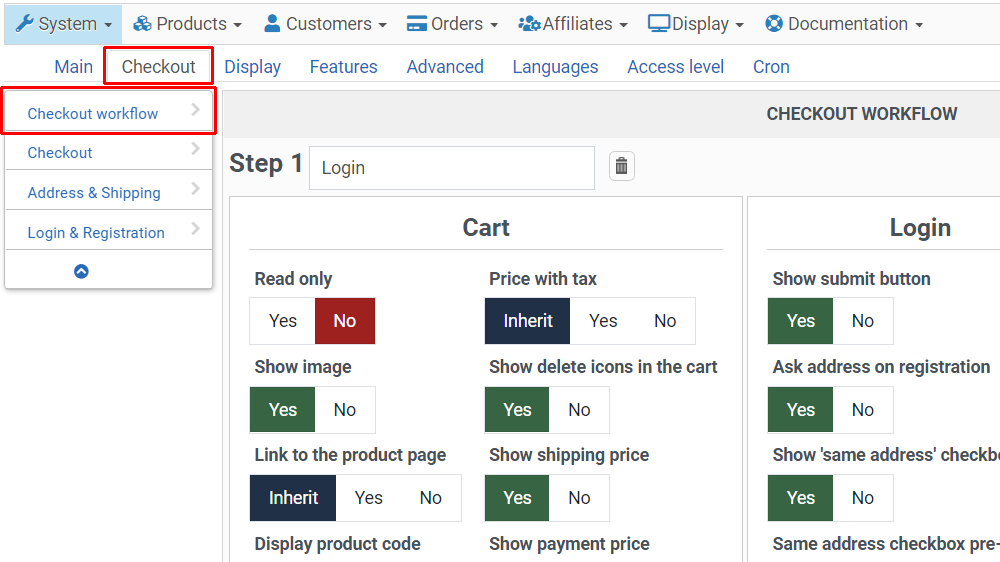
With HikaShop 3.4.0 release, we added a new checkout workflow edition interface. We worked hard on this new feature in order to enable you to setup your checkout with more liberty. This tutorial will show you how all of this works and what's possible.

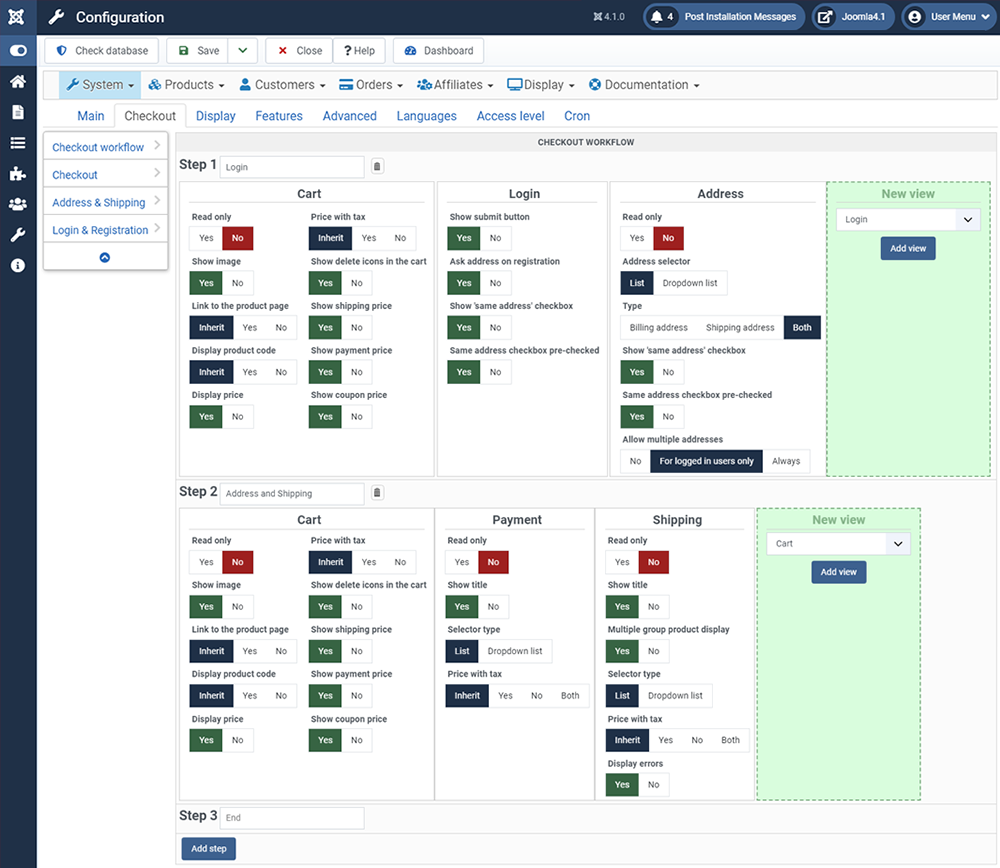
Reach the Checkout Workflow

To reach and configure the checkout, follow this step by step process :

  • In the Components dropdown, select HikaShop, then Configuration

  • Click on the Checkout tab and have a look at the Checkout Workflow part

General Description

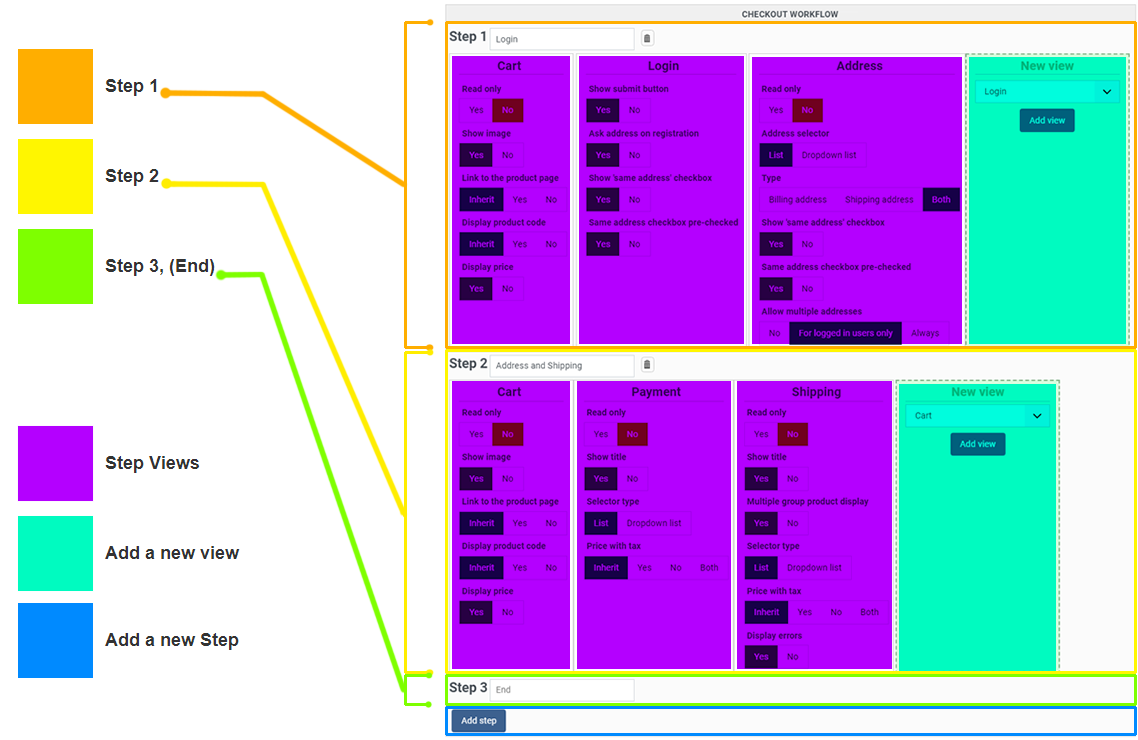
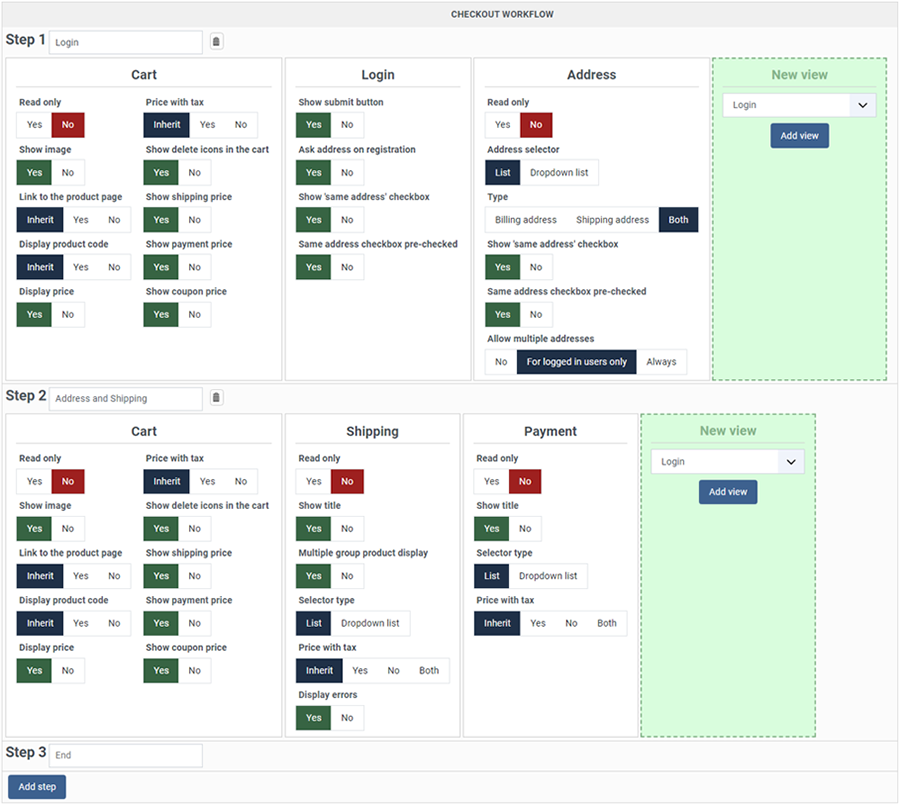
Let's check the new interface structure graphically :

  • Classic HikaShop part
  • New Checkout Workflow
  • Step 1
  • Step 2
  • Step 3, (End)
  • Add a new Step
  • Step Views
  • Add a new view
Essentials points about workflow parts

Let's add some precision in order to properly understand every workflow parts :
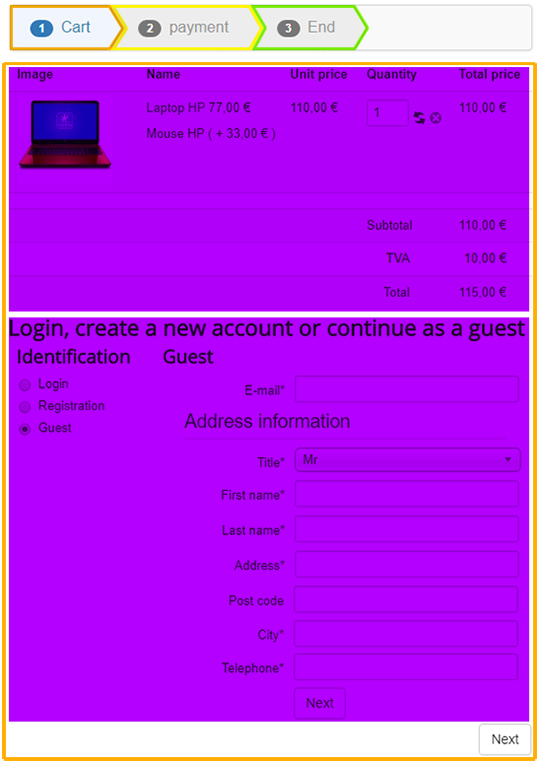
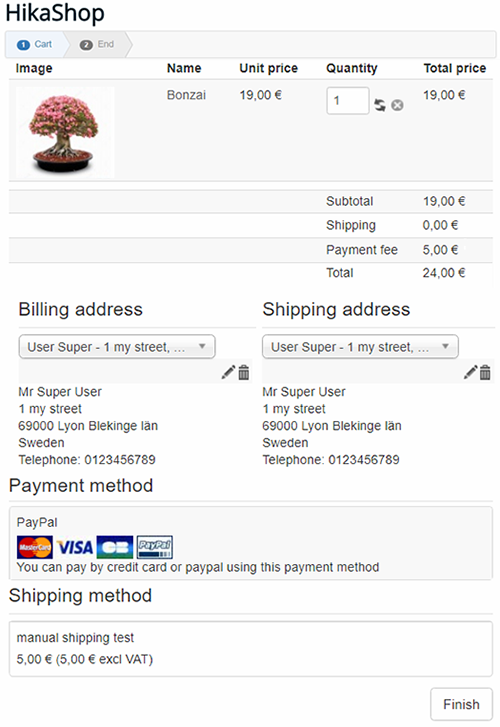
Here is a frontend view's representation of the previous color graphic.

Thanks to the progress bar you can see the different checkout steps, and in purple 2 views (here, Cart and Login).
So through a checkout, you can have one or several steps (pages of the checkout). And on each step, you can have one or several views (blocks on the same page), one below the other on the page.

Views Details

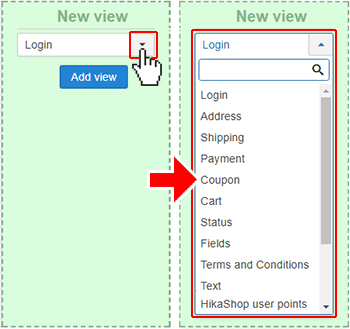
New view options

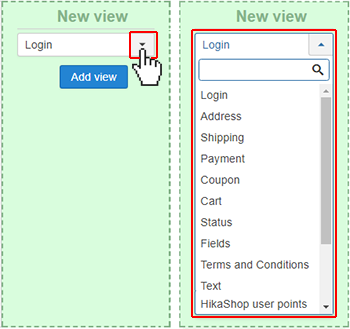
As you can expect from this view, it will enable you to add a new view's block and define its type using the dropdown. After selecting the type, you'll just have to click on "Add view".

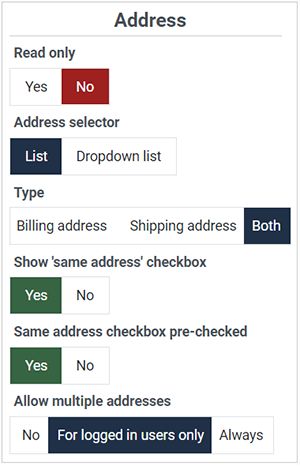
Address view

  • Read only : Select "Yes" if you want to only display the selected address(es) without allowing the user to do modifications in that view.
  • Address selector : Define how to display the address selection (dropdown or list).
    Note : This option won't be available if the Read only option is activated.
  • Type : That option will enable you to choose if you want to display only the billing area or only the shipping area or both. Note that you can potentially configure several address views in your checkout workflow. For example, you could have one for each type of address in order to display them in different areas / steps of your checkout.
  • Show 'same address' checkbox: With this option, you can control whether the "same address" checkbox is displayed below the address form. If displayed, then if checked, the address provided will be used for the other type of address.
  • Same address checkbox pre-checked: When the option above is activated, you can control whether the "same address" checkbox is checked by default on the address form.
  • Allow multiple addresses: Controls whether users can have several addresses of each type linked to their account. Options are: "No" (only one address per type), "For logged in users only" (default - registered users can have multiple addresses but guests cannot), or "Always" (all users can have multiple addresses). Note that it might not make sense to allow users in "guest checkout" mode to enter several addresses.

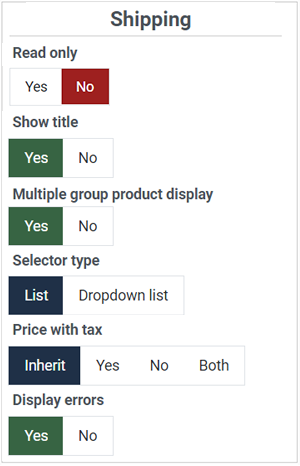
Shipping view

  • Read only : Click "Yes" if you want to only display the (pre)selected shipping method without any possibility for the user to change it.
  • Show Title : Will enable you to display the title of the view or not, on top of it.
  • Multiple group product display : Select "Yes" if you want to display the products thumbnail for each shipping group (when you have different vendors with different shipping methods, or warehouses).
  • Selector type : By default (list) the shipping methods can be selected with a table with a radio for each shipping method. If you switch to the "Dropdown list" mode, the shipping selection will appear as a simple dropdown.
  • Note : This option won't be available if the Read only option is activated.
  • Price with tax : The shipping costs, if configured in the shipping methods settings, will appear next to the name of the shipping method. With this setting, you can control how prices are displayed: "With tax", "Without tax", or "Both" (shows both values). You can also select "Inherit" to use the main HikaShop configuration setting.
  • Display errors : You can turn off the display of error messages for when no shipping methods are found. This can be useful in some cases where you have a one page checkout and shipping methods are only available after the customer has provided his shipping address. However, in such cases, we rather recommend you split your checkout in several steps so that the shipping methods selection is placed in a step after the user has provided his shipping address. That way, you can keep this setting turned on in order to display error messages that are really relevant to the customer.

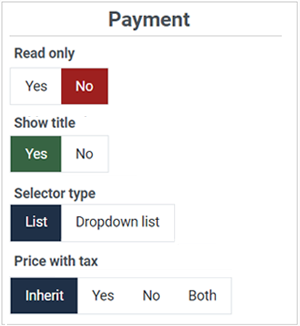
Payment view

  • Read only : Click "Yes" if you want to only display the (pre)selected payment method without any possibility for the user to change it.
  • Show title : Will enable you to display the title of the view or not, on top of it.
  • Selector type : By default (list) the payment methods can be selected with a table with a radio for each payment method. If you switch to the "Dropdown list" mode, the payment selection will appear as a simple dropdown.
  • Note : This option won't be available if the Read only option is activated.
  • Price with tax : The payment fees, if configured in the payment methods settings, will appear next to the name of the payment method. With this setting, you can control how prices are displayed: "With tax", "Without tax", or "Both" (shows both values). You can also select "Inherit" to use the main HikaShop configuration setting.

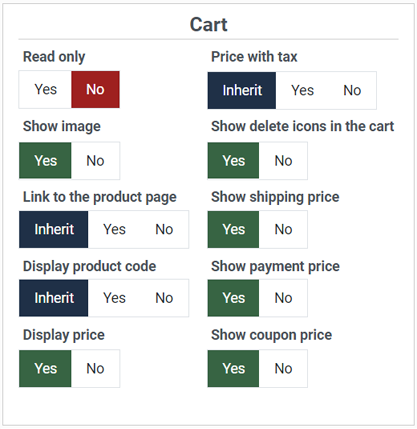
Cart view

  • Read only : Click "Yes" if you want to display the content of your cart without any possibility to modify it.
  • Show Image : You can choose here to display the product images or not.
    Or you can select "Inherit" to use instead the option of the main HikaShop Options section of the configuration.
  • Link to the product page : Select if you want to allow the customer to go to the product page or not.
    Or you can select "Inherit" to use instead the option of the main HikaShop Options section of the configuration.
  • Display product code : Choose to display the product code in the cart view or not.
    Or you can select "Inherit" to use instead the option of the main HikaShop Options section of the configuration.
  • Display price : Display or not the prices in the cart view.
  • Show discounted price : You can configure here how the discounted prices should appear in the cart view. Options include: "No" (don't show discount information), "Display discount amount" (show the discount value), or "Display price before discount" (show the original price struck through). You can also select "Inherit" to use the default configuration option.
  • Price with tax : Display the product prices with taxes or not.
    Or you can select "Inherit" to use instead the option of the main HikaShop Options section of the configuration.
  • Show delete icons in the cart : Display or not the delete icon to remove products from the Cart.
    Note : This option won't be available if the Read only option is activated.
  • Show shipping price : Display or not the shipping costs between the subtotal and the total.
  • Show payment price : Display or not the payment fees between the subtotal and the total.
  • Show coupon price : Display or not the coupon discount between the subtotal and the total.

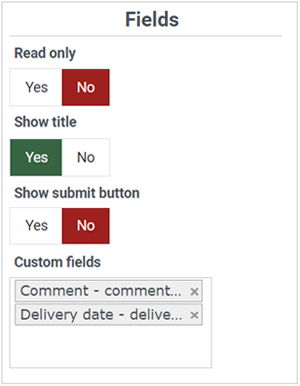
Fields view

  • Read only : Click "Yes" if you only want to display the selected values in the custom order fields without the possibility for the user to modify them.
  • Show title : Select if you want to display the title of the view or not, on top of it.
  • Show submit button : Display or not the submit button to enable users to send custom fields value without submitting the whole checkout step.
    Note : This option won't be available if the Read only option is activated.
  • Custom fields : With this input you can select which custom fields you want to display in your view. If you don't select anything, it will display all the custom order fields possible.
    This option can allow you to separate your fields form in separate steps by having it in different steps with different fields selected in each step.

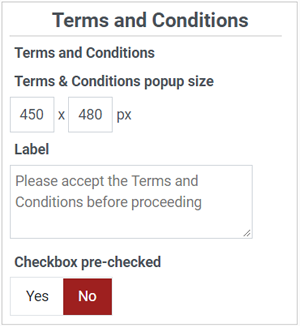
Terms and Conditions View

  • Terms and Conditions : Select here the Joomla article that will become your Terms and Conditions.
    Note that you can add this view several times to your checkout with different Joomla articles, if you want several checkboxes to be checked by the customer.
    Also, if you don't select any article, the checkbox will still appear but its label won't be clickable.
  • Terms & Conditions popup size : Define here the popup size which will display your Terms and Conditions Joomla article.
  • Label : Type here the message you want to display next to the checkbox in order to invite your customer to validate your Terms and Conditions.
  • Error message : Type here the error message you want to appear if the user tries to proceed without validating your Terms and Conditions.
  • Checkbox pre-checked : By default the checkbox will be unchecked and the customer will have to check it to be able to proceed. But you can also have it already checked by default by activating this setting.

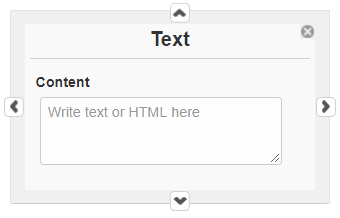
Text View

The text view will allow you to write some text to add a legend to guide customers, or separate the different views, etc.
Plus, it's also possible to use html code, inline css, javascript code blocks, or even use tags to insert elements from other plugins (modules anywhere, content anywhere, and the likes...).
This can be handy if you want to add an upsell message for free shipping. For example, you could use the text:
{hkshow maxproducts=150}Free shipping above 150€. You need {max}€ more of products to reach the threshold{/hkshow}
If the cart subtotal is below 150€, it would display the message "Free shipping above 150€. You need {max}€ more of products to reach the threshold" where {max} would be replaced by the difference between the threshold and the current subtotal of the cart.
You can read more about conditional content tags here.

  • Content: This textarea allows you to enter the text or HTML content that will be displayed in the checkout. You can write plain text, HTML code, inline CSS, JavaScript blocks, or use content plugin tags like {loadposition} or HikaShop's conditional content tags.

Login View

  • Override registration: When activated, you'll get a textarea below to write any text/HTML you want to replace the registration area. This can be useful if you use a third party extension for the registration and you want to redirect the user there instead of using the normal registration form of the HikaShop checkout.
  • Content: This text field will only appear if you activate the option above. Here you can write text or HTML to be displayed instead of the normal registration form of the HikaShop checkout.
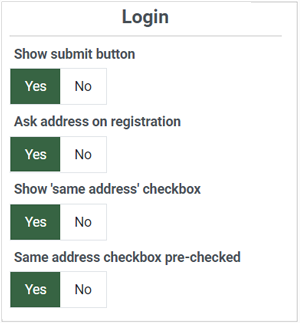
  • Show submit button: If you deactivate that option the "Register" (for the registration form) or "Next" (for the guest form) button won't be displayed for that view. This option is only available when "Override registration" is disabled.
  • Ask address on registration: When activated, the registration form will include the billing address fields. This allows customers to provide their billing address during registration. This option is only available when "Override registration" is disabled.
  • Show 'same address' checkbox: With this option, you can control whether the "same address for shipping" checkbox is displayed below the billing address form. If not displayed, then the system will automatically use the billing address information as the shipping address. If displayed, then if not checked, the customer will be able to provide a separate shipping address with the necessary fields on the same registration form. This option is only available when "Ask address on registration" is enabled.
  • Same address checkbox pre-checked: When the option above is activated, you can control whether the "same address for shipping" checkbox is checked by default on the registration form. This option is only available when "Show 'same address' checkbox" is enabled.

About Guest Checkout: The Login view adapts its display based on your HikaShop configuration settings (System > Configuration > Checkout > Login & Registration). If you enable guest checkout, the Login view will display a guest checkout form allowing customers to proceed without creating an account. You can configure multiple registration modes (standard registration, simplified registration, guest checkout, or a combination of guest checkout and registration) and the Login view will display according to the selected mode.

Separator view

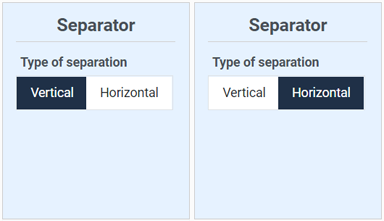
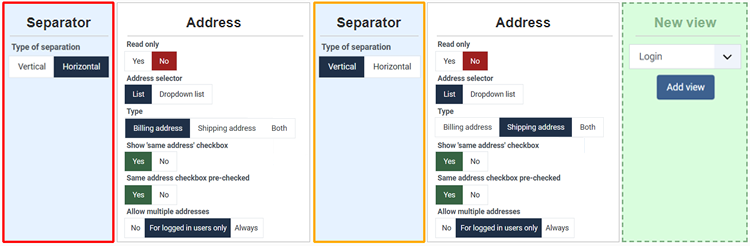
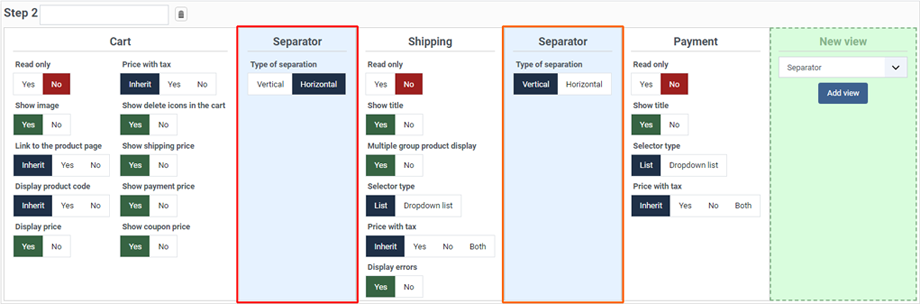
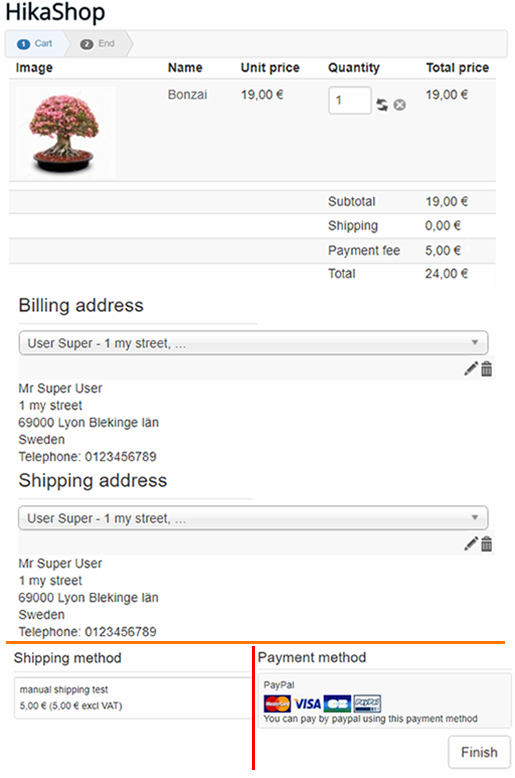
  • Type of separation : This option will enable you to define how the separator will work, Vertical or Horizontal. See the illustration :

First, have a look at this checkout workflow configuration :

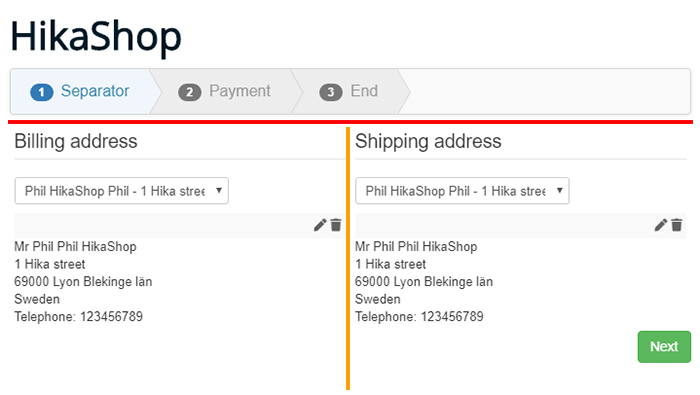
The result is :

To discover a lot more about the separator abilities, see the Concrete Examples section.

Generic view

For the other default types of views there is no specific option, and so views will be displayed like this :

This will be the same kind of display for these views:

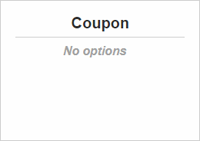
  • Coupon: Displays a text field where customers can enter a coupon/discount code along with an "Apply" button to validate and apply the coupon to their cart. If a coupon is already applied, it will display the coupon code with an option to remove it. By default, only one coupon can be applied to the cart. If you want to allow multiple coupons, you can use the Multi Coupon Checkout plugin.
  • Status: Displays the name of the currently selected shipping method and the name of the currently selected payment method.
  • HikaShop user points: If you have the HikaShop User Points plugin enabled, this view allows customers to use their accumulated points to pay for part or all of their order. It displays the available points and provides controls for the customer to choose how many points to redeem. You can find more information about the HikaShop User Points plugin here.

Note: Plugins and other extensions can add their own views to the checkout workflow using our "Checkout API". So you might see more view types with possibly their own options.

For developers: If you want to create your own custom checkout view types, define custom parameters, handle AJAX events, or integrate third-party functionality into the checkout, please refer to the Checkout section of the Developer Documentation.

How to move Views

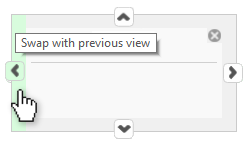
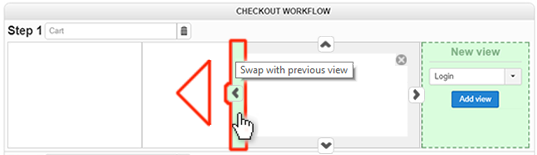
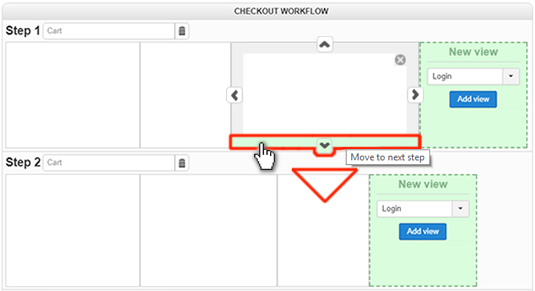
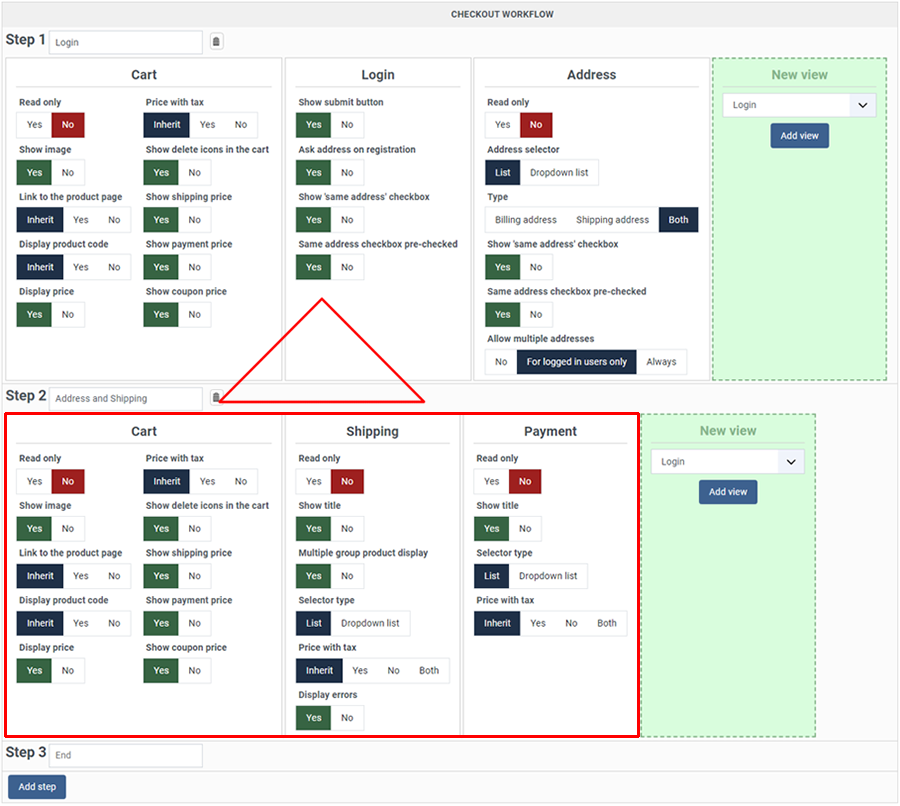
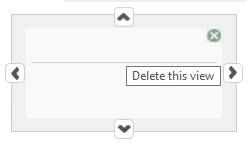
In order to move a view in your workflow you have some arrow buttons that will appear when you hover the view, all around the border of your view.

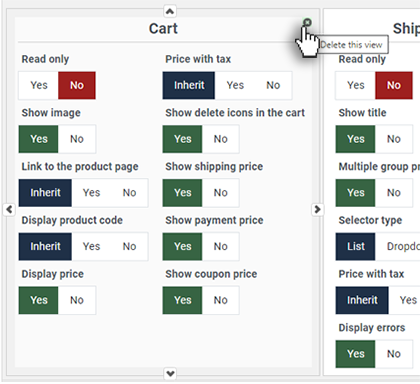
To delete a view: When you hover over a view block, you'll see a trash icon (or X) in the top right corner. Click on it to remove the view from the step. Don't worry - you can always add it back later using the "Add view" dropdown.

For example, let's swap it with the previous view.

Or to move it to the next step.

Manage steps

Adding a new step: To add a new step to your checkout workflow, click on the blue "Add step" button located at the bottom of the existing steps. The new step will be added at the end (before the "End" step), and you can then add views to it using the "Add view" dropdown.

Step options:

  • Step Title: The input field shows the default title that will be used for this step in the progress bar (by default, it's the title of the first view in the step). You can type your own custom text in this field.
    You can also enter a translation key here so that you can have a different title in each language of your website.
  • Trash icon button: This button enables you to delete the step.
    Note: All steps can be deleted except the last one, the "End" step. That step is not a real step of your checkout. That's the page the customer will see after clicking on the "Finish" button of your checkout, which in most cases will redirect them to the payment gateway automatically so that they can pay for their order.

Concrete example

Let's see here some typical configuration with 2 concrete examples.

One page Checkout

Backend configuration :

First, let's consider that all the views are needed (except the second cart view), but we have to move them all to the first step

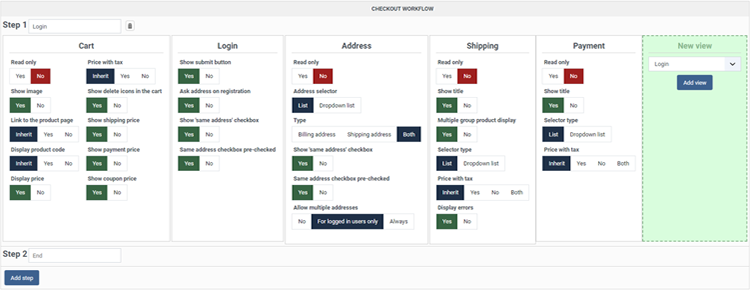
Now, we have to remove the second cart view, like shown on this screenshot :

Then, you can see that the step 2 is now empty, no need to delete it with the little trash icon, because when you will save your new configuration, the step 2 will be automatically removed and you will get this :

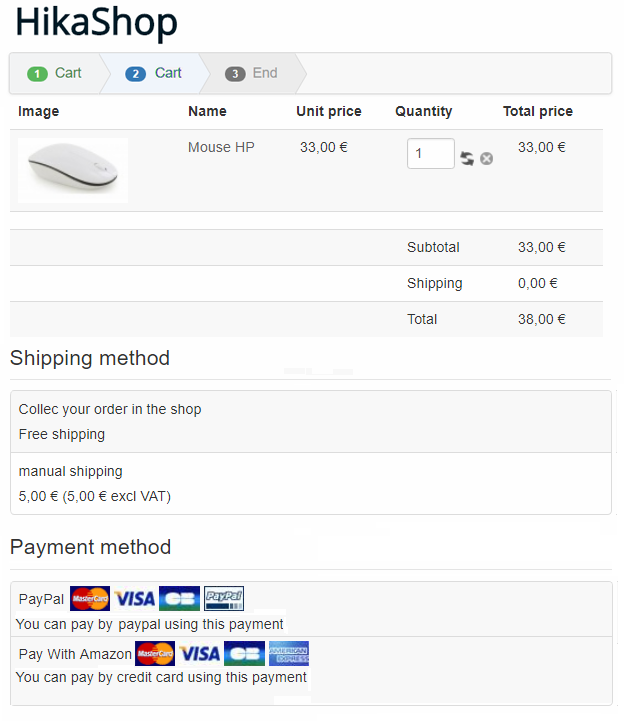
Frontend result :

As result and as expected you have now a one page checkout :

Several pages checkout

Backend configuration :
From this kind of configuration we will now move to a step by step checkout.

Move the Address view, to the next step :

Delete the Cart view in Step 2 thanks to the delete icon on the top right corner of the view.

Move Shipping and Address to Step 3.

Create a new view => Coupon
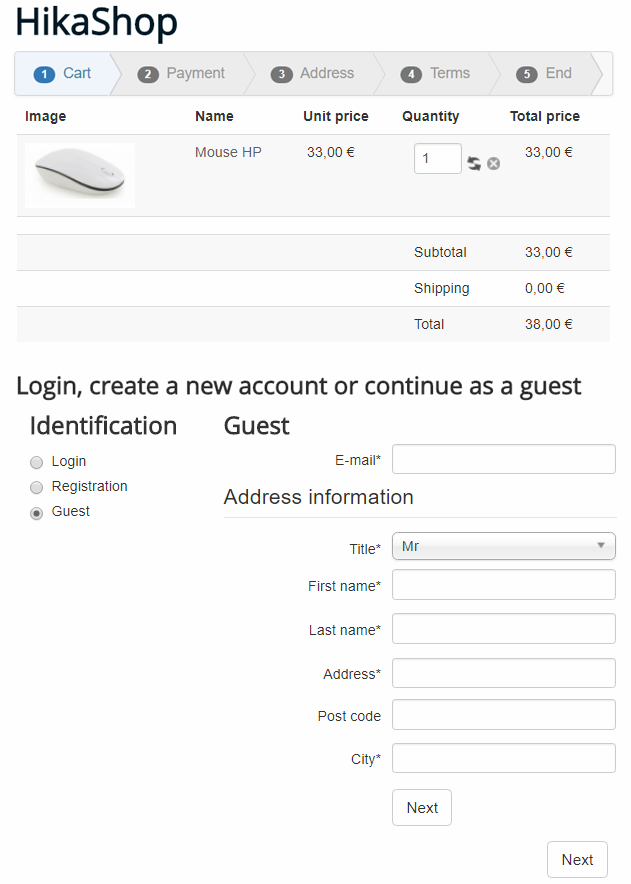
In the Step 3 : As you did for Coupon, create a Field view

Add, in the same way, Cart and Text views

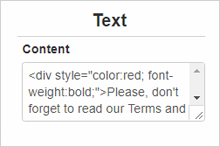
Edit your Text view with this Html code :
<div style="color:red; font-weight:bold;">Please, don't forget to read our Terms and conditions</div>

Last but not least, do not forget to edit your step title in order to fit with your Checkout workflow.

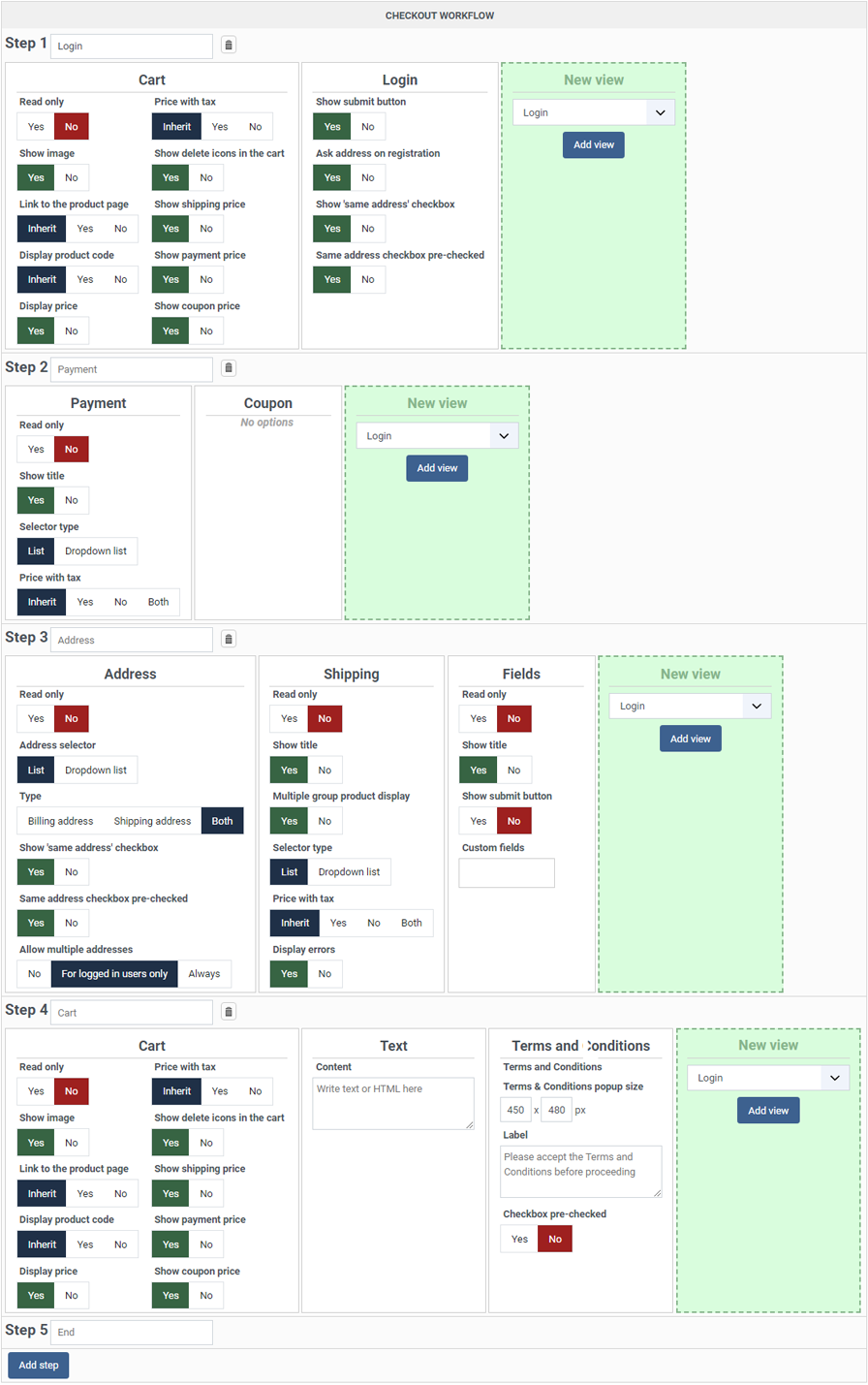
Your checkout workflow is now like this, don't forget to save :

Frontend result :

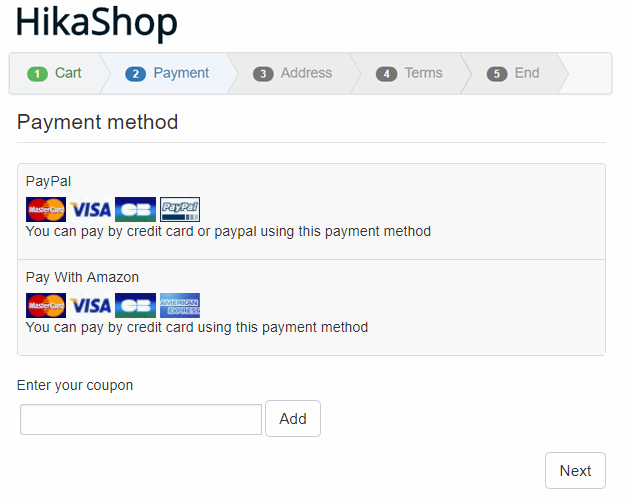
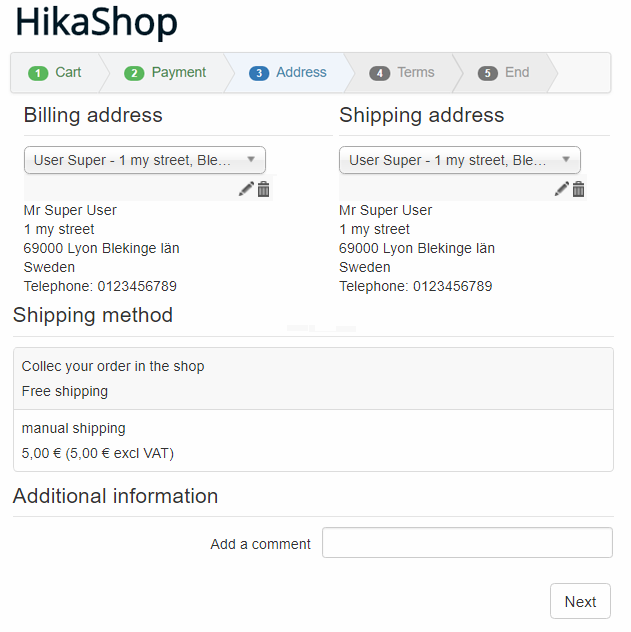
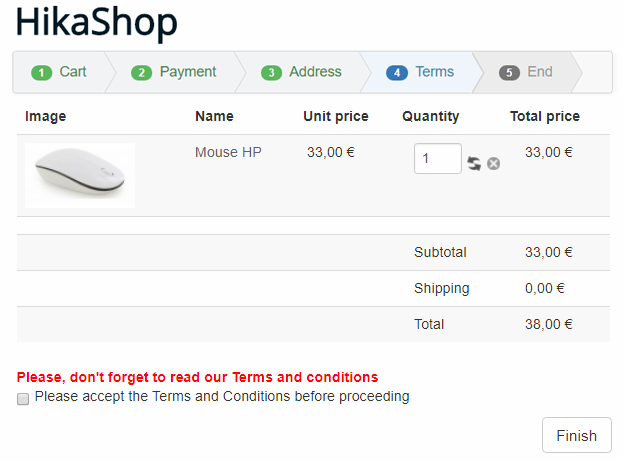
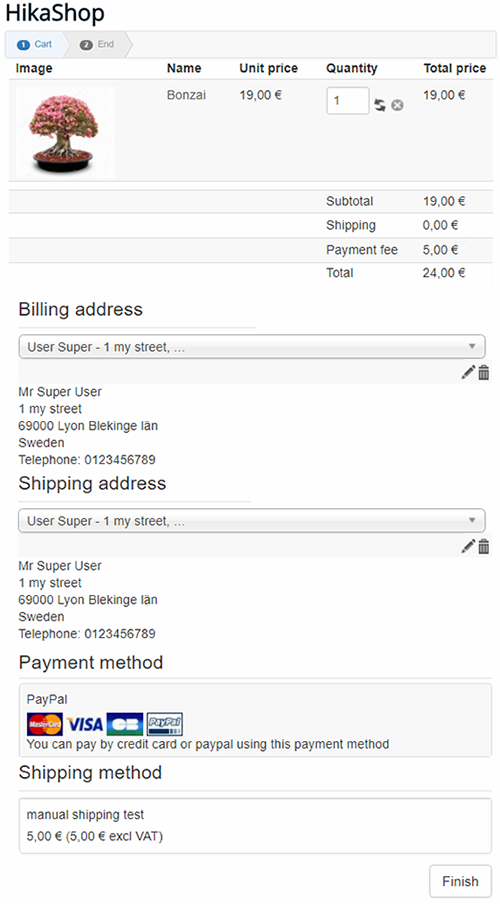
As expected you have now checkout in several steps :

Note : Each step has its own title that will announces what will be displayed :

Let's play with the separator system !

We will see here, several configuration not especially to invite you to follow them but in order to show your the real possibilities of the block separator system.

First try :

Here a classic checkout workflow configuration :

And the result on the frontend :

Let's now start to use separator on the step 2, to display side by side Shipping and Payment block :

Let's see the result on the frontend :

Understand the point with the Horizontal separator :

Let's imagine that, like the previous step you just want to display side by side payment and shipping method, but you have forget to use the Horizontal separator, let's see what this will leads :

Your checkout workflow is configured like this in one step.

On the frontend you get this :

And so, just add "by mistake", just 1 Vertical separator between the shipping and the payment block :

The result will be like this :

Why not, but we guess that the idea was more just to add 1 Horizontal separator like this :

In order to get this :

As you can imagine with these 2 separator blocks every configuration is possible ! The only restriction will be of course to keep readability.

Tips & Best Practices

Here are some recommendations when setting up your checkout workflow:

  • Login/Registration first: Always place the Login view at the beginning of your checkout (usually in the first step). The customer needs to be identified before you can display shipping methods based on their address.
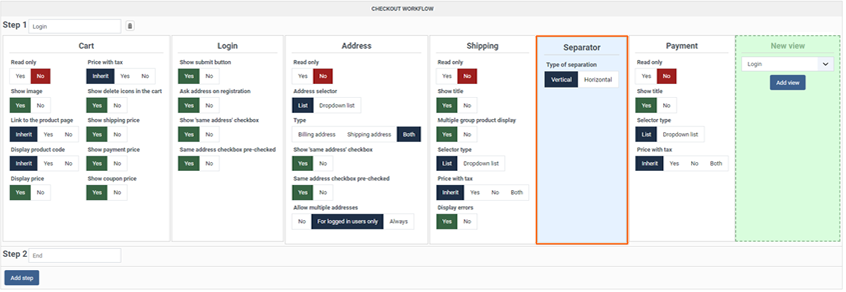
  • Address before Shipping: In most cases, place the Address view before the Shipping view. Shipping methods and costs often depend on the customer's shipping address, so they need to provide it first.
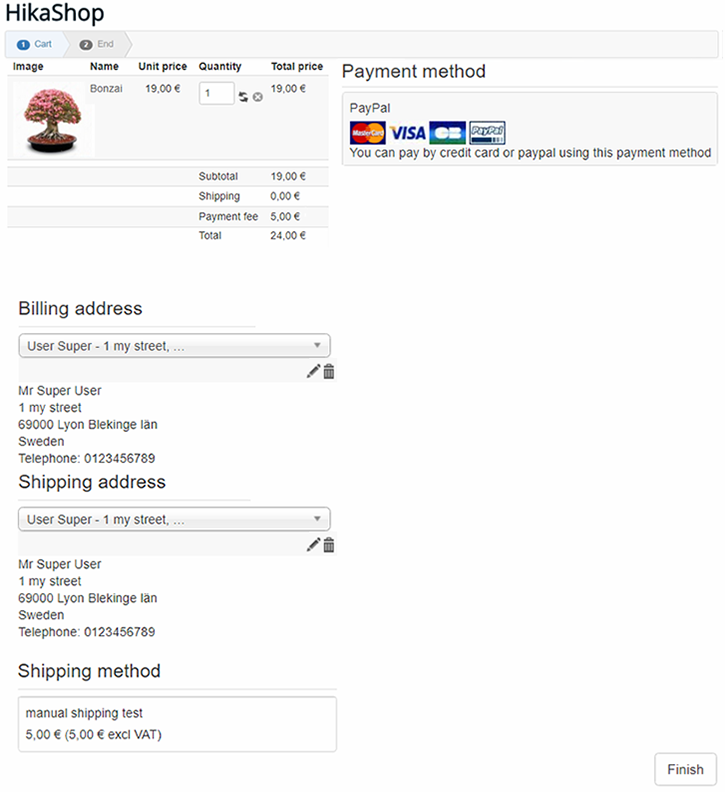
  • Shipping before Payment: In most cases, place the Shipping view before the Payment view. Some payment methods may depend on the shipping cost (e.g., Cash on Delivery restrictions), and the final total needs to include shipping costs.
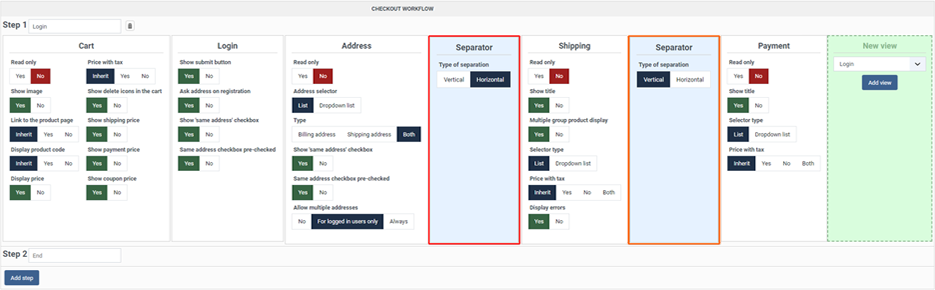
  • Use "Read only" for order review: If you want to show an order summary on the final step before payment, add a Cart view with the "Read only" option enabled. This prevents accidental quantity changes at the last moment.
  • Terms & Conditions on the final step: Place the Terms & Conditions view on the last step of your checkout, just before the customer clicks "Finish". This ensures they acknowledge the terms right before placing the order.
  • One-page vs Multi-step: For simple products or quick purchases, a one-page checkout can reduce friction. For complex orders or when you need to validate each step (e.g., address validation before showing shipping options), a multi-step checkout is better.
  • Don't forget to save: After making changes to your checkout workflow, don't forget to click the "Save" button in the HikaShop configuration to apply your changes.

Description


Thanks to this tutorial, you will learn how to manage shipping manual price plugin, and how create several AND specific shipping method per product.
Then, we will create a concrete examples to have a specific shipping method price for just ONE product and after this several specific shipping price for this same product.


Shipping prices per product configuration


First of all, reach your shipping manual price plugin and so, go to

Extensions => Plugins.


There, look for on "Shipping" in the filter input.

Now, you have a view on all your plugins listing relative to "Shipping", and so click on his name "HikaShop Shipping manual - Prices per product plugin".


Let's discover its options :


  • Frontend position : Here, you can define the position where the product specific shipping prices will display on the product page.
  • Display on frontend shipping with minimum quantity : Define if you want to display on the product page the shipping prices with a minimum quantity restriction.


Concrete examples


First of all, to define a shipping price per product, we will go to the shipping method configuration and allow the shipping per product prices :

Go to Components => HikaShop => Configuration.


Continue to System => Shipping methods.


Here, select the Shipping method for which you want shipping prices per product.


In your shipping configuration page, looks for the "Use price per product" setting and set it to "Yes".


  • Note : This option is required for your HikaShop Shipping manual - Price per product plugin processing, but has its own aim. As a quick explanation, this option enables you to add a shipping cost for each products and for all products in your cart, thanks to the "Price per product" input value.

    Example : In your cart, you have two products and you set 1 in your "Price per product" input value.

    As a result, your shipping cost : 2 x 1$ , plus if you configured it, the shipping price of the shipping method itself (here, Price : 7$) = 9$.


Now, we will go to your products listing page :

"Components" => "HikaShop" => "Products".


Here, edit the product for which you want to define a specific shipping price and click on its name.


In your product configuration page, look for the "Shipping prices" area.


Here, you can create several specific shipping prices for your product, you can see displayed here your shipping method with its price.

Here will be displayed only published shipping methods where you have set the "Use price per product" setting to "Yes" .


  • Note : If you your "Shipping prices" area isn't displayed while you have enabled the required plugin and set the price per product setting to "Yes" in your shipping method, check if you have set a warehouse for your product that doesn't match with the shipping method's warehouse setting.


Let's go and create your first product shipping price by clicking on the "+" icon.


As a result, a new line will be displayed in order to set different elements of your product shipping price.


Let's explain these different inputs :


  • Min Qty : The aim of this option is to only use the product shipping price when the quantity of the product in the cart is above that value


    Example : You want to add 2$ to the shipping price ONLY for customers buying 2 or more of the this product, and thus, you fill the input with a "2".


    You can also let this field empty, if you don't want to use this condition.


  • Price : Define here your specific shipping product price.


    Note : This price will be applied for each product added in the cart.


    Example : If your customer adds in his cart 2 of this product, then the price here will be multiplied by 2.


  • Fee : Same idea than above, but for your shipping fee cost.


    Note : Unlike the Price calculation, the shipping Fee won't be multiplied by the quantity product.


  • Blocked: This a way to blocked the use of a shipping method if a product is in the cart.

    It is often used to block the sale of some products of the store to some places of the world.

    One example that comes to mind is a website selling military supply and based in the USA. The shop can sell any product outside of the USA, except for firearms. So in that case, the owner will configure two sets of shipping methods, all of them with the "shipping price per product" activated. One set with a zone restriction for the USA country zone, one other set with a zone restriction for a shipping zone with all the other countries as sub zones. Then, in the firearm products, the owner will check the blocked checkbox for the international shipping methods.

    That way, when firearms will be in the cart and the customer address will be outside of the USA, no shipping method will be available and an error message explaining the situation will be provided to the customer on the checkout.


  • Actions : Here, you can use the "+" icon to add a line or the "" icon to delete it.

Let's define a Min Qty, a Price and a Fee.

And save these parameters


On the product page and in the checkout process you can see that, as expected, your specific shipping price is displayed.


Let's check this price 9,5 Euro :


You can see that from the start the Shipping method used as base has already a price of 7,00 Euros

Then, add to it your specific price : 2,00 Euro

And finally, the specific fee : 0,50 Euro


Note : If the customer add in the cart the product a second time,the shipping price will be :

Shipping method : 7 Euro + Specific shipping price : 4 Euro (2 quantity products x 2 Euro) + Fee : 0.50 Euro = 11.50 Euro


Repeat the previous configuration to create another line, and so a second specific shipping price to your product, like you can see on screen below.


And of course, save your configuration.


Let's explain the settings for this second specific shipping price :


  • Min Qty : With this setting of 2, your specific shipping price will only be displayed if the customer order at least 2 items of this product.

  • Price : Here your specific shipping product price is 0.50 Euro.
  • Fee : And the fee is 0.50 Euro.

Let's see the result in several checkout cases.


With that configuration, 2 different shipping prices will be displayed and the shipping price will change based on how much of that product the customer put in the cart :


  • the customer adds in the cart only one product : the shipping price in checkout process will be :

    Shipping method : 7 Euro + Specific shipping price : 2 Euro + Fee : 0.50 Euro = 9.50 Euro


  • The customer adds in the cart 2 products : the shipping price in checkout process will be :

    Shipping method : 7 Euros + Specific shipping price : 1 Euro (2 quantity products x 0.50 Euros) + Fee : 0.50 Euros = 8.50 Euros


  • Like before, the shipping price that fit the customer quantity's choice is automatically displayed and used for the global shipping fee.


For this part of the tutorial, you must have configured at least 2 shipping methods. In this example, we have already one we configured earlier and we configured a second with a percentage instead of a price.


Note : You can have several shipping methods created from one shipping plugin!

A shipping methods is a way to configure your shipping plugin, and so you can configure shipping plugin with different restrictions, through several shipping methods.

Here, for example the 2 shipping methods are created from the Manual shipping methods plugin.


Caution : Don't forget to published your shipping methods and activate the "Use price per product" setting or you won't be able to configure shipping prices in your product configuration page.


Back to your product configuration page, you will discover in your "shipping prices" area a second possible shipping price, from your second shipping method.


Let's add parameters for this new shipping price. Click on + icon to display a new line.


And don't forget to Save.


Let's see the results on the frontend :

Shipping method : 3 Euros (10% of 30 Euros) + Specific shipping price : 0.20 Euros (1 product x 0.20 Euros) + Fee : 0.50 Euros = 3.70 Euros


An other case :

Shipping method : 6 Euros(10% of 2 x 30 = 60 Euros) + Specific shipping price : 0.40 Euros (2 products x 0.20 Euros) + Fee : 0.50 Euros = 6.90 Euros

So, you can see that the shipping price displayed on product page is the shipping price for 1 product since HikaShop doesn't know how many products will be added in the cart.


This concludes our tutorial on the matter of shipping prices per product.