
- Details
- Written by: Administrator
- Category: HikaShop
- Hits: 24063
|
|

Description
This screen enables you to create or edit a zone and its sub-zones. Zones are used throughout HikaShop to restrict or alter the user experience based on the address provided. For example, you can limit bank transfer payments to your own country to avoid extra fees, while requiring international customers to pay via credit card.
Toolbar
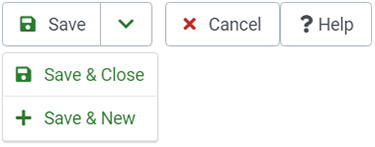
- Save: Save the current zone and return to the Zones Management screen.
- Apply: Apply the modifications to the current zone and remain on this screen.
- Cancel: Return to the previous screen without saving modifications.
- Help: Toggle the display of the help section.
Zone Information
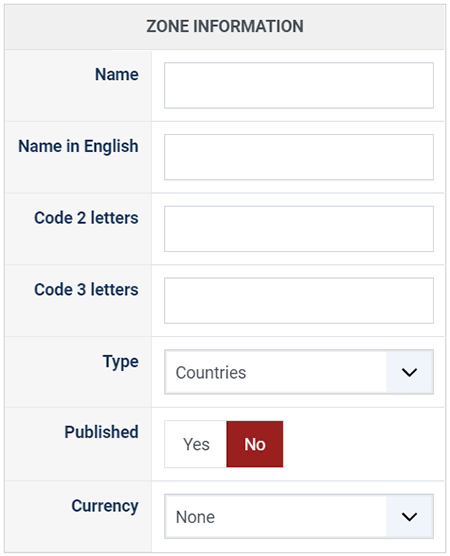
- Name: The name of the zone.
- Name in English: The name of the zone in English. By default, only countries have standard English names defined.
- Code (2 letters): The 2-letter ISO code for the zone (e.g. "US"). External systems (payment gateways, shipping services) often require this code to identify the zone.
- Code (3 letters): The 3-letter ISO code for the zone (e.g. "USA"). Required by certain visualization tools (like Google Charts) or specific integrations.
- Type: The type of the zone. Common types include: country, state, tax, shipping, payment, or discount.
- Published: If a zone is published, it is available for use in customer addresses and configuration settings.
- Currency: Select a specific currency to associate with this zone (optional).
Sub-zones
Defining a proper zone hierarchy is crucial for your store. By default, HikaShop includes all countries and their states. This hierarchy allows the system to automatically load the correct states when a customer selects a country. It also enables you to define custom tax, payment, or shipping rules.
For example, you can create a specific shipping zone named "Europe", add all European countries as sub-zones, and then offer a "Free Shipping" method available only to customers within that "Europe" zone.
Note: If you are creating a new zone, this section will be hidden until you save the zone for the first time.
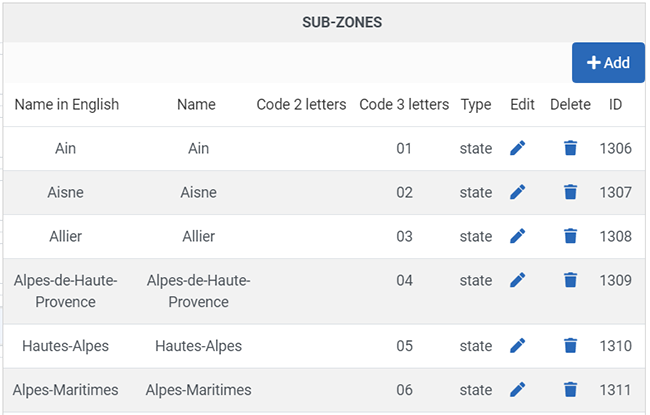
- Delete: Click the trash icon to remove a sub-zone from the list. This sends a request to remove the link, but strictly speaking, it does not delete the zone record itself from the database. You must click Save or Apply to confirm the removal.
- Add: Click the "Add" button to open a popup where you can select existing zones to add as sub-zones.
- Import CSV: Click the "Import CSV" button to open a popup for bulk importing sub-zones via CSV.
The import process has 2 steps:- Upload/Paste: Select your CSV file or paste the content directly (format: zone_name, zone_code_2, etc).
- Map Columns: Match the columns from your CSV with HikaShop zone fields. Use "Ignore" for columns you don't need.
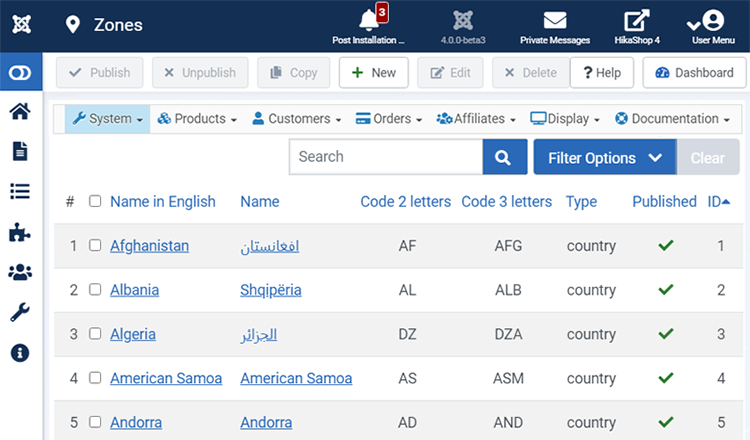
- Checkbox: Select the zones you want to add to the sub-zones listing. Click OK to confirm. Remember to save the parent zone afterwards.
- Filters: Use the "All zones" filter or the search bar to quickly find the zones you are looking for.
- New: Create a new zone on the fly, which will be automatically added to the current zone's sub-zones.
- Details
- Written by: Administrator
- Category: HikaShop
- Hits: 18224
|
|

Description
This screen enables you to create or edit a category. You can optionally set a description and/or an image to it which can then be displayed on the front end afterward. Categories are handled as a tree structure without any limitations of the depth of the tree. Also, the name and the description can be directly translated via this interface if you use one of our commercial versions in combination with JoomFish. Otherwise, you can use JoomFish and translate them via the JoomFish interface.
Toolbar

- Save : Save the current category and stay in the category configuration page.
- Save & Close : Save the current category and return to the categories Management screen.
- Save & New : Apply the modifications to the current category and move to a new category form.
- Cancel : Return to the previous screen without saving the modifications.
- Help : This button enables you to turn ON/OFF the help section; this screen will appear or disappear.
Main Information
If you use one of our commercial versions, you will be able to enter the name and description in different languages. This feature requires having JoomFish installed and can be activated in the configuration page, in the Display tab. The languages available will be the ones in JoomFish. If you don't enter something for a translation, it will just use the default information in the Main information tab instead. After you click on save or apply, an additional publish icon will appear next to the fields where you entered something in the languages tabs so that you can easily enable or disable them.
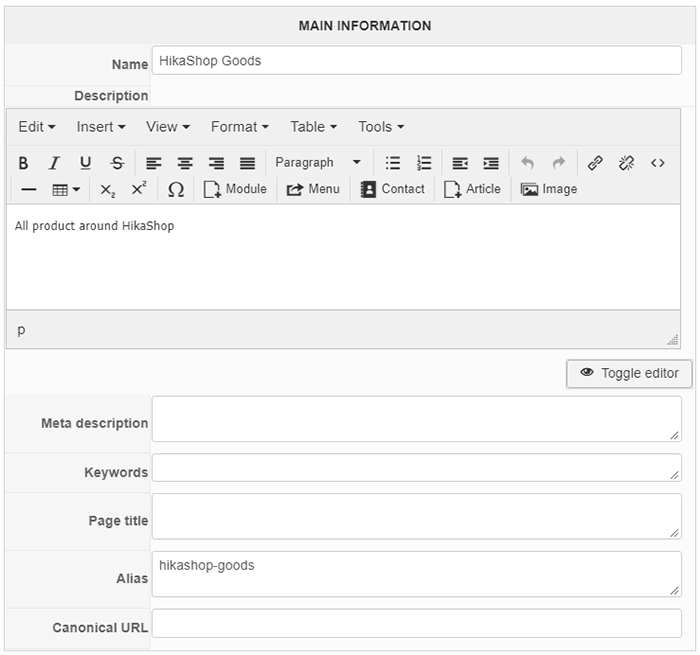
The meta description and keywords fields enable you to personalize the meta information on the pages where that category is displayed and thus allowing you to optimize your SEO.
Additional Information
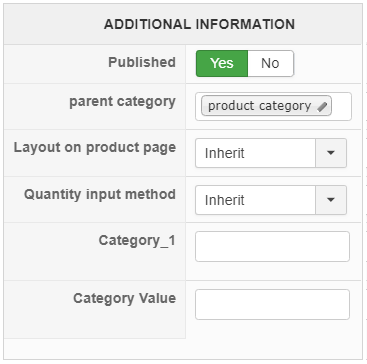
- Published : If a category is published it means that it can be seen by your customers in your shop.
- Layout on product page: You can choose the type of display for this product, for example default, regular or reversed, another option is "Inherit"; this option will use the default option defined in the main configuration of HikaShop.
- Parent category : By clicking on the edit icon, a popup will appear with a listing of all the categories so that you can select the one to which the current category will be attached to. If you edit one of the main categories, this option won't be available as they need to have the root as their parent for the system to function properly.
You can see below the popup content once you click on this edit icon:
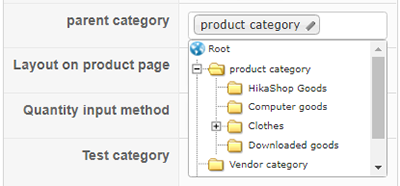
It's basically a simplified version of the listing of categories. An additional Use column has been added to it. When you want to use a category as parent of a category, you can just click on the corresponding + icon in that column. Then, the popup will close and when you save the category, the parent modification will be applied.
Image
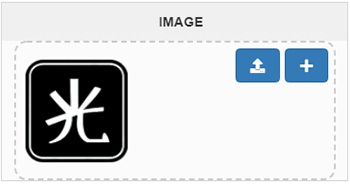
- Delete icon : When you already have an image set for a category you can delete the image by clicking on this icon.
- Browse field : If you want to set an image, or change the image if there is already one, you can click on the browse button to search for an image on your computer.
- Note that you are always limited in file size by the upload_max_filesize and post_max_size set in your php.ini file (the PHP configuration file ). That is totally independent from HikaShop and if you need to upload bigger files, you should increase those values or ask your hosting company to do so.
- The files you upload here will be saved in the upload folder of HikaShop. You can change its location in the configuration page of HikaShop under the Files tab.
Access level
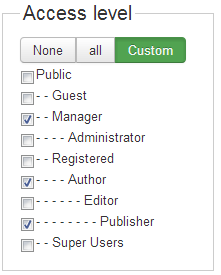
Access level : With this option, you can select which groups of users will be able to see the category on the front end. This option is only available in the Business edition of HikaShop.
- Details
- Written by: Administrator
- Category: HikaShop
- Hits: 21031
|
|

Description
This screen enables you to create or edit a characteristic and its values.
Characteristics are useful when your products have several variants. For example, you sell a table model which has 5 different colors possible. You have a stock for each color or you might have different prices, different weight, images, etc. But you want the table to be listed only once when your customers browse your shop. That's what characteristics are for. Then, on the product page, your customers will be able to change the characteristics value of the product.
Toolbar
- Save : Save the current characteristic and stay on the current configuration page.
- Save & Close: Save the current characteristic as previous but return to the characteristics management screen.
- Save & New : Save the current characteristic and go to another characteristics management screen, in order to create a new one.
- Cancel : Return to the previous screen without saving the modifications.
- Help : This button enables you to turn ON/OFF the help section; this screen will appear or disappear.
Characteristic information
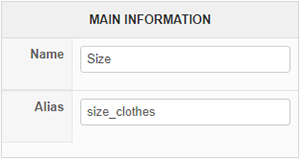
If you use one of our commercial versions, you will be able to enter the name in different languages. This feature requires having JoomFish installed and can be activated in the configuration page, in the Display tab. The languages available will be the ones in JoomFish. If you don't enter something for a translation, it will just use the default information in the Main information tab instead. After you click on save, an additional publish icon will appear next to the fields where you entered something in the languages tabs so that you can easily enable or disable them. The default publish status can also be changed in the configuration page of HikaShop.
Values
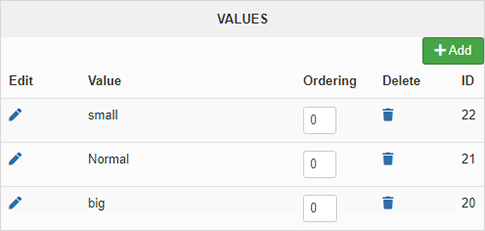
- Edit : Click on this icon to edit a value text.
- Value : The value.
- Ordering : Able to modify value sorting.
- Delete : You can remove a value by clicking on this icon. You should not remove a value if it's used by some products.
- ID : The id of the value.
- Add button : You can add a new value by clicking on this button. A popup will come out for you to enter the information. The content of the popup will be either just a field for the name of the value or a tabbed translation interface with a field per tab for you to easily translate values if you use one of our commercial versions and have JoomFish installed and the feature activated in the configuration.
- Details
- Written by: Administrator
- Category: HikaShop
- Hits: 11481
|
|
Description
This screen enables you to create or edit a banner.
Banners can be used to present examples of links to your website pages so that your partners can easily modify and include them on their websites. Then, when customers come to your website from their website, they will get a commission which will motivate them to produce high-quality content and also keep your banner on their website generating more traffic for you and thus more sales.
Toolbar
- Save : Save the current banner and return to the banners management screen.
- Apply : Apply the modifications to the current banners and stay on the same screen.
- Cancel : Return to the previous screen without saving the modifications.
- Help : This button enables you to turn ON/OFF the help section; this screen will appear or disappear.
Banner information
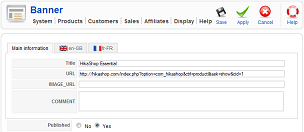
If you use one of our commercial versions, you will be able to enter the title, the URL, the image URL and the comment in different languages. This feature requires having JoomFish installed and can be activated in the configuration page, in the Display tab. The languages available will be the ones in JoomFish. If you don't enter something for a translation, it will just use the default information in the Main information tab instead. After you click on save, an additional publish icon will appear next to the fields where you entered something in the languages tabs so that you can easily enable or disable them. The default publish status can also be changed in the configuration page of HikaShop.
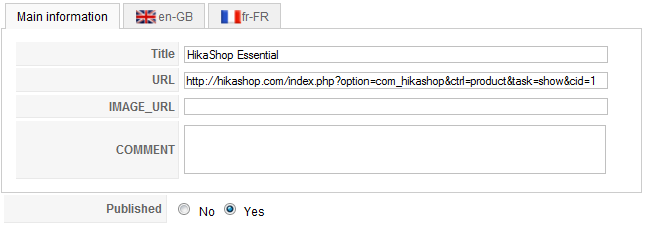
- Title : Title of the banner. You can directly click on it to edit the banner. If you provide an image link, it will be the alt message of the image. Otherwise, it will be the text of the link.
- URL : The URL you want the customers to be directed to on your website. You need to enter an absolute URL. The partner ID will be automatically added to it when displaying the banner to the partner so that it's easier for him to include the banner on his website.
- Image : An image URL for the banner. If provided, the banner will be in the form of a clickable image.
- Comment : A comment on this banner for your partner (For example: "This is a banner which will display directly product X to the people clicking on this banner").
- Published : If a banner is published it means that it can be seen by your partners in your shop.
- Details
- Written by: Administrator
- Category: HikaShop
- Hits: 33741
|
|

Description
This screen enables you to edit an email. You will be able to modify the email senders information, attachments, subject and the code generating the text and HTML content. If you only need to tweak text in the emails, you can edit the translation files via the configuration page of HikaShop and edit them there. That will allow HikaShop to send emails in the language of the customer.
Remember that emails are subject to a lot of limitations (no javascript, avoid divs, etc) because of the email clients (Outlook, windows live, gmail, thunderbird, etc).
This feature is only available in the Business version of HikaShop.
Toolbar
- Preview : When you go to use this button, you will see a pop up that invite you to select an order, then a preview will be generate.
- Save : Apply the modifications to the current emails and stay on the same screen.
- Save & Close: Save the current email and return to the emails Management screen. As long as you don't save an email, it will use the main configuration values for the sender information and the "Send HTML" option.
- Cancel : Return to the previous screen without saving the modifications.
- Help : This button enables you to turn ON/OFF the help section, this screen will appear or disappear.
Main information
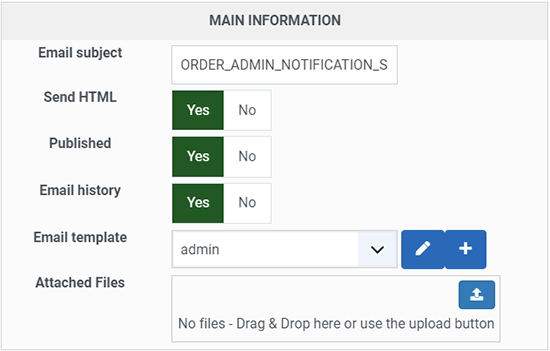
- Email subject : The subject of the email. For order creation notification and order status notification the subject is translatable via joomla translation files. Thus, you will see an uppercase identification key like ORDER_STATUS_NOTIFICATION_SUBJECT here. You will be able to change it via the edition of translations in the configuration page of HikaShop. ORDER_STATUS_NOTIFICATION_SUBJECT will have three parameters (represented by %s) which are : order number, order status and website url. ORDER_NOTIFICATION_SUBJECT will only have order number and website url.
Also, you can use tags in the subject to dynamically fill the subject with data from the order. For example, you can use {order_number} to use the order number, {order_full_price} for the total amount of the order, {customer.name} for the name of the Joomla user account linked to the order, {billing_address.address_firstname} for the firstname of the billing address used in the order, etc. - Send HTML : If set to no, the system will always send the text version. If set to yes, based on the "Multiple part" option in the configuration of HikaShop, the system will send both HTML and text (the HTML being displayed if the receiving client is capable of displaying it, otherwise falling back on the text version), or only the HTML version.
- Published : If a Email is published it means that it will be sent based on the order statuses.
- Email history : You can select, create and customize here a template for your emails.
- Email template : You can select, create and customize here a template for your emails.
- Attached Files : You can drag'n'drop files from your computer. The files will be uploaded automatically to your web server. Please remember that the file upload limit of your php.ini still apply to that interface.
Sender information
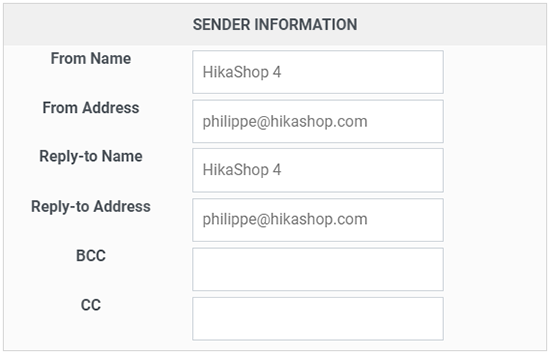
- From Name : That's the name displayed as sender information name when your customers read the email.
- From Address : That's the address displayed as sender information address when your customers read the email.
- Reply-to Name : That's the name displayed as receiver information name when your customers send a reply to the email.
- Reply-to Address : That's the address displayed as receiver information address when your customers send a reply to the email.
- BCC : You can add here Blind carbon copy email addresses for your emails (for example :
This email address is being protected from spambots. You need JavaScript enabled to view it. ,This email address is being protected from spambots. You need JavaScript enabled to view it. ,This email address is being protected from spambots. You need JavaScript enabled to view it. ). - CC : You can add here Carbon copy email addresses for your emails (for example :
This email address is being protected from spambots. You need JavaScript enabled to view it. ,This email address is being protected from spambots. You need JavaScript enabled to view it. ,This email address is being protected from spambots. You need JavaScript enabled to view it. ).
Content
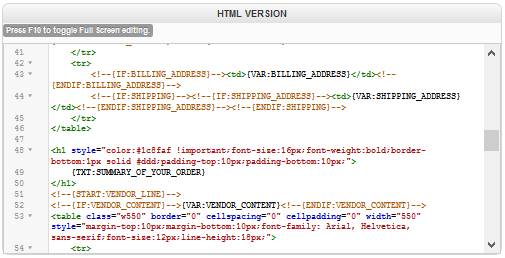
- HTML version : The HTML version of an email will be generated by this code. It contains mainly HTML code with PHP code in it to add translation capabilities and be able to generate order information.
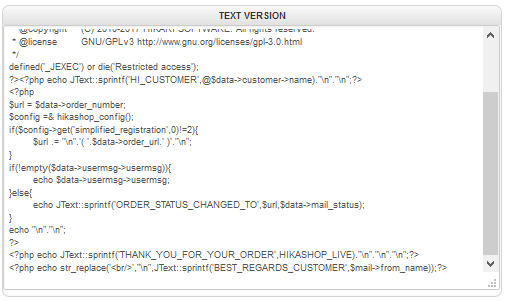
- Text version : The Text version of an email will be generated by this code. It contains mainly PHP code in order to add translation capabilities and be able to generate order information.
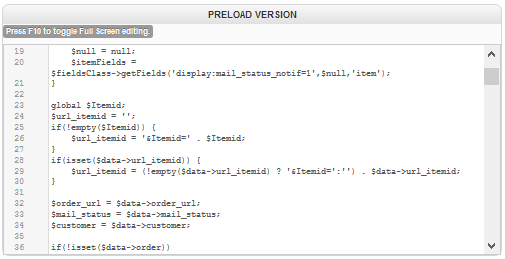
- Preload version : The Preload version of an email will be generated by this code. It contains mainly PHP code in it to automatically load information which will be used through the HTML version.