
- Details
- Written by: Administrator
- Category: HikaShop
- Hits: 20581
|
|
Description
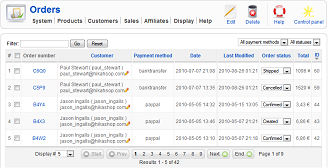
This screen enables you to manage the orders of your shop. When a client confirms his order at the end of the checkout process the cart product list as well as all the information the customer entered during the checkout process is saved into a new order and the cart information is deleted. From this point in time, whether you change a product price, a discount price, or that the customer changes his addresses on his user account interface, it won't affect the order. You can however change manually the order information and optionally notify the customer of the change by editing it from here.
Toolbar
- Export : By clicking on this button, you can export the orders information as a CSV file that you will then be able to open with Microsoft Excel or any other tool compatible with the CSV format. The export function takes into account the filters that you can define on the top right corner of the listing.
- New : You can create a new order with this button. The order will then be displayed so that you can add the user and the products information.
- Edit : Select an order and then click on this button in order to edit its information.
- Delete : Select one or several orders and click on this button in order to completely delete them. We don't recommend to delete orders but rather change their status to "cancelled" so that you always have a trace of what happened on your store.
- Help : This button enables you to turn ON/OFF the help section, this screen will appear or disappear.
- Control panel : You can go back to the control panel using this button.
Column Headers
-
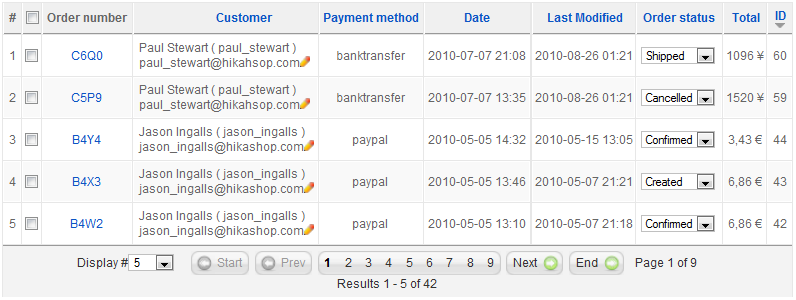
# : An indexing number automatically assigned for ease of reference.
- Checkbox : Check this box to select one or more items. To select all items, check the box in the column heading. After one or more boxes are checked, click on the delete button in order to delete the selected orders.
- Order number : This order number is generated from the id of the order. It will be useful for the communication with your customers over their orders. If you click on it, you will be able to edit a particular order.
- Customer : Here, you will see the name of the user account, its username and the email used to make the order. An additional edit icon is displayed so that you can easily access the HikaShop edit screen of this customer.
- Payment method : You will see here the name of the payment method selected by the customer during the checkout process.
- Date : The date when the order was made.
- Last modified : The last time the order was modified. It can happen when an administrator edits it or when it is automatically changed like for example when the system automatically receives a payment notification from Paypal.
- Order status : The status of an order is an important parameter which enables you to follow an order during its life cycle, from its creation to its shipping. You will be able to directly change it without going to the edit screen of the order. Once you change it, a popup will open asking you more information about why you are changing it (great for later reference). If you want to notify the customer of the change, a notification email interface will also be displayed in that popup.
- Total : The total amount of the order once everything has been factored in. It will be displayed in the currency chosen by the customer for the order.
- Partner : This column will only be displayed if you activated the HikaShop affiliate plugin. It will display the amount of money going to the partner from which the customer came on your website along with the message "paid" or "not paid" whether or not you already paid him for the order. If no affiliate was involved for the order, the column will be empty. As the affiliate plugin is only available from HikaShop business on, you won't see this column with the starter or the essential edition.
- ID : This field indicates the ID of the order.
Filters

- The filter caption enables you to easily search in your orders.
- Using the first dropdown, you will be able to display only orders with a particular payment method.
- Using the second dropdown, you will be able to display only orders with a particular status.
Status change
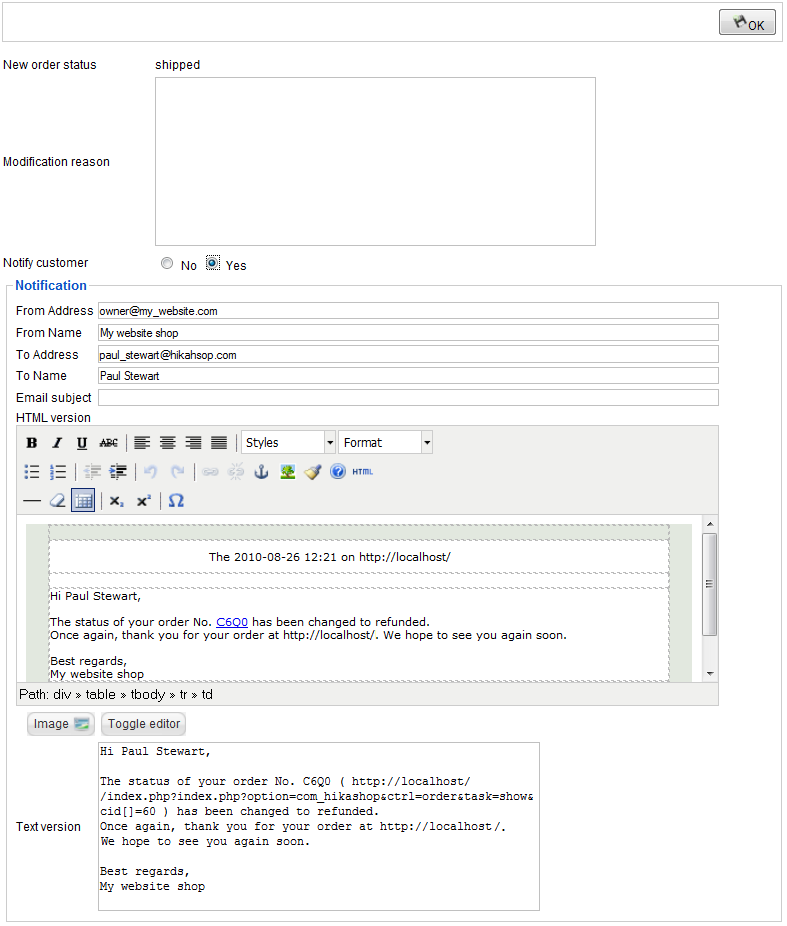
- OK button : Once you're done, you can validate the change by clicking on this button.
- New order status : This is telling you what you selected just in case you would forget :)
- Modification reason : You can write here the reason why you did the current modification. It can be really useful to know that when you go back to the order later. You will find it on the history listing on the order edit screen along with other information on the modification.
- Notify customer : If you choose to not notify the customer, you will see the notification options appear below where you can customize the email that will be sent to the user once the modification is applied to the order.
- From Name : That's the name displayed as sender information name when your customers read the email.
- From Address : That's the address displayed as sender information address when your customers read the email.
- To Name : That's your customer name which is automatically filled in.
- To Address : That's your customer email which is automatically filled in.
- Subject : The subject of the email. It will also be automatically filled in based on the configuration of the email.
- HTML version : The HTML version of the email. It will also be automatically filled in based on the configuration of the email.
- Text version : The text version of the email. It will also be automatically filled in based on the configuration of the email.
- Details
- Written by: Administrator
- Category: HikaShop
- Hits: 8183
|
|
Description
This screen enables you to manage the users of your shop. During the checkout process, the customers will be added to the list of HikaShop user whether he already registered via Joomla (or any other component) or he created a new account using the checkout registration form. Additionally, users will also be added to HikaShop as partners if they subscribe to the affiliate program available in the business version of HikaShop.
Toolbar

- Edit : Select a user and then click on this button in order to edit its information.
- Delete : Select one or several users and click on this button in order to completely delete them from HikaShop. They will still be in Joomla. If you want to delete both records at once, you can delete the user from Joomla.
- Help : This button enables you to turn ON/OFF the help section, this screen will appear or disappear.
- Dashboard : You can go back to the control panel using this button.
Column Headers
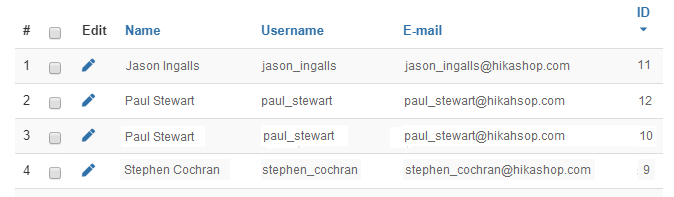
-
# : An indexing number automatically assigned for ease of reference.
- Checkbox : Check this box to select one or more items. To select all items, check the box in the column heading. After one or more boxes are checked, click on the delete button in order to delete the selected users.
- Edit : You can edit the user's information by clicking on this icon.
- Name : The name of the user as recorded in the joomla information of the user.
- Userame : The username of the user as recorded in the joomla information of the user.
- Email : The email of the user.
- ID : This field indicates the ID of the user.
Filters

- The filter caption enables you to easily search in your users.
- Using the dropdown, you will be able to display only users which are partners or customers.
- Details
- Written by: Administrator
- Category: HikaShop
- Hits: 77563
The Hikari Software Team is composed of professional engineers and designers, each with more than 5 years of experience in Joomla development and PHP development.
We develop Joomla components, modules and plugins and also offer our experience for custom developments, related or not to our products.
HikaShop
An online store is probably the most efficient way to sell your products directly to your customers.
Nevertheless, if it's not handled correctly, it can also kill a business relationship.
After some frustrating years using inefficient e-commerce solutions, we decided to develop our own.
We took everything we loved from existing e-commerce components, added our own experience, and after several months of development, we released this ingenious and user-friendly service.
HikaShop is not only a reliable e-commerce component, it also enables you to manage your marketing strategies with powerful statistics, discounts handling, an affiliates system and Geolocation tracking allowing you to increase your sales and create a link between you and your customers.
Joomla! is not only the best CMS because of its core team; Joomla! is empowered by all the third-party extensions, professional or not, which add so many functions to any website.
Based on this success, we decided to open HikaShop to any addition using the powerful plugin system.
That way, any developer can develop a plugin for HikaShop, for his needs or for the community's, so that he can easily add new functionalities to HikaShop. The possibilities are unlimited!
- Details
- Written by: Administrator
- Category: HikaShop
- Hits: 68700
HikaShop Dashboard
The dashboard is the place you come to when you open HikaShop via the administrator Joomla menu Components -> HikaShop. It is composed of two parts: a statistics part at the top, where you can see information about your sales and customers, and a list of icons to quickly access the main areas of HikaShop.
Statistics
The statistics part will greatly help you in administering your shop.
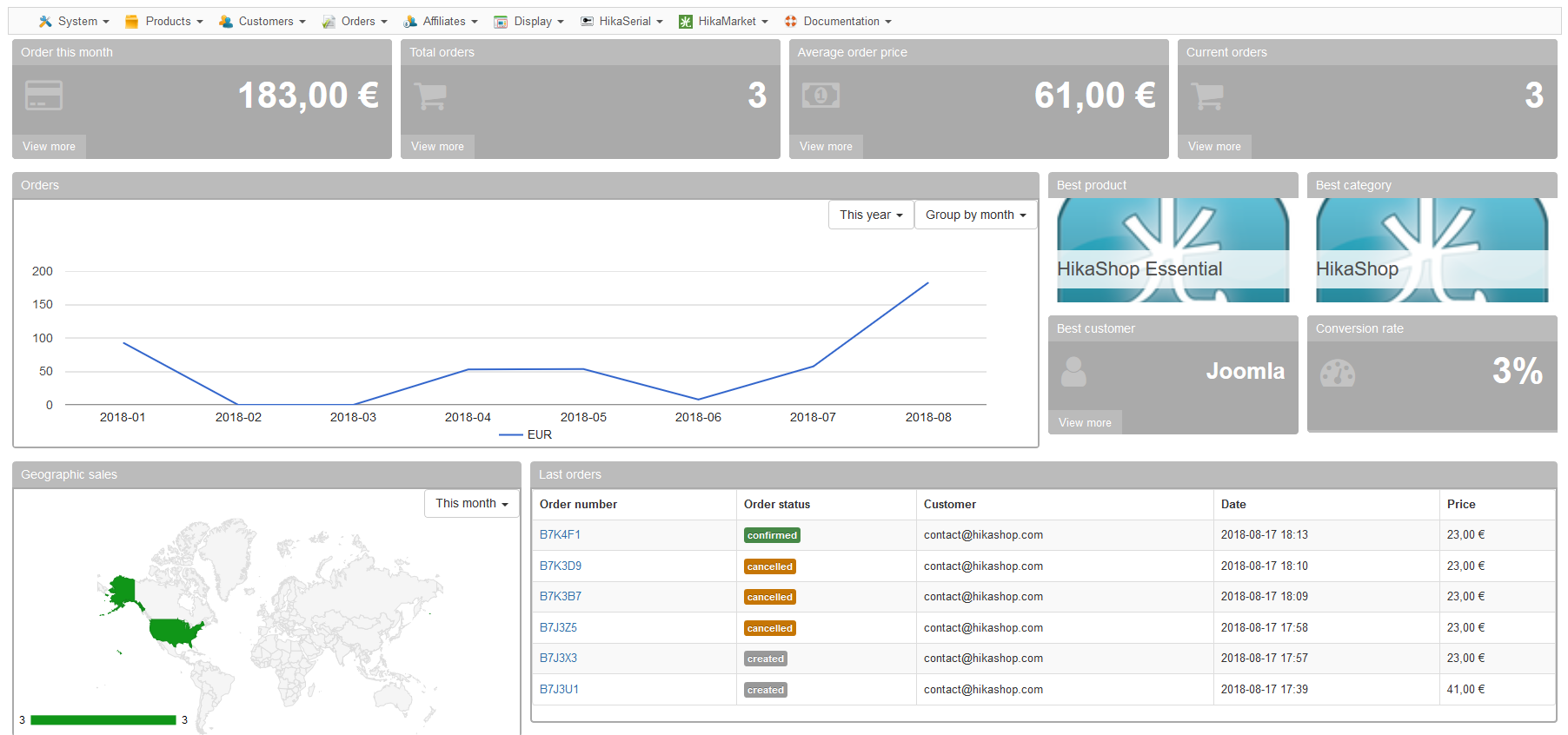
By default, you can see at the top some key figures of your store. Below, you can see on the left a graph of the evolution of your sales month by month (and that can be tuned). And on the right, you'll get tiles of the best product/category/customer as well as a conversion rate. Below that, you'll get a map with the sales for each country and on the right a listing of the last 7 orders.
Legacy dashboard
If you activate the "dashboard legacy" setting of the HikaShop configuration, you can change the layout to use the old layout from before HikaShop 3.
The advantage of that legacy display is that you can configure the statistic tiles thanks to the menu Orders -> Reports. The disadvantage is that it uses an old API of Google which requires Flash and the look is kind of bulky and old fashioned.