
- Details
- Written by: Administrator
- Category: HikaShop
- Hits: 46332
|
|

Description
This screen enables you to create or edit a discount and its restrictions.
In HikaShop, coupons and discounts are handled the same way. Discounts are automatically applied to products prices, while coupons are applied on the order when the customer enters the coupon code during the checkout process. In the free version only basic restrictions like start date, end date, minimum order value and quota are available while in our commercial versions, you can set more advanced restrictions like a restriction on a category, a product or a zone.
Toolbar
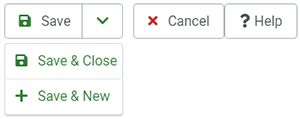
- Save : Save the current discount and return to the discounts Management screen.
- Save & Close: Save the current discount and return to the discounts Management screen.
- Save & New: Save the current discount and return to the discounts Management screen.
- Cancel : Return to the previous screen without saving the modifications.
- Help : This button enables you to turn ON/OFF the help section, this screen will appear or disappear.
Main information
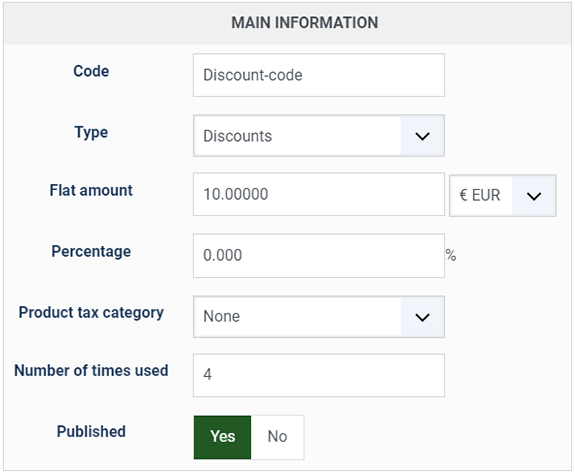
- Code : A code number is required for coupons. Your customers will have to enter it in the appropriate field while checking out in your store in order for the coupon to be applied. Individual codes can be sent to your users via email using our integration with AcyMailing. That will result in one coupon per user, so if you have a lot of users, you might prefer using general coupons with a quota and/or an end date. Usually discounts do not need a code as they are automatically applied. However, it can be useful in order to be able to click on it on the discount listing in order to edit the discount in one click.
- Type : You can create either coupons or discounts.
- Flat amount : You can have an amount for your discount in the currency you want. If you need the coupon value in different currencies, you can create several coupons, one per currency. If a customer enters a coupon in a different currency than the one of his order, the amount will be converted.
- Percentage : You can also set a percentage of discount on the order for coupons, or a percentage of discount on the price of goods for discounts. If a flat amount is set, the percentage won't be applied.
- Shipping percentage : You can also set a percentage of the shipping fee. In that case the calculated amount will be added to the coupon flat amount or the amount calculated from the "Percentage" setting above. (coupons only)
- Automatic taxes : For coupons, you can either let HikaShop calculate the taxes of the coupons for you or specify a specific tax category to be used with the option below
If you let HikaShop calculate it, it will use all the tax rates of all the products on which the coupon depends based on the percentage of the discount on each one. - Tax category : This option will only be displayed for coupons and only if the "automatic taxes" setting above is turned on. You can define here a tax category for the system to calculate the taxes on the discounted amount of the coupon.
- Number of times used : You can change the number of times a coupon has been used. It can be useful when you use quotas or just to know how much a coupon was used. It is NOT a restriction on the number of times a coupon can be used (that can be done with the "Quota" option in the "Restrictions" zone of the screen).
- Published : If a coupon is published it can be used by your customers. If a discount is published, it will be automatically applied based on restrictions.
Restrictions
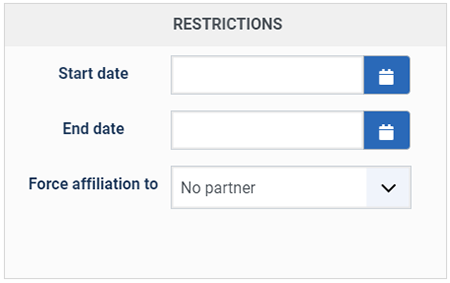
- Start date : You can set a starting date for a coupon or a discount.
- End date : You can set an ending date for a coupon or a discount. Note that prices are recalculated on each page so prices of products can change based on discounts applied to them as long as an order is not created. Once an order is created, the products in it have their prices fixed as well as any discount applied to them or any coupon applied to the order.
- Force affiliation to : This only applies to coupons, and will allow you to define if you restrict the coupon to customer from a specific partner
Note : Please, make sure that your server and website are configured with the same timezone to avoid any issue. As otherwise, you might notice discrepancies in the way the date restrictions are applied
Advanced Restrictions
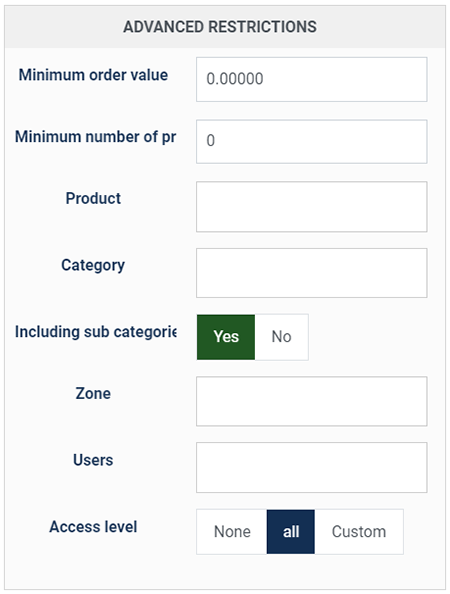
- Order value : This only applies to coupons. This setting has a "from" and a "to" field allowing you to configure a minimum and / or a maximum threshold. A coupon code won't be accepted if the total of the products in the cart is under the "from" value or above the "to" value. If the "Product" or "Category" settings below are used, then only the total amount of the products filtered by these settings will be taken into account. The currency used here is the one used for the flat amount field even if no flat amount is set.
- Number of products : This only applies to coupons. This setting has a "from" and a "to" field allowing you to configure a minimum and / or a maximum threshold. A coupon code won't be accepted if the total number of the products in the cart is under the "from" value or above the "to" value. If the "Product" or "Category" settings below are used, then only the total number of the products filtered by these settings will be taken into account. The currency used here is the one used for the flat amount field even if no flat amount is set.
- Product : You can limit a discount or a coupon to one product. For coupons, it means that you need at least once this product in your order for the coupon to be valid. For discounts, it means that the discount is applied to this product's prices only.
- Category : You can limit a discount or a coupon to one category. For coupons, it means that you need at least once a product of this category in your order for the coupon to be valid. For discounts, it means that the discount is applied to products prices in this category only. If you want the discount/coupon to apply to all the products, you can just leave the default "0" value.
- Include sub-categories : If you limited the discount or the coupon to a category, you can limit it to products directly in this category and not in a sub category of this category.
- Zone : You can limit a coupon or discount to a zone. Based on the user billing address or shipping address (can be changed in the configuration), the coupon will be valid or not and the discount will be applied or not.
- Users : You can limit a discount or a coupon to one product. For coupons, it means that you need at least once this product in your order for the coupon to be valid. For discounts, it means that the discount is applied to this product's prices only.
- Access level : With the business edition of HikaShop, you will be able to limit a coupon or a discount to specific users.
Discount Features
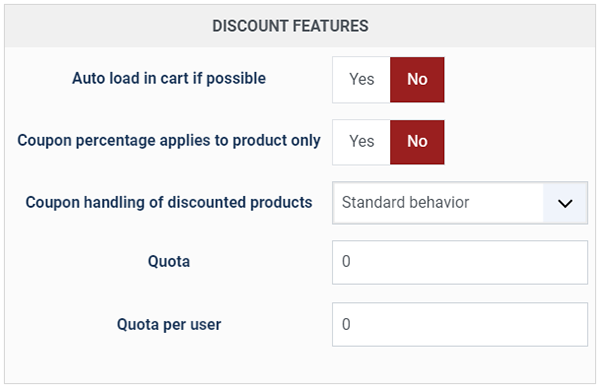
- Auto-load in cart if possible : When turned on, the system will load the coupon in the cart on the checkout if the coupon restrictions are matched without your customers having to enter its code.
- Coupon percentage applies to product only : When a percentage is entered for the coupon and that a product or a category is selected for the coupon, if you activate that option, the coupon value will be based on the price of that product in the cart or on the sum of prices of all the products of the cart which are in that category.
- Coupon handling of discounted products : Using that option, you can decide how you want the coupon price to behave if products have discounts applied to them. For example, if a $100 product has a $20 discount and that this coupon is $30, with the standard behavior, you would get a $50 total in the cart as the discount and the coupon can be cumulative. However, if you set that option to "ignore discounted prices", if a discount is applied to a product price, the coupon won't apply on it. On the contrary, if you set that option to "override discounted prices", the coupon value would be reduced by the amount of the discount of the products.
- Quota : The maximum number of times a coupon can be used. Discounts won't be used if the quota is inferior to the number of times used but the number of times used is only incremented for coupons, so it's not really useful for discounts.
- Quota per user : This only applies to coupons. The maximum number of times a coupon can be used by one user.
- It will only use the discounts limited to the current zone ( if the user didn't fill in his address for the current session, the zone used will be the main zone set in the configuration page of HikaShop ) or not limited to a zone, which are published with valid start and end dates or not limited in time with a quota of uses superior to the number of used times. If no valid discount is found, the product won't have any discount applied.
- Else, In that pool of discounts, it searches for a discount limited to the product. If found, it uses it and stop searching.
- Else, in that pool of discounts, it searches for a discount limited to a category of the product. If several are found it will use the closest one. So, for example, if you have a category fruits with two sub categories red fruits and other fruits and that you have two discount, one limited to fruits and one limited to red fruits and that your product has only the category red fruits, HikaShop will use the red fruits limited discount. But if you remove the red fruit discount or that it expires, the fruits discount will be used. If found, it uses it and stop searching.
- Else it uses the first discount in the pool of valid discounts for the product.
- Finally, if you need the system to support several coupons, or if you need the system to allow customers to use coupon codes with flat amount they can redeem over several orders, or if you need customers to be able to use an auto loaded coupon and coupons at the same time, you can use the multi coupons plugin available on our marketplace
Note that the system will only use one coupon per order and one discount per product. So, for example, if you have two discounts which are limited to the same product, only one of the two will be used. But the discounts will be chosen accordingly to this pattern:
- Details
- Written by: Administrator
- Category: HikaShop
- Hits: 57964
|
|

Description
This screen enables you to create or edit a manual shipping method. Shipping methods will be filtered on checkout based on the limitations you set for each shipping method. Then, they will be displayed to the user for him to choose which shipping method he prefers for his order.
Toolbar

- Save & Close : Save the shipping method options and return to the shipping methods Management screen.
- Save : Apply the modifications to the shipping method and stay on the same screen.
- Cancel : Return to the previous screen without saving the modifications.
Main Information
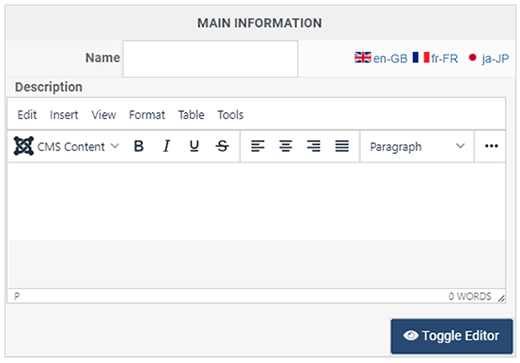
If you use one of our commercial versions, you will be able to enter the name and description in different languages. This requires a multilingual setup and can be activated in the HikaShop configuration page, in the Languages tab. The languages available will be the ones installed in Joomla. If you don't enter a translation for a given language, the default information in the Main information tab will be used instead. After you click on save, an additional publish icon will appear next to the fields where you entered a translation so that you can easily enable or disable them.
Generic configuration
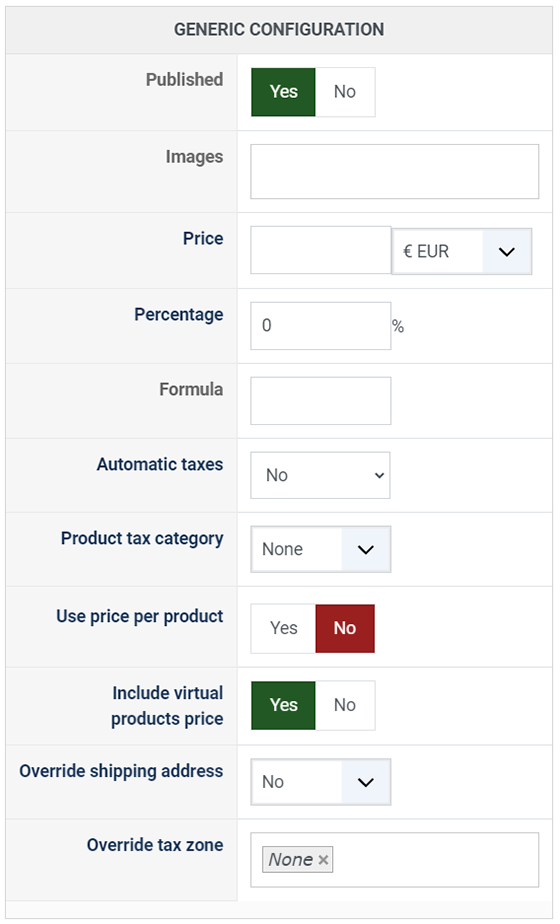
- Published: If a shipping method is published it means that it can be used by your customers during the checkout.
- Images: You can click on the edit icon to select one or several images to display next to the name of the shipping method during the checkout process. Those images are stored in the folder media/com_hikashop/images/shipping so you can easily add more of them by uploading your images to this folder via FTP or via the Media manager.
- Price: The fixed base price for the shipping method. You can also select the currency to use for this price.
- Percentage: Additionally to the price, you can set here a percentage of the total of the order's products. The resulting amount will be added to the fixed price. For example, if you set a price of 5 and a percentage of 10%, and the customer orders products totaling 100, the shipping cost will be 5 + (100 * 10 / 100) = 15.
- Formula: A custom mathematical expression for dynamic shipping cost calculation. You can use the following variables: {price} (cart products total), {weight} (total weight), {volume} (total volume), {quantity} (total number of items). For example: {weight} * 2 + {quantity} * 0.5. The formula result replaces the fixed price and percentage calculation. Standard mathematical operators (+, -, *, /) and parentheses can be used.
- Automatic taxes: Determines how taxes are applied to the shipping fee. Four options are available:
- No: Taxes are not automatically calculated. You need to select a tax category manually (see below).
- Proportion (default): The tax rate is calculated as a weighted average of the tax rates of the products in the cart. For example, if you have one product costing 20 with a tax of 10% and another one costing 80 with a tax of 20%, the shipping tax rate will be (20/100) * 10% + (80/100) * 20% = 18%.
- Highest rate: The highest tax rate among the cart products is applied to the shipping fee.
- Lowest rate: The lowest tax rate among the cart products is applied to the shipping fee.
- Product Tax category: This option only appears when "Automatic taxes" is set to "No". You can select here a tax category that will apply to the shipping fee. The tax rules configured in System > Taxes will be used based on that tax category.
- Use the prices per product: When activated, the price per product system is enabled for this shipping method. Two things will happen:
- A "Price per product" field will appear on this screen where you can configure a default per-product shipping cost. This amount is multiplied by the quantity of each product and added to the base shipping price.
- A "Price per product mode" dropdown will appear with two options: Sum (default, adds all product shipping prices together) or Highest (uses only the highest product shipping price).
- If you have activated the "HikaShop Shipping manual - Prices per product" plugin in the Joomla plugin manager, you will be able to configure a specific shipping price for each individual product on the product edit page, overriding the default per-product price.
- Include virtual products price: Whether virtual/downloadable products are included in the shipping price calculations (percentage, formula, and per-product). By default, this follows the global "Force shipping module display" setting in the HikaShop configuration.
- Override shipping address: Allows you to replace the customer's shipping address display with a custom address or message. This is useful for "Pick up at store" methods. The available options are:
- No: Uses the customer's shipping address normally.
- Store address: Uses the store's default address.
- Hide: Hides the shipping address entirely during checkout.
- Text version: Displays a custom text message instead of the address (plain text, line breaks are converted to <br/>).
- HTML version: Displays a custom HTML message instead of the address.
- Override tax zone: You can select a zone here. When a shipping method with this option is selected by the customer, the zone used to calculate taxes for the entire order will be the zone selected here instead of the zone derived from the customer's address. This is useful for "Pick up at store" shipping methods where the applicable taxes should be based on the store's location, not the customer's address.
Restrictions
You can set restrictions on shipping methods. Based on the products in the cart of the user, the system will calculate which shipping methods the customer can choose from.
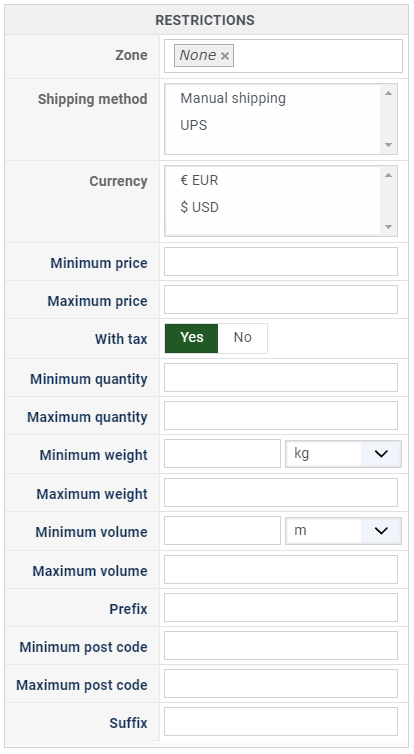
- Zone: You can restrict a shipping method to a zone. By clicking on the edit icon, a popup will open enabling you to select a zone. Only customers with a shipping address in the selected zone (or its sub-zones) will see this shipping method. You can remove this limitation by clicking on the delete icon.
- Warehouse: You can restrict the shipping method to one or more warehouses. You can also choose whether the filter is inclusive ("Only these warehouses") or exclusive ("All except these warehouses") using the radio buttons next to the selector.
- Minimum price: The shipping method will only be available for orders with a product total above this minimum price.
- Maximum price: The shipping method will only be available for orders with a product total below this maximum price.
- Include virtual products price: If you activate this option, the price of virtual goods (products without weight) is taken into account for the maximum and minimum price restrictions above as well as the percentage price calculation. Otherwise, only physical goods (with a weight) are taken into account.
- With tax: When enabled, the minimum and maximum price restrictions use the product prices including taxes. When disabled, they use the prices excluding taxes. Enabled by default.
- Minimum quantity: The minimum number of items in the cart for this shipping method to be available. The quantity is calculated as the sum of the quantity of each product in the cart.
- Maximum quantity: The maximum number of items in the cart for this shipping method to be available.
- Minimum weight: The minimum total weight of the cart for this shipping method to be available. The weight is calculated as the sum of each product's weight multiplied by its quantity. You can select the weight unit next to this field.
- Maximum weight: The maximum total weight of the cart for this shipping method to be available.
- Minimum volume: The minimum total volume of the cart for this shipping method to be available. The volume is calculated from the width, height and length of each product multiplied by its quantity. You can select the volume unit next to this field.
- Maximum volume: The maximum total volume of the cart for this shipping method to be available.
- Post code RegEx: A regular expression to match against the customer's postal code. Only customers whose postal code matches the expression will see this shipping method. For example, ^(75|92|93|94) to match postal codes starting with 75, 92, 93, or 94.
- Prefix: You can restrict the shipping method to only postal codes starting with this prefix.
- Min. postal code: You can restrict the shipping method to only postal codes within a numeric range, whereby this is the minimum value.
- Max. postal code: The maximum value of the postal code numeric range.
- Suffix: You can restrict the shipping method to only postal codes ending with this suffix.
Access Level
You can restrict which Joomla user groups can see and use this shipping method. By default, the shipping method is available to all user groups. Select specific groups to limit access. This is useful if you want to offer specific shipping options only to certain customer groups (e.g. wholesale customers, VIP members).
- Details
- Written by: Administrator
- Category: HikaShop
- Hits: 84134
Description
This documentation will explain why you get notification emails from the paypal payment plugin, what they mean and how to react to them. It will also answer questions about problems occuring during the setup of the plugin.
Once an order has been made on your website, your customers will be redirected to the payment gateway (Paypal, authorize.net, etc) in order to safely pay for the order. Payment gateways usually have a way for your website to automatically get notified of the payment once the payment gateway processed the payment. In order to avoid attacks from thieves, this notification needs to be confirmed to the payment gateway and several checks are done on it. Based on the results of those checks, the system will validate the order or not and for each case, send you an email so that you can always change the order status manually from the back end.
The seller accepts encrypted website payments only. You cannot pay the seller through un-encrypted buttons
This error is displayed because your PayPal Account Profile is set to only accept payments from "encrypted" buttons, however, your item button code is "not" encrypted. This condition interrupts the payment process and displays the error message.
To turn off this option:
1. Log in to your PayPal Account.
2. Click "Profile" tab or "Edit Profile" link.
3. Under "Selling Preferences", select "Website Payment Preferences".
4. In the section titled "Encrypted Website Payments" select "Off".
5. Click "Save".
Encrypted buttons are not useful for HikaShop as other securities are put in place. The payment amount is checked by hikashop when receiving the payment notification from paypal so even if someone try to change the amount to pay for an order, hikashop will detect it and refuse the payment. So you don't have to worry, you can deactivate that option of your PayPal account.
This invoice has already been paid. For more information, please contact the merchant
It is possible for Paypal to report an order as already being paid if they have received an identical invoice number in the past. That can happen when for example you were already using another e-commerce solution before switching to HikaShop with your PayPal account.
There are a couple ways to resolve this issue:
In Your Paypal Account:
- Log into your PayPal business account on paypal.com.
- Click the profile icon (Profile menu) at the top of the page, and then select Profile and settings in the Business Profile menu. Click My selling tools.
Note: If you do not see the profile icon at the top of the page, click Profile, which appears in the top menu when the My Account tab is selected, and then click My selling tools. - Click Update next to Block payments in the Getting paid and managing my risk section.
- Scroll down the page to the Block accidental payments setting, and select "No, allow multiple payments per invoice ID"
- Scroll to the bottom of the page and click Save.
On the HikaShop side:
Open your phpmyadmin (a tool provided by your hosting company in order to administer your database) and select your database. There, increase the auto_increment value of the hikashop_order table by running a query like this:
ALTER TABLE jos_hikashop_order auto_increment = 100000;
That query will result in the order id of your orders to start at 100000. That way, it won't conflict with other e-commerce application using your paypal account with order ids starting at 0 like HikaShop does by default. Note that if you use another table prefix than jos_ you need to change it to your table prefix in the query.
Unable to process payment. Please contact the merchant as the shipping address provided by the merchant is invalid, and the merchant has requested that your order must be shipped to that address.
This error will be displayed when there is a problem with the address sent by HikaShop to PayPal.
First, this can happen if you unpublished some of the default custom address fields via the menu Display->Custom fields while still having the "No address" option of the PayPal plugin turned off. So either publish the fields back or turn on that option. Also, sometimes, changing the "address override" option of the PayPal plugin's options can solve the problem.
No payment notification/order confirmation email received after payment
After an order, PayPal contacts HikaShop in order to tell HikaShop that the payment has been received. At that point, you should receive a payment notification from HikaShop as the shop owner (and the user an email confirming his order). If you don't then, it can come from one of these points:
- Your website is on localhost (ie. not accessible from the Internet). PayPal can only send payment notifications to HikaShop if your website is accessible from the outside.
- Your website is protected by an .htaccess which only allows the access when the correct username/password is entered. PayPal doesn't know the username/password of your .htaccess and thus cannot contact HikaShop.
- You changed your .htaccess file to add rules to increase your website security and it doesn't allow PayPal servers to send the notifications. You should try to remove them to see if it works.
- Your website is in maintenance and only accessible for users with an administrator account. PayPal won't be able to contact HikaShop because Joomla won't authorize him.
- In the same manner, the menu on the checkout is not accessible to non logged in users.
- The option "allow payment notifications from paypal" of the PayPal is turned off. You should turn it on.
- You changed the IPs in the PayPal IPs option of the PayPal plugin. Leave this field empty.
- You have a security component which forbids scripts to contact your website. You should ask a solution from your security component provider.
- Check the payment itself on your PayPal merchant account. It's possible that they are pending, waiting for your approval. This can be for different reasons (another currency that the one you used so far, your PayPal account configured to approve payments manually, etc).
- MobileJoomla apparently redirects payment requests loosing the POST data in the process.
- Your HikaShop menus have not the access level public. Because of that PayPal servers cannot access your shop to notify HikaShop from the payment. You should configure the "force a menu on checkout" option of the configuration to a public menu that while your categories/products listings are not accessible to your users, PayPal will be able to notify HikaShop.
- Please make sure that the access level Public of your PayPal payment method is ticked, otherwise the access to the notification will be denied to PayPal (for the Business edition only).
- Please make sure that the payment is accepted in your PayPal account. If the automatic validation of the payments is not turned on in your PayPal account, PayPal won't send the payment notification to HikaShop and your orders won't be confirmed !
- Please check that your PayPal merchant account is configured to send UTF8 payment notifications as explained here: https://simple-membership-plugin.com/setting-utf-8-formatting-for-your-paypal-ipn-messages/
On the same line you should get the status of the request. If it's a 303 or 301, in means that something else on your website redirected the request before reaching HikaSop (it is highly likely to be a system plugin). If it's a 500, it means that there was some kind of fatal error during the processing and thus you should look the PHP error log of your server for the fatal error message. If it's a 403 or 401 or 404 request, it means that the page was not found and it usually happens because of the SEF of joomla which couldn't match the Itemid parameter of the URL with HikaShop menu items.
IP not valid
Paypal might change or add IPs for their servers when they need to handle more transactions. When your server receives a notification from another IP than the IPs of paypal listed in the paypal payment plugin options, you will receive an email automatically to your paypal address informing you of it. You can refresh this list of IPs by clicking on the link below. If paypal really added new IPs you should see them appear here. Otherwise, if you are sure that the IP from which the notification came from is a valid paypal IP you can add it to the list manually. If the notification came from someone else, it might be an attack attempt (if the payment has not been received on your paypal account for instance), in which case you can ignore it as the system blocked it. Finally, you can always disable this feature by removing all the IPs in the list and saving the paypal payment method options. You will always be able to retrieve the paypal IPs later on to reactivate the feature.
Connection to paypal failed
When your server receives a notification it needs first to confirm whether this notification comes from your payment gateway or not because it is always possible that a valid IP address has been injected and that someone else is tried to validate an order. So there is a mechanism in place to contact a paypal server HikaShop knows as being an official paypal server to confirm that it comes from paypal. If this connection fails, that means that either your hosting company is blocking outgoing connections from your server or you don't have the openssl option activated in your PHP configuration or that the paypal servers are down, the later being a lot less likely. So you should check that you website is able to make outgoing connections and that the SSL is activated. Also, we advise you to contact your hosting provider to ask them about their policies on outgoing connections. If they are not blocking them, then you might want to contact us via our forum as we might need to adapt our plugin to a change from paypal.
Invalid transaction
When your server receives a notification it needs first to confirm whether this notification comes from your payment gateway and not from someone else tried to validate his order. So there is a mechanism in place to contact a paypal server HikaShop knows as being an official paypal server to confirm that it comes from paypal. If paypal returns an invalid status, it means that the notification didn't come from paypal, so the notification was discarded. You can thus ignore the email you received.
Invalid response
When your server receives a notification it needs first to confirm whether this notification comes from your payment gateway and not from someone else tried to validate his order. So there is a mechanism in place to contact a paypal server HikaShop knows as being an official paypal server to confirm that it comes from paypal. If paypal returns an unknowns response format, it might be that paypal changed its notification system (very unlikely) so can contact us via our forum as we might need to adapt our plugin.
Notification not handled
The notification from paypal can have a status not handled by HikaShop. In that case, HikaShop will notify you by email and stop its processing of the notification.
Invalid amount
It could happen that the amount paid is different from the amount of the order. In that case the status of the order will be changed to the invalid status you can configure in the paypal payment plugin options.
The option "Send details of the order" can create an invalid amount. Paypal could not round the final price like HikaShop (which round only the final price and not the product's prices). So this option can generate little differences in the price (1 centime). At this moment we recommend you to deactivate the option to solve the problem.
Pending payment
A pending notification means that the customer entered his payment information but that paypal could not yet receive the funds. In that case, we highly recommend you to check your paypal account, the order information, and maybe contact your customer, and decide yourself what to do with the order.
- Details
- Written by: Administrator
- Category: HikaShop
- Hits: 12877
|
|

Description
This screen enables you to create or edit a taxation rule.
How does tax calculation works in HikaShop ? For example, you might sell food which might be taxed in your country at a low rate and electronics which are taxed at a higher rate in your country. But if you are inside Europe, you will ask the tax to customers only if they aren't a company with a valid VAT number. Then, for customers outside Europe, taxes won't apply. So you have several parts involved in taxation.
First, you can configure several tax categories for your products by going to the Categories HikaShop menu. You might have a category food and a category electronics with the example above. Then, when you add or edit products, you can set a tax category for each.
Then, by clicking on the Manage rates button on the taxations rules screen ( you will see this screen if you click on cancel on the page for which this documentation is for ), you will be able to create tax rates. For example you will create a rate of 5% which will be used for food sales and a 20% rate for electronics.
Also, you might need to create tax zones in the zones management screen, in which you will be able to group states or countries, in order to set a specific rule for all of them in one taxation rule instead of one per state or one per country.
Finally, on this taxation rule edit screen, you will be able to connect all those dots together. You will have to explain to the system which tax rate needs to be used for which tax category in which zone for which type of customer. Thanks to that, the system will then adapt the prices of products on your shop for each customer so that they pay the correct amount. Note that if you set a rule for Texas (a state in the USA) to pay 5% on food and that you have a similar rule for the whole USA to pay 10%. If the customer is in Texas, he will pay only 5%, but if he is in the USA but not in Texas, he will pay 10%.
If no rules match the current situation, no tax will be applied. So, in the example above, you don't need to set any rule for the rest of the world since your customers outside Europe would never pay any tax. Also, please note that as long as the customer didn't enter his address, the main zone and default customer type values will be used to calculate prices on your store.
In order to know what tax rate need to be applied in which circumstance we highly recommend you to seek advice from your local tax office.
Toolbar
- Save : Save the current taxation rule and return to the taxation rules Management screen.
- Apply : Apply the modifications to the current taxation rule and stay on the same screen.
- Cancel : Return to the previous screen without saving the modifications.
- Help : This button enables you to turn ON/OFF the help section, this screen will appear or disappear.
Information
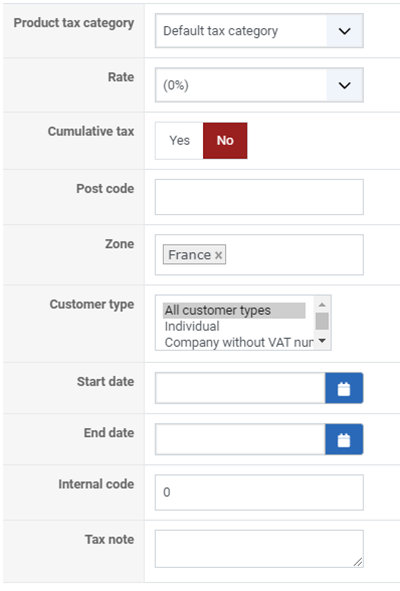
- Product tax category : The rule will only apply to a certain tax category. Each products will be linked to one tax category.
- Rate : If the rule applies to the situation (product in the tax category, customer in the zone and with the correct type), the rate of the rule will be applied to the product price(s).
- Cumulative tax : If you activate that option, it means that the tax can be added up with other taxes.That's mainly useful in Canada where you have both the national and the regional taxes to pay even though only one needs to be displayed separately on the invoice.
- Post code : You can enter a regular expression matching the post codes you want for the current tax rule.
For example, if you want that the current tax rule apply to all the people with a post code between 12000 and 12999, you would enter such text in the field: 12[0-9]{3}
The brackets indicates the list of potential characters (ie. 0,1,2,3,4,5,6,7,8,9) and the curly brackets indicates the number of characters for the characters in the brackets.
Another example would be all the zip codes from 12546 to 12549 and you would enter: 1254[6789]{1} - Zone : A zone limiting the rule to a certain geographic zone. If you click on the edit icon you can change the zone via a popup. With the delete icon, you can remove the zone limitation.
- Customer type :You can limit the rule to only a certain type of customers.
- Start date : You can set a starting date for your tax rule.
- End date : You can set an ending date for your tax rule.
- Internal code : This value purpose was to associate a code with your tax and won't be displayed anywhere. Use it as a reference for your tax rule.
- Tax note : Use this field as a memo for your tax information.
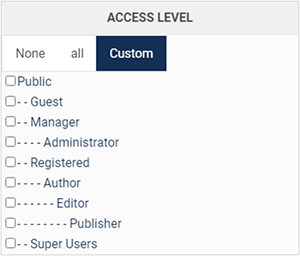
Access level : With the business edition of HikaShop, you will be able to limit a taxation rule to specific users.
-
Access level : With the business edition of HikaShop, you will be able to limit a taxation rule to Joomla groups of users.
- Published : If a taxation rule is published it means that it will be applied on prices based on the product tax category, the customer type and the customer zone. Otherwise, the tax rule will be skipped.
Access level :
- Details
- Written by: Administrator
- Category: HikaShop
- Hits: 9757
|
|

Description
This screen enables you to create or edit a tax rate which you will be able to use on the taxation rule creation and edit screen.
Toolbar
- Save : Save the current tax rate and return to the tax rates Management screen.
- Apply : Apply the modifications to the current tax rate and stay on the same screen.
- Cancel : Return to the previous screen without saving the modifications.
- Help : This button enables you to turn ON/OFF the help section, this screen will appear or disappear.
Information

- Tax namekey : A namekey, for you to remember the use of the tax rate.
- Rate : The rate of the tax. It is a percentage of the price of the product.