
- Details
- Written by: Administrator
- Category: HikaShop
- Hits: 7461
|
|

Description
This screen enables you to edit a user. During the checkout process, the customers will be added to the list of HikaShop user whether he already registered via Joomla (or any other component) or he created a new account using the checkout registration form. Additionally, users will also be added to HikaShop as partners if they subscribe to the affiliate program available in the business version of HikaShop.
Toolbar

- Joomla user options : Go to the Joomla options of the user. It will be handy for setting his language, access rights, timezone, etc thanks to the standard Joomla user options.
- E-mail : If you click on this button, you will be able to send an email to the user from the popup which will be displayed.
- E-mail history: If you click on this button, the email history of the user will be displayed.
- Save : Save the user and return to the users Management screen.
- Save & Close : Like the previous "Save" button but in addition the current user page will be closed.
- Cancel : Return to the previous screen.
- Help : This button enables you to turn ON/OFF the help section, this screen will appear or disappear.
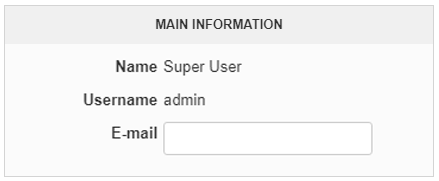
Main information
|
Addresses
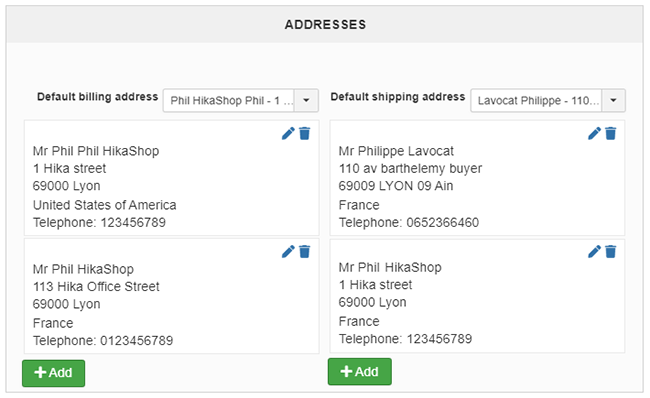
The addresses area will display a list of all the addresses of the user. You will be able to edit them via the edit icon next to each address, delete them via the delete icon next to each address or create additional ones via the plus icon at the top. Each time a popup will be displayed for you to specify the address information.
Orders
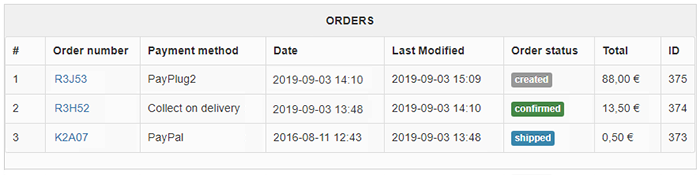
-
# : An indexing number automatically assigned for ease of reference.
- Order number : This order number is generated from the id of the order. It will be useful for the communication with your customers over their orders. If you click on it, you will be able to edit a particular order.
- Payment method : You will see here the name of the payment method selected by the customer during the checkout process.
- Date : The date on when the order was made.
- Last modified : The last time the order was modified. It can happen when an administrator edit it or when it is automatically changed like for example when the system automatically receive a payment notification from Paypal.
- Order status : The status of an order is an important parameter which enables you to follow an order during its life cycle, from its creation to its shipping.
- Total : The total amount of the order once everything has been factored in. It will be displayed in the currency chosen by the customer for the order.
- ID : This field indicates the ID of the order.
- Details
- Written by: Administrator
- Category: HikaShop
- Hits: 4705
- Details
- Written by: Administrator
- Category: HikaShop
- Hits: 19063
This screen enables you to edit the payment method options. Payment methods will be filtered on checkout based on the zone you set for them, if any. Then, they will be displayed to the user for him to choose which payment method he prefers for his order. Note that the payment method can probably support only a limited number of currencies. If you use one of our commercial versions, you will be able to enter the name and description in different languages. This feature requires to have JoomFish installed and can be activated in the configuration page, in the display tab. The languages available will be the ones in JoomFish. If you don't enter something for a translation, it will just use the default information in the Main information tab instead. After you click on save or apply an additional publish icon will appear next to the fields where you entered something in the languages tabs so that you can easily enable or disable them.

Description
Toolbar

Main Information
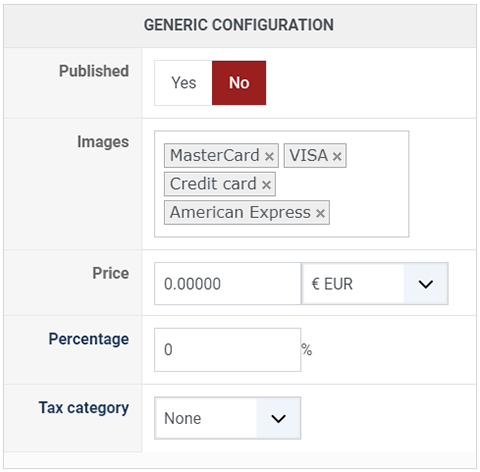
Generic information
Additional Information
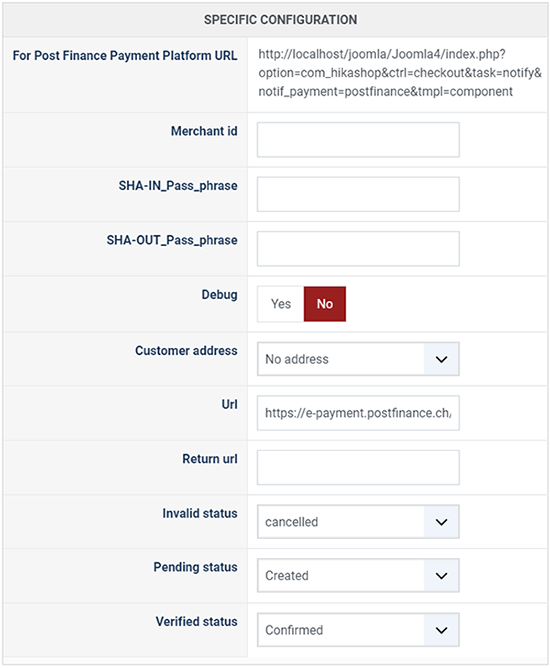
- For Post Finance Payment Platform URL : You need to enter that URL in the settings of your PostFinance user account interface. That's where the payment notifications need to be sent so that the PostFinance plugin can confirm your orders.
- Merchant ID : Your PostFinance merchant ID
- SHA-IN Pass phrase : The security pass phrase that you'll have to define through the "SHA-IN pass phrase" option of the "Data and origin verification" section of your PostFinance user account configuration page.
- SHA-OUT Pass phrase : The security pass phrase that you'll have to define through the "SHA-OUT pass phrase" option of the "Transaction feedback" section of your PostFinance user account configuration page.
- Debug : You can activate the debug mode of the PostFinance payment plugin. If you do so, information about each notification received from PostFinance will be logged in the payment log file. You can see and modify the location of this file in the configuration page of HikaShop
- Customer address : If you want, you have the possibility to include the billing or shipping address of your customers to the PostFinance payment engine.
- URL : The URL to which your users are redirected to for the payment. By default, it is set to https://e-payment.postfinance.ch/ncol/test/orderstandard.asp and directs the customer to the payment gateway test environment. Once you want to process real transactions, you'll want to change it to https://e-payment.postfinance.ch/ncol/prod/orderstandard.asp
- Invalid status : Here, you can select the status to set to an order if the plugin receives a notification from PostFinance for an order with an amount different from the order total or in a different currency. In that case, we highly recommend you to check your PostFinance account, the order information, and maybe contact your customer, and decide yourself what to do with the order.
- Pending status : Here, you can select the status to set to an order if the plugin receives a pending notification from PostFinance for an order. A pending notification means that the customer entered his payment information but that PostFinance could not yet receive the funds. In that case, we highly recommend you to check your PostFinance account, the order information, and maybe contact your customer, and decide yourself what to do with the order.
- Verified status : Here, you can select the status to set to an order if the plugin receives a successful completion notification from PostFinance for an order.
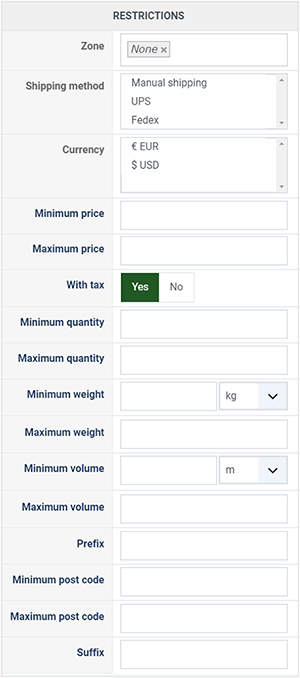
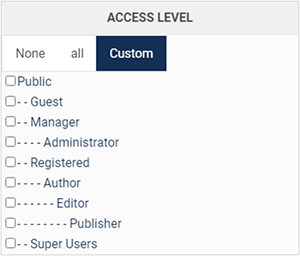
The ACLs are available in the business edition of HikaShop. Note about Access level : Access level : With the business edition of HikaShop, you will be able to limit a coupon or a discount to specific users. Access level : With the business edition of HikaShop, you will be able to limit a coupon or a discount to joomla groups of users. I don't see any payment methods during the checkout, or I don't see some of them, what is the problem ? There are several things which you could have missed. Restrictions
Access level
FAQ
PostFinance user space configuration
If it is the first time you use PostFinance, we recommend you to have a look at the "PostFinance user space configuration" tutorial to correctly configure your PostFinance user space.
- Details
- Written by: Majri
- Category: HikaShop
- Hits: 6306
|
|
Description
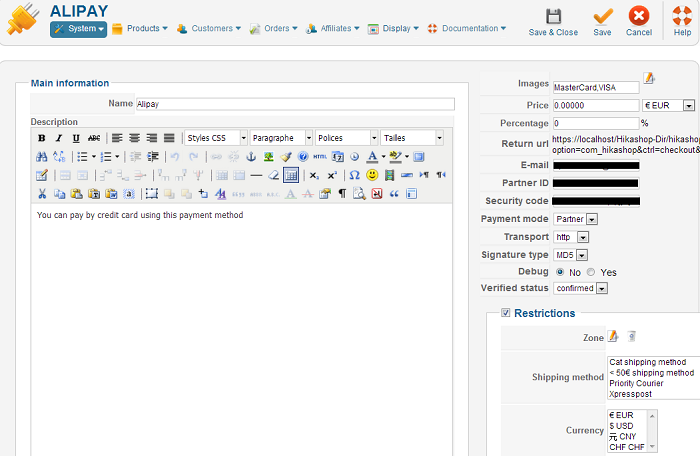
This screen enables you to edit the Alipay payment method options. Payment methods will be filtered on checkout based on the zone you set for them, if any. Then, they will be displayed to the user for him to choose which payment method he prefers for his order.
Toolbar
- Save : Save the Alipay payment method options and return to the payment methods Management screen.
- Apply : Apply the modifications to the Alipay payment method and stay on the same screen.
- Cancel : Return to the previous screen without saving the modifications.
- Help : This button enables you to turn ON/OFF the help section, this screen will appear or disappear.
Main Information
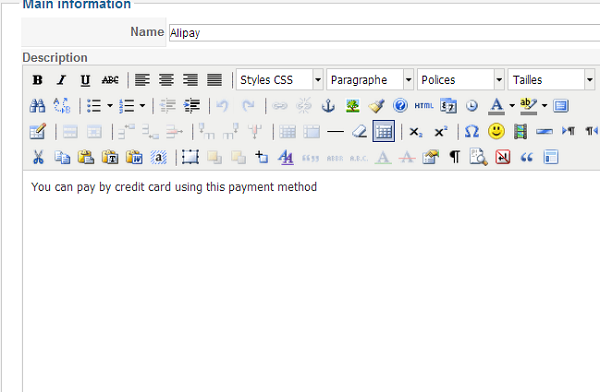
If you use one of our commercial versions, you will be able to enter the name and description in different languages. This feature requires to have joomfish installed and can be activated in the configuration page, in the display tab. The languages available will be the ones in joomfish. If you don't enter something for a translation, it will just use the default information in the Main information tab instead. After you click on save or apply an additional publish icon will appear next to the fields where you entered something in the languages tabs so that you can easily enable or disable them. The default publish status can also be changed in the configuration page of HikaShop.
Additional Information
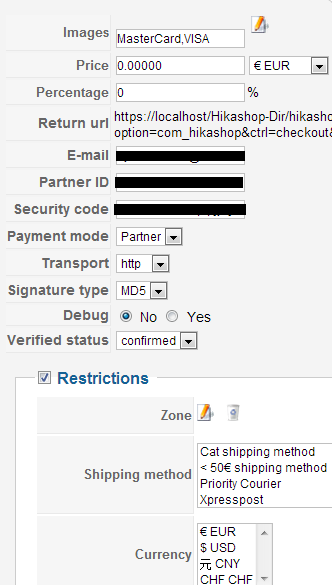
- Images : You can click on the edit icon to select one or several images to display next to the name of the Alipay payment method during the checkout process. Those images are stored in the folder media/com_hikashop/images/payment so you can easily add more of them by uploading your images to this folder via FTP.
- Return url : That's the Url where the payment Alipay notifications will to be sent so that the Alipay plugin can confirm your orders.
- Email : Your Alipay Email
- Partner ID : Your Alipay Partner ID
- Security code : The security code that you'll through your Alipay account configuration.
- Payment mode : The alipay payment mode that you want to use (Only the partner mode is available for the moment).
- Transport : You can choose through this option the protocol (http or https) that your payment method will use when your customers will be redirected.
- Signature type : The alipay signature type option enable you to choose how your data will be encrypted before being sent to the Alipay server (Only the MD5 signature type is available for the moment).
- Debug : You can activate the debug mode of the Alipay payment plugin. If you do so, information about each notification received from Alipay will be logged in the payment log file. You can see and modify the location of this file in the configuration page of HikaShop.
- Verified status : Here, you can select the status to set to an order if the plugin receives a successful completion notification from Alipay for an order.
- Zone : You can restrict the Alipay payment method to a zone. By clicking on the edit icon, a popup will open enabling you to select a zone. You can also remove this limitation by clicking on the delete icon.
- Shipping method : With this option you can select the shipping method for which this payment method will be available. For example, if you choose UPS, this payment method will only be usable if UPS is selected as shipping method. If an other shipping method is selected, this payment method will not be displayed. Note: if you selected "None" or don't select any shipping method, this payment method will always be available.
- Currency : This option allows you to restrict Alipay to only some currencies. Note that on top of that, the Alipay method won't display for any currency not supported by Alipay or by your Alipay account (you can edit it through your Alipay configuration screen).
- Details
- Written by: Majri
- Category: HikaShop
- Hits: 4273
|
|
Description
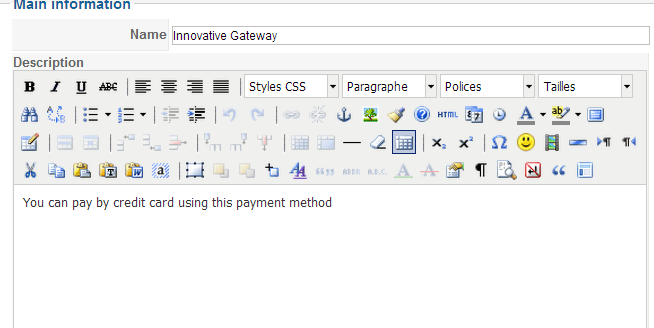
This screen enables you to edit the Innovative Gateway payment method options. Payment methods will be filtered on checkout based on the zone you set for them, if any. Then, they will be displayed to the user for him to choose which payment method he prefers for his order.
Toolbar
- Save : Save the Innovative Gateway payment method options and return to the payment methods Management screen.
- Apply : Apply the modifications to the Innovative Gateway payment method and stay on the same screen.
- Cancel : Return to the previous screen without saving the modifications.
- Help : This button enables you to turn ON/OFF the help section, this screen will appear or disappear.
Main Information
If you use one of our commercial versions, you will be able to enter the name and description in different languages. This feature requires to have JoomFish installed and can be activated in the configuration page, in the display tab. The languages available will be the ones in JoomFish. If you don't enter something for a translation, it will just use the default information in the Main information tab instead. After you click on save or apply an additional publish icon will appear next to the fields where you entered something in the languages tabs so that you can easily enable or disable them.
Additional Information
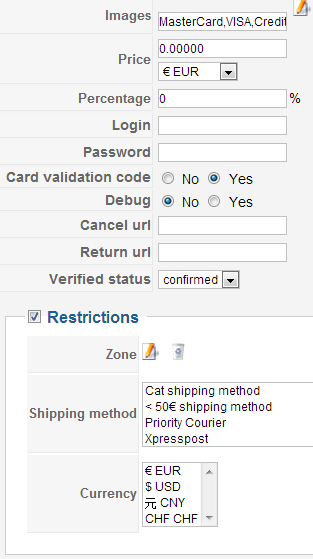
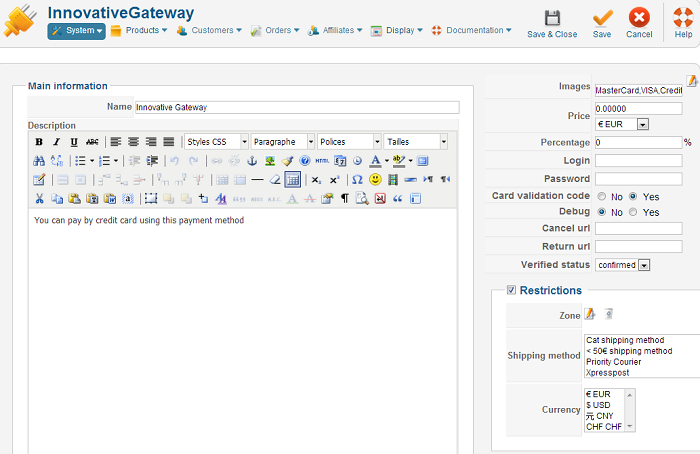
- Images : You can click on the edit icon to select one or several images to display next to the name of the Innovative Gateway payment method during the checkout process. Those images are stored in the folder media/com_hikashop/images/payment so you can easily add more of them by uploading your images to this folder via FTP.
- Login : Your Innovative Gateway Login.
- Password : Your Gateway account password.
- Card validation code: This option will enable you to ask to your customers their Card validation code through the checkout.
- Debug : You can activate the debug mode of the Innovative Gateway payment plugin. If you do so, information about each notification received from Innovative Gateway will be logged in the payment log file. You can see and modify the location of this file in the configuration page of HikaShop.
- Verified status : Here, you can select the status to set to an order if the plugin receives a successful completion notification from Innovative Gateway for an order.
- Zone : You can restrict the Innovative Gateway payment method to a zone. By clicking on the edit icon, a popup will open enabling you to select a zone. You can also remove this limitation by clicking on the delete icon.
- Shipping method : With this option you can select the shipping method for which this payment method will be available. For example, if you choose UPS, this payment method will only be usable if UPS is selected as shipping method. If another shipping method is selected, this payment method will not be displayed. Note: if you selected "None" or don't select any shipping method, this payment method will always be available.
- Currency : This option allows you to restrict Innovative Gateway to only some currencies. Note that on top of that, the Innovative Gateway method won't display for any currency not supported by Innovative Gateway or by your Innovative Gateway account (you can edit it through your Innovative Gateway configuration screen).