Description
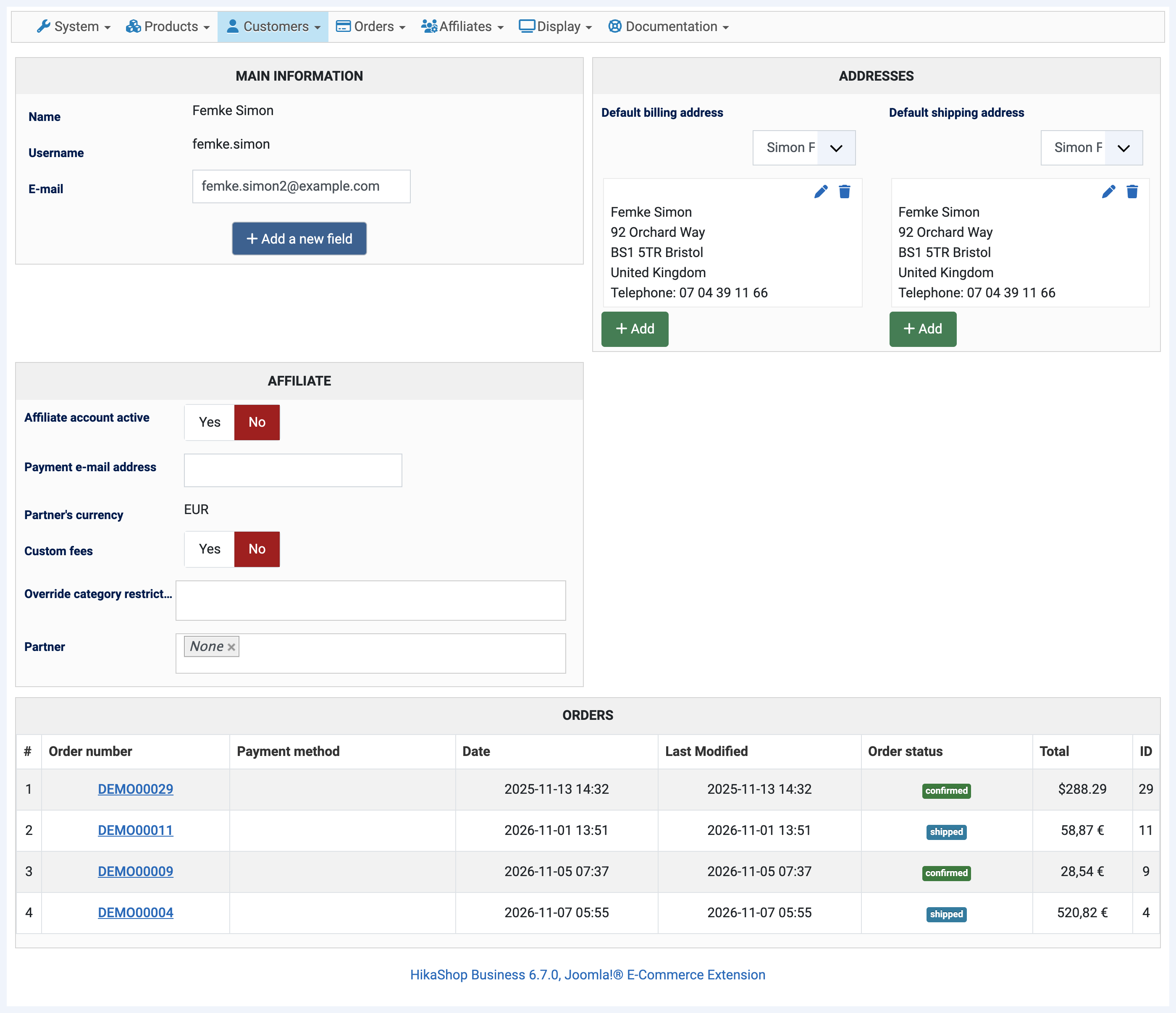
This screen enables you to edit a user. During the checkout process, the customers will be added to the list of HikaShop user whether he already registered via Joomla (or any other component) or he created a new account using the checkout registration form. Additionally, users will also be added to HikaShop as partners if they subscribe to the affiliate program available in the business version of HikaShop.
Toolbar

- Joomla user options : Go to the Joomla options of the user. It will be handy for setting his language, access rights, timezone, etc thanks to the standard Joomla user options.
- E-mail : If you click on this button, you will be able to send an email to the user from the popup which will be displayed.
- Email history: If you click on this button, the email history of the user will be displayed.
- Save : Save the user and stay on this screen.
- Save & Close : Like the previous "Save" button but in addition the current user page will be closed and you go back to the users listing.
- Cancel : Return to the previous screen.
- Help : This button enables you to turn ON/OFF the help section, this screen will appear or disappear.
Main information
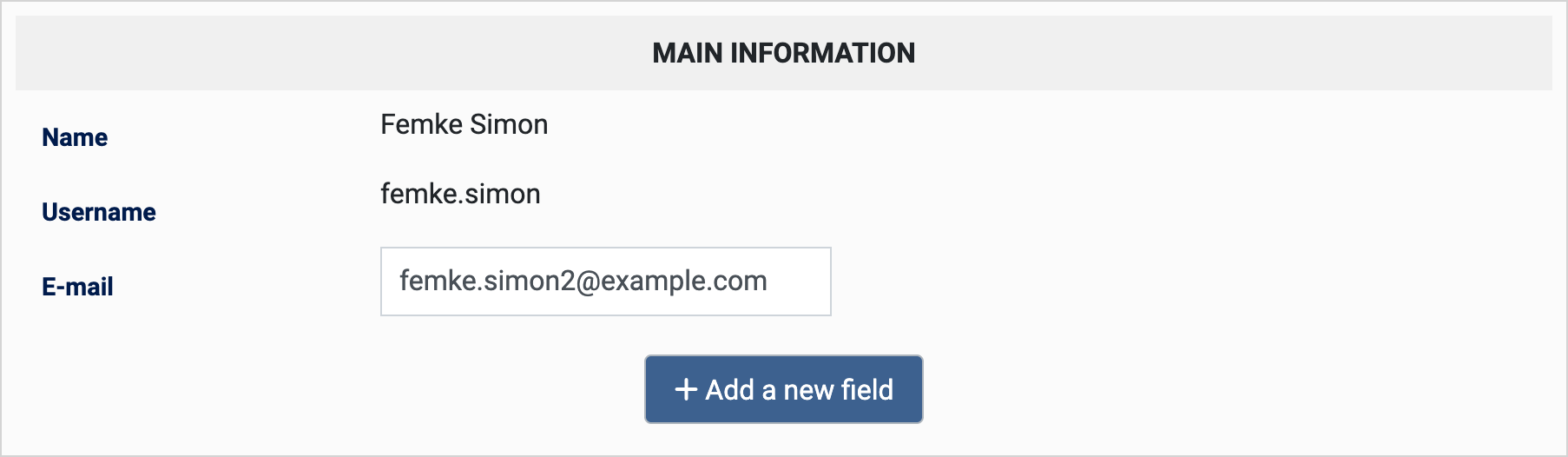
- Name : The name of the user in Joomla. It can only be modified on the Joomla user option page.
- Username : The username of the user in Joomla. It can only be modified on the Joomla user option page.
- E-mail : The email of the user.
- Add a new field : The button below lets you add a custom field of the "user" table to this screen.
- IP : The IP of the user. This field will only be available if the geolocation plugin is published and that the user geolocation is turned on in the plugin.
- All the fields below are only available if the affiliate plugin, available from HikaShop Business, is published
- Partner email : The payment email of the partner. You can directly pay your affiliate via paypal if they enter their PayPal email in this field. This field is available to your partners in the front end affiliate program page.
- Partner's currency : The currency in which the partner wishes to be paid in. Based on the option in the configuration of HikaShop, your partners might not be able to choose it from the front end affiliate program's interface. The unpaid amounts below will be in this currency.
- Unpaid amount for clicks : The amount due to the partner for the clicks coming from his affiliate account. You will have an additional icon next to it for you to see all the clicks related to this amount in a popup.
- Unpaid amount for leads : The amount due to the partner for the new registrations coming from his affiliate account. You will have an additional icon next to it for you to see all the users related to this amount in a popup.
- Unpaid amount for sales : The amount due to the partner for the sales coming from his affiliate account. You will have an additional icon next to it for you to see all the sales related to this amount in a popup.
- Total unpaid amount : The total of the three previous amounts will be displayed. An additional icon will be available next to it for you to mark the amount as paid with the possibility to be redirected to paypal in order to do the payment. Once the amount is marked as paid this value will go back to 0.
- Custom fees : You can select general fees for your partners in the configuration of HikaShop under the tab affiliate once the affiliate plugin is published. On top of that, you can override those fees with custom fees on a per user basis. Once you turn this option on the additional options above will be displayed.
- Currency of fees : The currency of the fees. Basically, you can set a fee where the user would receive 1 euro per sale but he would like to be paid in dollars. So the fees amount will be converted to the partner's currency. Thus, you will see here two currency selections.
- Lead fee : The fee for leads (new inscriptions when the user comes from the partner's website). By default, the value displayed here will be the value in the configuration.
- Percentage fee on sales : The percentage fee for sales. By default, the value displayed here will be the value in the configuration. The amount will be calculated based on the valid orders (based on their status and the valid order status option of the configuration) total amount and converted in the currency of the partner.
- Flat fee on sales : The flat fee for sales. By default, the value displayed here will be the value in the configuration. The amount will be calculated for the valid orders (based on their status and the valid order status option of the configuration) and converted in the currency of the partner.
- Click fee : The fee for clicks (when someone comes to your website from the partner's website). By default, the value displayed here will be the value in the configuration.
|
Addresses
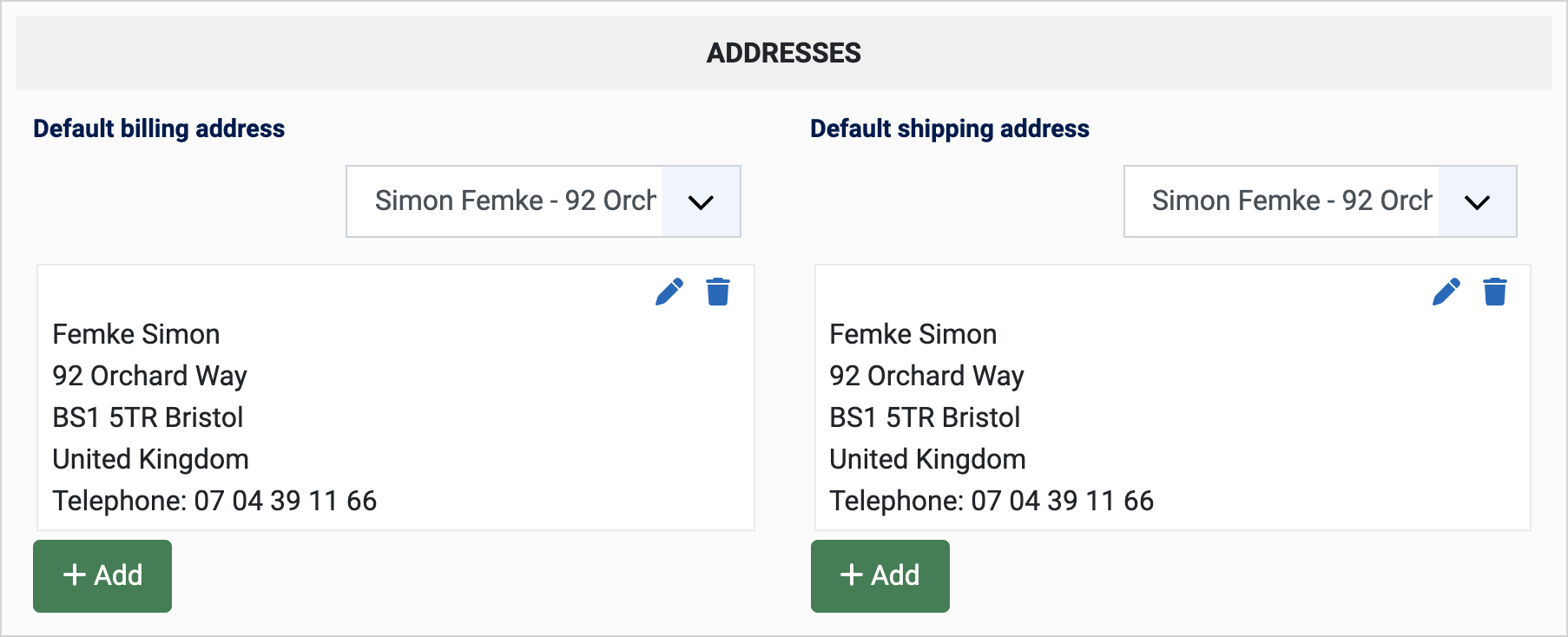
The addresses area shows the default billing address and the default shipping address of the user, each with a dropdown to choose which of his addresses is the default one. Each address has an edit icon and a delete icon, and an "Add" button below creates a new one. Each time a popup will be displayed for you to specify the address information.
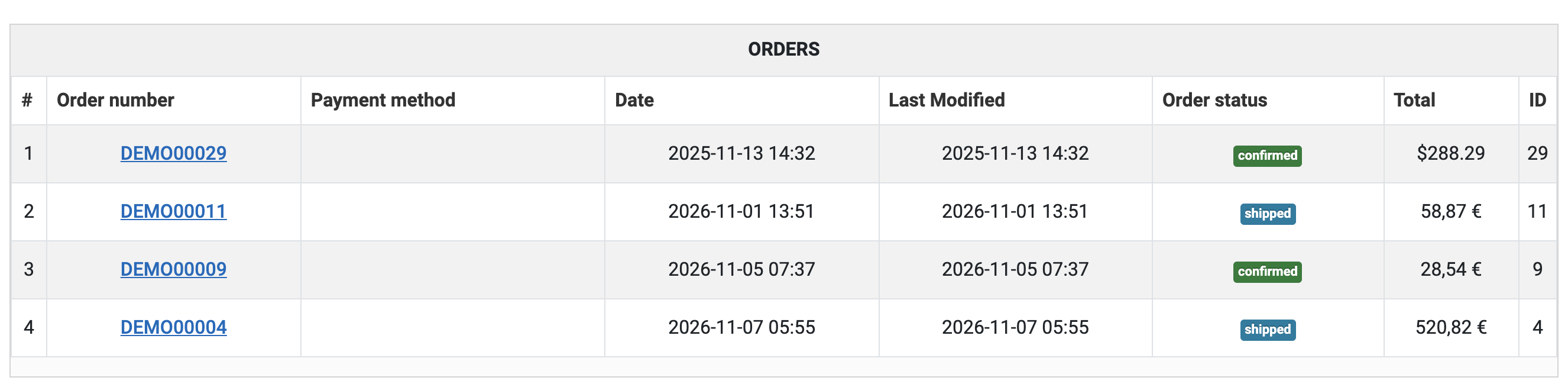
Orders