
- Available HikaShop languages
- Available HikaMarket languages
- Available HikaSerial languages
- How to translate HikaShop ?
- How to translate your content (products/categories/etc) ?
- Several languages on WordPress (Polylang, WPML)
- How to modify translations (Overrides) ?
Available languages
HikaShop is currently fully translated in 41 languages and partially in 16 languages.
By default, only the English language is included in the installation package to reduce its size. If you use other languages that weren't installed during the wizard setup phase of the HikaShop installation, simply go to the HikaShop Configuration page ("HikaShop → System → Configuration"), click on the Languages tab, and click the Add/Edit icon for your language. HikaShop will propose to load the latest version of this language directly from our website. Finally, simply save the language to activate it on your website. If you don't see your language there, you may need to install the corresponding Joomla language pack first.
On WordPress, there is no language pack to install: HikaShop downloads the translation of its interface from our website by itself, for the language WordPress is running in, and keeps the files it already has up to date. They are listed in that same Languages tab.
| Language | Tag | Flag | Coverage | Download |
|---|---|---|---|---|
| Afrikaans (South Africa) | af-ZA |  |
10% | Download |
| Albanian (Albania) | sq-AL |  |
7% | Download |
| Arabic (all) | ar-AR |  |
100% | Download |
| Arabic (Standard) | ar-AA | |
100% | Download |
| Basque (Spain & France) | eu-ES |  |
37% | Download |
| Bulgarian (Bulgaria) | bg-BG |  |
56% | Download |
| Catalan (Spain) | ca-ES |  |
37% | Download |
| Chinese (China) | zh-CN |  |
100% | Download |
| Chinese (Taiwan) | zh-TW |  |
100% | Download |
| Croatian (Bosnia and Herzegovina) | bs-BA |  |
44% | Download |
| Croatian (Croatia) | hr-HR | |
100% | Download |
| Czech (Czech Republic) | cs-CZ |  |
100% | Download |
| Danish (Denmark) | da-DK |  |
100% | Download |
| Dutch (Belgium) | nl-BE |  |
100% | Download |
| Dutch (Netherlands) | nl-NL |  |
100% | Download |
| English (Australia) | en-AU |  |
100% | Download |
| English (United Kingdom) | en-GB |  |
100% | Download |
| English (USA) | en-US |  |
100% | Download |
| Finnish (Finland) | fi-FI |  |
100% | Download |
| French (Canada) | fr-CA |  |
100% | Download |
| French (France) | fr-FR |  |
100% | Download |
| Galician (Spain) | gl-ES |  |
45% | Download |
| German (Austria) | de-AT |  |
100% | Download |
| German (Germany) | de-DE |  |
100% | Download |
| German (Switzerland) | de-CH |  |
100% | Download |
| Greek (Greece) | el-GR |  |
100% | Download |
| Hebrew (Israel) | he-IL |  |
100% | Download |
| Hindi (India) | hi-IN |  |
100% | Download |
| Hungarian (Hungary) | hu-HU |  |
100% | Download |
| Indonesian (Indonesia) | id-ID |  |
100% | Download |
| Italian (Italy) | it-IT |  |
100% | Download |
| Japanese (Japan) | ja-JP |  |
100% | Download |
| Korean (South Korea) | ko-KR |  |
12% | Download |
| Latvian (Latvia) | lv-LV |  |
100% | Download |
| Lithuanian (Lithuania) | lt-LT |  |
52% | Download |
| Macedonian (North Macedonia) | mk-MK |  |
54% | Download |
| Malay (Malaysia) | ms-MY |  |
100% | Download |
| Montenegrin (latin) | srp-ME |  |
43% | Download |
| Norwegian Bokmål (Norway) | nb-NO |  |
100% | Download |
| Persian (Iran) | fa-IR |  |
100% | Download |
| Polish (Poland) | pl-PL |  |
100% | Download |
| Portuguese (Brazil) | pt-BR |  |
100% | Download |
| Portuguese (Portugal) | pt-PT |  |
100% | Download |
| Romanian (Romania) | ro-RO |  |
100% | Download |
| Russian (Russia) | ru-RU |  |
100% | Download |
| Serbian Cyrillic (Serbia) | sr-RS |  |
41% | Download |
| Serbian Latin (Serbia) | sr-YU | |
43% | Download |
| Slovak (Slovakia) | sk-SK |  |
100% | Download |
| Slovenian (Slovenia) | sl-SI |  |
100% | Download |
| Spanish (Chile) | es-CL |  |
100% | Download |
| Spanish (Spain) | es-ES | |
100% | Download |
| Swedish (Sweden) | sv-SE |  |
100% | Download |
| Thai (Thailand) | th-TH |  |
100% | Download |
| Turkish (Turkey) | tr-TR |  |
100% | Download |
| Ukrainian (Ukraine) | uk-UA |  |
57% | Download |
| Vietnamese (Viet Nam) | vi-VN |  |
100% | Download |
HikaMarket Languages
| Danish (Denmark) | da-DK | |
Download |
| German (Germany) | de-DE | |
Download |
| English (United Kingdom) | en-GB | |
Download |
| Spanish (Spain) | es-ES | |
Download |
| Persian (Iran) | fa-IR | |
Download |
| French (France) | fr-FR | |
Download |
| Italian (Italy) | it-IT | |
Download |
| Japanese (Japan) | ja-JP | |
Download |
| Dutch (Belgium) | nl-BE | |
Download |
| Dutch (Netherlands) | nl-NL | |
Download |
| Russian (Russia) | ru-RU | |
Download |
| Slovak (Slovakia) | sk-SK | |
Download |
| Swedish (Sweden) | sv-SE | |
Download |
| Ukrainian (Ukraine) | uk-UA | |
Download |
HikaSerial Languages
| Bulgarian (Bulgaria) | bg-BG | |
Download |
| German (Germany) | de-DE | |
Download |
| English (United Kingdom) | en-GB | |
Download |
| French (France) | fr-FR | |
Download |
| Italian (Italy) | it-IT | |
Download |
| Japanese (Japan) | ja-JP | |
Download |
| Dutch (Belgium) | nl-BE | |
Download |
| Dutch (Netherlands) | nl-NL | |
Download |
| Russian (Russia) | ru-RU | |
Download |
| Swedish (Sweden) | sv-SE | |
Download |
| Turkish (Turkey) | tr-TR | |
Download |
How to translate HikaShop?
If HikaShop is not yet available in your language, or if you wish to contribute to an existing translation, you can do so directly from within the HikaShop interface.
Steps to modify or add a translation:
- Log in to your Joomla Administrator backend.
- Navigate to Components → HikaShop.
- In the HikaShop menu, go to System → Configuration.
- On the HikaShop configuration page, go to the Languages tab.
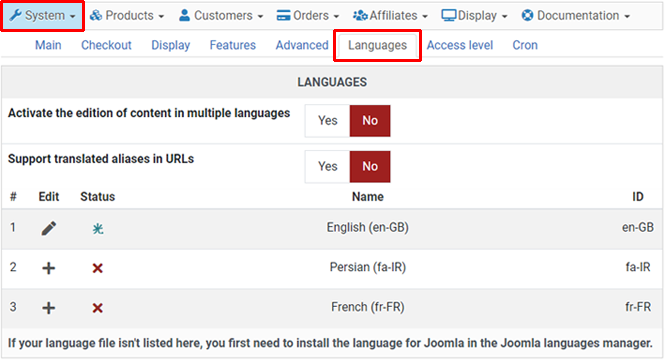
In this view, you will see all languages currently installed in your Joomla instance.
- Add/Edit: Click the Edit icon (or Add icon if the file doesn't exist yet) next to your language.
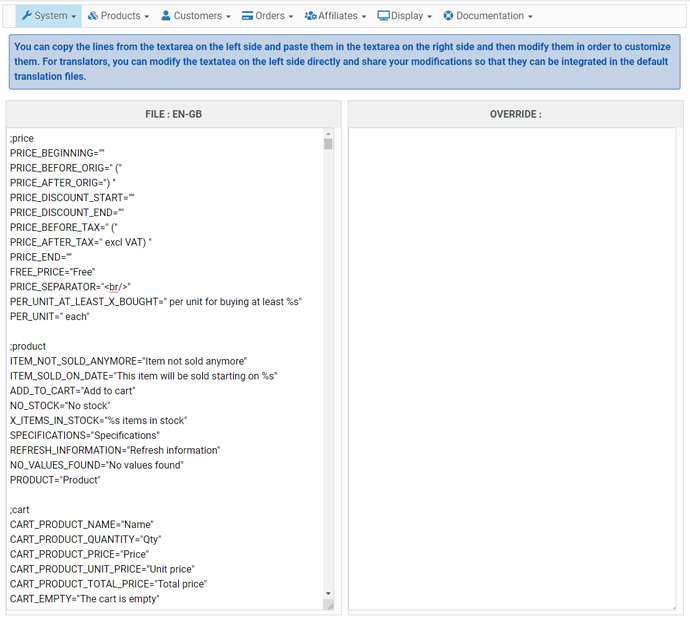
- Interface: You will be taken to a dedicated editor. If the translation file is new, HikaShop will preload the English keys for you to translate.
?️ Critical Rules for Translation
- Do not touch the Key: Never modify the text before the equal sign (e.g., in
PRODUCT_NAME="Name", only change "Name"). - Double Quotes: Your translation must be enclosed in double quotes (
"). Do not add extra double quotes inside the string. If you need to include a double quote within the string, use a backslash (\") to escape it or try using single quotes (') instead. - Placeholders (
%s,%d): These represent dynamic data (like prices or dates).- Never remove them.
- Do not change their order. If a string has two
%s, they must appear in the same order as in English.
- No Line Breaks: Do not press "Enter" inside a translation string; it will break the file structure. Since translations are mostly used in HTML, you can use the
<br>tag to create line breaks in your translation without breaking the file structure. - Comments: Lines starting with
#or;are comments and should not be translated.
Once finished, click Save. We highly encourage using the Share button to contribute your work back to the community. This ensures your translations are included in future HikaShop updates, so you don't have to re-apply them later!
How to translate your content (Products, Categories, etc.)?
Translating the interface is one thing, but your catalog content (product names, descriptions) needs a different approach. Here are the three main strategies:
| Method | Description | Best For... |
|---|---|---|
| 1. Multi-Tree Structure | Create separate category trees (one for each language) and duplicate products. Then, create menu items for each language, pointing to the appropriate category tree. |
Small shops with few products and no stock management needs. |
| 2. Third-Party Extension (Falang) | Uses the Falang extension to manage translations without duplicating data. This is a paid extension, but it provides a dedicated translation manager interface with AI assistance for translations. |
Users who prefer a dedicated translation manager interface with AI assistance. |
| 3. HikaShop Native Multilingual content | Enable the Activate the edition of content in multiple languages in the HikaShop configuration. Then, when you edit a product, category, etc., you will see language flags you can click on to translate the content. |
Recommended. Seamless, high-performance, controlled and built-in to Joomla's native multilingual system. |
To set up the native system (Option 3), ensure you have first configured Joomla's multilingual features. Then, enable the setting in HikaShop → System → Configuration → Languages.
Several languages on WordPress (Polylang, WPML)
WordPress has no second content language of its own, so a shop which wants one installs a multilingual plugin. HikaShop works with Polylang and with WPML, and detects by itself the one your site uses. This is available since HikaShop 6.6.0.
Setting it up:
- Install Polylang (free) or WPML (paid) on your WordPress website.
- Add your languages in that plugin, as you would for the rest of your site. In Polylang, that is in Languages → Languages. In WPML, that is in WPML → Languages.
- Edit a product or a category in HikaShop: a flag is now displayed for each of your languages. Click on a flag and translate the name, the description and your custom fields, exactly as on Joomla.
There is nothing to turn on in HikaShop for this: as soon as the multilingual plugin gives HikaShop more than one language, the flags appear. Translating your content requires the Essential or the Business edition, and the option Activate the edition of content in multiple languages of HikaShop → Configuration → Languages, which is enabled by default.
You do not translate your products with Polylang or WPML
Your products and your categories are not WordPress posts, they are HikaShop data, so they do not appear in the translation screens of these plugins and you do not need to duplicate them there. HikaShop asks the multilingual plugin two things only: the list of the languages of the site, and which language the visitor is reading. The translations themselves are typed in HikaShop and stored by HikaShop.
Because HikaShop stores them itself, your translations are kept in wp-content/uploads/hikashop/language/overrides, outside the plugin folder. An update of HikaShop cannot delete them, and changing your multilingual plugin, or removing it, does not lose them.
The HikaShop interface (buttons, messages) follows the language of WordPress, and on the front end the language the visitor is reading, since both Polylang and WPML tell WordPress which one that is. You can review the interface files, edit them and add your own overrides in HikaShop → Configuration → Languages of your WordPress administration menu.
If the file of one of your languages is missing there, either open the HikaShop back end once with WordPress set to that language, which makes HikaShop download it, or download your language from the list at the top of this page and upload the TAG.com_hikashop.ini file it gives you (fr-FR.com_hikashop.ini for French) in the language folder of the HikaShop plugin, at wp-content/plugins/hikashop/language/.
The Falang method described above is a Joomla extension and does not apply to WordPress. On WordPress, the native HikaShop translation system is the one to use.
Customizing specific translations (Overrides)
If you only want to change a texts of the HikaShop interface (e.g., changing "VAT" to "Sales Tax"), you should use Overrides. This prevents your changes from being overwritten when you update HikaShop.
How to create an override:
- Navigate to HikaShop → System → Configuration → Languages.
- Click the Edit icon for your language.
- In the editor, find the line you want to change in the main file on the left side of the page, and copy it.
- Paste it into the Overrides textarea on the right side of the page.
- Modify the text inside the quotes in that override section and click Save.
For more technical details on translation strings and formatted fields, we recommend checking the Joomla Manual. You can also find more information on creating overrides and debugging translations in the Joomla Documentation.