Open a Xendit account on xendit.co and activate the payment channels you want in its dashboard.
In the Xendit dashboard, Settings, Developers, API Keys, create a secret key with the Write permission of Money-in (a test key first, then a live one once Xendit has verified your business).
Install the plugin with the extension manager of your site and make sure it is enabled.
In HikaShop, System, Payment methods, click New and choose Xendit.
Paste the secret key and the webhook verification token (in the Xendit dashboard, Settings, Webhooks), and save.
Copy the Webhook URL shown in the settings and paste it in the Xendit dashboard, Settings, Webhooks, for Payment Session and for Payments v3.
Configuration
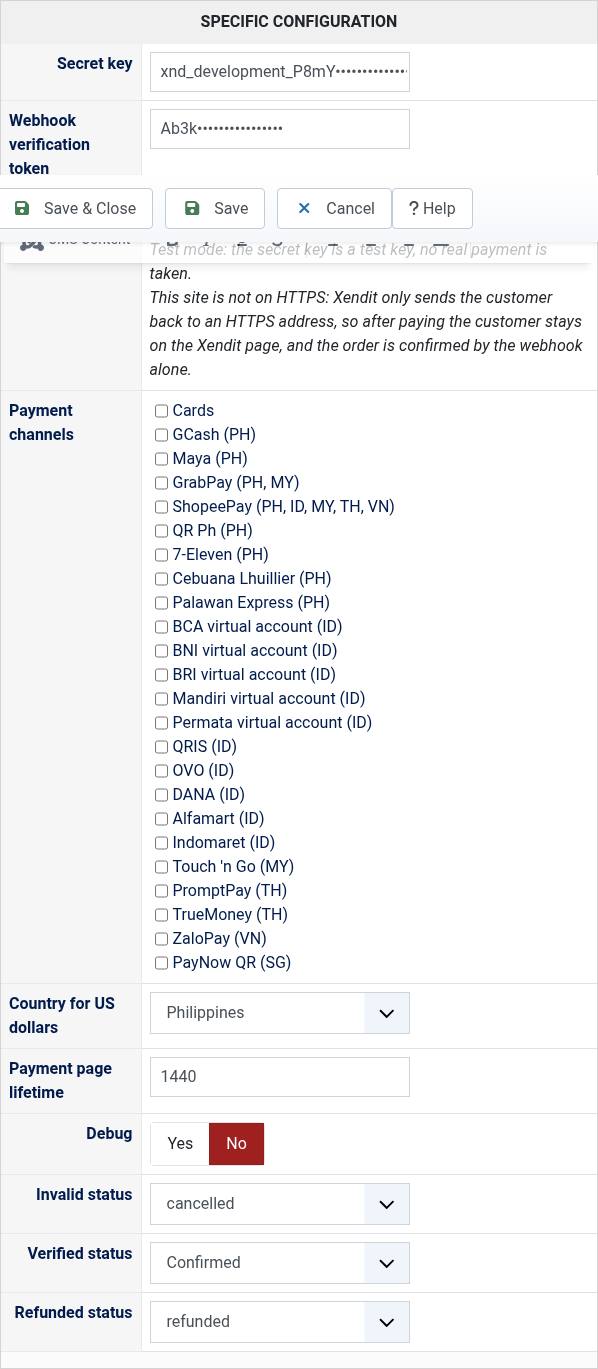
Secret key: the secret key of your Xendit account. A key starting with xnd_development_ runs in test mode, one starting with xnd_production_ takes real payments.
Webhook verification token: the token of the Webhooks page of your Xendit dashboard. Without it the webhooks of Xendit are refused and the orders are not confirmed.
Webhook URL: the address to paste in the Xendit dashboard, Settings, Webhooks. Not a setting to change.
Payment channels: the channels offered on the payment page. Leave them all unticked to offer every channel your Xendit account has for the currency of the order.
Country for US dollars: Xendit needs a country with each payment; for orders in US dollars, the country of your Xendit account.
Payment page lifetime: how many minutes the customer has to pay, counter codes and virtual accounts included. One day when empty, 10 minutes at least.
Debug: writes the calls to Xendit in the payment log of HikaShop.
Invalid status: the status of an order whose payment page expired or was cancelled.
Verified status: the status of a paid order.
Refunded status: moving an order to this status refunds what is left of its payment on Xendit.
Troubleshooting
"No available channels found" or "Channel(s) ... are not available": the channel is not activated on your Xendit account, or does not work with the currency of the order. Activate it in the Xendit dashboard, or untick it in the settings.
The order stays unconfirmed after the payment: the Webhook URL is not set in the Xendit dashboard, or the verification token in the settings is not the one of your account. The payment log of HikaShop says when a webhook was refused.
The customer stays on the Xendit page after paying: Xendit only sends customers back to an HTTPS site. The order is still confirmed by the webhook.
The refund is refused: the order keeps its status and the message of Xendit is shown. Some channels cannot be refunded through Xendit (virtual accounts, counters, online banking), some only in full, and a payment already refunded in part in the Xendit dashboard cannot be refunded in full again; refund what is left in the Xendit dashboard or another way.