1) Get an Affirm merchant account at affirm.com/business. Affirm works with businesses based in the United States or Canada.
2) In your Affirm sandbox dashboard (sandbox.affirm.com for the United States, sandbox.affirm.ca for Canada), open Settings, API Keys, and note the public and the private API key. Your live dashboard has its own pair, for real orders.
3) Install this plugin and enable it in Extensions > Plugins.
4) In HikaShop, go to System > Payment methods, click "New" and select Affirm.
5) Choose the country of your Affirm account, paste the two keys and save: the plugin checks them with Affirm and says whether they were accepted.
6) Make sure your shop has the currency of your account (US dollar or Canadian dollar) published, and that your customers can enter an address in the United States or Canada with its state or province.
7) In System > Order statuses, check the "Capture" column: the payment is taken when an order reaches one of the statuses ticked there (shipped by default).
8) Place a test order with Affirm's test identity, then set Sandbox to No and paste your live keys.
Configuration
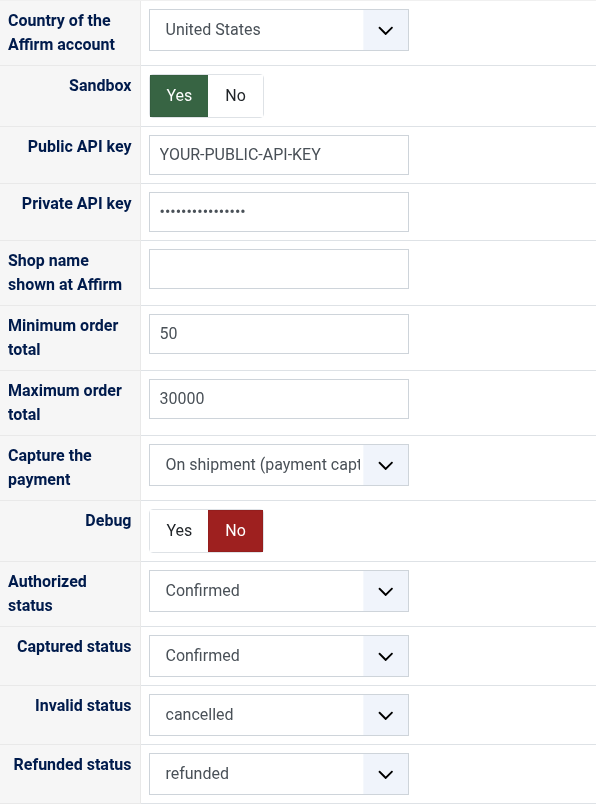
Country of the Affirm account: United States or Canada, the country your Affirm account was opened in. It decides the currency and the addresses Affirm is offered to.
Sandbox: Yes with the keys of your sandbox dashboard, to test without real loans. No with the live keys.
Public API key and Private API key: the pair of Settings, API Keys in the Affirm dashboard of the mode you chose. Without them Affirm is not offered.
Shop name shown at Affirm: the name of your shop on Affirm's page. Empty, the name of your site is used.
Minimum order total and Maximum order total: Affirm is only offered between these totals, in the currency of your account. 50 and 30000 are Affirm's usual limits; use those of your Affirm contract. An empty maximum means no maximum.
Capture the payment: "On shipment (payment capture statuses)" takes the payment when the order reaches one of the capture statuses of System > Order statuses, which is what Affirm recommends; "At once" takes it as soon as the customer signs. An authorization not captured within 30 days is lost.
Debug: writes every call to Affirm to the HikaShop payment log file.
Authorized status: the status of an order whose loan is signed and waits to be captured (confirmed by default).
Captured status: the status of an order captured at once. An order captured on shipment keeps its shipped status.
Invalid status: the status of an order whose loan did not match it, and which was cancelled on Affirm. Setting an order not captured yet to this status, or to cancelled, releases its loan.
Refunded status: setting a captured order to this status refunds what is left of it on Affirm.
Troubleshooting
"Affirm refused the API keys" on save: the keys are wrong, or they do not match the Sandbox setting (sandbox keys need Sandbox on Yes) or the country of the account.
Affirm is not offered at the checkout: the order is not in the currency of your account, an address is outside its country, the total is outside your minimum and maximum, or the keys are missing.
"Affirm did not capture the payment": the order history and the payment log say why. An authorization expires after 30 days, after which the order can no longer be charged.
A refund or a cancellation refused by Affirm keeps the order in its previous status and shows Affirm's reason.
Refunds made in the Affirm dashboard are not reported to the shop: make them from HikaShop.