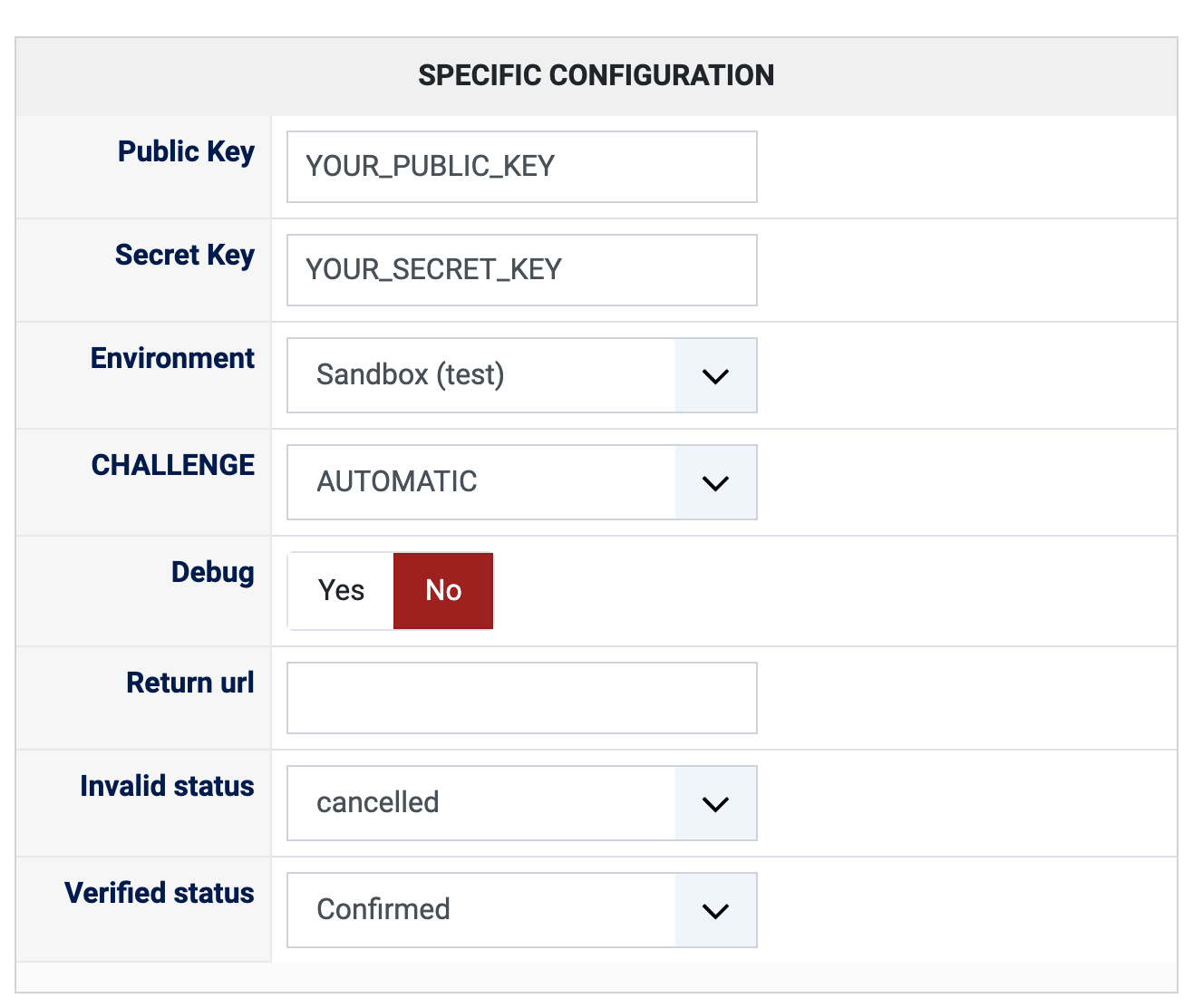
1) You need a Revolut merchant account. The Public Key and the Secret Key are in the Merchant API section of its portal; the sandbox and the production portals have their own keys.
2) Install this plugin on your Joomla or WordPress website: in Joomla with the extension installer, in WordPress with the "Install Plugin" button of HikaShop's payment plugins page.
3) In HikaShop, go to System > Payment methods, click "New" and choose Revolut.
4) Type your keys, choose the Environment, set "Published" to Yes and save.
5) The customer pays on the Revolut payment page. When they come back to your shop, the plugin asks Revolut for the state of the payment and confirms the order if it is completed. Nothing has to be set in the Revolut portal for it.
Try a payment in the sandbox first, then switch to Production with the production keys.
Configuration
Public Key: the Public Key of your Revolut account. Left empty, the method cannot take payments.
Secret Key: the Secret Key of your Revolut account. Left empty, the method cannot take payments.
Environment: Sandbox (test) with the sandbox keys, Production with the live keys.
CHALLENGE: Automatic leaves it to Revolut to decide when to ask the customer for a strong authentication. Forced asks it for every payment.
Debug: Yes writes the exchanges with Revolut to the HikaShop payment log. Turn it on to look into a problem, then off again.
Return url: not used by this plugin, leave it empty.
Invalid status: the status for an unsuccessful payment ("cancelled" by default).
Verified status: the status of a paid order ("Confirmed" by default). Choose the status that sends your customer the confirmation email.
The other settings of the page (name, description, images, price, zone, currency, restrictions) are the same as for every HikaShop payment method. The currency of the order has to be one Revolut accepts.
Troubleshooting
Turn Debug on and open the payment log (System > Configuration, Files, "See the report" next to "Payment log file"): the answers of Revolut are written there.
"You have to configure the Public Key (or the Secret Key) for the Revolut plugin payment first": type the keys in the payment method.
The customer comes back to the cancel page with a message from Revolut: Revolut refused to create the payment, and its message is shown. A wrong key or a key of the other environment is the usual cause.
"Revolut: Unable to retrieve the order ID from the return URL": the customer came back to your shop with an address that was cut. They should try again.
Orders paid but still unconfirmed: the order is confirmed when the customer comes back to your shop. If they closed the page before, the order stays as it is, and you can confirm it by hand after checking the payment in Revolut.