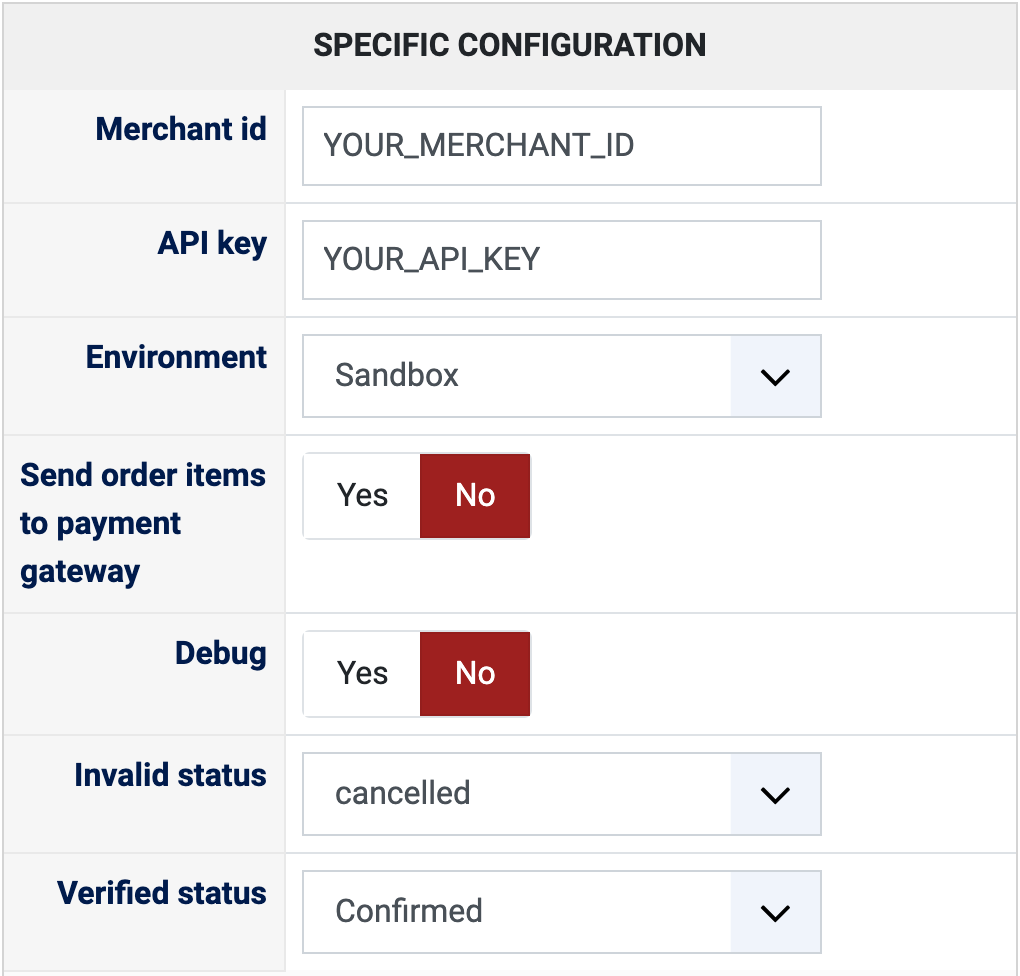
1) You need an Axepta BNP Paribas merchant account: the plugin asks for the Merchant ID and the API key of that account, with a test environment to try the plugin first.
2) Install this plugin on your Joomla or WordPress website: in Joomla with the extension installer, in WordPress with the "Install Plugin" button of HikaShop's payment plugins page.
3) In HikaShop, go to System > Payment methods, click "New" and choose Axepta BNP Paribas.
4) Type your Merchant ID and your API key, choose the environment, set "Published" to Yes, and save.
5) Your website has to be reachable from the internet: Axepta tells your shop that a payment was made by calling an address of your shop, and the order is only confirmed through that call.
Configuration
Merchant id: the Merchant ID of your Axepta account. Left empty, the method cannot take payments.
API key: the API key that goes with your Merchant ID. Left empty, the method cannot take payments.
Environment: Sandbox while you try the plugin, Production once you take real payments. Choose the one that matches the account the Merchant ID and the API key come from.
Send order items to payment gateway: Yes sends the products, their quantity, price and tax, and the shipping of the order to Axepta together with the payment. No (the default) sends only the total.
Debug: Yes writes what is sent to Axepta and what comes back to the HikaShop payment log. Turn it on to look into a problem, then off again.
Invalid status: the status of an order whose payment Axepta reports as anything other than successful ("cancelled" by default).
Verified status: the status of a paid order ("confirmed" by default). Choose the status that sends your customer the confirmation email.
The other settings of the page (name, description, images, price, zone, currency, restrictions) are the same as for every HikaShop payment method.
Troubleshooting
Turn Debug on and open the payment log (System > Configuration, Files, "See the report" next to "Payment log file") to see the exchanges with Axepta.
"Please configure Axepta Merchant ID and API Key": type both in the payment method.
"Axepta API Request Failed (...)": Axepta refused the payment request; the reason it gave follows in the message and in the payment log. Check that the Merchant ID, the API key and the environment all belong to the same account.
"Axepta API Error": your server could not reach Axepta (network or certificate problem); the detail follows in the message.
Orders paid but still unconfirmed: Axepta could not call your shop, or the payment reference it reported does not match the order. A notification that does not match the order is refused and written to the payment log as "Security Warning: Axepta Payment Reference mismatch".