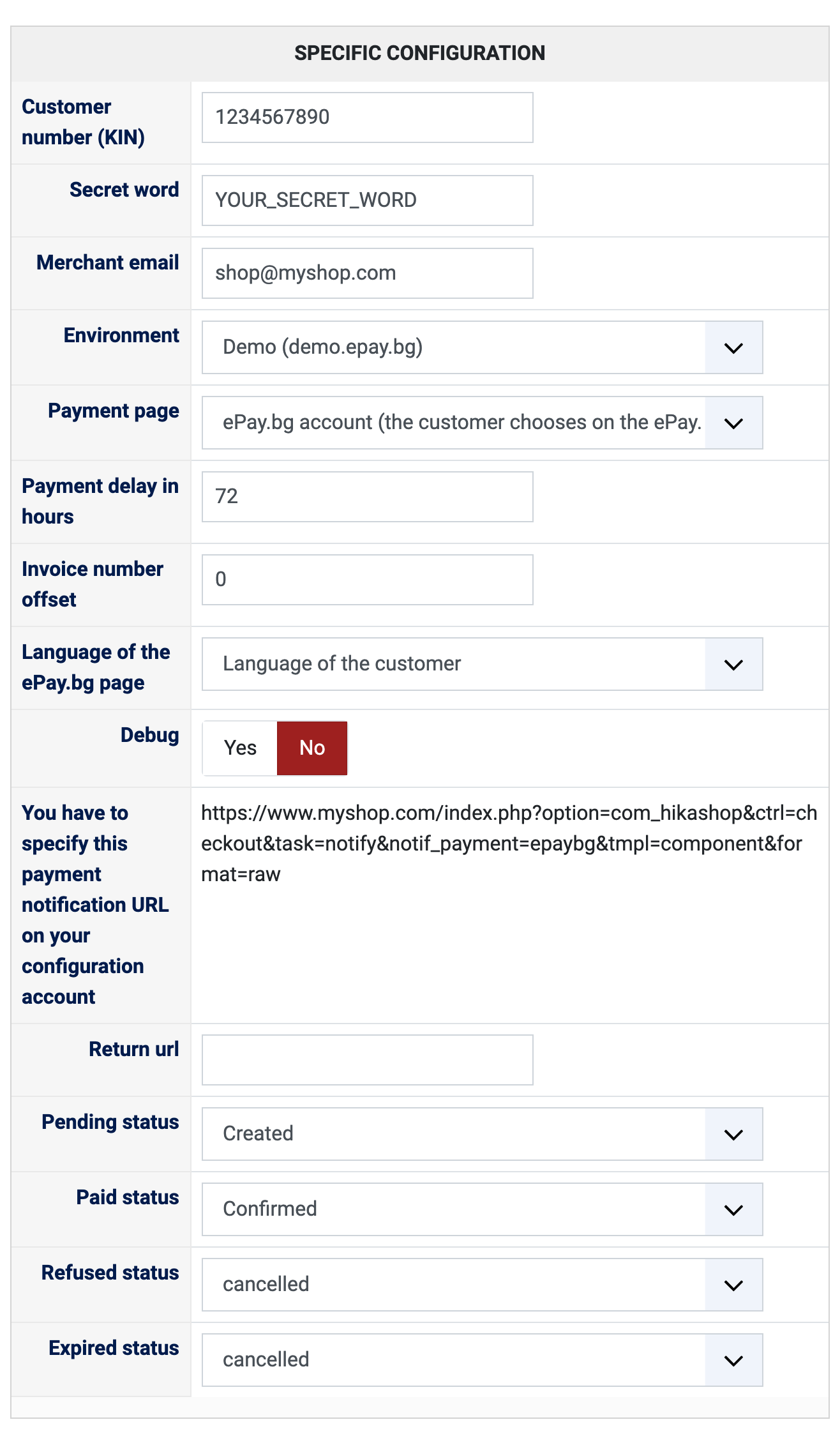
1) Register as a merchant on ePay.bg. Your customer number (KIN) is displayed on the home page of your ePay.bg profile, and your secret word is the one of your merchant profile. To try the plugin first, register on the free ePay.bg demo system and use the KIN and the secret word generated for your demo merchant profile.
2) Install this plugin on your Joomla or WordPress website: in Joomla with the extension installer, in WordPress with the "Install Plugin" button of HikaShop's payment plugins page.
3) In HikaShop, go to System > Payment methods, click "New" and choose ePay.bg.
4) Type your customer number and your secret word, choose the Environment, set "Published" to Yes, and save.
5) Open the method again and copy the notification address shown in its settings. ePay.bg has to hold that address for your shop: it is how it tells your shop that an order was paid, and without it no order is ever confirmed. In production, ask ePay.bg to set it for your customer number; on the demo system, you set it in your demo profile.
6) The PHP cURL extension has to be available on your server, and your website has to be reachable by ePay.bg on the standard HTTP or HTTPS port.
Configuration
Customer number (KIN): your customer identification number on ePay.bg. Left empty, the method cannot take payments.
Secret word: the secret word of your ePay.bg merchant profile, used to sign every request and to check every notification. Left empty, the method cannot take payments.
Merchant email: optional, the email of your merchant account on ePay.bg, sent with the payment request so that ePay.bg can reach you about it.
Environment: Demo (demo.epay.bg) while you test, Production (epay.bg) once you have a contract. The KIN and the secret word have to be those of the same environment.
Payment page: how the customer pays. "ePay.bg account" opens the ePay.bg page, where the customer can also switch to the other ways of paying. Bank card, Cash at an EasyPay counter and At an ATM go straight to that one way. Each of them has to be activated on your ePay.bg contract. Create one payment method per way of paying if you want your customers to choose on your own checkout.
Payment delay in hours: how long the customer has to pay before ePay.bg marks the request as expired, 72 by default. Leave enough time for a customer paying at an EasyPay counter or at an ATM.
Invoice number offset: a number added to the order number to build the ePay.bg invoice number, 0 by default. An invoice number can be used only once on an ePay.bg account, so raise it if the account was already used by another shop or if you reinstall your shop from zero.
Language of the ePay.bg page: Language of the customer, Bulgarian or English, to always show that language.
Debug: Yes writes what is sent to ePay.bg and what comes back to the HikaShop payment log. Turn it on to look into a problem, then off again.
You have to specify this payment notification URL on your configuration account: the address ePay.bg has to call to tell your shop of each payment, shown for information (see step 5 of the installation).
Return url: optional, the page your customer is sent to after the payment. Left empty, the standard HikaShop thank you page is used.
Pending status: the status of an order once the payment request is registered with ePay.bg and before the customer pays ("created" by default). An order paid at an EasyPay counter or at an ATM can stay in it for days.
Paid status: the status of the order when ePay.bg tells the payment was made ("confirmed" by default).
Refused status: the status of the order when the customer refuses the payment on ePay.bg ("cancelled" by default).
Expired status: the status of the order when the payment delay runs out without the customer paying ("cancelled" by default). It is a separate setting because nothing failed: the customer simply did not pay.
The other settings of the page (name, description, images, price, zone, currency, restrictions) are the same as for every HikaShop payment method.
Troubleshooting
Turn Debug on and open the payment log (System > Configuration, Files, "See the report" next to "Payment log file") to see the exchanges with ePay.bg.
"Please enter your ePay.bg customer number and secret word in the settings of this payment method.": fill in both settings.
"ePay.bg did not give a payment code for this order.": with Cash at an EasyPay counter or At an ATM, ePay.bg did not return the 10 digit payment code. Check that this way of paying is activated on your ePay.bg contract and that the environment matches your KIN.
Orders that stay in the Pending status after the customer paid: ePay.bg could not reach your shop. Check that the notification address is the one set at ePay.bg. ePay.bg repeats a notification until your shop answers it, for up to fourteen days.
"the checksum of a notification does not match, nothing was changed" in the payment log: the secret word of the payment method is not the one of your ePay.bg profile.
"a notification arrived for invoices this shop does not know": ePay.bg reported an invoice that matches no order of this shop. Check the invoice number in your ePay.bg profile.
"was paid ... while order ... totals ... The order was left as it was." in the payment log: the amount paid is not the total of the order, so the order was not confirmed. Check the payment in your ePay.bg profile.