1) Open a KOMOJU account. A test account is opened at once; KOMOJU reviews your business before live payments.
2) Download the KOMOJU plugin from our website, install it on your Joomla or WordPress website and enable it.
3) Go to HikaShop > Payment methods, create a KOMOJU payment method and enter the secret key of your account.
4) In your KOMOJU dashboard, Manage, Webhooks, create a webhook with the address shown in the settings of the method and a secret token, and type the same token in the method.
Configuration
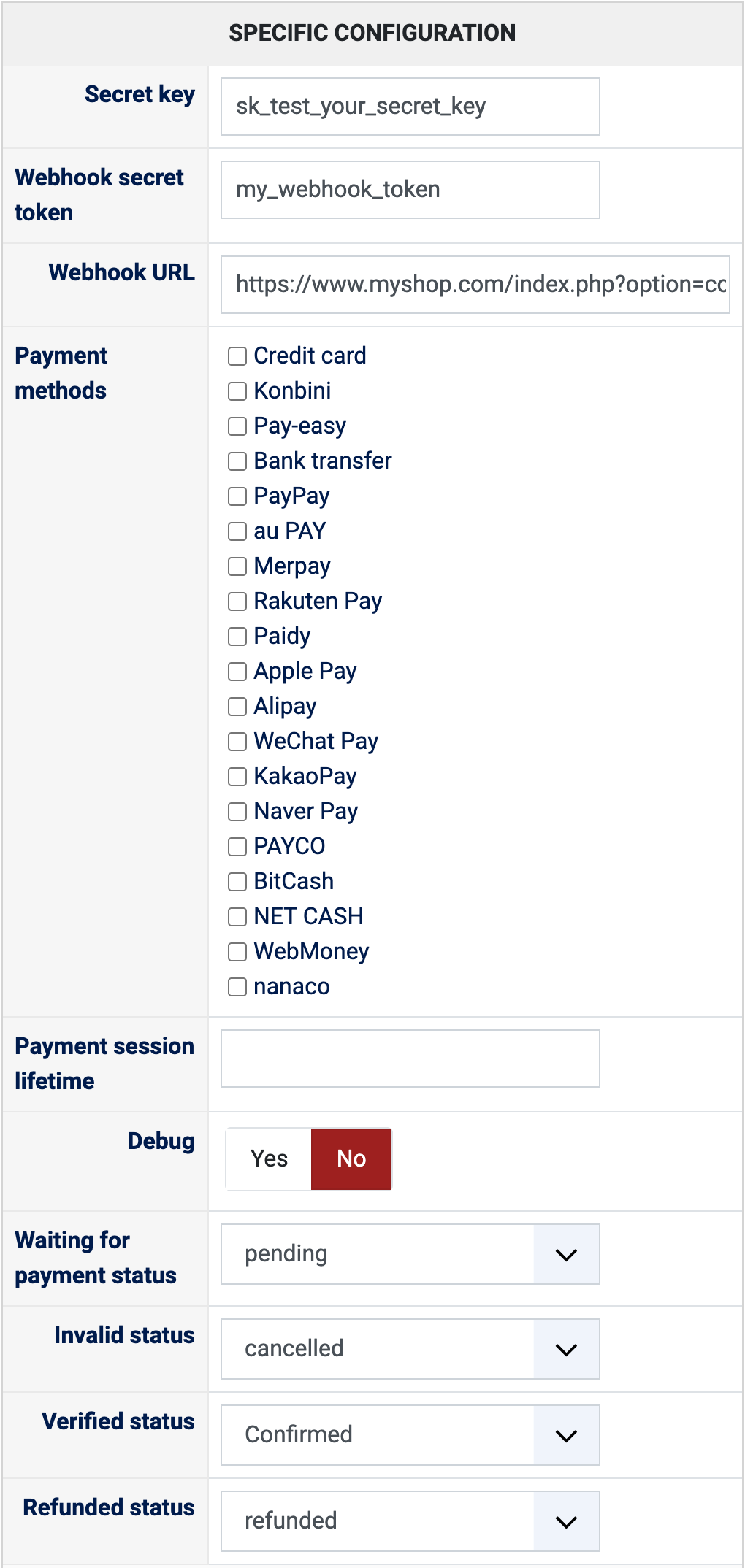
Secret key: sk_test_ for test mode, sk_live_ for real payments. Take it in your KOMOJU dashboard, Settings, API keys: the secret key, not the publishable one (pk_). Left empty, the method cannot take payments.
Webhook secret token: the token you typed when you created the webhook in your KOMOJU dashboard. A webhook without the right token is refused, so orders paid at the convenience store, by Pay-easy or by bank transfer are never confirmed when it is empty.
Webhook URL: the address to paste in your KOMOJU dashboard, Manage, Webhooks, with the events of the payments. It tells your shop about the payments made later, at the convenience store. Under it, "Test mode" tells you the key is a test key.
Payment methods: those offered on the KOMOJU page, or none ticked for those of your account. KOMOJU leaves out the methods the currency of the order does not allow: the Japanese ones take yen only, the Korean ones won only.
Payment session lifetime: how many minutes the payment page stays open, 1440 (24 hours) at most. Empty for 24 hours.
Debug: Yes writes every exchange with KOMOJU to the HikaShop payment log. Turn it on to look into a problem, then off again.
Waiting for payment status: the status of an order once the customer has the payment slip (convenience store, Pay-easy, bank transfer), "pending" by default. The order is confirmed when the customer pays it. Left empty, the order keeps its status until then.
Invalid status: the status of an order whose payment failed or was cancelled, "cancelled" by default.
Verified status: the status of a paid order, "confirmed" by default. Choose the status that sends your customer the confirmation email.
Refunded status: moving an order to this status refunds its whole payment on KOMOJU, "refunded" by default.
The other settings of the page (name, description, images, price, zone, currency, restrictions) are the same as for every HikaShop payment method.
Troubleshooting
Turn Debug on and open the payment log (System > Configuration, Files, "See the report" next to "Payment log file") to see what KOMOJU answered.
"The KOMOJU payment method is not configured": type the secret key in the payment method.
"This is a publishable key (pk_...)": the method needs the secret key (sk_...) of your KOMOJU account.
"The payment could not be started": KOMOJU refused the payment. The reason is in the message and in the payment log.
"No webhook secret token is set": create the webhook in your KOMOJU dashboard and type its token in the method, otherwise orders paid at the convenience store, by Pay-easy or by bank transfer are never confirmed.
"Your payment did not go through": the customer cancelled the payment, or their card was refused. They can try again with another method.
"The refund was refused by KOMOJU, so the order status was not changed": the reason is in the payment log. For a convenience store or Pay-easy payment, KOMOJU asks the customer for a bank account and sends the money there.