2) Install it on your Joomla website (extension manager)
3) Enable the plugin
4) In HikaShop, go to System > Payment methods, click New and select the Mollie plugin
5) Enter the API keys of your Mollie dashboard, a payment description, publish the payment method and save
6) Your website must be reachable by Mollie from the internet: Mollie confirms the orders by calling it
Configuration
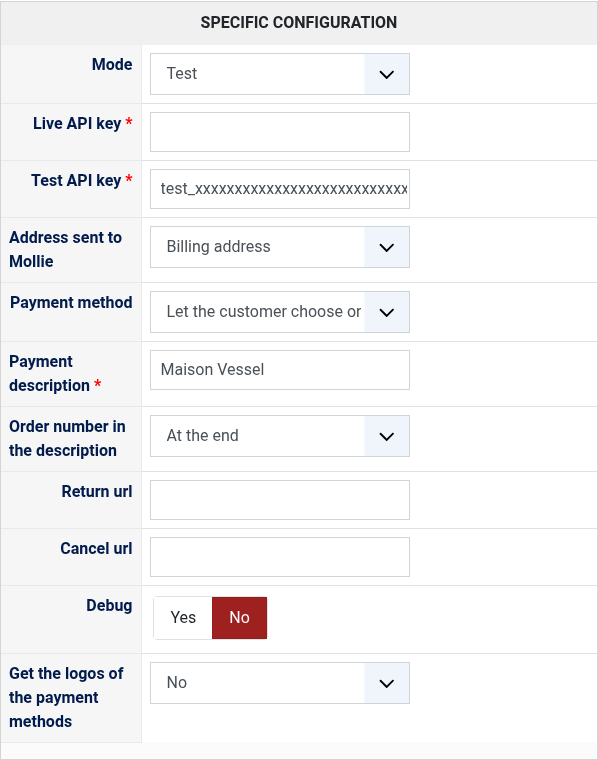
Mode: in Test mode, the payments use your test API key and no money is taken. Switch to Live once your tests are done.
Live API key and Test API key: the API keys of your website profile, starting with live_ and test_. You find them in your Mollie dashboard, under Developers > API keys. The key of the selected mode is required. Keep them secret.
Address sent to Mollie: the billing or the shipping address of the customer, sent with the payment. Some payment methods, like Klarna, require it.
Payment method: by default, the customer chooses how to pay on the Mollie checkout page. Select a payment method to send the customer directly to it. It must be activated in your Mollie dashboard. To offer several payment methods this way, create one HikaShop payment method for each.
Payment description: displayed on the bank statement of your customer. It is required, keep it short.
Order number in the description: adds the number of the order at the start or at the end of the payment description, for example "B1Z2 My Shop", so you can find the order from a bank statement.
Return url: the page your customer comes back to after paying. Leave it empty to use the end page of the checkout.
Cancel url: the page your customer comes back to when they cancel the payment. Leave it empty to cancel the order and go back to the shop.
Debug: writes the exchanges with Mollie in the payment log file. Turn it off once your problem is understood.
Get the logos of the payment methods: when you save the payment method, the logos are copied to your shop, from the plugin or downloaded from Mollie, so you can select them in the Images setting of the payment method. The setting then goes back to No.
The other settings of the page (name, description, images, price, zone, currency, restrictions) are the same as for every HikaShop payment method.
Troubleshooting
An order stays in the created status after a successful payment: open the payment in your Mollie dashboard, which shows the calls Mollie made to your shop and their answer. "Webhook invocation failed" means your shop could not answer: turn Debug on and look at the HikaShop log for the error.
Mollie cannot call a website on a local address, behind a password or blocked by a firewall: the payments then work but the orders are not confirmed. Allow Mollie's calls to index.php of your website.
Mollie refuses the payment with an authentication error: check that the API key of the selected mode is the one of your website profile in Mollie, starting with live_ or test_.
A payment method you chose is refused by Mollie: activate it in your Mollie dashboard, for the currency and the amount of the order.