
Installation
- 1) Create a Stripe account at stripe.com. You need the Secret key and the Publishable key of your account: they are in your Stripe Dashboard under Developers, API keys. Keys starting with sk_test_ and pk_test_ are for tests, keys starting with sk_live_ and pk_live_ take real payments.
- 2) Install this plugin on your Joomla website with the extension manager.
- 3) In HikaShop, go to System > Payment methods, click "New" and choose Stripe Checkout.
- 4) Type your Secret key and your Publishable key, set "Published" to Yes, and save. When you save with a valid Secret key, the plugin registers the webhook on your Stripe account for you and fills in "Webhook secret": there is nothing to copy from the Stripe Dashboard.
- 5) The payment methods your customers can use (cards, wallets, iDEAL, Bancontact...) are switched on in your Stripe Dashboard and offered automatically. Nothing has to be set in HikaShop for them.
- 6) Your website has to be reachable from the Internet for the webhook: on a local or test address (localhost, .local, .test) Stripe cannot reach it and the registration is skipped.
The plugin needs the PHP cURL extension.
Configuration
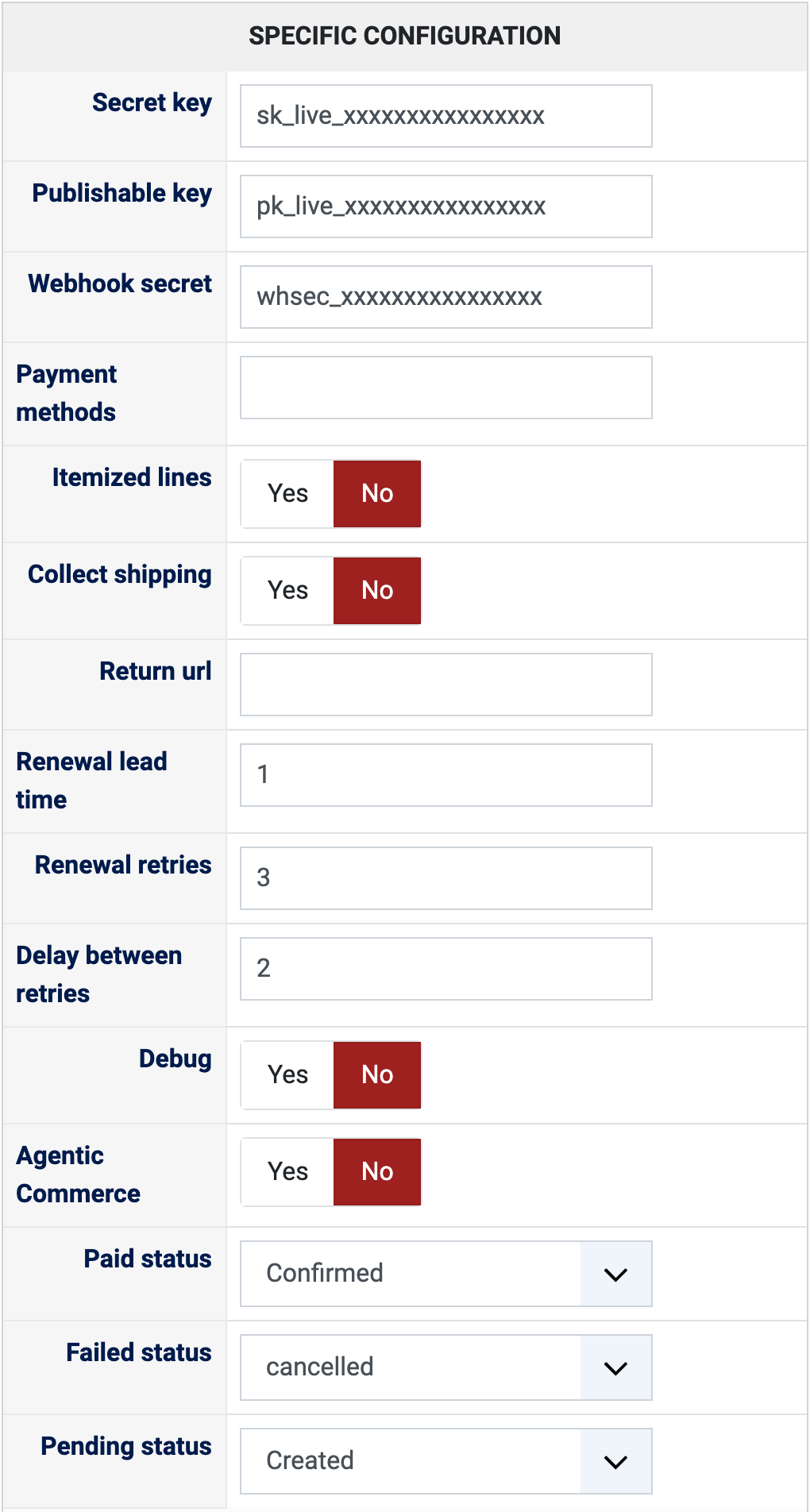
- Secret key: your Stripe secret key (sk_test_... or sk_live_...). Left empty, the method cannot take payments and the webhook is not registered.
- Publishable key: your Stripe publishable key (pk_test_... or pk_live_...). It is used for the Google Pay payments made through the UCP plugin. Left empty, those payments are not offered.
- Webhook secret: the signing secret of the webhook (whsec_...). It is filled in when you save with a Secret key. Clear it and save again to register a new webhook, for instance after a domain change or after changing your Stripe API keys. You can also paste the secret of a webhook you made yourself in the Stripe Dashboard: it is then left alone. Without this secret, Stripe's notifications are refused and the orders are not confirmed.
- Payment methods: leave it empty to let Stripe choose the methods after the currency and the country of the customer, which is what you want in most cases. To restrict them, type the Stripe names separated by commas (for instance card,ideal,bancontact). If you filled it and want stablecoin payments, add crypto to the list.
- Itemized lines: No (default) sends the order total as a single line to the Stripe page. Yes shows the products, shipping, fees and discounts as separate lines.
- Collect shipping: Yes lets Stripe ask for the shipping address on its payment page. No (default) does not.
- Return url: empty by default, the customer comes back to the end of the HikaShop checkout after a successful payment. Type the address of your own thank you page to send them there instead; order data can be inserted with placeholders such as {order_number} or {order_id}.
- Renewal lead time: for the subscriptions (HikaSerial or HikaSubscription plans) renewed by this plugin, the number of days before the end of the period at which the renewal is charged. Empty counts as 0: the renewal is charged on the due date.
- Renewal retries: how many more attempts are made when a renewal payment is refused. After the last one, the renewal order stays unpaid and the customer can still pay it. Empty counts as 0: a refused renewal is not tried again.
- Delay between retries: the number of days between two attempts. Empty counts as 1 day.
- Debug: No by default. Yes writes more details about the payments to the HikaShop payment log, to look into a problem.
- Agentic Commerce: No by default. Yes lets AI agents create Stripe Checkout sessions that make HikaShop orders; the products are found by their product code (SKU). It needs the Webhook secret.
- Paid status: the status of an order once Stripe confirms the payment ("confirmed" by default). Choose the status that sends your customer the confirmation email.
- Failed status: the status of an order whose payment failed or whose Stripe session expired ("cancelled" by default).
- Pending status: the status of an order whose payment is not confirmed yet, for instance a bank debit or a code to pay at a counter ("created" by default). The order is confirmed on its own when the money arrives.
- The other settings of the page (name, description, images, price, zone, currency, restrictions) are the same as for every HikaShop payment method.
Troubleshooting
- "Stripe webhook registered automatically": nothing to do, the webhook is in place.
- "Could not register the Stripe webhook automatically", followed by Stripe's reason: the rest of the settings were saved. Check the Secret key, then save again; or create the webhook yourself in the Stripe Dashboard (Developers, Webhooks) and paste its signing secret in "Webhook secret".
- "The site URL appears to be a local address ... automatic webhook registration was skipped": Stripe cannot reach a local address. Use the Stripe CLI for local tests, or paste the signing secret of a webhook made in the Stripe Dashboard.
- Paid orders stay unconfirmed: Stripe's notification did not get through or was refused. Check that "Webhook secret" is filled and that it is the one of the webhook of this same Stripe account and mode (test or live); clear it and save to register a new one. A notification whose signature does not match is refused and "Invalid webhook signature" is written to the payment log.
- "Please review the order in your HikaShop backend and the payment details on your Stripe dashboard": written in the order history with the state Stripe reported when a payment ends in an unexpected state. Look at the payment in your Stripe Dashboard.
- The customer is not sent to Stripe: Stripe refused to open the payment session. Turn Debug on and read the message "Stripe API error" in the payment log: it is Stripe's own reason (a wrong key, or a currency or method your account does not support).
- A renewal was not charged: "Stripe recurring charge failed" or "requires authentication" is written in the payment log with the reason. A card that needs the customer's authentication cannot be charged without them: the renewal order stays payable by the customer.