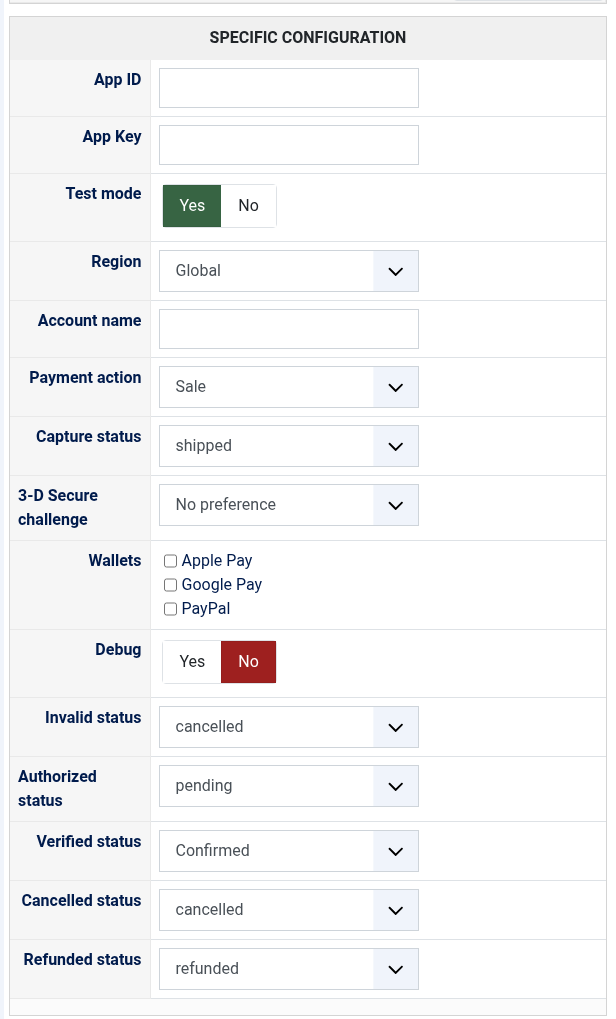
1) Ask Global Payments for GP API (Unified Payments) credentials for your merchant account: an App ID and an App Key. To try the plugin first, open a free account on developer.globalpayments.com, then in My Account, My Sandbox Credentials, create an app for Unified Payments and copy its App ID and App Key.
2) Download the Global Payments plugin from our website, install it on your website and enable it.
3) In HikaShop, go to System > Payment methods, create a Global Payments payment method, set Test mode to match your keys, and paste the App ID and the App Key.
4) Save: a message says whether Global Payments accepted the keys and which of your accounts takes the payments.
Configuration
App ID and App Key: the credentials of your GP API app. The App Key never leaves your site.
Test mode: Yes with the keys of a sandbox app, No with those of your live account.
Region: Global, unless Global Payments told you your account is on its European hosts.
Account name: leave it empty; fill it only when Global Payments gave you the name of the account to use.
Payment action: Sale takes the payment at once; Authorize, capture later only reserves it.
Capture status: with Authorize, capture later, the status that takes the payment (shipped by default).
3-D Secure challenge: whether you would like the bank to ask the customer to prove who they are; the bank decides in the end. No preference suits most shops.
Wallets: Apple Pay, Google Pay and PayPal, offered besides cards when your account has them.
Debug: writes every exchange with Global Payments in the payment log of HikaShop.
Invalid status: the status of an order whose payment does not match it.
Authorized status: with Authorize, capture later, the status of an order paid but not captured yet.
Verified status: the status of a paid order.
Cancelled status: moving an authorized order to it releases the amount on the card.
Refunded status: moving a paid order to it refunds the payment on Global Payments.
Troubleshooting
"Global Payments refused the App ID and App Key": check them, and that Test mode and Region match the keys (sandbox keys need Test mode on).
"The Global Payments account lacks rights the plugin needs": ask Global Payments to add the rights named in the message to your app.
A refund or a capture refused by Global Payments leaves the order in its status, with Global Payments' reason on the screen and in the payment log.