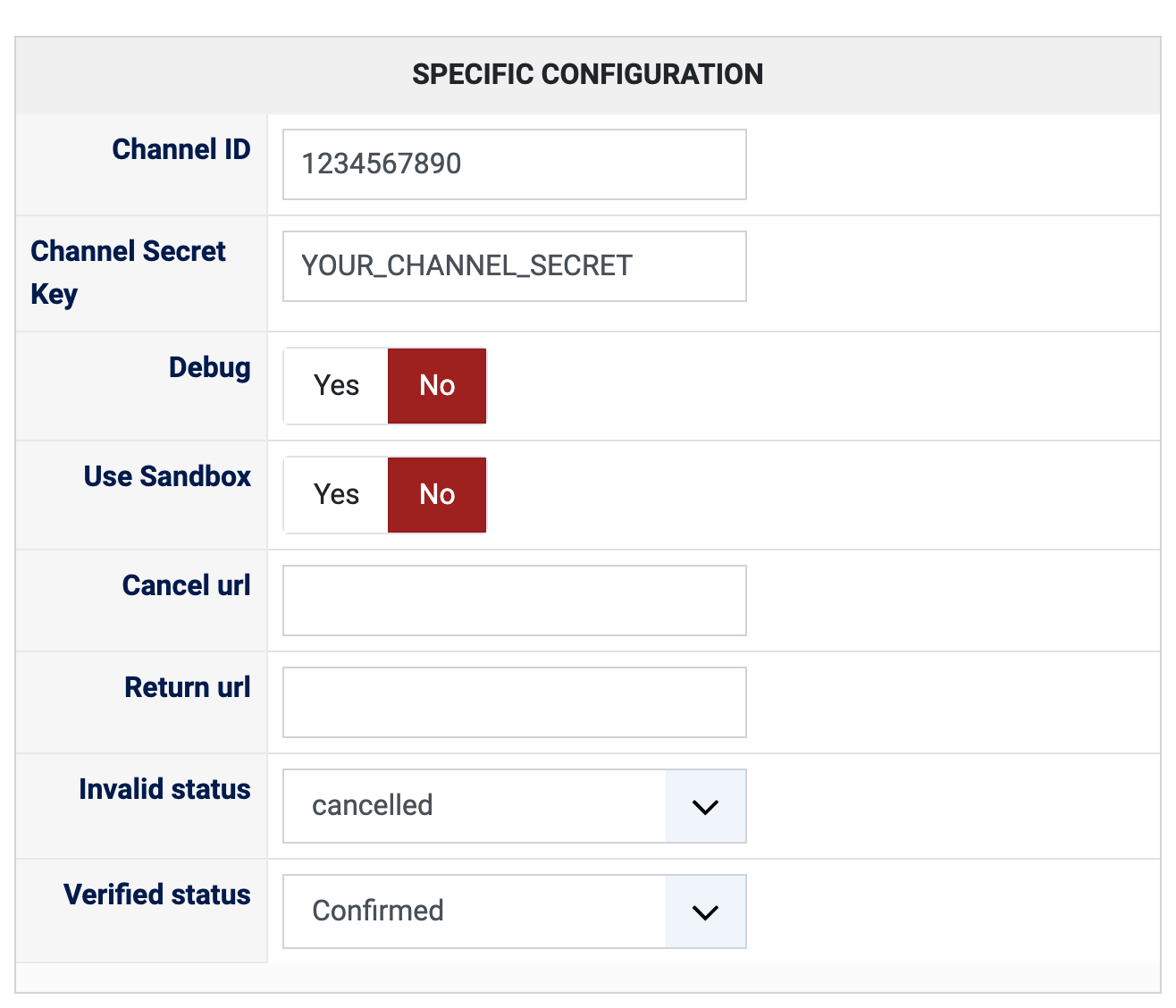
1) You need a LINE Pay merchant account. The Channel ID and the Channel Secret Key are provided by LINE Pay under the "Payment Integration Management" section, in the "Manage Link Key" area.
2) Install this plugin on your Joomla or WordPress website: in Joomla with the extension installer, in WordPress with the "Install Plugin" button of HikaShop's payment plugins page.
3) In HikaShop, go to System > Payment methods, click "New" and choose LINE Pay.
4) Type your Channel ID and your Channel Secret Key, set "Published" to Yes, and save.
5) Your shop has to show its prices in Japanese yen, Thai baht, new Taiwan dollars or US dollars: LINE Pay takes no other currency.
Configuration
Channel ID: the Channel ID of your LINE Pay account. Left empty, the customer sees an error at the checkout.
Channel Secret Key: the Channel Secret Key that goes with it. Left empty, the customer sees an error at the checkout.
Debug: Yes writes the exchanges with LINE Pay to the HikaShop payment log. Turn it on to look into a problem, then off again.
Use Sandbox: Yes sends the payments to the LINE Pay sandbox, for tests with the sandbox Channel ID and Channel Secret Key. Choose No when you take real payments.
Cancel url: shown for every payment method, but the current version always sends a customer who cancels to the standard HikaShop cancellation page.
Return url: optional, the page your customer is sent to after a payment that confirms the order. Left empty, the standard HikaShop thank you page is used.
Invalid status: shown for every payment method, but the current version does not set it from LINE Pay answers.
Verified status: the status of a paid order ("confirmed" by default). Choose the status that sends your customer the confirmation email.
The other settings of the page (name, description, images, price, zone, currency, restrictions) are the same as for every HikaShop payment method.
Troubleshooting
Turn Debug on and open the payment log (System > Configuration, Files, "See the report" next to "Payment log file") to see the exchanges with LINE Pay.
"You have to configure a Channel ID for the LINE Pay payment method first": type the Channel ID and the Channel Secret Key in the payment method.
An error made of a LINE Pay code and message at the checkout, followed by the cancellation page: LINE Pay refused the payment request or the confirmation. Check the Channel ID, the Channel Secret Key and whether Use Sandbox matches the keys you typed.
"LINE Pay cURL error" in the payment log: your server could not reach LINE Pay.
The payment method is not offered at the checkout: the currency of the order is not one of yen, baht, Taiwan dollar and US dollar.