1) Have a BTCPay Server with a store whose wallet is set up: your own server, or a store at a BTCPay Server host. Your server must be reachable over https.
2) In BTCPay Server, open your store, Settings, General, and note its Store ID.
3) Open your account (Account, Manage Account), API Keys, Generate Key, and give the key, for this store, the rights to view invoices, to create invoices and to modify the webhooks of the store. Copy the key.
4) Install this plugin with the Joomla extension manager and enable it.
5) In HikaShop, go to System > Payment methods, click New and choose the BTCPay Server plugin.
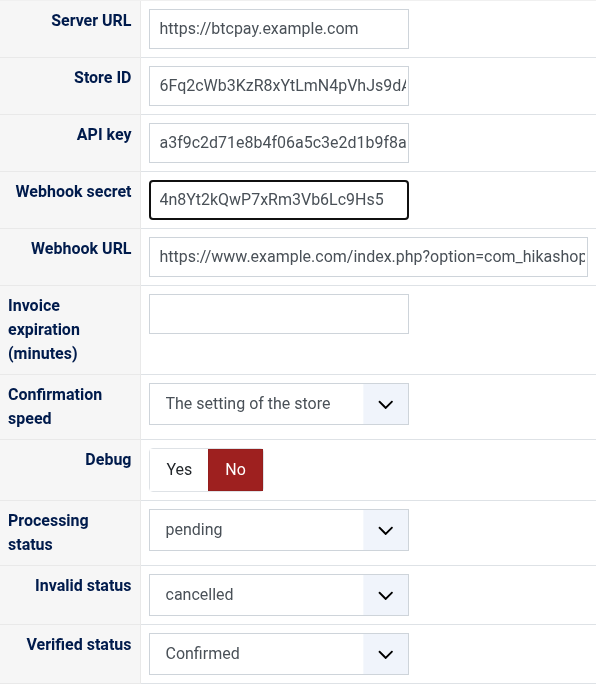
6) Fill in the server URL, the Store ID and the API key, publish the method and save: the plugin checks the key and creates the webhook of your store.
7) If your key may not modify webhooks, create the webhook by hand in BTCPay Server (your store, Settings, Webhooks, Create Webhook), with the Webhook URL the plugin shows as its Payload URL, and paste its secret in the Webhook secret setting.
Configuration
Server URL: the address of your BTCPay Server, as you open it in your browser (for example https://btcpay.example.com). It must start with https://.
Store ID: the Store ID of your store, in its Settings, General.
API key: the key of step 3. A key that may not read the invoices of the store is refused when you save, with the reason BTCPay Server gives.
Webhook secret: filled in on its own when the plugin creates the webhook. Fill it in yourself only for a webhook you created by hand. Emptied and saved again, the webhook gets a new secret.
Webhook URL: the address BTCPay Server sends its notifications to, shown for a webhook made by hand. It cannot be changed.
Invoice expiration (minutes): how long the customer has to pay once the payment page is shown. Empty: the setting of your store (15 minutes unless you changed it).
Confirmation speed: how many network confirmations an on chain payment needs before the order is confirmed, from none (fast, with the risk of a double spend) to 6. Lightning payments are confirmed at once. Empty: the setting of your store.
Debug: writes every call to BTCPay Server and every notification to the payment log of HikaShop.
Processing status: the status of an order paid and waiting for the network's confirmation, "pending" by default.
Invalid status: the status of an order whose invoice expired or was not paid in time, "cancelled" by default.
Verified status: the status of a paid order, "confirmed" by default.
Troubleshooting
"BTCPay Server refused the API key for this store": check the Store ID, and that the key has the rights of step 3 for this store.
"The API key may not create the webhook": give the key the right to modify the webhooks of the store and save again, or create the webhook by hand as in step 7.
"The payment could not be started" at the checkout, with BTCPay Server's reason: often a store with no wallet set up, or a currency the rate source of your store cannot convert (change the rate source in the store's settings, or offer this method only in the currencies it converts).
Orders stay unpaid although the payment went through: check that the webhook of your store is enabled and that its deliveries in BTCPay Server (Settings, Webhooks) answer 200. BTCPay Server 2.4.5 and later sends no webhook to a shop on a local or private network address unless its administrator allows it.
A partial payment leaves the order unpaid when the invoice expires: refund it from the invoice in BTCPay Server.
Refunds are made from the invoice in BTCPay Server, not from HikaShop.