
- Description
- Requirements
- Installing the plugin
- Settings
- What is sent to Google
- Cookie consent
- Troubleshooting
Description
The "Hikashop - Google Analytics 4" plugin adds Google Analytics 4 to the pages of your website and fills its ecommerce reports with what happens in your shop: the categories and products your visitors look at, the products added to the cart, the steps of the checkout and the orders. It can also send the same events to a Google Ads account, for remarketing audiences and purchase conversions.
It replaces the old Google Analytics plugin of HikaShop, which was made for Universal Analytics, the previous version of Google Analytics. Google has stopped Universal Analytics, so a Google Analytics 4 property is now needed.
The plugin is compatible with all the editions of HikaShop.
Requirements
- A Google Analytics 4 property with a web data stream, which gives you a measurement ID (it starts with G-).
- A Measurement Protocol API secret created in the same data stream, to send the orders from your server.
- Optional: a Google Ads account, if you want your Google Ads campaigns to receive the events too.
Installing the plugin
1-Get the plugin on our marketplace: Get the plugin on our marketplace
2-In your Joomla administration, go to the extensions installer (System > Install > Extensions) and upload the plugin you downloaded.
3-Go to the Joomla plugins manager (System > Plugins), search for "Google Analytics 4" and open the plugin "Hikashop - Google Analytics 4".
4-Fill the settings described below, set the Status to Enabled and save.
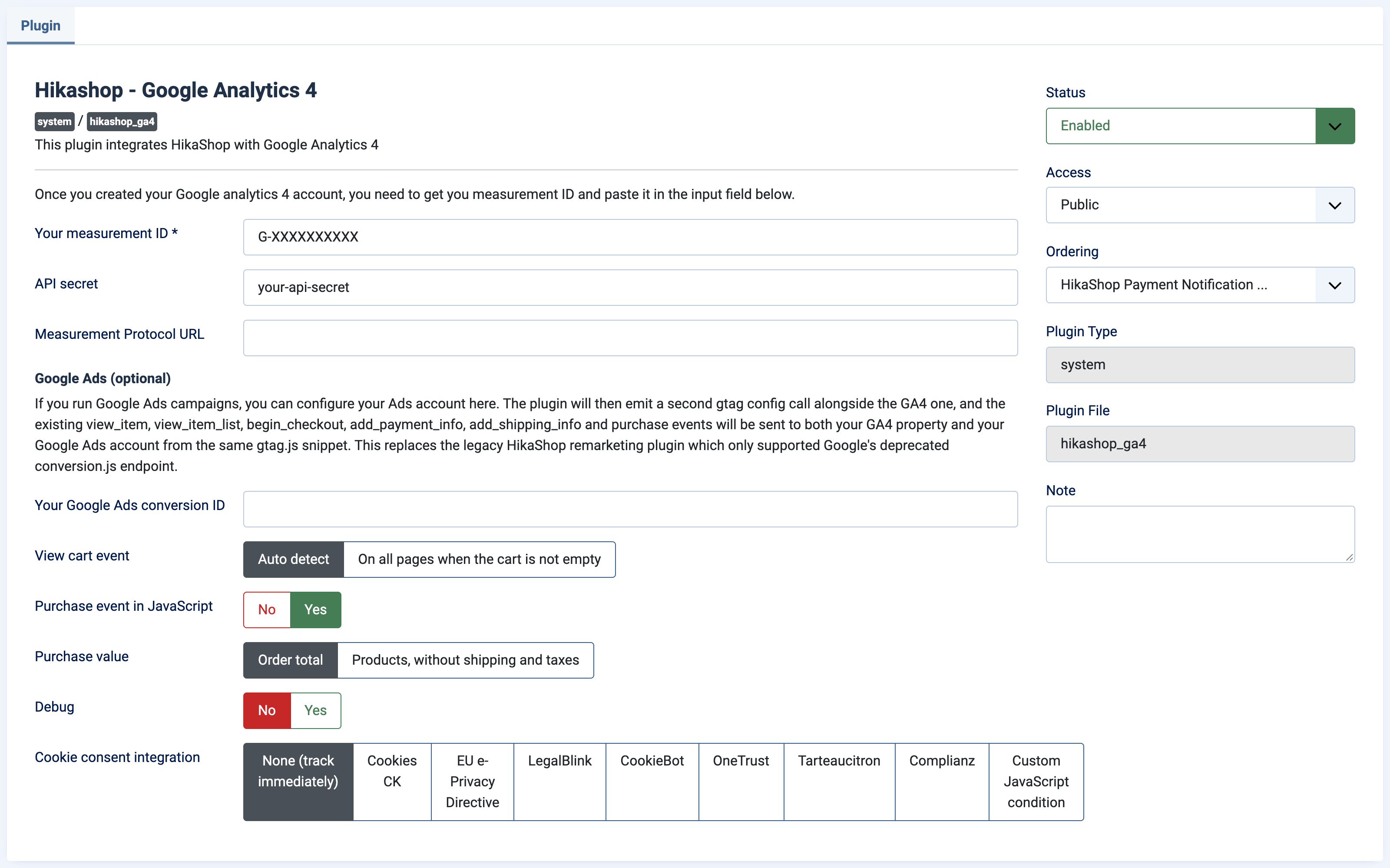
The plugin does not work before you have filled the measurement ID, which is a required setting.
Settings
The settings are listed in the order of the form.
Your measurement ID: the ID of your Google Analytics 4 data stream. It starts with G- followed by letters and numbers in upper case. In your Google Analytics account, go to Admin > Data Streams, choose your stream and copy the Measurement ID. This setting is required.
API secret: the secret used to send the orders from your server to Google. In your Google Analytics account, go to Admin > Data Streams, choose your stream, open "Measurement Protocol API secrets" and create one.
Measurement Protocol URL: leave it empty to send the orders to Google directly. Fill another address only if you send the orders through your own server-side tagging domain, for example https://your.domain/mp/collect.
Your Google Ads conversion ID: optional, only if you run Google Ads campaigns. The ID starts with AW- followed by your account number. In Google Ads, go to Tools > Conversions, pick a conversion action and look at the "Tag setup" section. Leave it empty if you do not use Google Ads. When it is filled, the events of the plugin are sent to your Google Ads account as well as to your Google Analytics property.
Purchase conversion label: optional, shown once the conversion ID is filled. It is the conversion label of your "Purchase" conversion action in Google Ads. When it is set, the plugin sends an explicit purchase conversion on the thank you page, with the order number so that a purchase is not counted twice. Leave it empty to rely only on the site-wide tag.
View cart event: "Auto detect" sends the view cart event only when the cart is not empty and the visitor is on the cart page or a checkout page, or when the cart module is displayed on the page. "On all pages when the cart is not empty" sends it on every page.
Purchase event in JavaScript: when you have filled the API secret, set it to No so that the orders are sent only from your server and are not counted twice. With Yes, the order is also sent by the browser of the customer on the thank you page.
Purchase value: "Order total" sends the full price paid by the customer, with shipping, payment fee and taxes. "Products, without shipping and taxes" sends the products after discounts only, as Google recommends. The shipping and the taxes are sent in their own fields in both cases.
Debug: to see the events as they are sent, set it to Yes, use the Google Chrome browser and install the "Google Analytics Debugger" extension: the information then appears in the console of the browser. In the DebugView menu of your Google Analytics account, you can also see the events in real time.
Cookie consent integration: how the plugin waits for the consent of your visitors, see the section below.
What is sent to Google
- The pages of your website, with Google Analytics 4.
- view_item_list when a category is displayed and view_item when a product is displayed.
- add_to_cart when a product is added with an AJAX add to cart button, with the product, the quantity and its price.
- view_cart, begin_checkout, add_shipping_info and add_payment_info along the cart and the checkout.
- purchase when the order is placed. It is sent from your server, so that an order paid on the page of a payment provider is not lost, and from the browser on the thank you page if "Purchase event in JavaScript" is Yes.
With the Google Ads settings filled, the same events (except view_cart) go to your Google Ads account too.
Google does not show the data immediately: it can take several days before the sales appear in the ecommerce reports of your account, so it is normal to see nothing just after a first order. The DebugView of your account shows the events in real time.
Cookie consent
The setting "Cookie consent integration" lets the plugin load the Google script only after the visitor has accepted the marketing or analytics cookies. "None (track immediately)" loads it at once. You can choose one of the supported tools: Cookies CK, EU e-Privacy Directive, LegalBlink, CookieBot, OneTrust, Tarteaucitron or Complianz. With "Custom JavaScript condition", more settings appear:
Custom integration code: your JavaScript code that checks the consent. It must set the variable consentGiven to true when the visitor has given it.
Use prior blocking for custom integration: with Yes, the Google scripts are blocked in the page itself with special attributes, which your consent tool has to be able to unblock. With No, the plugin checks the consent with JavaScript after the page is loaded.
Custom script type attribute: the type given to the blocked scripts (text/plain by default). Your consent tool changes it to text/javascript once the consent is given.
Custom script class attribute: the CSS class that your consent tool uses to recognize the scripts to unblock. Leave it empty if your tool does not need one.
Troubleshooting
- Nothing appears in Google Analytics: check that the plugin is enabled and that the measurement ID is the one of your data stream (it starts with G-). Turn on the Debug setting and look at the DebugView of your account.
- The orders are counted twice: when the API secret is filled, set "Purchase event in JavaScript" to No.
- No data at all with a cookie consent tool: the plugin waits for the consent. Accept the cookies on your site, or set "Cookie consent integration" to match your tool.
- The orders are missing but the page views are there: check the API secret, and the Measurement Protocol URL which must be empty unless you use your own server-side tagging address.