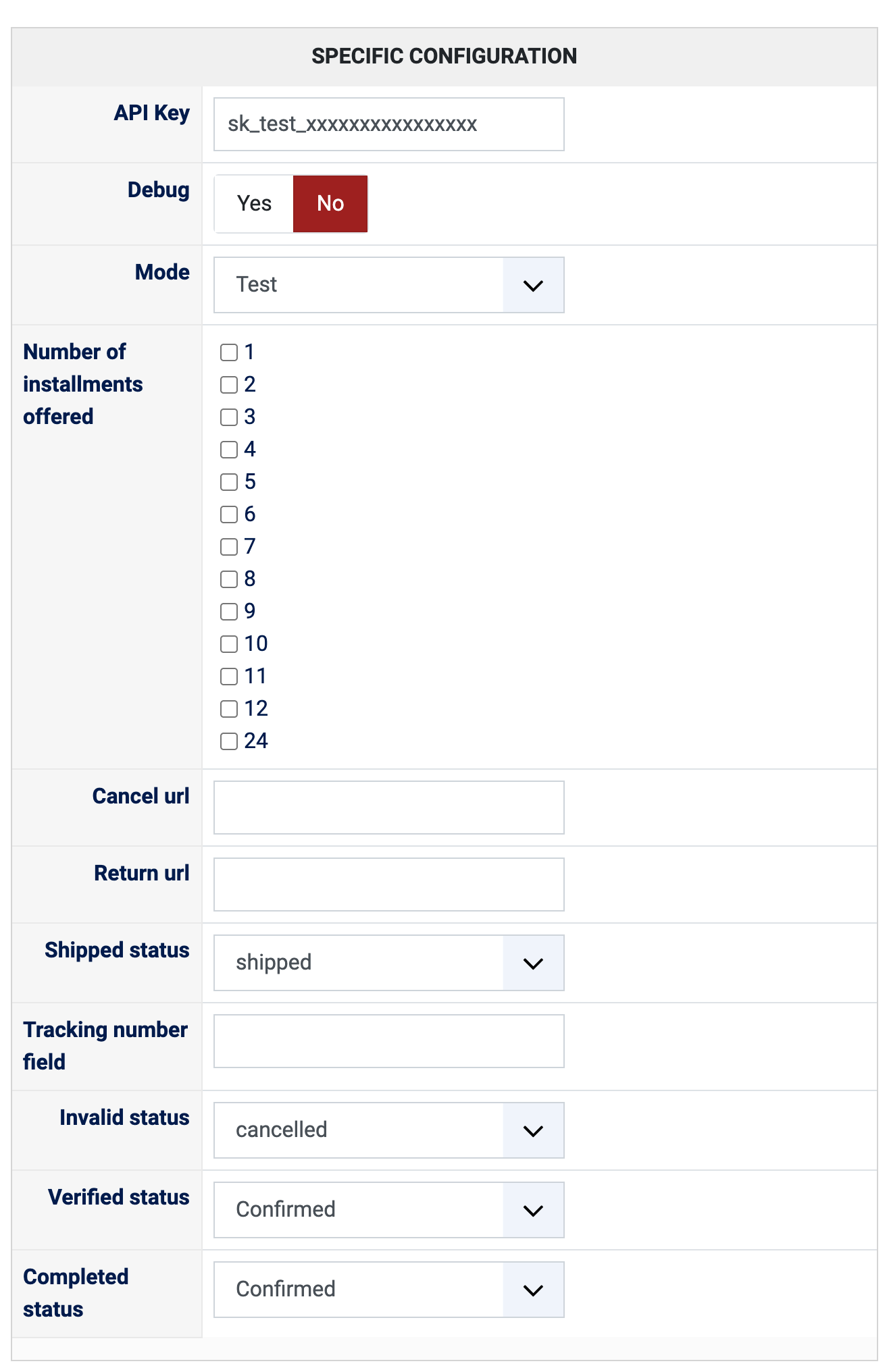
1) Create your account on Alma (getalma.eu) and get your API keys from your Alma dashboard. To try the plugin first, use your Alma sandbox account (dashboard.sandbox.getalma.eu) and its test API key with the Mode set to Test.
2) Install this plugin on your Joomla or WordPress website: in Joomla with the extension installer, in WordPress with the "Install Plugin" button of HikaShop's payment plugins page.
3) In HikaShop, go to System > Payment methods, click "New" and choose Alma.
4) Type your API key, choose the Mode, tick the numbers of installments you want to offer, set "Published" to Yes, and save.
5) Your shop has to show its prices in euros: the plugin only takes orders in euros. The PHP cURL extension has to be available on your server.
Configuration
API Key: the API key of your Alma account, the test one in Test mode and the live one in Live mode. Left empty, the method shows an error and cannot take payments.
Debug: Yes writes the exchanges with Alma to the HikaShop payment log. Turn it on to look into a problem, then off again.
Mode: Test while you try the plugin with your Alma sandbox, Live once you take real payments.
Number of installments offered: tick the plans you propose, from 1 to 12 and 24. At the checkout, only the plans Alma accepts for the amount of the cart are shown. With none ticked, the method shows an error and cannot take payments.
Cancel url: optional, the page your customer is sent to when they cancel on Alma. Left empty, the standard HikaShop cancellation page is used.
Return url: optional, the page your customer is sent to after the payment. Left empty, the standard HikaShop thank you page is used.
Shipped status: the order status meaning the order has left your shop. When an order reaches it, Alma is told the order is on its way.
Tracking number field: optional, the name of a custom order field holding the tracking number of the parcel, for instance order_tracking_number. The tracking numbers stored by the shipping plugins of HikaShop are found without it.
Invalid status: the status of an order whose payment came back in an unexpected state ("cancelled" by default).
Verified status: the status of the order once the first installment is received ("confirmed" by default). The customer is notified at that moment only.
Completed status: the status of the order once every installment has been paid ("confirmed" by default). Choose another status than the verified one if you want to tell the two moments apart.
The other settings of the page (name, description, images, price, zone, restrictions) are the same as for every HikaShop payment method.
Troubleshooting
Turn Debug on and open the payment log (System > Configuration, Files, "See the report" next to "Payment log file") to see what is exchanged with Alma.
"You have to configure an API Key for the Alma payment method first": type your API key in the payment method.
"You have to select at least one installment for the Alma payment method first": tick at least one number of installments.
"A payment plan must first be selected for the selected payment method": the customer reached the payment without choosing one of the plans; they have to choose a plan at the checkout.
Alma is not offered at the checkout: the order is not in euros, the amount is outside what Alma accepts for the plans you ticked, or Alma refused the request (the reason is shown in the message and in the payment log). Check that the API key and the Mode match.
"A payment notification was received with the state ...": Alma reported a state the plugin does not expect. The order goes to the Invalid status; review it in your HikaShop backend and the payment on Alma.
"The amount paid on Alma ... does not match the total of the order": written in the order history when the two amounts differ. Check the payment on your Alma dashboard.