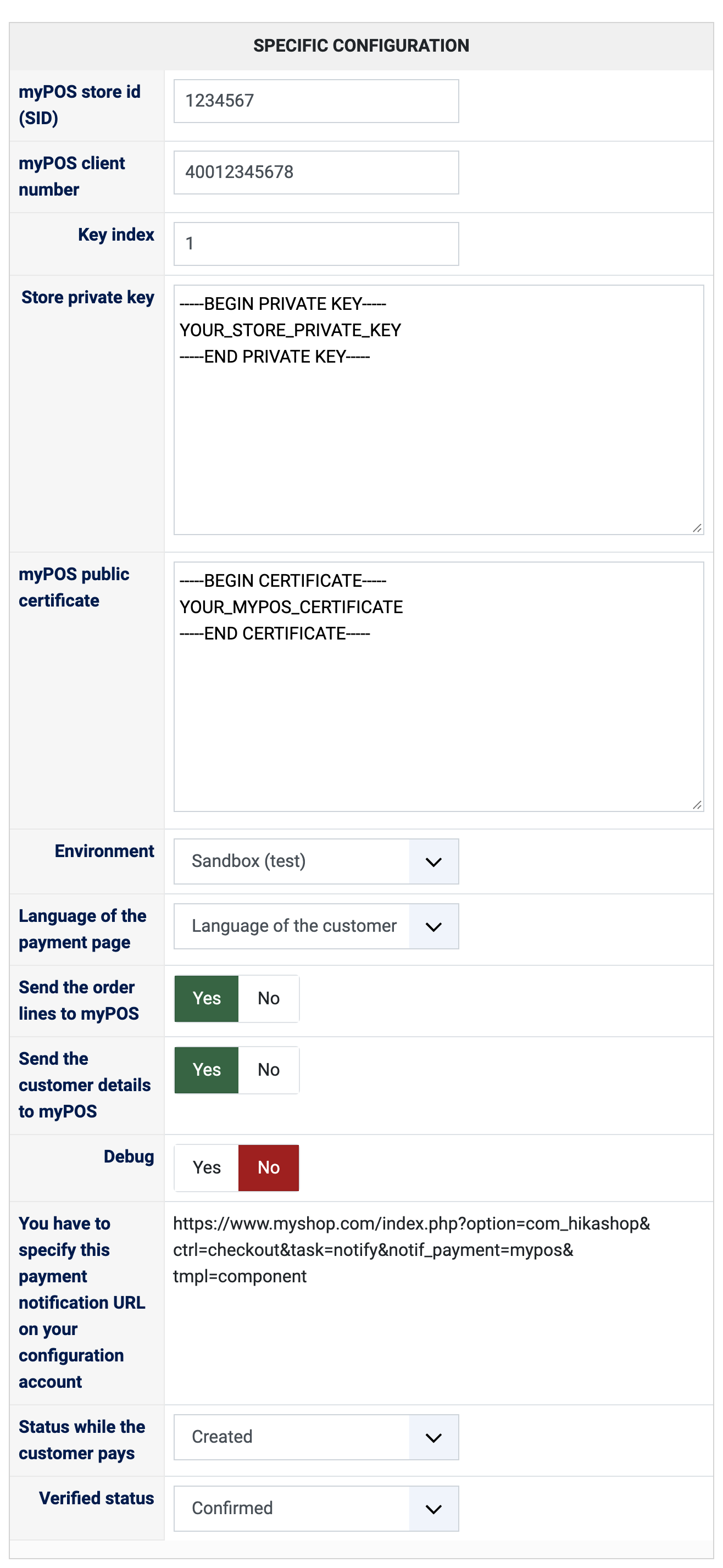
1) Open an account on the myPOS website and create an online store in it. You will need, from your myPOS account, the store id, the client number and the key index of the store, the store private key and the myPOS public certificate.
2) Install this plugin on your Joomla or WordPress website: in Joomla with the extension installer, in WordPress with the "Install Plugin" button of HikaShop's payment plugins page.
3) In HikaShop, go to System > Payment methods, click "New" and choose myPOS.
4) Fill in the settings below, set "Published" to Yes and save.
5) Copy the notification address displayed in the payment method (the "You have to specify this payment notification URL" line) into your myPOS store. myPOS tells your shop about each payment there, and that is what confirms the order.
6) Your website has to be reachable over HTTPS: myPOS only notifies an address that starts with https and has no port number.
7) Try a payment in the Sandbox environment with the test cards of myPOS, then switch the Environment to Production.
You can create several myPOS payment methods, each with its own store.
Configuration
myPOS store id (SID): the id of your online store in myPOS. Left empty, the method cannot take payments.
myPOS client number: the client number of your myPOS account. Left empty, the method cannot take payments.
Key index: the index of the key pair you generated for the store in myPOS. Left empty, the method cannot take payments.
Store private key: the private key of the store, pasted from its first line to its last. It signs what your shop sends to myPOS. Left empty or unreadable, the payment cannot be started.
myPOS public certificate: the certificate of myPOS, pasted in full. It is used to check that a payment notification really comes from myPOS.
Environment: Sandbox (test) while you try the payment flow with test cards, Production when you go live.
Language of the payment page: "Language of the customer" shows the myPOS page in the language of your shop visitor, or choose one language (English, Bulgarian, German, French, Italian, Spanish, Dutch, Portuguese, Swedish, Greek) to always show it.
Send the order lines to myPOS: Yes shows the products, shipping, payment fee and coupon on the payment page. No sends one single line with the total of the order.
Send the customer details to myPOS: Yes fills the name, email, phone and address of the customer in on the payment page. No lets myPOS ask the customer for their name and email.
Debug: Yes writes the exchanges with myPOS to the HikaShop payment log. Turn it on to look into a problem, then off again.
You have to specify this payment notification URL on your configuration account: shown for information only. It is the address to copy into your myPOS store, see the installation steps.
Status while the customer pays: the status given to the order while the customer is on the myPOS page ("Created" by default). Left empty, the order keeps the status it has.
Verified status: the status given to the order once myPOS confirms the payment ("Confirmed" by default). Choose the status that sends your customer the confirmation email.
The other settings of the page (name, description, images, price, zone, currency, restrictions) are the same as for every HikaShop payment method. The plugin accepts EUR, BGN, GBP, USD, CHF, RON, HRK, CZK, PLN, HUF, SEK, NOK and DKK; your myPOS account decides which of them you can really be paid in.
Troubleshooting
Turn Debug on and open the payment log (System > Configuration, Files, "See the report" next to "Payment log file"): every notification that was refused is written there with its reason.
"The myPOS payment method is not configured": type the store id, the client number, the key index and the store private key in the payment method.
"The store private key of the myPOS payment method cannot be read": paste the key again, from its first line to its last.
Orders that stay in the waiting status although the customer paid: myPOS could not notify your shop. Check that the notification address is set in your myPOS store and that your website is on HTTPS with no port number in its address (the log then says it is not an https address without a port).
"The signature of the notification is not valid, it was ignored": the myPOS public certificate in the method is missing or is not the one of your account. Paste it again.
"The notification is for the store ... and not for the one of the payment method", or an amount or currency that does not match the order: the order is left alone on purpose. Check that the store id is the right one and look at the payment in your myPOS account.
A customer who gives up on the payment page comes back to the shop and the order is cancelled as usual.