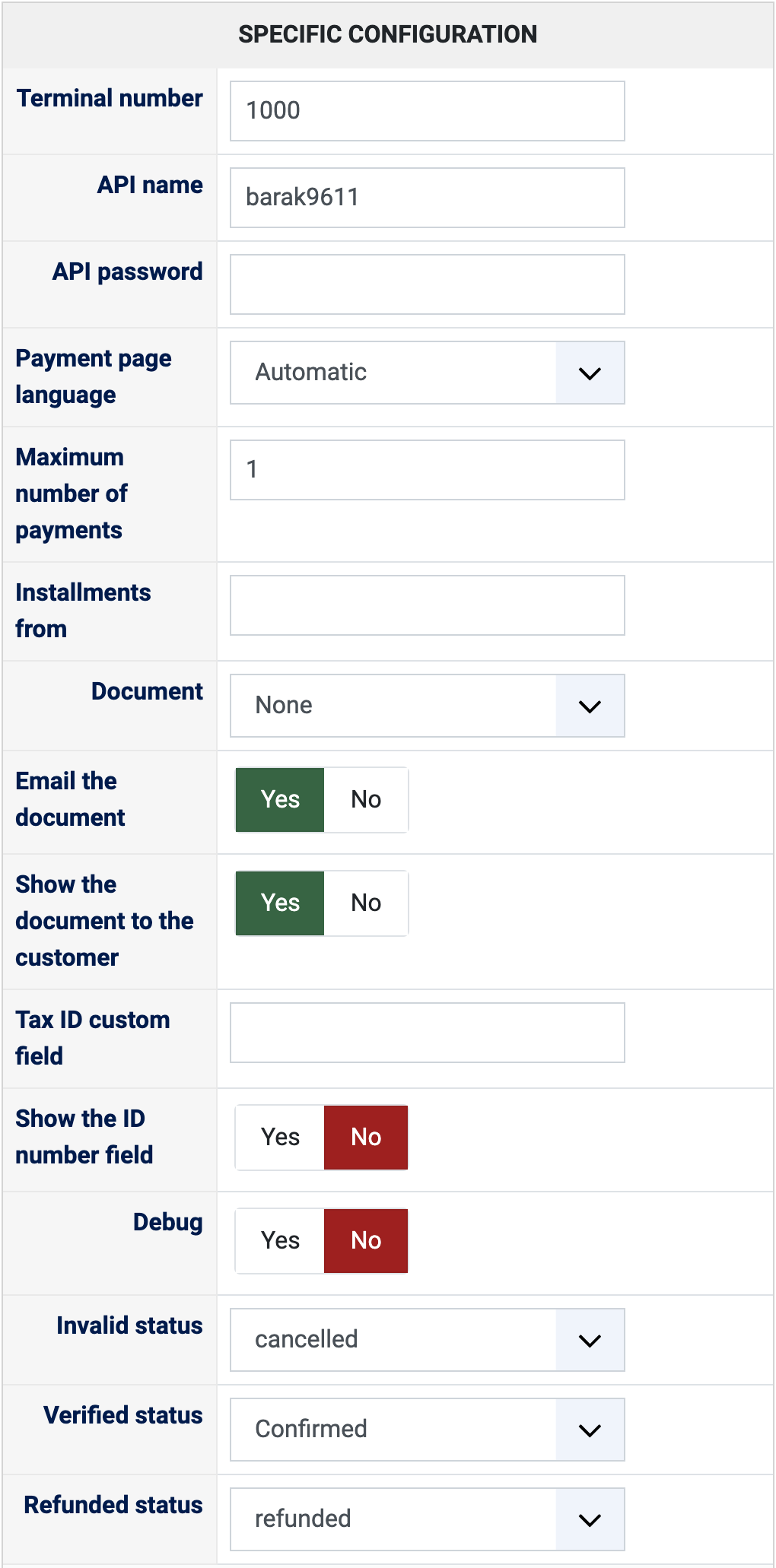
1) Get a Cardcom terminal with its Low Profile (payment page) module, and the document module if Cardcom should issue your invoices. Cardcom gives you the terminal number, an API name and an API password.
2) Install this plugin, then in HikaShop go to System > Payment methods, click New and choose Cardcom.
3) Type the terminal number, the API name and the API password, choose the installments, the document and the statuses, and save.
4) Your shop's currency must be one your terminal takes: the Israeli new shekel (ILS) and the US dollar on every terminal, other currencies once Cardcom enabled them on yours.
Configuration
Terminal number: the number of your Cardcom terminal. 1000 is Cardcom's test terminal.
API name: the API name (username) Cardcom gave you for the terminal.
API password: the API password that goes with it. It is only used to refund orders from HikaShop: empty, refunds are made in your Cardcom account.
Payment page language: Automatic follows the language of your shop (Hebrew, English, Russian or Arabic, English otherwise); or always one of them.
Maximum number of payments: the most installments a customer can choose. 1 for payment in one go only. Your terminal must allow installments.
Installments from: the order total from which installments are offered. Empty to offer them on every order.
Document: None, Tax invoice and receipt, or Receipt (for an exempt dealer). Needs Cardcom's document module on your terminal.
Email the document: Cardcom emails the document to the customer.
Show the document to the customer: the customer's order page links the Cardcom document.
Tax ID custom field: optional, the column name of the address custom field with the customer's company or ID number, printed on the document.
Show the ID number field: the payment page asks for the card holder's Israeli ID number.
Debug: writes every call to Cardcom and every notification to the HikaShop payment log file.
Invalid status: the status of an order whose payment failed, cancelled by default.
Verified status: the status of a paid order, confirmed by default.
Refunded status: moving an order to this status refunds what is left of its payment on Cardcom, refunded by default. Needs the API password.
Troubleshooting
"The payment could not be started" at the checkout gives Cardcom's reason, often in Hebrew: for instance a wrong API name, or a currency your terminal does not take.
Cardcom is not offered at the checkout: the order is not in ILS, USD, EUR or GBP, or the method is not published.
A refund refused by Cardcom keeps the order's status and shows Cardcom's reason. "Refunds need the API password": type it in the settings.
After a refund, make the credit document in your Cardcom account: Cardcom does not issue it for a refund made by HikaShop.
Turn Debug on and look at the HikaShop payment log file (System > Configuration > Files) to see what Cardcom answered.