
- Description
- Requirements
- Installing the plugin
- Connecting your shop to Zapier
- Triggers
- Actions
- Recipes
- Settings
- How the triggers are sent
- Troubleshooting
Description
HikaShop for Zapier connects your HikaShop shop to Zapier, and through Zapier to more than 7,000 other services: Google Sheets, Slack, Gmail, Mailchimp, HubSpot, Xero, QuickBooks, Trello and many more. You build "Zaps" in Zapier: when something happens in one service (the trigger), Zapier does something in another (the action), without any code.
The plugin is free and works the same on Joomla and on WordPress. It gives Zapier:
- 7 instant triggers: new order, order paid, order status changed, new customer, new product, product low stock and new coupon. Your shop sends them to Zapier the moment they happen.
- 6 actions: create a product, update the stock of a product, update its price, change the status of an order, create or update a customer, and create a coupon.
The plugin is compatible with all the editions of HikaShop, Starter included.
Requirements
- HikaShop on Joomla 4, 5 or 6, or on WordPress 6.5 or newer.
- PHP 7.4 or newer, with the cURL extension.
- A website reachable from the internet over HTTPS: Zapier calls your shop, and a shop on your own computer cannot be reached.
- A Zapier account. The free plan of Zapier is enough for Zaps of two steps (one trigger and one action); Zaps with more steps need a paid plan of Zapier.
Installing the plugin
On Joomla
1-Download plg_system_hikashopzapier.zip from the latest release.
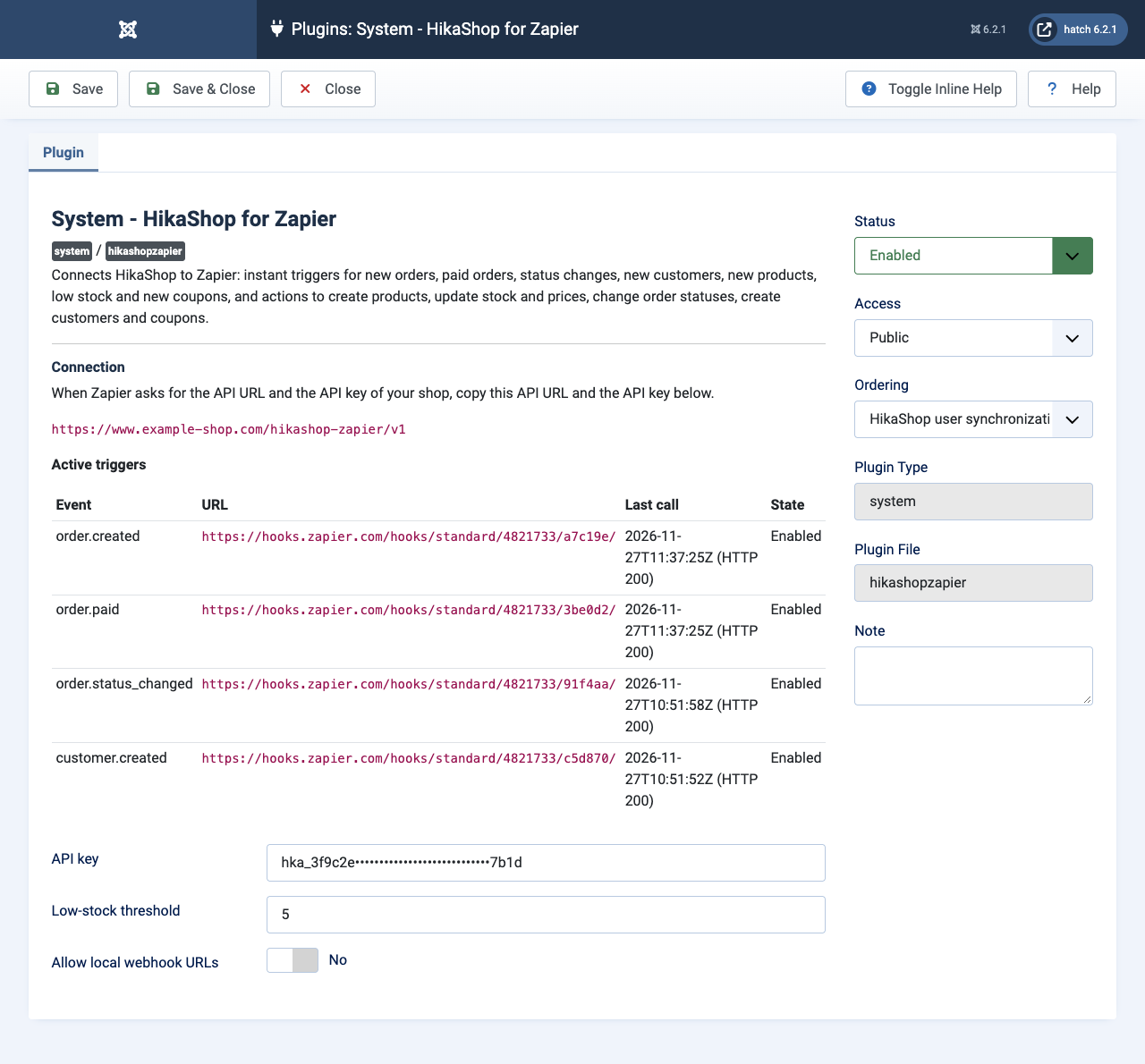
2-In your Joomla administration, go to System > Install > Extensions and upload the zip. The plugin is enabled and gets its API key during the installation.
3-Go to System > Plugins, search for "Zapier" and open "System - HikaShop for Zapier". The page shows the API URL and the API key you will give to Zapier.
On WordPress
1-Download hikashop-zapier.zip from the latest release.
2-In your WordPress administration, go to Plugins > Add New Plugin > Upload Plugin, upload the zip and activate it.
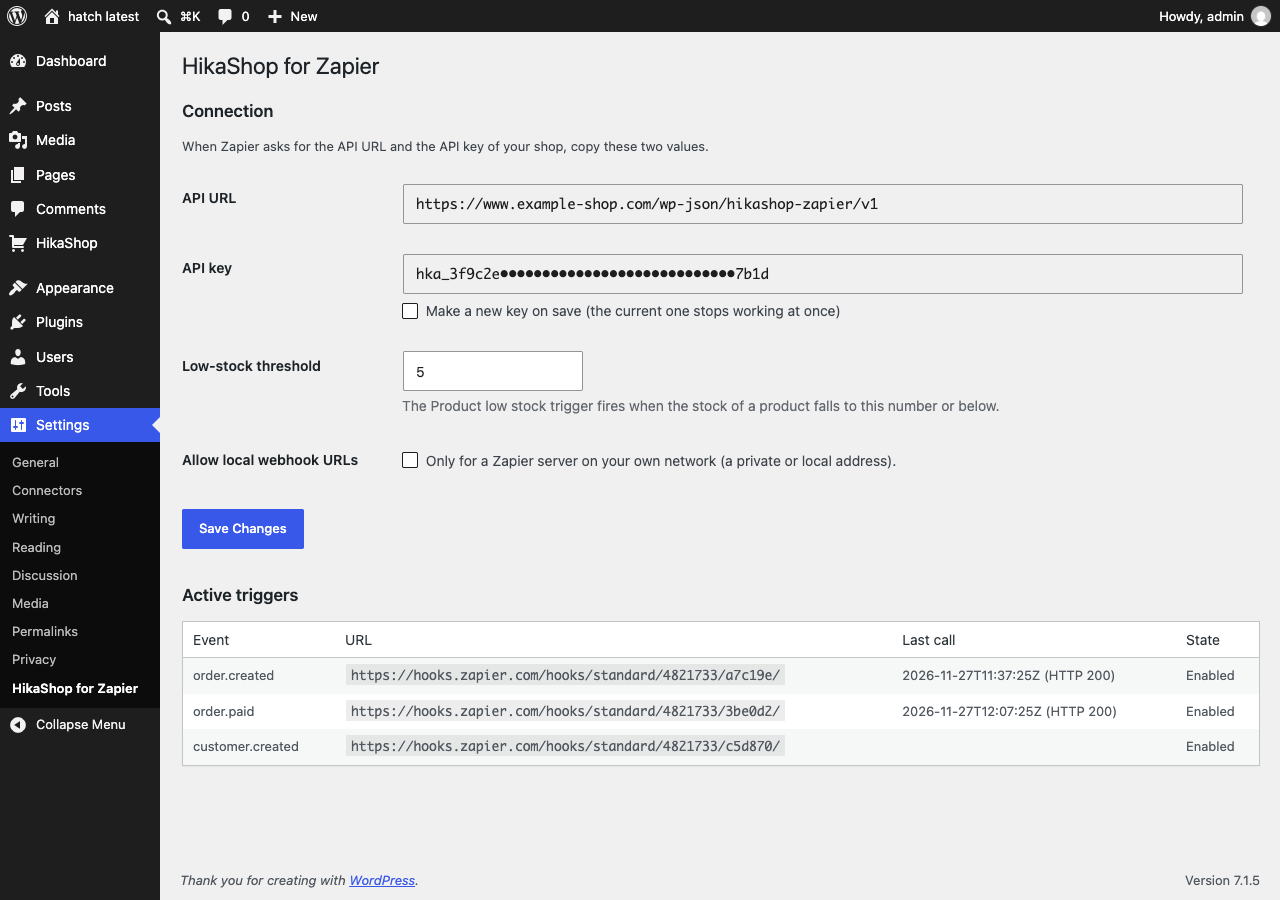
3-Go to Settings > HikaShop for Zapier. The page shows the API URL and the API key you will give to Zapier.
Connecting your shop to Zapier
The HikaShop app is in beta on Zapier: it is not listed in Zapier's app directory yet, so it is not found by searching for HikaShop in the Zap editor. Contact us to get the invitation link, which adds the app to your Zapier account. The steps below are the same once it is added.
1-In Zapier, create a Zap and choose HikaShop as the app of the trigger or of an action.
2-When Zapier asks you to sign in to HikaShop, copy the API URL and the API key from the settings of the plugin, paste them and continue. Zapier checks them at once: the connection is named after your site.
3-The connection is kept in your Zapier account, so you give these values only once, whatever the number of Zaps.
The API URL ends with hikashop-zapier/v1. On Joomla without URL rewriting, it contains index.php; on WordPress, it starts with your site address followed by wp-json, or ends with ?rest_route= when the permalinks are "Plain". Always copy it from the settings page rather than typing it.
Triggers
Every trigger is instant: when the event happens, your shop sends it to Zapier, which starts the Zap within a few seconds. Each trigger gives Zapier the whole record (the order with its customer, addresses and products, the customer with their address, and so on), so the next steps can use any of its fields.
- New Order: a customer places an order, whatever its payment status.
- Order Paid: an order reaches a status that HikaShop counts as paid. These are the statuses of the "Invoice order statuses" option of the HikaShop configuration, confirmed and shipped by default. It fires once, when the order becomes paid.
- Order Status Changed: the status of an order changes. Choose a status in "New Status" to start the Zap only for that one, for example shipped.
- New Customer: a customer account is created, by a registration, a guest checkout or in the backend.
- New Product: a product is created.
- Product Low Stock: the stock of a product falls to the low-stock threshold of the plugin settings or below. It fires once each time the stock goes below the threshold, not at every sale after that.
- New Coupon: a coupon is created.
When you test a trigger in the Zap editor, Zapier shows the three latest records of your shop, so that you can map their fields.
Actions
- Create Product: name (required), product code, price, stock, description, categories, weight and published. Without a product code, one is made from the name.
- Update Product Stock: the product, by its product code or chosen in the list, the quantity and the mode: set the stock to this quantity, add it, or subtract it.
- Update Product Price: the product and its new price, in the main currency of the shop, without tax. The other prices of the product (other currencies, quantity discounts, user groups) are kept.
- Change Order Status: the order, the new status, whether the customer gets the usual status email, and an optional comment added to the history of the order.
- Create or Update Customer: finds the customer by email, or creates them, and fills in the address with the fields you give. Empty fields leave the current values alone.
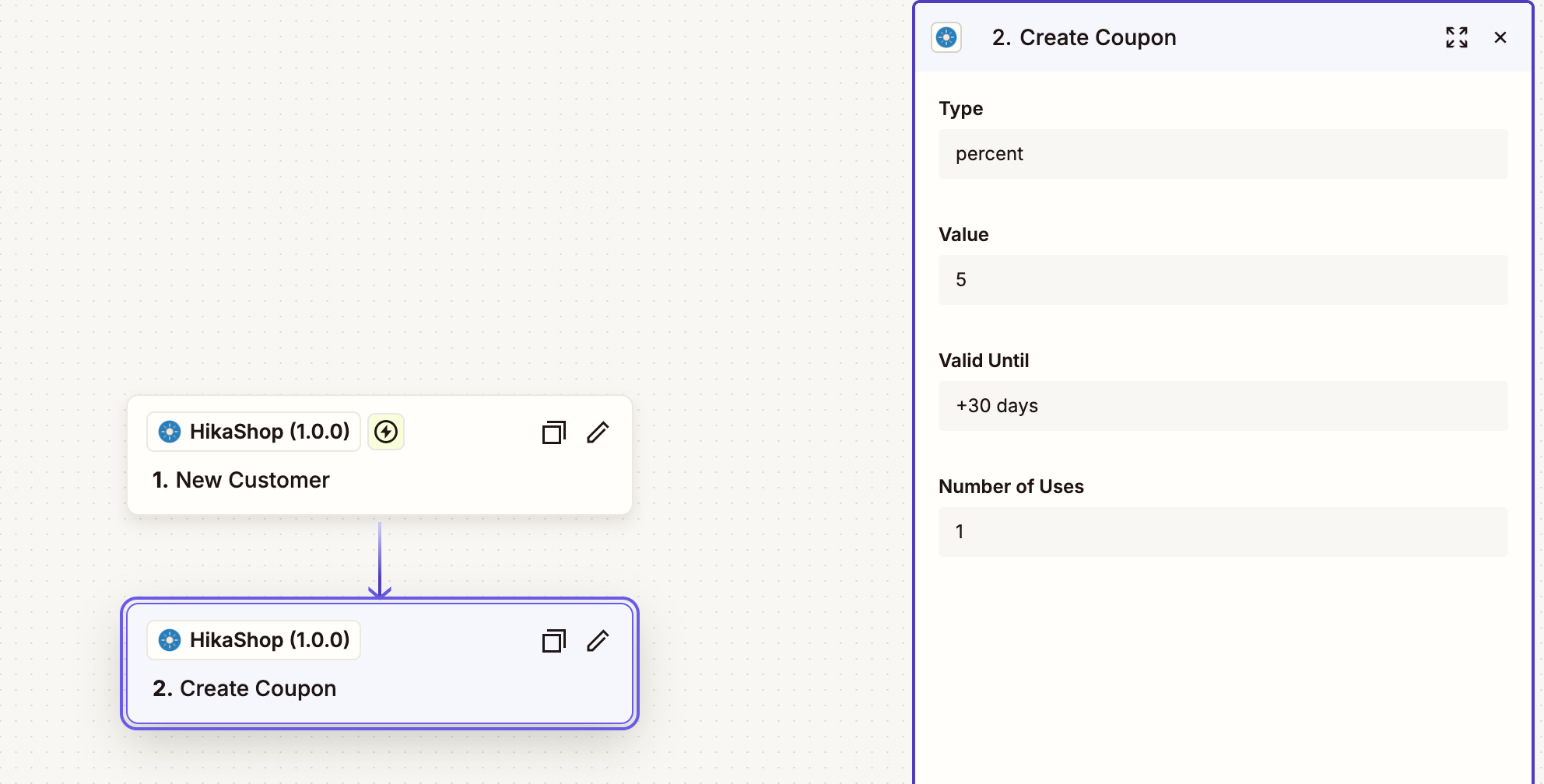
- Create Coupon: a percentage or a fixed amount, with an optional code (made for you when empty), dates of validity, number of uses and minimum order amount. Dates can be written as Zapier understands them, such as "+30 days".
Recipes
A few Zaps to start with. The first app is the trigger, the second the action; on the free plan of Zapier each Zap has these two steps.
Your orders in a spreadsheet
- Trigger: HikaShop, Order Paid.
- Action: Google Sheets, Create Spreadsheet Row. Map Number, Created At, Customer Email, Total, Currency and Payment Method to the columns of your sheet.
Microsoft Excel and Airtable work the same way.
A message to your team for each order
- Trigger: HikaShop, New Order.
- Action: Slack, Send Channel Message (or Microsoft Teams, Send Channel Message). For example: "New order {Number}: {Total} {Currency} from {Customer Name}, {Admin Url}". The Admin Url field opens the order in your backend.
A welcome coupon for each new customer
- Trigger: HikaShop, New Customer.
- Action: HikaShop, Create Coupon. Type Percentage, Value 10, Valid Until "+30 days", Number of Uses 1.
- Then a second Zap: trigger HikaShop, New Coupon; action Gmail (or your mailing tool), Send Email, with the code of the coupon. On a paid plan of Zapier, put the email in the same Zap as a third step and use the customer's email from the first step.
Your customers in your mailing list
- Trigger: HikaShop, New Customer.
- Action: Mailchimp, Add/Update Subscriber (or Brevo, Klaviyo, MailerLite). Map Email, First Name and Last Name. Make sure the customers agreed to receive your newsletters before you subscribe them.
An email to your supplier when the stock is low
- Trigger: HikaShop, Product Low Stock.
- Action: Gmail, Send Email (or Outlook). For example: "Please send us 50 more {Name} ({Code}), we have {Stock} left."
The stock from your warehouse sheet
- Trigger: Google Sheets, New or Updated Spreadsheet Row, on the sheet where your warehouse keeps the quantities.
- Action: HikaShop, Update Product Stock. Map the product code column to Product Code (SKU) and the quantity column to Quantity, with the mode "Set the stock to this quantity".
An invoice in your accounting software
- Trigger: HikaShop, Order Paid.
- Action: Xero, Create Sales Invoice, or QuickBooks Online, Create Sales Receipt. Map the customer, the items (Items Name, Items Quantity, Items Unit Price) and the total.
The shipping done in another tool
- Trigger: your shipping or warehouse app, for example a new shipment in ShipStation or a row marked "sent" in a sheet.
- Action: HikaShop, Change Order Status. Map the order number to Order, choose the status shipped and set "Email the Customer" to Yes so that the customer gets the HikaShop shipping email.
Customers from a form
- Trigger: Typeform, Google Forms, Jotform or your CRM (HubSpot, Pipedrive), New Entry or New Contact.
- Action: HikaShop, Create or Update Customer, with the email, the name and the address given in the form.
A task for each shipped order
- Trigger: HikaShop, Order Status Changed, New Status: shipped.
- Action: Trello, Create Card, or Asana, Create Task, for example to ask for a review a week later.
Settings
API URL: the address Zapier calls. It cannot be changed: it follows the address of your site.
API key: the secret Zapier gives with each call. Keep it private: whoever has it can read and change your orders, customers and products through the plugin. On Joomla, empty the field and save to get a new one; on WordPress, tick "Make a new key on save". The old key stops working at once, so reconnect HikaShop in Zapier (My Apps, HikaShop, Reconnect) with the new key.
Low-stock threshold: the stock at or below which the Product Low Stock trigger fires. 5 by default. Products with an unlimited stock never fire it.
Allow local webhook URLs: No by default, and it must stay No with Zapier. It is only for an automation server on your own network.
Below the settings, the list of the triggers in use shows each Zap that listens to your shop, the time of the last call and its result. You do not manage this list: Zapier adds a line when you turn a Zap on, and removes it when you turn the Zap off or delete it.
How the triggers are sent
- The event is sent at the end of the page that caused it, after the page has been shown to the customer, so the checkout is not slowed down.
- If Zapier cannot be reached, the shop tries again 5 times: after 1 minute, 5 minutes, 30 minutes, 2 hours and 12 hours. The retries are run by the cron of the site: the HikaShop cron task on Joomla (see the cron task page), WP-Cron on WordPress, so make sure it runs.
- After 20 failures in a row, the trigger is disabled in the list of the settings. Turn the Zap off and on again in Zapier to start it again.
- Each call is signed with a secret that Zapier and your shop share, and only goes to public addresses.
Troubleshooting
- "This is not the API URL of the HikaShop for Zapier plugin" when you connect: copy the API URL again from the settings page, entirely. It must end with hikashop-zapier/v1.
- "A valid API key is required": copy the API key again, without spaces. If you made a new key, reconnect HikaShop in Zapier.
- "This URL does not answer like the HikaShop for Zapier plugin": the plugin is not enabled, or a security extension, a firewall or a maintenance mode answers in its place. Open the API URL followed by /me in your browser: you must get a JSON answer saying that a valid API key is required. On WordPress, a security plugin that blocks the REST API must allow hikashop-zapier.
- A Zap does not start: look at the list of the triggers in use in the settings. No line for your Zap: turn it off and on again in Zapier. A last call with an HTTP code other than 200: Zapier refused it, look at the Zap history in Zapier. No last call at all: check that the event really happened in the shop (for Order Paid, that the new status is one of the paid statuses).
- Triggers arrive late: the first try failed and the retry waits for the cron of the site. Check that the cron runs.
- Product Low Stock does not fire: it fires when the stock goes from above the threshold to the threshold or below. A product already below the threshold fires again only after its stock has gone above it.