
|
|
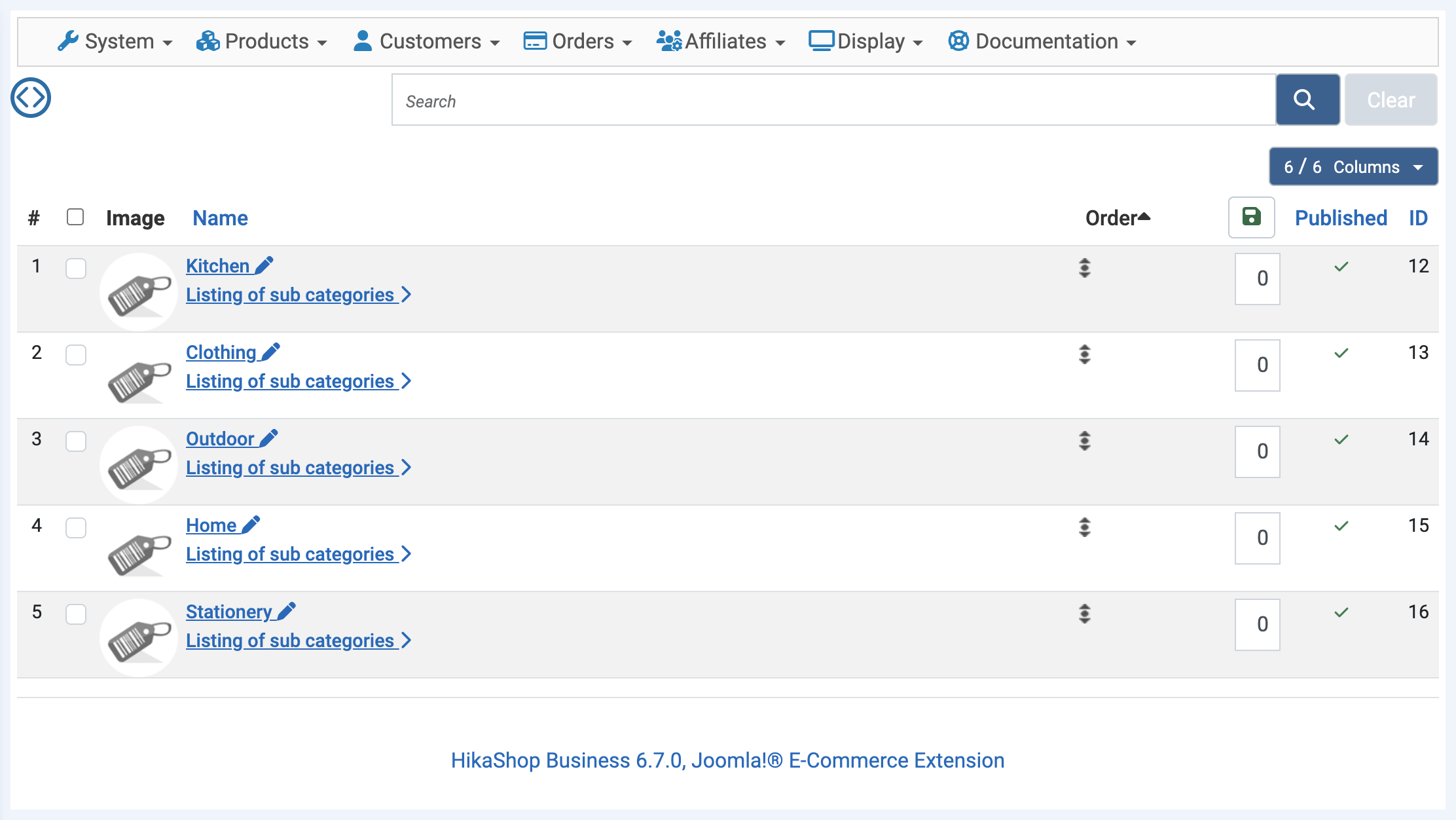
Description
This screen enables you to manage all your categories. In HikaShop, product categories, tax categories and order statuses are all managed the same way as categories. This enables you to easily manage all of them from the same interface.
Here, you will be able to publish the categories that can be used in your store. In order to make it faster for you to use HikaShop common order statuses are already entered.
You can sort your categories by any field, search using the "filter" box and directly modify some properties by clicking on the icons.
Toolbar

- Rebuild : By clicking this button, a process will rebuild your categories, this may sometime solve some issue with your categories.
- Import : Opens the import screen so that you can import categories from a file.
- Actions : Select one or several categories and use this button to run a mass action on them.
- New : Enables you to create a new category.
- Edit : Select a category and click on this button to edit it. You can also click on the pen icon next to its name.
- Delete : Select one or several categories and click on this button in order to completely delete them. The default categories cannot be deleted as they are necessary to the system. You can however tweak them based on your needs.
- Help : This button enables you to turn ON/OFF the help section; this screen will appear or disappear.
- Dashboard : You can go back to the dashboard using this button.
Column Headers

-
# : An indexing number automatically assigned for ease of reference.
-
Checkbox : Check this box to select one or more items. To select all items, check the box in the column heading. After one or more boxes are checked, click on the delete button in order to delete the selected categories.
- Image : The image of the category.
- Name : The name of the category. If you click on the name or on the pen icon, you will edit the category. The Listing of sub categories link below it lets you browse that category and see the listing of its sub-categories.
- Order : It enables you to order the categories of the current level the way you want: drag and drop them with the handle, or type the order number and click on the save icon of the column header.
- Published : If a category is published it means that it can be seen by your customers in your shop.
- ID : This field indicates the ID of the category.
Filters

Explorer
